
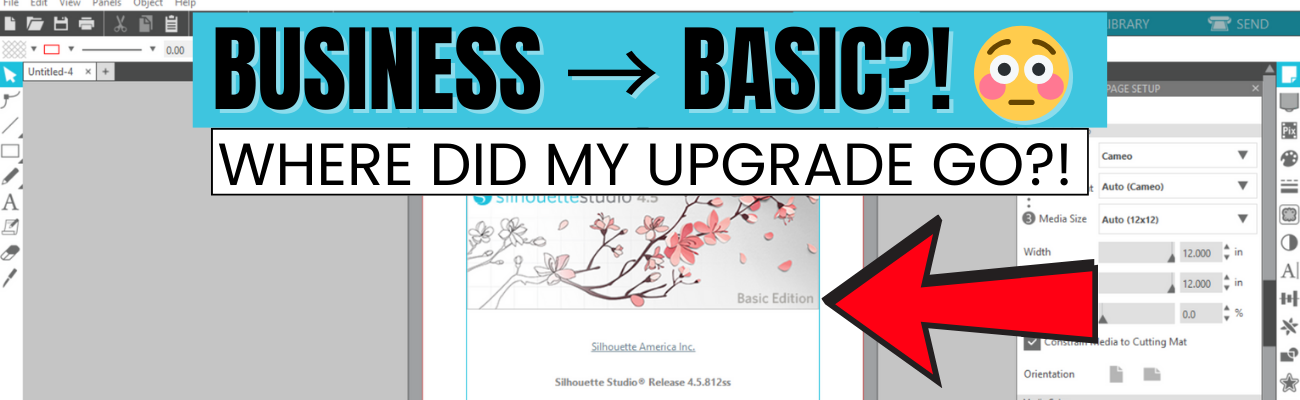

If you’re suddenly seeing Silhouette Studio revert from Business to Basic (or Designer Edition or Designer Edition Plus to Basic) and panicking because your Silhouette upgrade is missing, take a deep breath—you’re not alone, and you didn’t lose your purchase. This is one of the most common Silhouette software issues users run into, and it usually comes down to account login and/or activation, hiccups. In this post, I’ll break down why this happens, what to check first, and how to get your paid features back where they belong. I’ll also link to a detailed video on the Silhouette Secrets+ YouTube channel where I walk through the fixes step by step and share additional troubleshooting tips.
Affiliate links may be present in the following blog post and as an Amazon Associate, I earn from qualifying purchases.
The good news is – YOU can fix this easily. I am providing written information below and have also released a video on the Silhouette Secrets+ YouTube channel that can be found HERE.
Why Silhouette Studio software upgrades disappear?
The most common reasons for a software upgrade to disappear are:
- Silhouette Software version update – this does not happen every time you update software versions, but can happen
- Computer OS (Operating System) updates – this is on both Windows and MAC computers.
Computer OS updates can happen in the background without a user knowing it. - New computer – software upgrade activations are not automatically loaded when you install the software on a new computer
How to Activate a Silhouette Software Upgrade Easily
If you previously had a upgrade active and the Silhouette upgrade is missing, you can easily activate this again simply by going to the top left menu in Silhouette Studio, select Help > Apply Upgrade Edition.

Enter your email address and password associated with your Silhouette account.

At the time I am writing this and recorded the video, I am not recommending Silhouette Studio version 5 due to many bugs in it. If you have a Silhouette Cameo5α (Alpha), then you HAVE to use version 5 and we would recommend v5.0.402 as there a some major issues we’ve seen with v5.0.414.
For most Silhouette users, I am recommending v4.5.812 which the screenshots are from above.
Here is a look at Silhouette v5.0.402 and you can see you’ll find it in the same location, however, there is a new splash screen when you open version 5 that you cannot bypass. You can find the Help menu on the new Home Page or on the other tabs in the version 5 software.

If you have never activated a Silhouette software upgrade and you purchased it from a Silhouette retailer, you will first need to apply the upgrade to your Silhouette Account.
Please follow these steps to apply the code.
- Log into the Silhouette America website HERE.
- Move to the top right and move the mouse over the person icon, select My Account.
- On the left side menu, choose License Keys and apply the Silhouette software upgrade code.
- Then follow the instruction shown above to activate the code in the Silhouette Studio software.
This new method of easily activating the Silhouette software upgrades is available in any version of Silhouette v4.4.552 or higher.
Missing Tools & Features in Silhouette Studio?
This is the most common reason Silhouette users notice that a software upgrade has reverted to Basic Edition.
You can easily check what software version and upgrade is active on your Silhouette Studio software and determine if your Silhouette upgrade is missing and not active.
Instructions for Windows users:
- Click on Help in top left menu
- Then choose About Silhouette Studio
Instructions for MAC users:
- Navigate to the top left of Silhouette Studio and select Silhouette Studio in the menu
- Then select About

This About window will tell you what version is open and the upgrade that’s active.
If you have a Silhouette software upgrade and it is currently showing Basic Edition in this window, please follow the instructions above to activate the upgrade on your computer.

Silhouette Studio Upgrade Information
Silhouette Studio software upgrades are a one time fee and you do not have to purchase again if it disappears.
The Silhouette upgrades can be active on up to 3 computers or 3 active devices.
With this new system, if you have 3 devices active and log into a new device or Silhouette Web, it will deactivate the software upgrade on the device that is oldest used date. This means you can easily activate the software upgrade on multiple devices, but it will only be active on up to 3 devices at one time.
Something new to mention here is that the new Silhouette Web (still being developed and in beta as I write this), that counts as one of the activations of the software upgrade license. This technically means that if you are logged into Silhouette Studio on your device and you log into the Silhouette web (web based software) on the same device, that it will use 2 software upgrade codes, even though it is the same device.
This is not an issue, but it can catch you off guard when you see the message that one device will be deactivated if you exceed the 3 upgrade log ins.

Silhouette Web is a web based program that allows users who do not have a full computer operating system, such as a Chromebook to connect to a Bluetooth enabled Silhouette machine. It does not have the full Silhouette Studio software option. However, it does have some different features than Silhouette Studio and some of these are only available with a software upgrade. At the time I am writing this, it is still being developed and is changing.
I don’t feel it is stable and there are bugs and issues with it, so I have not done any tutorials with it. To be honest, if you have a computer with Silhouette Studio, I would recommend that to design in.
Another thing to mention here is, if you do decide to try it out, for MAC users, please note that you cannot cut directly from Silhouette Web. This is due to restrictions from Apple that it will not allow a web browser to connect to any outside systems. For Apple users, you would design in Silhouette Web, then open in Silhouette Go (mobile app) in order to connect to a Bluetooth enabled Silhouette machine in order to cut.
Troubleshooting Silhouette Upgrade Activation
If you encounter issues when trying to activate a Silhouette software upgrade, there are a few steps you can do before contacting Silhouette Support.
- Try again to log in with the email and password to make sure there was no mistypes or missed keystrokes.
- Log into the Silhouette America website HERE. Select My Account under the person icon in the top right > License Keys and do you see your software upgrades?
- Log into the Silhouette Design Store website HERE. Can you log in at both websites? The email and password has to be the same on both sites and in the Silhouette library.
- If you cannot log in to those 2 websites or the information is not the same on both sites, you can try resetting your password.
The password reset is supposed to send a OTP (One Time Password) to your email account. Since the website migration (May 2024), there are issues with this and the OTP does not always come through.
If you still cannot log in or cannot reset your password, then you will need to contact Silhouette Support – support@silhouetteamerica.com
Tips for Contacting Silhouette Support
If you encounter any issues with your Silhouette account and the steps above have not resolved those, you will need to contact Silhouette Support.
Silhouette Support is the only one that can access your account information and investigate or reset things for you.
Here are some tips to help you get resolutions faster:
- Email Silhouette Support at support@silhouetteamerica.com – we often have seen users complain they are not getting responses and they didn’t actually contact Silhouette, but had a mistype in their email submission
- Provide as much information about the issue you are encountering as possible. Be clear and concise and provide the exact issue encountered as well as the steps you have tried already.
- Do not email simply stating “I can’t log in.”
That will not get a quick resolution and can be a million different issues. - Provide photos of what you are seeing so the support agent will hopefully understand what you are experiencing.
- Follow any instructions and respond to the Support agent with descriptive information on what you did.
- Continue to contact Silhouette Support until the issue is resolved.
Don’t be surprised if you get an AI response. This is new and it is Silhouette Supports “quick response”. It will be sent on to an agent after the AI response has been sent. Follow the instructions sent and reply back to their communication.
Don’t be surprised if the Silhouette Support Agent responds with the same response as the AI bot. This is not unusual. Both the AI bot and Support Agent use the Silhouette FAQ to provide initial responses. This is why it’s so important that a user provides as much information as they can when they first contact Support.
Remember that contacting Silhouette Support and stating a basic issue such as “I can’t log in.” or “My machine isn’t cutting.” does not give the Support agent enough information to provide a good troubleshooting answer and they have to start at a million reasons and narrow it down to 1. That can take time and a lot of back and forth with Support. The more information you can provide, the faster your resolution will be … hopefully.
I have also included this information in the Silhouette Studio Business to Basic?! Why Your Upgrade Disappeared & How to Fix It video on the Silhouette Secrets+ YouTube channel. I would recommend viewing it as well, there may be points that I’ve covered that may click better on the video for some users.

This is one of the most common issues we see users encounter. I hope those tips have helped!
Looking for additional Silhouette Troubleshooting? I have been teaching Silhouette and troubleshooting Silhouette issues since 2016. We have seen a lot of changes and have helped a lot of users. I have launched the new Creative Community with EllyMae where I provide troubleshooting assistance and exclusive monthly tutorials. Find more details on that HERE.
I also have step-by-step classes to help you learn the Silhouette software and your machine – find those HERE.
As well as additional resources and tutorials on the Silhouette Secret+ website. Check out the A to Z Resources HERE.
Save this for future reference by pinning the image below.

Enjoy !
THANK YOU for your support! How can you help? Click HERE & buy a coffee.
Every little bit helps with the cost of running the site.

Silhouette Classes
Never stop learning! Let me help you take the anxiety out of learning with Silhouette and get to creating faster! My Silhouette classes are heavily focused on software, so you can take the skills & techniques taught and apply them to many future projects!


**This post may contain affiliate links. What that means is that I may receive compensation if you purchase through the links I have provided. The price you pay for the product or service is not higher but I may get compensated for sharing.
Discover more from Silhouette Secrets-Swift Creek Customs
Subscribe to get the latest posts sent to your email.











