
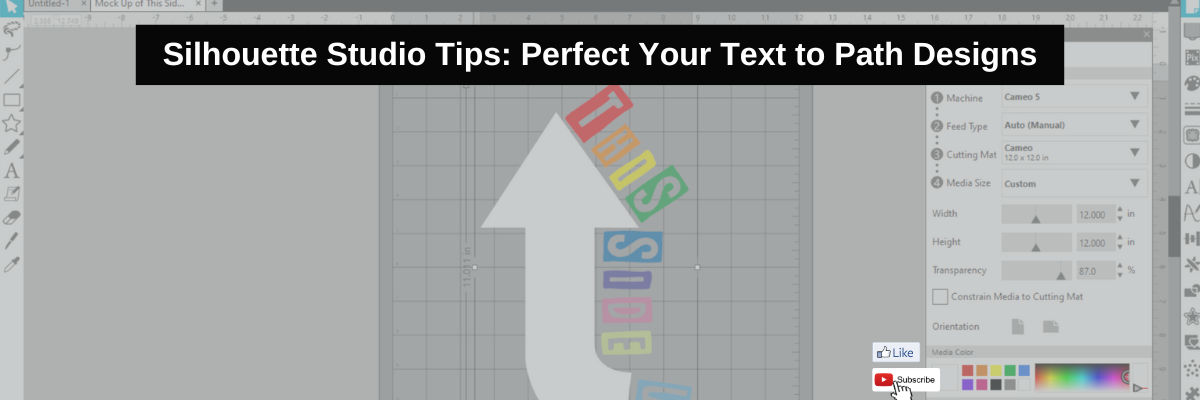

Have you ever wanted to add text along a shape? A circle? Or even just along a wavy line? The Silhouette Studio software has just the tool and it is available for everyone! It’s called Text to Path and I have a new video tutorial out showing how I used this to create a fun t-shirt.
Affiliate links may be present in the following blog post and as an Amazon Associate, I earn from qualifying purchases.

This design was created in Silhouette Studio and I have a few tricks to show you. I used 1 arrow elements from a stencil/background design by Sarah Hurley and used it as my base to build on.

A few more tips came to mind after the video was recorded that can help you with Text to Path in Silhouette Studio for your future projects.
What is a Path?
A path is any line in Silhouette Studio. This can be a single line, a closed shape, a design. The red “cut” lines you see in the Silhouette software around a design are “paths”.

The Text to Path tool works for text only and not designs around a shape. If you want to add a design to a shape, you can use the Replicate – Object to Path tool in Silhouette Studio.
Find more details on Replicate – Object to Path HERE.
If 2 or more “paths” are close together, it can get take some work to get the text to snap to the shape you want. The text may jump back and forth to the path you don’t want it on.

Sometimes it can be easier to work with individual shapes and then put the design together after the text to path has been added.
Text Styles for Text to Path
There are millions of different font styles out there and each one can act a bit differently when added to a path. Every font style is unique and that means it can have different spacing, characters, glyphs, etc. However, it’s not just the font style, but can be the font style in combination with the shape/path that it’s added to.

In the photo above are 3 examples of different font styles and how they can vary when added to a path. Probably the most difficult font styles to add and adjust so they look pleasing are scripty fonts. Since text has to be in editable mode, you cannot weld the font together prior to adding it to a path. Once it’s added to a path, the spacing may not look right for the script to connect.
Not all font styles will look good when added to a shape or path or they may need some additional manual manipulation to adjust.
Editable Text Mode – #1 Tip for Text to Path
The biggest factor for adding text to a path is that the text HAS to be in editable text mode. This means that you type the text out and immediately add it to path. It cannot be changed in any way such as welding, ungrouping, release compound path, etc. When text is modified in any of those manners, it is no longer editable text and you will not get the Text to Path Control point on the bottom left of the text box.

In the same manner, text designs cannot be added to a path since they are not editable text, but are vector designs.
Text to Path Video Tutorial T-shirt Design Creation
Check out the new video tutorial on the Silhouette Secrets+ YouTube channel HERE.

Want to learn even more? Here are a few more tutorials and resources of the tools I used in the video linked above.
- Text to Path Tips video & written tutorial
- Demystify Compound Paths in Silhouette Studio Live video tutorial
Please let me know if you have any questions in the comments below.
Save this for future reference by pinning the image below.

Enjoy !
THANK YOU for your support! How can you help? Click HERE & buy a coffee.
Every little bit helps with the cost of running the site.

Silhouette Classes
Never stop learning! Let me help you take the anxiety out of learning with Silhouette and get to creating faster! My Silhouette classes are heavily focused on software, so you can take the skills & techniques taught and apply them to many future projects!


**This post may contain affiliate links. What that means is that I may receive compensation if you purchase through the links I have provided. The price you pay for the product or service is not higher but I may get compensated for sharing.
Discover more from Silhouette Secrets-Swift Creek Customs
Subscribe to get the latest posts sent to your email.












Great tute Elly! Thank you 🙂
Thank you and you are welcome!