
We have seen some major changes to the Silhouette Design Store the past couple years and they are continuing to improve on it since the website migration that didn’t go as planned. Not only have we seen improvements in the Silhouette Design Store, but in general there have been some major changes in the world. AI has now become a big deal world-wide. For this blog post we are referencing AI specifically for designs for cutting machines. There has been a big jump in AI created designs and AI designers in general.
Affiliate links may be present in the following blog post and as an Amazon Associate, I earn from qualifying purchases.
AI designs are supposed to be labelled so the person buying the design or using the design knows that it is AI. That was one of the recent updates at the beginning of 2026 to the Silhouette Design Store. Now all designs have to be labelled as either AI assisted or Fully AI generated. This is something that is filled out by the designer when they upload the file. When this was added into the Silhouette Design Store in January 2026, designers were notified to update their files.
This information can be found in the design information under the title of the design in the Silhouette Design Store. It will be labeled as AI assisted or Fully AI generated. This is something that the designer has to input when they upload designs and is completely the designers responsibility.

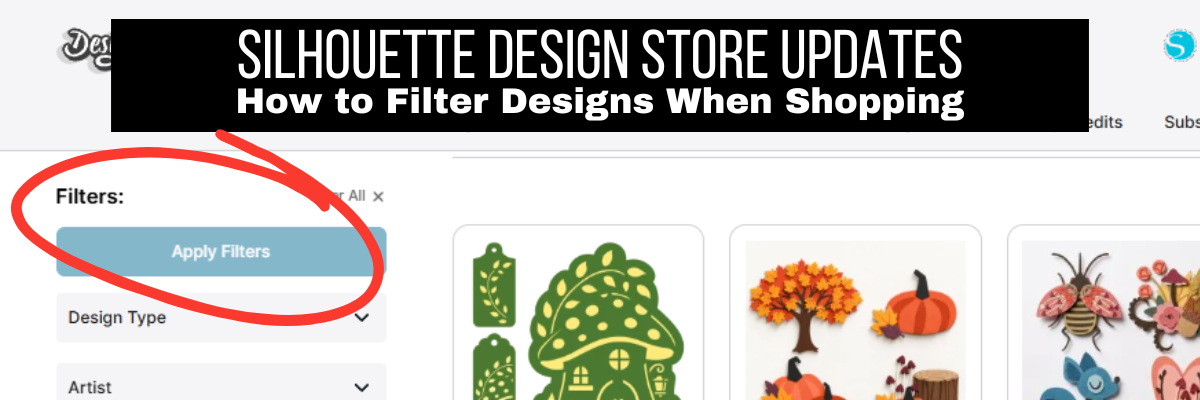
In addition to the new labelling which was implemented in January 2026, there is now the option to filter designs based on criteria such as AI, CU (Commercial Use), File Type, etc.
At the time of writing this, the AI filter is not available under all menus, but it is available under some of the categories such as “Designs” tab at the top of the website.

Something to note here is that these screenshots are taken the day this blog post is composed and changes to the Silhouette Design Store website can occur at any time. The information should be relevant, even if the location of the items might change compared to the screenshots.
At the time that I write this, the AI filter is not available if you do a search by keyword on the website, however, I have asked that it be added to all of the website locations.
I share a few more details and show a demonstration of selecting by filters in this video.
I still continue to shop in the Silhouette Design Store and support my favorite designers. I purchase Credit Boosts so my credits do not expire and are ready for use whenever I am looking for something. I also watch for sales on Credit Boosts, which can get you even more credits per level purchased.
If you find a designer that you want to “bookmark”, you can add them to your “Artists I Follow” section on the Silhouette Design Store. You will need to be logged in so it remembers your account.
Then you can click on the Follow button under the designers store or on an individual design, scroll down and locate the designers name and you should see a “Follow” button.

Here is a look at what my “Artists I Follow” looks like today. I had to zoom out quite a ways to show them all. But, I do spend a lot of time looking at designs and planning what might work for the Silhouette Secrets+ newsletter Crafting Creativity series.

I hope these tips have helped and you are able to narrow down the designs easier for something you might like.
Additional Resources:
- File Types for Silhouette Explained
- Crafting Creativity Series
- Creative Community with EllyMae | Crafting & Troubleshooting Subscription
- A to Z Silhouette Resources
Save this for future reference by pinning the image below.

Enjoy !
THANK YOU for your support! How can you help? Click HERE & buy a coffee.
Every little bit helps with the cost of running the site.

Silhouette Classes
Never stop learning! Let me help you take the anxiety out of learning with Silhouette and get to creating faster! My Silhouette classes are heavily focused on software, so you can take the skills & techniques taught and apply them to many future projects!