
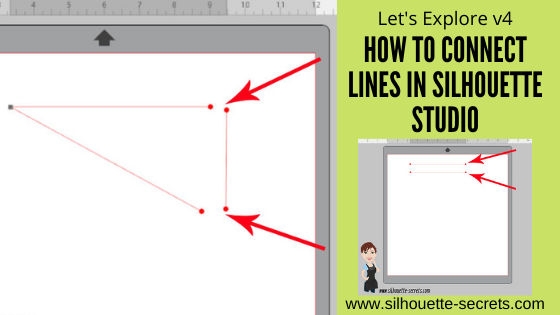

Have you ever wanted to connect 2 lines together in the Silhouette Studio software?
Two shapes are pretty easy with the Weld tool. Since they are closed shapes, when the shapes overlap, weld can be used to join those shapes and make them cut as one continuous line.
But what happens when it’s just line objects and not closed shapes?
Let’s start with a simple example.
Using the Line drawing tool on the left side, draw a line.
Tip: hold down the Shift key to draw a straight line
Then either make a copy of the line or draw another line.

Next select both lines together.
Tip: Either left click and hold the mouse button down. Then drag across both objects to drag select. Or click on one object, hold the Shift key down and click on the next objects you want selected.

When multiple objects are selected, you will see selection boxes around each object that is selected.
With both lines still selected, right click and choose Make Compound Path.

Tip: Make Compound Path can also be found under the top menu Object > Make Compound Path or the Modify Panel on the right side
Next, double click on the lines and it should bring up the Edit Points.
You will see red dots at the ends of the lines. Red dots mean an end point.

If you ever see a red dot in a design once the edit points have been brought up, that means it’s a broken line. The cut will stop where that red dot is and lift to go to the next cut line.
To connect the 2 lines, double click the red dot to activate it and drag one red dot to another. They will snap together and close.

Once they connect, the dot changes from a red dot to a square, gray edit point.
And that’s it.
Now, in this example the 2 lines are connected.
It is still not a closed shape, since there are 2 red dots.
Draw another line to connect those 2 lines together.

Follow the steps above to connect the red dots to make a closed shape.

Now the shape is fully closed and will cut as one solid line.
Using Edit Points can increase what you can do with designing.
Check out this post – Let’s Explore v4 – Edit Points for more details on edit points and the Edit Points Panel.
The best way you can remember this is to practice. Just draw out a couple of lines on the design screen and connect them together.
Save this for future reference by pinning the image below.

Enjoy !
THANK YOU for your support! How can you help? Click HERE & buy a coffee.
Every little bit helps with the cost of running the site.

Silhouette Classes
Never stop learning! Let me help you take the anxiety out of learning with Silhouette and get to creating faster! My Silhouette classes are heavily focused on software, so you can take the skills & techniques taught and apply them to many future projects!









