Today we are on to Tab 2 of the Transform Panel – the Scale tab. This is another tool I use almost every time I open my Silhouette program.
Just like almost all the other tools, there are many ways to do things in the software. While you can grab the corners of the Selection box and drag your design to the correct size, sometimes you need a more accurate measurement of your design.
For instance, I am making these stencils for my husband to use in a woodworking project and he wants a maximum of 6.5 inches for the design, so it fits on the board he has. With the Transform Panel, it is possible to achieve this easily.
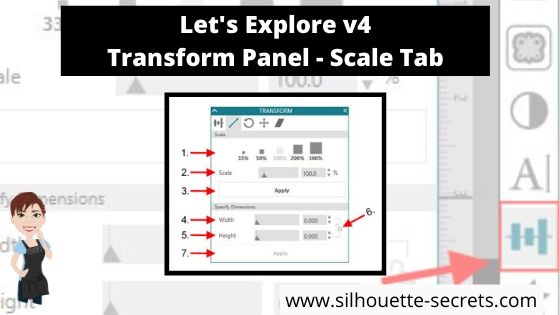
Let’s take a look at the Scale Tab.
Scale by percent – There are a couple of preset percentages that you can choose for quick resizing of an object. Anything below 100% will decrease the size and higher than 100% increases the size.
Adjustable Scale – Highlight the number in the box and choose your custom percentage to resize the design.
Apply – After changing the customized Scale option, click Apply (or hit Enter).
Width – Highlight the numbers and replace or use the increase/decrease arrows to a specific dimension.
Height – This works the same as the width, highlight the numbers and replace or use the increase/decrease arrows to a specific dimension.
Lock Aspect – This is a very important icon! The default is set to the unlock position. If you want to keep the proportions of a design the same when you resize it, click this icon to change it from unlocked to locked .
What does that mean? If I change the Width of my design while it is unlocked, then it will adjust only the width of the design and I end up with some distorted shape the design. You can see here that now my state of Montana design, does not look how it should.Versus if I click on the Lock Aspect and lock it in, then it will adjust both the width and the height, keeping the proportions the same.
That makes quite a difference in the design.
Apply – After making changes to the Width and Height you can click on Apply or hit Enter for the software to make the changes.
And now you have a better understanding the Scale Tab found under the Transform Panel in Silhouette Studio v4.
You can also find some of these tools in the QAT (Quick Access Toolbar) at the top of you program when your design is selected. How it appears on your screen, will be dependent on your screen size and you will notice that each person’s varies for that reason.
Some of the tools will have a fly out box and others will be fully visible as my width & height are.
I hope you take a few minutes to check out this Scale panel and see what it’s all about!
Check out the other posts in the Let’s Explore v4 Series HERE.
Save this for future reference by pinning the image below.
I would love to see what you are creating with your Silhouette! Feel free to join my Facebook group – Silhouette Secrets+ with EllyMae and share!
Enjoy !
THANK YOU for your support! How can you help? Click HERE & buy a coffee. Every little bit helps with the cost of running the site.
Looking for more in-depth, step-by-step classes, check out all of my online Silhouette classes on my Teachable site HERE.
**This post may contain affiliate links. What that means is that I may receive compensation if you purchase through the links I have provided. The price you pay for the product or service is not higher but I may get compensated for sharing.
THANK YOU for your support! How can you help? Click the link to buy a coffee. Every little bit helps in the cost of running the site.



 to a specific dimension.
 to locked
  .
. 
 Versus if I click on the Lock Aspect and lock it in, then it will adjust both the width and the height, keeping the proportions the same.









