Posted on 1 Comment

Master the Nesting Panel in Silhouette Studio

Silhouette Secrets+ with EllyMae

Affiliate links may be present in the following blog post and as an Amazon Associate, I earn from qualifying purchases.

Let’s Explore v4 Tutorial – Nesting Panel in Silhouette

If you have the Designer Edition upgrade to the Silhouette Studio, the Nesting Tool is available in the software.

This feature allows you to “nest” the design together to either conserve material or create a new design.

Nesting feature copy

Let’s Explore the Nesting Panel.

Nesting detailed copy

Set Selected Shape as Boundary – Select a shape to be the nesting boundaries.
Make copies of the design across the page, then draw a rectangle.

Set Selected Shape as Boundary1

Select the rectangle and choose Set Selected Shape as Boundary.


Set Selected Shape as Boundary

The rectangle turned blue and is now the nesting boundary. Then select all the designs and choose Nest.

.Set Selected Shape as Boundary3

It will nest the design within that shape.

Use Cut Area or Use Selected – With a shape selected as a boundary, the “Use Selected” option is checked.

Use Selected

If the entire page size is being used, then the “Use Cut Area” is checked.

Use Cut Area

Only Shapes on Media – Choose whether you want to include all the designs that are on the design page, no matter where they are, such as the holding area or only designs on the Media.With Only Shapes on Media checked, it will only nest the designs showing on the design mat.

Only Shapes on Media

If Only Shapes on Media is unchecked, then it will nest all the designs, no matter where they are on the page.


Only Shapes on Media2

Align – This will align as many designs with each other as possible. Here align is unchecked and the Rotations is increased to 4.

Align1

With Align checked, it gives a different nesting option.


Align2

Padding – Increase or decrease the amount of space between each design when it’s nested.Above the Padding is at 1 and below the padding has been changed to 5 and allows extra spacing or padding between each design.

Padding

Rotations – Choose how many times a design can be rotated to make it nest with another design. Here the rotations have been increased to 12 and changes the nesting a little bit.

Rotations

Nest – Choose this when you are ready for the design to nest according to the settings you have chosen.

    Why would you use this?

    Do you have a piece of material that is 5″ x 7″ and you want to fit as many of a design as you can on the material without manually adjusting each design? The nesting tool will help, let the software work for you.

    Material size

    Or how about nesting a design within a larger design?

    Shape filled

    This would be a great start to filling the shape with words and then you can add more to it.

    Keep in mind that you do need the Designer Edition software upgrade or higher to access this feature.

    Designs used in this post:
    I Love Wine by Sophie Gallo Design #208790

    Have fun playing with this fun tool!

    Check out the A to Z resource to learn even more about Silhouette HERE.

    Save this for future reference by pinning the image below.

    Screenshot of Silhouette Studio showing the Design Page Nesting settings with options for boundary selection and cut area usage, featuring a design with text and heart motifs.

    Enjoy !

    THANK YOU for your support! How can you help? Click HERE & buy a coffee.
    Every little bit helps with the cost of running the site.

    Silhouette Classes

    Never stop learning! Let me help you take the anxiety out of learning with Silhouette and get to creating faster! My Silhouette classes are heavily focused on software, so you can take the skills & techniques taught and apply them to many future projects!

    Silhouette step-by-step Classes by Silhouette Secrets+

    Silhouette Secrets+ with EllyMae
    **This post may contain affiliate links. What that means is that I may receive compensation if you purchase through the links I have provided. The price you pay for the product or service is not higher but I may get compensated for sharing.

    Posted on 42 Comments

    Let’s Explore v4 – Modify Panel – Compound Paths Explained

    Silhouette Studio - Compound Paths

    So last week we talked about the differences in welding, subtract, subtract all, intersect, divide and crop in the Modify Panel – Tab 1. This week we are moving on to something that I think is very often more confusing than it should be – Modify Panel – Part 2 – Compound Paths.

    First, if you are just joining us, the Modify Panel is on the right side of the Silhouette Studio v4 software.

    Modify Panel copy

    Last week we dove into the top section of the panel under the Modify header and this week we are going to look at the bottom section – Compound Paths and Detach Lines.

    Modify Panel details copy

    So first, what is a compound path?

    A compound path is a way 2 shapes interact with each other.

    For example – let’s look at the letter ‘O’.

    Compound path explaination.

    The letter ‘O’ is made up of 2 ovals on top of each other that are a compound path (left). If you release the compound path, then you have 2 ovals stacked on top of each other (right).

    Both of these will still cut the same, but a compound path design when filled with color, will look more like the end result of what you are cutting.

    Let’s take another look:

    Compound path example

    I have used the USA State Dingbat Font by Sandi Idleman in the Silhouette Design Store, to create my state shape. Then I used the Text Tool to write out Montana and placed it across the design.

    On the top, the 2 designs are layered on top of each other, they are treated as 2 designs.  The middle design is still just 2 designs that have been filled with a color. And the bottom design I selected both shapes and choose Make Compound path. This has taken and cut the Montana out of the bottom state shape, now they are one design.

    Now, let’s look at them on the Send Panel.

    Compound path Send panel

    They all have the same bold cut lines. All of them will cut the same, the difference is how they look in the software when you are designing.

    Now that we know a little more about how the Compound path works, let’s finish the Modify Panel.

    Modify Panel details copy

    7. Make Compound Path – This will take 2 or more designs and combine the paths making them 1 design.

    For instance, some files from the Silhouette Design Store will open and you will notice if you fill it will color, that it looks odd. This is a Camera design by Amy Tangerine – Design #181402.

    Make Compound Path

    All of these camera designs will cut the same, but how they look on the design screen is affected by choosing Making Compound Path.

    8. Release Compound Path – This will take 1 design and releasing it into multiple shapes.

    For example, if I wanted to use this Fish Mandala design by Zigi Design Studio but I just want the outline of it, I can choose Release Compound Path.

    Fish compound path demo

    This will take the design from 1 layer and release all the layers. You may need to Ungroup the Design at this point, it just depends on how the Designer created and saved the file.

    Ungrouped

    Now, you can see all the selection boxes that are highlighted. The Compound Paths have been released and it is now in many layers.

    Note: When you do this on such a complex design, it increased the amount of data in that file because each piece is now an individual layer. So keep that in mind when you do this, in case your computer seems sluggish or with a really complex design, you may get a Not Responding message. It’s a lot of date, so be patient.

    Outline pulled away

    There are many reasons why you would want to do this and it can be helpful to know how to “break up” a design by releasing the compound paths.

    With these tools, you can make the designs you have go farther.

    Make compound path fish copy

    For example, after I released the Compound Path and moved the outline away, then I could add text in the middle of the design, select both and choose Make Compound Path and it would then cut the Montana text out of the center of the fish.

    9. Detach Lines – If the image is filled with color, this option will separate the colored parts of the design from the lines of the design. This is a Spring Butterfly Set by Sophie Gallo – Design #56994.

    Detach Lines

    You could use this option when doing a Print and Cut project versus changing the line color on each design.

    If you click on the Send tab, you will see that they both have Cut lines on the design, but one is the lines and one is the image with the fill.

    Detach Lines Send tab

    Here is the same idea but the Butterflies were filled with a pattern and then detach lines was chosen.

    Detach Lines pattern

    And there you have all the tools in the Modify Panel. Check out Part 1 of the Modify Panel HERE.

    Modify Panel - Part 2

    Now, the best way to learn is to play, play, play. Go find a design and see what compound paths do!

    Share with us what you create with your Silhouette – post photos on my Facebook group at Silhouette Secrets+ with EllyMae.

    Enjoy !

    THANK YOU for your support! How can you help? Click HERE & buy a coffee. Every little bit helps with the cost of running the site.

    Looking for more in-depth, step-by-step classes, check out all of my online Silhouette classes on my Teachable site HERE.

    SS Logo snip it

    **This post may contain affiliate links. What that means is that I may receive compensation if you purchase through the links I have provided. The price you pay for the product or service is not higher but I may get compensated for sharing.

    Posted on 12 Comments

    Let’s Explore v4 – Replicate Object on Path

    Replicate Panel – Object on Path

    I am sure you have seen other projects where people had a design replicated multiple times in a shape and you’ve said “How did they do that?”

    Well, today we are going to explore how to do that right in the Silhouette Studio v4.

    The Replicate Object on Path tab can be found under the Replicate Panel on the right side and is tab 3 on the panel.

    Replicate Object on Path copy

    First add the design and the shape you want the design to follow onto the design mat.

    For this design, I drew a heart using 2 circles and a square turned 45 degrees, then placed them overlapping and welded them. I resized the heart down to a manageable size. And then drew a perfect circle by holding down my Shift Key and dragging my Draw Ellipse tool out.

    Replicate Object start

    Now let’s take a look at the Object to Path tab.

    Replicate Object detailed copy

    1. Show Grab Handle – Click on the Object you want to move to the shape to select it, then click on Show Grab Handle button in the panel. A grab handle will appear in the object and you click and drag that towards your shape.Show Grab Handle copyWhen you drag it on to the shape, it will replicate copies of that object around the shape. And you get another little circle (drag handle) on the shape to the right of the original object. By clicking and dragging on this drag handle you can increase or decrease the spacing between the objects on the path, this will also change the number of objects around the shape.

      *If for some reason the object will not snap to the path, try this – right click on it and choose Make Compound Path. Sometimes strange things happen and even though a design isn’t really a compound path at all, this seems to work to help it to decide it can snap to a path. 

      Drag to shape copy

      Here I moved the drag handle so there is more space between the objects. Notice that the numbers change on the panel as well under the Position.

      Drag copies copy

    2. Perpendicular – Change the orientation of the object on the path by leaving this box checked or un-check it to change the angle of your object.Perpendicular copy
    3. Start Angle – Change the rotation angle of your object on the path to an exact angle.Start Angle copy
    4. Increment Angle – Change how each object is placed in relation to the previous object. In this case, each heart is rotated 90 degrees from the previous heart.Increment angle
      This creates a pattern of your design around the shape. With this option, you can make many variations of the same design.
    5. Start Position – Change the position of the original object on the shape by changing. In this photo, I have changed the position to 0, which places the original object at the 3 o’clock position. You can also move the grab handle on the original object and move it manually too.Start Position copy
    6. Section Length – Changes the length between the beginning and end object on your path.Section Length copy
    7. Number of Repeats – Change the number of times the object is replicated on the path.Number of repeats copy
    8. Step length – Change the distance between each object on the path by adjusting this figure. This will change number of objects on the path.Step Length copy
    9. Release Copies – When the design is complete, click on this to release the objects from the path and remove the shape your were using as your path.Release CopiesAt this point, all of your objects are now single objects, as you can see by the selection boxes around each. I would suggest grouping these together before you go further, so you don’t accidentally move one.Release copies 2

    And there you have the Replicate Object on Path – how cool is that?

    What will you do with this neat feature?

    Replicate final

    Want to start at the beginning of the Let’s Explore v4 series – click HERE.


    Enjoy !

    THANK YOU for your support! How can you help? Click HERE & buy a coffee. Every little bit helps with the cost of running the site.

    Looking for more in-depth, step-by-step classes, check out all of my online Silhouette classes on my Teachable site HERE.

    SS Logo snip it
    **This post may contain affiliate links. What that means is that I may receive compensation if you purchase through the links I have provided. The price you pay for the product or service is not higher but I may get compensated for sharing.

    Posted on 18 Comments

    Let’s Explore v4 – Replicate Panel

    Want to make a copy of your design, font or an object? Then the Replicate Panel can be very helpful!

    This is found on the right side of the Silhouette Studio v4.

    Replicate panel copy

    This tool works great if you are wanting to replicate several copies of your design. Let’s Explore the Replicate panel!

    Replicate panel detailed copy

    1. Duplicate – Choose which way you want 1 copy of your design to replicate left, right, down or up.
    2. Rows or Columns – Choose to Replicate 2 copies right, 3 copies right, 2 copies down or 3 copies down.Replicate rows columns copy
    3. Fill Page – Choose to Replicate the design as many times as it takes to fill the page.Fill Page copy
    4. Mirror – Choose to Mirror 1 copy of the design down, up, left or right.MirrorSomething to note about the Replicate and Mirror tools above is that it may look like the designs are overlapped, however, they are placed just perfect so when you cut, it will cut both lines.Replicate placement As you can see in the photo above, there is no overlap in the cut lines and both copies will cut just fine.
    5. Rotate Copies – Choose to Replicate and rotate 1 copy, 2 copies, 3 copies or 5 copies.Rotate copies

    The second tab under the Replicate Panel gives you even more options on choosing how many and where to replicate the design to.

    Number of Copies tab copy

    Number of Copies detailed copy

    1. Number of copies – Choose how many copies you would like to replicate of your design.
    2. Position of each Copy – Choose what direction you would like the copies to replicate in.
    3. Rotate each Copy – Choose a certain degree to replicate those copies to.Rotate number copies copyIn the photo above, I chose to make 3 copies, rotated to the right at 30 degrees. So each copy will rotate 30 degrees from the previous one.
    There is so much that you can do with this Silhouette software and every time I open it, I love seeing what it can do.

    The design I used in my example can be found in the May bundle at SoFontsy – it’s called Sports Ball Love/Mom Hearts by Svg Cuttables.

    Web

    I hope you have fun playing with the Replicate Panel – it can really come in handy when you are designing.

    Enjoy !

    THANK YOU for your support! How can you help? Click HERE & buy a coffee. Every little bit helps with the cost of running the site.

    Looking for more in-depth, step-by-step classes, check out all of my online Silhouette classes on my Teachable site HERE.

    SS Logo snip it

    **This post may contain affiliate links. What that means is that I may receive compensation if you purchase through the links I have provided. The price you pay for the product or service is not higher but I may get compensated for sharing.

    Posted on 13 Comments

    Let’s Explore v4 – Rotate

    Hi everyone! This week we are continuing on our journey to explore more of Silhouette Studio v4.

    We are looking today at the Transform Panel – Rotate tab. You will find this on the right side of the Silhouette Studio v4 as shown below.

    Rotate main copy

    If  you want to manually rotate an object, you can do that on the design screen by grabbing the green circle at the top of the design when it’s selected and hold down the mouse button and drag it left or right.

    Manual rotate copySoftball Mom by SM Designs

    But if you want something more precise, then you want to use the Rotate tab on the Transform Panel.

    Let’s take a look at how this can help.

    Rotate detail copy

    1. Rotate to 0, 90, 180 or 270 degrees – Choosing one of these options will rotate your object to the exact degree you choose.Rotate 90 degrees copy
    2. Custom – Change the numbers in the box to a specific degree you would like it to rotate to.Custom rotation copy
    3. Rotate by 45 or 90 degrees, 180 degrees, -90 or -45 degrees – Using this option will move the design exactly the distance you select. For example, in my photo above, I have it selected at 30 degrees. If I now choose -45, it will rotate it to the left exactly -45 degrees from where it started at 30 degrees, placing it at 345 degrees.Rotate by -45 copy
    4. Custom – Type in a custom amount if you want something in between the standard options.
    5. Apply – You can click this after changing the custom amount or just hit the Enter key.

    There are many reasons that you would use these rotate tools.

    For instance, let’s draw a heart. Now, you’ll notice that the Drawing tools on the left side does not have a heart shape. So let’s make one. Select the Draw and Ellipse tool and then hold down the Shift key and drag your mouse on the design mat. This will draw a perfect circle. Now, let’s fill it with color so it’s easier to work with. (Check out the Let’s Explore Fill Panel here)

    Draw heart

    Next, make a copy of your circle. There are several ways to do this – Ctrl+c and Ctrl+v, right click & choose copy and then again for paste or hold down the Alt key and drag a copy off, or use the toolbar (QAT) at the top.

    And then draw a perfect square by choosing the Draw a Rectangle tool and holding the Shift key down. Fill your square with color as well.

    Draw heart2

    Now let’s use the Rotate tab to turn our square to a 45 degree angle.

    Draw heart3

    Next move the square up to meet the circles and align them how you like it. You may need to enlarge your circles (select them both and resize) to get the dimensions of the heart to align.

    Draw heart final

    And there you have drawn a heart shape using just the basic shapes in the Silhouette software and the Transform panel – Rotate tab. Make sure to select all your shapes and choose weld or it will cut out the individual shapes.

    Heart no weld.JPG

    After you weld the shapes together you will have your heart design.

    Heart weld

    And there is one way you would use the Rotate tab and as a bonus you learned how to draw a heart from basic shapes.

    Hope you’ve enjoyed the Let’s Explore v4 session today! Check out all the previous panels we’ve explored HERE.

    Enjoy !

    THANK YOU for your support! How can you help? Click HERE & buy a coffee. Every little bit helps with the cost of running the site.

    Looking for more in-depth, step-by-step classes, check out all of my online Silhouette classes on my Teachable site HERE.

    SS Logo snip it

    **This post may contain affiliate links. What that means is that I may receive compensation if you purchase through the links I have provided. The price you pay for the product or service is not higher but I may get compensated for sharing.

    Posted on 38 Comments

    Let’s Explore v4 – Scale tab

    Welcome back to Let’s Explore v4!

    Today we are on to Tab 2 of the Transform Panel – the Scale tab. This is another tool I use almost every time I open my Silhouette program.

    Just like almost all the other tools, there are many ways to do things in the software. While you can grab the corners of the Selection box and drag your design to the correct size, sometimes you need a more accurate measurement of your design.

    Selection box copy
    *I Craft Therefore I Hoard Phrase by Kolette Hall Design #152410

    For instance, I am making these stencils for my husband to use in a woodworking project and he wants a maximum of 6.5 inches for the design, so it fits on the board he has. With the Transform Panel, it is possible to achieve this easily.

    Stencil demo copy

    Let’s take a look at the Scale Tab.

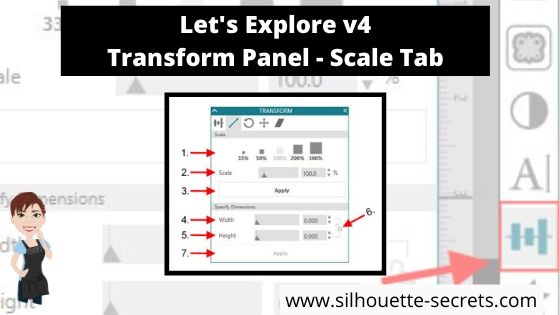
    Scale tab details copy
    1. Scale by percent – There are a couple of preset percentages that you can choose for quick resizing of an object. Anything below 100% will decrease the size and higher than 100% increases the size.
      Scale percent
    2. Adjustable Scale – Highlight the number in the box and choose your custom percentage to resize the design.Resize custom percentage copy
    3. Apply – After changing the customized Scale option, click Apply (or hit Enter).
    4. Width – Highlight the numbers and replace or use the increase/decrease arrows  to a specific dimension.
    5. Height – This works the same as the width, highlight the numbers and replace or use the increase/decrease arrows Arrow up down copy to a specific dimension.
    6. Lock Aspect – This is a very important icon! The default is set to the unlock position. If you want to keep the proportions of a design the same when you resize it, click this icon to change it from unlocked Unlock copy to locked Locked copy.
      Specific dimensions copy

      What does that mean? If I change the Width of my design while it is unlocked, then it will adjust only the width of the design and I end up with some distorted shape the design. You can see here that now my state of Montana design, does not look how it should.Lock AspectVersus if I click on the Lock Aspect and lock it in, then it will adjust both the width and the height, keeping the proportions the same.

      Locked Aspect
      That makes quite a difference in the design.
    7. Apply – After making changes to the Width and Height you can click on Apply or hit Enter for the software to make the changes.

    And now you have a better understanding the Scale Tab found under the Transform Panel in Silhouette Studio v4.

    You can also find some of these tools in the QAT (Quick Access Toolbar) at the top of you program when your design is selected. How it appears on your screen, will be dependent on your screen size and you will notice that each person’s varies for that reason.
    Some of the tools will have a fly out box and others will be fully visible as my width & height are.

    QAT copy

    I hope you take a few minutes to check out this Scale panel and see what it’s all about!

    Check out the other posts in the Let’s Explore v4 Series HERE.

    Save this for future reference by pinning the image below.

    I would love to see what you are creating with your Silhouette! Feel free to join my Facebook group – Silhouette Secrets+ with EllyMae and share!

    Enjoy !

    THANK YOU for your support! How can you help? Click HERE & buy a coffee.
    Every little bit helps with the cost of running the site.

    Looking for more in-depth, step-by-step classes, check out all of my online Silhouette classes on my Teachable site HERE.

    SS Logo snip it
    **This post may contain affiliate links. What that means is that I may receive compensation if you purchase through the links I have provided. The price you pay for the product or service is not higher but I may get compensated for sharing.

    Posted on 38 Comments

    Let’s Explore v4 – Transform Panel – Align

    Today we are exploring the Transform Panel – Align Tab.

    This is a very important and useful panel when you are creating designs & one I use almost every time I open the Silhouette software.

    Transform Panel copy

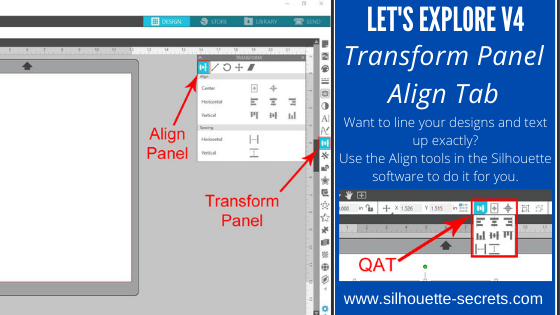
    The Transform Panel is on the right side of Silhouette Studio v4 and the first tab on this panel is the Align Tab.

    Let’s take a look at the entire Align tab.

    Transform Panel details copy

    1. Center – This icon  Center to Page icon copy is the Center to Page and it will center the design in relation to the Page Size you have set under the Page Setup Panel – Page Size. Here I have resized my design (Softball Mom by SM Designs) and then hit the Center to Page icon and it centered that to my 12″ x 12″ page size.Center to Page demoThen you have the Center multiple objects copyCenter multiple objects icon. When multiple objects are selected, this will center those objects to each other. If I draw a circle and select both objects, click on the center multiple objects, it will center those designsCenter multiple objects demo
    2. Horizontal – There are 3 options here: (A) left edge, (B) center, (C) right edge.Horizontal Alignments copy (Dots Nice – A Dotty Handwritten font by One Oak Designs)
    3. Vertical – There are 3 align options here: (A) top, (B) center, (C) bottom edge.Vertical Alignment copy (SG Beach Vacay Dingbats Font by Sophie Gallo – Design #240727)
    4. Horizontal Spacing – With multiple objects selected (more than 3), this will space those objects equal distance apart horizontally.Horizontal spacing copy
    5. Vertical Spacing – With multiple objects selected (more than 3), this will space those objects equal distances apart vertically.Vertical spacing copy

    And there you have the details of the Align tab in the Transform Panel of Silhouette Studio v4. Now, there is no need to eye-ball the spacing or alignment, let the software do the work for you.

    You can also find the same icon in the Quick Access Toolbar (QAT) at the top when more than one object is selected.

    QAT Align2

    Check out the other posts in the Let’s Explore v4 Series HERE.

    Save this for future reference by pinning the image below.

    Transform Panel - Align Tab Pin

    I would love to see what you are creating with your Silhouette machine. Feel free to post on my Facebook group Silhouette Secrets with EllyMae. If you have questions feel free to post below or on the Facebook group too!

    Enjoy !

    THANK YOU for your support! How can you help? Click HERE & buy a coffee. Every little bit helps with the cost of running the site.

    Looking for more in-depth, step-by-step classes, check out all of my online Silhouette classes on my Teachable site HERE.

    SS Logo snip it

    **This post may contain affiliate links. What that means is that I may receive compensation if you purchase through the links I have provided. The price you pay for the product or service is not higher but I may get compensated for sharing.

    Posted on 22 Comments

    Let’s Explore v4 – Magnet Trace

    We are finishing up the Trace panel today by exploring the options of Magnet Trace. The Magnet trace is a feature that is unlocked when you have the Designer Edition upgrade to the software.

    You will find this feature on the 3rd tab of the Tracing Panel, that is found on the right side of v4.

    Magnet Trace Panel copy

    While there are not many options on this Panel, it still has so much potential. Let’s take a look.

    Magnetic Trace Panel copy

    1. Magnet Trace – Select your object to trace & then “Magnet Trace” is available. Click on it and you will get a red circle with a red dot in it. This is your trace tool.Magnet Trace Demo copy
    2. Size – Change the size of your Magnet Trace tool by using the slider bar, the arrow up or down keys or highlighting the numbers and typing new numbers in.Size copy
    3. Trace – After your Magnet trace is complete, click here to create your cut lines. You can see the red cut lines around my flower below. Trace option Note: this photo is on the Send tab, to get the bold red cut lines to show up. Trace
    4. Trace & Detach – Choose this option if you want your design to be detached from the background. This works great if you are wanting to do a Print and Cut project with your design.Trace and detach

    This is a really neat feature and it took me a bit to think of what I would do with it. You can see that the edges of my design are not perfect and I would do some clean up on this image. So let’s do a little bit of point editing to clean it up.

    First, check out these edit points, double click on the image to bring up the Point Editing window. All those little dots, those are edit points. Now, edit points can be intimidating but they can also be fun to play with. If we were to cut this as it is, it will sound funny as it cuts because the Silhouette machine has to hit every single one of those edit points when it cuts.

    Edit points

    Let’s zoom in and check out the edges.

    Edit point zoom

    As you can see there are some edges that can be cleaned up.

    You are able to move and delete edit points to your desired effect. I can say that this cleanup took only a few minutes. The more you play with the edit points, the better you will understand what they do. Just by moving the edit points in towards the flower, I eliminated the excess background that the trace grabbed.

    Edit point zoom cleanup

    You can select multiple edit points by holding down the Shift key and dragging your mouse over the ones you want to highlight and then you can move them all at once or delete them all at once.

    Cleaned up

    What a difference a little edit point clean up makes.

    Now here are all the edit points after I’ve cleaned it up. Since this is a flower with lots of curves, it will still have many edit points so you can keep the realistic look of the flower.

    Cleaned up edit points

    But, it has a lot less than the original trace.

    Now, I’m sure as you read this you have asked yourself, what would you do with this? I’ll be honest, I did the same when I started looking into it because I have never played with this before. And now ideas are hitting me about all the possibilities.

    If you do not have Photoshop or access to photo editing software, you can use the Silhouette software and this is one way to grab something from a photo.

    Or you could use your own photos that you’ve taken and make Print and Cut stickers. These are photos of flowers I took at a friend’s poolside last summer. I think they would make gorgeous stickers that you could add to your planner or calendar to enjoy everyday.

    Magnet Trace Demo final

    To learn more on how to set up a Print and Cut check out the Page Setup Panel – Registration Marks post.

    You can find all of the Let’s Explore v4 post HERE.

    I hope you enjoyed exploring the Magnet Trace feature in the Silhouette Studio v4 software. This program is amazing and I learn new things every day!

    Enjoy !

    THANK YOU for your support! How can you help? Click HERE & buy a coffee. Every little bit helps with the cost of running the site.

    Looking for more in-depth, step-by-step classes, check out all of my online Silhouette classes on my Teachable site HERE.

    SS Logo snip it

    **This post may contain affiliate links. What that means is that I may receive compensation if you purchase through the links I have provided. The price you pay for the product or service is not higher but I may get compensated for sharing.

    Posted on 14 Comments

    Let’s Explore v4 – Trace by Color

    Last week, we started with the Trace Panel – Tab 1 which covers the Basic Tracing options. Now, we are moving on to Trace Panel – Tab 2: Trace by Color. This option is available if you have the Designer Edition upgrade (DE+ or BE).

    Trace Panel copy

    While the Silhouette Studio Basic software is available for free, I do feel the Designer Edition upgrade is a great investment and will save you so much time in the long run. Silhouette America has provided a chart that lists out what features are unlocked with each upgrade and you can find it HERE.

    Some of the biggest features for me that Designer Edition unlocks are: opening svg & pdf files, rulers, trace by color, rhinestone conversion and glyph access.  Even if you do not know what all of those do at this time, you will learn more as you utilize the software.

    Now, let’s explore the Trace by Color Panel.

    First, open a design to be traced such as a png or jpeg file. For this example, I am using a png file from Scout and Rose Design Co called Too Cute to Pinch.

    Demo design

    Trace by Color Panel copy

    1. Trace by color – Click on Trace by color and then choose the color you want to trace. I clicked on the pink color and it highlighted all the pink of the design in yellow. This is what it will trace.Trace by Color 1
    2. Solid Fill vs Outline fill – Solid Fill is shown in the photo above. Outline fill is shown below. This is a matter of personal preference on how you want it to show.Outline Fill
    3. Single Area or All Areas – In my original photo in #1, All Areas was chosen and that highlights all of the pink areas of the design. Single Area will allow you to pick & choose a certain area, such as individual letters,  that you want to trace.Single Area
    4. Tolerance – This can be adjusted to increase or decrease the area that is picked up in a trace color. In my example, when I click on the light green, it picks up the dark green as well in my trace.Tolerance 50 percentHere you can see that the Trace picks up all shades of green with a 50% tolerance. Tolerance 6 percentAnd when the tolerance is lowered to 6% it deselects the dark green shamrock and only picks up the light green color in the trace. You would trace the shamrock and change the tolerance to get it to trace as well.
    5. Trace – After you have the design highlighted that you want to trace, click on trace and it will change to red cut lines around the object selected. You can then move the cut lines off the design and I fill with color to see the design better.Trace option
    6. Trace & Detach – This will trace & detach the image from the background. If you are using a jpeg, this is a great feature.

    Now, I have my final pieces that I’ve filled with color and can move them around on my mat to cut them and then place them on to my project.

    Final trace copy

    And now you can go play with the Trace by Color Panel. This can be a great option if you only have the graphic file for a design.

    Check out all the other posts in the Let’s Explore v4 series HERE.

    Enjoy !

    THANK YOU for your support! How can you help? Click HERE & buy a coffee. Every little bit helps with the cost of running the site.

    Looking for more in-depth, step-by-step classes, check out all of my online Silhouette classes on my Teachable site HERE.

    SS Logo snip it

    **This post may contain affiliate links. What that means is that I may receive compensation if you purchase through the links I have provided. The price you pay for the product or service is not higher but I may get compensated for sharing.

    Posted on 19 Comments

    Let’s Explore v4 – Tracing Panel

    If you are just joining in, we have explored our way through several of the icons on the v4 Silhouette software – you can find all of those HERE – starting with the Page Setup Panel.

    And our next step in the Let’s Explore v4 series is the Tracing Panel – Tab 1.

    This is a very popular Panel and there is so much that you can do with it from tracing an image to tracing a photo. But, I will say right from the get-go, it is not a one size fits all Panel. Each image you trace is going to require you to adjust it differently than the last one. So while the concepts can be taught, the technique varies some each time a trace is done.

    You will find the Trace Panel on the right side of the v4 software and it resembles a butterfly or a piece of bread.

    Trace Panel copy

    Now, let’s take a look at the Trace Panel. Tutorial written in version 4.1.441 Updated 6/8/21 – trace panel has not changed since original post

    Trace Panel detail v4.1

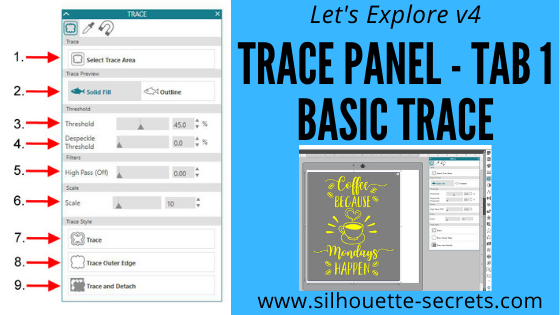
    1. Select Trace Area – Click on Select Trace Area and then draw a rectangle around the image you want to trace. A gray box shows up around the image and you should see some yellow show for your trace. For a good trace, you want as much yellow and as crisp, clear lines as possible. Select Trace v4.1.441
    2. Trace Preview – Choose between Solid Fill (as shown above) or Outline fill.Outline Fill v4.1.441 I prefer to use the Solid Fill so I know exactly where it will trace.
    3. Threshold – Determines how the trace filters are applied to your image.
    4. Despeckle Threshold – Eliminates noise in your trace. *
    5. High Pass Filter – Trace lines begin from the outside and work to the center of your image. *
    6. Scale –  Scale the trace up or down to get the look you want ** Each image will be different in how it traces and you will need to adjust the Threshold & filters to what works best for you particular image.
    7. Trace – Click on this when you want to trace around all the yellow of the design. This is the most common Trace and the one that I use the most often. After clicking trace, move your design away and the cut lines will be there around the area traced.Trace Style
    8. Trace Outer – This traces the outside edge of a design on your screen. If you stamped an image and wanted to trace around the outside edge of it, this is the option you choose. Then your cut lines will only generate on the outside of the image and as you can see below, it did not trace the 2 circles on the inside of my image. Trace Outer Edge 2 v4.1.441
    9. Trace and Detach – This will trace the image and then detach it from the background. It works great if you have a jpeg image. For instance, if I wanted to use this little guy for a Print and Cut Valentine. Trace and Detach v4.1

    For a basic trace, black traces the absolute best. The resolution of your image also plays a big factor in your trace. If the file you are tracing is very pixelated, then it will trace all of those pixels. This results in a very choppy cut line and a lot of edit points.

    And there you have your Trace Panel – Tab 1. It is a fun option to play around with and I suggest practicing with it and seeing what works best for you. A lot of it is moving the filters and finding out what works best for the image you are working with.

    Affiliate links may be present in the following blog post and as an Amazon Associate I earn from qualifying purchases.

    For my information on the filters, I consulted the Silhouette Handbook that is available in the Silhouette store.

    Make sure to check out all the other sections of Let’s Explore v4 and learn more about what you can do in the software.

    The images used in this post can be found here: CoffeeMondays by Scout and Rose Designs Stinkin Cute by Scout and Rose Designs Love Frog by MissKateCuttables

    We would love to see what you are working on! Feel free post on the Silhouette Secrets+ Facebook Group.

    Save this for future reference by pinning the image below.

    Trace panel Pin

    **This has been updated on 4-12-18 to reflect the changes released with the v4.1.441 software version.** *Updated 6/8/21 – the Trace panel has not changed since the original post was written.

    Enjoy !

    THANK YOU for your support! How can you help? Click HERE & buy a coffee. Every little bit helps with the cost of running the site.

    Looking for more in-depth, step-by-step classes, check out all of my online Silhouette classes on my Teachable site HERE.

    SS Logo snip it

    **This post may contain affiliate links. What that means is that I may receive compensation if you purchase through the links I have provided. The price you pay for the product or service is not higher but I may get compensated for sharing.