Posted on Leave a comment

Let’s Explore v 4 Recap

We are half-way through 2018 – can you believe that?

So it’s the perfect time to recap what the “Let’s Explore v4” series has covered so far since January.

Let's Explore Recap final 2copy

Let’s Explore v 4 series

Page Setup Panel – Tab 1 – Page Size & Cutting Mat

Page Setup copy

Page Setup Panel – Tab 2 – Grid Options & Spacing

Page Setup Tab 2 copy

Page Setup Panel – Tab 3 – Registration Marks – Print & Cut

Registration marks panel copy

Fill Color Panel

Fill Color Panel copy

Line Style Panel

Line Style Panel copy

Trace Panel – Tab 1 – Basic Trace

Tracing Panel copy

Trace Panel – Tab 2 – Trace By Color (Designer Edition feature)

Trace Panel copy

Trace Panel – Tab 3 – Magnet Trace (Designer Edition feature)

Magnet Trace Panel copy

Pixscan Panel

Pixscan copy

Text Style Panel – Tab 1 – Text Style

Text Style Panel main copy

Text Style Panel – Glyphs and Spell check

Glyph

Transform Panel – Tab 1 – Align Tab

Transform Panel copy

Transform Panel – Tab 2 – Scale Tab

Scale tab copy

Transform Panel – Tab 3 – Rotate Tab

Rotate main copy

Transform Panel – Tab 4 – Move by Tab

4-25 Transform -Move copy

Transform Panel – Tab 5 – Shear (Designer Edition feature)

Shear Panel copy

Replicate Panel – Tab 1 & 2 – Replicate & Number of Copies

Replicate panel copy

Replicate Panel – Tab 3 – Object to Path

Replicate Object on Path copy

Modify Panel – Part 1

Modify Panel copy

Modify Panel – Part 2 – Compound Paths

Modify Panel details copy

Offset Panel

6-5 Offset Panel copy

Pop Up Panel (Designer Edition feature)

Pop Up Panel copy

Stipple Panel (Curio option only)

Stipple panel copy

Nesting Panel (Designer Edition feature)

Nesting feature copy

There are so many things that the Silhouette Studio program can do. It is really an amazing program and I hope that you have learned something throughout the series. There is still so much more to explore!

Please let me know what is one thing you have learned that you did not know before by leaving a comment here or on my Facebook group.

Enjoy !

THANK YOU for your support! How can you help? Click HERE & buy a coffee. Every little bit helps with the cost of running the site.

Looking for more in-depth, step-by-step classes, check out all of my online Silhouette classes on my Teachable site HERE.

SS Logo snip it

**This post may contain affiliate links. What that means is that I may receive compensation if you purchase through the links I have provided. The price you pay for the product or service is not higher but I may get compensated for sharing.

Posted on 38 Comments

Let’s Explore v4 – Transform Panel – Align

Today we are exploring the Transform Panel – Align Tab.

This is a very important and useful panel when you are creating designs & one I use almost every time I open the Silhouette software.

Transform Panel copy

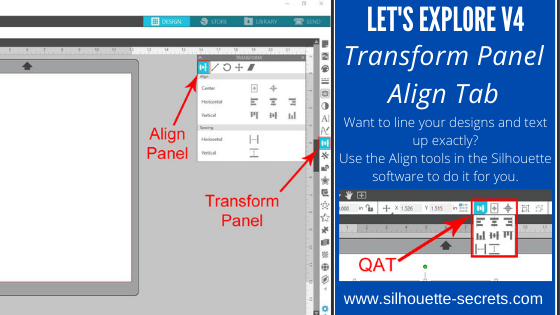
The Transform Panel is on the right side of Silhouette Studio v4 and the first tab on this panel is the Align Tab.

Let’s take a look at the entire Align tab.

Transform Panel details copy

  1. Center – This icon  Center to Page icon copy is the Center to Page and it will center the design in relation to the Page Size you have set under the Page Setup Panel – Page Size. Here I have resized my design (Softball Mom by SM Designs) and then hit the Center to Page icon and it centered that to my 12″ x 12″ page size.Center to Page demoThen you have the Center multiple objects copyCenter multiple objects icon. When multiple objects are selected, this will center those objects to each other. If I draw a circle and select both objects, click on the center multiple objects, it will center those designsCenter multiple objects demo
  2. Horizontal – There are 3 options here: (A) left edge, (B) center, (C) right edge.Horizontal Alignments copy (Dots Nice – A Dotty Handwritten font by One Oak Designs)
  3. Vertical – There are 3 align options here: (A) top, (B) center, (C) bottom edge.Vertical Alignment copy (SG Beach Vacay Dingbats Font by Sophie Gallo – Design #240727)
  4. Horizontal Spacing – With multiple objects selected (more than 3), this will space those objects equal distance apart horizontally.Horizontal spacing copy
  5. Vertical Spacing – With multiple objects selected (more than 3), this will space those objects equal distances apart vertically.Vertical spacing copy

And there you have the details of the Align tab in the Transform Panel of Silhouette Studio v4. Now, there is no need to eye-ball the spacing or alignment, let the software do the work for you.

You can also find the same icon in the Quick Access Toolbar (QAT) at the top when more than one object is selected.

QAT Align2

Check out the other posts in the Let’s Explore v4 Series HERE.

Save this for future reference by pinning the image below.

Transform Panel - Align Tab Pin

I would love to see what you are creating with your Silhouette machine. Feel free to post on my Facebook group Silhouette Secrets with EllyMae. If you have questions feel free to post below or on the Facebook group too!

Enjoy !

THANK YOU for your support! How can you help? Click HERE & buy a coffee. Every little bit helps with the cost of running the site.

Looking for more in-depth, step-by-step classes, check out all of my online Silhouette classes on my Teachable site HERE.

SS Logo snip it

**This post may contain affiliate links. What that means is that I may receive compensation if you purchase through the links I have provided. The price you pay for the product or service is not higher but I may get compensated for sharing.