Today we are on to Tab 2 of the Transform Panel – the Scale tab. This is another tool I use almost every time I open my Silhouette program.
Just like almost all the other tools, there are many ways to do things in the software. While you can grab the corners of the Selection box and drag your design to the correct size, sometimes you need a more accurate measurement of your design.
For instance, I am making these stencils for my husband to use in a woodworking project and he wants a maximum of 6.5 inches for the design, so it fits on the board he has. With the Transform Panel, it is possible to achieve this easily.
Let’s take a look at the Scale Tab.
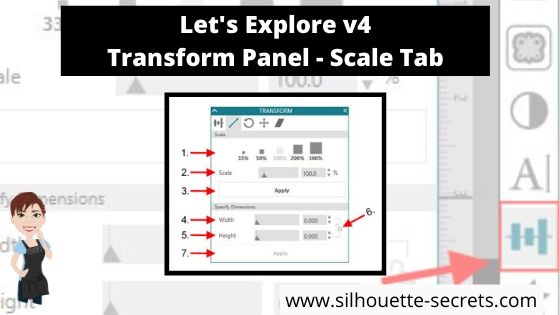
Scale by percent – There are a couple of preset percentages that you can choose for quick resizing of an object. Anything below 100% will decrease the size and higher than 100% increases the size.
Adjustable Scale – Highlight the number in the box and choose your custom percentage to resize the design.
Apply – After changing the customized Scale option, click Apply (or hit Enter).
Width – Highlight the numbers and replace or use the increase/decrease arrows to a specific dimension.
Height – This works the same as the width, highlight the numbers and replace or use the increase/decrease arrows to a specific dimension.
Lock Aspect – This is a very important icon! The default is set to the unlock position. If you want to keep the proportions of a design the same when you resize it, click this icon to change it from unlocked to locked .
What does that mean? If I change the Width of my design while it is unlocked, then it will adjust only the width of the design and I end up with some distorted shape the design. You can see here that now my state of Montana design, does not look how it should.Versus if I click on the Lock Aspect and lock it in, then it will adjust both the width and the height, keeping the proportions the same.
That makes quite a difference in the design.
Apply – After making changes to the Width and Height you can click on Apply or hit Enter for the software to make the changes.
And now you have a better understanding the Scale Tab found under the Transform Panel in Silhouette Studio v4.
You can also find some of these tools in the QAT (Quick Access Toolbar) at the top of you program when your design is selected. How it appears on your screen, will be dependent on your screen size and you will notice that each person’s varies for that reason.
Some of the tools will have a fly out box and others will be fully visible as my width & height are.
I hope you take a few minutes to check out this Scale panel and see what it’s all about!
Check out the other posts in the Let’s Explore v4 Series HERE.
Save this for future reference by pinning the image below.
I would love to see what you are creating with your Silhouette! Feel free to join my Facebook group – Silhouette Secrets+ with EllyMae and share!
Enjoy !
THANK YOU for your support! How can you help? Click HERE & buy a coffee. Every little bit helps with the cost of running the site.
Looking for more in-depth, step-by-step classes, check out all of my online Silhouette classes on my Teachable site HERE.
**This post may contain affiliate links. What that means is that I may receive compensation if you purchase through the links I have provided. The price you pay for the product or service is not higher but I may get compensated for sharing.
[…] the dashed sketch line: – Make a copy of the outer edge of the earring holder design – Resize the copy a little smaller – either by the Scale panel or by dragging the corner bounding box […]
If you want the monogram to keep the same proportions, you would need to lock the aspect – click on the lock icon next to the H & W boxes.
If you want to set specific dimensions for both H & W, leave it unlocked & change the dimensions, but know it may not be proportional.
To get the most accurate measurement for text, you may need to right click & Convert to Path or weld. This will change the monogram from editable text to a design, meaning you can no longer edit the text. However, the design will have a more accurate measurement because it is only taking into account the empty space around each of letters…..
[…] I’m going to resize this so the silhouette is 5 feet tall. To do that, open the Transform Panel – Scale tab, lock the aspect ratio and change the Height to 60″. For more information on the Transform […]
[…] not worry about drawing an exact rectangle dimension. Use the Scale Tab (2nd tab) located under the Transform Panel on the right side, click on the lock to lock the Aspect […]
Thank you thank you thank you. I have spent the last 2 hours trying to change the size of my square with the aspect button. Finally looked for youtube videos but no luck. I finally googled the question and your site came up. I have had my cameo for 5 years and don’t use it daily so when the new version came up I have struggled to use it. The tutorials are useless. I appreciate your time and effort to bring this info out simply and easy to understand. I’m sure there are other “beginners” like me who need this basic info. I appreciate you greatly.
I agree! I have had V4 since it came out and I just read this and found out where the scale tool is. It’s so frustrating. When you type “Scale” in the users manual, nothing comes up. I really don’t like V4, so I keep V3 installed for when I need to do certain things. It should not be counter intuitive, I hate having to research every time I need a tool that I used to use all the time. So frustrating!
[…] card pieces using the drawing tools on the left side of the Silhouette software and then used the Scale panel to resize each to the exact dimensions that were provided to us in the […]
[…] the gray holding area.I am working with a frame that is for a 8″ x 10″ photo. Using the Transform Panel – Scale Tab, change the dimensions to 8″ wide by 10″ […]
[…] the size. I knew I needed small scale, so I tried 33% of the original size. This is found under the Transform Panel – Scale Tab or at the top of the software in the Quick Access […]
[…] I had purchased a large sign blank from Hobby Lobby and started off by measuring the space I had to create the design. Then I drew a rectangle using the Drawing tools on the left and scaled it to the size I had measured of my design area on the sign using the Transform Panel – Scale tab. […]
[…] mind that photo file can come in quite large, depending on the size of the image. I then used the Scale option in the top Quick Access Toolbar (QAT) to scale the image down to a size I could see next to my […]
[…] using the Drawing tools on the left side, to the size of the area for the sign. Then I used the Transform Panel – Scale Tab on the right side to change the dimensions to my size […]
[…] are 5″ x 17.25″ when stacked on top of each other.Using the Draw Rectangle tool & Scale tab, draw a rectangle 5″ x 17.25″ so you know what area you have to design […]
[…] x 17.25″ when stacked on top of each other.Using the Draw Rectangle tool & Scale tab, draw a rectangle 5″ x 17.25″ so you know what area you have to design […]
[…] the design is scaled proportionally.If you would rather have exact sizes, you could also use the Transform Panel – Scale tab or the Scale icon in the top Quick Access […]
[…] choose the Scale option either in the Quick Access Toolbar or under the Transform Panel – Tab 2 – Scale tab and select an option. For my photos, I choose the 33% and the image is still usually larger than I […]
[…] the Drawing Tools on the left side, draw a rectangle.Use the Scale Tools to size the rectangle to the size needed either in the Transform Panel – Scale Tab on the […]
[…] Tool on the left side, draw a rectangle and then resize it to the size you measured. Use the Transform Panel – Scale Tab or Scale Tool in the Quick Access Toolbar at the top of the software to resize the […]
[…] a photo image that you would like to work with. Resize the photo if needed using the Scale Tools and center it to the page using the Align Tools.These tools can be found in the Panels on the right […]
[…] the Scale Tools in Quick Access Toolbar (QAT) orunder the Transform Panel – Tab 2, resize the rectangle to 5.5″ W x 4.25″ H.Hit enter after typing in the number for the […]
[…] Next, in the Silhouette software, using the Drawing Tools on the left side, draw out a rectangle and then scale it to 4.25″ x 5.5″ or whatever card size you are wanting. Unlock the lock to be able to change the height and width of the rectangle individually. Type the number and press Enter to set the dimension. Find more on the Scale Tools HERE. […]
[…] Next, in the Silhouette software, using the Drawing Tools on the left side, draw out a rectangle and then scale it to 4.25″ x 5.5″ or whatever card size you are wanting. Unlock the lock to be able to change the height and width of the rectangle individually. Type the number and press Enter to set the dimension. Find more on the Scale Tools HERE. […]
[…] card pieces using the drawing tools on the left side of the Silhouette software and then used the Scale panel to resize each to the exact dimensions that were provided to us in the […]



 to a specific dimension.
 to locked
  .
. 
 Versus if I click on the Lock Aspect and lock it in, then it will adjust both the width and the height, keeping the proportions the same.












[…] circle by holding down the Shift key and then resizing the circle to the exact dimensions under the Transform Panel – Scale […]
So easy when you know how.
[…] Tab 2 & 3 – Glyphs & Spell Check – Transform Panel – Align Tab – Transform Panel – Scale Tab – Transform Panel – Rotate – Transform Panel – Move By – Transform […]
[…] I drew a 5.25″ x 8.25″ rectangle to fit inside my card base. I used the Scale Tab to get the exact dimensions I wanted for my inner […]
[…] Transform Panel – Tab 2 – Scale Tab […]
[…] the dashed sketch line: – Make a copy of the outer edge of the earring holder design – Resize the copy a little smaller – either by the Scale panel or by dragging the corner bounding box […]
I am new to Silhouette. I am trying to scale a monogram useing Specify Dimensions but I am not being able to luck and apply. Help 😣
If you want the monogram to keep the same proportions, you would need to lock the aspect – click on the lock icon next to the H & W boxes.
If you want to set specific dimensions for both H & W, leave it unlocked & change the dimensions, but know it may not be proportional.
To get the most accurate measurement for text, you may need to right click & Convert to Path or weld. This will change the monogram from editable text to a design, meaning you can no longer edit the text. However, the design will have a more accurate measurement because it is only taking into account the empty space around each of letters…..
[…] I’m going to resize this so the silhouette is 5 feet tall. To do that, open the Transform Panel – Scale tab, lock the aspect ratio and change the Height to 60″. For more information on the Transform […]
[…] not worry about drawing an exact rectangle dimension. Use the Scale Tab (2nd tab) located under the Transform Panel on the right side, click on the lock to lock the Aspect […]
Thank you thank you thank you. I have spent the last 2 hours trying to change the size of my square with the aspect button. Finally looked for youtube videos but no luck. I finally googled the question and your site came up. I have had my cameo for 5 years and don’t use it daily so when the new version came up I have struggled to use it. The tutorials are useless. I appreciate your time and effort to bring this info out simply and easy to understand. I’m sure there are other “beginners” like me who need this basic info. I appreciate you greatly.
Debbi – I am so glad that it helped!
I agree! I have had V4 since it came out and I just read this and found out where the scale tool is. It’s so frustrating. When you type “Scale” in the users manual, nothing comes up. I really don’t like V4, so I keep V3 installed for when I need to do certain things. It should not be counter intuitive, I hate having to research every time I need a tool that I used to use all the time. So frustrating!
[…] card pieces using the drawing tools on the left side of the Silhouette software and then used the Scale panel to resize each to the exact dimensions that were provided to us in the […]
[…] the gray holding area.I am working with a frame that is for a 8″ x 10″ photo. Using the Transform Panel – Scale Tab, change the dimensions to 8″ wide by 10″ […]
[…] the Transform – Scale Panel to size the pattern to what you need by entering the exact percentage to size the pattern up or […]
[…] the size. I knew I needed small scale, so I tried 33% of the original size. This is found under the Transform Panel – Scale Tab or at the top of the software in the Quick Access […]
[…] I had purchased a large sign blank from Hobby Lobby and started off by measuring the space I had to create the design. Then I drew a rectangle using the Drawing tools on the left and scaled it to the size I had measured of my design area on the sign using the Transform Panel – Scale tab. […]
[…] mind that photo file can come in quite large, depending on the size of the image. I then used the Scale option in the top Quick Access Toolbar (QAT) to scale the image down to a size I could see next to my […]
[…] using the Drawing tools on the left side, to the size of the area for the sign. Then I used the Transform Panel – Scale Tab on the right side to change the dimensions to my size […]
[…] are 5″ x 17.25″ when stacked on top of each other.Using the Draw Rectangle tool & Scale tab, draw a rectangle 5″ x 17.25″ so you know what area you have to design […]
[…] x 17.25″ when stacked on top of each other.Using the Draw Rectangle tool & Scale tab, draw a rectangle 5″ x 17.25″ so you know what area you have to design […]
[…] the design is scaled proportionally.If you would rather have exact sizes, you could also use the Transform Panel – Scale tab or the Scale icon in the top Quick Access […]
[…] choose the Scale option either in the Quick Access Toolbar or under the Transform Panel – Tab 2 – Scale tab and select an option. For my photos, I choose the 33% and the image is still usually larger than I […]
[…] the Drawing Tools on the left side, draw a rectangle.Use the Scale Tools to size the rectangle to the size needed either in the Transform Panel – Scale Tab on the […]
[…] the Transform Panel – Scale Tab or use the Scale tools in the Quick Access Toolbar (QAT) to adjust the size exactly as […]
[…] the Transform Panel – Scale Tab or use the Scale tools in the Quick Access Toolbar (QAT) to adjust the size […]
[…] the card base using the Draw Rectangle tool on the left side. Then use the Transform – Scale option, scale the rectangle to 8.5″ x […]
[…] Tool on the left side, draw a rectangle and then resize it to the size you measured. Use the Transform Panel – Scale Tab or Scale Tool in the Quick Access Toolbar at the top of the software to resize the […]
[…] software, on the left, choose the Draw Rectangle tool. Draw a rectangle and size it, using the Scale tools, to the size needed for your […]
[…] a photo image that you would like to work with. Resize the photo if needed using the Scale Tools and center it to the page using the Align Tools.These tools can be found in the Panels on the right […]
[…] the Scale Tools in Quick Access Toolbar (QAT) orunder the Transform Panel – Tab 2, resize the rectangle to 5.5″ W x 4.25″ H.Hit enter after typing in the number for the […]
[…] the Scale Tools under the Transform Panel or the Quick Access Toolbar (QAT) at the top to size the template as […]
[…] Next, in the Silhouette software, using the Drawing Tools on the left side, draw out a rectangle and then scale it to 4.25″ x 5.5″ or whatever card size you are wanting. Unlock the lock to be able to change the height and width of the rectangle individually. Type the number and press Enter to set the dimension. Find more on the Scale Tools HERE. […]
[…] Next, in the Silhouette software, using the Drawing Tools on the left side, draw out a rectangle and then scale it to 4.25″ x 5.5″ or whatever card size you are wanting. Unlock the lock to be able to change the height and width of the rectangle individually. Type the number and press Enter to set the dimension. Find more on the Scale Tools HERE. […]
[…] the Transform – Scale Panel to size the pattern to what you need by entering the exact percentage to size the pattern up or […]
[…] Scale Tools in Silhouette […]
[…] card pieces using the drawing tools on the left side of the Silhouette software and then used the Scale panel to resize each to the exact dimensions that were provided to us in the […]