
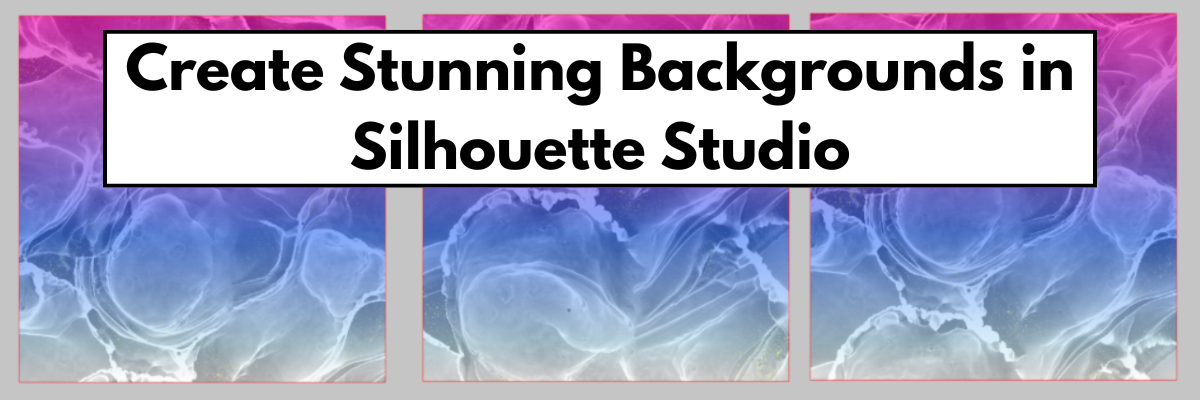

Have you ever explored the Fill Gradient panel in Silhouette Studio to create your own custom backgrounds? It’s a powerful feature that often flies under the radar—but it can completely transform your designs with just a few clicks. Recently, a fellow Silhouette user reached out asking for more details on how to use gradient fills for creating eye-catching backgrounds. So we explored exactly how the Gradient Fill Panel works —and I’ve got two great resources where I walk you through the process step-by-step. Whether you’re crafting cards, printable art, or layering cut designs, you’ll love what gradient fills can do!
Affiliate links may be present in the following blog post and as an Amazon Associate, I earn from qualifying purchases.
Note: all screenshots and references are using version v4.5.812 of Silhouette Studio. At the time of publication, I am not recommending the current version 5, as it has too many bugs and issues in it. Silhouette Studio version 5 does have a bit different look and some things have been moved around. If you are on version 5 and want to revert to a legacy version, see how HERE.
The Fill Color Panel in Silhouette Studio has 3 tabs that include the main Fill Color, Gradient Fill, and Pattern Fill Panels. It is located on the right side and looks like an artists palette.

Gradient Fills in Silhouette Studio
Let’s get right down to the resources on Gradient Fills in Silhouette Studio.
First up is the LIVE Silhouette tutorial called Mastering the Fill Gradient Panel in Silhouette

We covered the Gradient Fill Panel in depth and you can see the demonstration in real time. There are so many options that you can create and play with!
And then I couldn’t stop playing with the patterns and took it one step farther and created custom alcohol ink background patterns. I was so excited I had to share that in this video – How to Create Custom Background Patterns in Silhouette Studio | Easy Step-by-Step Tutorial

I took one of the gradient patterns I made in the LIVE tutorial and then added an alcohol ink texture on top of it and created 3 different alcohol ink backgrounds.

I printed this on 12″ x 12″ cardstock and also on Epson Presentation Paper – Matte. Here is a look at both of those print outs. Notice how the colors are a bit different. The material surface you print on can affect the final colors. The ink soaks into the cardstock more than on the presentation paper, which shows in the final colors. Both can still be used for different projects.
A great way to test and see how colors will look on different materials with your printer is to print out a test. Check out this post – Silhouette Studio: Testing Print Colors for more information and tips.

Custom created backgrounds can be used for many projects. I used the sheets I printed and cut the pieces for this scalloped step card design by Lori Whitlock. Then stamped a quick sentiment and now have an easy to assemble card.
There is so much you can do with the Silhouette Studio software. Want to learn more? Check out these additional resources below.
- Fill Color Panel
- Pattern Fill Resources
- How to Create Custom Color Palettes in Silhouette
- Using the Print Menu in Silhouette Studio
- Silhouette Studio Print Quality Tips & Testing
- Silhouette Studio: How to Test Print Colors
Has this sparked ideas of what you could create? Let me know in the comments below.
Save this for future reference by pinning the image below.

Enjoy !
THANK YOU for your support! How can you help? Click HERE & buy a coffee.
Every little bit helps with the cost of running the site.

Silhouette Classes
Never stop learning! Let me help you take the anxiety out of learning with Silhouette and get to creating faster! My Silhouette classes are heavily focused on software, so you can take the skills & techniques taught and apply them to many future projects!


**This post may contain affiliate links. What that means is that I may receive compensation if you purchase through the links I have provided. The price you pay for the product or service is not higher but I may get compensated for sharing.
Discover more from Silhouette Secrets-Swift Creek Customs
Subscribe to get the latest posts sent to your email.












Thanks for explaining gradients, Now I’m beginning to play with them & most importantly understand what & why I’m doing it!
You are welcome! So glad it helps! Keep on playing & creating!