

Ready to unlock the full potential of your Silhouette machine? Whether you’re a seasoned crafter or just starting out, stenciling is a fun and versatile technique that can transform almost any project. In this post, I’m sharing creative stencil ideas you can cut right now with your Silhouette—think custom doormats, etched glass, painted wood signs, fabric decor, layered art journaling, and more. You’ll also find must-know tips for designing stencils, multiple stencil materials that can be cut, and step-by-step tutorials below too! This blog post is packed with Silhouette information, tips, and tutorials—so make sure to bookmark it for future reference.
Affiliate links may be present in the following blog post and as an Amazon Associate, I earn from qualifying purchases.
Stencils can be created from many different materials. Cardstock, adhesive vinyl, plastic stencil materials, and more! I’m sharing some of those materials below with tips and tutorials to help you design and create in Silhouette Studio.
Crafting Creativity Projects – Silhouette & Stencils
Project #1 – Custom Stencils with Silhouette Stencil Material
Create your own stencils with basic shapes and patterns in the Silhouette Studio software.

I created these 2 stencil patterns and cut them from the Silhouette non-adhesive stencil material using the Silhouette Autoblade.

Silhouette has both adhesive backed and non-adhesive backed stencil material as shown above. One might work better for your projects versus another. Since my plan was to use the stencil on a flat material like mixed media paper, I didn’t really need it to be sticky on the backside.

I also kept all the negative bits that were cut out from this stencil for a possible future project. They could be used as elements on a card, creating a pattern on a card, as a stencil by itself, and more!
I used this stencil with some TCW stencil butter to create a background on mixed media paper.

Then I pressed a piece of bubble wrap into the stencil butter to give it even more texture.

Make sure to let the stencil butter dry completely before touching it. I sometimes get impatient, so having a heat gun can be handy to help speed up the process too.
I shared how I created these stencil designs in this video – How to Create a Custom Stencil Design in Silhouette Studio on the Silhouette Secrets+ YouTube channel HERE.

Supplies Used:
- Silhouette Stencil Material Non-Adhesive
- Mentioned: Silhouette Stencil Material Adhesive Backed
- Silhouette Cameo 5 – Crafter Cuts or Silhouette America
or Silhouette Curio 2 – Crafter Cuts or Silhouette America - Silhouette Autoblade – Crafter Cuts or Silhouette America
- TCW Stencil Butter
- Palette Knife
- Mixed Media Paper
Handy Tools to Have:
- Heat Gun
- Magnetic Craft Mat – use code SILHOUETTESECRETS to save 15%
Additional Resources:
- Why Every Crafter Needs a Magnetic Glass Craft Mat
- How to Create a Custom Stencil Design in Silhouette Studio
- Perfect Cut Settings for Silhouette
- Troubleshooting Cut Issues
Project #2 – Stencils with Adhesive Vinyl
I use adhesive vinyl for many different projects as a stencil such as glass etching, painting, or in this project below – I was trying it with a Scorch marker for wood burning.
When creating a stencil with adhesive vinyl, weed out the design and that creates the stencil. In the photo below, I have weeded the flower design out of the black adhesive vinyl. I use basic shapes such as a rectangle around the design to create the outer edge of the stencil. The actual project I’m creating will determine the size of the shape I place around my design for the stencil outer edge. For projects such as painting or glass etching, I will give myself plenty of space around the design. For something smaller, as shown below, I don’t need as much extra space since it will be close to the edge of the blank being used.

Now, in this case, my project failed, but I’m still sharing it with you because it happens! Projects don’t turn out, projects fail and what you see on social media is not always reality.

These wood earring blanks were a bit too porous, and the Scorch marker liquid just bled too much. It looks more like those therapy cards – What shape do you see?
And that’s just how it goes sometimes. Some projects fail!
Here is another example of adhesive vinyl cut for stencils that I was using for glass etching.

And this one turned out fabulous!

Additional Resources for the tools I used to create the design:
- Tips for Cutting Small Fonts & Designs
- Test Cut with Silhouette
- More Adhesive Vinyl Tutorials
- Glass Etching with Silhouette
Supplies Used:
- Oracal 651 Adhesive Vinyl
- AT65 Transfer Tape
- Silhouette Cameo 5 – Crafter Cuts or Silhouette America
or Silhouette Curio 2 – Crafter Cuts or Silhouette America - Silhouette Autoblade – Crafter Cuts or Silhouette America
Project #3 – Layered Stencil with Plastic Stencil Material
We see a lot of questions by users on cutting stencil materials. Typically, it is in reference to plastic materials that a user is trying to cut. While Silhouette machines can cut a lot of different materials, there are limits and it is not just about thickness, but also density and composition.

Another thing to keep in mind is that stencil material is plastic and plastic will dull the blade quicker than other materials. It is perfectly normal to have to increase the blade settings or passes the more that is cut. And if you are cutting this material a lot, you may go through more blades than other thinner, easier to cut materials.
I cut this 6 mil stencil material using the preset for Stencil Material in the Silhouette Studio software. All I changed was to increase the passes to 2 and then when that started having a few hang ups, I increased it to 3 passes.

The settings that work for you will depend on the blade sharpness, material, and your machine. There is no perfect setting that works for all users magically.
I do recommend cutting one stencil design at a time. This way you can catch any issues before you’ve wasted time and materials.
Do not unload the cutting mat before you check the cut and if it did not cut through you can send it again.
I was using the same Autoblade that I used with the Silhouette Stencil material mentioned above and it’s still going strong with the settings pictured above on the 6 mil stencil material.
The hardest part for me was that I had to stop the design and creation process and move on to other things. Once you get started cutting, it is easy to get wrapped up in the projects. Here are a couple more I cut before I moved on to the next phase – using the stencils.

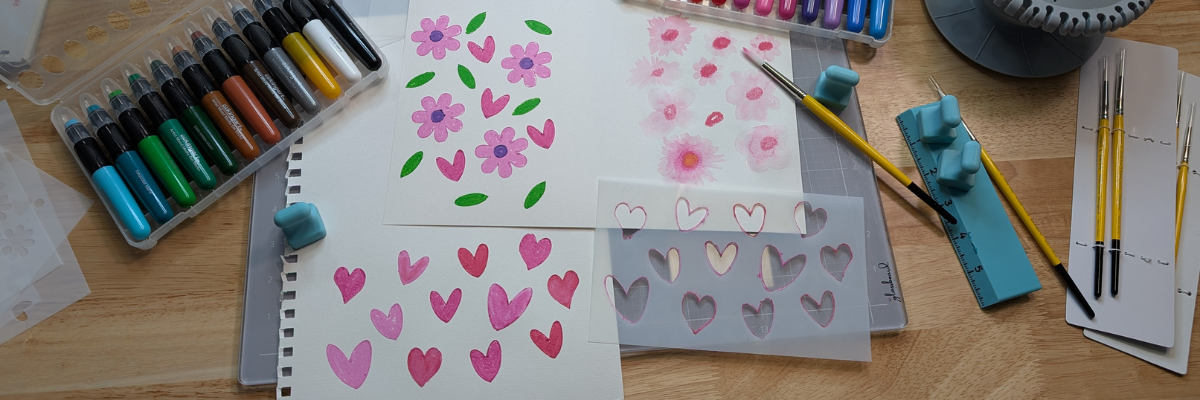
Now to test the stencils with some Kingart mixed media gel sticks. I love how it turned out!

Want to learn even more on how I designed the layered stencil used to create the design pictured above? Check out How to Create a Layered Stencil Design in Silhouette Studio video tutorial HERE on the Silhouette Secrets+ YouTube channel.

And there is more!!! A follower asked for more design tutorials after seeing the video above. So I also shared how to quickly design a flower and a heart in Silhouette too!


Click the images above or the links below to watch these quick tutorials:
- Design a Flower in Silhouette Studio in Under 60 Seconds | Quick Silhouette Tutorial
- How to Design Custom Heart Shapes in Silhouette Studio | Fast & Easy!
Supplies Used:
- 6 mil stencil material
- KingArt Mixed Media Gel Sticks
- Mixed Media Paper
- Silhouette Cameo 5 – Crafter Cuts or Silhouette America
or Silhouette Curio 2 – Crafter Cuts or Silhouette America - Silhouette Autoblade – Crafter Cuts or Silhouette America
Handy Tools:
- Paint Puck
- Magnetic Craft Mat – use code SILHOUETTESECRETS to save 15%
Project #4 – Stencil Fonts
When working with stencils whether it is a design or a font, the pieces have to all remain in the stencil somehow. If a piece is completely cut out, it will fall out of the stencil.

For instance, for letters A, B, D, O, P, Q, and R, they all have “counters”, which are the centers of the design that would fall out when cut. In order to cut as a stencil and remain in place, the letter needs a “bridge” so it can be held in place when cut.
I typed in “stencil font” to the Silhouette Design Store search and many options come up. All kinds of styles and the perfect one will vary based on your project and taste.

A few I own are:
- LW Stencil Font by Lori Whitlock
- Stencil Slab Font by Lori Whitlock
- BFC Fantasy Stencil Fancy Calligraphy by Blush Fonts
- PN Pineapple Stencil by Illustration Ink
- ZP Dragon Realm Stencil by Illustration Ink
You can see my taste varies and some of these will cut better at larger sizes than smaller. Each project may vary and you never really know until you test it.
The fastest way to create a stencil font is to use a premade font file, but you can also create your own from a font. This works best with a bold font where you can make “bridges” to help hold the centers (counters) of the letters in place.

I used a font style called Grossura to create the stencil quote shown above.
Once you see how easy it is to alter a font, you may not want to stop creating and the ideas may just continue to flow. See how easy it is in this video tutorial – How to Alter Fonts for Stencils with Silhouette Studio | Quick Silhouette Tutorial on the Silhouette Secrets+ YouTube channel HERE.

Supplies Used:
- 6 mil stencil material
- Grossura font
- Silhouette Cameo 5 – Crafter Cuts or Silhouette America
or Silhouette Curio 2 – Crafter Cuts or Silhouette America - Silhouette Autoblade – Crafter Cuts or Silhouette America
There is so many different projects you can create with stencils! And you can apply the same techniques and design steps to other projects as well. I hope you’ve picked up a few new ideas and techniques!
Looking for more creative ideas and inspiration? Check out the Crafting Creativity blog posts for a treasure trove of fun and unique projects! Each month, I share a fresh collection of craft ideas designed to spark your imagination and help you expand your skills with confidence. Don’t miss out—your next favorite project could be just a click away!
Save this for future reference by pinning the image below.

Enjoy !
THANK YOU for your support! How can you help? Click HERE & buy a coffee.
Every little bit helps with the cost of running the site.

Silhouette Classes
Never stop learning! Let me help you take the anxiety out of learning with Silhouette and get to creating faster! My Silhouette classes are heavily focused on software, so you can take the skills & techniques taught and apply them to many future projects!


**This post may contain affiliate links. What that means is that I may receive compensation if you purchase through the links I have provided. The price you pay for the product or service is not higher but I may get compensated for sharing.
Discover more from Silhouette Secrets-Swift Creek Customs
Subscribe to get the latest posts sent to your email.










[…] How to Make Custom Stencils with Silhouette: Tips, Materials & Project Ideas […]