New computer – Now what?
Are you a Silhouette owner and just got a new computer? Not sure where to go from there?
It is pretty easy to get setup and running with a new computer and I’m going to share a few tips.
First when you get a new computer, be prepared that it will take a little bit for it to be ready for you to start using. There will be some computer setup instructions for you to follow. And if you are a Windows owner, you may find that you have a lot of Windows updates that need to install in order to get it ready for use.
Be patient and let it setup correctly. I know you are excited, believe me, I always am too!
But, there really is no rushing it.
The updates will finish when they finish.
Steps to Setting Up a New Computer with Silhouette Studio
Below I’m going to list the steps to start with when setting up a new computer with Silhouette Studio.
Each step in this process has some tips that can help you get set up faster and I’ve included important information in detail below.
I would highly recommend reading the entire post before you get started.
1 – Download Silhouette Studio from the Silhouette America website
2 – Activate Software Upgrades
3 – Log in to the Silhouette Library
4 – Install Fonts
5 – Export User Designs
IMPORTANT TIPS!
1. Silhouette Studio Software Installation
When you get a new computer, you will first need to download the software on to the new computer.
This can be found on the Silhouette America website.
Click on Software & then Get Software

For the Silhouette cutting machines, you will select the Silhouette Studio option.

For the current version of the software, you simply click Download and it will download the current version to your computer.
It is the Basic software program. We will talk about upgrade activation further down.
Note: As of the publication date of this post, I DO NOT recommend the current version unless you have a Silhouette Auto Sheet Feeder to use. I would highly recommend v4.4.554 for most users.
Legacy Versions
To find Legacy versions click on Learn More

Click on Download Legacy Versions

Choose which Legacy version you want to install

This will download the installer to your computer and you will open that to start the installation.
Click HERE to go directly to the Software download page.
There may be some pop ups that come up that need approval in order to proceed. Watch the bottom task bar for any flashing shields if the pop up doesn’t actually pop up.
If a flashing shield appears, click on it and then approve ALL the pop ups.
If you do not click on the shields to approve, it will look like it stalled, but it is waiting on you!

Once the installation is complete, you can open the Silhouette Software.
If by chance you have a new Windows Computer and it is running in S mode, it will not let any program that is outside of the Microsoft Store install on the computer. You will need to take it out of S mode in order to install any programs, including the Silhouette software.
For more information on how to take it out of Windows S mode click HERE.
2. Activate Silhouette Studio Upgrade
Affiliate links may be present in the following blog post and as an Amazon Associate I earn from qualifying purchases.
Silhouette software upgrades include Designer Edition, Designer Edition Plus, and Business Edition. These upgrades unlock features that are in the software.
To see what each upgrade unlocks, click the Feature Comparisons to find out more information.
Find this HERE

This will bring up a chart you can scroll down through to see what features are with each upgrade.

Check out my favorite features of the software upgrades HERE in this post on
Software Upgrade – My Favorite Features.
Upgrades activation on current software
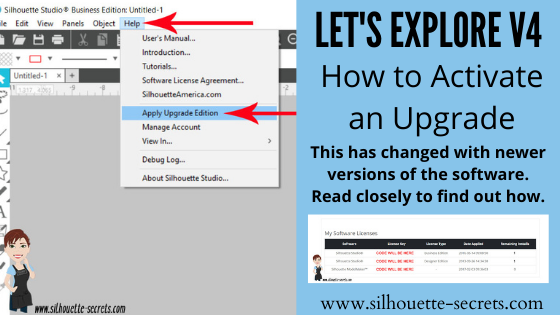
If you are using a software version of v4.4.554 or higher, you do not need to enter your upgrade codes in the software. Click on Help – Apply Upgrade Edition and enter your log in information. Do NOT enter your upgrade codes. Once you log in with your Silhouette account info, your upgrade should be active on any computer you log in to.

This is a new feature and is only available in software versions of v4.4.554 or higher. The upgrade can only be active on 3 computers at a time. If you log into a 4th computer, it will deactivate on the oldest computer that has not been active.
For more information on this in detail, check out this post
Let’s Explore v4 – How to Activate an Upgrade
Upgrades activation on legacy software
For older software, software upgrades do not automatically activate when you download the Silhouette software to a new computer. If you have ever entered an upgrade code, you will need enter the upgrade codes in the order that you purchased them for it to activate on the new computer. So if you purchased the Designer Edition and then the Business Edition later, you would need to enter the code for Designer first and then Business next. If you try to enter Business Edition first, you will get an error and it will not activate.
If you are a brand new user, there is a new system that is in process and you can activate the upgrade on the Silhouette America website to be used on any computer you log into. This is still very new and only available for those that are brand new and have never entered an upgrade code as of 10/15/21.
If you do not remember what the codes were, you can easily access them under your Silhouette account information in the Silhouette Design Store. Open the Silhouette Design Store, make sure you are signed in, move the mouse over the person icon in the top right corner, and then choose Account Settings.

Then click on the License Keys section.

3. Log in to the Silhouette Library
Once the software is open, click in the top right corner on the Library tab.

Enter your Silhouette Account information and all of the files that are in the Silhouette Cloud should Sync up. It will depend on how many files you have in your Silhouette library on how long it will take to fully sync. Another hurry up and wait moment.

As a point of reference, I have high speed internet and 12,000+ files. This took approximately 3 hours to sync my library completely. Keep in mind that each of those files has to sync fully to the new computer.
That is a LOT of data, but just depends on how many files you have in the library.
Plug in Silhouette machines to computer & turn on
If you have an older model Silhouette machine of a Cameo 3 or older, the free files download to the library once the machine is recognized. Plug in the Silhouette machine, turn it on, and click on the Send tab.
Once it has recognized the machine, then the files will download to the library.
You will need to do this for ALL machines that you have had plugged into your software to get those free files to download.
If you have multiple machines, click on the little machine icon in the bottom right corner of the Send tab to choose the machine you want active.

This will also unlock any panels that are associated with a particular machine such as the Emboss Panel for the Curio or the Stipple Panel for the Cameo 4, Cameo 3, Portrait 2, and Curio machines.
Exporting files on old computer
Note: this is only needed if files cannot be recovered in another way
If there are files that did not show up when you logged in and the library synced, the first reason would be they are the free with machine and I would suggest looking at the above information again. If you have done that, then it could be because those files were only stored on the Local User section of the old computer. This will be dependent on the Silhouette software version you were using before. If you were using a version prior to v4.1, you will find more tips on exporting the library in this post – Library Tips (v4.1).
If you have a library backup file, it can then be imported into the Silhouette library by clicking on your name in the top left of the Library and choose Library Import, then select the location of the file backup.

But this only needs to be done if files are missing and you cannot get them to sync up any other way.
If you do it and it’s not needed, you can end up with many duplicate files, which you’ll need to remove manually.
4. Install fonts on the new computer
Keep in mind that when you set up a new computer, you are starting from scratch. That means you will need to install any program or file that you were using on the old computer, if you want it on the new computer. This includes fonts. The new computer comes loaded with the default fonts only and these can vary by computer.
While I have heard of others being able to copy and paste the entire font file from their computer programs folders on the old computer and then pasting it into the new computer fonts folder, I have had mixed results with this. I had to right click on the font and choose “Install for All Users”.

Luckily, I had saved all my font files that I’ve collected onto a folder in my external hard drive, so I could access them direct from the external drive. While I still had to install over 500 fonts, I did get to also pick and choose which ones I really “needed” on the new computer.
I have had several new computers in the last few years and on one I had to install each font and on the other, some worked by copy and paste.
BIG TIP TO NOTE: If you created designs using certain fonts, when you open the design file, if that font is not installed on the computer you are using to open the file, the font will revert to the default font style on that computer.
5. Export User Designs from Silhouette Library
If you have downloaded the current version or a version higher than v4.4.552, there is also a new feature that allows you to export all User Designs from the library as individual files.
Click on your name in the top left corner of the library tab and choose Export User Created Designs.

For more details on this specific features, check out this post HERE
While I do NOT recommend storing your personal files in the Silhouette library, there are times that it is handy when you are accessing files on multiple computers or using Pattern Fills in the Silhouette software.
One big thing to note
when exporting these User Designs is that it will export the entire library folder structure. However, any designs from the Silhouette Design Store, the folders will be empty. Only the user created designs will be exported. This is due to the proprietary nature of the .studio files and to protect the designers of those files from theft.
I would HIGHLY recommend using this export feature when you update to the software of v4.4.552 or higher because it is a really nice feature.
However, as a general note, I do not recommend that all users update to this version or higher. There are many factors that I consider before advising a user on whether they should update. It really comes down to the user’s choice, however, before I make a recommendation I do ask for more information.
If you would like to know what I’d recommend for your situation, feel free to post on the
Silhouette Secrets+ with EllyMae Facebook group and we can take a look at the factors.
Keep in mind that the Silhouette library is not designed as an all inclusive storage area but as a syncing device. This is one reason the Silhouette cloud storage is limited in size. All users get 1 GB of storage space, but if you are a Silhouette Club Member or a Silhouette Design Store Subscriber, you get 5 GB of storage.
————
I hope this helps you start enjoying that new computer and your Silhouette software a little bit quicker!
The biggest tip I can say is to be patient! I am not the most patient person when it comes to setting up a new computer, but if I tell myself that in the beginning sometimes it helps.
We love seeing what you are creating with your Silhouette machines or software.
Feel free to post photos or questions on my Facebook group at
Silhouette Secrets with EllyMae.
Save this for future reference by pinning the image below.

Enjoy !

THANK YOU for your support! How can you help? Click HERE & buy a coffee.
Every little bit helps with the cost of running the site.
Or if you are looking for more in-depth, step-by-step classes, check out all of my online Silhouette classes on my Teachable site HERE.