Posted on 37 Comments

The Offset Panel in Silhouette Studio

Silhouette Secrets+ with EllyMae

Offset Panel – Silhouette Studio v4

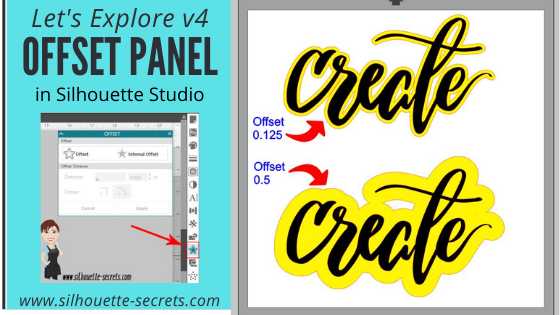
The offset panel in Silhouette Studio is a really useful and functional tool that can be used in many project designs from creating frames, thickening fonts, making layers, and more! This tutorial will show the details of the offset panel and then examples of how an offset can be used several ways.

Photos shows the Offset Panel in the Silhouette Studio software with a red arrow pointing to where it is found on the right side tool bar.

Affiliate links may be present in the following blog post and as an Amazon Associate, I earn from qualifying purchases.

This tool can be very useful for many things such as creating a background layer for a decal, creating a shadow, thickening fonts, making frames, etc.

Photo shows a detailed image of the Offset Panel in Silhouette Studio with the numbers 1-5 showing the different sections of the Offset panel.

  1. Offset – This tool creates a copy of the design on the outside edge of the original shape. The default distance is 0.125 inches in older software versions and that is what shows when Offset button is chosen, it can then be adjusted. Select your design and click on the Offset button.

    *The default distance was updated in later versions of 4 and will be the last used distance number.
    • Photo shows an example of creating an offset in Silhouette Studio.


      *the offset is filled with yellow for you to see it better

      *Create by Cali Arroyo – Design #215617

      Once the Offset is applied, it will automatically weld together and any parts that are overlapping will now be welded. Keep in mind that if there is a part of the design, such as a dot of an i, that is not overlapping, it will not be welded and it will need to be grouped after you create your Offset.

  2. Internal Offset – This will apply the offset inside of the design. The default is set for 0.125 inches here too and most likely you won’t see any offset created, if that is left. Once you decrease the offset distance, you can see a change happen.

    *The default distance was updated in later versions of 4 and will be the last used distance number.

    Photo shows an example of an internal offset in Silhouette Studio.

    This is one way to fill a font that you want to use the sketch pens with. By creating multiple internal offsets, the sketch pen will “fill” the font in by drawing all the internal offsets.Here is an example of creating multiple internal offsets to “fill” in a font to sketch.

    Photo shows an example of using multiple internal offsets to "fill" in text for a sketch option in Silhouette Studio.

    This was many internal offsets, so many I lost track of how many I created.


    First, I will say that it took a lot of ink to fill this in. I was using the Silhouette sketch pens and your results will vary depending on the pen you use and the tip it has on it.


    Photo shows an example of using internal offsets for sketching and how it can leave blank areas.

    You can see above that even with multiple internal offsets, it did not fill in completely with the Silhouette sketch pen.


    In some cases, it is not worth the ink or the time to use the sketch pens like this and would be easier to use the Print and Cut feature instead.

  3. Offset Distance – Change the Distance of the offset to achieve the look you want.


  4. Offset Corner – Change the look of the offset created by changing the corner shape.

    Photo shows an example of the Sharp corner versus the rounded corner option of the offset in Silhouette Studio.
  5. Cancel or Apply – Choose whether to Apply the Offset (can also hit Enter key) or Cancel.

Let’s take a look at some examples of using Offsets.

Creating an offset as a background to layer a decal:

Photo shows an example of an offset on the word create and being used as a layered decal design.

Check out how I created this and then used layering marks to line up the decal exactly HERE.

Photo shows a layered vinyl decal attached to a scrapbook tote.

Using a Offset to create a space when subtracting and layering HTV:

Photo shows an example of using an offset to Subtract within a design to create a gap in Silhouette Studio.

Photo shows a design in Silhouette Studio using the subtracted offset to make text stand out.

See details on how I created this shirt HERE.

Photo shows a MOM design with an offset of names subtracted out on a shirt.

Using an Offset to thicken fonts for cleaner cutting:

Photo shows an example of using an offset to thicken a font.

The Samantha font is very popular but it can sometimes be a pain to cut for small projects, a small offset can make a big difference without changing the look too much.

Using an Offset to make a frame:

Photo shows an example of using an offset in Silhouette to make a frame.

Make an Offset of the original design, select the offset & original, then right click and choose Make Compound path or use the Modify Panel and choose Make Compound path. Now, you have a frame.

There are many ways to use the Offset and these are just a few examples.
How do you use the Offset feature?

Save this for future reference by pinning the image below.

Enjoy !

THANK YOU for your support! How can you help? Click HERE & buy a coffee.
Every little bit helps with the cost of running the site.

Silhouette Classes

Never stop learning! Let me help you take the anxiety out of learning with Silhouette and get to creating faster! My Silhouette classes are heavily focused on software, so you can take the skills & techniques taught and apply them to many future projects!

Silhouette step-by-step Classes by Silhouette Secrets+

Silhouette Secrets+ with EllyMae
**This post may contain affiliate links. What that means is that I may receive compensation if you purchase through the links I have provided. The price you pay for the product or service is not higher, but I may get compensated for sharing.

Posted on 6 Comments

Layering vinyl with Silhouette

Well, this week has been such a crazy week. Snow days, 2 hour delays and just life has gotten in the mix – I am sure I’m not the only one out there who has these weeks.

I will have the Let’s Explore v4 – Tracing Panel post out next week, make sure to check out the previous posts in the Let’s Explore series.

I thought I would pop in here today and show you the projects we used last night on a webinar that I co-hosted.

The first one we created was a 2 layer decal.

2-8 Layered vinyl decal copy

So how did I create this?

  1. Type out the text and weld. I used the Mystical Wood Smooth Script font found at SoFontsy – you get 4 fonts all in one file when you purchase this.
  2. Create an Offset. The size of the offset is a matter of personal preference – I used the default of 0.125.
  3. Create the registration marks. Draw a rectangle, make a copy & move it to the right. Align the marks and group together.
  4. Click on the Send tab in top right corner, choose Cut by Fill Color, checking the boxes next to each color to select it to cut & uncheck the colors you do not want to cut. Cut by fill color -create
  5. Line up the registration marks to layer the decal. Always start with the top layer of a decal.

Here is my finished decal & I loved where Barbara placed her’s so I copied her and placed it on my Iris tote that holds my Oracal 651 sheets.

IMG_1896

Next, we created a 3 color vinyl decal.

3 layer decal

To create this design:

  1. Start by drawing a large circle using the Circle tool from the left side of v4.
  2. Download the circle heart frame HERE.
  3. Open the heart circle frame and resize to fit inside the circle you drew.
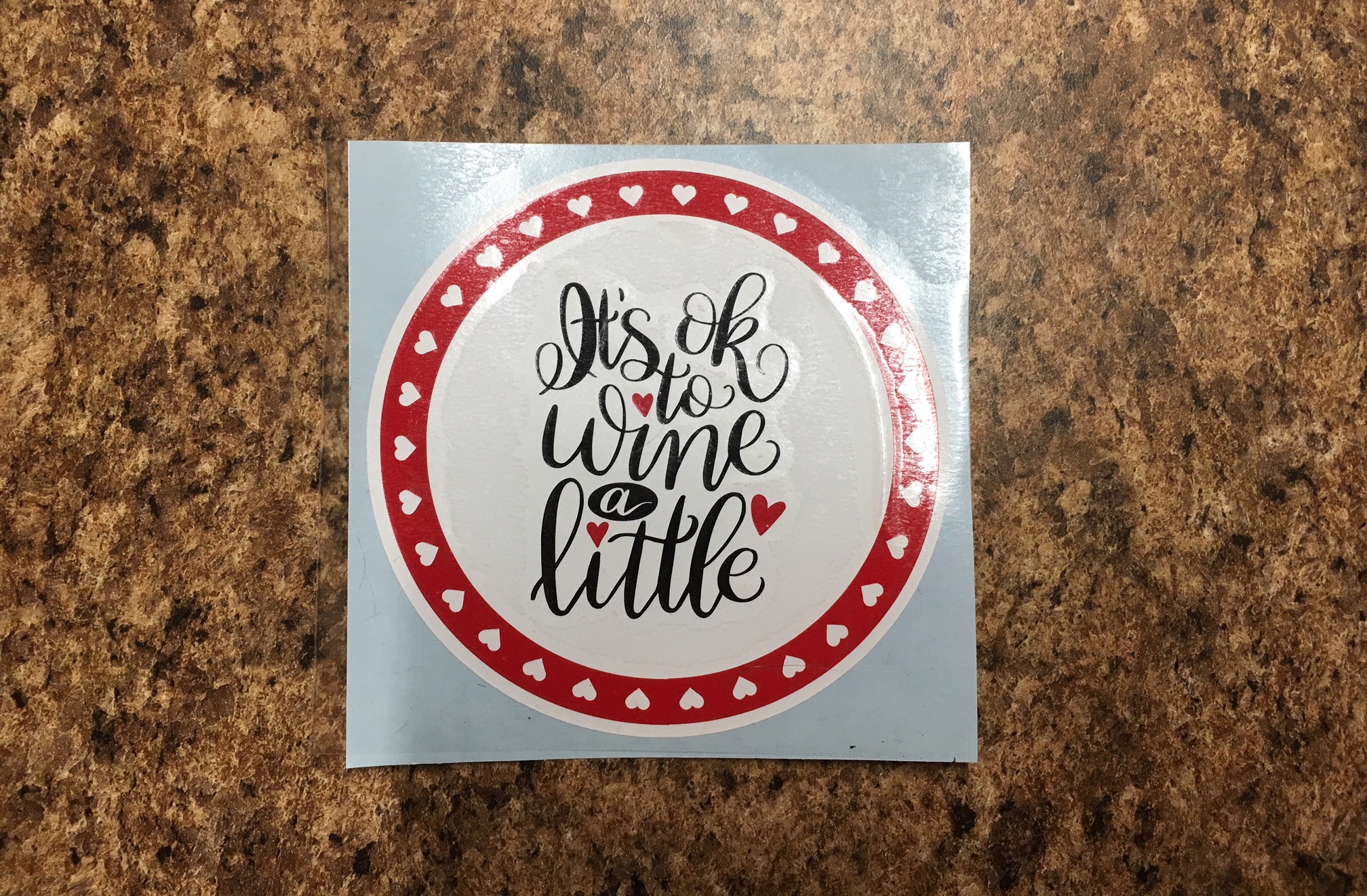
  4. Purchase the It’s Ok to Wine a Little by Dawn Nicole Designs – Design #227534 from the Silhouette Store. Open the design from your Silhouette library by double clicking the design.
  5. Choose the Fill Color Panel and fill the design with black.
  6. Resize the Wine a Little design to fit in the center of the white circle.
  7. Right click on the Wine a Little design and choose Ungroup. While holding down the Shift key, click on the 3 hearts – this will deselect them. Then right click and choose Group. Now your text is all Grouped back together.
  8. Hold the Shift key down and click on the 3 hearts. When they are all selected, right click and Group.
  9. Choose the Fill Color Panel on the right and fill the hearts with the same red that the heart circle frame is.
  10. Select all the layers and choose the center Align tool. Right click and Group those layers together.
  11. Create the registration marks. Draw a rectangle, make a copy & move it to the right. Align the marks and group together.
  12. Click on the Send tab in the top right corner, then Cut by Fill Color, checking the boxes next to each color to select it to cut & uncheck the colors you do not want to cut. Cut by fill color -3 layer
  13. Line up the registration marks to layer the decal. Always start with the top layer of a decal.

And there you go, a 3 color vinyl decal that is aligned perfectly.

IMG_1901

And all those little hearts will work perfect as nail decals, just in time for Valentine’s Day!

I also wanted to note that I used an Autoblade on my Cameo 3 to cut this out and as you can see, it has some pretty thin details. It cut beautifully!

IMG_1898

I hope you enjoyed seeing how I create a layered vinyl decal.

I would love to see what projects you create! Feel free to post on my Facebook group at Silhouette Secrets with EllyMae.

Enjoy !

THANK YOU for your support! How can you help? Click HERE & buy a coffee. Every little bit helps with the cost of running the site.

Looking for more in-depth, step-by-step classes, check out all of my online Silhouette classes on my Teachable site HERE.

SS Logo snip it
**This post may contain affiliate links. What that means is that I may receive compensation if you purchase through the links I have provided. The price you pay for the product or service is not higher but I may get compensated for sharing.