Posted on 14 Comments

Reasons svg files are not opening in Silhouette

There are several reasons that a svg file may not open directly into Silhouette Studio.

Affiliate links may be present in the following blog post and as an Amazon Associate, I earn from qualifying purchases.

1 – To open svg files, the Designer Edition upgrade or higher is required to “unlock” this feature.

Getting the upgrade is the easiest way to open svg files direct and retain their svg properties.
The svg file is usually the higher quality cut file compared to a dxf, a trace, or outside conversion programs.

Where do you find the software upgrades?

The software upgrades can be found at an authorized Silhouette retailer. I suggest Swing Design or Silhouette America.

After you purchase the upgrade and receive the code, enter it under Help > Upgrade in the software and it will be active.
As you can see in this photo, my Upgrade option is grayed out because I have the highest level of Business Edition. This will show at the top of the software or under Help > About Silhouette (PC) or About Silhouette (MAC).

upgrade

2 – The folder you are accessing the svg file from is not unzipped or extracted.

When you download files, they usually come as a “compressed” file. This is so that it can download faster. If files are not “compressed” or “zipped” it would take FOREVER to download as they can be large file types.

Extracting a downloaded folder

The first step to opening a .svg is to download the file from the source. Most files will come in a zipped (compressed) folder and this will need to be unzipped/extracted first. This will depend on your computer system but for me on a Windows PC, I right click on the folder and choose Extract All. Or select the file by clicking on it once and choose the Extract button at the top of the folder.
MAC users if you double click on the folder, it should unzip the folder.

Extract file copy.jpg

You can tell this is a compressed folder because it says at the top of the window and has a zipper on the file icon.

compressed folder icon copy

You will not be able to access the full design files unless the folder is unzipped/extracted.

Once you click the Extract All button, it will give you the options to choose where to save the Extracted file to. Select where and then click Extract.

extracting file copy

Now, the folder can be fully accessed.

3 – The default program on a computer, especially Windows computers is set to open in a web browser.
You will see it as a web browser icon next to the file name.
This will be whatever web browser your computer is set to. For instance, on a PC I use Google Chrome but Microsoft Edge or Internet Explorer are other ones you may see.

Windows updates have a tendency to revert this back when they process.
You will need to change this back on the computer, for it to show accurately.

If you open the svg file first in a web browser and then copy it to the software, you lose the svg properties. Changing it to open correctly is what I would recommend.

The computer will use the default program to open any file type when you double click it.
What does this mean?
You will most likely have to change the default program that the computer uses to open .svg files with a double click.

Here is how to change the default on your computer.

Changing the default program for .svg files on Windows

Right click on the .svg file name and choose Properties.

default program svg

Under the General Properties tab, next to the “Opens with” section, click on Change.

properties copy

Now, find the Silhouette program and choose it as the default. Scroll down to the bottom and choose More Apps if you do not see it in the list.

file type svg default

You may need to keep clicking to look further on the computer programs.

file type svg default2

Once you find the Silhouette Program keep on clicking into the folder, then choose Silhouette Studio for the default to open .svg files.

file type svg default3 copy


NOTE:
where the Silhouette Studio program can be found is dependent the software version you are using.

Versions of Silhouette Studio that are older than v4.3
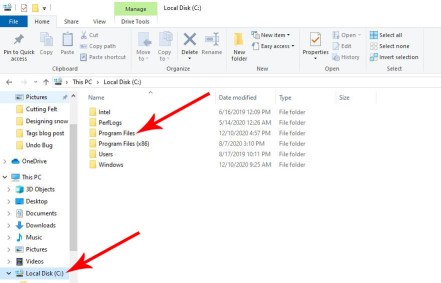
will be found under the C: Program Data (x86)

Versions of Silhouette Studio higher than v4.3
the software is found under C: Program Data

Once you have set the default to use the Silhouette software to open a .svg file, then you will see the icon next to the file name change to the Silhouette icon.

silhouette default program copy

And when you double click on that file, it will then open up in the Silhouette software.

Silhouette default program1.JPG

NOTE: Save these instructions as you may need to do this again after a Windows update!

4 – If you have purchased a software upgrade, is it still active?

There are rare times where a software upgrade deactivates on a computer, for instance a Windows update may wipe it out.

The software upgrade would need to be activated again by entering the upgrade code under Help > Upgrade again.

New computer owners will also need to activate the software upgrades on the system when they install the software to the new computer. It is NOT automatic!

upgrade

What if you do not remember the upgrade code?

Go to the Silhouette Design Store HERE

Click on the person icon in the top right corner for the Account Settings.

Then scroll down and click on the Silhouette Studio Keys and click on it. This will show all the upgrade codes you currently have registered to your account.
NOTE: you will need to enter the codes in the same order that you purchased in. For instance, if you bought Designer Edition first and then Business Edition later, you need to enter the codes in the same order.

If you get an error code that it is already active, you may need to contact Silhouette support to have the codes reset. The codes can be active on up to 3 computers, but if you hit the 3 install limit and it is not active on more than 3 computers, they can reset the code for you.

Opening a .svg file in Silhouette Studio

Now that the downloaded file is fully accessible, it can be opened in Silhouette Studio. Again keep in mind, that you must have the Designer Edition upgrade or higher in order to open a .svg file in the Silhouette software.

As with a lot of the tools and features, there are several ways you can open files in the Silhouette software.

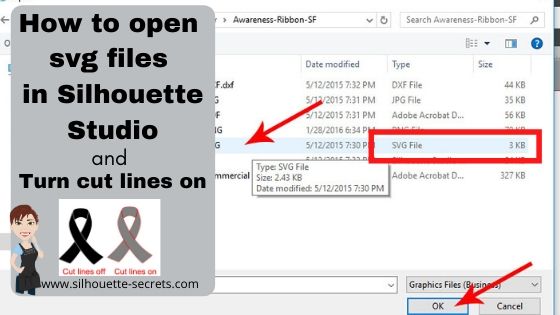
1. Use File and then Open in the Silhouette software.

file open

Then choose where the file is located and click OK. Or double click on the file and it should open in the Silhouette software.

file open location copy

2. Drag and drop the file from the Computer folder. 

With the Silhouette software open on the Design tab, open the My Computer/Windows Explorer folder where the file is saved.

drag and drop copy

Now grab the .svg file by left clicking the mouse and holding the mouse button down, then drag the file on to the design mat of the Silhouette software.

Drag and drop1.JPG

The design will show up on the Silhouette work space where you drag it to.

3. Double click the .svg file to open directly in the Silhouette software.
If you have already set the default program on your computer to open svg files with the Silhouette software, then you should be able to double click the file and it will open in Silhouette Studio.

Hope this helps get you going with svg files!

If you have further questions, or something does not look quite right, please post on my Silhouette Secrets+ Facebook group and we can start troubleshooting why it is not working for you to extract/unzip the folder.

Save this for future reference by pinning the image below.

Enjoy!

This image has an empty alt attribute; its file name is logo.jpg

THANK YOU for your support! How can you help? Click HERE & buy a coffee.
Every little bit helps with the cost of running the site.

Or if you are looking for more in-depth, step-by-step classes, check out all of my online Silhouette classes on my Teachable site HERE.

SS Logo snip it
**This post may contain affiliate links. What that means is that I may receive compensation if you purchase through the links I have provided. The price you pay for the product or service is not higher but I may get compensated for sharing.
Posted on 16 Comments

Let’s Explore v4 – How to open an svg file

I see many questions regarding .svg files come up across the Silhouette world, so let’s take a look at it.

What is a svg file?

A .svg is a Scalable Vector Graphic.
But what does that mean to a Silhouette user?
It is a cut file that you can resize without losing image quality.

How is it different than a file from the Silhouette Design Store?

Silhouette design store files (.studio or .studio3) files are a proprietary file that can be found in the Design store and downloaded direct to your Silhouette library. These files should be ready to cut when you open them.
These are the easiest files to open and cut as a new beginner with the Silhouette and what I would recommend a new user starts with.
As with any file, it is dependent on how the designer saved the file.
The Silhouette Design store does have an option to purchase the .svg file in addition to the .studio file, however, it is not needed unless you are using it outside of the Silhouette software.

An .svg file is a common cut file and can be opened in many programs.

How to Open a .svg file in Silhouette Studio

In order to open a .svg file in the Silhouette Studio software it requires a Silhouette software upgrade of Designer Edition or higher. I highly suggest at least the Designer Edition upgrade, it is a great investment and will save you time & headache in workarounds.

With a software upgrade to Designer Edition or higher, it unlocks additional features in the software.
For a list of those features unlocked with each upgrade check out this chart from Silhouette America HERE.

Click on the video camera icon for a brief demo of each feature.

Where do you find the software upgrades?

The software upgrades can be found at an authorized Silhouette retailer. I suggest Swing Design or Silhouette America.

After you purchase the upgrade and receive the code, enter it under Help > Upgrade in the software and it will be active.
As you can see in this photo, my Upgrade option is grayed out because I have the highest level of Business Edition. This will show at the top of the software or under Help > About Silhouette (PC) or About Silhouette (MAC).

upgrade

Extracting a downloaded folder

The first step to opening a .svg is to download the file from the source. Most files will come in a zipped (compressed) folder and this will need to be unzipped/extracted first. This will depend on your computer system but for me on a Windows PC, I right click on the folder and choose Extract All. Or select the file by clicking on it once and choose the Extract button at the top of the folder.

Extract file copy.jpg

You can tell this is a compressed folder because it says at the top of the window and has a zipper on the file icon.

compressed folder icon copy

You will not be able to access the full design files unless the folder is unzipped/extracted.

Once you click the Extract All button, it will give you the options to choose where to save the Extracted file to. Select where and then click Extract.

extracting file copy

Now, the folder can be fully accessed.

Opening a .svg file in Silhouette Studio

Now that the downloaded file is fully accessible, it can be opened in Silhouette Studio. Again keep in mind, that you must have the Designer Edition upgrade or higher in order to open a .svg file in the Silhouette software.

As with a lot of the tools and features, there are several ways you can open files in the Silhouette software.

1. Using the menu options. 

In the top left corner, choose File and then Open.

file open

Then choose where the file is located and click OK. Or double click on the file and it should open in the Silhouette software.

file open location copy

2. Drag and drop the file from the Computer folder. 

With the Silhouette software open on the Design tab, open the My Computer folder where the file is saved.

drag and drop copy

Now grab the .svg file by left clicking the mouse and holding the mouse button down, then drag the file on to the design mat of the Silhouette software.

Drag and drop1.JPG

The design will show up on the Silhouette work space where you drag it to.

3. Double click the .svg file to open directly in the Silhouette software.

The computer will use the default program to open any file type when you double click it.
What does this mean?
You will most likely have to change the default program that the computer uses to open .svg files with a double click.

When an .svg file is downloaded, the icon shown next to the file name will most likely be a web browser icon such as Internet Explorer or other. This means that the computer is set to open a .svg file with a web browser. But, you can change that.

Changing the default program for .svg files on Windows

Right click on the .svg file name and choose Properties.

default program svg

Under the General Properties tab, next to the “Opens with” section, click on Change.

properties copy

Now, find the Silhouette program and choose it as the default. Scroll down to the bottom and choose More Apps if you do not see it in the list.

file type svg default

You may need to keep clicking to look further on the computer programs.

file type svg default2

Once you find the Silhouette Program keep on clicking into the folder, then choose Silhouette Studio for the default to open .svg files.

file type svg default3 copy

The Silhouette software will be found under the C: Program Data (x86) if you are using a software version older than v4.3.
For all v4.3 and higher versions, the software is found under C: Program Data.

Once you have set the default to use the Silhouette software to open a .svg file, then you will see the icon next to the file name change to the Silhouette icon.

silhouette default program copy

And when you double click on that file, it will then open up in the Silhouette software.

Silhouette default program1.JPG

Another tip here is that you can change how a .svg file opens in the Silhouette software. The choices are As Is, Centered, or Fit to Page. You will find these options under the Import tab in the Preferences.
I have mine set to open Centered, meaning that the .svg image will be centered on the design mat.

preferences copy

MAC users: On a Mac – right click on any SVG file, then click on Get Info. In the popup window, near the bottom, you’ll see where it says “Open With”. Click on that and you’ll see a list of programs. Click on “Other” to open the Applications folder, where you’ll be able to select your Silhouette program. If Silhouette Studio is greyed out, make sure you have “All Applications” enabled. There is also an option in the Get Info window to make the selected application (in this case, Silhouette Studio) open all file types with the same extension as the one selected (which would mean all SVGs in this example).
Thanks to my colleague Lycia Evanoff with Caught By Design for this MAC information.

Now, once the .svg file is open in the software there is one more thing you will need to do before it will cut.

Turn on the cut lines.

The .svg files open in the software with the cut lines defaulted to off.

How to turn the cut lines on. 

1 – Select the image by clicking on it.
You will know that it is selected by the gray box showing around the object.

Selection box copy.jpg

2 – In the top right corner of the Silhouette software, choose the Send tab.
You will notice that the design is selected and “No Cut” is highlighted on the right. This is because the default for a .svg file is the cut lines are off.

send tab copy

3 – Choose Cut and the bold red cut lines should turn on.

send tab cut lines copy

Two key things to note here are:

  1. The Design must be selected in order to turn the cut lines on. If nothing is selected, choosing the Cut option will not turn anything on.
  2. It must be the .svg file that you opened. Other file types such as .jpeg or .png files are not cut files and will not have cut lines around the object. Most often you will only see the outer edge of a jpeg or png file turn on and show a rectangle.jpeg or png copy

There are so many great cut files out there and from many locations. The file that I used as an example today is from SoFontsy that has 100% Commercial Use friendly designs.

Keep in mind that with any file you acquire, it is dependent on how the designer designed and saved it.

Hope that helps explain a very common question I see all the time.

Save this for future reference by pinning the image below.

Feel free to post your comments and questions below or on my Facebook group at Silhouette Secrets with EllyMae.

Enjoy!

SS Logo snip it

**This post may contain affiliate links. What that means is that I may receive compensation if you purchase through the links I have provided. The price you pay for the product or service is not higher but I may get compensated for sharing.