
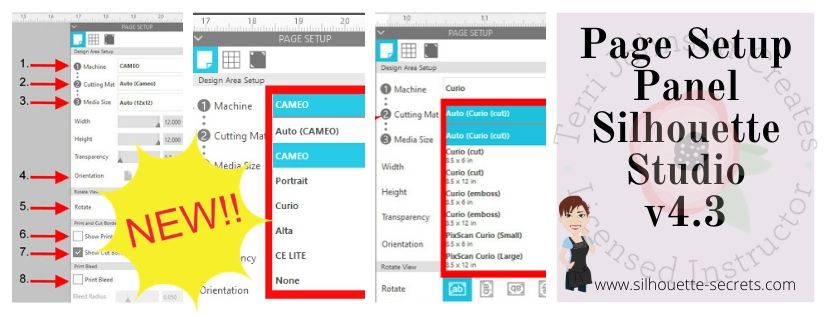
It’s new! The new v4.3 software has been released and there are a few changes to how things look in the software. With the release of the new Cameo 4, a new software update had to be released in order for the Cameo 4 to be recognized in the software.
Today we are going to take a look at what the Page Setup Panel – Tab 1 looks like now in v4.3 software. If you have an older software version prior to v4.3, check out this post HERE – Let’s Explore v4 – Page Setup Panel – Page Size and Cutting Mat.
How do I know what software version I have?
First, let’s see what software version you are using.
On a PC, in the top left corner, click on Help > About Silhouette.

On a MAC, navigate to the top left menu, click on Silhouette Studio, and then click on About Silhouette.

(Thanks Libby Ashcraft for this MAC screenshot!)
This little window tells us a lot of information and is handy to have when troubleshooting an issue a user is having.

It tells me that I am using version 4.3.353 (currently a Beta version) and that I have Silhouette Studio Business Edition (ssbe) active on my computer.
Now, you may ask why I am using a Beta version? Well, I am part of the Silhouette Beta testing group and test the software releases that may have bug fixes or if I find bugs I can report those to the folks who need to know.
Do I recommend the Beta for the average user? NO
I only recommend the Beta version if someone is having an issue I know is resolved by updating to the Beta version or if you are very familiar with the software. The Beta version is a TEST version and with that can come unknown bugs.
The main thing I want you to find here is where to find your software version information.
Now that you know that information, you can tell if you are on a version prior to v4.2 or if you have a v4.3 software.
So let’s take a look at the differences between the Page Setup Panel – Tab 1 in v4.2 versus v4.3.

So if you are a v4.2 or prior user, you will want to look at this post HERE for the Page Setup Panel look that matches your software.
If you are a v4.3 software user or just curious what v4.3 holds, keep reading as we go through the entire panel.
The Page Setup Panel is found in the top right corner of the Silhouette software and is one of the most important panels to get started designing.

Let’s take a look at what each of these sections tells us.

- Machine – Select the machine that you want to design with. Now you can choose between a Cameo, Portrait, Curio, Alta, CE Lite, or none for the designated machine.

This is great for Silhouette owners who may want to design on a Curio mat when they are not connected to the machine.
It will allow the Curio mat to come up on the design page so a user can then design within that Curio mat versus having to go plug their machine in for it to be recognized.

This is the biggest reason for the Page Setup Panel change.
However, something to note is that while you can select the machine to design with, you would still need to have plugged in a Curio and it be recognized by the software to unlock the Curio features such as the Emboss Panel. - Cutting Mat – Choose the cutting mat size depending on what you are using.
Each machine type selected will have a variety of options.
Here are the Cameo options:

Here are the Curio options:

Each drop down list will vary depending on what you have chosen in the #1 area.
- Media Size – this was previously known as page size and now has been changed to media as the materials you can use in your Silhouette has expanded. In the drop down are several preset sizes for the most common media sizes.

Choosing a specific media size will adjust the media size on the screen and you will see a white “page” show up on the screen depending on the size chosen. White will appear for the media size if the transparency is at 0% – see below*
Under this Media size section, you can also select a custom size by entering the dimensions into the Width and Height section.

In the photo above, I have selected the Machine: Cameo, Cutting Mat: Auto (Cameo), and Media Size: Letter. Notice that the white has adjusted to match the Letter size paper of 8.5″ wide by 11″ height.
Transparency – adjust the transparency of the media size you have selected. At 0% it shows as a solid white media on the screen. As you increase the transparency the white disappears and you will see the grid spacing of the cutting mat appear.
Note: the width of the Media Size cannot be set larger than 12″ since the Silhouette Cameo cannot cut wider than 12″.
If you try to adjust the width larger than 12″, it will revert it back to 12″.
If you want to design with a page size larger than 12″, change the Cutting Mat to none & then you will be able to adjust the Media size larger than 12″ wide.This was formerly called “Reveal” under the cutting mat section.

- Orientation – change the orientation of the page to Portrait or Landscape orientation


- Rotate View – change the orientation of the entire design mat on the Silhouette software. This only rotates the view of the mat on the screen.
Keep in mind that the black arrow is always the “top” of the mat or the “top” of the media. This is the first part of the media that is loaded into the machine.

Here is the view rotated to 270 degrees. No matter where the black arrow is pointing on the screen, that is always the top of the mat or media that is loaded into the machine.
This is something to keep in mind when you are placing your design and media on the cutting mat.

- Show Print Border – check the box next this option to turn the Print Border on. It will show as a gray border on the screen and is set according to what printer is recognized by the computer

The print border should have no affect on the cutting space, it shows what the printer margins are set to for the printer that is set up on your computer.
If the gray lines are showing at a smaller size, most likely the print size has been changed in the Printer Setup within the software or within the Printer setup on the computer.
Check under File > Print Page Setup for more details on the printer page size.

- Show Cut Border – check this box to show the maximum cut border that you have to work with. A red cut border will appear around the media size you have selected.

There are 2 options for the cut border in the software. There is the Cut to Edge of Page, which is what I have my software set at as shown above. This option can be found under the Preferences options > Defaults tab in the software.
Or there is the default, which places the cut border just a bit within the edges of the media size.

I always have my Show Cut border checked, especially when doing a Print and Cut project.
It is all a matter of personal preference in how you have the software set up. - Print Bleed – this option can be selected for when a project is being printed through your printer to be cut. The Bleed radius can be adjusted in this section too.

It will give the colors a bleed area (similar to an offset) around the design that is being printed. This is to help avoiding a white border around the design when it is cut.

In this photo you can see that with the Print Bleed option chosen it bleeds the color out from the edges of the design.

Here you can see the print bleed excess once the design is peeled away.Something to note about Print Bleed is that it does NOT show the bleed on the design screen. The bleed is only present when you have this option selected and print onto the material.
And there you have the new v4.3 Page Setup Panel. Now, if you made it all the way through the post and are scratching your head as to why your Page Setup Panel does not look this way. It could be that you are not yet on the v4.3 software version.
Check out this post HERE to see if that looks more like what you are seeing.
The next question you may be asking is – Why does it have to change?
Well, whether we like it or not, change can be good. New features, new machines, new techniques! It is a never ending learning process and I for one am grateful that the Silhouette company looks for ways to improve on things.
Check out the “Let’s Explore v4” section on the blog for more Silhouette software explanations HERE.

I would love to see your projects & I know others in my group do too! Feel free to post on my Facebook group at Silhouette Secrets with EllyMae.
Save this post for future reference by pinning the image below.

Enjoy!


**This post may contain affiliate links. What that means is that I may receive compensation if you purchase through the links I have provided. The price you pay for the product or service is not higher but I may get compensated for sharing.










