Posted on 36 Comments

Let’s Explore v4 – Print & Cut Basics

With the v4.3 software released, the Registration Marks panel had a small change as well. For software version of v4.3+, there is now an On or Off on the Registration Marks Panel – find the full details on the panel HERE. If you are using a software version prior to v4.3, then you will see it a little bit different and for almost all users, you would choose Type 1 registration marks – find the full details on that HERE.

Registration Marks Panel difference copy

No matter what version of v4 software you are using, the Basics of setting up a print and cut project are the same.

I follow the exact same steps each time and have great success with each print and cut project.

Print and Cut Basics

This tutorial is written using the v4.3.356 Silhouette studio software. For versions prior to v4.3 you may see a few differences in the software, the steps will be the same. However, you may find this Print and Cut Part 1 tutorial to be helpful too.
Affiliate links may be present in the following blog post and as an Amazon Associate I earn from qualifying purchases.

First, you want to start out by setting the design page up.

Step 1 – Open the Page Setup Panel – Tab 1
Step 2 – Choose the correct machine & cutting mat.
Note: users prior to v4.3 will notice the Page Setup Panel is a little different too. Find out more on that HERE.
Step 3 – Choose the Media size. I choose “Printer” as the option when using letter size paper. You will find it at the bottom of the drop down box for Media Size.
*NOTE: for users with software v4.4.450 or higher – choose Letter size – there is a change in the software with “media” size I have found as of 12/15/20. I have reported it and will update the post as I know more information in the future
Step 4 – Move transparency to 0%. This will help you see the page size better.
Step 5 – Choose the Portrait Orientation. This is the orientation I recommend as I see the least amount of issues with it.
Step 6 – Check the boxes next to Show Print Border and Show Cut border. This will show you the boundaries you have to work with.

Planner Sticker PNC1 copy

Next, open the design onto the cutting mat by either right clicking on the file in the Silhouette library and choosing merge or using File > Merge.
This will merge the design directly onto the page you have just set up.

Merge vs File Merge

Next, click on the Page Setup Panel – Tab 3 – Registration Marks and choose On.
Then click the Restore Defaults button.

PNC demo copy
Penguin in Snowball Fight by Stinkin’ Cute Paper Piecings – Design #117611

As with any new project, I would recommend doing a test first. This is why I start with all the default settings. A test print can save you a lot of headache and frustration just like a test cut when you are cutting new materials or a new design.

With a print and cut, design placement is very important. The design cannot be in the cross-hatched areas of the design screen or over the cut border that is shown on the screen. This is why I turn the Show Cut border on first on the Page Setup Panel.

Design placement copy

Make sure the design is away from the cross-hatched area. This is the area that the optical eye on the Cameo needs to read the registration marks accurately in order to find the design on the page. Making this area smaller or placing a design in it, can result in either a registration marks error message or an inaccurate cut.

Now it is ready to print.

There are 2 ways to do this.

Click on the Printer icon in the top left corner. This will send the print job directly to the printer that is set as the default printer connected to your computer.

Printer icon copy

In the top left corner, choose File > Print and you will get a pop up of Printer options. (Ctrl + P)

file print
The options vary by the printer you have connected to your computer.

Choose the printer to send the job to.

Tip: If you have a Preferences button, click on that and look for a “Preview before Printing” option. This is a great feature to see if it is going to print how you want it to before actually committing to the print job.

Preferences copy

Check the Preview before Printing box.

File Print Preview copy

Then click OK.

print copy

And choose Print.

A Printer menu will pop up and the design can be previewed before committing to printing.

Print Preview copy
Note: this will be dependent on the printer and what the printer setup settings are. Not every user will have this and it can vary, but never hurts to look for it.

Tip: Check to make sure that the bottom left registration mark will print completely. I see a lot of print and cut issues and one is the registration marks were outside the users printer margins and did not print. This means you will either get a registration error or it will cut inaccurately because it doesn’t have all the information to read it correctly.

Once you’ve verified the settings are correct, click on Print and it will send it to the current default printer.

Printer

Grab it off the printer. I am using a Canon TS9521C Craft Printer and I love it. This printer has great quality and I love having the option to print on a 12″ x 12″ sheet of cardstock with it.

Place it on the Silhouette cutting mat exactly as it shows on the virtual design screen, in the top left corner of the cutting mat. Make sure that the page is covering the grid lines on the cutting mat, or the Cameo may try to read the black lines when it goes to register.

Page on mat copy

Load the left edge of the cutting mat next to the line on the left side of the machine.

IMG_20200127_154139823 copy

Click on the Send tab in the top right corner and then choose the Material type you are cutting.

Cut Setting copy

Once all the settings are correct, then choose the Send button in the bottom right corner.

Note: a test cut using the Test option in the software will result in part of the upper left registration mark being cut out and can interfere with reading the marks correctly. I would suggest doing a test cut on a spare piece of material or moving the test cut out of the top left corner.

I love print and cut!

IMG_20200127_153032225 copy

I do the same steps every time when setting up the print & cut and rarely have an issue.

IMG_20200127_153058460 copy

I find that in troubleshooting most print and cut issues, it is something in how it is set up or how the design printed. I recommend for all my students and those interested in print & cut, to start with all the default settings to establish a baseline before they start changing things up.

Now that we have a successful print and cut, let’s try another design.

Print and Cut Planner Stickers

Follow the same setup steps listed in the beginning of this tutorial for the Page Setup.

Use File Merge and open the design on the screen.

Open the Page Setup Panel – Tab 3 – Registration Marks and turn the marks on. Click Restore Defaults.

Registration Marks copy
Doughnut Planner Stickers Set by Jennifer Wambach – Design #100816

In the photo above, I have highlighted a few trouble areas of this design. On the left and right edge, the design is over the Cut border and in the bottom left corner, the design is in the cross-hatched area.

To fix this, I select the entire design & cut lines and then use the bounding box in the corner and scale it down just a bit to fit within the borders of my print and cut page. Then move the design to the center of the page.

Planner Sticker demo copy

Once it is all setup the same way, follow the same steps as listed above for printing and loading it in the machine. Click on the Send tab and choose the material type. I am using sticker paper for this set and Send it to the Cameo to cut.

Planner sticker demo cu copy

I used the Silhouette White Sticker paper for this one, as that is what was in my stash. But, I’ve also used the Staples brand sticker paper and I like both.

IMG_20200127_161717399 copy

There are so many options that you can do. The Cameo 4 Autoblade cut beautifully using the Sticker Paper – White setting.

IMG_20200127_161842860 copy

The best thing to do is to start with the basics. Set it up with the defaults, do a test print, and then keep on playing.

If you are still needing help, check out the Print and Cut video class on my Teachable site HERE.

Print & Cut header

This includes 2.5 hours of step-by-step set-up, discussing different file types to print and cut, and troubleshooting tips as well.

Don’t forget to save this for later by pinning the image below – it will work time and time again.

Print and Cut Basics Pin

I would love to see what you create on my Facebook group at Silhouette Secrets with EllyMae.

Having print and cut issues? Feel free to post on the group and we will troubleshoot it with you.

Enjoy!

SS_Signature copySS Logo snip it

**This post may contain affiliate links. What that means is that I may receive compensation if you purchase through the links I have provided. The price you pay for the product or service is not higher but I may get compensated for sharing.

Posted on 9 Comments

Let’s Explore – Registration Marks v4.3

If you are using a v4.3 software version, you may have noticed that there are a few changes in the software panels from prior versions.

One of those panels is the Page Setup Panel – Tab 3 – Registration Marks, so let’s take a look at the difference.

Registration Marks Panel difference copy

If you are using version 4.0 to version 4.2, then the Page Setup Panel – Tab 3 will look like the one on the left side in the photo above – check out this post HERE for details on that.
If you are using version 4.3, then the Page Setup Panel – Tab 3 – Registration Marks will look like the one on the right.

As you can see the Registration Marks Style section has changed to an On or Off position now in version 4.3. While this is the only change you can see in this panel, when you are looking at videos or older tutorials, it will show the step to choose Type 1. This is great to know if you are new user to Silhouette or for someone just updating to the version 4.3 software.

But, while we are here, let’s review the Registration Marks Panel and explain what it all means.

The Registration Marks Panel is the 3rd tab in the Page Setup Panel, which is the top right icon.

Registration Marks Panel copy

The print and cut registration marks can also be toggled on by the keyboard shortcut letter ‘M’. I see this happen often when a user is typing with text and then clicks off of the text, but still tries to type letters. This can activate keyboard shortcuts and the marks will toggle on and off.

Now, first before we go into the details of this panel, let’s first set up the page for the print and cut. I follow the same steps every single time I set up a print and cut project and I rarely have any issues. We will go through them here briefly, but check out this Print and Cut – Part 1 tutorial for more details – HERE. Keep in mind that this tutorial was written in a software version before the On and Off change in this panel.

Affiliate links may be present in the following blog post.

Setting up a Print and Cut Page

Step 1 – Open the Page Setup Panel – Tab 1
Step 2 – Choose the correct machine & cutting mat.
Step 3 – Choose the Media size. I choose “Printer” as the option when using letter size paper. You will find it at the bottom of the drop down box for Media Size.
Step 4 – Move transparency to 0%. This will help you see the page size better.
Step 5 – Choose the Portrait Orientation. This is the orientation I recommend as I see the least amount of issues with it.
Step 6 – Check the boxes next to Show Print Border and Show Cut border. This will show you the boundaries you have to work with.

Page Setup copy
Colorful Sloth – Stickers by Sandi Idleman – Design #312256

Now, that the page is set up, let’s move to the registration tab and turn the
Registration Marks On.

Registration Marks On copy

Some things to point out here.

When the Show Cut border box is checked on the Page Setup Panel – Tab 1, you will notice that the red cut boundary moves when you turn the registration marks On. Notice that the cut boundary is lined up with the registration marks that appeared on the page.

There is a cross-hatched area that shows up on the design screen. This does not print on your page. However, having a design, cut border, or background in this cross-hatched area can interfere with the optical eye reading the registration marks accurately. This can cause mis-cuts. Make sure that the design is away from the cross-hatched areas on the page.

Notice on the left and right side, I have circled and highlighted 2 problem areas. These would result in those 2 things not being cut completely, if there were no other errors because they are outside of the cut border.

I mentioned above, that I do the same exact steps every time I set up a print and cut project. The next step I do is click the Restore Defaults button.

Restore defaults copy

And I am ready to print. This Colorful Sloth – Stickers by Sandi Idleman – Design #312256 is set up as a print and cut design, so the cut lines are already there.
If you are creating your own cut file, you may need to trace or fill with color. Check out these posts on Print & Cut – Part 2 – Text and Print & Cut – Part 3 – Images for exactly how to do that.

I go to File > Print in the top left and make sure the printer is set up with the correct page settings for the printer I am using. If the Printer Setup has a Preview option, I would highly recommend using it to make sure that all of the registration marks will print correctly.

Printer Setup copy

But, what about all the other options on the Registration Marks Panel?

Yes, there are more options. However, I would highly recommend for a beginner with print and cut, if you’ve ever had problems with print and cut, or if you have a new printer to start with the defaults and establish a baseline.
This will eliminate so many things that could be an issue that gives you a registration error or mis-cut.

It printed beautifully on the Silhouette white sticker paper! Make sure to place the printed page in the top left corner of the cutting mat exactly as the page shows on the design screen. Place the page on top of the grid lines on the cutting mat or the Cameo may try to read the grid lines instead of the registration marks.

PNC Loaded copy

The left edge of the mat, should line up with the line on the left on the Cameo that the 2 arrows point to.

PNC Load line copy

Now, something I noticed after it printed was that the designer of the file had increased the line thickness of the cut lines, so when it printed the red lines printed too. This is not always desired, so make sure you double check the file before printing it out.

Line Thickness copy

I love print and cut and I rarely have an issue with it registering or mis-cutting. This is why I want to stress the importance of using the defaults at least the first time to set you up for the best chance of success.

PNC Cut copy

Registration Marks Panel Options

Once you have established a baseline with print and cut and have had success with the default settings, then I you can venture into testing the limits.

I often see users who have maxed out the registration marks to try to gain more space on their page and they end up with it not registering at all or if it does, the cut is far from accurate. While you can move the registration marks, each printer will vary in how far you can move those and still get an accurate cut.
This will take testing on your part to know what the limits are for your printer!
I rarely move my registration marks because I know at the defaults it cuts great every time. However, on the occasion I am feeling daring, I have moved them but tell myself the entire time that if it doesn’t cut, I will know why. While I’ve still been successful in moving the marks and getting accurate cuts, that is not what I see with the majority of users. So, just keep that in mind.

Registration Marks Panel detail copy

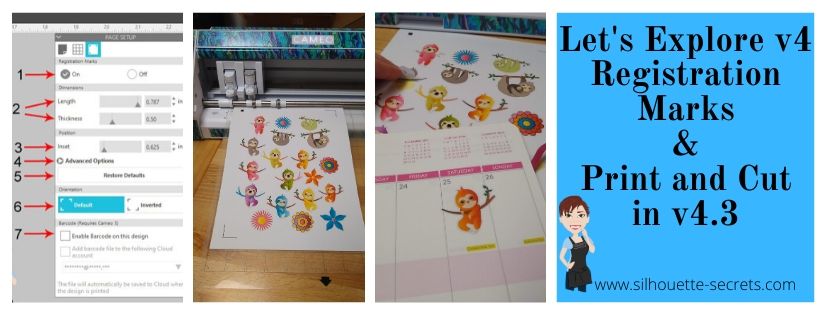
1 – On or Off – Turn the registration marks used for print and cut on or off by clicking the box next to each option.

2 – Length & Thickness – Adjust the length of the registration marks or the thickness of the marks.

3 – Inset – Adjust all 3 of the registration marks at the same time. The higher the number, the closer to the middle they move.

Inset example copy

4 – Advanced Options – Click on the arrow and it expands with more options to adjust the individual insets of the print and cut area.

Advanced Inset copy

5 – Restore Defaults – This will reset the registration marks to the default settings.
This is the #1 thing that I feel can make all the difference in getting an accurate cut. I highly recommend starting with the defaults first and then as you feel more comfortable, you can start changing things up. Especially on a file that you have purchased that is set up as a print and cut file. It may not have been saved with the default settings for the Silhouette. The designer may have been able to print it with their printer at those marks, but yours may not be the same. Or you could encounter someone who has just designed it but never printed it to test it.

6 – Orientation – Default vs Inverted – This changed the direction of the registration marks on the mat. Notice the direction of the arrow on the cutting mat. Inverted placed it on the opposite corner of the mat & moves the registration marks on the page.

Orientation demo copy

7 –Barcode  – This adds a barcode to the side of your page and it stores all of the cut settings data in the bar code that the Cameo 3 will read. This is a Business Edition feature only. There is also the option to save the information to the cloud account that is associated with the email address used to log in. 

I troubleshoot a lot on many platforms for print and cut and most often it is something that needs to be tweaked with the way the file is set up. Starting with those defaults will save you a lot of headache in the long run.

Don’t forget to Pin this image below to save these tips for the future!

Registration Marks pin

I would love to see the projects you have created feel free to post on my Facebook group at Silhouette Secrets with EllyMae.

Enjoy!

SS_Signature copySS Logo snip it

**This post may contain affiliate links. What that means is that I may receive compensation if you purchase through the links I have provided. The price you pay for the product or service is not higher but I may get compensated for sharing.