
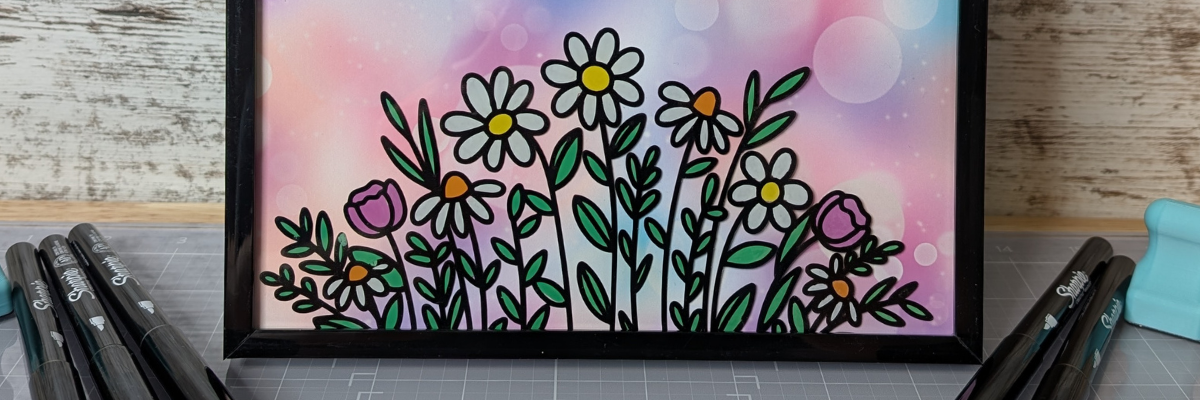

Looking for a versatile home décor project you can enjoy all year long? This DIY Interchangeable Glass Frame Sign with Silhouette Studio is the perfect solution! Using a simple glass frame, adhesive vinyl, Sharpie Creative Markers, and Epson Presentation Paper, you can create a custom sign with beautiful digital backgrounds and sayings that can be swapped out for every day decor, seasonally, or for holidays. Designed entirely in Silhouette Studio, this project combines the ease of printable designs with the precision of vinyl cutting, making it beginner-friendly yet completely customizable. Whether you’re decorating for spring, adding a spooky touch for Halloween, or creating a cozy Christmas look, this reusable sign is a budget-friendly craft you’ll use again and again.
Affiliate links may be present in the following blog post and as an Amazon Associate, I earn from qualifying purchases.
For this project, you may even have all the supplies available in your craft stash or think about what you could use as an alternative. I’ve listed the supplies I used below, so you can recreate it too! Don’t limit yourself to these designs either! Think Halloween, Christmas, Winter, and more! I’ll add photos to this blog post as I create more too!

DIY Interchangeable Glass Sign Supplies:
- Silhouette Studio Software
- Epson Presentation Paper – Matte
- Printer: Canon TS9521C
- Paper Trimmer
- Black Frame
- Oracal 651 Adhesive Vinyl – Black
- AT 65 Transfer Tape
- Sharpie Creative Markers
- Oh Hello by Diva Watts Design – Design #1252716
- Hello Friend by Diva Watts Designs – Design #346714
- Pastel Bokeh Background Patter by Sarah Hurley – Design #468587
- Life is Beautiful by Diva Watts Designs – Design #353162
- Turquoise Blue Mauve Ombre Watercolor Gradient Background by Clikchic Designs – Design #414628
- You are Braver Than You Believe by Diva Watts Designs – Design #375874
- Heavenly Sky Background Pattern by Faith & Grace – Design #436002
How to Create a DIY Interchangeable Glass Sign
Gather the supplies. I grabbed an 8″ x 8″ glass frame from my supply closet, some scrap adhesive vinyl in black, some transfer tape and my Sharpie Creative Markers.

Measure the inside of the frame you are using. Even if the photo frame states a certain dimension, make sure to measure it and verify so that you don’t end up with a print that is too small like I did.
Open Silhouette Studio and using the Drawing Tools, draw a rectangle. Size the rectangle to the measurements taken using the Scale Tools and verify it again.

I designed 3 different backgrounds at the same time. Use the Silhouette Studio software to create the entire design, including sizing the flower shapes to fit within the shape you are working with.
Now comes the longest part of the entire project – selecting a background pattern and the quotes you want to use. This is what always takes me the longest in creating.
There are multiple ways to add a pattern to a shape. Check out the additional resources below for several options.
I selected the square and then clicked on the library tab in the top right. Then selected a pattern from under my Patterns Folder in the Silhouette library and just continued to do that until I found the ones I wanted. I have 1100 patterns in my Silhouette library, so it took me awhile to make a decision.

Repeat these steps to create as many backgrounds as you choose.
When ready to cut, it’s a great idea to use File > Save As and create a “cut file”, so you keep an original working file that could be referred back to if needed.
When ready, move the flowers away from the background design. Change the line color of the sentiment to transparent. You do not want the red cut line to print around the image and have to reprint. A line thickness greater than 0 on any line in Silhouette Studio will print out.

I am using Epson Presentation Paper – Matte with my Canon TS9521C printer on the photo matte high quality setting. Every printer can vary in what colors look like and the only way to know what the colors will be is to test with your printer. See additional resources below.
Next, cut the flower design (or whatever design you are using) from adhesive vinyl. Make sure that the adhesive vinyl you use is the same color on the backside as the front. This will be applied on the backside of the glass frame.

Weed the adhesive vinyl design and apply transfer tape to the entire design.
Clean the backside of the glass frame carefully and let dry.
Then, carefully apply the design to the backside of the glass frame.
Tip: (not shown) Use painter’s tape along the edges of the glass to make it safer to handle and prevent cuts from the glass edges.

After applying the adhesive vinyl, don’t worry about seeing the adhesive of the vinyl on the front side. As the vinyl sits on the glass and the adhesive sets up, the adhesive look will disappear. Just make sure to apply the adhesive vinyl smoothly and make sure all areas are adhered well to the glass.
Next, on the backside of the glass, start coloring in the design as desired with the Sharpie Creative Makers. These work great on glass!

Don’t worry too much about it looking a bit messy or coloring only in the lines, you won’t see the backside of the glass.

Let the paint dry. Add additional coats as needed for the desired look.
While it dries, grab a paper trimmer and trim down the printed backgrounds. I did not set this up for a print and cut as I would have lost space and not been able to fill my frames completely. Plus, it is 4 straight edge cuts per page. A good quality paper trimmer is a great tool to have in your craft supplies.

And then all that’s left to do is to add the background paper into the frame and secure it.
Grab some photos of your awesome project and think of new ideas that you can swap out the background with or keep it up all year long!
1 frame = endless possibilities!
Additional Resources:
- Drawing Tools
- Scale Tool
- 4 Ways to Open Patterns in Silhouette Studio video
- Design with Pattern Fill: Silhouette Studio Tips for Stunning Results LIVE video
- Pattern Fill
- Line Thickness
- How to Test Print Colors in Silhouette Studio
DIY Interchangeable Glass Sign Additional Photos
(I’ll add more photos as I create additional backgrounds to swap out.)
Save this for future reference by pinning the image below.

Enjoy !
THANK YOU for your support! How can you help? Click HERE & buy a coffee.
Every little bit helps with the cost of running the site.

Silhouette Classes
Never stop learning! Let me help you take the anxiety out of learning with Silhouette and get to creating faster! My Silhouette classes are heavily focused on software, so you can take the skills & techniques taught and apply them to many future projects!


**This post may contain affiliate links. What that means is that I may receive compensation if you purchase through the links I have provided. The price you pay for the product or service is not higher but I may get compensated for sharing.
Discover more from Silhouette Secrets-Swift Creek Customs
Subscribe to get the latest posts sent to your email.










