Posted on 1 Comment

Beautifully Etched Acrylic Clipboard Created with Silhouette Curio 2

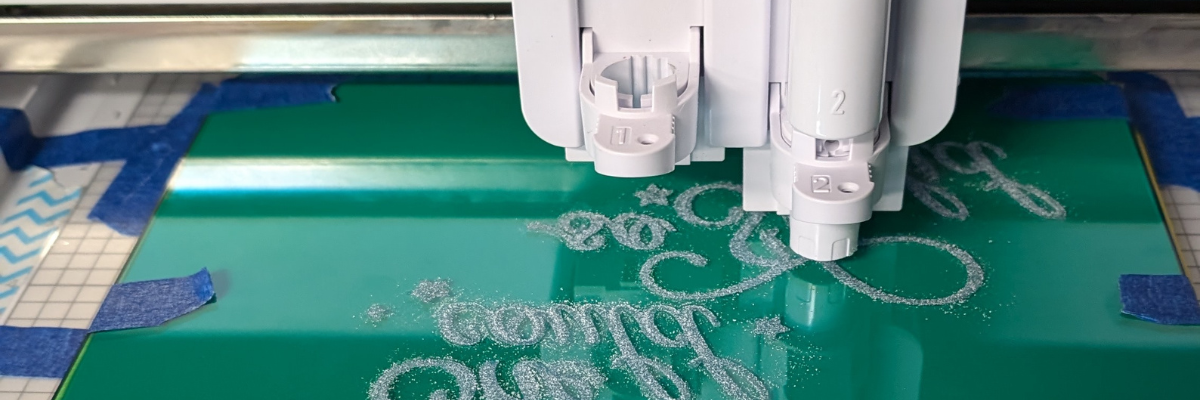
Etched Acrylic Clipboard with the Silhouette Curio 2 and Power Engraver
Silhouette Secrets+ with EllyMae

Looking to personalize your office supplies or make a custom gift? In this post, I’m excited to share a recent project I created using the Silhouette Curio 2 and the Power Engraver: a beautifully etched acrylic clipboard featuring a design by Sarah Hurley. This project showcases the versatility of the Curio 2, turning a simple clipboard into a stylish, functional piece. Create your own etched masterpiece, perfect for home, office, or as a unique gift. Read on to discover how to elevate your DIY etching projects with the Silhouette Curio 2!

Affiliate links may be present in the following blog post and as an Amazon Associate, I earn from qualifying purchases.

Etched Acrylic Clipboard created with the Silhouette Curio 2

When I get an idea in my head, there are times, it just will not leave until I do something. That is how this project came to be. The first one I did, I etched on the backside of the clipboard.

Etched Acrylic Clipboard with Silhouette Curio 2

It looks great in person, but I had to hold up a sheet of black cardstock behind it in order to get it to show up on a photo. This one was a bit tricky because the hardware on the clipboard is not removable, so I had to rig up some supports underneath the clipboard to make it a completely flat surface. It was definitely a trial and I am so happy with how it turned out, but I knew I wanted to try again.

Test #2 actually was a failure. I switched to etching on the top of the clipboard to see how it would work and I could hear that something was not right while it was etching. Eventually, it just stopped etching entirely. I thought I’d take the Power Engraver out to clean it. Don’t do that during an etch! When the power tool was removed, it did not start up again when I put it back in while the machine was paused.

Silhouette Curio 2 Etching Failure

It is NOT a waste though! The one thing I’ve learned through the years in all the testing and troubleshooting that I do is that things WILL go wrong. Get extra blanks because something is going to happen. And if it doesn’t, well, you have extra blanks to use. Not a waste! A learning experience and opportunity.

I could not figure out what the issue was, so I swapped out the Silhouette Power Engraver for a new one and marked the old one with issues. I’ll troubleshoot that another day.

Test #3 was a success! The Silhouette Power Engrave tool has a smooth finish so even though this etch is on the top of the clipboard, it is not rough to the touch.

Etched Acrylic Clipboard with the Silhouette Curio 2

I used a lint roller to clean up the acrylic dust that the Silhouette Power Engraver creates before I removed anything. Be careful with any debris and keep your machine clean for best results. Do not inhale the acrylic dust or get it in your eyes.

Supplies Used for Etched Acrylic Clipboard with the Silhouette Curio 2

Silhouette Curio 2 Resources

Tips for Etching

  • Get extra blanks
  • Secure the blank well – any movement and it will be a dud as the etching is permanent
  • Not all acrylic is good acrylic – some will just smoosh versus etch – testing is the only way to know what will work
  • Start small – I prefer a 3″ round or a coaster when practicing and testing – cheaper to test and mess up with
  • Do not remove the tool from the machine, even if it is paused.
  • Be careful with any debris and keep your machine clean for best results. Do not inhale the acrylic dust or get it in your eyes.

Silhouette Curio 2 Classes

Want to get started with the Silhouette Curio 2 faster? I have step-by-step classes available on Teachable from out-of-the-box projects to setting up for successful etching on acrylic.

Silhouette Curio 2 Classes by EllyMae at Silhouette Secrets+

Check out all the Silhouette Classes HERE.

Find more Silhouette Curio 2 information on the website HERE.

And more videos on the Silhouette Secrets+ YouTube channel HERE.
Silhouette Curio 2 playlist HERE.

Silhouette Curio 2 Playlist on the Silhouette Secrets+ YouTube channel

Save this for future reference by pinning the image below.

Silhouette Curio 2 Acrylic Etching

Enjoy !

THANK YOU for your support! How can you help? Click HERE & buy a coffee.
Every little bit helps with the cost of running the site.

Silhouette Classes

Never stop learning! Let me help you take the anxiety out of learning with Silhouette and get to creating faster! My Silhouette classes are heavily focused on software, so you can take the skills & techniques taught and apply them to many future projects!

Silhouette step-by-step Classes by Silhouette Secrets+

Silhouette Secrets+ with EllyMae
**This post may contain affiliate links. What that means is that I may receive compensation if you purchase through the links I have provided. The price you pay for the product or service is not higher but I may get compensated for sharing.
Posted on Leave a comment

Beginner Acrylic Engrave/Etch with the Silhouette Curio 2

Affiliate links may be present in the following blog post and as an Amazon Associate I earn from qualifying purchases.

The Silhouette Curio 2 is a unique machine that I am enjoying so much! Just like it’s predecessor, it functions a bit differently than the Silhouette Cameo and Portrait model machines. I am not sure it really should have been called a curio, but it is what it is and I don’t control that. What I can control is me and what I’m creating.

I am having a blast learning it and I do think that anyone can use it and learn it if they are willing to take the time to! That is why I’ve created classes to help Silhouette Curio 2 users get started faster and take the guess work out of it. Less anxiety in learning a new machine! I’ve made the mistakes and I am showing step-by-step how you can be successful with your Curio 2 in my classes.

I am so excited to announce this class – Curio 2 – Beginner Engraving/Etching on Acrylic class using the Silhouette Power Engrave Tool!!

Here is a look at a few of the designs that I have been creating on acrylic rounds.

In this class you will learn how to:

  • setup a template for exact placement for projects
  • recognize “no compatible cut setting” errors and why you see it
  • set up the Silhouette Curio 2 Debris tray for cutting & engraving/etching
  • set up to cut with the Silhouette Curio 2 to create the template
  • use the Auto height detection & how it works
  • use the Layers Panel in Silhouette Studio
  • set up an engrave/etch for the Silhouette Power Engrave Tool
  • create a custom setting for acrylic etching/engrave
  • do a manual height detection and why I love it!
  • and more! Bonus tips & demos included as well!

Silhouette Curio 2 –
Beginner Acrylic Engrave Class

Step-by-step class for setting up the Curio 2 for exact placement on blanks, creating a template, creating a custom setting for the Acrylic Engrave, auto & manual height detection and why you would use either, engrave tips, and more!

Supplies Used for Beginner Curio 2 Engrave Class:

Design used in class:

Additional bonus designs shown in testing:

Optional:

  • Handheld vacuum or wet wipes – do not inhale or get the acrylic dust in your eyes
  • Small paint brush to clean off engraving tool

Save this for future reference by pinning the image below.

Silhouette Curio 2 Engrave Etch

Enjoy !

THANK YOU for your support! How can you help? Click HERE & buy a coffee.
Every little bit helps with the cost of running the site.

Silhouette Classes

Never stop learning! Let me help you take the anxiety out of learning with Silhouette and get to creating faster! My Silhouette classes are heavily focused on software, so you can take the skills & techniques taught and apply them to many future projects!

Silhouette step-by-step Classes by Silhouette Secrets+

**This post may contain affiliate links. What that means is that I may receive compensation if you purchase through the links I have provided. The price you pay for the product or service is not higher but I may get compensated for sharing.
Posted on Leave a comment

Silhouette Curio 2 – Resources

Affiliate links may be present in the following blog post and as an Amazon Associate I earn from qualifying purchases.

Silhouette Curio 2 – Resources

The Silhouette Curio 2 is new but I have resources that can help! I have been having a lot of fun getting to know this new machine and want to share some things that can help you!

If you have happened on this page before getting a Silhouette Curio 2, you’ll be off to a great start with this information for when you receive it. You can find the Curio 2 at CrafterCuts HERE.

Silhouette Curio 2 Manual

The new Silhouette machines now have a QR code on the side of the box and that should be your first step when you open the box. It will help in getting setup with the new machine and your Silhouette account.

Or you can go to www.silhouetteamerica.com/setup

It also has a link to the Silhouette Curio Manual, but I find that users often skip over that section and then later on are asking where to find it.

Find the Silhouette Curio 2 User Manual HERE on the Silhouette America website.

Additional Silhouette Curio 2 Information

The Silhouette America website also has additional information about the Curio 2 in the Support area. These topics are usually frequently asked questions that Silhouette Support gets asked over and over, so it’s a great resource to check out and see if your answer is there before you contact Silhouette Support.

There is no need to Log in, simply type “Curio 2” into the search box and all the articles about the Curio 2 will pop up.

The information provided here can be very helpful and save you from doing things with your machine that it was not designed or tested for. Such as etching with the Tool 1 housing on the Curio 2.

My goal as an instructor is to help users have the best experience they can. I don’t want to be responsible for any issues you encounter with your machine, so you will not see me instruct or recommend techniques with your machine that could have an effect on the warranty or the lifespan of your machine. Others don’t always consider this when they advise a user to do it. As a Silhouette instructor, I feel I just can’t do that. Your experience and being able to get help when you have a problem matter to me.

I hope you will check out the Silhouette Support Freshdesk for more information!
It is an important resource that I use ALL THE TIME!

I have more tips for this resource in this post HERE.

Silhouette Secrets+ YouTube Channel – Curio 2

Check out the Silhouette Curio 2 playlist on the Silhouette Secrets+ YouTube channel HERE.

As I add videos specific to the Curio 2, they will show up in the playlist.

Or you can see all the videos I have on the Silhouette Secrets+ YouTube channel HERE.

Make sure to Like, Subscribe, and click the bell for notifications so you don’t miss anything. It is also a big help to me as a creator as well. The more people watch, interact, like, and comment on a video helps the algorithms show others more.

So a great big thank you to those who interact on the Silhouette Secrets+ YouTube channel. I appreciate it!

Silhouette Curio 2 Classes

If you are looking to get started faster and avoid the guessing game, I have also released step-by-step Silhouette Curio 2 classes.

Silhouette Curio 2
First Cuts Step-by-Step

Step-by-step video class to getting started with the Silhouette Curio 2. Learn about proper setup for the Electrostatic Bed, about IPT, and complete the first cuts with the Curio 2. Click below for the full class description.

Silhouette Curio 2 –
Out-of-the-box Class

Step-by-step class to complete 3 projects with the Curio 2 right out of the box.
Cutting vellum with the electrostatic bed, perfect print and cut, sketching on thicker materials, and creating templates for exact placement. Click below for the full class description.

Silhouette Curio 2 –
Beginner Acrylic Engrave Class

Step-by-step class for setting up the Curio 2 for exact placement on blanks, creating a template, creating a custom setting for the Acrylic Engrave, auto & manual height detection and why you would use either, engrave tips, and more!

Find all of the Silhouette classes available on the Silhouette Secrets+ Teachable site HERE.

Silhouette Classes

Never stop learning! Let me help you take the anxiety out of learning with Silhouette and get to creating faster! My Silhouette classes are heavily focused on software, so you can take the skills & techniques taught and apply them to many future projects!

Silhouette step-by-step Classes by Silhouette Secrets+

I hope you have as much fun with your Silhouette Curio 2 as I have been! I’ll be adding additional resources and classes soon – Stay tuned!

Save this for future reference by pinning the image below.

Enjoy !

THANK YOU for your support! How can you help? Click HERE & buy a coffee.
Every little bit helps with the cost of running the site.

**This post may contain affiliate links. What that means is that I may receive compensation if you purchase through the links I have provided. The price you pay for the product or service is not higher but I may get compensated for sharing.
Posted on Leave a comment

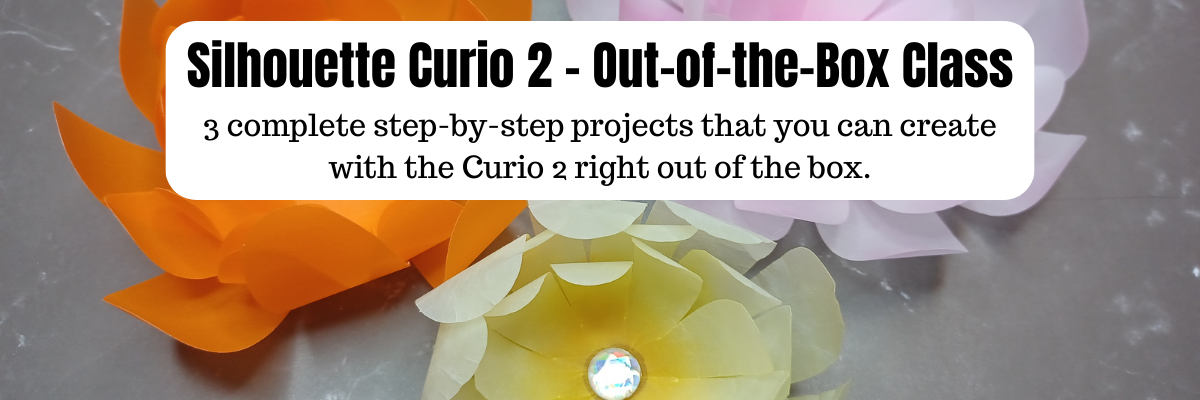
Silhouette Curio 2 – Out-of-the-box Class

What can you do with the Silhouette Curio 2 right out of the box? LOTS!

I have just released the new Silhouette Curio 2 – Out-of-the-box class where you will complete 3 projects step-by-step and learn all about your Curio 2 and setting yourself up for success! No power tools needed!

Silhouette Curio 2 – Out-of-the-Box Class

The first project is creating vellum flowers using the new electrostatic bed on the Silhouette Curio 2. In the class, I’ll share 2 ways you can cut thin, delicate materials on the ES bed. We will look at the differences in a regular cut and the new IPT (Intellectual Path Technology) method. You might find that this new method is successful for more materials that previously did not have a high success rate.

The second project is setting up a print and cut file for a successful cut with sticker paper. While it may seem very basic in written word, I’m sharing my tips for success and the more you can practice with the Silhouette Curio 2 and the electrostatic bed, the more successful you will be in your future projects.

We will use an amazing design by Diva Watts Designs that is provided in the class.
Thank you Diva Watts Designs! Check out all her fabulous designs HERE.

The third project is utilizing the new 20 mm clearance on the Silhouette Curio 2 by sketching on thicker materials. I will share tips for the new height detection, how to perform a manual height detection exactly on your project, and how to create a template so you can get exact placement for your designs on your material. I’ll be showing several different thicknesses in materials and you will have options for this class depending on what you want to sketch on and try first.

And I couldn’t stop sharing, so there are some additional bonus sections in this Curio 2 – Out-of-the-box class where I’m sharing even more tips too!

What you’ll also learn in the class is exactly how I troubleshoot issues when they do come up. You will encounter issues or have times that a project just doesn’t turn out. I did and show how I worked through those and explain why they might happen as well.

I hope you’ll join me in this class to get started making fabulous projects with your Silhouette Curio 2.

Silhouette Curio 2 –
Out-of-the-box Class

Step-by-step class to complete 3 projects with the Curio 2 right out of the box.
Cutting vellum with the electrostatic bed, perfect print and cut, sketching on thicker materials, and creating templates for exact placement. Click below for the full class description.

I’ve had a blast creating with the Silhouette Curio 2 and I can’t wait to see what you create with it!

Affiliate links may be present in the following blog post and as an Amazon Associate I earn from qualifying purchases.

If you want to add the new Silhouette Curio 2 to your toolbox right now, you can find it HERE.

Save this for future reference by pinning the image below.

Enjoy !

THANK YOU for your support! How can you help? Click HERE & buy a coffee.
Every little bit helps with the cost of running the site.

Silhouette Classes

Never stop learning! Let me help you take the anxiety out of learning with Silhouette and get to creating faster! My Silhouette classes are heavily focused on software, so you can take the skills & techniques taught and apply them to many future projects!

Silhouette step-by-step Classes by Silhouette Secrets+

**This post may contain affiliate links. What that means is that I may receive compensation if you purchase through the links I have provided. The price you pay for the product or service is not higher but I may get compensated for sharing.
Posted on Leave a comment

Silhouette Curio 2 – First Cuts Class

I have been having so much fun creating with the Silhouette Curio 2 and seeing what it can do right out of the box. Let me help you get set up for success and get started with the Silhouette Curio 2 quickly in this step-by-step First Cuts Class!

In this step-by-step video class, we dive into the exciting world of the Curio 2 and its electrostatic bed. You will learn how to set up the Curio 2 with the electrostatic bed, ES protective sheet, and copy paper to ensure successful cuts.
Additionally, we will explore two different cutting techniques using the electrostatic bed, including a regular cut and a more detailed cut.
I will demonstrate and explain the importance of Intelligent Path Technology (IPT) and how it can contribute to your cutting success.

This class is designed to help you get started quickly with your new Silhouette Curio 2 and set up properly for successful cuts.

Silhouette Curio 2
First Cuts Step-by-Step

Step-by-step video class to getting started with the Silhouette Curio 2. Learn about proper setup for the Electrostatic Bed, about IPT, and complete the first cuts with the Curio 2. Click below for the full class description.

I hope you will join me in learning more about the Silhouette Curio 2 machine!

Affiliate links may be present in the following blog post and as an Amazon Associate I earn from qualifying purchases.

If you want to add the new Silhouette Curio 2 to your toolbox right now, find it HERE.

Save this for future reference by pinning the image below.

Enjoy !

THANK YOU for your support! How can you help? Click HERE & buy a coffee.
Every little bit helps with the cost of running the site.

Silhouette Classes

Never stop learning! Let me help you take the anxiety out of learning with Silhouette and get to creating faster! My Silhouette classes are heavily focused on software, so you can take the skills & techniques taught and apply them to many future projects!

Silhouette step-by-step Classes by Silhouette Secrets+

**This post may contain affiliate links. What that means is that I may receive compensation if you purchase through the links I have provided. The price you pay for the product or service is not higher but I may get compensated for sharing.
Posted on 2 Comments

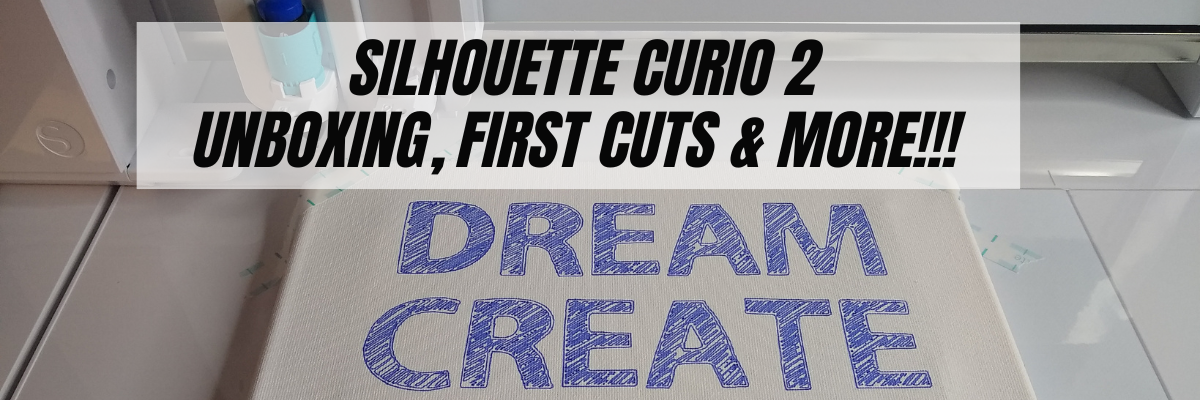
Silhouette Curio 2 – Unboxing, First Cuts & More!!!

What an exciting week it’s been! The new Silhouette Curio 2 arrived on my doorstep this week and I’m having a ball playing with it and testing it out!

If you have followed me for any time, you’ll know that I am proficient with the Curio 1 and love all the fantastic projects that can be made with it. It is still a good machine and if you have one, you can still use it! I can help with that too!

On the Silhouette Secrets+ Teachable site you will find 10 step-by-step classes that are all focused on the Curio 1. Check it out HERE.

Now that the Silhouette Curio 2 has been released, I’ll be developing step-by-step classes for that too! So watch the Silhouette Secrets+ Teachable site for future classes.

Affiliate links may be present in the following blog post and as an Amazon Associate I earn from qualifying purchases.

For all the details regarding the 3 new machine models released at the Silhouette Summit 2023, check out this post – New!!! Curio 2, Cameo 5, and Portrait 4

Now, before I go too much farther, I do want to let you know that the Curio 2 is limited in quantity in 2023. What is currently available is what is the inventory for the rest of 2023. But, don’t panic! There will be more coming in 2024 and there is lots of time to learn this new machine.

If you want to add the new Silhouette Curio 2 to your toolbox right now, you can find it at CrafterCuts HERE.

Whether you are diving into using the Silhouette Curio 2 or watching and waiting, I have resources that can help with this new machine.

I have been updating my Silhouette Secrets+ YouTube channel with new videos as I am testing the machine.

And to make it easy to find machine specific information, I’ve created a Silhouette Curio Playlist on the Silhouette Secrets+ YouTube channel. Find that HERE.

The Silhouette Curio 2 is a completely different machine than the first model! It is a large machine too! The footprint of the machine measures in at 20″ x 24″ and will need a dedicated space to function properly. Please consider that before you purchase!

However, I had a group member bring up a really good point. While the Silhouette Curio 2 is a large footprint that needs a dedicated space for it, it does take up less room than if you purchased a Silhouette Cameo 5 and the new Electrostatic Bed for the Cameo 5. It really depends on what your specific situation is and how your workflow is for you! Each user might be different and one machine may work better for one person vs another.

I am having a blast with the new Silhouette Curio 2! It is a new machine and it will take time to learn! I feel that every single person could be successful with this machine IF you take time to learn it and use it properly. If you do not, you will likely hate it. That is not a machine fault, it is simply a personal preference.

I want to share a few projects I’ve been doing with the Silhouette Curio 2.

Here are my first cuts on Vellum paper using the Electrostatic (ES) bed on the Silhouette Curio 2.

Such clean cuts. Check out my Silhouette Curio 2 First Cuts video HERE to see how I did, what issues I encountered, and how I worked through it.

I had several questions about print and cut, so of course I had to test that! Here is a letter size sheet of sticker paper that was cut on the Curio 2 using the new ES bed. The new ES bed means that you no longer have to use a cutting mat for materials that are flat and smooth. The materials can be held in place by static charge. The ES bed is new for the Silhouette Cameo 5, Curio 2, and Portrait 4. It will take time to learn and you will need to set it up properly, but I can see so many new possibilities on projects and successful cuts when using it. The ES bed comes with the Silhouette Curio 2 in the box.

Check out my videos on Silhouette Curio 2 Print and Cut with the ES bed and Tips for Success with the New Electrostatic Mat HERE.

I used Koala sticker paper and a design by Wispy Willow Designs called Small Business Sticker Sheet.

And then of course, once I showed this someone else asked about 12″ x 12″ cardstock, so that was the next project on my list.

This is Recollection Cardstock from Michaels and I used several designs from Diva Watts Designs.

And you probably guessed it, I shared it on YouTube too! Find the video on Silhouette Print and Cut – 12″ x 12″ HERE. See how easy it was with the new ES bed and cutting cardstock.

On a side note, while at the Silhouette Summit 2023, I also was able to meet several of the Silhouette Design Store Designers for the first time – Wispy Willow Designs, Diva Watts Designs, and Sarah Hurley. We spent several meals together and it was a blast. Check out my introduction video direct from Summit HERE. Make sure to follow these amazing designers too, they are a few of my favorites from the Design Store. I look forward to future collaborations with them! Stay tuned!

One of the new features of the Silhouette Curio 2 is it has a clearance of 20 mm. WOW! Yes, 20 mm. This is clearance under the tool housing. It is NOT cutting depth.

It also has auto detection of material thickness. This is awesome!

This means it opens up the possibilities of what projects can be done with the Silhouette Curio 2. Such as sketching on canvas and other thicker materials.

I used a Silhouette sketch pen in the blue sketch pen adapter and sketched out this design on a 8″ x 10″ canvas with a sketch font called SNF Sketchbook by Illustration Ink. There is also a new sketch pen holder (Type C) coming for the Tool 2 housing that will be compatible with the Silhouette Cameo 5 and the Silhouette Curio 2.

You will notice that the canvas is taped down on top of the ES Protective Sheet. I did have the ES bed on so the ES Protective sheet was secure and then taped the canvas to the machine so it would not move. Due to the surface of the backside of the canvas, it will not build up a charge directly on the ES bed to secure it. I also have a piece of wood inside the middle of the canvas for support.

I did try to use the Silhouette Type A pen holder in the Carriage 1 housing, but 3 different pens I tried did not reach the material. I will need to test that some more and figure out why it wasn’t working like it normally would.

Watch for a new video showing the sketch project on the Silhouette Secrets+ YouTube channel soon!

I can’t wait to share more! So many projects, so little time!

Save this for future reference by pinning the image below.

Sign up for the Silhouette Secrets+ Newsletter too! Tips, “secrets”, announcements, tutorials, classes, and more delivered to your inbox each Friday.

Silhouette Secrets+ Newsletter

Never miss out on the news, tips, “secrets”, deals, classes, and more that I share on Silhouette Secrets+. Sign up for the newsletter and get information delivered to your inbox every Friday.
Unsubscribe at anytime.

Enjoy !

THANK YOU for your support! How can you help? Click HERE & buy a coffee.
Every little bit helps with the cost of running the site.

Silhouette Classes

Never stop learning! Let me help you take the anxiety out of learning with Silhouette and get to creating faster! My Silhouette classes are heavily focused on software, so you can take the skills & techniques taught and apply them to many future projects!

Silhouette step-by-step Classes by Silhouette Secrets+

**This post may contain affiliate links. What that means is that I may receive compensation if you purchase through the links I have provided. The price you pay for the product or service is not higher but I may get compensated for sharing.