Posted on 8 Comments

Important information for Windows 10-11 users

Information for Silhouette users on Windows 10

Information published on 7/8/2021
We are seeing Windows 10 users affected, but that does not mean older versions may not also see effects of this update as well. We just have not seen reports of it yet.

UPDATED 7/9/21 – This issue has now been resolved by Microsoft. Silhouette users should be able to connect to their machine again after the computer is restarted. I would suggest a complete shut down of the computer from the menu option for the best results. In some cases, some users may not notice the “fix” until 7/10/21 at 8 am.
YAY!

If you continue to have issues connecting with Silhouette please read the following below for more information on why the Windows update may be the cause.
If it still does not work, check out these Troubleshooting tips on the Silhouette America website HERE

If you have not heard about the impact of the most recent Windows 10 updates, they are impacting Silhouette users in a BIG way.

UPDATED 10/29/21We are seeing some users affected with the Windows 11 update as well.

First, I’d like to state that I am an independent Silhouette Instructor and that I am not an IT person or advising in any “official” capacity for any company. I am a Licensed Silhouette Instructor that teaches Silhouette users and troubleshoots Silhouette issues daily on many different platforms. I have been teaching as an instructor for almost 5 years and see many different issues posted.
I am writing this blog post to inform Silhouette user’s of the current issue we are seeing and to make them aware of the current options available.
I troubleshoot daily for Silhouette users and understand how frustrating it can be to encounter an issue. Even though I am a Licensed Silhouette Instructor and do this daily, that does not make me immune to issues either. Even experienced users encounter cut issues, software issues, etc. But as an Instructor and a software Beta tester for Silhouette, I may see issues arise earlier than the average user.

The following information is to make you aware of current issues we are seeing and to provide you with the information to make a decision on how to proceed.

The nitty gritty of it… Microsoft released Windows updates that have been rolling out over the past few weeks, but this week was pushed out to a lot of Windows users and this is affecting Silhouette users in a BIG way. After these updates are processed on your computer (or in some cases a little while after), the USB connection on the Silhouette machine is no longer recognized in the Silhouette software. The computer recognizes something has been plugged in, but the USB connection is not complete in the computer.
For some users, it is just happening out of the blue. One minute they are cutting and the next it will not connect.

The is as basic as I can describe it the issue that we are seeing.

Here is the official information from Silhouette America – I am providing a link to the information so that you are receiving the most up-to-date information that has been released.

CLICK HERE FOR THE OFFICIAL INFORMATION FROM SILHOUETTE AMERICA

I encourage everyone to click the link above and read it direct on the
Silhouette America website.

However, please understand that Microsoft has said that these updates are for “security” purposes & has pushed out the “fixes”. These “fixes” are what are making the Silhouette machines no longer able to connect. These “security risks” have been present in the Microsoft software as far back as Windows 7.
Why do I mention this?
It is to make you aware that you will need to decide how you are going to proceed with all the information presented to you.

Many users are finding that they can connect to their Silhouette machines if the Windows updates are rolled back or paused. There are a small percentage of users who seem to be the “lucky” ones that even rolling it back does not work. However, it is an option to try if you chose to do so.

The alternative is to let Windows updates stand and not be able to use your Silhouette machines that will not connect until a fix is created.
User’s can also try to connect by Bluetooth if that is available to them, however, this is not a guaranteed fix either. I am seeing issues with the Bluetooth connections as well.

Silhouette is working as fast as they can to identify what has changed and why it will not recognize the connection between some Silhouette machines. This situation has evolved very quickly and I am in contact with Silhouette directly to be able to provide the most up-to-date information I can. This is also why I provided the link above. You will be able to see the official information released as soon as possible and when a fix is found it will be posted at the link above.
I will also be posting any updates to all platforms that I troubleshoot on.

A few things to note:

– Silhouette has no control over what updates Microsoft or Apple release. These big software companies do not release information in advance to test how it affects other programs. It is a process of “wait and see” how users are affected and how to work with those updates. Especially in cases where updates are rolled out to a small group of individuals and then pushed out to the masses later, it can take time to identify an issue and to find that fix.
This process taken will take time to investigate, develop a fix, and to test that fix by a sample of users before it is pushed out for the masses. As a member of the Beta testing team, we test beta versions of the software prior to things getting released to the public.
Nothing is 100% accurate at identifying bugs, but we do try to test it as much as we can.
There are times that some bugs do not appear on our Beta tester computers but affect other user’s computers differently.

– User’s who have been affected by their Silhouette machines no longer connecting have been able to connect again after rolling back the updates.
The update numbers that seem to be the cause of the connection issues are:
KB5003690 as well as KB5004945 and 21H1 – it will all depend on how it shows on your computer under the Windows updates information.

– This works for most user’s but not all. Some users are still experiencing issues even after rolling the updates back. And some user’s are unable to roll the updates back far enough.

– There is no fix at the moment, but they are working on it as fast as they can. It will take time to implement. Again, it is not something that Silhouette has control over.

Just in case you missed it above, here is the link to the official announcement on the Silhouette America website.

CLICK HERE FOR THE OFFICIAL INFORMATION FROM SILHOUETTE AMERICA

Now, I know this is not the greatest news to bring to your inbox or for reading, but I hope it has answered some questions if you are having issues.

Wishing you the very best on your Silhouette journey!

If you have further questions or to follow along with the updates, join us on the
Silhouette Secrets+ Facebook Group.

This image has an empty alt attribute; its file name is logo.jpg

THANK YOU for your support! How can you help? Click HERE & buy a coffee.
Every little bit helps with the cost of running the site.

Or if you are looking for more in-depth, step-by-step classes, check out all of my online Silhouette classes on my Teachable site HERE.

SS Logo snip it
**This post may contain affiliate links. What that means is that I may receive compensation if you purchase through the links I have provided. The price you pay for the product or service is not higher but I may get compensated for sharing.

Posted on 4 Comments

Silhouette Connection Troubleshooting

Have you been cutting along and then all of a sudden the Send button on the Send tab is no longer highlighted to press to send a job to cut?

Or the Silhouette machine is not being picked up on the Send tab?
If there is no information on the right side of the Silhouette machine icon in the red rectangle area, then it is not being recognized properly.

Have you had a cut disconnect in the middle of cutting lately?
Or you cannot get the cut settings to show up because the tool isn’t recognized?

If you are a Windows 10/11 user, the issue may be nothing related to your Silhouette machine at all, but could be because of a Windows update. In the last year I’ve noticed that Windows updates are changing and controlling more and more.
This also includes shutting off power to the USB ports as it chooses.

#1 – Power is being turned off to the usb port

One minute it shows as connected and you turn around and it’s no longer reading it. You see the “-” next to the machine icon.

So what is happening is Windows 10/11 is deciding on it’s own what it should turn off to “save power”. I am seeing this issue pop up on the Facebook groups more and I just had it happen to me on my brand new computer. I had disabled it in one location but it kept happening, so I had to do a little more digging and found there was one more location to disable the USB power save options.

I found the fix here and I would recommend for Silhouette users to change these settings if you are a Windows 10/11 user as well. This will help ensure you won’t lose connection in the middle of a cut or while you are working on a project.
Follow Steps 2 and 3 at this link
https://windowsreport.com/fix-windows-8-1-external-hard-drive-keeps-disconnecting/

And keep in mind that Windows updates hit user’s computers all at different times, so it may not be something that everyone experiences at the same time. I had not had the issue on my old computer, but when I started using the new computer regularly, it kept turning off my external hard drive access.

I have also had to do this every single time Windows does a new update since getting my new computer.

If you are still having usb connection issues then proceed to the following:
#2 – Uninstall USB port drivers and let them reinstall

If the above does not fix your connection issue, then I would suggest uninstalling the USB port drivers and letting them reinstall. I am also noticing that Windows updates are messing with this again too.

Instructions on how to do that can be found here:
https://docs.microsoft.com/en-us/windows-hardware/drivers/install/using-device-manager-to-uninstall-devices-and-driver-packages

Or Google “Uninstall USB port driver” and several others pop up with instructions.

If you have had this happen in the past and are sitting scratching your head, hopefully this helped explain it. I know it can be very frustrating when it’s working and then it’s no longer there. I’ve been cussing at my new computer and external hard drive for a few days now. Unplugging it and plugging it back in restarted the power on it, but that was not a permanent “fix”. As much as I use my computer and external hard drive, I needed it to work all the time!

Once the Silhouette machine is recognized by the computer, it should show in the software like this.

The message next to the machine icon should say “Ready to Load”, “Ready”, “Available”, or possibly another term meaning it is ready to go and has been detected. The Send button at the bottom will be highlighted and the cut setting will appear for a Cameo 4, Cameo Plus, Cameo Pro, and Portrait 3 model that have the tool recognition.

If you see any messages in orange, that means something needs attention and it’s usually a Firmware update that is needed. This pertains to the Cameo 4, Cameo Plus, Cameo Pro, and Portrait 3 models as the firmware is automatically checked upon each connection to the machine.
The firmware update can only be completed by USB connection.

You can switch between connections or machines by clicking on the Machine list icon at the bottom of the screen.

For more information about all the details on what everything means on the Send tab, check out this post
Let’s Explore v4 – The Send tab – Simple

If you are a Cameo 1 or Portrait 1 user and you cannot get it to connect, it could also be due to Windows 10 but due to a different cause. You will need to update the firmware on the Cameo 1 or Portrait 1 in order to connect to a Windows 10 updated computer.
Click HERE for step by step instructions on how to do that.

I’d love to see what you are creating with your Silhouette machines.
Feel free post on the
Silhouette Secrets+ Facebook Group.
We love to see what you are doing and creating with your Silhouette machines!

Save this for future reference by pinning the image below.

Enjoy!

This image has an empty alt attribute; its file name is logo.jpg

THANK YOU for your support! How can you help? Click HERE & buy a coffee.
Every little bit helps with the cost of running the site.

Or if you are looking for more in-depth, step-by-step classes, check out all of my online Silhouette classes on my Teachable site HERE.

SS Logo snip it
**This post may contain affiliate links. What that means is that I may receive compensation if you purchase through the links I have provided. The price you pay for the product or service is not higher but I may get compensated for sharing.

Posted on 5 Comments

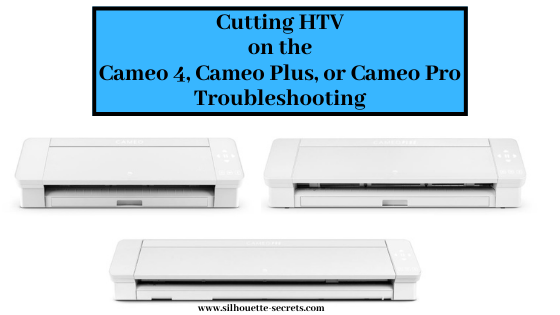
Cutting HTV on the Cameo 4, Plus, or Pro – Troubleshooting

Cutting HTV on the Cameo 4, Cameo Plus, or Cameo Pro
Troubleshooting

Are you having issues with getting HTV to cut properly on the Cameo 4, Cameo Plus, or Cameo Pro? Or are you noticing issues with the HTV feeding properly through the machine?

Recently, I was cutting HTV with my Cameo Pro and was having feed issues. I see several times each week on Facebook where users are having cut issues with their machines. I kept loading and unloading the HTV and began to notice a pattern.

Note: these tips will work for all Silhouette machines, but you may find that you notice it more on a Cameo 4, Cameo 4 Plus, or Cameo Pro models

If you are having cutting or feed issues with your Cameo machine
is your HTV curled?

As I watched the machine load and feed through, I noticed that the HTV was curled.
If it is, this will affect your cutting and HTV feeding through the machine 100%!
If you lay your HTV flat and the edge curls up, this can cause issues.

Typically, HTV comes in a roll and is shipped that way, especially if you are buying it in longer sections. Depending on how it’s rolled, it can retain that shape and then it will not roll flat through the machine.

Why do you have cut or feed issues?

Since the HTV is curled, it will catch inside of the machine as it rolls through.
This is not a machine fault, this is due to the HTV being curled.

First, the number one thing that needs to be checked is that the blade is installed properly. I cannot even tell you how many posts I see daily on Facebook that the blade is not installed properly. This is one of the best things you can learn to do for yourself & to save yourself headache in the future. It doesn’t matter if you are an experienced user or a beginner. If the blade is not installed properly with no gap and adjusting properly, you WILL have cut issues.

This is how the blade should be installed on a
Cameo 4, Cameo Plus, Cameo Pro, or Portrait 3.

There should be absolutely no gap between the lip of the blade and the housing.
AND the lock on the front of the blade needs to be pushed in completely.

Then watch as the machine does it’s “tap dance” at the beginning of the cut. Does the red line inside the blade adjust properly and to the correct number?

If it does not, we can start troubleshooting it with a photo of the blade installed with the cutting mat or vinyl loaded if you post on the Silhouette Secrets+ Facebook group or check out this video by Silhouette America on Cutting Machine Maintenance and how to Reset the Motor at 4:38 in the video. This should reset the housing so that it is properly aligned to hit the adjustment holes correctly.

Once the blade is installed properly and adjusting properly, the next place to look is where this curled HTV can cause issues.

3 places to watch for curled HTV catching

1 – The Roller bar
Is the HTV loading properly and straight?
If the HTV is curled too much, it may not be securely under the rollers and the machine cannot grip it well. This means that it may be pulling it in at an angle.

Here is an example of what it might look like if the HTV is not securely caught between both the rollers. One side may pull in more than the other.

It can also catch on the bottom of the blade in the Tool 1 or Tool 2 housing.
If the HTV is curled and you do get it loaded straight, the curl on it can catch on the bottom of the blade(s) as it rolls back and forth.

Here is an example of what it might look like if it gets caught on the bottom of the Tool(s).

If the material does not load straight, unload and try again. If it loads crooked, you will most likely have an issue with it feeding properly. It is better to try again until it is loaded straight or try one of the other solutions below.

2 – The middle bar in the machine.

If you look at your machine, you will see there is a white piece that sort of has a curl up on the front that runs behind where the blade housing moves. The curl on the machine is designed so when a material is loaded and moves toward the back, it directs the material down and through the machine.

However, if the HTV (or other materials) is curled, when it gets to the white piece in the machine, it will go up instead of going down. This means the HTV is not moving freely through the machine and may get caught. This can cause both cut and feed issues.

Watch as the HTV is moving through the machine to see if it’s catching here.

3 – The back of the machine

If it makes it past the first 2 areas, then the last place it might catch is the back of the machine and you may or may not see this as the vinyl coming up behind the metal bar that runs the length of the Cameo 4 models. If you listen close, you will be able to hear this when it catches or you might actually see it come up behind that metal bar as well.

All of these areas can affect the cut or feed of the HTV. Since the HTV is curled, it cannot roll smoothly and flat through the machine. The machine is functioning properly, but since the material is curled, it will catch.

Now, I’m sure you may be wondering how I figured this out. When I noticed there was an issue, I tested. And I tested. And I tested. I watched how the machine was grabbing the materials. I watched how it was moving through. And I watched what parts of the machine were moving when everything was happening.
This is a great way to learn your machine and what it doing!

Now, how do you fix it?

Solutions to curled HTV

Tip 1 – Feed the material through the machine until the curl is out the backside.

To advance the material through the machine, press the down arrow on the right touch panel on the Cameo 4, Cameo Plus, or Cameo Pro machine.

Or you can advance the material by using the down arrow key next to the Test Cut button on the Send tab in the software. This would work for all machine models.

Now, this is not always the most ideal or conservative way to work with your HTV roll because you will be advancing it into the machine about 4″ or more to get past that curl.

However, if you are pressed for time, it may be the fastest way to work with it.

Tip 2 – Roll the HTV backwards when you get it.

Once you have identified this as a possible issue you may have, you can then re-roll the HTV rolls when you receive your order. This can help the curl “relax” a bit. And then store the vinyl this way.

If the HTV roll came with a piece of tape on it, tape it securely so it will start to retain the new shape. When you want to use it, the inside of this roll will hopefully be relaxed a bit and less curled.

If you do not have the tape from the original roll, grab a core from an old roll and then place the new roll inside so it will conform to the shape more and be held securely.

Tip 3 – Use a cutting mat to hold the vinyl down.

If the design will fit on the cutting mat and you cannot get it to feed properly, then I would suggest a good sticky cutting mat to help hold that vinyl down as flat as possible.

I do know some users who will even use painter’s tape and tape the HTV so it lays flat. My only caution here is to not place the painter’s tape on the left or right edges where the rollers may roll over it as it may lose it’s grip because of the difference in surface area and cause the mat to skew.

If you do place tape in the roller paths, just be aware if the mat skews or the cut is off, that this could be one reason why. If the left roller is gripping a different material, say the smooth surface of the mat, but the right roller is rolling on painters tape, it can cause it to roll at different rates. This can cause the mat to twist in the machine.

This can also be the case if the right roller is rolling across the adhesive on the cutting mat. It can not only cause your roller to get gummed up, but can affect the feeding of the mat as well since it is rolling on the adhesive and not on the smooth edge of the cutting mat.

Tip 4 – Slow the speed of the cut down.

On the Send tab in the Silhouette software, you can adjust the speed. Faster is not always better. If you continue to have an issue, slowing the speed of the cut down can help not only in the cut, but in also being able to identify the cause of an issue.

Wine Tasting Team Captain by Megan Hardy Designs – Design# 322093

Tip 5 – Test cut with a capital B you type out placed below the design area.

If you are not doing test cuts before you send the design to cut, I highly recommend getting in the habit of it. It only takes a few seconds, but can save you time, wasted materials, and big headaches!

This is my favorite way to do a test cut!
I use the Text Tool on the left side and type out a capital B. Move the B to a place that is below your design or towards the bottom in the negative space.

Why so far down?

By placing the capital B test cut at the bottom of the design, you will be able to see how the machine and HTV will track as it goes. It will have to roll all the way to the bottom of where the design will be and perform the cut. By doing this, any issues may show up before you’ve actually tried to cut the full design and it didn’t work properly.

One More Tip

This one actually has nothing to do with the machine itself, but it more on the software.

I would suggest reading through this next section entirely so you understand how this one works and also how to “fix” it.

In 2016, there was a new “pop-up” message that was released into the software for Heat Transfer materials called the Mirror pop up.

For heat transfer materials you are generally placing the material face down on the cutting mat and then cutting through the backside of the material. This means that you have to “mirror” the design so it will cut properly.
How many times have you cut heat transfer material only to have that “head smack” moment after when you realized you forgot to mirror the image?
So the idea behind the “pop-up” message is great!

If you have never cut HTV before or are just getting started, then I would suggest this
Silhouette “Secrets” for HTV – Beginner Tips & Tricks
blog post to get started.

However, this “new” Mirror pop-up released in 2016, did not just mirror the design in the exact place that it was on the design mat. It flipped the entire mat when it mirrored the image, but it does not show that on the screen. So the design that shows on the screen on the left side of the mat/material, is really going to cut on the right side if you choose
Send Mirrored” and let the software mirror it for you.

If you choose “Send As Is” it will send it to cut in the exact location and exactly as you see it on the screen.

Now, I know that may seem like “old news” since this “bug” has been in the software since 2016. Some users got used to it this way while other users would learn to flip the design themselves and just choose “send as is”.

Now, let’s move to the present.
A few months back, I started to notice users commenting that their HTV was not cutting as it should. They would tell the software to mirror it and it wasn’t cutting in the right spot. I reported the issue and found out that the old mirror “bug” was changed in February 2020 the software release.
Now, it would flip the design in the exact location you have it placed on the mat, but still does not show you that on the screen.
However, if you have anything else on the design file, it will mirror all of the objects. Whether they are in the “holding area” off the cutting mat or not.

If you choose “Send Mirrored“, it could mirror all of the designs on the file.
So when it flips it, this is how it would cut.

Now that would come as a complete surprise when you cut and it’s not what you thought it would be.
Note: the above screen shot is a representation of how it may cut, you do not see this change on the software screen at all.

This is present in the software versions from v4.4.247 until v4.4.438.

From v4.4.438 and higher, the software now is back to mirroring the design on the opposite side of the design mat than what shows on the screen.

How to work with this?

In the grand scheme of things, this is not a big deal, if you know about it and know how to work with it.

My suggestion to you is to mirror the design yourself.

The fastest way to do that is to right click on the design on the Design tab before you go to cut and choose Flip > Horizontal.

This will flip the image on the screen, in front of your eyes.

And it will then cut in that exact spot if you choose “Send As Is” on the Send tab.

If you do not have right click menus enabled on your computer, you can also find this in the top menus under Object > Mirror > Flip Horizontally too.

I use the Mirror Pop up as my final reminder and it has caught me several times when I forgot to mirror the design. Then I go back and mirror it myself before I’ve sent the design to cut.

Hopefully with those tips above, you will be well on your way to cutting HTV smoothly and being able to troubleshoot when you do have an issue.

Wine Tasting Team Captain by Megan Hardy Designs – Design# 322093

For more tips on the Cameo Pro and troubleshooting check out this post
5 Steps to Setting Up the Cameo Pro & Troubleshooting
that also includes a free, downloadable PDF document for future reference.

I would love to hear if this helped you in identifying a problem or if you just learned something new in today’s post. Feel free to comment below or post on the
Silhouette Secrets+ Facebook Group.
We love to see what you are doing and creating with your Silhouette machines!

Save this for future reference by pinning the image below.

Enjoy!

This image has an empty alt attribute; its file name is logo.jpg

THANK YOU for your support! How can you help? Click HERE & buy a coffee.
Every little bit helps with the cost of running the site.

Or if you are looking for more in-depth, step-by-step classes, check out all of my online Silhouette classes on my Teachable site HERE.

SS Logo snip it
**This post may contain affiliate links. What that means is that I may receive compensation if you purchase through the links I have provided. The price you pay for the product or service is not higher but I may get compensated for sharing.
Posted on 3 Comments

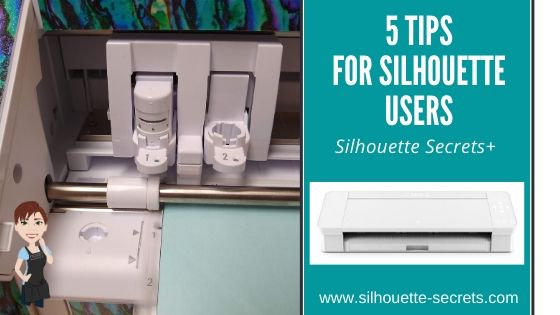
Let’s Explore – 5 tips for Silhouette users

I’ve been seeing a lot of frustration on the Silhouette Facebook groups lately and that prompted me to create a list of the 5 most common causes that might cause this frustration.

5 Silhouette Tips

Tutorial created in Silhouette Studio v4.3.372

Tip #1 – Make sure the USB cord is plugged in correctly.
While this may sound silly, this is especially important to take note of with the new Cameo 4 machine.
The USB plug has a specific way to go into the port on the Cameo 4.

The curve of the USB plug should be facing down and the straight part facing up. Do not force the USB plug into the port or you could damage the connection.

If the USB plug is not inserted correctly, the Silhouette software will not pick up the Silhouette machine connection.

Tip #2 – Make sure the blade is installed properly.
There should be no gap at all between the lip of the blade and the housing of the machine.

Cameo 4 Autoblade installation

To ensure that the blade is completely down in the housing, lift up on the front of the lock carefully as you install the blade. Then hold pressure down on the top of the blade as you push the lock in.

If you still have questions on proper blade installation, check out this video from Silhouette on installing the blade in the Cameo 4 – HERE.

If you are using a Silhouette black “ratchet” blade, make sure the fin of the blade is at the 6 o’clock position and there is no gap between the housing and the lip of the blade.

Ratchet blade parts
Cameo 3 blade installation

It does not matter which Silhouette machine you are using.
The blade installation applies for all Silhouette machines.

If you are using a black “ratchet” blade, premium blade, or deep cut blade in the Cameo 4; make sure you are using the correct adapter and installing in the Tool 1 housing.

Tip #3 – Make sure the mat is loaded properly.
There are only 2 ways the Silhouette cutting mat can be loaded properly in the machine. The cutting mat has specific dimensions and the left and right sides are narrower than the top and bottom margins.

New Silhouette cutting mat

With a new Silhouette cutting mat, there are 2 arrows designating the top and bottom of the mat. The cutting mat can be loaded in the machine with the arrow in.
On an older Silhouette cutting mat, there may be only 1 arrow. The cutting mat can be loaded in the machine arrow in or arrow out.

Place the left edge of the cutting mat next to the line on the left that the arrows point to.

Load icon on Cameo 4

Gently hold the cutting mat up to the rollers and then press the Load button on the Cameo and the machine will pull it into the machine. If the cutting mat does not pull in evenly, press the unload button and load it again.

If you are using a Cameo 3 or Cameo 4, the Autoblade needs access to the adjustment holes on the left side. If the cutting mat or material is loaded too far to the left or sideways, the blade cannot hit those adjustment holes properly to adjust the blade correctly.

Tip #4 – Make sure the Page Setup Panel options are set correctly.
The Page Setup Panel is where you tell the software what you are working with.
This is where you set up your machine, cutting mat, and media size.

Setting up the Page Setup Panel is very important in knowing where the design will cut.
For more information on the Page Setup Panel check out this post “Let’s Explore v4” post HERE.

If you are cutting without a mat, the cuttable area is different than cutting with a mat.
For more information on cutting without a mat click HERE or on this post about the roll feeder HERE.

Tip #5 – Make sure that the design is set up with cut lines.
When you are ready to send the design to cut, make sure there are bold red cut lines showing on the Send tab around the design.

Affiliate links may be present in the following blog post and as an Amazon Associate I earn from qualifying purchases.

If there are no bold red cut lines around the design, the software has nothing to communicate to the Silhouette machine to cut.

Click on the design to select it. This is the most important part.
If the design is not selected then there is nothing to change.

Once the design is selected, choose Cut on the right side and bold red lines should appear.

If bold red lines do not appear around the image where you want to cut, what file type are you cutting?

A .studio file from the Silhouette Design Store, cut lines should turn on.

A .svg file, the cut lines should turn on if you have the Designer Edition upgrade or higher and have opened the file correctly.
Find out more information on svg files HERE.

Breathe Mandala by On the Spot Studio

A .jpeg or .png file is a graphics file only and does not have cut lines. Most often when you choose cut the bold red cut lines show up in a rectangle or square around the design. Jpeg or png file will need to be traced to get cut lines.
Find our more information on tracing HERE.

And just because I can’t stop there, here are a few other tips.

Bonus Tip #1
Make sure you have the correct material chosen on the Send tab before sending to cut.

Bonus Tip #2
Do a test cut.
This will save you frustration and materials. You can either use the test cut in the software or create your own by typing out a capital ‘B’ to use.
Check out this Beginner HTV post for more information on using your own test cut.

Make sure to unload the mat and reload it before you send the design to cut. There are currently some versions of the software that do not reset the blade housing to the same location after a test cut and the design may not cut in the correct location if the mat is not unloaded after a test cut.

Bonus Tip #3
Make sure the Registration marks are OFF.
These are marks that are only used for print and cut, but I see many new users accidentally turn them on without realizing it.

If a new user is trying to type out text and presses the ‘M’ when not in text typing mode, the registration marks will appear on the screen.
The keyboard shortcut is the letter ‘M’ or they can be turned off on the Page Setup Panel – Tab 3 – Registration Marks.

Registration Marks Explanation created in v4.2 software – 12/27/17

Troubleshooting Tip

If you run into cutting issues and post on a Facebook group asking for help, post a photo of the blade installed in the machine with the mat loaded.

If you have followed me on Facebook, you have probably noticed that is the first question I will ask a user when they are experiencing cutting issues.
It is the #1 place to start no matter if you are a new user or experienced user.

Why?

Most issues start with the blade, however, there are many things we can tell by looking at a blade photo such as: which Silhouette machine it is, alignment of the blade housing, are there cracks in the blade, is there material stuck in the housing, is the mat loaded properly, has the packing material been removed, etc. and YES – is the blade installed correctly.
But, it is not always just about the blade being installed correctly in the machine.

And sometimes, it is not what we are looking for but what might be off. It is not always easy to explain what we look for when troubleshooting but it is the first place to start when troubleshooting.

If you are just unboxing a new Silhouette machine check out these 2 unboxing videos:
Unboxing the Cameo 4
Unboxing the Curio

If you are still having issues getting started or are feeling overwhelmed, check out the new Beginner Video Class I created after so many users struggling with the same issues when getting started.

Save this for future reference by pinning the image below.

I’d love to see what you are creating with your Silhouette!
Feel free to post photos or questions on my Facebook group at 
Silhouette Secrets with EllyMae.

Enjoy!

SS Logo snip it
**This post may contain affiliate links. What that means is that I may receive compensation if you purchase through the links I have provided. The price you pay for the product or service is not higher but I may get compensated for sharing.