
If you are Silhouette Cameo 3, Cameo 4, or Curio owner and have plugged your machine into your computer, you will have access to the Stipple Panel.

With a Cameo 3 or 4, you can use a pen or marker to stipple a design. This means that the design is a series of dots. With this feature you can turn any design or photo into a stippled image.
With a Curio, the Stippling tool and the embossing mat can be used together to create the stippled design on other media types. With the Curio, it actually makes small indents in the material such as the Stippling metal sheets. The Stippling tool is designed to be used with the Curio machine.

- Stipple Edge – This option will add Stippling dots around the edges of the design on the screen.
 *Mama Needs Wine by Dawn Nicole Designs – Design #209918
 - Spacing – Adjust the spacing between the dots on the Stipple edge by increasing or decreasing the inches here.

- Stipple Fill – Choose from many fill options. The way it fills in with a stipple will vary with each design.

- Grid Spacing – Increase or decrease the grid spacing of the design being stippled.
 Here I have decreased the grid spacing on all the designs to 0.500 inches. This places more of the design and stipple into a smaller grid area on the original object.
 - Stipple Spacing – Increase or decrease the spacing of the stipple dots to be closer or farther from each other. Something to note here is that with some Stipple fill patterns, options may be grayed out because they do not apply. As you can see in the first 2 of my example here.
 Here I increased the Stipple spacing to 0.100 inches.
 - Scale Factor – Increase or decrease the scale of the points by a percentage.
 Here I scaled all of them down to 50%. As you can see, with each option, the look of the design changes and you can hardly recognize which options that I filled each with.
 - Angle – Change the angle of how the design fills the object.
 Above, the Angle is set for 135 degrees on all the designs.
 - Offset – This controls how far the fill pattern starts from the edge of the original design.
 Above, I have changed the offset to 0.250 inches and you can see that on all of the hearts, it has started the fill pattern 0.250 inches from the edge of the design.
 - Stipple Size – Change the size of the Stipple point.
 This option only changes the visual look of your design and does not change how big of a point the pen or tool will stipple.
 - Print Stipple – By checking this, the design can be sent to the printer to print the stippled image.
Keep in mind that the more dots you add to your design, the more details that is for your Studio program and computer to process. What does that mean? That means the more details you have in your design, the more data you computer is processing. If you experience a lag, be patient, the computer is working and will catch up.
Now, another thing to note, if you missed it in the beginning, is that this Stipple feature is only available for Cameo 3 or Curio owners, otherwise, the panel will be grayed out.
There are so many fun options to explore in the Silhouette software – hope you have fun creating today! Feel free to post on my Facebook group at Silhouette Secrets+ with EllyMae.
Enjoy !

THANK YOU for your support! How can you help? Click HERE & buy a coffee. Every little bit helps with the cost of running the site.
Looking for more in-depth, step-by-step classes, check out all of my online Silhouette classes on my Teachable site HERE.


 The bottom line is the score line for the center of the card. Match the score line up with the Guide created at 4.25″When the design is selected, a directional arrow in the center appears & that can be used to move and adjust the design and pop up features and vary the length of the design to pop out of the base.
 The farther down you pull the arrow, the more the features adjust.
 Pull the red dots on either side of the score line out to the edges of the card, so it will score a fold line to the edge of the card.

 Each line will now become it’s own separate piece and can be moved or deleted, as you see fit.
 Here I increased it to 57% to show you how it looks. Each design will vary in how it looks and the look you want to achieve.
 I increased the Min. Strut Width to 0.269″ and it changes so there are only 5 tabs at the top of my design.


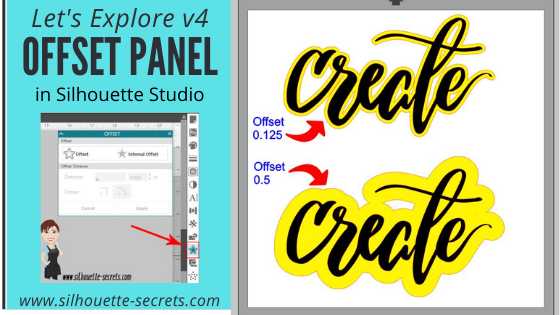


 *the offset is filled with yellow for you to see it better
*
*the offset is filled with yellow for you to see it better
* This is one way to fill a font that you want to use the sketch pens with. By creating multiple internal offsets, the sketch pen will “fill” the font in by drawing all the internal offsets.Here is an example of creating multiple internal offsets to “fill” in a font to sketch.
 This was many internal offsets, so many I lost track of how many I created.
First, I will say that it took a lot of ink to fill this in. I was using the Silhouette sketch pens and your results will vary depending on the pen you use and the tip it has on it.
This was many internal offsets, so many I lost track of how many I created.
First, I will say that it took a lot of ink to fill this in. I was using the Silhouette sketch pens and your results will vary depending on the pen you use and the tip it has on it.
 You can see above that even with multiple internal offsets, it did not fill in completely with the Silhouette sketch pen.
In some cases, it is not worth the ink or the time to use the sketch pens like this and would be easier to use the
You can see above that even with multiple internal offsets, it did not fill in completely with the Silhouette sketch pen.
In some cases, it is not worth the ink or the time to use the sketch pens like this and would be easier to use the 











