Posted on — Leave a comment

Creating the XL Flat Fold Halloween Village Scene by Lori Whitlock

Silhouette Secrets+ with EllyMae

I love paper crafts! I started in the craft industry over 20 years ago with scrapbooking and I have always loved creating 3D paper craft projects. This XL Flat Fold Halloween Village is a large one, but not difficult to put together. I am sharing tips to working with the file and assembling it below.

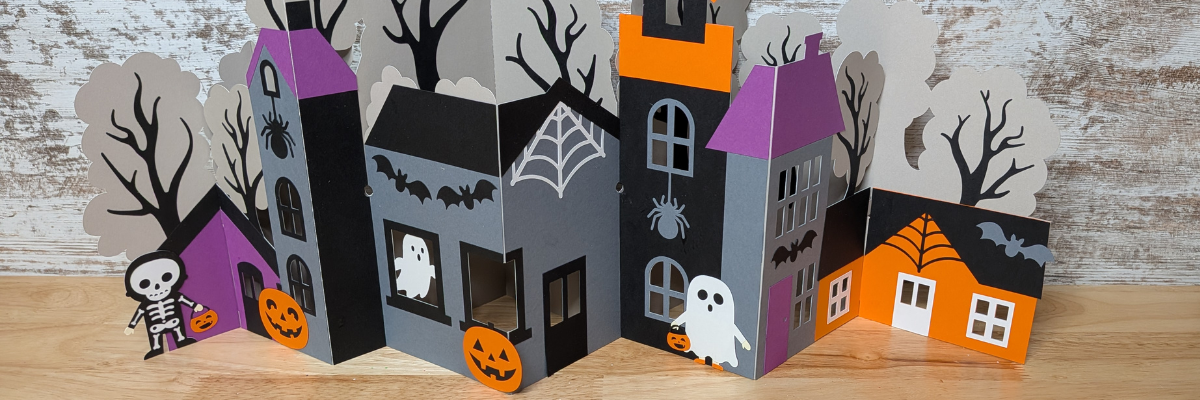
A decorative Halloween pop-up scene featuring colorful paper houses, ghosts, spiders, and skeletons, surrounded by gray trees on a wooden surface.

Affiliate links may be present in the following blog post and as an Amazon Associate, I earn from qualifying purchases.

Supplies Used for Creating the Halloween Village:

Here is a look at the file when opened from the Silhouette library. Files that sync to the Silhouette library directly from the Silhouette Design Store are .studio files.

A digital design layout in Silhouette Studio featuring Halloween-themed graphics, including spooky houses, trees, a skeleton, a ghost, and a pumpkin, with workspace dimensions displayed.

Once the file is open, I would recommend immediately use File > Save As to create a new working file to move the pieces around.

One thing I noticed after I had all of the piece’s cut was that on the original file, the dark gray piece that the red arrow points to is in front of several of the other elements. It is not an issue but can catch you off guard when looking at the file for assembly.

Digital illustration of a Halloween-themed design featuring haunted houses, trees without leaves, a ghost, a spider, and pumpkins, with a design software interface visible in the background.

Once the dark gray piece is moved, it will reveal the pieces underneath it. When assembling this make sure to glue the dark gray piece directly onto the lighter gray cardstock sections and then the black window frames go on top.

Digital design of Halloween-themed houses and trees, featuring a ghost, pumpkin, and spider. Created using Silhouette Studio.

The sections in this file may need to be ungrouped to move the colors around for cutting. Each section may vary in how many times it needs to be ungrouped.

One other thing to note when ungrouping the sections is that the score lines will also ungroup from the file. Make sure to select the score lines and the larger section and group together so the lines move with it.

A digital design workspace showing a silhouette of a house surrounded by trees and a bat, with an arrow indicating a specific area of interest.

Not the end of the world if it is moved and you lose it. Grab a scoring board and score the lines yourself. They are pretty easy to find when you open the original file. This is exactly what I did because I wasn’t paying close enough attention when I moved several of the pieces to the mat to cut.

I ungrouped the sections and moved them around to cut. I keep uncut pieces on the left side of my virtual cutting mat then move them onto the mat by color and then cut all of one color first. Once the pieces are cut, I move them off to the right side. I’ll share a photo of my working design file at the end of this post.

Once all the pieces are cut for the Halloween village, start matching them up and dry fit them before securing anything with adhesive. Open the original file again and use it as your guide to fit all the pieces in.

A collection of Halloween-themed paper cutouts featuring spooky houses, trees, and a skeleton, displayed on a marble surface.

I worked on one section at a time, except the black tree branches. I left all of those until the very end and they were the last pieces I adhered down. I dry fit each section before gluing down. Once all the sections were done, then I glued the tabs together to create the 2 long sections.

Here is a close up look at the details. My Silhouette Cameo 5 and Autoblade cut it perfectly and I didn’t have to recut any piece until I glued one windowpane in the wrong spot.

A paper cutout of a skeleton holding an orange Halloween pumpkin bucket, placed on a purple background with a craft knife nearby.

Rather than force my well used blade through the cardstock on the first pass. I chose to use 2 passes at the Cardstock Textured setting and it worked well.

I watched the video by Lori Whitlock for this design style to see how the 2 pieces fit together.

The XL Flat Fold Halloween Village Scene looks much more complicated to put together than it really is.

A decorative Halloween scene featuring various paper cutout haunted houses, trees, and spooky elements like bats, a ghost, and a skeleton. The houses are in black, purple, orange, and gray, set against a wooden background.

Now I mentioned I’d share my working file. It’s a mess, but it is a system that I find works well. Normally I don’t have the pieces overlap each other after they are moved to the right side after being cut, however, this is a large file, so they are overlapping today.

Screenshot of Silhouette Studio software displaying a design for an Ultimate XL Fold Flat Halloween Village scene, including various Halloween-themed elements like houses, trees, and spooky figures. The design area is highlighted with dimensions and settings on the right panel.

And there are more of these files by Lori Whitlock too!

Save this for future reference by pinning the image below.

A colorful flat fold Halloween village display featuring spooky houses, a skeleton holding a pumpkin, and decorative elements like ghosts and spiders.

Enjoy !

THANK YOU for your support! How can you help? Click HERE & buy a coffee.
Every little bit helps with the cost of running the site.

Silhouette Classes

Never stop learning! Let me help you take the anxiety out of learning with Silhouette and get to creating faster! My Silhouette classes are heavily focused on software, so you can take the skills & techniques taught and apply them to many future projects!

Silhouette step-by-step Classes by Silhouette Secrets+

Silhouette Secrets+ with EllyMae
**This post may contain affiliate links. What that means is that I may receive compensation if you purchase through the links I have provided. The price you pay for the product or service is not higher, but I may get compensated for sharing.

Posted on — 4 Comments

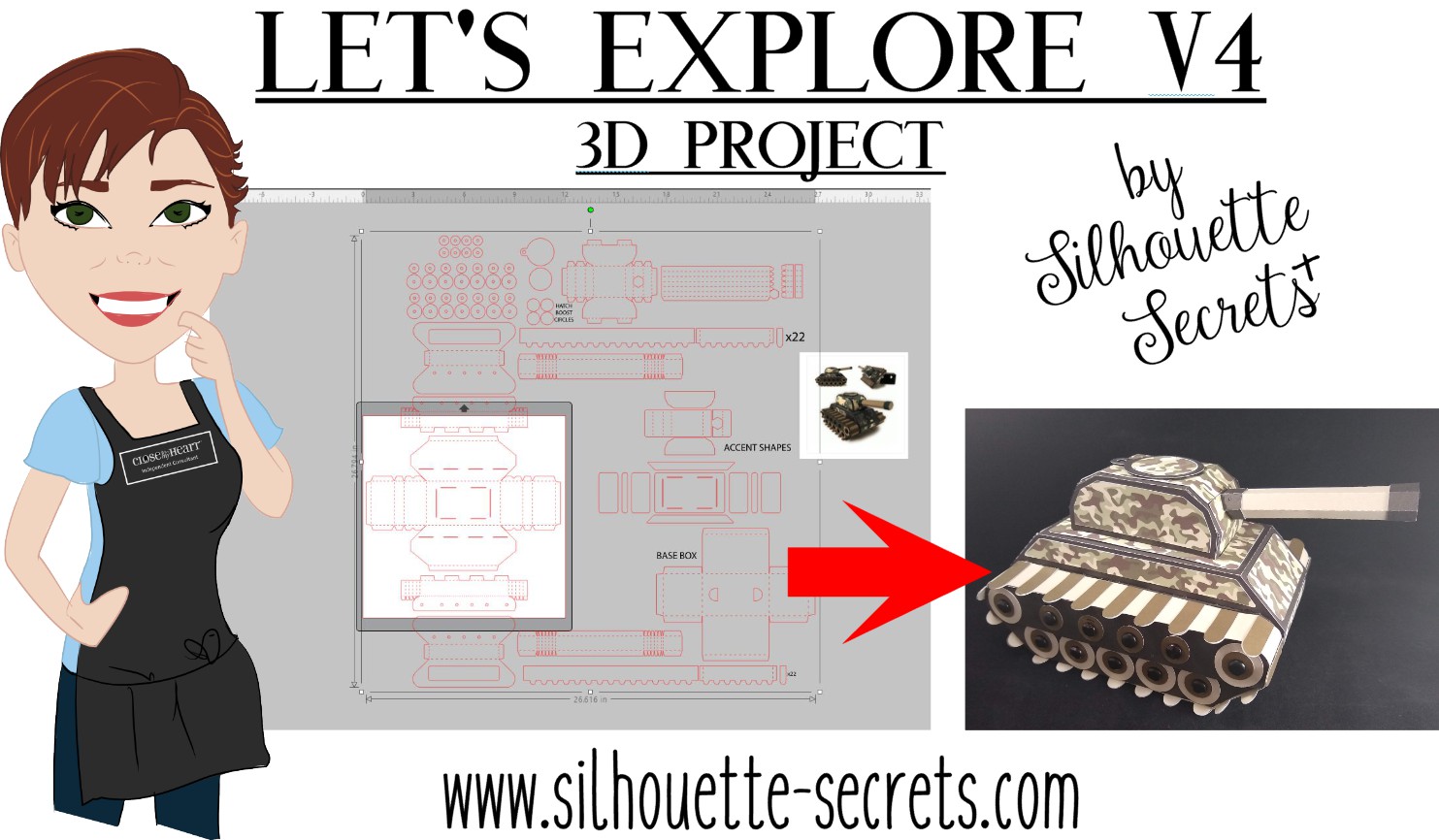
Let’s Explore v4 – 3-D tank project

I love creating 3-D paper projects and my kids love to shop over my shoulder when I’m looking in the Silhouette Design Store. My son who loves army, tanks, and soldiers saw this Combat Tank 3D Box design in the store a few weeks back and has been asking me to build it ever since.

Tank design photo

I think his idea of building it was a bit different than mine. He was glued to my side while cutting all the pieces. He even helped unload the mat and remove some of the pieces off the cutting mat. Then he ran off, like little boys do.

When I’m working with a file that has many pieces to it, the first thing I do is open it up and take a look. I have to tell you when I first purchased this file, I opened it and then closed it. I wasn’t going to cut it that night.

Tank design copy

That is a lot of pieces, but it is a 3-D project after all and I love seeing it all come together.

The first thing I like to do when working with a 3-D file is to screen grab a photo of the design.

I am a PC gal, so I use the Snipping Tool. If you have a Windows computer, type Snipping Tool in the bottom left search bar and it will pop up.
I use this tool so often that I have it pinned to my bottom task bar for quick access.

Windows search bar

When it pops up, it looks like this.

Snipping Tool copy

Click on New and then draw a box around the object you want to “snip” on the page. Then choose to save that “snip” to the computer or copy and paste it into the Silhouette Design mat.

(On a MAC – Hold down the Command button, Shift & 4 – then drag the cursor around the object)

Tank scale up copy

This gives me a reference to look at when I’m working with the file.

Since I have the ability to cut 12″ wide, I scaled this file up to cut it as large as I could. I moved the largest piece that would be cut on top of the Silhouette virtual mat and used the bounding box in the corner to increase the size of the entire design.

Make sure if you resize a design, that you are resizing the entire design at the same time to keep it all at the same scale, or the pieces will not fit together.

Next, I ungroup the entire design if needed and then fill all the pieces with the color it will be cut out of. Then I move the same colors together to all be cut at the same time.

Tank colored copy

Now, you will see on the left side that those are not filled in. I did not have any Camouflage paper, so I went back to the Silhouette Design Store and found this Camouflaged Print Pattern by Nilmara Quintela.

Camo paper

By that time, my son had run back into the room and was excited to see how I was going to take this image on my screen and print it onto paper to cut out.

Now just like so many other things in the Silhouette software, there are a couple ways you can do this. Let’s Explore the difference between using the Modify Panel vs Pattern Fill.

Modify Panel

Step 1 – Open a new design mat.

Step 2 – From the Silhouette library, choose the Camouflaged Print Paper file.

Step 3 – Next, I scaled the paper down to fit on my 12 x 12 virtual design mat.

Step 4 – Copy the pieces from the 3-D design mat and paste them onto the new design file.

Modify Panel copy
*note – line thickness has been increased on the tank pieces for visual reference

Step 5 – Select all of the objects on the virtual design mat.

Step 6 – Open the Modify Panel and choose Crop.

Crop design copy
And I can still hear the gasp from my 7 year old son when he saw it change on the screen. That had to be the best part! I even had to do it over again and again for him to watch it.

Pattern Fill

Step 1 – Open a new Design mat.

Step 2 – Copy the 3-D file pieces and paste onto the new design mat.

Step 3 – Select all the pieces.

Pattern Fill copy

Step 4 – Open the Fill Color Panel and choose the 3rd tab = Fill Pattern.

Step 5 – Find the pattern in the fill pattern options and select it.

Pattern Fill 2 copy
This method looks a bit different and you have more options to Scale & Pan the Pattern. It is really a matter of personal preference on how you want the objects to be filled.

For this tank & camouflage pattern, I used the Modify Panel.

Next, I set this up as a Print and Cut file.

Print and Cut pattern paper copy.jpg

I follow the same steps every single time to setting up a print and cut and it works great. Check out this Print & Cut – Part I blog post for step by step setup and troubleshooting tips too!

Then, I printed it on my Canon 9521C large format printer. I have to say, I was hesitant to add this to my craft studio because it was more than I wanted to spend on a printer, but I am so glad I did. I purchased it after the November 2018 All Things Silhouette Conference and I have not regretted it since. I have printed so many high quality images for blog posts, classes, gifts, and more.

IMG_20190628_183626245 copy

Always double check that all the registration marks printed correctly and are not missing. For more tips on troubleshooting Print & Cut projects – click HERE.

Once all the pieces for the tank are cut, comes the assembly time.

The first thing I did was go look in the Silhouette Design Store and see if the designer had linked instructions in the description. This is a lot of pieces and having a tutorial is helpful in assembly.

Tank instructions copy

The link did not take me directly there, but a quick search of the blog and it popped right up.

Tank instruction search copy

Why does this happen? It can be for many reasons. Sometimes a link just doesn’t code correctly, a page was moved or renamed, etc. This was an easy one to find and often I find a quick search is all that is needed. But, when I find these things, I do let Silhouette know so they are aware.

And I have to say, this was a was great tutorial to put this tank together.

Tutorial copyFind the full tutorial for this Combat Tank 3-D Box by Snapdragon Snippets – HERE.

Now, some assembly photos.

Assembly photo 1 copy

I used a combination of Scrapbook Adhesives E-Z Runner and Liquid Glass by Close to My Heart to assemble these parts.

IMG_20190703_133734387 copy

For the smaller pieces, I used my Xyron Sticker maker which makes this so much easier.


Once it was all assembled it was time for photos.

IMG_20190703_144602281 copy

And of course he wanted to do some staging.

IMG_20190703_144854432 copy

It was a bit big for my photo box, but he didn’t care.

IMG_20190703_145258822 copy

And we had to take it for a test drive.

IMG_20190703_145455413 copy

And the Army guys definitely blend in. How many can you spot?

IMG_20190703_150129411 copy

He even set up a little battle, although I think one side was a bit overpowered.

IMG_20190709_105414284 copy

He was more than tickled to go put on his “Tank top” from last summer, his Camo pants and pose for this photo. I think this was a success!
Have you tried a 3-D project? Check out the 3-D section in the Silhouette Design Store for lots of fun projects.

3D projects copy

I would love to see what projects you create! Feel free to post on my Facebook group at Silhouette Secrets with EllyMae.
Enjoy!

SS_Signature copySS Logo snip it

**This post may contain affiliate links. What that means is that I may receive compensation if you purchase through the links I have provided. The price you pay for the product or service is not higher but I may get compensated for sharing.