Posted on 13 Comments

Let’s Explore v4 – Library Snapshot

Library Snapshot

One of the new features in the Silhouette Studio v4.2 software is a Library Snapshot.

Library Snapshot General copy

This takes a “Snapshot” of the library as it is right now and also allows you to revert back to this “snapshot” of the library if needed.

To access and setup the Library Snapshot, click on the Library tab in the top right corner.

Library tab copy

Then click on your name in the top left corner.
You will need to be logged in to the Silhouette library.
Then choose Settings.

Library Snapshot copy

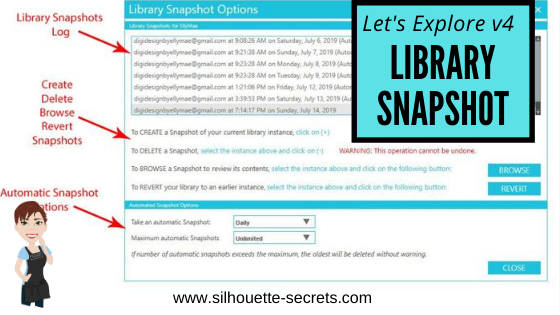
A Library Snapshot Options window will pop up.

Snapshot details copy

At the top of the Library Snapshot Options box is the log of all the snapshots that are taken of the software.

Close up copy

The middle section gives you options to create, delete, browse, or revert snapshots manually.

The bottom section allows you to set up automatic snapshots of the Silhouette library.
I would recommend setting the Snapshot option to Daily.
It never hurts to have multiple copies.

The Library Snapshots are computer specific. Depending on how it is set up, the snapshot will occur when you open the software.
If I have my snapshots set to daily but I leave my software open on my computer overnight, it will not take a snapshot the next day until I have closed and reopened the software again.

These snapshots are only stored on the computer you are accessing at the moment. Each computer will create a snapshot when the software is opened on it. So if I access my software from my computer upstairs, that snapshot is saved on my upstairs computer only. It is not stored in the cloud and synced between computers.

Does this replace making a backup of the library? No!

I would still highly recommend making a backup of your library on a regular basis and I would also recommend having your personal files saved to an outside source, which is also backed up as well too. There is nothing that is 100% safe and just like a computer crash, you cannot predict when something will happen.

Do you remember years ago when typing in Word documents and we were taught to save often? It is still a great habit to get into.
Save & backup often and you will not regret it.

Exporting a Backup

To make a backup of your library in Silhouette Studio v4, open the Library tab.
Click on your name in the top left corner (must be logged in).
Choose Library Export.

Library Export copy

A “Select Location” pop up window will come up.

Library Backup copy.jpg

Choose Browse and then select a safe location to save the backup file to.

This is a backup file only. It cannot be opened outside of the software and only can be imported back into the software if needed.
It does not contain individual files.
If you want the files saved individually, you will need to open each file and choose File > Save As > Save to Hard Drive.

I add the date to the file name and save in a Backup folder that I can find if needed.
I’d recommend making a backup of the library on a regular basis, just in case because you just never know.

If you ever need to import the backup back in, click on your name in the top left and choose Library Import.

Library Import

The Library Snapshot is just one of the new features in the v4.2 software.
Hopefully, you will never need to use it, but it is great that it is there.

Now, it’s a great time to go make a backup of your Silhouette library, no matter what version you are using and if you are in v4.2, set up the snapshot to your specifications.

Have questions or comments feel free to post below or on my Facebook group at Silhouette Secrets with EllyMae.

Enjoy!

SS_Signature copySS Logo snip it

**This post may contain affiliate links. What that means is that I may receive compensation if you purchase through the links I have provided. The price you pay for the product or service is not higher but I may get compensated for sharing.

Posted on 22 Comments

Let’s Explore v4 – Silhouette Library tips

Silhouette Library Tips

*Blog post written with v4.1.206 of the Silhouette Studio Software

Happy New Year!
And what a better way to start the New Year off then getting our Silhouette libraries in shape.

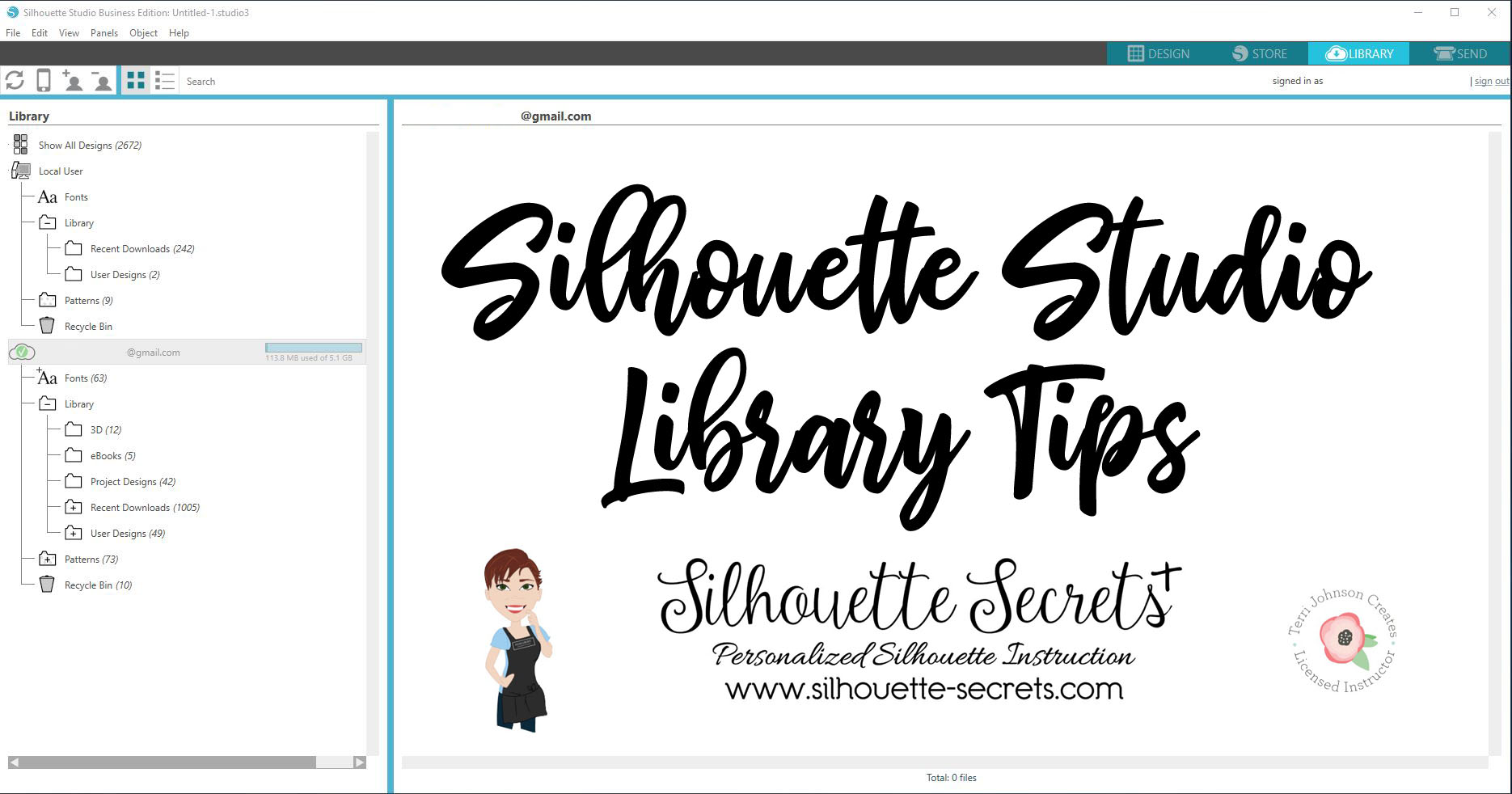
In the Silhouette software, you will find the Library tab in the top right corner.

Library tab copy

Once you click on the Library tab, you will see the Library tree on the left side and the Design Preview Area on the right.

Silhouette Library copy

Silhouette Studio Library

As of this post (January 2, 2019), there are 2 main sections of the Silhouette library.
(This will be changing when v4.2 is released, so the information will be relevant for any user prior to v4.2.)

  1. Local User section – this is the top section of the library and is computer specific. This means that personal files stored in this location do not automatically transfer to another computer, sync up to cloud, or are stored in another location.Local User copy
    Under the Local User section, there are several default folders.- Recent Downloads – this is where the Free files that come with a Silhouette machine will download to after the machine is connected, the Send tab in the software is selected, and the Silhouette machine is recognized.- User Designs – this folder is where you can save your personal designs. Keep in mind that this section is computer specific.

    Under each folder, right click on it and a menu will pop up. This is how you can create new folders to organize the library tree.

    New Folder copy

  2. Cloud library – this is anything under the email address in the Silhouette library tree.Cloud library copy
    Under the Cloud library, there are also several default folders.- Fonts – fonts files from the Silhouette Design Store will show under this folder. You cannot access the font files from this but it does show you which ones you have from the Design Store.
    For information on how to install fonts from the Silhouette Design Store, check out this post by Julie Huggins at Sew Craft N’SpiredInstalling Fonts for Use in the Silhouette Software.- Library – this folder contains several more default folders and more folders can be added to organize the library.

    Recent Downloads – this appears under the Library folder. If you do not see it, click on the (+) sign to expand the folder out.

    Library recent downloads copy.jpg
    This is where the files from the Silhouette Design Store will sync up to after the checkout process is complete. All files from the Silhouette Design store will download to here and you can move them to organize once they are synced up.

    NEW!!! Silhouette America recently added the feature to be able to also download the Silhouette files directly to your computer.

    Store download
    This is a great feature for those who do not like using the Silhouette library.

    On any new purchases, you can choose the Download button at the end of the Checkout process as shown above.

    For older purchases, this can be accessed under the Silhouette Design Store > Account Settings.

    Account Settings copy

    Then you will either choose My Designs (single file download) or My Download History (download by Order #).

    Account Settings1 copy

    Note: if accessing the Silhouette Design Store through the Silhouette software, it does give you a warning that it will work better through a web browser directly.
    This message says
    “Direct downloads work better in a Web browser (i.e. Chrome, Internet Explorer, Safari) than the software’s browser. 
    You can download this order a the following address after signing into the store in your browser: ….”
    This is the method I prefer to browse the store in most often.

    Download designs.JPG

    My Designs

    Click on the individual design file and then you will see a Download button available.

    My Designs copy

    My Download History

    Click on the Order number and then you will see Download buttons.

    My Download History1 copy.jpg

    Here you can choose to Download all or select which files that you want to be included in the downloaded folder.

    My Download History2 copy.jpg
    Then click on the Download now button.

    My Download History3

    User Design – this is found under the Library folder as well. Save your personal files to this folder.

    Cloud library copy2

    Patterns – Pattern files from the Silhouette Design Store will download here or add your own.

    Recycle – delete and clear files from the Silhouette library.

    Now, while the Silhouette Cloud library does sync to multiple devices there are some things to be aware of.
    This is direct from the Silhouette website regarding the Silhouette Cloud library.
    “Silhouette America’s Cloud Storage is a syncing service rather than a backup service. Files deleted locally will be deleted on the cloud. We strongly recommend users save important and/or valuable files to another location outside of the cloud or local library, or to a third-party backup service.”

    Show All Designs
    At the top of the Library tree, you will see a folder that will give you the option to see all the designs in the entire library.

    All files copy

Whew! That is a lot of information on the Silhouette Cloud library.

But that’s not all.

Tips on the Silhouette Library

Shape up your Silhouette Library copy

Organize designs into folders.

Create a new folder by right clicking on a folder in the library and choosing “New Folder”. This will add a new folder under the current folder that was selected.
New Folder copy
Here is an example from my Library tree.
Library folders.JPG

To move designs from the Recent Downloads folder, click and drag the design icon from the Design Preview area and drag it into the folder where you want it.
Check out this video on how to move designs in the Silhouette Library.

Each user’s organization is going to vary depending on what files they have. My 2 largest folders are Christmas and Wine, at the moment I’m not sure which one is winning.

Use the Search option

At the top of the library, type in a keyword you would like to pull up. This can narrow down the designs you have to scroll through in the library.
Search copy

Back Up! Back Up! Back Up!

It is always a good time to make a backup and I recommend getting in the habit of doing so on a regular basis.
Here is how to make a backup of the library. Note, this will be 2 separate files.

Local User Section

Right click on the Local User section and choose Export. Save this file to a safe location. I like to save mine with the date included.

Export Library1 copy

Cloud (email address and below) Section

Right click on the email address, choose Export and save this to a safe location. I add the date and ‘Cloud’ to the name of this file, so I can tell the difference in the files.

Export Library copy

Store personal files outside the Silhouette library

I would highly suggest keeping at least a back up copy of the library on an outside source.
Personally, I keep a hard copy of all other files not from the Silhouette Design Store, on an external hard drive.
Each user will have a storage system that they most feel comfortable with.
For me, I have my main external hard drive and then I have a larger one that I backup to as well. Not as often as I should, but I’m working on that.
You could also use an online storage such as google drive, drop box, etc.
However, keep in mind that nothing is 100% safe and you never know when something can happen such as a computer crash.
Having multiple copies of your files backed up is always a good idea!

I hope this has helped you learn a little about the Silhouette library and give you some ideas for getting your library in shape.

Now, if you caught a glimpse of my library tree in the photos above, it’s time for me to do some organizing as well. With the recent Silhouette Design Store sale, I have some files to put into folders.

Library organization copy

Hope that helps you start the year off right by getting the Silhouette library into shape & making a backup!!

Feel free to post your comments and questions below or on my Facebook group at Silhouette Secrets with EllyMae.

Enjoy!

SS_Signature copySS Logo snip it

**This post may contain affiliate links. What that means is that I may receive compensation if you purchase through the links I have provided. The price you pay for the product or service is not higher but I may get compensated for sharing.