Posted on 3 Comments

Let’s Explore v4 – Silhouette Designs – Part 2

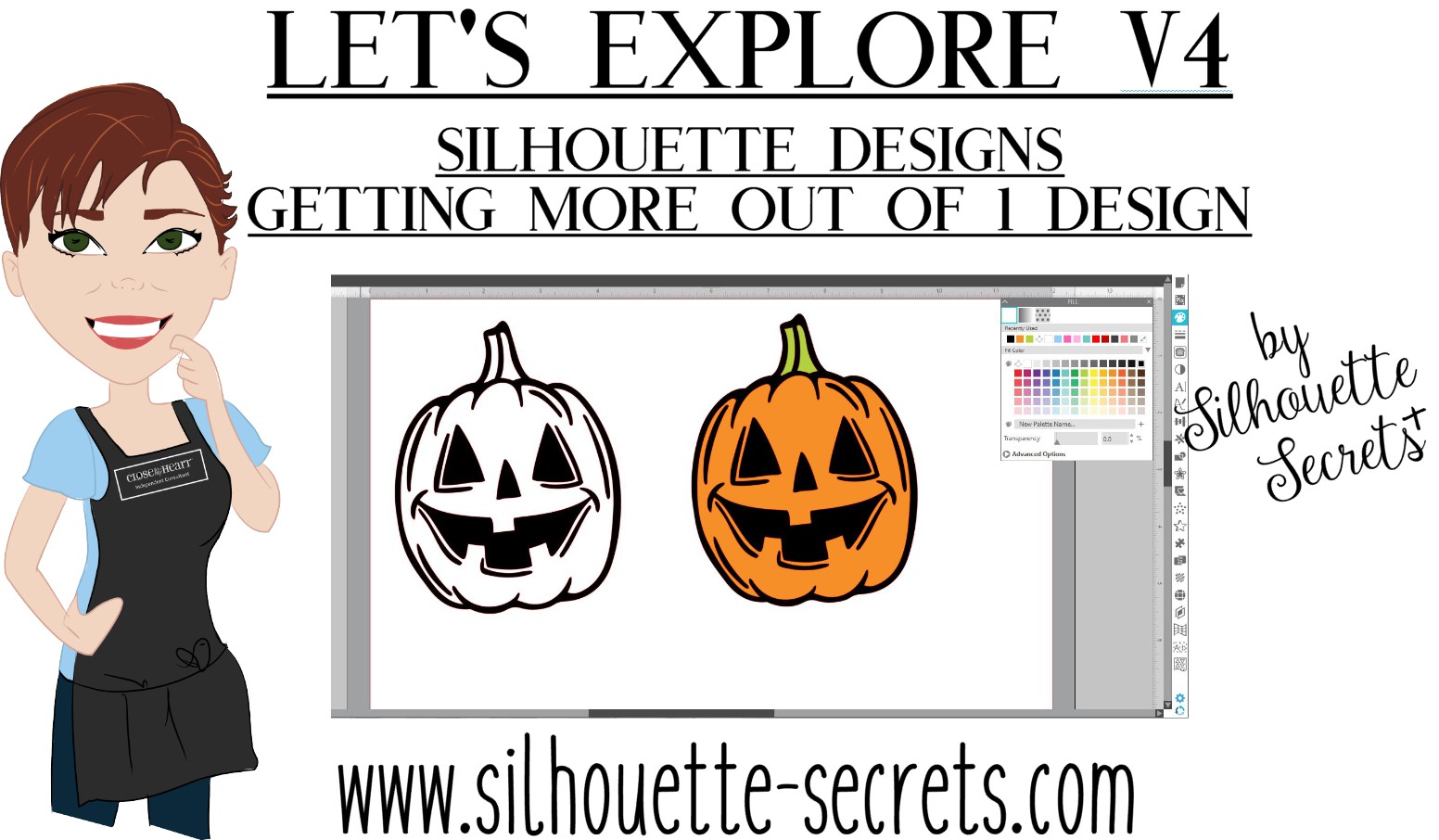
Last week in the Silhouette Designs – Part 1, I showed how to make designs go farther by using some of the tools in the software such as releasing the compound path, grouping different pieces of the design together, and making new compound paths to create a different look.

Today let’s take it a step further and I’ll show you how I created this stacked pumpkin design by moving the Layers around, and then welding the black background together..

eZy_watermark_23-09-2019_01-03-40 copy

Again, don’t get overwhelmed here. I did not get it in the first try but kept on testing different steps to get it to do what I wanted.

Let’s take a look at how I did it.

First, open all the pumpkin files that we created in last week’s post –
Silhouette Designs – Part 1.
We will be using the Modify Panel and the Layers Panel to create the pumpkin stack.

Stack Pumpkins copy

If you have grouped the design back together, right click on it and ungroup. Move the green stems away from the 2 bottom pumpkins. They will not be needed and could be deleted.

Layers panel copy

Open the Layers Panel. Once the pumpkin is ungrouped, each piece of the pumpkin will show as a separate item in the Layers Panel. The black background of the bottom pumpkin is selected and the item labeled “Polygon” that matches will highlight. Polygon is a general name because it’s a shape, if you right click on it, the option to rename the layers is available.
I did not ungroup the pumpkin at the top of the page. In the Layers Panel, you can see that this object is labeled “Group”. When this object is ungrouped, it will break up into separate items in the Layers Panel, like the others show below in the layers list.

Layers Panel renamed copy

I have renamed all of the Layers in the panel so it is easier to know which ones match the design.

To make this design stack on each other and cut the black shadow out of all one piece. I moved the layers around so the black shadow layers are next to each other by grabbing the name in the Layers Panel and dragging it down the list.

Organize layers copy

Now I can select the black bottom and the black middle pumpkin layers and right click and choose Weld. Notice that the orange pumpkin part is now overlapping. We will use the OffsetModify Panels in a minute to fix that.

Weld bottom layers copy

When you weld the 2 layers together, notice that the name changes back to “Polygon”. It can be renamed again if needed.

To make this easier to work with and selecting the correct part of the design, I selected all of the design and changed the Fill Color to transparent.

Select the middle pumpkin, open the Offset Panel, create a small offset of 0.040″, and click Apply.

Offset copy

With the Offset selected, hold the Shift key down and select the bottom pumpkin.

Open the Modify Panel and choose Subtract. This will subtract the middle pumpkin offset from the bottom pumpkin, leaving a space between the pumpkins.

Subtract copy

Fill the pumpkins with orange and the back layer with black to see how the design will look.

Here is a comparison of how the design looks with the Offset vs without the Offset.

Comparison copy

Now, did I have to do this? No, but I wanted the pumpkin designs to be separated in some way so they didn’t look like one giant orange blob.

Now, to add the top pumpkin to the stack, we will repeat the steps for that pumpkin.

Move the top pumpkin above the bottom 2, position as desired, and ungroup the design.

Top Pumpkin copy.jpg

Once the top pumpkin is ungrouped, the layers will separate in the Layers Panel and it will show 3 new Polygon layers. I have gone ahead and renamed the layers to make it easier to see.

Top pumpkin layers copy

In the Layers Panel, move the black background layer of the top pumpkin down the list next to the Black background of the design. With both the black layers selected, right click and choose Weld.

Top pumpkin black layer copy.jpg

Now, you’ll see the top and the middle pumpkin overlap.

Select the top pumpkin, open the Offset Panel, and create a 0.040″ offset. It may be easier to select the designs if the color is removed from the design first.

Top pumpkin offset copy

With the top pumpkin offset selected, hold the Shift key down, and select the middle pumpkin. Using the Modify Panel, choose Subtract. Now the Offset is subtracted from the middle pumpkin and you have a separation between the designs.

Fill the design back in with color to see how it will look.

Full design with color copy

Scale the design to the size you want. I knew I had about 24″ to work with in my area, so I sized the design about 19″ tall. You can use a 12″ x 24″ cutting mat or cut without a mat.
Check out this post on Cutting Without a Mat for tips on setting up for a successful cut without a mat.

Full design scaled copy

I added layering marks to the top of the design by drawing a rectangle, making a copy, aligning the rectangles, and grouping them together. Now, I will cut these layering marks with each color of the design, so I can use them to line the image up. Check out this post on Layering Vinyl for more information on how to create the layering marks.

I also moved the green stem off the design mat, so it did not cut with the 2 long layers. I can cut that from a much smaller piece of vinyl and add it on separate.

Then I used the Cut by Fill Color option and chose which colors I wanted it to cut each time.

Cut by Fill Color copy

Click on the Send tab in the top right corner. Then choose Fill Color in the menu just below the Send menu.

Check the box next to the colors that you want to cut. I want the layering marks to cut with both the black layer and the orange layer, so the light green will remain checked for both cut.

When a color is selected by clicking on the box next to it, you will notice that the cut lines of the design on that color will become bold. In the photo above, the black and the light green have bold cut lines around them. When cutting by Fill Color, the cut lines will be the same color as the Fill color.

I cut the black first, then unchecked the black and checked the box next to the orange.

Cut by Fill orange copy

After the design is all cut, weed away the excess and then layer the design together using the layering marks to line it up.

Check out this time lapse video of piecing this design together.

This is the longest decal that I have attempted to layer. I would suggest starting with a smaller size and practicing with the layering marks to line things up before attempting a large design.

eZy_watermark_23-09-2019_12-57-56

I repeated the process for the evil jack-o-lanterns on the right side.

And yes, even though the bottom right jack-o-lantern decided to go rogue and not stay in his designated spot when I placed him, I just let him be his own self. I do think there was a vinyl issue when I was cutting and the vinyl got stuck a little bit and caused the cut to be off. It happens and it happens to us all.

The designs used in this post are all from the Silhouette Design Store and can be found here:
Pumpkin by Wild Pilot – Design #274430
Pumpkin by Wild Pilot – Design #274429
Pumpkin by Wild Pilot – Design #274427
Pumpkin by FoxSister – Design #273881
Pumpkin by FoxSister – Design #273880
Pumpkin by FoxSister – Design #273879

Now, I played with pumpkins, but this can be used for any design.
What will you play around with and see what you can create?

I would love to see your projects feel free to post on my Facebook group at Silhouette Secrets with EllyMae.

Enjoy!

SS_Signature copySS Logo snip it

**This post may contain affiliate links. What that means is that I may receive compensation if you purchase through the links I have provided. The price you pay for the product or service is not higher but I may get compensated for sharing.

Posted on 3 Comments

Let’s Explore v4 – Silhouette Designs – Part 1

Today I’m going to show you how to make the most out of your designs that you purchase. Now, each design will be different because all designs are created differently, but let’s take a look at how we can make a few changes to the designs and get a different look.

Last year, I cut out this position-able skeleton and put him up on my front door for the “Let’s Explore v4 – Warp Panel” post – HERE.

Skeleton door sign
Position-able Skeleton by Samantha Walker – Design #4828

Well, the kids did not want me to take him down, but they decided that we should decorate him all year long.

For the holidays, he received a new hat.

IMG_6844 copy
Santa hat from Santa & Friends Photo Props by Kolette Hall – Design #35760

For Easter he received a make over and dressed up as a bunny.
Check out these posts Designing with ShapesCreating Your Own Designs.

Silhouette_Secrets_skeleton

And for the Spring, he debuted as a ball player helping me show how to change the Selection Preferences in the software and helping hold our No Soliciting sign. What a great helper! Since putting up this sign we do not have constant sales people knocking on our door. No one has brought wine or done my laundry but I’m ok with that if I don’t have to listen to sales pitches.

IMG_20190429_144932346_HDR

Now, he has decided he is a Pirate. He has gone almost a full year without a name, so I think I’ll call him Jack.

Sil_Secrets_FallDoor copy
Pirate Photobooth Props by Rivka Wilkins – Design #49887

How to Make Your Designs Go Farther

**Tutorial written in Silhouette Studio v4.3.263 – you may see additional icons or options on my screen that are available in v4.3. All techniques are available in previous versions of the software. 

One way to get your money out of a design is to keep it up all year long. But, that wasn’t actually the reason I started writing this post.

I try to ask the kids what they would like when we change out the door decorations each season. This time they said jack-o-lanterns in addition to dressing “Jack” up as a pirate.
So I grabbed these designs from the Silhouette Design Store.
Pumpkin by Wild Pilot – Design #274430
Pumpkin by Wild Pilot – Design #274429
Pumpkin by Wild Pilot – Design #274427
Pumpkin by FoxSister – Design #273881
Pumpkin by FoxSister – Design #273880
Pumpkin by FoxSister – Design #273879

I’ll take one of these (Design #274430) and use it to show how you can alter it to get a couple different looks using some of the features we’ve covered in the
“Let’s Explore v4” series.

When Pumpkin – Design #274430 is opened, this is what you will see.

Pumpkin 274430 copy

I always fill my designs or text with color using the Fill Color Panel to see how it will look when cut or if there are additional things I need to do, such as Make a Compound Path of the design.

Fill Color Panel copy

The design must be selected in order to change the property of it. Click on the red line of the design and the Selection box should appear around the image, then click on a color in the Fill Color Panel to add a color.

Once the design is filled with color, it can be selected by clicking anywhere in the color of the object. You do not have to be as precise in clicking on the red line of the design to select it. This is another reason I fill my designs with color as it makes

You can see in the above photo that if I cut this out exactly as it opens, it will cut the outline of the pumpkin and the face features inside. There is no background to the pumpkin and that can work for many designs, but I wanted a background.

I made a copy of the pumpkin so you will see the comparison.

Right click on the Pumpkin – Design #274430 and choose Release Compound Path.

Release Compound Path copy

This takes the design and releases all the pieces that make up the design. This will allow us to work with the pieces of the design individually and change it how we want.
You will notice that since we have filled it with color, it is now all the same color.

Release CP color copy

Click on the Fill Color Panel and choose the Transparent option to take the color back out.

Each file may be different in the exact steps you will need to take on how you get it all broken down into pieces. However the same features and tools will work, but they may need to be completed in a different order. This is dependent on how the designer created the file. But, knowing how each feature works will help you in deciding what steps you need to try to get it to the results you want.

You will notice in the photo above, that after the compound path is released, the selection box is still 1 around the entire design. This file is all grouped together. Right click on the design and choose Ungroup.

Ungroup copy

Now, the design is broken up into some pieces.

Left click on the mouse in the top left corner above the design, hold the left mouse button and drag across the entire design. All the objects that the drag box covers will be selected.
Hold the Shift key on the keyboard down and then click on the outer edge of the pumpkin and the 2 stem pieces. This will deselect those pieces.
Next, right click and choose Make Compound Path. This will compress all of those pieces back into 1 object.

Next, to see how the compound path worked, use the Fill Color Panel again and fill that section with color.

Select the stem pieces. Click on 1 piece of the stem and hold down the Shift key on the keyboard, then select the 2nd piece of the stem. Right click and choose Group. Then fill the stem with green.

2nd copy copy.jpg

Select the outer edge of the pumpkin and fill that with black.

Now you can see that we have taken a few additional steps and have a design that is more than just an outline of the pumpkin.

Compound paths can be something that takes a little bit of working with to really understand how they work. Check out this post on the Modify Panel – Part 2 to see more examples of Compound Paths.
The best way to reinforce the concept is to take a design and just play with it.

eZy_watermark_23-09-2019_01-03-40 copy

I did the same thing for all 3 of these happy pumpkins and these not-so-happy jack-o-lanterns.

eZy_watermark_23-09-2019_01-03-20 copy

Don’t look too close or you will see that my bottom jack-o-lantern decided to mess with me and not follow the rules. He decided to go rogue and not to lay in his designated spot.
It happens!

Next week, we will explore how I stacked the pumpkins all together, combined the black backgrounds to cut it all out of one piece of black vinyl, and how I pieced it together.
Find Part 2 HERE – Silhouette Designs – Part 2.

I love that I can take one design and turn it into another or modify it in a way that I can use bits and pieces if I want. With a few of the tools in the Silhouette software the possibilities of what you can do are endless.

As I mentioned above, each design may vary in the steps that it may take to alter it and this is dependent on how the designer saved the design.
But, it sure is fun to play around with!

I would love to see your projects feel free to post on my Facebook group at Silhouette Secrets with EllyMae.

Enjoy!

SS_Signature copySS Logo snip it

**This post may contain affiliate links. What that means is that I may receive compensation if you purchase through the links I have provided. The price you pay for the product or service is not higher but I may get compensated for sharing.