Posted on 2 Comments

Let’s Explore v4 – Cut by Fill Color in Silhouette Studio

Silhouette Studio Cut by Fill Color
Silhouette Secrets+ with EllyMae

Silhouette Studio – Cut by Line Color

In this Let’s Explore v4 tutorial, we will cover the Silhouette Cut by Fill option. The Silhouette Studio software, has 4 options on the Send Tab on how to send the design to be cut – in the top right corner of the Send tab you will find the options Simple, Line, Fill, and Layers.

I’ve covered both the Send Tab – Simple option and the Send Tab – Line option in-depth in previous tutorials.

Silhouette Studio Send Tab - Cut by Fill Color

Affiliate links may be present in the following blog post and as an Amazon Associate, I earn from qualifying purchases.

The Silhouette Cut by Fill option allows you to cut a project by fill color. The Silhouette software generates the list shown under the Fill option based on the colors that you (or the designer) has filled the design with.

Silhouette Studio Fill Color

In this example using the Mardi Gras Mask file by Cut Files Makers, the file is already filled with color. If a design is not, you would need to select the pieces you want to fill and then select the color you want designated for that piece from the Fill Color Panel on the right or the Fill Color icon in the QAT in the top left of the Silhouette Studio software.

Silhouette Send Fill Color Option

In this Send – Fill option, you have each fill color separated out in it’s own line and you can adjust the settings accordingly.

If you see an option that has a crosshatched pattern in it, that means there is no fill color for that cut line. This can happen when shapes haven’t been filled with a color or there is an image such as a png or jpeg on the file.

Silhouette Cut By Fill Color

Details of the Silhouette Cut by Fill Color

Let’s take a look at what the actions are at the top of the Send tab in Silhouette for Cut by Fill Color.

Silhouette Cut by Fill Color

Tool No.
Choose whether you will be using Tool 1 or Tool 2, also called Carriage 1 and Carriage 2

On/Off
Checked = Cut lines On
Unchecked = Cut lines Off

Bold color lines will be around the design that the cut lines are turned ON for. Notice the purple and yellow lines are not bold since they are turned OFF. Some colors are more difficult to see the bold edge, such as white.

Silhouette Send Cut by Fill Color

Weld
The outer edge of overlapping objects of the color selected will be cut. Welding typically combines objects, but in this instance, the objects remain separate and the Cut Edge is activated.

Fill Color
The same colors of the fill that were set up on the Design Tab, should all show in the list under Fill Color. Different shades of a color will show up as different options.

Material
Choose the Material type you are using for each color.
Each fill color will need to be changed separately if you did not select the material on the Simple tab before clicking on the Cut by Fill Color option.

Action
Choose what action you will want to perform.

Tool/Carriage
Choose what tool you will be using to perform the action.

If you were to keep all of the colors checked and have the cut lines ON, the order in which they appear in the list is the order in which the action will be done. For instance in my photo that would mean, the green would cut first, then the yellow, and then the purple.

You can rearrange the order by clicking and grabbing a color and move it up or down in the list as shown in the video below demonstrating with the line color option.

Moving down the right side of the Send tab – Fill Option, you will see that the cut settings are expanded further down to show what the settings are for each option you have chosen.

Silhouette Cut by Fill Color Selection

The color that is highlighted (selected) at the top of the panel will be the settings that you see at the bottom. In my photo, the green color is highlighted, so it shows the settings for the green lines in the bottom.

Here is where you can adjust the settings as needed. The key here is to make sure that the color you want to change is the one highlighted at the top AND the color shows on the bottom. We are seeing many users changing the settings for the wrong color.

This happens so often, that I put out a video on the Silhouette Secrets+ YouTube channel showing exactly what I mean. Check it out HERE.

Silhouette cutting issues with Cut by Line or Fill Color

You can also add a Pause in between the difference color actions if you would like to do that versus unchecking the box to turn the cut lines off. Each user is going to vary in what they prefer to do. I prefer to check and uncheck the boxes as needed, just in case I have to step away from my machine.
But you can test out which way works best for you.
See a quick demo of Adding a Pause HERE.

Now, the rest of this panel is the same as when using the Simple tab.
Check out the in-depth tutorial on the Send Tab – Simple Option HERE for all those details.

Having options in the Silhouette Studio software is fantastic! I’m also thrilled with my new shirt adorned with ThermoFlex Plus Metal Flake HTV. Be sure to check out the “Crafting a Shirt with ThermoFlex and Silhouette (Poli-Tape)” video available on the Silhouette Secrets+ YouTube channel right HERE.

Silhouette PoliTape ThermoFlex Plus Mardi Gras Shirt

Save this for future reference by pinning the image below.

Silhouette Cut by Fill Color Pinterest

Enjoy !

THANK YOU for your support! How can you help? Click HERE & buy a coffee.
Every little bit helps with the cost of running the site.

Silhouette Classes

Never stop learning! Let me help you take the anxiety out of learning with Silhouette and get to creating faster! My Silhouette classes are heavily focused on software, so you can take the skills & techniques taught and apply them to many future projects!

Silhouette step-by-step Classes by Silhouette Secrets+

Silhouette Secrets+ by EllyMae
Silhouette Secrets+ with EllyMae
**This post may contain affiliate links. What that means is that I may receive compensation if you purchase through the links I have provided. The price you pay for the product or service is not higher but I may get compensated for sharing.
Posted on 3 Comments

Let’s Explore v4 – Silhouette Designs – Part 2

Last week in the Silhouette Designs – Part 1, I showed how to make designs go farther by using some of the tools in the software such as releasing the compound path, grouping different pieces of the design together, and making new compound paths to create a different look.

Today let’s take it a step further and I’ll show you how I created this stacked pumpkin design by moving the Layers around, and then welding the black background together..

eZy_watermark_23-09-2019_01-03-40 copy

Again, don’t get overwhelmed here. I did not get it in the first try but kept on testing different steps to get it to do what I wanted.

Let’s take a look at how I did it.

First, open all the pumpkin files that we created in last week’s post –
Silhouette Designs – Part 1.
We will be using the Modify Panel and the Layers Panel to create the pumpkin stack.

Stack Pumpkins copy

If you have grouped the design back together, right click on it and ungroup. Move the green stems away from the 2 bottom pumpkins. They will not be needed and could be deleted.

Layers panel copy

Open the Layers Panel. Once the pumpkin is ungrouped, each piece of the pumpkin will show as a separate item in the Layers Panel. The black background of the bottom pumpkin is selected and the item labeled “Polygon” that matches will highlight. Polygon is a general name because it’s a shape, if you right click on it, the option to rename the layers is available.
I did not ungroup the pumpkin at the top of the page. In the Layers Panel, you can see that this object is labeled “Group”. When this object is ungrouped, it will break up into separate items in the Layers Panel, like the others show below in the layers list.

Layers Panel renamed copy

I have renamed all of the Layers in the panel so it is easier to know which ones match the design.

To make this design stack on each other and cut the black shadow out of all one piece. I moved the layers around so the black shadow layers are next to each other by grabbing the name in the Layers Panel and dragging it down the list.

Organize layers copy

Now I can select the black bottom and the black middle pumpkin layers and right click and choose Weld. Notice that the orange pumpkin part is now overlapping. We will use the OffsetModify Panels in a minute to fix that.

Weld bottom layers copy

When you weld the 2 layers together, notice that the name changes back to “Polygon”. It can be renamed again if needed.

To make this easier to work with and selecting the correct part of the design, I selected all of the design and changed the Fill Color to transparent.

Select the middle pumpkin, open the Offset Panel, create a small offset of 0.040″, and click Apply.

Offset copy

With the Offset selected, hold the Shift key down and select the bottom pumpkin.

Open the Modify Panel and choose Subtract. This will subtract the middle pumpkin offset from the bottom pumpkin, leaving a space between the pumpkins.

Subtract copy

Fill the pumpkins with orange and the back layer with black to see how the design will look.

Here is a comparison of how the design looks with the Offset vs without the Offset.

Comparison copy

Now, did I have to do this? No, but I wanted the pumpkin designs to be separated in some way so they didn’t look like one giant orange blob.

Now, to add the top pumpkin to the stack, we will repeat the steps for that pumpkin.

Move the top pumpkin above the bottom 2, position as desired, and ungroup the design.

Top Pumpkin copy.jpg

Once the top pumpkin is ungrouped, the layers will separate in the Layers Panel and it will show 3 new Polygon layers. I have gone ahead and renamed the layers to make it easier to see.

Top pumpkin layers copy

In the Layers Panel, move the black background layer of the top pumpkin down the list next to the Black background of the design. With both the black layers selected, right click and choose Weld.

Top pumpkin black layer copy.jpg

Now, you’ll see the top and the middle pumpkin overlap.

Select the top pumpkin, open the Offset Panel, and create a 0.040″ offset. It may be easier to select the designs if the color is removed from the design first.

Top pumpkin offset copy

With the top pumpkin offset selected, hold the Shift key down, and select the middle pumpkin. Using the Modify Panel, choose Subtract. Now the Offset is subtracted from the middle pumpkin and you have a separation between the designs.

Fill the design back in with color to see how it will look.

Full design with color copy

Scale the design to the size you want. I knew I had about 24″ to work with in my area, so I sized the design about 19″ tall. You can use a 12″ x 24″ cutting mat or cut without a mat.
Check out this post on Cutting Without a Mat for tips on setting up for a successful cut without a mat.

Full design scaled copy

I added layering marks to the top of the design by drawing a rectangle, making a copy, aligning the rectangles, and grouping them together. Now, I will cut these layering marks with each color of the design, so I can use them to line the image up. Check out this post on Layering Vinyl for more information on how to create the layering marks.

I also moved the green stem off the design mat, so it did not cut with the 2 long layers. I can cut that from a much smaller piece of vinyl and add it on separate.

Then I used the Cut by Fill Color option and chose which colors I wanted it to cut each time.

Cut by Fill Color copy

Click on the Send tab in the top right corner. Then choose Fill Color in the menu just below the Send menu.

Check the box next to the colors that you want to cut. I want the layering marks to cut with both the black layer and the orange layer, so the light green will remain checked for both cut.

When a color is selected by clicking on the box next to it, you will notice that the cut lines of the design on that color will become bold. In the photo above, the black and the light green have bold cut lines around them. When cutting by Fill Color, the cut lines will be the same color as the Fill color.

I cut the black first, then unchecked the black and checked the box next to the orange.

Cut by Fill orange copy

After the design is all cut, weed away the excess and then layer the design together using the layering marks to line it up.

Check out this time lapse video of piecing this design together.

This is the longest decal that I have attempted to layer. I would suggest starting with a smaller size and practicing with the layering marks to line things up before attempting a large design.

eZy_watermark_23-09-2019_12-57-56

I repeated the process for the evil jack-o-lanterns on the right side.

And yes, even though the bottom right jack-o-lantern decided to go rogue and not stay in his designated spot when I placed him, I just let him be his own self. I do think there was a vinyl issue when I was cutting and the vinyl got stuck a little bit and caused the cut to be off. It happens and it happens to us all.

The designs used in this post are all from the Silhouette Design Store and can be found here:
Pumpkin by Wild Pilot – Design #274430
Pumpkin by Wild Pilot – Design #274429
Pumpkin by Wild Pilot – Design #274427
Pumpkin by FoxSister – Design #273881
Pumpkin by FoxSister – Design #273880
Pumpkin by FoxSister – Design #273879

Now, I played with pumpkins, but this can be used for any design.
What will you play around with and see what you can create?

I would love to see your projects feel free to post on my Facebook group at Silhouette Secrets with EllyMae.

Enjoy!

SS_Signature copySS Logo snip it

**This post may contain affiliate links. What that means is that I may receive compensation if you purchase through the links I have provided. The price you pay for the product or service is not higher but I may get compensated for sharing.

Posted on 4 Comments

Bus Driver Appreciation gift

Over on the Silhouette School blog today I showed how to use the Cut by Fill Color option to create a layered vinyl decal for perfect placement.

 IMG_2823

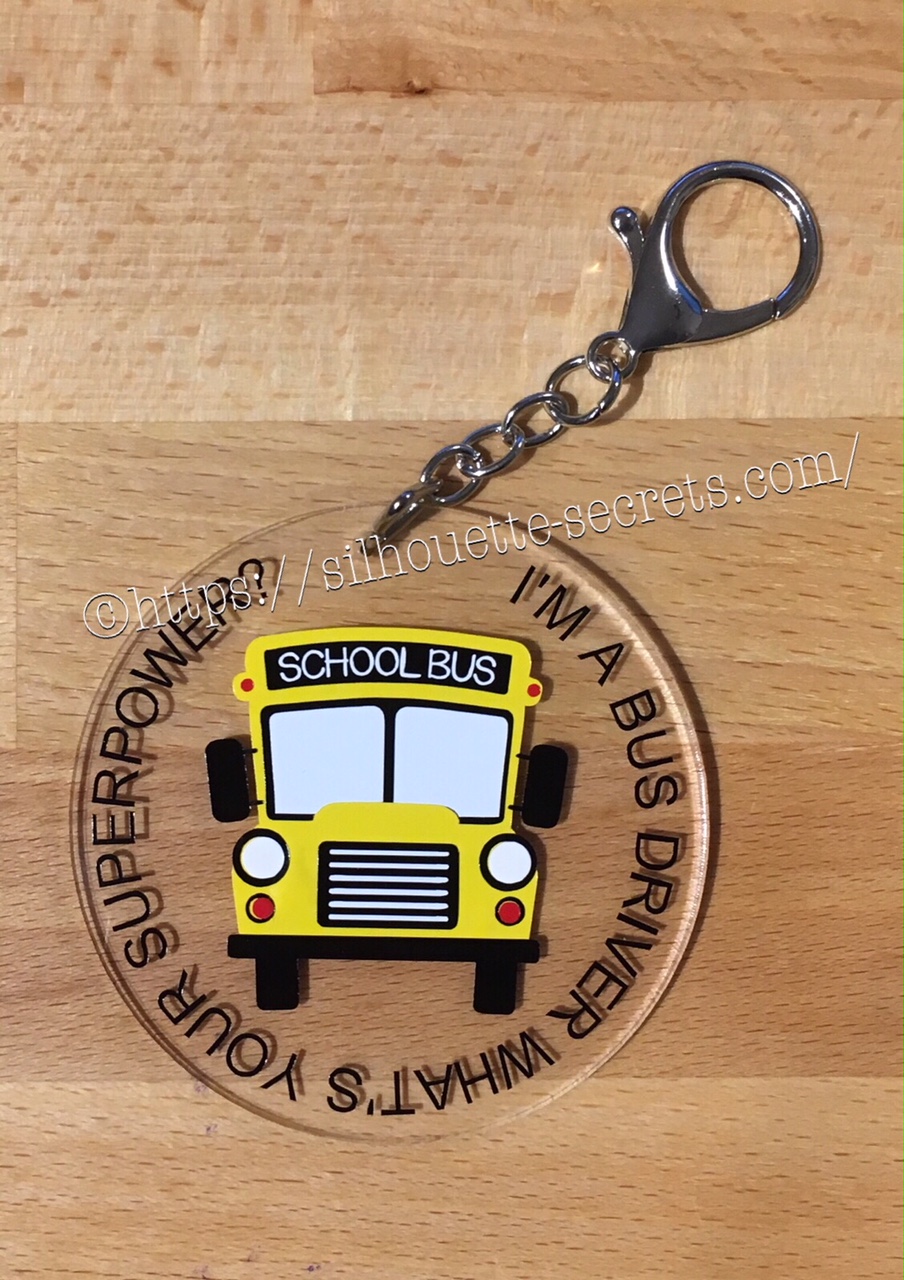
Now I’m going to show you how I took that design, shrunk it down and used the same technique to create a bag tag for our Bus Driver.

I started with a 3″ clear acrylic circle blank from Craft Chameleon.

IMG_2824

I love that Craft Chameleon acrylics come with a cut file included. I opened up the template for this shape and copied and pasted it to a new design mat to use as my base. Or you could draw a perfect circle by holding down the Shift key and then resizing the circle to the exact dimensions under the Transform Panel – Scale tab.

Base Template

Now, I can use this to create my design in.

I took the School bus design by Kelly Lollar Designs that I used as an example in my guest post, and shrunk it down with the registration (layering) marks. I wanted to make sure that the bus fit in the center of the acrylic shape with space around the edges for text.

 Bus centered

Now, I duplicated my circle and made it a little bit smaller. This is so the text will fit down inside of the acrylic shape better. Move the original 3″ circle off the mat as it’s not needed any longer or you can delete it.

Then select just the bus and the circle and use the Align Tab in the Transform Panel to Align Center or from the QAT (Quick Access Toolbar). Do not include the registration (layering) marks in this, as it is just the bus and circle we want to center together.

Align center copy

Now, type out the text, select the font style and size. Double click back on the text to get the circle in the bottom left corner. Grab that circle and drag it to your circle shape.

Typing text copy

As you drag it to the circle you will notice it attaches to the circle. Play around with the alignment of the text to your liking and then use the slider bar to increase the distance from the circle either inside or outside of the circle.

Text to shape copy

Now, I decided to increase the Character Spacing under the Text Style Panel, just a bit on my letters to spread it out a bit. And then readjust your words around the circle. Each Font style that you choose will give you different looks, so you will need to adjust for whatever you choose.

Character spacing copy

Now, once the text is modified, it will no longer be editable text. This is a good time to make a copy of the text & circle and pull it off the mat, just in case you want to edit it later. If you select only the text to pull it off, it will release from the shape, so you want to select both the text and the shape and make a copy.

In order to separate the text from the circle, right click on the text and choose Convert to Path.

Convert to Path copy

And now, move the circle off the mat as we do not want it to cut.

Circle released

Now, we are ready to cut out decal just as I detailed in the Silhouette School guest post.

Once we have our decal cut out and layered together, we are ready to apply to the acrylic shape.

I went ahead and placed the shape on my Silhouette cutting mat on the sticky side, so it wouldn’t move while I applied the decal. The acrylic blanks come with a protective covering on them to prevent scratching before use, so make sure to peel that off before you add your decal.

IMG_2814

And then I lined the decal up and placed it down, burnishing it well and took the transfer tape off.

IMG_2815_edited

And with any project there’s always 1 piece that may not work just right. As you can see I’m missing the School bus title on it. This did not weed well when I was layering the decal and after messing with it, I decided I’d just re-cut it and apply.

I duplicated the design and then un-grouped everything and deleted all but the School Bus. Then I duplicated the School bus 3 times just in case…. if I had only cut it once you know it wouldn’t have weeded correctly, but since I cut it 3 times….. all 3 weeded beautifully with reverse weeding.

IMG_2817_edited2

Then I gathered the rest of the tools to attach the pieces of the bag tag.

IMG_2819

I just received these bent nose pliers from Craft Chameleon and using them 1 time, I’m in love with them. They are one of those tools like my Close to My Heart nonstick scissors that will be my go to tools. Now, I could have just gone to the garage and “borrowed” a couple pairs of pliers from there, but these were the perfect size for my hands and worked wonderfully. I am so glad I ordered them after watching Craft Chameleon’s live FB video a few weeks ago.

And now I have a little gift to give to the bus driver.

temp

Can you think of things you might layer with adhesive vinyl? Those first few times you attempt it can seem daunting, but it is another project that takes practice and the layering (registration) marks make it much more manageable to layer a design. What will you design and cut?

Enjoy !

THANK YOU for your support! How can you help? Click HERE & buy a coffee. Every little bit helps with the cost of running the site.

Looking for more in-depth, step-by-step classes, check out all of my online Silhouette classes on my Teachable site HERE.

SS Logo snip it

**This post may contain affiliate links. What that means is that I may receive compensation if you purchase through the links I have provided. The price you pay for the product or service is not higher but I may get compensated for sharing.