Posted on 7 Comments

Let’s Explore v4 – Layers Panel

Layers Panel in Silhouette Studio v4

Unless you’ve worked in another graphics program, like Photoshop, you may be wondering what layers are. In the Silhouette software, you can create a design in layers which allows you to do many things such as hide, lock, rename, cut by layer, etc.

The Layers Panel is an option if you have the Designer Edition software upgrade or higher for the Silhouette Studio.

If you open the Layers Panel on a blank design mat, you will see that there isn’t much in there.

Layers panel beginning

What this tells us is on the design mat I have open, there is 1 layer.  If I start drawing shapes or text, it will place all of those pieces on Layer 1.

For example, if I open this A2 Pop Up Owl card by Jamie Cripps from the Silhouette Design Store, it will tell us several things.

Owl o ween card example

Here is how the layers panel looks for this design.

Owl o ween card layers

On the right side is the Layers Panel and it shows 1 layer and that this layer is grouped together. If I un-group the design, it will show each shape on that layer or each grouping of shapes, depending on how the file was created. But, the entire design is still on the same layer.

Owl o ween card layers ungrouped

So let’s take a look at what all of this means and what you can do with the Layers Panel.

Layers panel copy

The layers panel can be found on the right side towards the bottom of the Silhouette Studio v4 software, if you have the Designer Edition upgrade to the Silhouette software.

There is a lot of information in this small panel, so let’s explore all the features.

Layers panel detail copy

  1. File name – This is the name of the file that is currently open.
  2. Layer details – The default name for each layer is “Layer 1” and then each proceeding one will be in numerical order, but you can change that by clicking on the word Layer and typing a new name or right clicking and choose Rename Layer.Layers right click options
    There are many options here including: add a layer under this layer, rename layer, delete layer, cut, copy, paste, select or deselect.In additional to those options, there are toggle options too.

    Eye and lock option copy

    The eyeball can be toggled on and off which hides or shows a layer.

    Eyeball on copy
    This can allow you to see how a design will look without moving the shape or object.

    The lock can be toggled on or off and allows a layer to be locked so it cannot be moved by accident. Again very helpful when designing if you want something to stay in place.

    Locked copy

    When a layer is locked, it cannot be selected, moved or altered. The layer can be hidden by clicking on the eyeball, but no changes can be made to the layer without toggling the lock off.

    Maximize and minimize the layer details by clicking on the circle next to the Layer name.

    Maximize copy

  3. Designs on layer – All objects that are on that layer will be listed below the layer title in the order they are on the mat.Designs on layersObjects can be grabbed and dragged to rearrange the order within the Layers Panel.
  4. Additional layers – Add as many layers as needed to a design. Having the parts of the design on separate layers allows more control over things while working with a design.
  5. Add or Remove Layers – Use these quick button to Add or Remove layers as needed.Add or Remove layers

Layers can be fun to play around with and can also serve many useful purposes when designing or using more complex designs.

The other option available once layers have been created is to Cut by Layer.

Cut by Layers copy

On the Send tab, choose the option to Cut by Layer and it will open up a window with all the Layer options. Now the cut lines can be turned on and off, depending on which part of the design is being cut.

I hope this helps explain the layers panel just a bit more!

Layers Panel

Enjoy!

Feel free to post questions or project photos on my Facebook group at
Silhouette Secrets+ with EllyMae.

SS_Signature copySS Logo snip it

**This post may contain affiliate links. What that means is that I may receive compensation if you purchase through the links I have provided. The price you pay for the product or service is not higher but I may get compensated for sharing.

Posted on Leave a comment

Let’s Explore v4 – Advanced Rhinestones

There are so many neat features of the Silhouette Studio software as you move up in the software upgrades. The Advanced Rhinestone Panel is an option if you have the Designer Edition Plus or Business Edition upgrade.

Rhinestone Panel copy

At first glance or if you read the standard description, it may not seem like much of a feature, but let’s take a look at it more in depth.

Rhinestone Panel Detail copy

  1. Rhinestone Library – Contains images of rhinestone designs – 2 sectionsPre-set Images and Sizes – Choose which color and size that you would like to add to your design

    Rhinestone options

    User Rhinestones – designs can be added to the Rhinestone library by either drawing a shape or importing a photo

    Rhinestone Library - User section copy

  2. Size – Designates the size of the rhinestone chosen or the size of the rhinestone design you are creatingSize copy
    This will show grayed out if using a pre-set shape & size.

    If a shape is added to the rhinestone library, then a size can be designated and it is no longer grayed out.

    Size User created copy

  3. Add Selected Shape to Rhinestone Library – Add shape designs to the library for creating a new rhinestone option. Shapes can be drawn or imported from a photoAdd Selected Shape copy

    The default measurement can also be changed under the Preferences in the software. It can be set to inches (default), millimeters, centimeters, meters, inches or feet.

    Change measurement preference copy

    And then it will reflect in the panels that use measurements.

    Change measurement copy

    If the shape drawn is bigger than what is allowed, a pop up will appear stating this.

    Error size

  4. Draw Rhinestones – Single vs Multiple – Choose to draw one style of rhinestone designs or a multiple of designs from the library.Single – drawing rhinestone in repeat of 1 shape with a click of the mouse

    Draw Rhinestone Single click

    Multiple – Draw Rhinestone from a chosen list of varied designs pulled from rhinestone library.

    By clicking on the multiple option, a new option window expands and you can add or delete the order of the designs in the selection window.

    Draw Multiple pattern
    This would come in handy if you are trying to create a rhinestone pattern with different sizes.

    Or you can use the pre-set rhinestone designs and create a pattern too.

    Draw Multiple pattern on shape

  5. Angle – Change the angle of how the rhinestone design follows a shape.Standard = Rhinestones upright
    Center = Rhinestones point to center
    Perpendicular = Rhinestone align to contour

    Angle

  6. Spacing – Change the spacing between the rhinestones when applied to a shape.Spacing.JPG
  7. Angle Offset – Choose what angle the rhinestones are placed along a shape.Angle Offset.JPG
  8. Rhinestone placement – Choose how the rhinestones are placed – options are: Outer edge, perpendicular, or from center.Rhinestone Placement
  9. Draw Rhinestone – Single Click vs Replace – Add a rhinestone with a single mouse click or replace a rhinestone with a different rhinestone.Single = place 1 rhinestone with each click of the mouse
    Replace = Once a rhinestone is placed it can then be swapped out with a different rhinestone for another size or color
  10. Totals (All Shapes) – Gives a count of all the rhinestones on the mat or the image selected.Totals copy

 Now that we have explored the entire panel – what would you use this for?

Here I’ve created what is called a mock up and the design is laid on top of the photo of the tote bag.

Mock up photo

Now I may actually have to make the rhinestone decal for real.
Find out more information on creating a rhinestone template in the Let’s Explore v4 – Rhinestones post.

Have you played with the Rhinestone feature yet?
I would love to see your Silhouette projects! Feel free to post on my Facebook group at
Silhouette Secrets+ with EllyMae.

Enjoy!

SS_Signature copySS Logo snip it

**This post may contain affiliate links. What that means is that I may receive compensation if you purchase through the links I have provided. The price you pay for the product or service is not higher but I may get compensated for sharing.

Posted on 1 Comment

Silhouette Weekend

What an amazing weekend spent with colleagues and new Silhouette friends!
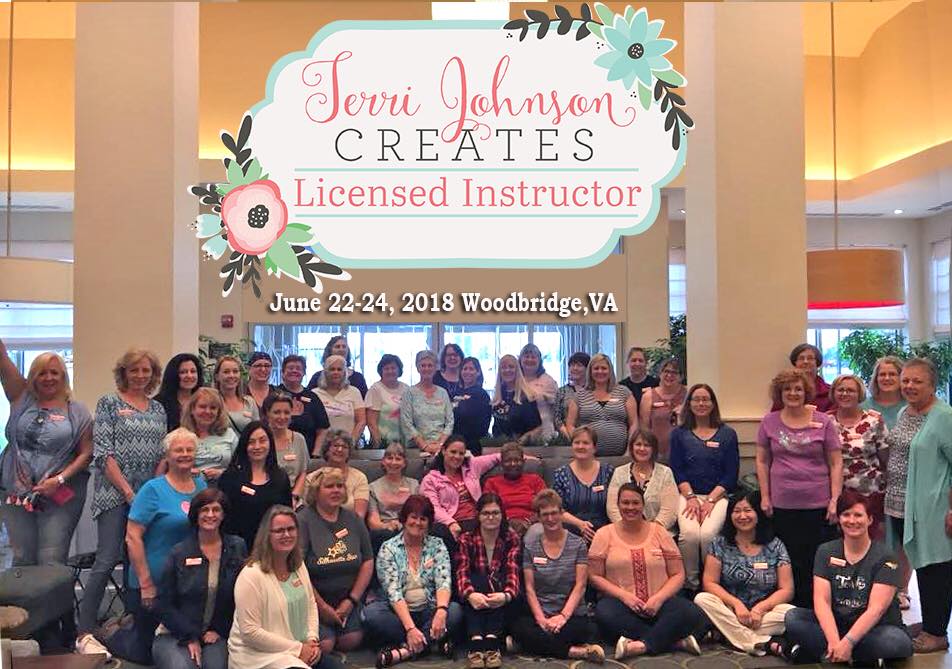
I was on staff at the Terri Johnson Creates Silhouette Instructor Licensing retreat two weeks ago and let me tell you, while it may have been long days, I still woke up feeling like my battery was recharged on Monday morning.

36064596_10155836579068924_3213699950563033088_n

First, I want to say Congratulations to all the new TJC Licensed Silhouette Instructors!
It was an amazing weekend meeting you all and seeing some of you I already knew.

I loved watching attendees create all of the projects and seeing that light shine when they finished their creations or learned a new technique in the software.
That is what I love about being an Instructor!

A weekend full of Silhouette machines, class projects and new friends! And to top it off, working with my colleagues, who have become some of my closest friends since I attended the TJC Silhouette Licensing Program in September 2016.

IMG_0926

We laughed, we talked, we bounced ideas off each other, we laughed some more….. we cried because we were laughing so hard.
This makes it all worth it – the friends you meet!

The weekend was filled with business tips, Silhouette software, projects created with the Silhouette, demos, tips, tricks, troubleshooting and lots of fun!

On Saturday evening, during the hands on session, I showed a demonstration of the Silhouette Curio etching on an acrylic coaster. This little Curio machine has very quickly become well loved in my studio and I am amazed at what it can do.

Here are just a few of the projects I’ve created using my Curio machine.

Since I attended the TJC Licensing Program in September of 2016, I have expanded my knowledge of Silhouette and many more things – more than I ever could have imagined. I have been teaching Silhouette classes in person, by video conference call and by phone; been on staff for several Terri Johnson Creates Events including the Curio Intensive, All Things Silhouette Conferences and Licensing; started the “Let’s Explore v4” series on my blog; am an Admin on several Facebook groups; written several guest posts for Silhouette School and Craft Chameleon; created  product/project videos for Craft Chameleon and am now recording and creating video lessons for users who do not have access to a hands on event.

None of this would have happened if I had not taken that moment and clicked Register for the Terri Johnson Creates Licensing Event.

I still don’t know where it’s leading me, everyday seems to bring a new opportunity.
But, I am enjoying it and learning as I go.

Each Silhouette user will read this and take something different away from it.
Do you want to know more about becoming a TJC Licensed Silhouette Instructor?
(Click HERE)
Do you want to look for a hands on event or local Instructor in your area?
(Click HERE)
Do you want to check out more information on the Instruction that I offer or have an interest in video lessons?
(Click HERE)
Do you want to check out the “Let’s Explore v4” series?
(Click HERE)
Do you just want to get your Silhouette machine out and play?
YEA!!!
That is the best way to learn. Of course, it is always a little easier with some guidance and that is why the Terri Johnson Creates Licensed Silhouette Program was created.

IMG_3812_edited

Who knows where this path will take me, but I know my life is different because I am on it and I would not trade meeting these wonderful ladies (and many more not pictured) for anything in this world.

I would love if you would share your projects with us – check out my Facebook group at
Silhouette Secrets+ with EllyMae.

Enjoy!

SS_Signature copySS Logo snip it

**This post may contain affiliate links. What that means is that I may receive compensation if you purchase through the links I have provided. The price you pay for the product or service is not higher but I may get compensated for sharing.
 

Posted on Leave a comment

On to the holidays….

I have seen these ornaments all over Pinterest and I wanted to give them a shot, but I wanted to create the entire image myself, so I was not limited on the options I have to use it.

This was a pretty basic design to complete, since it uses basic shapes and fonts.
Make sure if you are going to reproduce these items for sale or to sell the cut file as an svg, that you are using a font that has a Commercial Use license, so everything is legal.

img_4054

I positioned the design on one mat, then placed my vinyl on each space of my mat in the same position as in the Design Software.

img_4055

The ornaments were purchased at Hobby Lobby and I used Polycrylic on the inside, let it drain well and then used extra fine glitter on the inside.
I cut all of my pieces and then pieced it together

Now to get these in the mail & make sure my little ones don’t see it before our elf Jingles brings it to them.

Enjoy!
ss_signature-copy


