Posted on Leave a comment

How to Save As PNG in Silhouette Studio

Silhouette Secrets+ with EllyMae

If you’ve ever created a design in Silhouette Studio and wanted to use it outside the software—whether for DTF (Direct to Film) printing, sublimation, print-and-cut, or any high-quality print project—this guide is for you! With just a few simple steps, you can save your design as a transparent PNG file directly from Silhouette Studio. This method is perfect for uploading to services like Siser®’s Easy® Transfers for vibrant, press-ready DTF prints, but it’s also a great option for any project that needs a clean, high-resolution image. In the video below, I’ll walk you through how to export your design as a PNG and show you exactly how to upload it to the Siser Easy Transfers site to order custom DTF transfers—plus, you’ll get tips to ensure your file is properly formatted for print success. You’ll also find written step-by-step instructions below the video in this post to make it even easier to follow along.

Affiliate links may be present in the following blog post and as an Amazon Associate, I earn from qualifying purchases.

Find the video – How to Save as PNG in Silhouette Studio + Upload to Siser® Easy® Transfers for DTF Prints on the Silhouette Secrets+ YouTube channel HERE or click the image below.

Screenshot of Silhouette Studio showing a colorful 'create' design with export settings for saving as a transparent PNG file.

In the video linked above, I show how I created the design featured. I am going to skip right to the steps of saving as a PNG from Silhouette Studio Business Edition. If you would like to see how I create the design, check it out in the video HERE.

When creating your own designs, make sure you are starting with high resolution images. Photos and digital files that are 72 dpi are designed for internet quality images and you want 300 dpi for print quality.

How to Save As a High Resolution PNG File

In order to save as a PNG file type or any other file type, the Silhouette Studio Business Edition upgrade is needed. Find more details on Silhouette software upgrades HERE and how to activate an upgrade on the Silhouette software HERE.

Note: if you are on a MAC, the screenshots below may look a bit different as I am using a Windows computer, however, the process is the same.

Select all parts of the design to be saved. This can be done by left clicking and dragging across the entire design to “rubber band” select everything the mouse moves across.

Silhouette Studio workspace displaying a colorful 'create' design with a gradient background and the text in pink. The interface is shown with tools and options available.

In the top left corner of Silhouette Studio, select File > Save Selection > Save to Hard Drive.

Screenshot of Silhouette Studio showing the steps to save a design as a PNG, including the menu options 'File', 'Save Selection', and 'Save to Hard Drive'. The design features colorful text that says 'create'.

Using this method will save the design at the size created and not the entire art board. I explain and show a demonstration of why I recommend this method in the video tutorial HERE.

Choose the location you want the file to be saved, name the file, and change the Save as type at the bottom to PNG (or whatever other file type you’d like to save as).

Screenshot of the Silhouette Studio save selection window, showing options to save a design as different file types including PNG.

Silhouette has a default DPI (Dots per inch), this is NOT print quality. Highlight the number and change it to 300, then press the Enter key. You will notice that the Pixels for both Width and Height increase. Pixel size is directly related to DPI.

Check the box next to Transparent background if you want a transparent background.

Silhouette Studio export settings window showing options for width, height, dots per inch, and transparent background.

PNG and JPEG files are rectangle shaped files. If a PNG was not designed with a transparent background, it will show as a white rectangle behind the design. JPEG files do not have transparent backgrounds.

The maximum pixel size that can be saved for either width or height in Silhouette Studio is 10,000 pixels.

Make sure to press Enter after changing the DPI or the change will not take effect.

Click the Save button to save the file as a PNG.

Screenshot of Silhouette Studio showing the Export Bitmap settings with options for width, height, and DPI, along with a colorful design in the background.

Check the file in the saved location to make sure it saved as you want. On a Windows computer, in the Windows folder, move the mouse over the image and it will tell you the pixel size.

Screenshot of a computer window showing a file directory with a saved PNG design titled 'Create Shirt Demo Silhouette'. The design features a colorful gradient background with the word 'create' in pink cursive font.

To change how you view files in the Windows Folder, select View at the top and select how you want to see those files in the folder.

When using those steps, the design should be saved at 300 DPI from Silhouette Studio.

Upload your high resolution designs and order Siser® Easy® Transfers DTF prints HERE.

Supplies I used in the design featured:

Save this for future reference by pinning the image below.

Instructional graphic showing the steps to save a design as a PNG file in Silhouette Studio, with highlighted options for width, height, DPI, and a 'Save' button.

Enjoy !

THANK YOU for your support! How can you help? Click HERE & buy a coffee.
Every little bit helps with the cost of running the site.

Silhouette Classes

Never stop learning! Let me help you take the anxiety out of learning with Silhouette and get to creating faster! My Silhouette classes are heavily focused on software, so you can take the skills & techniques taught and apply them to many future projects!

Silhouette step-by-step Classes by Silhouette Secrets+

Silhouette Secrets+ with EllyMae
**This post may contain affiliate links. What that means is that I may receive compensation if you purchase through the links I have provided. The price you pay for the product or service is not higher but I may get compensated for sharing.

Posted on 2 Comments

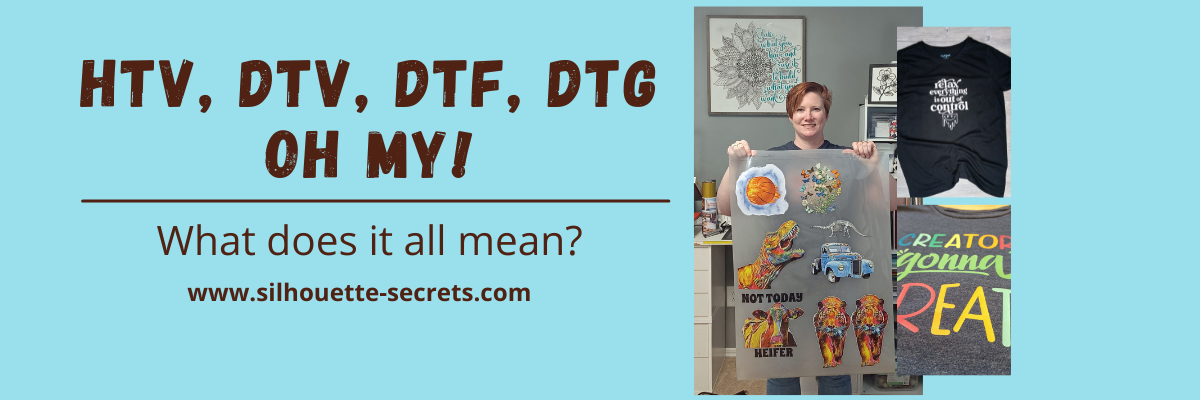
HTV, DTV, DTF, DTG, Oh my! – What does it all mean?

There are a lot of letters out there floating around in the industry right now and lots of places to get confused about what they all mean.

So let’s take a look at the basics of what each of these terms mean and then you may have a better idea if you want to look into each one a little bit further.

Affiliate links may be present in the following blog post and as an Amazon Associate I earn from qualifying purchases.

What is what?

HTV = Heat Transfer Vinyl

Heat transfer vinyl is a product that can be applied to fabric. The adhesive on heat transfer vinyl is heat activated and the adhesive melts into the fabric.

Siser Easyweed HTV Design - Relax Everything is Out of Control

Relax Everything Is Out of Control by Sophie Gallo – Design #436898

There are many brands and types on the market worldwide.
I use Siser Easyweed HTV and other Siser specialty HTV the most in my projects.

The primary purpose of HTV is for fabric and materials, however, you will see some apply it to other surfaces as well. I see mixed results with these methods and it is always good to test what you plan to do.

For more details, tips, tutorials, projects, and classes on HTV
Click HERE

Siser Easyweed HTV White - Cat Mom Design

Cat Mom by Erica Digital Design – Design #377246
Peeking Cat by Erica Digital Design – Design #353053

DTV = Direct to Vinyl

Siser EasyColor DTV is a product that was released in the Fall of 2022. It is a heat transfer vinyl that can be printed on with an inkjet printer.

Siser EasyColor DTV - Sarcasm Loading Printable HTV

Periodic Table Sarcasm design by Suzanne Cannon – Design #298890

I love Siser DTV!!!
I’ve had great success and my shirts have been washed well over 20+ times.

For more details on Siser EasyColor DTV
CLICK HERE

Creators Gonna Create design with Siser EasyColor DTV - printable HTV

Creators Gonna Create design by Jamie Lynn Designs – Design #295352

Siser DTV is great for being able to add graphics or multi-color designs using a home printer without having to cut and layer multiple colors of HTV.
Grab some Siser EasyColor DTV in a variety of sizes at The Vinyl Spectrum HERE.

Make sure to follow the instructions from Siser on printing, pressing, and washing for best results!

DTV is not the same as Heat Transfer Paper.
Heat Transfer Paper was an alternative before Siser EasyColor DTV was released. But it is not vinyl, even though many use the terms interchangeably.
Find more on Heat Transfer Paper HERE.

DTF = Direct to Film

Direct to Film is a printer that prints onto a film that is used to transfer the design to a blank. This can be a great for heavy graphic images that you do not want to layer or if you have a lot of one design that you are using for a project.

DTF designs ordered from 143Vinyl

Here is a sheet of DTF prints I ordered to test from 143Vinyl.com.
Cut them apart and heat press to your shirt or blank.
Done!

Backside of a DTF print ordered from 143Vinyl

Here is a look at the backside of a DTF print.

This is not your everyday at home printer, but can be useful if you run a business.
If you are interested in investing in a DTF printer, you can find more details on printers and supplies at Heat Transfer Warehouse or Swing Design.

If you are like me and don’t want to invest in a DTF printer or have no need to, then I’d recommend ordering some DTF prints to try out.
Check out 143vinyl.com and order today!
(Note: 143Vinyl is currently upgrading equipment as this post is published and DTF ordering is on hold)

Butterfly DTF design from 143Vinyl

You can either upload your own image or use their image library. I chose to use the Image library for my first round to test it out, but mostly because it takes me forever to decide on a design that I want and even longer to create it.

Make sure to follow all their instructions for submissions if you upload your own images.

Vintage Truck DTF print from 143Vinyl

I have also seen a lot of mention about DTF “hacks”. Keep in mind that it may or may not have the same results or longevity. It is all a process of experimentation.
The only way to know is to test it, if you decide to go down that road.

DTG = Direct to Garment

Direct to garment is another specialized printer and not your ordinary, average home printer. This printer type allows you to print directly onto a shirt or other blank.

Both a DTF or a DTG printer are a serious investment, so I would recommend doing a bit of research before diving into that, but it can be a great option for a small business that is growing.

Check out more on DTG printers at Swing Design HERE.

For me as an everyday crafter, a DTF or DTG printer are not in my list of must haves for my studio as I do not think they would be utilized enough.

Vinyl

Vinyl is a general term that can be used in reference to many different products.
Often times it is used so generically, that we have to clarify what the user is wanting to do before we can advise on information they are looking for.

There is adhesive vinyl, HTV, specialty vinyl, and also things like sticker paper and heat transfer paper that get lumped into the “vinyl” category.

Oracal 651 Adhesive Vinyl Intricate Mandala Design - Take what you have and use it to build what you want

If you are looking for more on adhesive vinyl, check out these tutorials HERE.

I wanted to keep this very basic in explaining what each meant. It can be very confusing when you see the terms thrown out there and sometimes used incorrectly.

I hope this information helps to give you an idea if you would like to explore more on a certain area that might be helpful to your future projects or business!

Save this for future reference by pinning the image below.

HTV, DTV, DTF, DTG what does it mean

Enjoy !

THANK YOU for your support! How can you help? Click HERE & buy a coffee.
Every little bit helps with the cost of running the site.

Silhouette Classes

Never stop learning! Let me help you take the anxiety out of learning with Silhouette and get to creating faster! My Silhouette classes are heavily focused on software, so you can take the skills & techniques taught and apply them to many future projects!

Silhouette step-by-step Classes by Silhouette Secrets+

SS Logo snip it
**This post may contain affiliate links. What that means is that I may receive compensation if you purchase through the links I have provided. The price you pay for the product or service is not higher but I may get compensated for sharing.