Posted on Leave a comment

Sublimation Coffee Mugs with Silhouette

I am so glad I added a sublimation printer into my craft studio!

It can be an investment and while I don’t use it daily, it does come in handy. Especially for gifts!

If you are not familiar with the sublimation process, I have several tutorials on the website HERE that explain it more in-depth. But in reality, it basically is creating the design, printing, and pressing that design to the blank or substrate.

Flat objects are much easier to press on than curved surfaces, but as with everything, it all just takes practice!

Sublimation does require special equipment such as a sublimation printer, paper, ink, and blanks that are all made for this process. But, it can also be a great way to add graphics that are difficult to cut with a cutting machine to objects for customization.

Affiliate links may be present in the following blog post and as an Amazon Associate I earn from qualifying purchases.

Sublimation Supplies

Epson F-170 Sublimation Printer
Epson Sublimation Inks
Sublimation Paper
Sublimation Coffee Mugs
Parchment Paper
Silicone Wraps
Alcohol Swab
Lint Roller
Heat Tape
Sublimation oven/Convection Oven
*dedicated for sublimation, not food
Optional: Paper Trimmer, heat safe gloves, heat safe protective mat

Sublimation with Silhouette Tutorial

The part that takes me the longest is deciding on a design.

I finally chose a design from the Funny Sublimation Bundle by SVG Cuttables found HERE
and Eagle, American Flag, Patriotic Sublimation Wrap by SunDesign found HERE

Once I’ve decided on the design, I measure the coffee mugs to see how much space I have to work with.

Then I draw a basic shape in the Silhouette Studio software to create a “template” to design within.

If I have extra space on the page, I’ll try to fill it up with another design. But, sometimes that takes me too long to decide on what I want to print, so I just go ahead and get my project started.
In this case, I tried to print a couple pen wrap designs. That didn’t work out in the end as my pen template wasn’t quite long enough, but it was worth a shot.

I printed the design pages through my Epson F170 Sublimation printer.

Then I trimmed them down to size with my paper trimmer.

Next, I cleaned the mugs first with an alcohol swab to get any oils, dust, or debris off. Dust or debris can cause discoloration and odd spots on the finished project.

Then I clean with a lint roller for any fibers. Most times, you cannot see these fibers until after an object has been pressed, which can affect your final outcome.

Once it’s clean, I try not to touch the outside of the mug or blank, so there is no debris or oils transferred. Once it’s completely dry, I wrap or place the design on the mug and secure with heat tape.
Make sure to get it secure on the mug and as centered as you can.
Sublimation is permanent.

Next, I grab a piece of parchment paper and wrap it around the cup and then secure the Silicone Mug Wrap around it.

The parchment paper is very important otherwise the ink can transfer to your silicone wrap. That ink could transfer to a future project. I ended up ordering a 2nd set because I didn’t think to protect my first 15 oz wrap and it now has ink on it.

I preheated the Oster oven I have to 400 degrees. Once preheated, I carefully placed the mugs inside for 12 minutes. Make sure to check your specific sublimation mugs for the time and temperature that you should use.

Once the time was up, I carefully removed them with heat safe gloves and set it on my heat safe protective mat to cool.

Once cool enough to handle, I removed the sublimation paper and heat tape to reveal the design.

And they were ready to mail to my folks.
Unfortunately, the eagle mug did not make it to Montana in one piece. I had saved my file in the Silhouette Studio software and all I had to do was print and press again.
Now to get it in the mail and hopefully this time it arrives safely.

It took me longer to write out this post than it did to make the actual project.

I am loving having all the options. I do find that I still need to print from my Epson F170 printer at least every couple weeks or I end up having to do a print head cleaning. Sublimation ink is different than inkjet inks and if left too long without use the printer lines can get clogged up.

Hope this has given you some ideas of the possibilities with a sublimation printer and how easy it can be.

Save this for future reference by pinning the image below.

Enjoy !

THANK YOU for your support! How can you help? Click HERE & buy a coffee.
Every little bit helps with the cost of running the site.

Looking for more in-depth, step-by-step classes, check out all of my online Silhouette classes on my Teachable site HERE.

SS Logo snip it
**This post may contain affiliate links. What that means is that I may receive compensation if you purchase through the links I have provided. The price you pay for the product or service is not higher but I may get compensated for sharing.
Posted on Leave a comment

Color Changing Sublimation Mugs

I love trying new things!

Affiliate links may be present in the below and as an Amazon Associate I earn from qualifying purchases. What that means is that I may receive compensation if you purchase through the links I have provided. The price you pay for the product or service is not higher but I may get compensated for sharing.

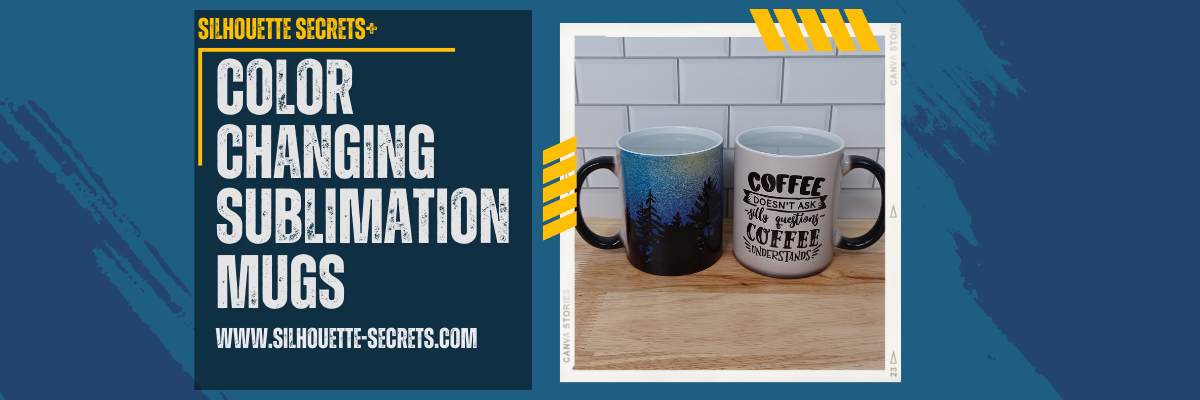
I am so excited to share this project! Well frankly, I’m excited to make myself some new coffee mugs.
I saw these color changing mugs at 143 Vinyl and knew I had to try it out.
I’ve been so excited to use my new mug press on the StarCraft 8-in-1 heat press that I’ve got all kinds of ideas!
Check out the post I did on the heat press HERE with my first project.

Note: this is a photo heavy tutorial but I also have a video tutorial on the the Silhouette Secrets+ YouTube Channel HERE too!

Let’s get started!

Measure your blanks and write down the measurements if needed.

Draw a template shape with the Drawing Tools in Silhouette Studio and adjust the height and width to match your measurements.

Select designs and scale to fit within template shape.

I used these designs:
Coffee Clipart, Sublimation, Zombie, Mombie by CuddleBunnieStudio
Funny Coffee Bundle SVG by BlackCatsMedia
Tree Night Skyline Sublimation by Enliven Designs

Chose File > Print and select the sublimation printer to print the design onto sublimation paper.

Gather all supplies needed to apply the sublimation print to the mug.

Supplies used:
Color Changing Mugs from 143 Vinyl
Protective Project Mat from Artesprix (optional but so worth it) – with stands up to 400 degrees F
heat safe gloves (not pictured)
Lint Roller
– Heat Tape
Heat Tape Dispenser (optional but so worth it)
Alcohol swabs
Paper Trimmer
– Printed Sublimation Paper
Mug Press – mine is the StarCraft 8-in-1 Heat Press
– Epson F170 Sublimation Printer

Trim design as needed. This can make it easier to handle and line up the design.

A paper trimmer is a handy tool to have in the craft room.

Clean mugs with alcohol wipe and a lint roller to remove any debris and oils.
The alcohol removes oils & dirt while the lint roller picks up fibers and debris unseen to the eye.
Fibers can cause colored specks to appear on the sublimated blank as the ink binds to those areas and is permanent on your blank.

Check the pressure on the mug press by placing the mug in it and closing before you heat the press up. This will help ensure that the pressure is right before you have the design in place.
Make any adjustments needed before it’s hot.

Securely tape the sublimation prints onto the mug.

Set the mug press time and temperature according to the recommended directions. These called for 370 degrees for 250 seconds found in the description on the 143 Vinyl website.

Wrap parchment paper (blow out) paper around the mug and carefully slide into the mug press. This will protect your mug press adapter from any sublimation ink that might “blow out” around the print.

Press for the time and temperature recommended.

Using heat safe gloves carefully remove the mug and place on a safe surface. This silicone high temperature protective mat from Artesprix is great for sublimation and keeping my workspace safe from burns.

Let the mugs cool completely on this safe surface.

Since the mug is hot, you can see that the color changed from black to white.

As the mug cools, the black color comes back. This is perfect to know when the mug is cool enough to handle and remove the sublimation print.

Waiting for it to cool can be the longest part of the process.

But the reveal is worth it…. well…. maybe.

It does say on the product description that it is a black color-changing coating (image slightly visible under coating).

Just add a hot liquid

and watch it appear!

Check out the full video tutorial video HERE.

I also want to add that the product description does state they are not microwave or dishwasher safe.

Loving my 2 new coffee mugs for my Studio area!

What new things have you tried lately?
Let us know below.

I would love to see what you are creating with your Silhouette software or machines!
Feel free to post on my Facebook group at 
Silhouette Secrets with EllyMae.

Save this for future reference by pinning the image below.

Enjoy !

This image has an empty alt attribute; its file name is logo.jpg

THANK YOU for your support! How can you help? Click HERE & buy a coffee.
Every little bit helps with the cost of running the site.

Or if you are looking for more in-depth, step-by-step classes, check out all of my online Silhouette classes on my Teachable site HERE.

SS Logo snip it
**This post may contain affiliate links. What that means is that I may receive compensation if you purchase through the links I have provided. The price you pay for the product or service is not higher but I may get compensated for sharing.
Posted on 1 Comment

Unboxing a StarCraft 8 in 1 Heat Press

Today I’m excited to share a new tool I’ve received in my studio.
I will be unboxing a StarCraft 8-in-1 Heat Press but in a little bit different fashion.

First, let’s get all the disclaimers out of the way.

Affiliate links may be present in the below and as an Amazon Associate I earn from qualifying purchases. What that means is that I may receive compensation if you purchase through the links I have provided. The price you pay for the product or service is not higher but I may get compensated for sharing.

143 Vinyl did send me this heat press to test as an affiliate.
I am excited about this StarCraft 8-in-1 heat press because it includes several attachments that I do not have in my studio, such as a cup press and hat press.
All my opinions are my own.

I know the first question most will ask is….
Do I recommend this heat press?
And I want to start off with, so far so good.
I have done my first press with the cup press as you will see below and I was impressed with the results. I will be using it more and more in the future and will update things as I do.

StarCraft 8-in-1 Heat Press Unboxing

I did a time lapse video of my unboxing and first test with the StarCraft Heat Press which can be viewed on the Silhouette Secrets+ YouTube channel HERE

And I also took photos along the way to share the unboxing in this blog post.
Note: this post below will be photo heavy.

So let’s get started.

The StarCraft 8-in-1 Heat Press Photo Unboxing

This is a StarCraft 8-in-1 12″ x 15″ Swing Away Heat Press – Silver in color.

It is packed very well.

Remove everything from the box and remove all bubble wrapping.
One of the cup attachments is in the backside of the cup press, so make sure to check there too.

This StarCraft 8-in-1 Heat Press includes a hat attachment, Plate (8″ and 10″) attachment, Mug (9 oz, 11 oz, and 12oz) attachment, and Tumbler attachment (fits 20 oz and 30 oz)*
*Tumbler attachment is not for a full wrap
And heat safe gloves.

To attach the cup press, unhook the main platen electric cord on the front and the display cord on the bottom of the main press circuit board.
Plug the cup press main electric cord and the display cord in to the main circuit board.
This is how the cup press gets the information for time and temperature from the main press display.

Tip: test the object you are pressing on in the press before it’s heated up so you can make any adjustments for pressure prior to the press being hot.

Set the temperature and time on the press according to the blank you are using.
Consult the instructions from the manufacturer for the specific blank you are using for time & temperature.

With this StarCraft 8-in-1 Heat Press, it has 3 different modes that you can preset with settings to choose from. This is an awesome feature!

I found the mug press heated up very quickly.

First Test Press

I had a sublimation print from a few weeks back that I hadn’t used, so I just grabbed it to test with.
This sublimation print was designed in Silhouette Studio and printed direct from Silhouette Studio to my Epson F-170 Sublimation printer.

For hard surfaces, clean the blank with alcohol and let it dry.
This will get rid of any oils, dust, or debris that is on the blank.
Try not to touch the sublimation surface again.

Use a lint roller on the dry cup and roll it a few times. This will pick up any lint or fiber debris that is often unseen by the naked eye. Any fibers or specks on the sublimation blank can cause the ink to adhere to it and leave spots on the finished product.

Wrap the sublimation print to the object tightly and tape it securely using heat tape.
Sublimation works with both heat and pressure.

If the sublimation paper is not tight on the object it can cause ghosting of the ink.

I love this Multi-Roll Heat Tape Dispenser in the photo above. It rolls the heat tape through & then cuts small sections that are the perfect size to tape down areas of a project.
This way I don’t need a third hand to cut tape off.

When the heat press has come to the correct temperature, slide the mug carefully into the press.
If not using a full sheet of paper, make sure to use parchment paper to protect the press around your mug to prevent “ink blow-out” getting on your press platen.

I was so excited to do this test that I did not get my print centered on my mug as you can see in the photo above and following. But, it’s all a learning process!

Once the press time is done, using the heat safe gloves, carefully remove the cup and place on a heat safe surface. It will be VERY hot!

I am using an Artesprix Protective Project Mat that withstands up to 400 degrees Fahrenheit.
This protects my table tops and gives it a safe place to cool off.

Once cooled, carefully remove the sublimation paper and heat tape.
My cup was still pretty warm so I used my heat safe gloves and the Siser EasyWeeder tool to remove the paper and tape.

Once it was fully cooled, I could snap a few photos.

As this is my first practice press, I learned a lot!
But I am so excited with how it turned out because my previous attempts with my convection oven did not turn out as well as this.

On this side of the cup, there is some color fading at the bottom and along the edge.

This indicates to me that I needed greater pressure in that area.
So I will make sure to get my mug perfectly centered in the press and look at increasing the pressure on that side of the press.

This side turned out with just a bit of fading at the bottom of the mug. So I’ll look to increase the pressure on the bottom side of the press for next time.

But the side was perfect and a nice edge.

Now, this was just a test print I had lying around. I may not do a full-ish wrap in the future or I’ll make the print to fade out more on the edges on purpose, so it gradually lightens on purpose.
If you were just sublimating a design on each side, you wouldn’t have edges that close to the handle in most cases.

You can see the difference here in the edges. Complete and 100% user error on my part.
I know it and I know I was excited to test it. So that is completely on me.

Overall, I am very pleased with my first test on the StarCraft Heat Press and how it worked out.
I am excited with having these new tools in my studio and seeing what I can create with it in the future.

The next biggest challenge was finding a home for this new StarCraft 8-in-1 Heat Press.
I knew I wanted a dedicated space for it and it needs clearance to move as it swings out.

We have added several Husky Workbenches and an Adjustable Height Workbench to my studio area this past year and I really like how they are built and the wood tops. So I started looking for something that would work for this heat press station.

This Husky 4 drawer Rolling Tool Cabinet was perfect!
I also added the Hardwood Tool Cabinet Top for the toolbox and it fits perfectly! Plus I have dedicated storage space for the attachments, parchment paper, heat gloves, Teflon sheets, heat tape, and more.
And I can move it any where in the studio to use it, which works great if I’m making videos!

Now the ideas are flowing with more projects that I can complete with these new tools!

Make sure to check out the video time lapse of the entire unboxing process as well on the Silhouette Secrets+ YouTube channel HERE.

Thank you 143 Vinyl for letting me test this new-to-me tool!
I look forward to sharing more!

If you are looking for sublimation tutorials or using Silhouette Studio for sublimation, check out the Sublimation header on the blog HERE.

Save this for future reference by pinning the image below.

Enjoy !

This image has an empty alt attribute; its file name is logo.jpg

THANK YOU for your support! How can you help? Click HERE & buy a coffee.
Every little bit helps with the cost of running the site.

Or if you are looking for more in-depth, step-by-step classes, check out all of my online Silhouette classes on my Teachable site HERE.

SS Logo snip it
**This post may contain affiliate links. What that means is that I may receive compensation if you purchase through the links I have provided. The price you pay for the product or service is not higher but I may get compensated for sharing.
Posted on 3 Comments

10 Sublimation Tips For You!

This past weekend I participated in the Sublimation Camp that was hosted by Cori George from Hey Let’s Make Stuff and Angie Holden from the Country Chic Cottage and I just have to say WOW!
It was an amazing event that was jam packed with information for all levels of those in the sublimation process.

It was an event for Crafters by Crafters and I really found that the information provided answered the questions that I see posted every single day by beginners or those wanting to learn more about sublimation.
You can still gain access HERE at the time this post is published.

Sublimation is a hot topic currently and more and more we are getting questions on the Silhouette Secrets with EllyMae Facebook Group. I signed up so I could pick up tips and tricks to help out more Silhouette users.

The biggest thing I learned right away is that – I CANNOT do it all!
There is just too many projects and not enough time to do it all.
I also realized that there are just things that I do not experience that others have happen to them, such as printers not printing colors correctly.
And over the years of troubleshooting, I have found that it is very difficult to reproduce an issue on purpose. So it can be difficult to cover it ALL!

And that is what I am hear to say today – my tagline on the blog has been
“Because some things are too good not to share!”

So today, I’m here to share with you 10 things that I learned or re-learned during this event and the resources where you can find more information.
I do feel that we all can learn from others in the industry and can gain inspiration from so many amazing instructors out there!

Affiliate links may be present in the below and as an Amazon Associate I earn from qualifying purchases.

10 Things I Picked Up at Sublimation Camp

#1 – Testing Materials

Get some 100% polyester fabric from the craft store to test your prints on. I picked this tip up from Angie Holden at the Country Chic Cottage.
I thought this was a fabulous idea – I mean really, how easy is that?
I’d rather use up a sheet of printed ink on some cheaper fabric than waste one of my blanks and it not look good!
I couldn’t wait to hop in the car and head to JoAnn Crafts to pick up some testing fabric.
I bought 2 yards of White 100% Polyester Fabric and it cost me $13.98.
Now I am set to test my prints.

Another option that was mentioned in the camp by Courtney Brickner with The Crafty Brick was getting a 100% polyester shower curtain off Amazon and use that as your test surface.

#2 – Print a Test Page

A test color page can save you time, money, and materials.
And I am saying this from experience because it was the first thing I did when I started watching the Sublimation Camp and I found that my Epson F170 was not printing properly and I needed to do a cleaning on it. I had not printed in several weeks and it did affect it.
Jennifer Maker had an amazing download (#385) when you sign up on her site that worked great for colors and being able to see what prints out.

I knew immediately when it printed out that it was not correct.

Then I was able to do a print head test and see where the problem was.
I was on my way quickly after finding that and doing a cleaning.
Even though I have an Epson F170 sublimation printer, I had not used it for a couple weeks and it definitely made a difference.

#3 – Blanks

Sublimation does require special blanks. They need to be treated specifically for sublimation or the ink will not bond to the blank.
Sublimation ink binds with polyester and that is why you need a high polyester count or sublimation blanks. It will just wash out of other materials or non-treated items.
Not all blanks are created equal! Quality matters too!
If you have a design that hasn’t turned out, it may not be the ink, print, heat source, or sublimation paper that is the problem. It may be the actual blank.
Testing is the only way to know!

Sublimation also needs to be done on light colored objects if you are just printing and pressing. Sublimation ink does not print white and it is a translucent ink, so background colors will show through.
This can work for some designs like the below photo but not for all. The color of the blank will affect the ink colors of the print on the final object.

Sublimation on a 95% polyester light colored shirt from a local vendor.

#4 – Clean the blanks

I’ll admit this was one of the first things I did not know about when I started pressing sublimation prints. I had pressed hundreds of tote bag prints before I even heard this tip.
Use a lint roller to get any debris, fuzz, etc. off the blank you are using.
I found out the hard way when blue flecks showed up on the shirt I was pressing.

For hard surface blanks, an alcohol swab to get rid of debris and oils as well.

#5 – Color Profiles

I hear often that colors are not printing at the colors that users think they should. I learned many things at Camp about this. It can be for several reasons.
One of the biggest that I heard instructors say over and over was that converted printers do not print correctly because they are calibrated for inkjet ink. So you may need to use a ICC color profile. Cori George with Let’s Make Stuff had great tips to finding and testing ICC color profiles.

It can also vary, even with using the same ICC profile between the software programs you are printing from.

This is one of those things that I cannot recreate with my own equipment because I don’t see to have the same issues with my colors from printing through Silhouette to my inkjet or my sublimation printers.

If you are having issues with colors, I would recommend checking out Cori’s blog for more tips on ICC profiles and sublimation in general.
She has a ton of information on sublimation there.

#6 – Off Colors

I heard several times through the entire event from Angie Holden at the Country Chic Cottage that colors can be off if the blank was undercooked or overcooked. One easy indicator that she mentioned was undercooked the color would look too green and overcooked the color would look brown.

#7 – Air Purifier

Sublimation stinks!
I mean even the sublimation blanks just smell bad when they are heat pressed. Then you add in the actual pressing of the sublimation print when it’s pressed. It is always a good idea to make sure your space is well ventilated!
I was having some allergy and asthma attacks during the event weekend, so I already didn’t feel great and when this air purifier was mentioned, I ordered one.
I’ve only used it a couple times, but I already noticed a big difference!

I was surprised that it was a bit bigger than what I expected, which is awesome!
Now I plan to run it anytime my heat press or my GlowForge is running.

#8 – Don’t forget to mirror the design

This happens to us all, whether it’s for cutting HTV or sublimation. You are not alone!
I try to always make mirroring the design the final step. If you have a sublimation printer, it will do it automatically for you unless you tell it not to, but if you have a converted printer, you will need to manually do this step.

#9 – Some things are going to FAIL!

You are learning a new skill! In the beginning, you will go through more supplies as you are learning. In my experience this holds true for all things! We see it all the time with beginning Silhouette users. You will go through blades and mats faster in the beginning because you are learning what works and what doesn’t. The more you do it, you pick up tips & tricks that extend the life of your supplies.

And then you will still have failures because you forgot to mirror, applied it upside down, or some other random reason. Most times I make mistakes because I’m trying to rush or multi-task.

#10 – Sublimation is Print and Press

Basically, any program you can print from, you can use for sublimation.
The basics are printing and pressing.
There are many users getting into sublimation and a wide variety of software programs they are using. I saw Canva, Photoshop, Illustrator, Design Space, Word, Silhouette Studio, ProCreate, and more during the event.
As you get into it, you can get into more complex things which may require certain software, ICC profiles, cutting with the machines, etc.

But the basics are printing and pressing in the technique.

I’ve been having so much fun creating different things!


Like I said at the beginning, I CANNOT do it all. This past weekend at Sublimation Camp has reconfirmed that for me.
There are just too many cool projects and not enough time in the day.

My expertise is in the Silhouette software, Silhouette machines, and in troubleshooting Silhouette. There are just some areas that I am not an expert in. I love taking classes and learning new things. Sometimes that means knowing who to refer users to when they have a specific situation. We can all gain inspiration and creative ideas from others in the crafting community.
Follow these great resources above for tips & tricks to get creative ideas that you can adapt to your projects.

After attending the Sublimation Camp I bit the bullet and order a convection oven and finished my first sublimation tumbler. Of course, I’m hooked!
This design was part of the class by Charynn Olesheski with Pineapple Paper Co showing how to create it in ProCreate. I loved this class! I am no where near her skill level in ProCreate, but I did try. I used her design template and a font in this tumbler below.

For more sublimation tips with Silhouette check out these tutorials below:
Basic Sublimation Print from Silhouette
Printing Sublimation Designs from Silhouette Studio – Basics
Sublimation Markers and Silhouette

I would love to see what you are creating with your Silhouette software or machines!
Feel free to post on my Facebook group at 
Silhouette Secrets with EllyMae.

Save this for future reference by pinning the image below.

Enjoy !

This image has an empty alt attribute; its file name is logo.jpg

THANK YOU for your support! How can you help? Click HERE & buy a coffee.
Every little bit helps with the cost of running the site.

Or if you are looking for more in-depth, step-by-step classes, check out all of my online Silhouette classes on my Teachable site HERE.

SS Logo snip it
**This post may contain affiliate links. What that means is that I may receive compensation if you purchase through the links I have provided. The price you pay for the product or service is not higher but I may get compensated for sharing.
Posted on 9 Comments

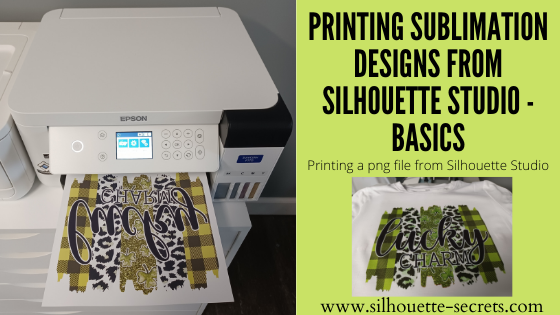
Printing Sublimation Designs from Silhouette Studio – Basics

One of the easiest ways to get started with sublimation is to use ready-made designs.

Print the design and press it.
That is the really the basics of sublimation.

Let’s take a look at a few tips that can help in printing png files from Silhouette Studio. Png files are a common file that is used in sublimation and can be opened with the Basic Silhouette Studio software, which is free.

Tutorial written in Silhouette Studio v4.4.552
Affiliate links may be present in the following blog post and as an Amazon Associate I earn from qualifying purchases.

Sublimation Prints From Silhouette Studio

The first thing I would recommend doing is to turn OFF Autotrace.

Autotrace is a new feature that was introduced in v4.4.247 of Silhouette Studio. There are still some bugs in the Autotrace feature and these vary by the software version you are using. However, the biggest thing is that while this is a neat feature if you are cutting around a png file, it is not necessary when you are just printing from Silhouette. It also adds more data to the file and takes longer to process when opening or working with the file because it traces the design to get a cut line when it’s opened.

Autotrace happens on transparent png files when opened and is ON as a software default when you are using any version higher than v4.4.247.

Some things you may notice if Autotrace is on are:
– The software takes a long time to open the file
– The software crashes when trying to open a png
– The software lags after the png file is opened
– The png file opens at a larger size than it should

For more details on Autotrace, check out this post
Let’s Explore v4 – Autotrace.

How to turn Autotrace OFF

Click on the gear icon in the bottom right corner of the Design tab.

Or in the top left menu, under Edit > Preferences
or
the keyboard short cut is Ctrl+K

Choose the Import tab and then uncheck the Auto-trace for png files.

Click Apply and Ok.

Since we are only printing from Silhouette, we do not need the cut lines around the png file. Turning it off can make designing in Silhouette Studio easier on you and your computer.

Printing from Silhouette Studio

I am using a file from the St Patrick’s Day Sublimation bundle available HERE
Download the file to be used and extract/unzip the folder.

In the Silhouette Studio software, use File > Open and find the location the png file is save to.

Measure the blank that you will be using to determine the size you want.

In the Silhouette software, on the left, choose the Draw Rectangle tool. Draw a rectangle and size it, using the Scale tools, to the size needed for your object.

I like to draw a template box using the drawing tools to fit my design in so I can see what size it is and how it will look.

You may notice that png files can open with extra space around the image, so the measurement may not be accurate on the design. It doesn’t happen to all png files, but if it does, that is why the template box is so nice to have to judge the size of the design.

This is most likely due to how the original file was saved. I did test several png files all the way back to v4.1.206 of the Silhouette Studio software and they opened the exact same way. So it’s not something that has changed in Silhouette, but I think we may see it now more than before because more people are using Silhouette Studio to print from for things like sublimation.


Extra tip: If you would really like to get a more accurate size of the png file, draw a rectangle or shape that just fits around the size of your design.
Notice in the photo below that the selection box is 10.1″ for the png file.

Select both the drawn shape and the png image. Then open the Modify Panel and choose Crop. This should crop the image down to the size of your shape you drew around it.
Make sure that the entire png was inside the boundaries of the drawn shape or it will be removed when you crop.

After the image is cropped, the selection box now measures what the shape drawn was. In this case, it is 7.2″ instead of the extra space with 10.1″.

This is not absolutely necessary in this project because we are using the original drawn “template” rectangle for our size, but it is an extra tip for future projects.


Once I have my design sized the way I want, I can move the original rectangle or delete it. It is only used as a sizing template.

Next, set up the Page Setup Panel.

Choose – Cutting Mat – none.
Since I am not cutting the design with my Silhouette, I do not need my mat set on the screen.

Set up the page size for the size being printed.
I am using letter size or 8.5″ x 11″ size sublimation paper.

And check the box next to the Show Print Border at the bottom.
This will show us what our maximum print borders are for the current printer selected.

Printing Tip – Does your design need mirrored?
I am using an Epson F170 Sublimation printer and since it’s set up as a sublimation printer, it automatically mirrors my design for me. If you are using a converted printer, you may need to manually do this yourself by right clicking on the design in the Design tab and choose Flip > Horizontally before printing.

Once it’s all set up to print, click File > Print.

I am using v4.4.552 and the print preview shows after clicking File > Print. I like this option as I can double check if anything looks off.
Click Print again to go to the Printer Menu.

Note: Printer menus can vary in look and options due to the different models and brands of printers and also between MAC and Windows computers.

Change the printer selection if needed.

Printing Menu Tip: If switching between printers or changing page sizes, you may need to click Apply and then Cancel and go back to the Design tab and start at File > Print again, just to double check the print margins adjusted. This will vary by user and printer.

The next step I like to do is click on the Preferences button in the printer options.

Then I check the Print Preview, just so I can make sure it’s going to print how I like before I use up my ink and paper. I’ve caught mistakes by doing this and so glad I did. But not everyone likes that extra step.

Click Ok and then click on Print.

With this preview, I can make sure that my design is going to print mirrored and is within the printer borders.
If everything looks good, click Print.

Note: as I mentioned in the Basic Sublimation with Silhouette Studio tutorial last week, the print will look dull. The heat and pressure is what brings out the full color in the transfer.

I don’t typically turn my heat press on until after I have printed my design. This is only a personal preference because it can take me so long to decide what I really want to print for my project.

Set the heat press to the time and temperature according to your sublimation blank or sublimation paper. I use 400 degrees for 60 seconds for most items, but still check for specific instructions on the objects I’m using.

I secure the print to my sublimation blank with heat tape. Then press the object. Make sure to use parchment paper on bottom and top to protect your heat press platens.

More tips on this in the Basic Sublimation with Silhouette Studio tutorial HERE.

Let it cool a bit after the press and then carefully remove the sublimation paper.

Sublimation is just another option that can be done with your Silhouette Studio software.
And hopefully with the tip provided about Autotrace, it will make it much easier for you to work with!

I am enjoying testing my new Epson F170 sublimation printer and look forward to playing with it more. Stay tuned for more information!

I would love to see what you are creating with your Silhouette software or machines!
Or if you have any questions, feel free to post photos or questions on my Facebook group at 
Silhouette Secrets with EllyMae.

Save this for future reference by pinning the image below.

Enjoy !

This image has an empty alt attribute; its file name is logo.jpg

THANK YOU for your support! How can you help? Click HERE & buy a coffee.
Every little bit helps with the cost of running the site.

Or if you are looking for more in-depth, step-by-step classes, check out all of my online Silhouette classes on my Teachable site HERE.

SS Logo snip it
**This post may contain affiliate links. What that means is that I may receive compensation if you purchase through the links I have provided. The price you pay for the product or service is not higher but I may get compensated for sharing.
Posted on 7 Comments

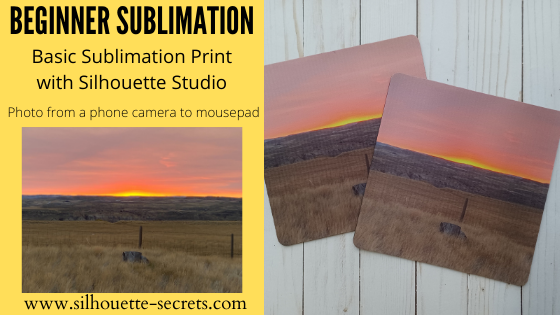
Basic Sublimation Print from Silhouette

Beginner Sublimation and Silhouette

Sublimation is becoming very popular and more and more users are using Silhouette Studio in their sublimation. Today we are going to go through a quick beginner tutorial on using Silhouette with Sublimation.

What is sublimation?

In very basic terms, sublimation is an ink transfer that uses high heat and pressure. The high heat and pressure turn the ink into a gas, which transfers to the object. Sublimation printing requires a designated printer using sublimation inks, printing onto sublimation paper, and then applying that to a sublimation blank. It cannot be applied to just any blank as the sublimation ink bonds to a special coating on the blank or to high polyester material.

Over the last couple years, we have seen a rise in not just sublimation printing, but in new sublimation markers, sublimation transfers, and infusible ink sheets.
These are perfect ways to test out the area of sublimation without investing in all the equipment necessary for sublimation printing.

For more information on Artesprix sublimation markers, check out this recent post
Sublimation Markers and Silhouette HERE

Affiliate links may be present in the following blog post and as an Amazon Associate I earn from qualifying purchases.

Sublimation Printing with Silhouette

Basic Supplies

– Sublimation printer: Sawgrass printer, Epson F170 (more details coming), converted Epson printer
– Sublimation ink – varies by printer
– Sublimation paper
– Heat tape: Craft Chameleon, Amazon
– Sublimation blanks: high polyester materials, mugs, mousepads, luggage tags, photo panels, ornaments, etc.
Parchment Paper or butcher paper
Heat Press that can go higher than 400 degrees F

Basics of Sublimation in Silhouette

Today we are going to cover the very basics of Sublimation with Silhouette Studio.

I do not feel that basic sublimation is difficult. The basics of it are just print and press.
You do not need to cut with the Silhouette machine for a basic sublimation print.

I am using a photo my husband took with his phone as an example.

Step 1 – Measure the blank. I am using a sublimation mouse pad that is 7-13/16″ square.
For a beginner project, I would recommend a flat object to start.

Step 2 – Open Silhouette Studio

Step 3 – On the Page Setup Panel, set the Media Size to the sublimation paper size to be printed on.

I am using a 8.5″ x 11″ paper, so I have it set up with Cutting mat = none (since I’m not cutting on the Silhouette machine it’s not needed) and the Media size = 8.5″ x 11″ for printing.

Tip: If using a page size larger than the cutting mat – you will need to choose No mat and change page size to the size you are using.

Step 4 – Check the box next to the Show Print Border at the bottom of the Page Setup Panel. This turns on your print border set by the current printer selected.
This will allow you to see if there are any changes that need to be made to the File > Print Page Setup.

Step 5 – Using the Drawing Tools on the left side, draw a template shape for blank.
Allow for a bit of overage on the design so you make sure to cover everything. I drew a 8″ square, which is a little bit bigger than the actual measurements of the sublimation mouse pad being used.

Step 6 – Open the photo or design in Silhouette Studio.
If using a photo, it may open at a large size. Photos can be large files. Resize it using the Quick Access Toolbar (QAT) – Scale tools to make it more manageable. I choose 33% or 50% usually to see what will work best.
Immediately after choosing the Scale Option, use the Center to Page option in the QAT and it will bring it back to your design mat.

If the photo opens on a new design mat, copy and paste it into the template file you created.

Step 7 – Add the photo or design to template shape to fill entire template

Step 8 – If needed, use the Crop tool in the Modify Panel to crop the image down to the size needed for the print.

Step 9 – Save the file
It is always a good idea to save every so often, especially if you are working with photo files, png graphics, graphic images, etc. as they can be very large files.

Step 10 – Once the file is ready, choose File > Print in the top left menu.
In v4.4 software versions the Print Preview pops up.

In later versions of v4.4, you have the option to disable this preview under the Preferences, however, I do not recommend that as it can be very helpful in catching any issues prior to printing and using your ink.

Click on Print in the bottom right corner and then select the printer if you need to switch.

Select the sublimation printer or Sawgrass Print Manager. This will vary based on what printer you are using for sublimation. I am using a Sawgrass 400 in this tutorial, so I choose the Sawgrass Print Manager.
(More information coming soon on my new Epson F170 printer and a comparison)

Note: if you do need to switch between the printer or your print border does not look correct, select the correct printer, then click Apply and Cancel. Then change what needs to be to changed, whether it is the page size or just going back to the Design Tab so the printer margins reset. Some users may need to save the file, close Silhouette, and open again in order to reset printer margins if the printer was changed.
This is needed in some versions of the v4.4 software.

Note: Sublimation prints need to be printed mirrored. If using a Sawgrass printer, Print Manager does it for you. If you are using another printer, you may need to flip your image prior to sending to print. Right click on it and choose Flip > Horizontal.

Step 11 – If everything looks good, click on Print.

If you are using a Sawgrass with the Print Manager, it will then open Print Manager and you have 1 more chance to make sure things are going to print correctly and choose your material that you are pressing on. This can make a difference in the print quality.
Then choose Print when ready.

Sublimation prints will be dull when printed. They do not reach their full potential until the heat and pressure is applied to it.

Step 12 – Center the blank on top of the printed page and apply heat tape to hold it in place so it does not move while pressing.

If the blank or the paper moves during the press at all, it can create a “ghosting” effect that will make the image blurred.

Step 13 – Heat up the heat press to the temperature needed. I used 400 degrees for 60 seconds for this mouse pad, but this will depend on the blank you are pressing it on to. A sublimation blank may vary in the time and temperature needed, please refer to the retailer or manufacturer for the recommended settings for the specific material you are using.

The key to this is you need high heat and firm pressure for the full time frame for sublimation to work properly.

I used my Craft Pro 15″ x 15″ heat press. I love this press as it has a pull out bottom platen which helps to save my knuckles from getting burnt when placing my materials on the press.

I love the 15″ x 15″ since I make large shirt sizes. Check out all the heat press options from Heat Press Nation HERE. They now have more color options and sizes than when I first bought mine.

Step 14 – Add butcher or parchment paper (NOT wax paper) on the bottom platen of the heat press – this is often referred to as “blow out” paper as it will protect your press surface from any ink that “blows out” of the paper.
Do not use a teflon sheet.

Note: if you get ink on the top or bottom platen, it can transfer to future heat press projects. Make sure to protect your press surface.

Step 15 – Place your blank, with the sublimation print, on top of the “blow out” paper.
Then add another layer of the parchment (blow out) paper to cover the top.
This makes your “sublimation sandwich”.

Press with medium/firm pressure depending on your blank for the set time and temperature.

Item will be HOT! Handle carefully. Let cool and carefully remove heat tape and sublimation paper from blank.

Yes, you will still see part of the image on the sublimation paper – that is normal.

And then sometimes things just happen and it doesn’t turn out. This was my second one. Maybe I put it in upside down. Maybe the pressure was not high enough. Not sure what happened. But, I can reprint and try again.

After pressing the 3rd one, I think I had it upside down. It just goes to show that it happens to us all. You aren’t alone!
And I would recommend buying extra sublimation blanks, especially while you are still learning and a beginner. I know no one likes to “waste” materials, but you are learning and it is a “learning” experience, not a waste.

My husband loved it. I gave him one for his home office and one for his work office. It was great to be able to take a photo he had taken and turn that into something he would use and see each day.

And that is it!
While I broke it down into 15 steps, it really is just print and press.
It is great that you can use the Silhouette Studio software to make the sizes needed, use shapes as templates, etc.

Where to find sublimation blanks

As the popularity of things grows, so do the list of places you can find sublimation blanks and materials.

Fabrics need a high polyester count in order for the sublimation ink to bind to it. So keep that in mind when shopping. The ink will just wash out of other materials such as cotton.

Here are a few places that I’ve found sublimation blanks. I have a collection started of blanks to try and gifts to make with them, so I have not been able to test them all yet.

These are listed in alphabetical order:
Artesprix – user code SARAH10 for 10% off
Craft Chameleon
Heat Press Nation
Johnson Plastics Plus
Amazon

I have so many things I want to try and before I get the chance something else catches my attention and I want to do that too!

I love that with the Silhouette software you can use it for more than just cutting!

Stay tuned for more information coming and a comparison with the new Epson F170 sublimation printer too!

I would love to see what you are creating with your Silhouette software or machines!
Or if you have any questions, feel free to post photos or questions on my Facebook group at 
Silhouette Secrets with EllyMae.

Save this for future reference by pinning the image below.

Enjoy !

This image has an empty alt attribute; its file name is logo.jpg

THANK YOU for your support! How can you help? Click HERE & buy a coffee.
Every little bit helps with the cost of running the site.

Or if you are looking for more in-depth, step-by-step classes, check out all of my online Silhouette classes on my Teachable site HERE.

SS Logo snip it
**This post may contain affiliate links. What that means is that I may receive compensation if you purchase through the links I have provided. The price you pay for the product or service is not higher but I may get compensated for sharing.