Posted on 6 Comments

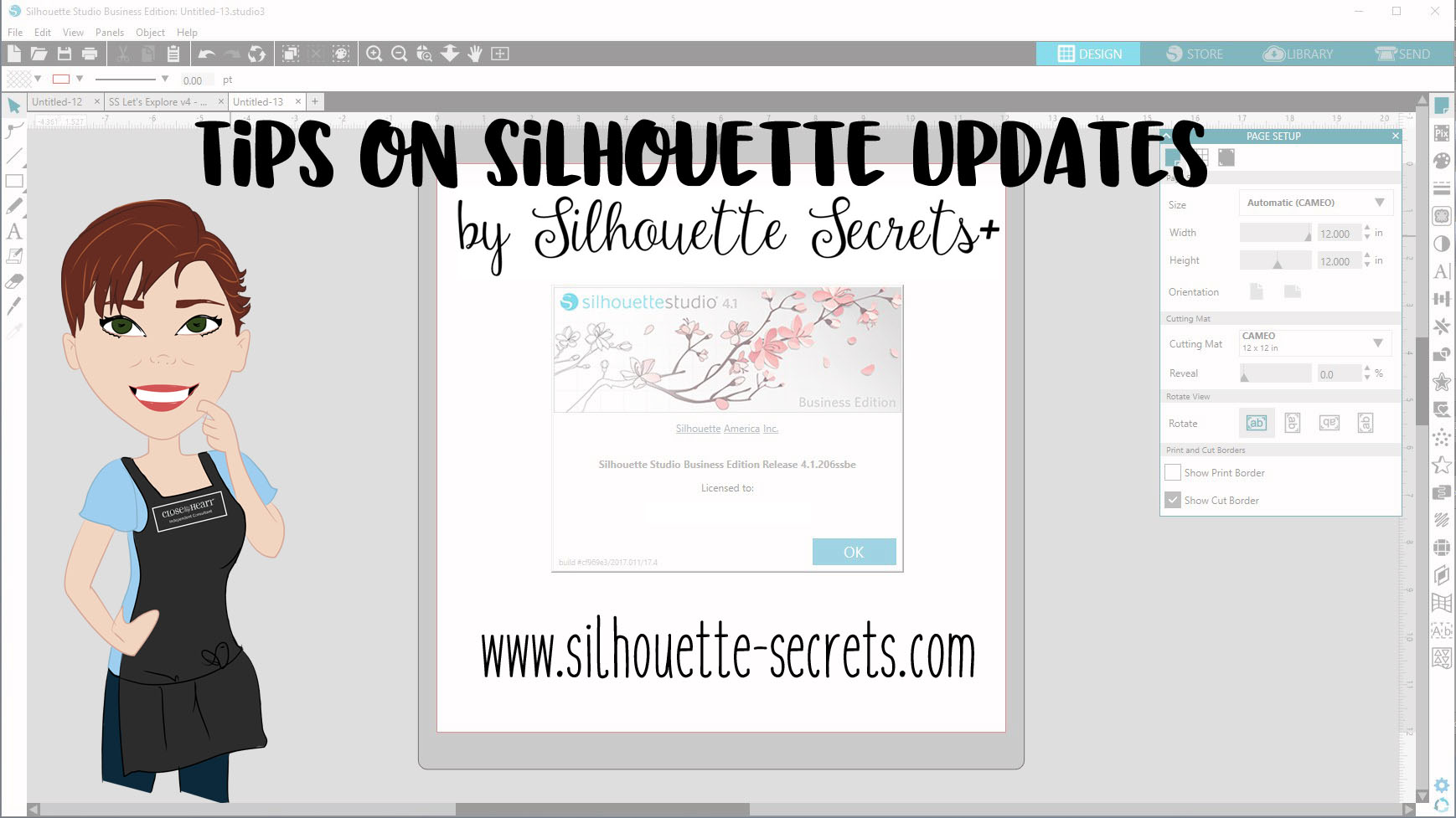
Tips on Silhouette Studio Updates

I see so many questions regarding Silhouette Studio Updates, so let’s discuss some information about a software update.

Update vs Upgrade

First, a Silhouette Studio update is different than a Studio upgrade.

Silhouette software upgrade is a product you can purchase that unlocks additional features in the Silhouette software. There are 3 levels: Designer Edition, Designer Edition Plus and Business Edition.

Upgrade

Check out this chart by Silhouette America on what features are unlocked with each upgrade. Click on the video camera icon next to each feature to see a short demo video.

Update chart

A software upgrade can be purchased from a Silhouette retailer such as Swing Design or direct from Silhouette America. The code can be either a digital code or a physical card mailed to you. I would suggest a digital code as it’s much faster and no shipping.

A software upgrade unlocks features that are already in the Silhouette software program. You can purchase the upgrade in steps or go directly to the one you want. For instance, if you have the Basic Software (free), you can go directly from Silhouette Studio to Business (the highest level) by purchasing the correct upgrade option.

A software update is something that makes changes to the actual program. An update is rolled out for many reasons such as adding new features or fixing a bug in a previous software version.

There is a lot of anxiety around a software update. So here are some tips about Silhouette software updates that I’ve picked up through using the software, teaching, and troubleshooting.

Tips for Silhouette Software Updates

  • Back up your Silhouette library. It is ALWAYS a good time to make a backup. Get in the habit of making a back up of the library monthly or weekly. This is especially important if you store your personal files in the Silhouette library.
    I highly recommend storing your personal files to an outside source or at the very least making a backup of the library. Just keep in mind that no place is 100% safe, so having multiple backups is a good idea too.

    This is direct from the Silhouette website regarding the Silhouette Cloud library “Silhouette America’s Cloud Storage is a syncing service rather than a backup service. Files deleted locally will be deleted on the cloud. We strongly recommend users save important and/or valuable files to another location outside of the cloud or local library, or to a third-party backup service.”

    I see so many users who say they’ve lost their designs and there can be many reasons for this happening.
    Another reason I highly recommend making a back up of your library and a back up of your external storage as well.Personally, I store all my files to an external hard drive which I also back up on a regular basis (probably should do it more than I do).

    To find out more information about the Silhouette cloud library click HERE to go directly to the Silhouette Cloud Overview.

    How do you backup the library in the v4.1 software?

    There are 2 sections of the Silhouette library – the Local User (computer specific) and the Cloud (email address & below). You must back these up separately.

    Local User

    Right click on the Local User section and choose Export. Save this file to a safe location. I like to save mine with the date included.

    Export Library1 copy

    Cloud (email address and below)

    Right click on the email address, choose Export and save this to a safe location. I add the date and ‘Cloud’ to the name of this file, so I can tell the difference in the files.

    Export Library copy

  • The “Check for Updates” option under the Help menu does not work. This will give you a message that there are No Updates available.Check for updates copy
  • Download the Silhouette updates direct from the Silhouette website. If you are prompted for an update through the software, I highly recommend that you choose Later and then when you are ready, update directly from the Silhouette website.Software update.JPG
    You can find the current software updates HERE on the Silhouette America site. Click on the option for MAC or Windows to download it to your computer.
  • Change how the software checks for updates. Under the Preferences you can change the Check for Updates option to Daily, Weekly, or Never.Preferences copy.jpgThe Preferences can also be found under the Edit menu in the top left corner or by using the keyboard short cut Ctrl + K.

    Preference menu

    Personally, I have mine set to “Never”. I can go out to the Silhouette America website and check if there are any software updates that have been released and download it directly.

    Once you change the Preference, then click the Apply and the Ok button.

    It is a complete personal preference on how you have the updates set to check.

Software updates are not bad.

There are many good reasons for an update. I love that the Silhouette software is such a powerful graphics program and it is amazing all that is included in this software. There are even more great things coming with the Silhouette Studio v4.2 release. It is still in the Beta testing phase and Silhouette is continuing to work to fix software bugs that pop up.

If you ever do get an update that has a bug you cannot live with or perhaps your software program updated to the Beta version, you can simply uninstall the Silhouette software from your Computer operating system and then reinstall the version you would like to roll back to.

Previous software versions can be found on the Silhouette America site under the Legacy section of the Software updates.

Legacy version copy

Do you have to update?

No.
You do not have to update your Silhouette software unless you want to. If you have the “Check for updates” set to Daily or Weekly, it will ask you when there is a new update if you want to update. If you are not paying attention or happen to share a computer with another person and the Ok gets pushed on the Update, the software will download the update.

If you choose not to update, you may not have access to all of the Silhouette features available to you. Features released are not retro-active, so if you would like access to new released features, you will need to update the software to at least the version where that feature was released.

Can you have multiple versions of the software installed?

Yes.
Something that not many do not know about is that you can have multiple versions of the Silhouette Studio installed on both a PC and a MAC.

I would not suggest this for the average user unless there is a specific reason that you want more than one version installed, such as downloading the Beta version to test it.

On a MAC, it will download another version with no additional steps needed. After the software downloads, you will need to make sure you change which Silhouette application is docked and make sure you are opening the correct version that you want.

On a PC, there are several steps and Kelly Wayment over at Finding Time to Create has a great post on this. You can find her post on “How to Install Multiple Versions of the Silhouette Studio – Windows 10” on her blog HERE.

I love how Kelly explains things. Kelly is also the voice behind many of the Silhouette America videos on Youtube, the writer behind the ebooks from Silhouette and many product videos for Silhouette.
If you have not seen the new Silhouette 101 blog, check it out HERE – there is lots of information on there.

Silhouette 101

Again, I would not recommend multiple versions for the average user. But, it can come in handy for certain reasons.

How do you have the Check for Updates set? Did you know you could change it?
I would love to hear – comment below or find me on my Facebook group at
Silhouette Secrets+ with EllyMae.

Enjoy!

SS_Signature copySS Logo snip it

**This post may contain affiliate links. What that means is that I may receive compensation if you purchase through the links I have provided. The price you pay for the product or service is not higher but I may get compensated for sharing.

Posted on 19 Comments

Let’s Explore v4 – Conical Warp Panel

Conical Warp – What is it?

Conical warp shapes your design given the dimensions that you enter to fit the conical object you are trying to place a design on.

A conical shape is one that is smaller at one end than the other, like a cup.

Cup

Have you ever tried to place a vinyl decal on a cup only to find that it doesn’t lay flat or line up? This is where the Conical Warp Panel will come in handy.

Conical Warp is a Designer Edition Plus feature or higher upgrade feature and can be found on the bottom right of the Silhouette Studio v4 software.

Conical Warp copy

So let’s take a look at what this panel means.

Conical warp detail copy.jpg

  1. Conical Warp Selected Shapes – Select the design to warp and then click on this to start warping the design.Conical Warp Selected Shapes
    *Be Your Own Crazy Self Phrase by Kolette Hall – Design #169936
    *Romantic Flourish Set by Sarah Bailey Design #75427

    When the design is being warped you will see the red box with curved lines on the top and bottom appear around the design.

  2. Diagram – Shows a diagram of the object you are entering the measurements for. As you add measurements the shape will change.
  3. Top Measurement – Measure and enter the top measurement of the object.IMG_6159
  4. Bottom Measurement – Measure and enter the bottom measurement of the object.IMG_6160
  5. Top to Bottom Measurement – Measure and enter the measurements from the top to the bottom.
    IMG_6161
  6. Size of Design – Increase or decrease the size of the design. Depending on the design you have, it not be a big difference you see on the screen. it will depend on the curvature of the object to be warped. As you enter the measurements, you should see it change on the screen.Size of Design
  7. Placement of design – Adjust the placement of the design from the top or bottom of the curvatures of the cup. As you can see, in this design it curves the arrows and that is noticeable.Placement of design
  8. Cancel or Apply – Choose to cancel or to keep the warp.Cancel will undo everything chosen.Apply will release the warp and the design will be ungrouped. Make sure to group it back together so it will move as one item.When you click on Apply, you may get a Processing pop up. This is a lot of data that it is changing, just be patient and it will depend on the computer processing power on how long it takes to finish.

    Apply design

Now, it is ready to cut with the warp that will help it apply straight onto the cup.

Decal.jpg

I used Black Oracal 651 for this decal and it cut beautifully. And then I used Oracal Transfer tape to apply it to the cup.

Finished cup

This feature makes it so much easier to apply a decal straight onto a conical object.

Now, I will let this decal sit for 72 hours for the adhesive to cure on the cup for best results.

I used Be Your Own Crazy Self by Kolette Hall Design #169936 and Romantic Flourish Set by Sarah Bailey Design #75427 from the Silhouette Design Store to create this.

I hope this helps you understand the Conical Warp Panel in the Silhouette Studio v4 software! It is such a fun feature to play with and I encourage you to just try it!

Enjoy!

SS_Signature copySS Logo snip it

**This post may contain affiliate links. What that means is that I may receive compensation if you purchase through the links I have provided. The price you pay for the product or service is not higher but I may get compensated for sharing.

Posted on Leave a comment

Let’s Explore v4 – Advanced Rhinestones

There are so many neat features of the Silhouette Studio software as you move up in the software upgrades. The Advanced Rhinestone Panel is an option if you have the Designer Edition Plus or Business Edition upgrade.

Rhinestone Panel copy

At first glance or if you read the standard description, it may not seem like much of a feature, but let’s take a look at it more in depth.

Rhinestone Panel Detail copy

  1. Rhinestone Library – Contains images of rhinestone designs – 2 sectionsPre-set Images and Sizes – Choose which color and size that you would like to add to your design

    Rhinestone options

    User Rhinestones – designs can be added to the Rhinestone library by either drawing a shape or importing a photo

    Rhinestone Library - User section copy

  2. Size – Designates the size of the rhinestone chosen or the size of the rhinestone design you are creatingSize copy
    This will show grayed out if using a pre-set shape & size.

    If a shape is added to the rhinestone library, then a size can be designated and it is no longer grayed out.

    Size User created copy

  3. Add Selected Shape to Rhinestone Library – Add shape designs to the library for creating a new rhinestone option. Shapes can be drawn or imported from a photoAdd Selected Shape copy

    The default measurement can also be changed under the Preferences in the software. It can be set to inches (default), millimeters, centimeters, meters, inches or feet.

    Change measurement preference copy

    And then it will reflect in the panels that use measurements.

    Change measurement copy

    If the shape drawn is bigger than what is allowed, a pop up will appear stating this.

    Error size

  4. Draw Rhinestones – Single vs Multiple – Choose to draw one style of rhinestone designs or a multiple of designs from the library.Single – drawing rhinestone in repeat of 1 shape with a click of the mouse

    Draw Rhinestone Single click

    Multiple – Draw Rhinestone from a chosen list of varied designs pulled from rhinestone library.

    By clicking on the multiple option, a new option window expands and you can add or delete the order of the designs in the selection window.

    Draw Multiple pattern
    This would come in handy if you are trying to create a rhinestone pattern with different sizes.

    Or you can use the pre-set rhinestone designs and create a pattern too.

    Draw Multiple pattern on shape

  5. Angle – Change the angle of how the rhinestone design follows a shape.Standard = Rhinestones upright
    Center = Rhinestones point to center
    Perpendicular = Rhinestone align to contour

    Angle

  6. Spacing – Change the spacing between the rhinestones when applied to a shape.Spacing.JPG
  7. Angle Offset – Choose what angle the rhinestones are placed along a shape.Angle Offset.JPG
  8. Rhinestone placement – Choose how the rhinestones are placed – options are: Outer edge, perpendicular, or from center.Rhinestone Placement
  9. Draw Rhinestone – Single Click vs Replace – Add a rhinestone with a single mouse click or replace a rhinestone with a different rhinestone.Single = place 1 rhinestone with each click of the mouse
    Replace = Once a rhinestone is placed it can then be swapped out with a different rhinestone for another size or color
  10. Totals (All Shapes) – Gives a count of all the rhinestones on the mat or the image selected.Totals copy

 Now that we have explored the entire panel – what would you use this for?

Here I’ve created what is called a mock up and the design is laid on top of the photo of the tote bag.

Mock up photo

Now I may actually have to make the rhinestone decal for real.
Find out more information on creating a rhinestone template in the Let’s Explore v4 – Rhinestones post.

Have you played with the Rhinestone feature yet?
I would love to see your Silhouette projects! Feel free to post on my Facebook group at
Silhouette Secrets+ with EllyMae.

Enjoy!

SS_Signature copySS Logo snip it

**This post may contain affiliate links. What that means is that I may receive compensation if you purchase through the links I have provided. The price you pay for the product or service is not higher but I may get compensated for sharing.
Posted on 8 Comments

Let’s Explore v4 – Rhinestones

Bling, sparkle and wow!

Exploring the Rhinestone panel today!

This is a Designer Edition upgrade feature, so if you have the Basic software, you will not see this icon on the screen.

Rhinestone Panel copy

If you only have the Basic software, you can still cut rhinestone designs, but you cannot create rhinestone designs. The Silhouette Design store has many rhinestone designs that can be opened and cut with the Basic software.

The diamond icon is what how you can tell at a glance that it is a rhinestone design or you can use the search box and type in “rhinestone” and it will bring designs up.

Design Store Rhinestone files copy

With a rhinestone design, it comes it at a specific size to use with certain stone sizes, so they cannot be resized if you are using stones.

The description of the design will also tell you more information about the design, such as size, number of rhinestones, and rhinestone sizes needed.

Design Store description copy

With the Designer Edition upgrade to the Silhouette Studio software, you can create your own rhinestone designs in just a few clicks.

There are so many options in creating your own designs in this panel, let’s take a look.

*Please note – throughout the entire post I have filled the rhinestone design in with color so it can be seen better. When a rhinestone design it is not filled with a color.
Check out more information on the Fill Color Panel HERE.

Rhinestone Panel detail copy

  1. Rhinestone Effect – 3 options for rhinestone placement
    Edge Effect – places rhinestones around the edge of the designEffect Edge copyLinear Effect – this fills the design in a linear formationEffect Linear copy

    Here is another example of the linear effect

    Effect Linear demo2 copy

    Radial Effect – fills the design in a radial pattern

    Effect Radial copy

    Here is another example of the radial effect

    Effect Radial demo2 copy

  2. Rhinestone Size – 4 options: 6 ss, 10 ss, 16 ss, 20 ss
    ss stands for Stone SizeStone SizeChoose from the most popular stone sizes or adjust it to a custom size.Adjustable size copy
  3. Rhinestone Spacing – further customize the design by adjusting the spacing between the rhinestonesSpacing
  4. Draw Rhinestones – left click and hold the mouse button down and draw a design. The rhinestone pattern will follow your drawing and the stone size will be what is chosen above in Rhinestone size.Freehand copyHere is a the Freehand rhinestone in action:https://youtu.be/DopgVUlOshQ
  5. Release Rhinestones – releases all the rhinestone circles into individual design pieces. This allows you to manipulate the design even further by moving the rhinestone holes, adding more or deleting some. A selection box will appear around each rhinestone circle.Release RhinestonesZoomed in to see the selection boxes.Release Rhinestones zoomedHere I have moved some and added more to fill in the blank spaces.Freehand finish

    Something to keep in mind when you do release the rhinestones is you are breaking the file up from 1 object to LOTS of objects – each of those boxes around the hole is a new object. This means that it is a lot of data for your computer to process. Do not be surprised if you experience a little lag or it doesn’t react as fast as you’d like. This is normal and depends on the processing speed of your computer and how much data it can process at once.

    After adjusting the design, select the entire image and then Group it back together, so the file will move as 1 object.

    Rhinestone grouped

  6. Totals (all Shapes) – this tells how many rhinestones are either on the mat or if 1 object is selected, how many are in the design.When no objects are selected, it totals all the rhinestones on the mat file.Totals copyWhen 1 object is selected, it totals the rhinestone count for that 1 object.Totals selected copy

Rhinestone designs can be so much fun to create and design!

The design is then cut out of a rhinestone template material that can be reused over and over again to create fabulous rhinestone designs.

IMG_3996

And you have another customized project that you have created with the Silhouette machine.

temp

For a full online video course going step-by-step through the rhinestone process, check out the class on Designing with Rhinestones and Silhouette – Creating 4 projects

Supplies used in this post:
Love design by Silhouette Design #9651
Magic Flock rhinestone material, Hot Fix Transfer tape, and Rhinestones
from The Rhinestone World
Canvas Zipper bag from Craft Chameleon

Feel free to share your sparkly rhinestone projects on my Facebook group at
Silhouette Secrets+ with EllyMae.

Enjoy !

THANK YOU for your support! How can you help? Click HERE & buy a coffee. Every little bit helps with the cost of running the site.

Silhouette Classes

Never stop learning! Let me help you take the anxiety out of learning with Silhouette and get to creating faster! My Silhouette classes are heavily focused on software, so you can take the skills & techniques taught and apply them to many future projects!

SS Logo snip it
**This post may contain affiliate links. What that means is that I may receive compensation if you purchase through the links I have provided. The price you pay for the product or service is not higher but I may get compensated for sharing.