
Have you ever looked at a flat cut file design and wondered if it could become something more—like a soft, squishy 3D felt stuffy? With the Silhouette Cameo and Rotary Blade, you can easily cut felt and bring your designs to life in a whole new way! I’m sharing tips in this blog post for cutting felt and how I turned a 2D digital file into a custom 3D plush using felt, a Silhouette machine, and a little creativity. Whether you’re crafting gifts, keepsakes, or fun decor, this is a must-try technique for any felt lover or Silhouette enthusiast!
Affiliate links may be present in the following blog post and as an Amazon Associate, I earn from qualifying purchases.
These designs are by Sarah Hurley and the entire project is inspired by her cat Bosh. I have followed him since his adoption and my daughter has recently been following along too. So I asked if she wanted a Bosh stuffy, even though I already knew the answer. Anyone else have projects that jump in front of the line? Fun projects seem to do that!

Find these designs by searching “Bosh” in the Silhouette Design Store HERE. Follow Sarah Hurley and Bosh on Facebook and Instagram too!
Now, first let’s give credit to the inspiration for the project. Bosh the cat.

I just can’t resist that face and he always makes me smile when I see his updates! Thank you Bosh for inspiration!
Don’t let a flat design fool you into thinking that’s all it can be used for!
Supplies Used for Cutting Felt with Silhouette:
- Bosh the Cat by Sarah Hurley – Design #475007
- Grumpy Bosh the Cat by Sarah Hurley – Design #369088
- Silhouette Cameo 5 – Crafter Cuts or Silhouette America
(a Cameo 4 can be used with the Rotary blade also) - Silhouette Rotary blade – CrafterCuts or Silhouette America
- Silhouette 12″ x 24″ cutting mat – CrafterCuts or Silhouette America
- Silhouette 12″ x 12″ cutting mat – CrafterCuts or Silhouette America
- Felt
- AT 65 Transfer Tape
- Brayer
- Scissors for Felt
- Siser Easyweed HTV
- Heat Press – Craft Pro 15″ x 15″ or Siser 9″ x 12″
- Black Embroidery Floss – Michaels or Amazon
- Embroidery needle – Michaels or Amazon
- Poly-Fil
- Scissors for thread
- A good TV show to watch while stitching
Setting Up the Design for Cutting Felt
I brought the design into Silhouette and scaled it up for the size I wanted to create with. When working with the Silhouette Rotary blade, size does matter! Well, let’s face it – size matters for a lot of things.

I opened both designs on the same design mat and then determined the size I wanted to make it based on my machines cut width capabilities and the felt sheet size. I used a 12″ x 24″ Silhouette cutting mat so I could make it as large as I could. For this project, I selected both designs and scaled them up at the same time, so they would be similar in size and I could make a double sided Bosh for myself.
On the Send tab, select the design and choose No Cut under Tool 1 and then click on Tool 2 and choose Cut. I used the Fabric, Wool setting to cut with.

See those little blue lines that appear around the design? Those are called hooks and loops and it is how the Silhouette Rotary blade works. It has to have some way to turn the blade to get going in the next direction. It does this by either cutting a loop to turn or lifting up and making a hook to turn the blade and start a new direction.

The hooks and loops will change depending on the design and where you have things placed on the cutting mat. You can watch this in action by following the steps above to turn the Rotary action on and then moving the design around on the Send screen. The hooks and loops change based on the design, placement of the design, and what exactly is on the design mat.
I did cut the pink and black felt for the cat face, but I ended up going a different direction after cutting the felt bits. Some of them were just too small for the felt and it just pulled apart. This was a combination of the design and the actual felt itself. Even though these were the same exact brands of felt purchased from Michaels, the larger sheets were thicker than the smaller sheets. So the pink and black were different than the gray felt sheets. That makes a difference in the success of the project. Not all felt is created equal and there are different compositions.
Here is a look at what the Send tab looked like for the Pink felt pieces.

This shows the loops that the Silhouette Rotary blade uses to turn and it just depends on the design. The Silhouette software determines what is the best method for the Rotary Action. This is based on the shape of the design, placement on the design mat, and proximity to other designs on the design mat.
The pink felt designs were successful.

And then I cut the black felt for the facial features and that just didn’t work as well as there were some pretty small bits for the whiskers, eyes, and grumpy face.

Look at those hooks and loops!
It did cut, but some of the pieces were so thin that they just easily pulled apart. So I switched directions and cut black and pink Siser Easyweed HTV and used my heat press to apply it before I stitched it together.
Now, I’ll admit that I didn’t think it would work just based on my previous experience, the material, and how this specialty blade works. In the end HTV was less work for this project. You could always hand embroider the facial features on too.
I grabbed some embroidery floss and used a basic blanket stitch to stitch the sides together. I had 2 of these to stitch together, so I kicked up my feet and turned on a tv show and started stitching away.

And don’t forget to add Poly-Fil before surgically closing the stuffy up.

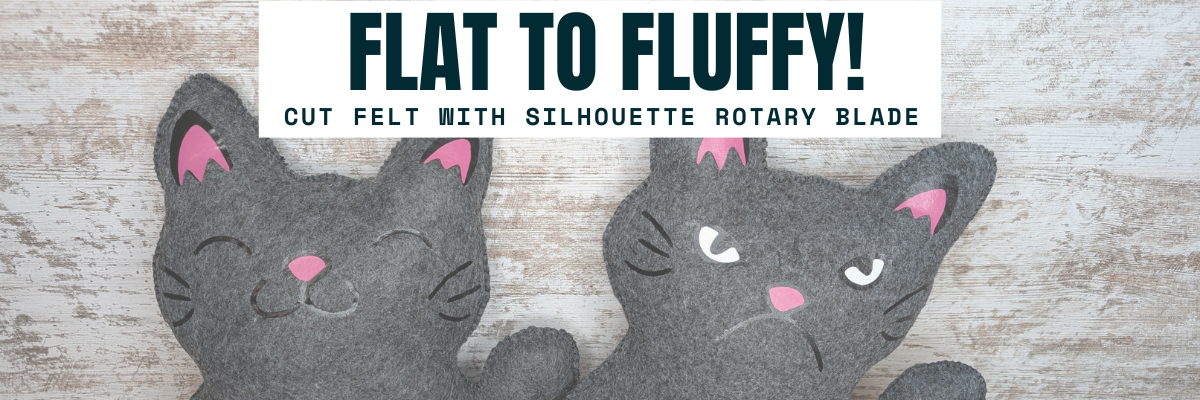
My daughter chose to have a single sided Bosh stuffy and I made myself a double sided Bosh stuffy. Would you choose Happy Bosh or Grumpy Bosh? Or both depending on the day?
Tips for Cutting Felt or Fabric with Silhouette
- Use transfer tape on the Silhouette cutting mat to protect the mat from fibers.
- Change the transfer tape after the cut because it does cut through and shifting after can cause cut issues.
- Use a sharp pair of scissors to snip any fibers and bits from fabric that didn’t cut through completely.
- The design matters! Small designs or interior cuts may not work well.
- Hooks and Loops matter! It’s how the blade turns and changes direction.
- Complex designs can crash the software if it’s too much for the rotary action. If this happens, try having less on the design mat and cutting pieces one at a time.
I shared a quick video look at creating this project on the Silhouette Secrets+ YouTube channel. Check it out HERE.

Additional Resources:
Here are a couple more felt projects that I’ve cut with the Silhouette Rotary blade in the past.

This Red Panda was cut with the Silhouette Cameo 4 Pro using the Rotary blade and a Strong Tack Cutting Mat. Here is a look at all the pieces before I assembled him.

And I think this might have been my first felt stuffy I created using the Rotary Blade. I know I shared photos on Facebook when I made these, but I don’t think they ever made it to the blog.

Watch the video here
Check out the Crafting Creativity blog posts HERE for more inspiration on how you can take your designs farther!
Save this for future reference by pinning the image below.

Enjoy !
THANK YOU for your support! How can you help? Click HERE & buy a coffee.
Every little bit helps with the cost of running the site.

Silhouette Classes
Never stop learning! Let me help you take the anxiety out of learning with Silhouette and get to creating faster! My Silhouette classes are heavily focused on software, so you can take the skills & techniques taught and apply them to many future projects!