Posted on 1 Comment

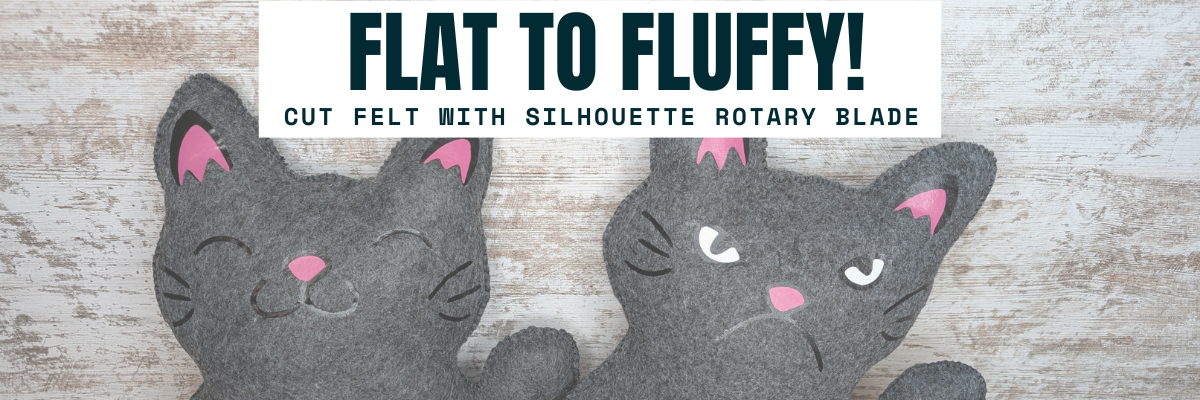
How to Turn a Flat Design into a 3D Felt Stuffy with Silhouette and Rotary Blade

Silhouette Secrets+ with EllyMae

Have you ever looked at a flat cut file design and wondered if it could become something more—like a soft, squishy 3D felt stuffy? With the Silhouette Cameo and Rotary Blade, you can easily cut felt and bring your designs to life in a whole new way! I’m sharing tips in this blog post for cutting felt and how I turned a 2D digital file into a custom 3D plush using felt, a Silhouette machine, and a little creativity. Whether you’re crafting gifts, keepsakes, or fun decor, this is a must-try technique for any felt lover or Silhouette enthusiast!

Affiliate links may be present in the following blog post and as an Amazon Associate, I earn from qualifying purchases.

These designs are by Sarah Hurley and the entire project is inspired by her cat Bosh. I have followed him since his adoption and my daughter has recently been following along too. So I asked if she wanted a Bosh stuffy, even though I already knew the answer. Anyone else have projects that jump in front of the line? Fun projects seem to do that!

Screenshot of the Silhouette Design Store featuring designs of Bosh the Cat and Grumpy Bosh the Cat, with a logo of Sarah Hurley.

Find these designs by searching “Bosh” in the Silhouette Design Store HERE. Follow Sarah Hurley and Bosh on Facebook and Instagram too!

Now, first let’s give credit to the inspiration for the project. Bosh the cat.

A close-up image of a gray cat resting on a surface, with a coffee cup visible in the foreground and a window in the background.
Bosh – photo courtesy of Sarah Hurley

I just can’t resist that face and he always makes me smile when I see his updates! Thank you Bosh for inspiration!

Don’t let a flat design fool you into thinking that’s all it can be used for!

Supplies Used for Cutting Felt with Silhouette:

Setting Up the Design for Cutting Felt

I brought the design into Silhouette and scaled it up for the size I wanted to create with. When working with the Silhouette Rotary blade, size does matter! Well, let’s face it – size matters for a lot of things.

Screen capture of design software showcasing a cat cut file for creating a plush stuffy, with outlines and dimensions displayed.

I opened both designs on the same design mat and then determined the size I wanted to make it based on my machines cut width capabilities and the felt sheet size. I used a 12″ x 24″ Silhouette cutting mat so I could make it as large as I could. For this project, I selected both designs and scaled them up at the same time, so they would be similar in size and I could make a double sided Bosh for myself.

On the Send tab, select the design and choose No Cut under Tool 1 and then click on Tool 2 and choose Cut. I used the Fabric, Wool setting to cut with.

Screenshot of Silhouette Studio software displaying a design of a cat-shaped stuffy ready for cutting, including settings for cutting fabric with a rotary blade.

See those little blue lines that appear around the design? Those are called hooks and loops and it is how the Silhouette Rotary blade works. It has to have some way to turn the blade to get going in the next direction. It does this by either cutting a loop to turn or lifting up and making a hook to turn the blade and start a new direction.

Illustration of a cat design in a Silhouette software interface, showing the rotary blade cut method and blue guide lines indicating cut paths.

The hooks and loops will change depending on the design and where you have things placed on the cutting mat. You can watch this in action by following the steps above to turn the Rotary action on and then moving the design around on the Send screen. The hooks and loops change based on the design, placement of the design, and what exactly is on the design mat.

I did cut the pink and black felt for the cat face, but I ended up going a different direction after cutting the felt bits. Some of them were just too small for the felt and it just pulled apart. This was a combination of the design and the actual felt itself. Even though these were the same exact brands of felt purchased from Michaels, the larger sheets were thicker than the smaller sheets. So the pink and black were different than the gray felt sheets. That makes a difference in the success of the project. Not all felt is created equal and there are different compositions.

Here is a look at what the Send tab looked like for the Pink felt pieces.

A screenshot of the Silhouette Studio software displaying a design for cutting felt. The design includes stylized cat shapes in pink and blue outlines, along with settings for the rotary blade on the right side.

This shows the loops that the Silhouette Rotary blade uses to turn and it just depends on the design. The Silhouette software determines what is the best method for the Rotary Action. This is based on the shape of the design, placement on the design mat, and proximity to other designs on the design mat.

The pink felt designs were successful.

A Silhouette cutting machine with a blue cutting mat displaying pink felt shapes cut with the Silhouette Rotary Blade.

And then I cut the black felt for the facial features and that just didn’t work as well as there were some pretty small bits for the whiskers, eyes, and grumpy face.

A screenshot of the Silhouette Studio software displaying various cat face designs, including eyes and whiskers, along with cutting settings for the Silhouette Cameo machine. Shows the hooks and loops of the Rotary Blade action.

Look at those hooks and loops!

It did cut, but some of the pieces were so thin that they just easily pulled apart. So I switched directions and cut black and pink Siser Easyweed HTV and used my heat press to apply it before I stitched it together.

Now, I’ll admit that I didn’t think it would work just based on my previous experience, the material, and how this specialty blade works. In the end HTV was less work for this project. You could always hand embroider the facial features on too.

I grabbed some embroidery floss and used a basic blanket stitch to stitch the sides together. I had 2 of these to stitch together, so I kicked up my feet and turned on a tv show and started stitching away.

A flat cut felt design of a smiling cat face with pink ears and a black whisker detail placed on a person's lap.

And don’t forget to add Poly-Fil before surgically closing the stuffy up.

A pair of black felt cat plushies with contrasting pink features, displaying different facial expressions—one appears happy while the other looks grumpy.

My daughter chose to have a single sided Bosh stuffy and I made myself a double sided Bosh stuffy. Would you choose Happy Bosh or Grumpy Bosh? Or both depending on the day?

Tips for Cutting Felt or Fabric with Silhouette

  • Use transfer tape on the Silhouette cutting mat to protect the mat from fibers.
  • Change the transfer tape after the cut because it does cut through and shifting after can cause cut issues.
  • Use a sharp pair of scissors to snip any fibers and bits from fabric that didn’t cut through completely.
  • The design matters! Small designs or interior cuts may not work well.
  • Hooks and Loops matter! It’s how the blade turns and changes direction.
  • Complex designs can crash the software if it’s too much for the rotary action. If this happens, try having less on the design mat and cutting pieces one at a time.

I shared a quick video look at creating this project on the Silhouette Secrets+ YouTube channel. Check it out HERE.

Two plush felt cats, one with a happy expression and the other with a grumpy face, both showcasing the transformation from flat designs to 3D stuffed toys.

Additional Resources:

Here are a couple more felt projects that I’ve cut with the Silhouette Rotary blade in the past.

A person holding a handmade plush toy resembling a red panda, with a decorated Christmas tree in the background.

This Red Panda was cut with the Silhouette Cameo 4 Pro using the Rotary blade and a Strong Tack Cutting Mat. Here is a look at all the pieces before I assembled him.

A variety of colorful felt pieces arranged on a cutting mat, including shapes for crafting a plush toy design.

And I think this might have been my first felt stuffy I created using the Rotary Blade. I know I shared photos on Facebook when I made these, but I don’t think they ever made it to the blog.

A handmade felt otter plush toy being held, featuring brown and beige felt with black button eyes and a blue accessory in its paws.

Check out the Crafting Creativity blog posts HERE for more inspiration on how you can take your designs farther!

Save this for future reference by pinning the image below.

A flat cut file design featuring two felt plush cats, one with a happy expression and the other with a grumpy expression, alongside text that reads 'Flat to Fluffy!'.

Enjoy !

THANK YOU for your support! How can you help? Click HERE & buy a coffee.
Every little bit helps with the cost of running the site.

Silhouette Classes

Never stop learning! Let me help you take the anxiety out of learning with Silhouette and get to creating faster! My Silhouette classes are heavily focused on software, so you can take the skills & techniques taught and apply them to many future projects!

Silhouette step-by-step Classes by Silhouette Secrets+

Silhouette Secrets+ with EllyMae
**This post may contain affiliate links. What that means is that I may receive compensation if you purchase through the links I have provided. The price you pay for the product or service is not higher but I may get compensated for sharing.

Posted on 3 Comments

FREE Tool Chart for Cameo 4, Cameo Plus, and Cameo Pro

Have you ever wanted a handy chart that shows what blades are what?
What is each blade used for?
Does it need an adapter or does it fit with no adapter?
What materials is each designed to cut?

Today I wanted to share a free resource that I’ve created that gives information on the current blades and tools available for the Cameo 4 , Cameo Plus, and Cameo Pro.

Cameo 4 , Cameo Plus, and Cameo Pro Tool Chart

This free PDF chart is is available as a free download exclusively for confirmed newsletter subscribers.

Join the Newsletter

Subscribe to get our latest content by email.
    We respect your privacy. Unsubscribe at any time.

    Download this to your computer and open it.
    Click the blue links in the chart for more resources on that particular tool.

    Print the PDF file out for visual reference as well.

    Don’t forget to check out the Silhouette classes on my Teachable site while you are there!
    Step-by-step classes taught for many Silhouette projects and software techniques.
    And the best part – once registered, you can access any time and as many times as you need to take the class!
    Never stop learning & creating!

    I also have more blog tutorials that I’ve published regarding specific Tool information.
    Check those out here
    Let’s Explore Cameo 4 – Tools
    New Tools for Cameo 4 models & Portrait 3
    15+ Tips for the Silhouette Kraft blades
    Cameo 4 Rotary Blade – First Cuts

    **Please note that these may be affiliate links which means that by using these links and/or codes, I may received a small compensation for sharing the links with you. The price you pay for the product or service is not higher. Thank you for using affiliate links as it provides a way for me to continue doing what I do as an Instructor, blogger, and event organizer.

    These Silhouette supplies can be found at Silhouette retailers in the U.S.
    Here are a few:
    Silhouette America
    The Vinyl Spectrum
    Heat Press Nation
    Michaels Crafts 
    Or outside the U.S. here are a couple Silhouette retailers
    – Graphtec GB https://www.graphtecgb.co.uk/
    – MDP Vinyl Supplier https://www.mdpsupplies.co.uk/

    I hope this helps you get to know your Silhouette Cameo machine a little bit better!

    I have lots more things on my project list to share in the future!

    I would love to see what you are creating with your Silhouette software or machines!
    Feel free to post on my Facebook group at 
    Silhouette Secrets with EllyMae.

    Save this for future reference by pinning the image below.

    Enjoy !

    THANK YOU for your support! How can you help? Click HERE & buy a coffee.
    Every little bit helps with the cost of running the site.

    Silhouette Classes

    Never stop learning! Let me help you take the anxiety out of learning with Silhouette and get to creating faster! My Silhouette classes are heavily focused on software, so you can take the skills & techniques taught and apply them to many future projects!

    Silhouette step-by-step Classes by Silhouette Secrets+

    **This post may contain affiliate links. What that means is that I may receive compensation if you purchase through the links I have provided. The price you pay for the product or service is not higher but I may get compensated for sharing.

    Posted on 5 Comments

    Let’s Explore Cameo 4 – Tools

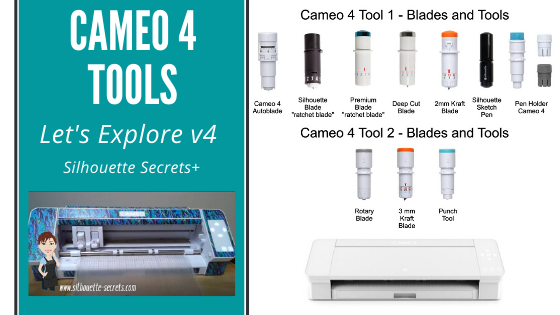
    This question came up on my Facebook group last week, so let’s take a look at the current tools available for the Cameo 4.

    Affiliate links may be present in the following blog post and as an Amazon Associate I earn from qualifying purchases.

    Cameo 4 – Tool 1

    Tool 1 on the Cameo 4 can use the Cameo 4 Autoblade, Silhouette Black Blade, Premium blade, Deep Cut blade, Sketch pens, Sketch Pen holder, and 2 mm Kraft blade.

    Cameo 4 – Tool 1 housing Blades and Tools

    The Cameo 4 Autoblade is the only blade that can fit in Tool 1 housing with no adapter. All of the other blades or tools pictured above will fit in the Tool 1 housing with an adapter.

    Cameo 4 Tool adapters

    Note: this information is accurate as of 6/11/20. The Premium Blade has been redesigned with a small T on the front of it and now fits in the black adapter. Information you may see that was published prior to this date, may show that it fits in the gray adapter.
    Older Premium Style blades will fit in the gray adapter, but the new style does not.

    The Cameo 3 Autoblade is NOT compatible with the Cameo 4 machine.

    Cameo 4 – Tool 2

    Tool 2 on the Cameo 4 can use the Rotary blade, the 3 mm Kraft blade, and the Punch Tool.

    These are the only blades or tools currently available for the Tool 2 housing on the Cameo 4.

    Why can you not put tools from Tool 1 in Tool 2?

    The basic answer is because the tool housing for Tool 1 and Tool 2 is not the same. Therefore, the same tools cannot be used in both.

    On the Cameo 4, Tool 1 and Tool 2 housings are designed with different motors in them, which means they function differently.

    The Tool 1 housing has a motor that allows the housing to move up and down. While the motor is Tool 2 is a circular motor. You can see the difference in these housings if you touch them. Tool 1 will freely move down when you press on the front locking mechanism. While the Tool 2 housing is stationary & does not and should not be forced to move.

    I am loving the new tools for the Cameo 4 – Tool 2 housing.

    With the Rotary blade I have been cutting crepe paper and fabric. And I love it!
    Check out these posts below for more information and tips

    Also check out this new free ebook by Silhouette on the Rotary blade available on the Silhouette 101 blog HERE.

    I am still in the process of testing several different materials with the 3 mm Kraft blade.
    But, I have successfully cut this Light Chipboard from Amazon.
    This chipboard is twice as thick as the Silhouette Chipboard.
    More details on that coming soon!

    What I will say is that each design will vary and some will cut better than others. And it does require multiple passes and patience.
    The later is probably the biggest part for successful cuts.
    But, all of these were cut using the 3 mm Kraft blade and the Light Chipboard.

    Hopefully that helps explain a few of the tools for the Cameo 4!

    If you are new to the Cameo 4 and just don’t know where to get started, check out the step-by-step Silhouette Beginner First Cuts video class HERE.

    Save this information for later by pinning the image below.

    Enjoy!

    SS Logo snip it
    **This post may contain affiliate links. What that means is that I may receive compensation if you purchase through the links I have provided. The price you pay for the product or service is not higher but I may get compensated for sharing.

    Share this:

    Posted on 5 Comments

    5 “Secrets” to Cutting Crepe Paper

    Update: re-published blog post can be found here: https://silhouette-secrets.com/2022/05/16/5-secrets-to-cutting-crepe-paper-with-the-cameo-4/

    I have been having an awesome time learning to make crepe paper flowers. Now that the Cameo 4 can cut crepe paper with the rotary blade, I have several bouquets & individual flowers in my studio.

    I just started working with this in November/December of 2019, so it is all fresh and new to me. But, I am loving it. Just a warning though – it is addictive!

    Today, I am a guest blogger over on Terri Johnson Creates blog sharing my 5 “secrets” to cutting Crepe paper with the Cameo 4. Check it out HERE.

    Rose bouquet copy

    There are so many fabulous things that you can do with a Silhouette machine and my project list just continues to grow!

    Head over to Terri’s blog to check out my “Secrets” and then make sure you share what you’ve been working on with your Silhouette on my Facebook group
    Silhouette Secret+ with EllyMae.
    We love to see what you have been creating!

    Enjoy!

    SS_Signature copySS Logo snip it

    **This post may contain affiliate links. What that means is that I may receive compensation if you purchase through the links I have provided. The price you pay for the product or service is not higher but I may get compensated for sharing.

    Posted on 11 Comments

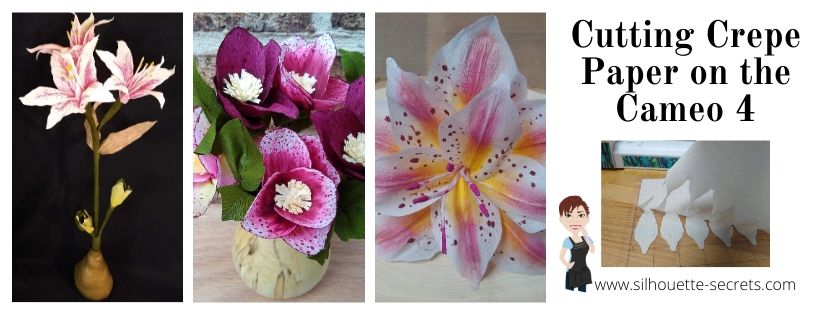
    Cutting Crepe Paper on the Cameo 4

    Cameo 4 – Cutting Crepe Paper

    Affiliate links may be present in the following blog post and as an Amazon Associate I earn from qualifying purchases.

    By now, I’m sure that you have all seen and heard about the new Cameo 4 machine. Well, I went ahead and purchased it when it was released. As soon as the pre-order went live, I was ready to click order. I ended up being #4 who ordered it from Silhouette America, so there were a couple people just as excited as I was that beat me to it.

    Why? Well, for me there are a couple reasons. The biggest factor being that as a TJC Licensed Silhouette Instructor, I teach using the Silhouette machines. There are many new features on the Cameo 4, that I can’t teach if I have not used. Since the Cameo 3 is no longer being manufactured that means that more and more students will have a Cameo 4. And if you follow me on Facebook at all, you know that I do a LOT of troubleshooting for users on many pages and groups. In order to do that, I need to know how this machine works and all the ins and outs.

    Now, let’s talk crepe paper. This is one of those new materials that the Cameo 4 can cut. I have been cutting crepe paper using the Rotary blade and having so much fun testing it. The more I play, the more ideas come to me, and the more projects I want to create.

    After meeting Lia Griffith at the May 2019 Silhouette Summit, I started looking into this whole new world of creating and it opened up so many things. Well, really it added to my list of projects I want to complete.

    SilSecrets_Lia

    I have made many 3-D paper flowers, but never used crepe paper because well, I didn’t want to hand cut it all. I have been collecting Pins on Pinterest and supplies ever since.  And now with the Cameo 4 being able to cut new materials, it was perfect timing!

    So let’s get down to it.

    Cutting Crepe Paper on the Cameo 4

    For the design in this tutorial I am using a Lia Griffith file for an Amaryllis flower. This was the December Member Make project and once I saw it, I just had to create it. But, you can do this with other files too, as I’ll show you at the end of this post.

    I started by opening the svg file, moving it off my design mat, and ungrouping it.

    Svg file copy

    In order to open a svg file, the Designer Edition upgrade or higher is required in the Silhouette software. I feel this is a great investment and saves you time & headache in the long run. For more details on that, click HERE.

    The file has all the parts needed to make 1 complete flower. And it tells you how to cut the pieces in relation to the grain of the crepe paper. This is something you want to keep in mind when you place the crepe paper on your mat, or if you are moving the pieces around to fit on the mat.

    I started with the flower petals and moved those over onto the design mat to cut. Make sure you measure the size of the crepe paper you are using, so you know the exact length of it. I should have measured twice when I was cutting this file and I filled the entire page only to realize after I cut, that I measured wrong. It happens to us all!

    Cutting flower petals copy

    Once the design is on the mat ready to cut, click on the Send tab in the top right corner. The cut lines default to Tool 1 as designated by the bold red cut lines around the design. Since this will be cutting using Tool 2 and the rotary blade, the cut lines need to be turned off for Tool 1. Select the entire design and choose No Cut. The bold red lines will disappear = turn off.

    Tool 1 copy

    The Tool 1 cut lines must be turned off first or it will complete the Action with both Tool 1 and Tool 2. This means that it will first try to cut with any blade you have in the Tool 1 housing and then move on to cutting the design with the blade installed in Tool 2. This will most likely not work out well.

    Next, with the entire design still selected, click on Tool 2 to expand it out and click Cut.

    Tool 2 copy

    Bold blue cut lines will turn on indicating that Tool 2 is active.

    Currently, there is no Crepe Paper preset setting in the software and you will see a note that there are no compatible settings found for this material. That just means we need to add a custom setting in.

    To do this, click on the More button on the right side. A menu will pop up and this is how to input custom cut settings. Choose the small plus sign and this will add a new material to the list. Change the name from New Material to match the material being used.

    Custom settings2 copy

    I named mine Lia Griffith Extra Fine Crepe Paper because that is what I’m cutting.

    Change the material in the drop down box on the right to reflect what material you are cutting. Then click on the large plus sign to access the Tool 2 settings on the Cameo 4. Choose Cameo 4 Tool 2.

    Custom settings3 copy

    The Cameo 4 Tool 2 defaults to the Kraft Cut Action. Click on the large plus sign and choose Rotary Cut Action.

    Custom settings4 copy

    Next, click back on the Kraft Cut and then choose Remove Action.

    Custom settings5 copy

    For this Lia Griffith Extra Fine Crepe Paper, I used the default settings for the rotary blade.

    Custom Rotary setting Extra Fine Crepe Paper copy

    Click save in the bottom right corner (if needed) and then the big X in the top right corner under the Send tab.

    Close out custom settings copy

    Ta-da – you have entered a custom cut setting!

    Next, select the new material setting that was created from the Materials list and on the screen you will notice additional blue lines.

    Custom Setting Crepe Paper copy

    These are part of the Smart Cut technology of the Rotary blade and also the Kraft blade. Since these blades are broader tip blades, they do not turn on a dime. The machine lifts the blade up and then sets it down (hook) to turn the tip of the blade in the next direction it needs to be going or it makes a loop so the blade can be start in the next direction.

    Think of it just like using a hand held rotary blade. It is a round blade and does not make fine turns when cutting. For example, I have enlarged this flower petal shape. If you wanted to cut this with a hand held rotary blade, you would not cut it all in one pass without lifting the blade up. You would have to make multiple cuts to change direction. The blue lines show an example of the motion you might use with a hand held rotary blade in order to cut this shape. The same concept applies for the Cameo 4 rotary blade.

    Rotary blade example copy

    Now that the Smart Cuts are explained. We are ready to cut some flower petals.

    I placed the crepe paper down on brand new Silhouette cutting mat with the grain running up and down (top to bottom). This lines up with the instructions from the cut file.

    Brayer crepe paper down copy

    I then used a brayer to smooth the crepe paper down on the cutting mat and make sure that it was stuck very well. I am using a Speedball brayer, but any one would do or you can use a hard roll, such as a vinyl roll core, etc. The main thing is to make sure the crepe paper has a good bond to the cutting mat. Since crepe paper has some stretch to it, you want to make sure it is good and secure before cutting or the paper will just move and get pushed around.

    Cutting help copy

    Then I crossed my fingers and clicked on Send in the bottom right corner. My supervisor was making sure it was all going according to plan.

    IMG_20191225_110523957 copy

    So exciting! It cut so well!

    Crepe Paper Cut copy

    Now, something I mentioned above is that crepe paper has stretch to it, so you want to go slow when removing it from your cutting mat. There may be a few spots that it didn’t quite connect the cut because the paper moved just a bit. But, it’s also pretty easy to either snip that little bit or to pull it gently apart.

    IMG_20191226_154632993 copy

    And the first pieces of the flower are cut.

    IMG_20191226_155015787 copy

    Now, to cut the rest of the flower pieces.

    IMG_20191226_162425408 copy

    Then the leaves for the buds were cut from Lia Griffith Double Sided Crepe Paper. I used a force of 20 for these.

    Now, keep in mind if the crepe paper does not stay in place, the cut may not be complete. And not every single cut will turn out perfect. All Silhouette users run into issues or mis-cuts. It is all part of the process.

    IMG_20191226_163149534 copy

    These pieces were cut from Lia Griffith Heavy Crepe paper and as you can see, that last one didn’t say in place for the cut. The great thing about crepe paper flowers is, not all flowers are “perfect”. Each flower or leaf doesn’t grow uniformly, so in this case it will still work for the finished project. I used a force of 25 for the heavy crepe paper.

    I then assembled the flower following the instructions provided by Lia Griffith and her assistant in the Member Make live video.

    Amaryllis Full photo copy

    The Amaryllis information that I used can be found HERE on Lia Griffith’s website.

    Amaryllis Close photo copy

    I am so in love with this! I learned a lot in the assembly and I am so glad that I followed the Member Make live to complete it.

    Now, do you have to become a Lia Griffith Member to make pretty crepe paper flowers. No! I did because I think it’s something I will enjoy and expand my creative projects.

    Since I know that not everyone wants to join a membership, I also tested this with files from the Silhouette Design Store.

    I used the Hellebore by the Bleu Dahlia – Design #206393 and Flower Petals by Alaa’ K – Design #16305.

    When the Hellebore file opens, it is a large flower design.

    Hellebore example copy

    I selected the entire design and scaled it down so the flower petal was just under 2 inches tall. I then right clicked on the petal design and ungrouped it and deleted the lines up the center of the design, as those are not needed for crepe paper.

    Hellebore 2 copy

    I then duplicated the petals, so there was 5 petals per flower. I cut 3 different colors of crepe paper for the flowers and 2 of each color.

    Next, I moved to the leaves. From looking at the files in the Lia Griffith Membership site, I saw that they would cut the full leaf in half and angle it on the crepe paper so the grains of the paper would run diagonal on the leaves to make it more realistic. They cut 2 sides for each leaf and then glued them together. I used the knife tool in Silhouette Studio and cut the leaf in half and then replicated and mirrored the half of the design I wanted to keep.

    Leaf design copy

    Since the crepe paper is placed on the cutting mat with the grain running up and down, I placed the leaves at an angle to get the grains on the leaves in the manner they suggested.

    Leaf grain copy

    Since this leaf was not design specifically for this flower and I cut it in half of the original design, when I overlapped it and glued it, it didn’t line up perfectly. I found this was just fine and took sharp scissors and snipped both ends. Guess what? Leaves and flowers are not perfect or each one shaped the same. It worked great!

    For the stamen (center part) of the flower, I just cut a long rectangle with my paper trimmer and then used scissors to fringe it. The rotary blade does not cut intricate designs and would just shred the crepe paper on this. I found it faster just to do it myself. Sometimes I think we complicate simple things like cutting a rectangle just because we have a machine that will cut it. Now, don’t get me wrong, if this was cardstock, I may or may not use the machine to cut the rectangle – that would depend on how many I’m cutting. Each project will vary.

    Hellebore pieces copy

    And once all the pieces are cut out, you can color as needed, and start assembling the flowers and leaves.

    IMG_20200111_091019229 copy

    I sure learned a lot of things in creating these flowers.

    IMG_20200111_091353959 copy

    But, I am in love with the finished designs.

    IMG_20200111_094956364_HDR copy

    As I said above, I’ve never worked with crepe paper before, so this is definitely something out of my comfort zone and I just can’t wait to create more!

    IMG_20200111_095526325 copy

    Things I learned:

    • Crepe paper is forgiving. Neither flowers or leaves are identical and sometimes a blemish makes it much more realistic.
    • While you can create your own flowers, it is so much easier to follow the step-by-step instructions on LiaGriffith.com. Since crepe paper is a new journey for me, I am learning lots on her site and I don’t think these would have turned out as well if I had been left on my own.
    • It is easier to cut some things by hand, like the stamen and simple rectangles.
    • I love crepe paper flowers!
    • It takes time, but the end result is amazing and something you can enjoy for a long time to come!
    • Single petal designs are best if you are looking for files to use for creating your own flowers.
    • They are so fun to make!

    And I just couldn’t stop. While this set isn’t finished, I still wanted to share it with you. This one was cut using the Oriental Lily 3D by The Bleu Dahlia – Design #217974 from the Silhouette Design Store. I chose not to cut the stamen centers, but instead used the same technique I learned in the Lia Griffith Amaryllis design so it would look like a photo I found online of the Oriental Lily. I was drawn in by the bright colors.

    IMG_20200112_201458273 copy

    I can’t wait to share the finished set of 3 Oriental Lilies.

    I hope that you will give it a try and I would love to see what you create on my Facebook group at Silhouette Secrets with EllyMae.

    Check out 5 additional “secrets” to cutting crepe paper on the Cameo 4 in this guest post on Terri Johnson Creates blog as well.
    5 “Secrets” to Cutting Crepe Paper
    5 secrets Header photo

    I would highly recommend the Lia Griffith Crepe Paper supplies. I have found that they are really high quality and look amazing!
    They can be found direct at LiaGriffith.com or find links in my Amazon shop HERE.

    Don’t have a Cameo 4, but it’s on your wishlist.
    When you decide to take the leap check out these great retailers for Cameo 4 deals:
    Heat Press Nation
    Silhouette America
    Swing Design
    Or find it on Amazon

    Like this? Pin the image below to find later!

    Crepe Paper Pin

    Enjoy!

    SS_Signature copySS Logo snip it

    **This post may contain affiliate links. What that means is that I may receive compensation if you purchase through the links I have provided. The price you pay for the product or service is not higher but I may get compensated for sharing.

    Posted on 13 Comments

    Silhouette Rotary Blade – First cuts

    Silhouette Secrets+ with EllyMae

    If you’ve been curious about how the Silhouette Rotary Blade works, you’re not alone! I recently made my first cuts using the Rotary Blade, and I’m excited to share the results. This specialty tool is designed to glide through soft, fibrous materials like felt, fabric, and crepe paper—without needing a backing or stabilizer. In this post, I’ll walk you through how the Rotary Blade works in Silhouette Studio, the key tips I discovered along the way, and how you can get clean, beautiful cuts right from the start. Whether you’re cutting fabric for appliqué or crafting adorable felt stuffies, this tool opens up a whole new world of creative possibilities!

    On October 18, 2019 a package showed up in my mail box. My kids were excited, I was excited – we were all excited. While their excitement quickly wore off, mine has not.

    Four Silhouette Cameo 4 tools packaged on a wooden surface, including a Punch Tool, Rotary Blade, 2 mm Kraft Blade, and Pen Holder.

    Affiliate links may be present in the following blog post and as an Amazon Associate, I earn from qualifying purchases.

    The new tools for the Cameo 4 had arrived. After attending the Silhouette Summit in May and learning about the new Cameo 4 release and the new tools to go with it, they are finally here.

    Updated 6-15-25 – the Silhouette Rotary blade is compatible with the Silhouette Cameo 4 models, Cameo 5 models, and Curio 2.

    From left to right they are: The Punch Tool, Rotary blade, 2 mm Kraft blade (Cameo 3 or 4), and the Pen Holder. The 3 mm Kraft blade was not in my box, but will be coming soon.

    Today I’m going to show you my first cut with the Cameo 4 – Rotary blade.
    It is a pretty simple cut.

    Last week while I was finishing the prep for my Foil Quill on a Traveler’s Notebook class for the upcoming All Things Silhouette Conference, I was having a heck of a time getting the same foil results as I had with my original demo. I ended up having several traveler’s notebooks that were “sacrificed” in the testing process.
    What was I going to do with all these “failed” tests?

    A pink faux leather notebook cover featuring gold foil compass designs and the word 'Test' repeated vertically.

    My fabric selection is very minimal, so I just grabbed the first one I found.

    A faux leather traveler's notebook with a compass design, resting on a colorful fabric patterned with wine bottles, beside a Silhouette cutting machine.

    And no joke, it was the first one I saw. This is leftover from a gift making session a few years back where I tried my hand at fabric key fobs.

    Why not cover the journal as a test?
    Cut this thin cotton fabric with the rotary blade and test it out. Perfect!

    I measured out how big the traveler’s notebook was and then drew a rounded rectangle in the Silhouette software. I added a little bit to the measurements to allow for some overlap around the edges of the cover. In hindsight, I should have allowed a bit more.

    So the first thing I want to mention is that when you get the Cameo 4 Rotary Blade, you want to twist the bottom to expose the blade. This is a safety feature so the blade is not exposed right out of the package.
    And it won’t cut very well at all if you don’t twist the bottom to expose the blade. You’ll have to trust me on that one.

    Close-up of a hand holding a white rotary blade tool for the Cameo 4, with a cutting mat in the background.

    Once you install the Rotary blade in the Cameo 4 Tool 2, the software will recognize the tool has been installed with the new Tool Recognition and will give you the cut options for that tool.

    Next, when you use the Cameo 4 Rotary blade, you will notice that you have these extra lines on your design mat when you go to the Send tab. This is so the rotary blade can orientate the blade to the correct position to cut the design out.

    Journal cover copy

    It is just like a hand held rotary blade and rolls across the material to cut.

    A close-up of a Cameo 4 cutting machine with its tool holder, displaying a colorful fabric featuring wine bottle designs laid on a wooden surface.

    Now, my design is a very simple rounded rectangle.

    A close-up of a cutting mat with a piece of fabric featuring wine bottle patterns, positioned in front of a Silhouette Cameo cutting machine.

    While it may be simple, it is a great way to test out the blade to see if it will cut this thin cotton fabric.

    And success! There were a few threads that needed to be clipped around the edge, but I’m good with that. And it is improving. There are software updates coming that are improving the cut settings and allowing more possibilities to customize those settings because we all know that not all materials are created equal. As I found with Foil Quill foil, even in the same brand of items, not all will perform the same. The Gold Finch 4″ x 6″ sheets did not foil the same way as the foil that was included in the Foil Quill bundle or like the large roll of gold color did.

    Now, I was so excited to test this blade out, that I didn’t really think how I was going to apply this piece of fabric to my traveler’s notebook, which is like a faux leather on the outside. So I reached out to my friend Libby for her advice. It was pretty much the answer I had thought – Heat & Bond or Fusible Stabilizer, but confirmation from a fabric user is always better.

    Yes, it would have been much easier to put the Fusible Ez-Steam on the fabric and then cut it, it would have even cut with a regular blade since I had such a simple shape. But, it was a test to see how it would cut with the rotary blade and it was a success!

    I can’t be the only one that has these hindsight moments on how to make the project easier….. after the first one is done. Or gets excited and just jumps in before thinking the project all the way through.

    I ironed the fabric to get it nice and smooth. Then I peeled the paper backing off the Fuzible Ez-Steam and applied it to the backside of the fabric.

    An iron is positioned beside a piece of fabric with a protective paper backing, set on a blue ironing board.

    Then I placed the fabric on top of the travelers notebook and carefully ironed it on.

    A close-up of a hand holding a small fabric cut piece with a backing, placed over a notebook cover that reads '1st Test' in gold lettering.

    After I ironed the outside, I flipped it over and then carefully folded the edges over and ironed those down to the inside. The inside of the notebook is a paper material, so I didn’t hold the iron in the same place very long.

    A fabric-covered traveler's notebook with a black backing, pinned edges, and an iron in the background.

    You can see in the bottom right corner that the edge was a little bit small, this is where I would adjust for the next one and make it a little bigger for a little more edge allowance.

    I poked holes through the fabric to thread and threaded the elastic cord back in the holes, added my notebooks back in, and have covered this “test” subject from my failed Foil Quill project.

    A traveler's notebook covered in fabric featuring various wine bottle designs, resting on a wooden surface, with a seam ripper and a weeding tool beside it.

    Of course, I couldn’t leave it at just that. I had to add a charm made from an 15/16″ acrylic circle and etched with the Silhouette Curio 1.

    A traveler's notebook covered with fabric featuring various wine bottles and tags, accompanied by a charm that reads 'live love WINE'.

    Can you see yourself using the Silhouette Rotary Blade in any future projects?

    Next up on the testing list is leather, faux leather, more fabric or whatever I can find.
    I can’t wait to share that too!

    Additional Resources:

    Save this for future reference by pinning the image below.

    Silhouette Rotary Blade against a colorful background, showcasing its design and features.

    Enjoy !

    THANK YOU for your support! How can you help? Click HERE & buy a coffee.
    Every little bit helps with the cost of running the site.

    Silhouette Classes

    Never stop learning! Let me help you take the anxiety out of learning with Silhouette and get to creating faster! My Silhouette classes are heavily focused on software, so you can take the skills & techniques taught and apply them to many future projects!

    Silhouette step-by-step Classes by Silhouette Secrets+

    Silhouette Secrets+ with EllyMae
    **This post may contain affiliate links. What that means is that I may receive compensation if you purchase through the links I have provided. The price you pay for the product or service is not higher but I may get compensated for sharing.