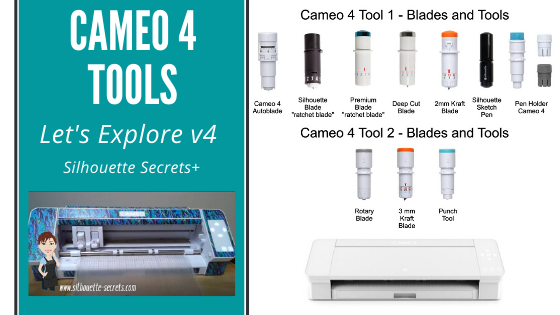
Have you ever wanted a handy chart that shows what blades are what? What is each blade used for? Does it need an adapter or does it fit with no adapter? What materials is each designed to cut?
Today I wanted to share a free resource that I’ve created that gives information on the current blades and tools available for the Cameo 4 , Cameo Plus, and Cameo Pro.
Cameo 4 , Cameo Plus, and Cameo Pro Tool Chart
This free PDF chart is is available as a free download exclusively for confirmed newsletter subscribers.
Download this to your computer and open it. Click the blue links in the chart for more resources on that particular tool.
Print the PDF file out for visual reference as well.
Don’t forget to check out the Silhouette classes on my Teachable site while you are there! Step-by-step classes taught for many Silhouette projects and software techniques. And the best part – once registered, you can access any time and as many times as you need to take the class! Never stop learning & creating!
**Please note that these may be affiliate links which means that by using these links and/or codes, I may received a small compensation for sharing the links with you. The price you pay for the product or service is not higher. Thank you for using affiliate links as it provides a way for me to continue doing what I do as an Instructor, blogger, and event organizer.
I hope this helps you get to know your Silhouette Cameo machine a little bit better!
I have lots more things on my project list to share in the future!
I would love to see what you are creating with your Silhouette software or machines! Feel free to post on my Facebook group at Silhouette Secrets with EllyMae.
Save this for future reference by pinning the image below.
Enjoy !
THANK YOU for your support! How can you help? Click HERE & buy a coffee. Every little bit helps with the cost of running the site.
Silhouette Classes
Never stop learning! Let me help you take the anxiety out of learning with Silhouette and get to creating faster! My Silhouette classes are heavily focused on software, so you can take the skills & techniques taught and apply them to many future projects!
**This post may contain affiliate links. What that means is that I may receive compensation if you purchase through the links I have provided. The price you pay for the product or service is not higher but I may get compensated for sharing.
This post has been a long time in the construction process. After almost 2 years of testing this blade, I feel comfortable in being able to give you some tips on it.
The Kraft blades are designed to cut thicker materials. And they do, but it is not a blade that you can simply pop into the machine and cut perfect with right away. It can take some time, testing, and materials to find out what will work. And I’ll tell you right off the bat, not all materials or designs will work well with these specialty blades.
Affiliate links may be present in the following blog post and as an Amazon Associate I earn from qualifying purchases.
First, let’s go over some information about these blades that will help to understand a little bit more on what machines they work with and how the blades work.
Silhouette Kraft blades
There are currently 3 Kraft blades for the Silhouette machines.
2 mm Kraft blade
This 2 mm Kraft blade pictured above is compatible in the – Silhouette Cameo 4 models with the white adapter – Silhouette Portrait 3 with the white adapter – Silhouette Cameo 3 – Silhouette Portrait 2 – Silhouette Curio
2 mm Kraft blade (Type B)
This 2 mm Kraft blade (Type B) pictured above is compatible in the – Silhouette Cameo 4 – Silhouette Cameo 4 Plus – Silhouette Cameo 4 Pro – Silhouette Portrait 3
The Type B 2 mm Kraft blade fits in the Tool 1 housing and is designated with a 1 on the front of the blade. No adapter is required.
3 mm Kraft blade
This 3 mm Kraft blade pictured above is compatible in the – Silhouette Cameo 4 – Silhouette Cameo 4 Plus – Silhouette Cameo 4 Pro
The 3 mm Kraft blade fits directly in the Tool 2 housing on the Cameo 4 models only and is designated with a 2 on the front of the blade.
You can find the Kraft blades at most Silhouette Retailers: Silhouette America – use code 10OFF to take 10% off your order (coupon code not available on machines) The Vinyl Spectrum – fast shipping Swing Design – use code SECRETS10 to save 10% (coupon code doesn’t apply to all products)
In order to have access to the Kraft blade settings, user’s will need to use a version of Silhouette software of v4.3.370 or higher.
Blade Depth
The Kraft blades are all a manual blade, which means that you have to turn the bottom of the blade to adjust the blade depth.
The numbers on the bottom of the blade are the blade depth in increments of 0.10 mm. Blade depth is how far out the blade extends from the bottom of the blade housing. In the photo above, the 2 mm Kraft blade is on the left and the 3 mm Kraft blade is on the right.
Just as a heads up. More is not always better, but we will discuss that in a bit.
Blade comparison
Like I said above, this is not a blade that you just pop in the machine and it is perfect. This blade is a broader tipped blade and works more like an Exacto knife. Let’s take a look at how it compares to other Silhouette blades.
In the photo above, on the left is the Premium blade, the middle is the Autoblade, and the right is the 3 mm Kraft blade. As you can see, the blade construction is very different.
The Premium blade & the Autoblade are smaller more concise blade tips, while the Kraft blade is a broader tipped blade.
What this means is that the Kraft blade cannot turn like the Premium or Autoblade. It does not turn sharp corners or change directions like the other blades.
As a comparison, think of using an Exacto knife by hand. Can you cut an intricate design or even a square without lifting the blade up to turn in a new direction or turning the material on your workspace? Can you cut completely around the design, by hand, in one continuous cut?
How the Kraft Blade Works
The Kraft blade works on a system called “Smart Cut” technology. But the basics of it are, the blade cannot cut in one continuous motion and change direction. It has to either lift and touch down somewhere to orient the blade for the next direction or it has to draw a loop to turn to get headed in the next direction. These are called “hooks” and “loops”.
These hooks and loops DO cut on the material. There is just no way around that. The blade has to turn somehow and since it is a broad tipped blade, it cannot just turn 90 degrees.
The Kraft blade NEEDS these “hooks” and “loops” to work in the best manner that it can. Turning the Kraft cut action off means that the blade is trying to make those corners and the blade can be sideways and trying to cut because it has not had the chance to orientate to the new direction.
Understanding how this blade is constructed and how it is designed to work, can help in your future projects. Does it eliminate the frustration you might have when working with it? No, but you will understand it better and why it might be acting the way it is.
I have spent many, many, many hours testing this blade over the past 2 years and I’ll say right out front – I’ve been frustrated, I’ve walked away, I’ve grumbled at it; BUT I have also had some success with it too!
This class is now available on my Teachable site HERE.
It has all taken a lot of time and testing with this specialty blade. Not everything has been successful. But, that’s why I’m here to share some tips to working with the Kraft blade.
Tips for the Silhouette Kraft Blade
I would suggest reading through all the tips before starting any project as they all work together in one way or another.
Tip #1 – Turn the blade all the way up and then back it down to what you need. Basically, I do not pay attention to the numbers. By exposing all the blade and turning it back down, you can set it to the depth you need according to tip 2.
Notice in the above photo that even when the blade is extended completely, the red number is not at a 30. The collar on the blade can be “off” either from use or if it’s been unscrewed and screwed back on. This is going to vary blade by blade. My Kraft blade is well used and I cannot even tell you what I’ve used it on or how much. When you open a new Kraft blade, look at it closely. Look and see where it is lined up. This is one reason that I do not use the number, but move on to #2. While technically, the numbers on the blade equal 0.10″ mm, if the collar is off even just a bit, the numbers are off too.
Tip #2 – Measure your blade depth against the material thickness.
This will show you the max depth that the blade can be. Turn the blade back down to the thickness of the material. You do not want the blade extended out more than the thickness of the material or it will get stuck in the mat or cause the cut to go wonky. The blade depth should be just barely out enough to make it through the material.
Measuring against the edge of leather
Tip #3 – Some materials need multiple passes at varying blade depths to cut through. Not all materials can be cut through in 1 pass. This requires testing and will vary depending on the material, the way it is constructed, and the density of the material.
For instance, I referenced above that I have cut this SPC Light Chipboard Sheets with the 3 mm Kraft blade.
This is heavier than the Silhouette brand chipboard, but is still classified as a “light” chipboard. (I have not had success with medium chipboard).
In order to cut this I used a brand new blade and had to make a series of passes on each shape. Pass #1 – Blade Depth – 3, Force – 15, Speed – 5 Pass #2 – Blade Depth – 6, Force – 15, Speed – 5 Pass #3 – Blade Depth – 6, Force – 15, Speed – 5 *Keep in mind Tip #1 and Tip #2 – make sure the blade is not out farther than the material thickness or it will just get stuck in the mat.
For materials that need variable blade depth and/or force, do not try to skip a pass and go from a lower blade depth or force to the max blade depth or force. It only resulted in the blade getting stuck for me and the material was eaten up.
Tip #4 – Simple shapes work best Not all designs will work! Simple shapes are best. No intricate cuts. No interior cuts.
Testing is the only way to know. If a design is too complex it will either just eat up the material or it can crash the software when the Kraft cut action is activated.
Tip #5 – Cut 1 design shape at a time. This is for several reasons. If something goes wrong such as the blade getting stuck or the cut doesn’t work. You only have wasted one section of the material instead of an entire sheet.
The hooks and loops change according to what is placed on the design mat and where the designs are in relation to each other. By placing 1 design on the mat at a time, the hooks and loops can adjust to give you the best cut on the design and you can measure and place your next design according to where those hooks and loops did cut. The more familiar you can be with your cutting mat and the virtual mat in the software, the better. The virtual mat matches up exactly to the Silhouette cutting mat. If you are familiar with it, you can get pretty darn accurate on placing your design and materials where needed. It all takes practice.
Check out this quick video on my YouTube channel showing the hooks and loops changing depending on where the design is placed on the cutting mat.
Tip #6 – Only send 1 pass at a time. Even if you are doing a series of passes, only send 1 at a time and do not increase the passes on the Send tab. This will allow the Silhouette machine to reset and start the cut from the beginning, instead of adjusting on the 2nd pass and possibly throwing the cut off.
Tip #7 – Get extra materials You will need them! The Kraft blade requires more room to work and more testing than the regular blades.
Tip #8 – Be patient! Maybe this should have been the #1 tip. Patience is probably the toughest part. Be patient with your computer, the software, and yourself. This is a new blade, new skill, new technique – it’s just new! It will take time to learn to use.
Tip #9 – Use high quality materials This can be very important! Low quality materials are just that – low quality and may not yield good results at all.
For instance, when developing the Cutting Leather class, I tested hundreds and hundreds of dollars of leather. Craft store leather, real leather, thick leather, thin leather – I tested A LOT!
High quality leather from a leather company worked the best. I used Badalassi Carlo – Minerva Smooth “Vacchetta” Veg Tanned Leather – Split to 2-2.5 oz or 2.5- 3 oz – 12” x 12” piece from Rocky Mountain Leather. Craft store “genuine” leather did not work well because it was soft, pliable, and mushy. Those are the best technical terms I can describe it as. The Kraft blade just pushes it around and gets stuck vs being able to cut clean through it.
For more details and information on this example, check out this Leather types video I have on my YouTube channel HERE.
Chipboard is another example. Because of the way chipboard is constructed, not all brands are equal. Chipboard is fibers pressed together. How that holds together while it’s cutting will affect your final result. Some are more fibrous and will just separate.
Tip #10 – Turn Carriage 1 (Tool 1) off before using Carriage 2 (Tool 2) Carriage 1 is the default tool for all machines. In order to activate only Carriage 2, you first have to select the design on the screen by clicking on it and then choose No Cut to turn it off. Bold red cut lines will turn off. Then go to Carriage 2 settings and set up the Kraft cut settings.
Tip #11 – Do not turn off hooks and loops These are important in how the Kraft blade can complete the shape. If you turn them off, the blade may not orient to move in the new direction and your blade may be sideways while trying to cut. This will result in the blade getting stuck in the material.
Tip #12 – Keep the design away from the edges of the material The Kraft blade does need more space and material to cut. Keep the design away from the edges of the material and give it a wide allowance. If the blade goes off the material while cutting, it may not be able to get back up on it again properly and the cut will be off.
Tip #13 – Check the blade for debris often This is especially important when cutting a fibrous material such as chipboard. I found that I had to check the blade between each pass while I was adjusting the depth. Fibers would build up on the blade and cover the sharp edge, which would cause the blade to get stuck in the material on the next pass.
Tip #14 – Design position matters Because of how the hooks and loops work, some designs cut better in certain areas than others.
As an example when I cut the SPC Light Chipboard Sheets, the pennant design would cut on the left side but it didn’t cut well on the right side.
I also found that if you can position the material at the bottom of the cutting mat, then you can check the cut easier to determine if it needs another pass. I used this method especially with more expensive materials. If you unload the cutting mat, you will not be able to get the mat lined up exactly perfect to cut in the same place if multiple passes are needed to cut through.
This is why in the Cutting Leather class, I start with the design in the bottom right corner of the cutting mat and not at the top. Through lots of testing, I determined that the shapes used in the class, cut the most successfully in that area and could be checked easier.
Tip #15 – Be patient! I know that I said this as tip #8, but I think it needs repeating. If you are looking for a quick project, you might want to try a different technique. If you have some time to test and see what can happen – give it a go!
I have had many failures with the Kraft blade, but as I said, I have also had success too!
Chipboard pennant shapes cut with 3 mm Kraft blade. Cardstock pennant shapes to match & letters cut with the Autoblade.
Now, I did mention that I’ve cut balsa and basswood as well. I do not have a tutorial on that and I am not sure if there will be one at this time. My best suggestion is to cut your templates with the Silhouette machine and grab an Exacto knife and cut them by hand. It will save you time, money, and lots of frustration. For a bit more information on that, check out this post on my Facebook group HERE where I shared my experience and results.
And in all honesty, if you want to cut wood, I would recommend either a laser cutter or a scroll saw. You can still use the Silhouette software to help in your creations and I have seen some amazing work with both. I know we would all like an all-in-one tool, but sometimes it’s all about the right tool for the job!
More Tips!!!
Extra Tip #1 – Software versions Earlier versions of the software tend to work better than the later releases of v4.4 for the Kraft blade and the Rotary blade. I have reported these issues and they are under investigation, but later versions of the software are adding in hooks and loops but not showing those on the screen. These additional hooks and loops do not always cause an issue, but sometimes can.
However, the biggest one I’ve found is the initial touchdown of the Kraft blade to orient to start, is taking a bite out of the actual design. The photo below shows one of those “bites”.
Cutting basswood with the 3 mm Kraft blade More details on that in my FB group HERE
If you do plan to start cutting projects with the Kraft blade, I would recommend using an earlier version of v4 software. Silhouette Studio v4.3.370 is the earliest version in the software that is currently available that supports the Kraft blade action and can be found under the Legacy section as you scroll down HERE. *Portrait 3 users will need to use higher than v4.4.259 *Cameo Pro users will need to use higher than v4.4.281 *Silhouette software can be found HERE
The only way to know how it is going to behave….. TEST IT! Grab a big cup of your favorite drink, an extra dose of patience, and try to have fun just playing.
Extra Tip #2 – Blade housing reset If the Kraft blade gets stuck in the material, it can throw off the housing alignment. Immediately, press the pause button. If it does not pause quick enough, press the power button. Do not let it continue! It won’t help anything. The cut is most likely out of it’s path now and it will not cut right. Time to start over, either by placing the design in a new area on the material or this is where tip #7 – extra materials – come into play.
After the blade gets stuck, it may need to be realigned. To reset the blade housing, I unplug the Silhouette machine. Then CAREFULLY, move the blade housing all the way to the right and all the way to the left. Do this 3 more times and leave it on the right side. Plug it back in and turn it on. The housing will reset to it’s proper location.
Extra Tip #3 – Don’t be afraid of it! As I’ve said, I’ve done lots of testing with a variety of materials. While my blade has gotten stuck a LOT, my machine is still going strong.
Extra Tip #4 – Custom settings You will most likely need to create a custom cut setting for the Kraft blade. Check out the video below or on YouTube on creating a custom setting.
I know that is a lot of information! I would suggest reading it through a couple times and then decide what you will do. Take the Cutting Leather class if you want step-by-step instruction and use the recommended supplies for the class for the best success.
I’d love see what you create with the Kraft blade if you do decide to try it out! Or if you have questions, feel free to post on the Silhouette Secrets+ Facebook Group.
Save this for future reference by pinning the image below.
Enjoy!
THANK YOU for your support! How can you help? Click HERE & buy a coffee. Every little bit helps with the cost of running the site.
Or if you are looking for more in-depth, step-by-step classes, check out all of my online Silhouette classes on my Teachable site HERE.
**This post may contain affiliate links. What that means is that I may receive compensation if you purchase through the links I have provided. The price you pay for the product or service is not higher but I may get compensated for sharing.
The Cameo 4 Autoblade is the only blade that can fit in Tool 1 housing with no adapter. All of the other blades or tools pictured above will fit in the Tool 1 housing with an adapter.
Cameo 4 Tool adapters
Note: this information is accurate as of 6/11/20. The Premium Blade has been redesigned with a small T on the front of it and now fits in the black adapter. Information you may see that was published prior to this date, may show that it fits in the gray adapter. Older Premium Style blades will fit in the gray adapter, but the new style does not.
The Cameo 3 Autoblade is NOT compatible with the Cameo 4 machine.
These are the only blades or tools currently available for the Tool 2 housing on the Cameo 4.
Why can you not put tools from Tool 1 in Tool 2?
The basic answer is because the tool housing for Tool 1 and Tool 2 is not the same. Therefore, the same tools cannot be used in both.
On the Cameo 4, Tool 1 and Tool 2 housings are designed with different motors in them, which means they function differently.
The Tool 1 housing has a motor that allows the housing to move up and down. While the motor is Tool 2 is a circular motor. You can see the difference in these housings if you touch them. Tool 1 will freely move down when you press on the front locking mechanism. While the Tool 2 housing is stationary & does not and should not be forced to move.
I am loving the new tools for the Cameo 4 – Tool 2 housing.
With the Rotary blade I have been cutting crepe paper and fabric. And I love it! Check out these posts below for more information and tips
I am still in the process of testing several different materials with the 3 mm Kraft blade. But, I have successfully cut this Light Chipboard from Amazon. This chipboard is twice as thick as the Silhouette Chipboard. More details on that coming soon!
What I will say is that each design will vary and some will cut better than others. And it does require multiple passes and patience. The later is probably the biggest part for successful cuts. But, all of these were cut using the 3 mm Kraft blade and the Light Chipboard.
Hopefully that helps explain a few of the tools for the Cameo 4!
If you are new to the Cameo 4 and just don’t know where to get started, check out the step-by-step Silhouette Beginner First Cuts video class HERE.
Save this information for later by pinning the image below.
Enjoy!
**This post may contain affiliate links. What that means is that I may receive compensation if you purchase through the links I have provided. The price you pay for the product or service is not higher but I may get compensated for sharing.
Share this:
THANK YOU for your support! How can you help? Click the link to buy a coffee. Every little bit helps in the cost of running the site.