Posted on 7 Comments

Silhouette Software Upgrades – My Favorite Features

Silhouette Secrets+ with EllyMae

Silhouette Studio Software Upgrades

Affiliate links may be present in the following blog post and as an Amazon Associate, I earn from qualifying purchases.

One of the most asked questions we see is about software upgrades and unlocking features in the Silhouette Studio software.

Silhouette Software Upgrades

Software upgrades can be purchased through an authorized Silhouette retailer.
Please be careful buying through sites like Etsy, etc. as they can sometime not be the real deal or exactly as advertised. Look for reviews first.

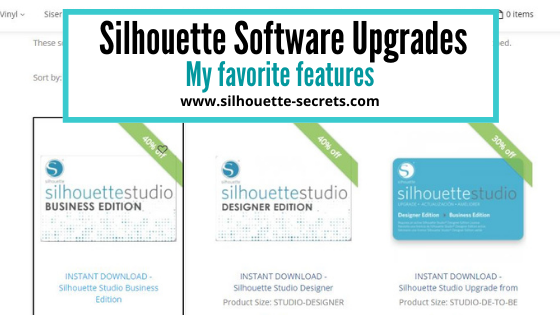
Where to find the Silhouette software upgrades?
Swing Design
Silhouette America

Sales happen often – check each one to see where you might score the best deal!

What is an upgrade?

A software upgrade is a code you purchase that unlocks additional features in the software.
It is a one-time fee that can be active on up to 3 computers per code.

I highly recommend at least the Designer Edition upgrade for all of my students.
It makes life easier and saves you time and headache.
Just being able to open a SVG file and cut is well worth it.

But I LOVE the Business Edition upgrade because it unlocks it ALL and I never have to question if some tool/feature is available to me.
Both are well worth the investment!

Don’t let the name “Business” edition fool you though – you do not have to have a business to use it or have it be useful. There are just some features that are helpful to those that run a business such as using multiple machines.

If you have the basic (free) software, you will want to purchase 1 of 3 options depending on what upgrade you want to go to:
Option 1 – Silhouette Studio to Designer Edition (highly recommend at least this)
Option 2 – Silhouette Studio to Designer Plus (unlocks a few more features – see below)
In all honesty, if you are upgrading to Designer Edition Plus, you might as well go all the way and unlock it all
Option 3 – Silhouette Studio to Business Edition (unlocks it all)

Now here is the important part, if you already have an upgrade, you only need to purchase the step up to the next level you want.

For instance, if you already have the Designer Edition upgrade but you want to go to Business Edition, you want to buy the Designer Edition to Business Edition upgrade. You do not need to buy the full upgrade. You would purchase the level that you need to go from to the level you want to be at.
On the Silhouette website, you simply select the Business Edition upgrade, and it will recognize which upgrade(s) you already have when you are logged in and only show the price for the upgrade you need.

Now, keep in mind, if you purchase the upgrades in steps it is no different than purchasing the upgrade all together.

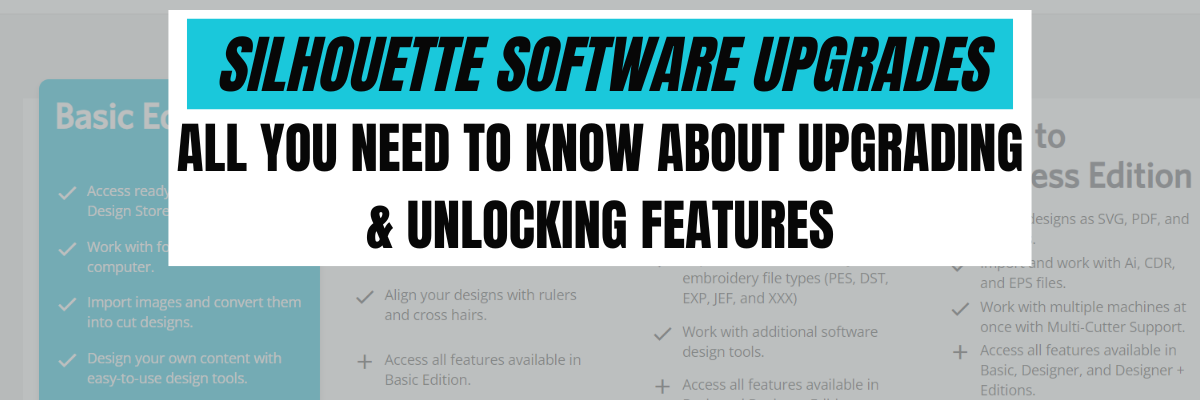
What does each level of upgrade do?

Here are a few of my favorite features and the ones I find most might use in the software:

Designer Edition unlocks:

Designer Edition Plus unlocks all of the above and

Business Edition unlocks all of the above and

  • Import Ai/CDR/EPS Files
  • Weed Line Feature
  • Multi-cutter Support (I use this one all the time)
  • Multiple Undo/Redo (one of my favorites)
  • Export SVG, PDF, JPG
  • Edition Toggle (this is great for those of us who teach, so we can see exactly what the students see in their version)
    And more…

Now, the list above is not the extensive list of all the features unlocked with each upgrade.
However, it is a list of the features I find the most useful in each upgrade.
For the complete comparison chart click HERE to go look at Silhouette America.

I want you to be successful and use your Silhouette software to the fullest!

How to activate the upgrade

It is now easier than ever to activate an upgrade!

I have all the details outlined in this post depending on what software version you are currently using.

Additional Resources on Silhouette Upgrades & Troubleshooting:

If you have question about an upgrade just let me know in the comments below.

Save this for future reference by pinning the image below.

Sign up for the Silhouette Secrets+ Newsletter for more information delivered to your inbox each week!

Silhouette Secrets+ Newsletter

Never miss out on the news, tips, “secrets”, deals, classes, and more that I share on Silhouette Secrets+. Sign up for the newsletter and get information delivered to your inbox every Friday.
Unsubscribe at any time.

Enjoy !

THANK YOU for your support! How can you help? Click HERE & buy a coffee.
Every little bit helps with the cost of running the site.

Silhouette Classes

Never stop learning! Let me help you take the anxiety out of learning with Silhouette and get to creating faster! My Silhouette classes are heavily focused on software, so you can take the skills & techniques taught and apply them to many future projects!

Silhouette step-by-step Classes by Silhouette Secrets+

Silhouette Secrets+ with EllyMae
**This post may contain affiliate links. What that means is that I may receive compensation if you purchase through the links I have provided. The price you pay for the product or service is not higher, but I may get compensated for sharing.
Posted on Leave a comment

3 Ways to Work with Rhinestones

Have you seen all the possibilities with rhinestone designs?

In this post, I’ll share 3 ways you can work with rhinestones.

Rhinestone Design Created in Silhouette Studio

Affiliate links may be present in the following blog post and as an Amazon Associate I earn from qualifying purchases.

Let’s Add Bling!
3 Ways to Work with Rhinestones

1. Create Your Own Rhinestone Designs

If you have the Silhouette Studio software Designer Edition upgrade (or higher), you can easily create your own rhinestone designs that can be cut out of rhinestone flock.

Rhinestone Template Material

I share how the Rhinestone Panel in Silhouette Studio Designer Edition works in this tutorial in the Let’s Explore v4 series
Let’s Explore v4 – Rhinestones

I also have a step-by-step class where I share how to create 4 different rhinestone designs and give tips for working with pre-made rhinestone designs, how to make your own, and how make faux rhinestone designs as well!

Silhouette Design & Rhinestone Class

Designing with Rhinestones – Creating 4 Projects on Teachable HERE

And there are even more options!
If you have the Silhouette Studio Business Edition upgrade, you can also create the rhinestone design and export as a svg file. This means that other cutting machine users could also use the svg file or you could use a different machine to cut the rhinestone flock for the template as needed.
As always, you would need to test with your specific cutting machine to find out the cut settings that work best.

Check out these tutorials for more details on
Saving as a SVG file and Perfect Cut Settings

To create your own rhinestone designs does require some additional supplies. Here is a list of the supplies I used in the Designing with Rhinestones class.

Supply list

– Silhouette Studio Software
– Silhouette Studio Designer Edition upgrade
at Crafter Cuts (use code SECRETS to save 10%)
Check for additional sales at Silhouette America The Vinyl SpectrumSwing Design
Hot Fix Rhinestones
Rhinestone Template Material
Hot Fix Transfer Tape
Siser Glitter HTV
– Blanks: zipper bagshirt, bag, etc.
Trim paint brush
– Tools: Scissorssharp weeding toolSilhouette Pick Me Up ToolSilhouette Spatula
– Optional: Rhinestone scoop, Rhinestone Supplies at The Rhinestone World ,
Bead ScoopLarger Trim Paint brushPaper TrimmerLint RollerTool Kit
– Silhouette cutting machine (or another cutting machine model)
– Heat Source: Siser Heat Press

In the class, I used a few more project specific designs.
Find all the details HERE or directly on Teachable HERE.

2. Order Pre-Made Rhinestone Transfers

Maybe you don’t want to invest in the supplies to cut designs out of rhinestone flock and make your own.

You can still create with bling!

I recently ordered some rhinestone transfers from Heat Transfer Warehouse to test.

Sure I could have made them on my own, but once I saw the prices, I ordered a few.
Well, maybe more than a few!

Here is one I ordered for my daughter to wear.

And of course I couldn’t pass this one up.

These are as easy as ordering and pressing according to the instructions.
Bing, bang, bling!

The most difficult part about rhinestone designs is getting a good photograph.
It is so hard to capture the sparkle and bling on these designs.
I have more to apply in the future too!

Check it out HERE

3. Order Custom Rhinestone Transfers

Do you have a custom design you want to have made with rhinestones?
Maybe you don’t have all the colors of the rhinestones you need or it is just too complex or it is cheaper to purchase than to create?

Heat Transfer Warehouse also offers custom transfers as well.

Custom Rhinestone Design by Heat Transfer Warehouse

Prices will vary depending on the size, color, and complexity of the design.

Check it out at Heat Transfer Warehouse HERE!

And have fun!
So many projects on my list for the future!
Hope you’ll continue on this journey with me!

Save this for future reference by pinning the image below.

3 Ways to Work with Rhinestone Designs with Silhouette

Enjoy !

THANK YOU for your support! How can you help? Click HERE & buy a coffee.
Every little bit helps with the cost of running the site.

Silhouette Classes

Never stop learning! Let me help you take the anxiety out of learning with Silhouette and get to creating faster! My Silhouette classes are heavily focused on software, so you can take the skills & techniques taught and apply them to many future projects!

Silhouette Step-by-Step Classes

SS Logo snip it
**This post may contain affiliate links. What that means is that I may receive compensation if you purchase through the links I have provided. The price you pay for the product or service is not higher but I may get compensated for sharing.
Posted on 5 Comments

Let’s Explore v4 – Activate an Upgrade

If you have used any sort of software in your lifetime, you know that there are always updates. In the Silhouette software updates and upgrades are 2 different things.

Updates are free and add features, fix bugs, allow new machines to be accessed, make changes, etc. I recommend downloading the updates direct from the Silhouette America website.

Upgrades are paid software codes that unlock additional features.

If you are reading this post, you probably already have an upgrade code. If you do not, I’d recommend checking out this post
Software Upgrades – My Favorite Features
In the post, I have listed my favorite features of each upgrade and have linked to the lowest prices to get the upgrades.

These 2 words – update vs upgrade – are often confusing for new users
(sometimes even experienced users don’t use them correctly either).
But, they are very important to understand the difference.

Updates reference the version of Silhouette Studio you are using. This information can be found in your Silhouette software.

How to find what software version you have

For Windows users, find your software version under Help > About Silhouette at the top of Silhouette Studio.
For MAC users, find your software version under Silhouette Studio in the top left and About Silhouette.

Note: I am a Beta tester and have a Beta testing version installed.

How to Activate an Upgrade

This process has changed recently so the following information is very specific to certain software versions and what you are using.

Please read the following very carefully!

This tutorial is published December 2021
updated on February 27, 2022

If you purchased an upgrade from an authorized Silhouette retailer, not direct at the Silhouette America site – follow Step 1 and 2
If you purchase direct from Silhouette America, skip to Step 2.

Step 1

If you just purchased a brand new upgrade code for the first time AND are using software of v4.4.554 or higher, you will go to the www.silhouette-america.com website.
Click on Software at the top.
Then choose Apply/Manage License Keys.
Then Sign In and follow the instructions.

Step 2

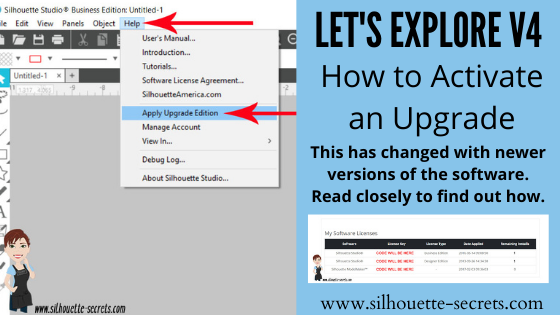
In the Silhouette Studio software, click Help > Apply Upgrade Edition
Enter your Silhouette America log in and click on
Apply a New License Key to your Account.
Enter your email address & password and click Sign In.
Do NOT click the blue arrow.
If the blue arrow is expanded, click to close it or it won’t work properly
Do NOT enter the code – it has already been applied to the Silhouette America website.
NOTE: this is for brand new upgrade purchases only!

If you already have an upgrade that has been applied in a prior software version the following applies:

If using software v4.4.554 or a higher version

You no longer have to enter the code on the computer you are using to activate it. The upgrade code is already activate on your account.

Open the Silhouette Studio software.
At the top choose Help > Apply Upgrade Edition

Then enter your Silhouette America account information and click on Sign In.
Do NOT click the blue arrow.
If the blue arrow is expanded, click to close it or it won’t work properly
Do NOT enter the code – it has already been applied to the Silhouette America website.

All codes that are connected to your Silhouette account will be activated on the computer.

A user is still only allowed to have 3 active computers associated with each upgrade code purchased. This means that if you log into a 4th computer, it will deactivate the upgrade on the computer that was used at the oldest timeframe.

What does that really mean?

As an example, if you have a computer that the upgrade was applied to that was used in January 2021. Then you have a 2nd computer that was used in March 2021. The 3rd computer was last used in November 2021. And now the you have a new computer you are trying to use the software on, a 4th computer, if you are using current software, when it activates, it will remove the code from the 1st computer that was last used in January 2021. It goes by the oldest date used.

Note: This only applies to computers that are using software versions of v4.4.554 or higher.

If you are using a Legacy version prior to v4.4.554

To activate the upgrade, open the Silhouette Studio software.
Click Help > Upgrade.
Enter the upgrade codes in the order you purchased them.
For instance, if you purchased it in steps, you would need to enter the Designer Edition upgrade first and then the Business Edition.

Don’t know what your codes are?

Go to the www.silhouette-america.com website
Sign in
Click on Account Settings in the top right corner (little person icon)

Then click on My Account and choose License Keys.

Scroll down on the page and you will see all the License Keys for your Silhouette upgrades you have activated on your account.

The Silhouette Studio software is always changing!
There are many, many neat features that have been released. However, I do not always recommend to update the software right away when it’s released. It will depend on each user’s situation and reasons they have for wanting to update.

This is one of those great features that will save the user and Silhouette Support time and frustration by being able to have it all automated and not have to manually reset the codes when a user hits 3 uses.

Keep in mind though that this new feature only affects users who are on software versions of v4.4.554 or higher.

Hope this helps you in your Silhouette journey!

I would love to see what you are creating with your Silhouette software or machines!
Feel free to post photos or questions on my Facebook group at 
Silhouette Secrets with EllyMae.

Save this for future reference by pinning the image below.

Enjoy !

This image has an empty alt attribute; its file name is logo.jpg

THANK YOU for your support! How can you help? Click HERE & buy a coffee.
Every little bit helps with the cost of running the site.

Or if you are looking for more in-depth, step-by-step classes, check out all of my online Silhouette classes on my Teachable site HERE.

SS Logo snip it
**This post may contain affiliate links. What that means is that I may receive compensation if you purchase through the links I have provided. The price you pay for the product or service is not higher but I may get compensated for sharing.
Posted on 12 Comments

Software Upgrades My Favorite Features

Let’s Explore v4
Silhouette Studio Software Upgrades

Affiliate links may be present in the following blog post and as an Amazon Associate I earn from qualifying purchases.

I am seeing a bunch of new Silhouette user’s join us and there is so much information out there.
Today let’s talk about software upgrades.
I highly recommend this.
Don’t be overwhelmed by all the options though!
You do not have to learn it all at once, but if you upgrade it will be ready for you when you are ready to learn about it.

What is an upgrade?

A software upgrade is an code you purchase that unlocks additional features in the software.
It is a one time fee that can be active on up to 3 computers per code.

I highly recommend at least the Designer Edition upgrade for all of my students.
It makes life easier and saves you time and headache.
Just being able to open a svg file and cut is well worth it.

But I LOVE the Business Edition upgrade because it unlocks it ALL and I never have to question if some tool/feature is available to me.
Both are well worth the investment!

Don’t let the name “Business” edition fool you though – you do not have to have a business to use it or have it be useful. There are just some features that are helpful to those that run a business such as using multiple machines.

If you have the basic (free) software, you would want to purchase 1 of 3 options depending on what upgrade you want to go to:
Option 1 – Silhouette Studio to Designer Edition (highly recommend at least this)
Option 2 – Silhouette Studio to Designer Plus (unlocks a few more features – see below)
In all honesty, if you are upgrading to Designer Edition Plus, you might as well go all the way and unlock it all
Option 3 – Silhouette Studio to Business Edition (unlocks it all)

Now here is the important part, if you already have an upgrade, you only need to purchase the step up to the next level you want.

For instance, if you already have the Designer Edition upgrade but you want to go to Business Edition, you want to buy the Designer Edition to Business Edition upgrade. You do not need to buy the full upgrade. You would purchase the level that you need to go from to the level you want to be at.

Now, keep in mind, if you purchase the upgrades in steps it is no different than purchasing the upgrade all together, except that you will need to enter the codes in that same order if you install it on another computer or have to re-enter your codes for any reason.

What does each level of upgrade do?

Here are a few of my favorite features and the ones I find most might use in the software:

Designer Edition unlocks:
– Ability to open svg and pdf file directly in the software
Rulers and guides can now be activated
– Additional Knife tools
– Additional Line Effects
Trace by Color
Magnet Trace
Glyphs Panel
– Ability to create Rhinestone designs
Warp Templates
And more…..

Designer Edition Plus unlocks all of the above and …..
Flexishapes
– Ability to open some embroidery file types (PES, DST, EXP, JEF, and XXX)
Puzzle Generator
Conical Warp
And more…..

Business Edition unlocks all of the above and …..
– Import Ai/CDR/EPS Files
Weed Line Feature
Multi-cutter Support (I use this one all the time)
– Multiple Undo/Redo (one of my favorites)
– Export SVG, PDF, JPG
– Edition Toggle (this is great for those of us who teach, so we can see exactly what the students see in their version)
And more…..

Now, the list above is not the extensive list of all the features unlocked with each upgrade.
However, it is a list of the features I find the most useful in each upgrade.
For the complete comparison chart click HERE to go look at Silhouette America.

I want you to be successful and use your Silhouette software to the fullest!
The Vinyl Spectrum has the upgrades to Designer Edition, Business Edition and from Designer to Business at a great price.
These are digital codes, so are emailed directly to you after purchase.
Check them out HERE.
If you are in need of extra supplies too, I have been impressed with their super fast shipping too!

How to activate the upgrade

In the Silhouette software, click on Help in the top left menu. Then choose Upgrade and a pop up window will show up. Enter the information in the window and type the upgrade code exactly as you received it.
Make sure you are entering the codes in the order that you purchased them in.

Help Upgrade copy

For example, if you ordered Designer Edition and then the Business Edition upgrade later.
To activate it on a computer, you would need to enter it in that order.
First the Designer Edition code and then the Business Edition code.

If you purchased the Silhouette Studio to Business Edition code right off the bat, then you only have 1 code to enter.

If for some reason the digital codes are “out of stock” at one retailer, you can buy the upgrades from another retailer.
See my list of recommended retailers and sites HERE.
Yes! Digital codes do go out of stock too because it is all an inventory item.
The retailer has to purchase the codes from Silhouette America, just like any other product. So it’s not uncommon to see things go in and out of stock as more people buy it.

If you have question about an upgrade just let me know.
Comment below or post on my Facebook group at Silhouette Secrets with EllyMae.
I would love to see what you creating with your Silhouette machine!

Save this for future reference by pinning the image below.

Enjoy!

This image has an empty alt attribute; its file name is logo.jpg

THANK YOU for your support! How can you help? Click HERE & buy a coffee.
Every little bit helps with the cost of running the site.

Or if you are looking for more in-depth, step-by-step classes, check out all of my online Silhouette classes on my Teachable site HERE.

SS_Signature copy
SS Logo snip it
**This post may contain affiliate links. What that means is that I may receive compensation if you purchase through the links I have provided. The price you pay for the product or service is not higher but I may get compensated for sharing.
Posted on 2 Comments

Let’s Explore v4 – Software upgrades

Let’s Explore v4
Silhouette Studio Software Upgrades

Affiliate links may be present in the following blog post.

Software upgrades are on sale right now over at Swing Design. So let’s explore a little bit about them.

Swing Design Upgrades

What is an upgrade?

A software upgrade is an additional purchase that gives you a code to unlock additional features in the software.

Do I need it?

That is all going to depend on each individual user. I highly recommend at least the Designer Edition upgrade for all of my students. It makes life easier and saves you time and headache. It is well worth the investment!

Which one to I get?

First, that depends on how far you want to go. Like I said above, I highly recommend the Designer Edition upgrade for all students. But, I love the Business Edition because all the features are unlocked and you never have to question if something is available to you.

Next, you have to consider if you already have an upgrade. There are different levels and you want to make sure to buy the correct level.

If you have the basic (free) software, you would want to purchase 1 of 3 options depending on what upgrade you want to go to:
Option 1 – Silhouette Studio to Designer Edition (highly recommend at least this)
Option 2 – Silhouette Studio to Designer Plus (unlocks a few more features – see below)
Option 3 – Silhouette Studio to Business Edition (unlocks it all)

SD upgrades

Now here is the important part, if you already have one of the upgrades above, you only need to purchase the step up to the next level you want.

For instance, if you already have the Designer Edition upgrade but you want to go to Business Edition, you want to buy the Designer Edition to Business Edition upgrade. You do not need to buy the full upgrade. You would purchase the level that you need to go from to the level you want to be at.

The options are:
Option 1Designer Edition to Designer Edition Plus (personally I would just go to Business)
Option 2Designer Edition to Business Edition
Option 3Designer Edition Plus to Business Edition

SD Upgrades 2

Now, keep in mind, if you purchase the upgrades in steps it is no different than purchasing the upgrade all together, except that you will need to enter the codes in that same order if you install it on another computer or have to re-enter your codes for any reason.

So how do you activate the code?

In the Silhouette software, click on Help in the top left menu. Then choose Upgrade and a pop up window will show up. Enter the information in the window and type the upgrade code exactly as you received it.
Make sure you are entering the codes in the order that you purchased them in.

Help Upgrade copy

For example, if you ordered Designer Edition and then the Business Edition upgrade later. To activate it on a computer, you would need to enter it in that order. First the Designer Edition code and then the Business Edition code.

If you purchased the Silhouette Studio to Business Edition code right off the bat, then you only have 1 code to enter.

Software Upgrade Details

What do each of the upgrades offer?

To see the full comparison chart, click HERE to go directly to the Silhouette America website and see the full chart. Click on the video camera icon next to each feature to see a short demo.

But, lets briefly name some of the features I find the most useful in each of the upgrades.

Designer Edition unlocks:
– Ability to open svg and pdf file directly in the software
Rulers and guides can now be activated
– Additional Knife tools
– Additional sketch effects
Trace by Color
Magnet Trace
Glyphs Panel
– Ability to create Rhinestone designs
Warp Templates
And more…..

Designer Edition Plus unlocks all of the above and …..
Flexishapes
– Ability to open some embroidery file types (PES, DST, EXP, JEF, and XXX)
Puzzle Generator
Conical Warp
And more…..

Business Edition unlocks all of the above and …..
– Import Ai/CDR/EPS Files
Weed Line Feature
Multi-cutter Support (I use this one all the time)
– Multiple Undo/Redo (one of my favorites)
– Export SVG, PDF, JPG
– Edition Toggle (this is great for those of us who teach, so we can see exactly what the students see in their version)
And more…..

Now, the list above is not the extensive list of all the features unlocked with each upgrade. However, it is a list of the features I find the most useful in each upgrade.
For the complete comparison chart click HERE to go look at Silhouette America.

I am all about making a Silhouette user save time and frustration in working with their software AND getting the best cut possible. I would highly recommend at least the Designer Edition to all users, for the ability to open a svg file, as that is generally the higher quality cut file when you compare it to a trace or dxf file.
Check out this post – Let’s Explore v4 – How to open a svg

If you have question about an upgrade just let me know. Comment below or post on my Facebook group at Silhouette Secrets with EllyMae.

I would love to see what you creating with your Silhouette machine!

Enjoy!

SS_Signature copySS Logo snip it

**This post may contain affiliate links. What that means is that I may receive compensation if you purchase through the links I have provided. The price you pay for the product or service is not higher but I may get compensated for sharing.
Posted on 8 Comments

Let’s Explore v4 – Rhinestones

Bling, sparkle and wow!

Exploring the Rhinestone panel today!

This is a Designer Edition upgrade feature, so if you have the Basic software, you will not see this icon on the screen.

Rhinestone Panel copy

If you only have the Basic software, you can still cut rhinestone designs, but you cannot create rhinestone designs. The Silhouette Design store has many rhinestone designs that can be opened and cut with the Basic software.

The diamond icon is what how you can tell at a glance that it is a rhinestone design or you can use the search box and type in “rhinestone” and it will bring designs up.

Design Store Rhinestone files copy

With a rhinestone design, it comes it at a specific size to use with certain stone sizes, so they cannot be resized if you are using stones.

The description of the design will also tell you more information about the design, such as size, number of rhinestones, and rhinestone sizes needed.

Design Store description copy

With the Designer Edition upgrade to the Silhouette Studio software, you can create your own rhinestone designs in just a few clicks.

There are so many options in creating your own designs in this panel, let’s take a look.

*Please note – throughout the entire post I have filled the rhinestone design in with color so it can be seen better. When a rhinestone design it is not filled with a color.
Check out more information on the Fill Color Panel HERE.

Rhinestone Panel detail copy

  1. Rhinestone Effect – 3 options for rhinestone placement
    Edge Effect – places rhinestones around the edge of the designEffect Edge copyLinear Effect – this fills the design in a linear formationEffect Linear copy

    Here is another example of the linear effect

    Effect Linear demo2 copy

    Radial Effect – fills the design in a radial pattern

    Effect Radial copy

    Here is another example of the radial effect

    Effect Radial demo2 copy

  2. Rhinestone Size – 4 options: 6 ss, 10 ss, 16 ss, 20 ss
    ss stands for Stone SizeStone SizeChoose from the most popular stone sizes or adjust it to a custom size.Adjustable size copy
  3. Rhinestone Spacing – further customize the design by adjusting the spacing between the rhinestonesSpacing
  4. Draw Rhinestones – left click and hold the mouse button down and draw a design. The rhinestone pattern will follow your drawing and the stone size will be what is chosen above in Rhinestone size.Freehand copyHere is a the Freehand rhinestone in action:https://youtu.be/DopgVUlOshQ
  5. Release Rhinestones – releases all the rhinestone circles into individual design pieces. This allows you to manipulate the design even further by moving the rhinestone holes, adding more or deleting some. A selection box will appear around each rhinestone circle.Release RhinestonesZoomed in to see the selection boxes.Release Rhinestones zoomedHere I have moved some and added more to fill in the blank spaces.Freehand finish

    Something to keep in mind when you do release the rhinestones is you are breaking the file up from 1 object to LOTS of objects – each of those boxes around the hole is a new object. This means that it is a lot of data for your computer to process. Do not be surprised if you experience a little lag or it doesn’t react as fast as you’d like. This is normal and depends on the processing speed of your computer and how much data it can process at once.

    After adjusting the design, select the entire image and then Group it back together, so the file will move as 1 object.

    Rhinestone grouped

  6. Totals (all Shapes) – this tells how many rhinestones are either on the mat or if 1 object is selected, how many are in the design.When no objects are selected, it totals all the rhinestones on the mat file.Totals copyWhen 1 object is selected, it totals the rhinestone count for that 1 object.Totals selected copy

Rhinestone designs can be so much fun to create and design!

The design is then cut out of a rhinestone template material that can be reused over and over again to create fabulous rhinestone designs.

IMG_3996

And you have another customized project that you have created with the Silhouette machine.

temp

For a full online video course going step-by-step through the rhinestone process, check out the class on Designing with Rhinestones and Silhouette – Creating 4 projects

Supplies used in this post:
Love design by Silhouette Design #9651
Magic Flock rhinestone material, Hot Fix Transfer tape, and Rhinestones
from The Rhinestone World
Canvas Zipper bag from Craft Chameleon

Feel free to share your sparkly rhinestone projects on my Facebook group at
Silhouette Secrets+ with EllyMae.

Enjoy !

THANK YOU for your support! How can you help? Click HERE & buy a coffee. Every little bit helps with the cost of running the site.

Silhouette Classes

Never stop learning! Let me help you take the anxiety out of learning with Silhouette and get to creating faster! My Silhouette classes are heavily focused on software, so you can take the skills & techniques taught and apply them to many future projects!

SS Logo snip it
**This post may contain affiliate links. What that means is that I may receive compensation if you purchase through the links I have provided. The price you pay for the product or service is not higher but I may get compensated for sharing.