Posted on Leave a comment

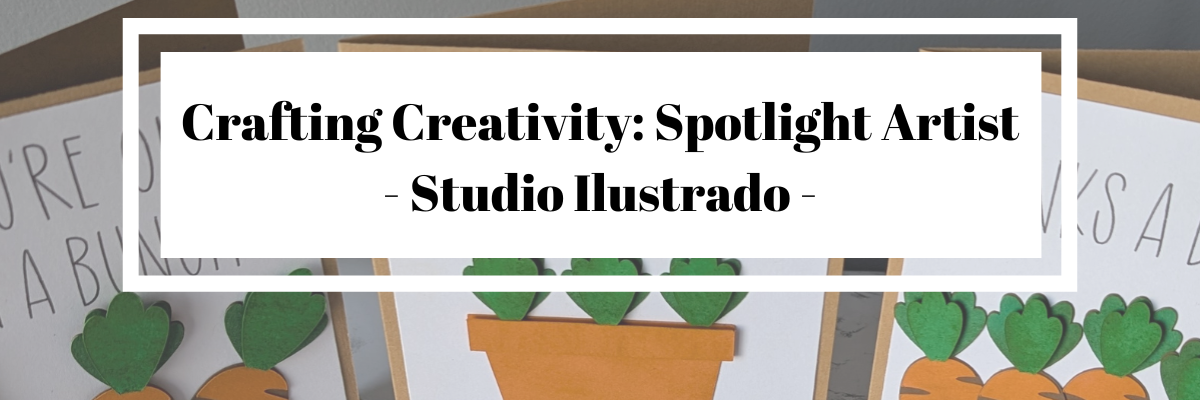
Crafting Creativity: 1 Bunny File, 5 Creative Projects with Studio Ilustrado

Silhouette Secrets+ with EllyMae

A cute paper craft scene featuring a gray bunny in a hot air balloon shaped like a carrot, surrounded by colorful flowers and pastel eggs on a checkered tablecloth.

Collage of spring-themed crafts featuring bunny and carrot designs, including greeting cards, decorative items, and crafting tools.

A colorful paper craft depicting a bunny in a hot air balloon shaped like a carrot, with a basket and flowers in a grassy landscape.

I had the Silhouette Curio 2 out from testing with the Silhouette Leather Carving Knife, so it was the machine I used to cut this card. Almost all the pieces were cut out using scraps from my stash. I love being able to use my scraps!

Look at these tiny details!

A hand holding a gray paper cutout of a smiling bunny with long ears.

To be honest, I wasn’t sure if it would cut well with the electrostatic mat on the Curio 2, but it did! Especially using a scrap piece of cardstock with the Silhouette Electrostatic Mat.

Sometimes we all just need a little bit of help and taping down the cardstock scraps on the Electrostatic Mat can be that help. It just added a little bit more security to hold my scraps in place and get a successful cut with the Electrostatic Mat. I love this new technology that Silhouette has. While it does not work with all materials, it has saved me hours of time cutting cardstock.

Close-up of a cutting machine with two tool holders, one equipped with a blade and the other empty, and a piece of gray material on the cutting mat.

While I used the Silhouette Curio 2 to cut the projects, any Silhouette machine could be used to create these projects.

Watch a bit of the behind-the-scenes on creating this project in this video – Creative Projects with Studio Ilustrado Designs – Bunny Carrot Balloon Card HERE

A colorful, three-dimensional craft display featuring a bunny in a basket, surrounded by green grass and flowers, with a large carrot above.

A yellow gift box shaped like a carton with a bunny illustration on the front, placed on a crafting table alongside a roll of adhesive tape, a tape dispenser, and a crafting tool.

The bunny made the perfect peeking addition to this gable box card. Don’t let the name of a design fool you either. The title of the box is called Christmas Gable Box by Studio Ilustrado, but it can be used for so much more!

Now here is one of my “secrets” – while the Silhouette machines can cut acetate for the window of this box card, I can cut it faster and with less headache.

Digital design software interface showing a cut template with instructions to cut a shape from cardstock.

I cut the window shape from a piece of cardstock using the Silhouette machine and then used it as a template to make a few quick snips with scissors and I was on my way to assembly. It doesn’t have to be perfect since it will be hidden inside the box. And I saved myself time, headache, and didn’t dull my blade.

Crafting workspace with a yellow paper cutout featuring bunny designs, scissors, and various crafting supplies including glue and other tools.

I used my laser to cut this out of wood, but you could also use other materials such as cardstock too! Even though I have a laser machine, I started with a 12 inch wood round blank, which you could use as your backing board too.

A decorative wall hanging featuring a cartoon bunny in a hot air balloon shaped like a carrot, with the words 'Hoppy Spring' at the bottom, set against a blue background.

I used the SVG file, opened it in Silhouette and made a few modifications to the file to be able to create the layers for cutting on wood. Since the wood has more thickness to it than a material such as cardstock, I had to add a layer behind the bunny and cut multiples to make it sit flush with the sign and balloon basket. The knife tool in Silhouette helped me to cut the bunny’s little feet off so it would sit flush on the balloon for this design. That sounds so bad when I type it out, but if you have designed in Silhouette, you’ll know exactly what I mean.

A workspace with various craft supplies including a blue sign that says 'SPRING', a cute wooden bunny cutout, and several Uni Posca markers in different colors.

I used a combination of Posca Paint Markers and Deco Arts Paint for finishing out the sign.

A decorative wall hanger featuring a cute gray bunny with pink ears peeking over a white picture frame. The word 'SPRING' is spelled out in yellow letters beside the frame.

I drew out a skinny rectangle, made a copy and rotated it 90 degrees. Aligned the right edges and welded it together to make the corner. Then sized the bunny and welded the bunny background to the rectangles to sit on top. Next, I added letters down the right side. Before welding the letters, I made a copy so I could cut them out and layer on top for color and dimension.

Before you go to cut the design, make sure it’s all flush. I forgot to cut the bunny’s feet with the knife tool, but I didn’t realize it until after he was all cut out, so he sits a little bit higher on the top of the door. In this case, it wasn’t worth recutting the design simply because you can’t really tell on our door frame.

I love these little door corner designs, even if we only have a few door frames that I can add them to in our house because the previous owner used the wrong trim to frame out the doors or the frame is too close to the wall. It is a fun way to add a bit of decoration without putting another hole in the wall.

Supplies Used:

I used the knife tool again, but not to cut off any bunny feet. Instead I cut the carrot off the design and used it to create a couple corny cards.

Four handmade cards featuring carrot designs and playful phrases, displayed on a crafting mat with various crafting tools in the background.

I used a Silhouette Black Glitter sketch pen and a font called BFC Rustic Cherry Farmhouse to sketch out the sentiment. I love the look of this glitter black pen, but it’s very difficult to photograph and show how it really looks.

A craft workspace featuring a Silhouette cutting machine, with a blank page laid out displaying fun carrot-themed quotes and phrases, alongside two markers.

I used the Silhouette Curio 2 to sketch this design using the electrostatic mat because that was the machine on my desk this week, but sketching can be done with any Silhouette machine model.

Two handmade cards on a crafting desk. The left card features a carrot with the text 'I CARROT FOR YOU'. The right card depicts a potted plant with the text 'BLOOM WHERE YOU ARE PLANTED'.

The clay pot was drawn in Silhouette Studio using basic shapes and adjusting the bottom edit points on a rectangle too!

Unlock your creativity by learning more about Silhouette. You never know where it will take you! Even making cards with carrots.

Four greeting cards featuring playful carrot designs and puns. The cards read: 'YOU'RE ONE IN A BUNCH', 'BLOOM WHERE YOU ARE PLANTED', 'THANKS A BUNCH!', and 'I CARROT FOR YOU', showcasing colorful carrot illustrations.

Collage of five craft projects featuring bunnies, plants, and colorful decorations, with a central text overlay reading '5 projects 5 1 file'.

Silhouette step-by-step Classes by Silhouette Secrets+

Silhouette Secrets+ with EllyMae
**This post may contain affiliate links. What that means is that I may receive compensation if you purchase through the links I have provided. The price you pay for the product or service is not higher but I may get compensated for sharing.

Posted on Leave a comment

1 Stencil, 6 Creative Projects: Transform Your Design into Home Décor, Jewelry, Decals & More with Silhouette

Silhouette Secrets+ with EllyMae

Looking for stencil craft ideas to spark your creativity? This week, I’m sharing how one stencil design can be transformed in six fun and unique ways! Using the Hand Carved Flower Stencil by Kassy’s Parlour, created by artist Kassandra Louise Designs, I turned this single file into a home décor sign, cup decal, jewelry pendants, painted canvas, and more. It’s incredible how one design can inspire so many creative projects.

Affiliate links may be present in the following blog post and as an Amazon Associate, I earn from qualifying purchases.

When you look at a design file, do you see one project idea, or can you envision it on multiple projects? I started the Crafting Creativity series to help spark ideas and inspiration to do more with your files.

In this episode, I’m featuring this Hand Carved Flower Stencil Pattern by Kassy’s Parlour.

Digital stencil design featuring hand-carved flowers on a black background, labeled with available file formats.

Crafting Creativity Projects – Stencil Craft Ideas

Project #1 – Stencils with Stencil Material

Once I got started cutting stencils out, it was hard to stop.

A silhouette cutting machine with a flower stencil design and a quote stencil cut out, placed on a wooden tabletop.
Designs by Kassy’s Parlour

These are cut from 6 mil stencil material and it cut beautifully.

A person holding a flower stencil design above a cutting machine with a light-colored cutting mat.

Here is a look at the stencil before I unloaded it from the machine. For harder to cut materials, checking the cut before unloading the machine is a great habit to get into. If the cut did not complete, you can send it again and it should cut in the same place. This is great for materials such as stencil materials that dull blades quicker and may need extra passes to cut through.

Once the stencil is cut, it can be used for many different projects and mediums.

One thing to keep in mind is that stencil material is plastic and plastic will dull the blade quicker than other materials. It is perfectly normal to have to increase the blade settings or passes the more that is cut. And if you are cutting this material a lot, you may go through more blades than other thinner, easier to cut materials.

I cut this 6 mil stencil material using the preset for Stencil Material in the Silhouette Studio software. All I changed was to increase the passes to 2 and then when that started having a few hang ups, I increased it to 3 passes.

Additional Resources:

Supplies Used:

Project #2 – Card Background with Stencil

Have you ever used a Gel Press or Gelli Plate before? This is such a fun technique!

A hand holding a printed stencil design featuring various flower shapes, showcasing a lilac color against a white background.

Basically, a gel press is a jelly plate that you can add paint or other mediums on top of and then you press a piece of paper over top of it and pull the paint off. You can layer colors, add textures, and have lots of options.

An overhead view of a crafting workspace featuring a gel press printing technique. A teal and purple patterned paint layer is applied on a piece of paper, with a roller and stencil positioned nearby.

Here are a couple of pulls that I did using the stencil on top of the Gel Press.

A workspace displaying a stenciled design on paper with blue and purple acrylic paints, accompanied by two bottles of DecoArt paint. A ruler and cutting mat are visible in the background.

These can turn out so neat and each one is unique. Once dry the pages can be used for many projects such as cards, mixed media pages, tags, backgrounds and more!

A craft workspace featuring a handmade card reading 'Just a Note' surrounded by acrylic paint bottles, tools, and a gel press.

I used two of the gel prints to make this card and then stamped with black ink directly on top of the print. It turned out pretty neat with the paint showing through the black ink.

A handmade card featuring a floral stencil design in shades of purple, with the words 'just a note' and 'to say hello' printed in bold black text.

Supplies Used:

Project #3 – Home Decor Sign

For this project, I opened the stencil design, changed the fill color to transparent and then right clicked and chose “Release Compound Path”. This will break up the design into pieces. I then deleted all the pieces around the full flower design. Then selected all of the flower pieces, right click and choose “Make Compound Path”.

I am using a 8″ frame, so drew a square and sized it to 8″ x 8″. I selected the flower design and filled it with black, just to see it better. Then started playing around with patterns. I filled the flower design with a pattern and decreased the transparency in the Fill Color panel. Then I started filling the background square with patterns and testing them out.

Here is a look at my working file where you can see the different pattern options I was playing around with.

Silhouette Studio design screen showing a floral background with the text 'It never gets easier You just get better' for creating custom decals.

Then I printed the design onto Epson Presentation Paper – Matte and cut it with my paper trimmer.

A printed design with the text "It never gets easier. You just get better" is placed on a wooden table near a cutting machine and a paper trimmer.

When there are straight lines and a larger image as shown above, an old school paper trimmer does the trick versus trying to set up for a print and cut. I use Silhouette Studio to do the design work and printing and then with 4 swipes, my paper trimmer has the project ready to go.

A framed wall art piece featuring the quote 'It never gets easier. You just get better.' against a blue background with a floral design, alongside a white pitcher holding purple flowers.

And the best part about this is, you can change it out whenever you feel like. Print a new image and swap it out to coordinate with the season, your decor, or your mood.

Additional Resources:

Supplies Used:

Project #4 – Cup Decal

I cut several flower decals from patterned adhesive vinyl to decorate my new travel coffee cup. I used the same technique as described above to separate the flower design from the stencil and cut individual flower decals.

A hand holding a white insulated cup featuring a blue floral design, set against a grassy background.

After I weeded the decals, I cut them apart and then applied transfer tape and placed each one individually around the cup, so I could control where they were and how they fit together.

Here is a close up of the decal where I hope you can see a bit of it’s sparkle & shine.

Close-up of a travel coffee cup featuring a blue flower decal with a glossy finish.

Tips for Creating Cup Decals with Adhesive Vinyl

Surface Area

When applying adhesive vinyl to a surface that may be handled often, you want to keep in mind the size of the pieces of the design. The smaller the piece, the less adhesive there is to stick to the surface of the blank. So thin letters, intricate flourishes, delicate designs may not stick well to the surface of an object that’s handled or washed.

Even if using “permanent” adhesive vinyl, that doesn’t mean it will never come off or lift. Permanent adhesive vinyl simply means it has a stronger adhesive on the backside than “temporary” vinyl once cured. You can still peel it off, pick it off, scrape it off, etc.

The greater the surface area of the solid pieces of the design, the more adhesive there is to stick to the object.

There are a couple things you can do to help with a decal staying put longer.

  • thicken fonts or enlarge small areas of the design
  • eliminate the smaller or tiny sections of a design if possible
  • clean the surface of the cup with an alcohol swab & let it dry completely – this cleans off any dust or oils off the surface that can repel the adhesive
  • after applying the decal, let it sit for 48-72 hours for the adhesive to set up
  • apply a bit of heat to help the adhesive vinyl stick – not too much, you don’t want to melt it

Surface of the Cup

Stain resistant, nonstick, or silicone surfaces are designed to repel anything from sticking to it. Even if you are able to get a decal to stick initially, it usually does not for long.

It doesn’t just apply to cups though. There are a lot more stain resistant paints on the market and being used to paint interior walls of homes. Stain resistant is designed so things don’t stick to it, so even a “permanent” adhesive vinyl decal may not stick.

Textured surfaces can also be more difficult for a decal to stick to or it may not last long on a texture surface.

Placement of the Decal

When placing decals onto a cup, keep in mind where it is placed. I purposely placed my designs higher up on the cup knowing that it would be set into a car cup holder.

The more a cup is handled, the greater chance there is that the decal can catch, lift, or come off. This would include things like someone picking at the design, washing the cup, scrubbing the cup, sliding in and out of a car cup holder, being tossed around in a bag, etc.

And…

Sometimes things just happen and it won’t last. The best part about having a cutting machine is that you can cut another one. Or you can take the current one off, clean the cup, and apply a new decal to fit your mood.

Additional Resources:

Supplies Used:

Project #5 – Custom Jewelry for Pendants, Bag Tags, Keychains, Earrings…

I created a collection of jewelry pendants with matching earrings, bag tags, keychains and more

A collection of custom jewelry including necklaces, earrings, and keychains featuring vibrant floral designs encased in circular metal settings, displayed on a dark background.

Once I got started with this, it was hard to stop and I ended up creating quite a few.

A set of jewelry including a pendant, earrings, and a charm, featuring intricate blue floral designs with glitter, accompanied by a blue tassel.

When working with digital supplies, it’s so easy to change things up and I think the Mod Podge Sparkle added so much to this project.

A collection of colorful jewelry items including necklaces, earrings, and keychains featuring vibrant floral designs and glitter accents, displayed on a dark surface.

See all the written details in this blog post – Sparkle & Shine: DIY Custom Jewelry HERE

A display of various DIY jewelry pieces made using Silhouette, including pendants, earrings, and tassel accents with vibrant colors and glitter.

Or watch the video tutorial on the Silhouette Secrets+ YouTube channel HERE.

A close-up view of DIY sparkling jewelry pieces on a black surface, featuring colorful pendants and leather tassels with a step-by-step tutorial overlay.

And by request, I also created a set of printable instructions that can be found HERE too.

Supplies Used:

Project #6 – Painted Canvas Decor

I tried several different things with these and they are still a work in progress. Some things didn’t turn out such as using the stencil with white sharpies or sponging on white texture paste. I had too much bleed, so I ended up painting another layer to cover it up.

An arrangement of three canvases displaying floral designs in pink and white, alongside a printed sheet featuring a similar floral stencil pattern on a blue background.

When the white Sharpie and texture paint didn’t work out on this one, I switched gears and cut a stencil from Silhouette adhesive backed stencil material and started filling it in with TCW Stencil Butter. OH MY! I have to say that the Silhouette adhesive backed stencil material worked AWESOME! Even with the texture of the canvas, it worked great! I will definitely be using this more in the future. The only drawback is that it is letter size and I would have loved to create a larger stencil.

A close-up view of a flower stencil applied to a blue canvas, with fuchsia stencil butter visible in the stencil design.

But I made it work. I had to let the first flower dry and then I added more.

A blue canvas featuring pink flower designs on the left, alongside a stencil with white flower outlines on the right.

All I need now is the perfect saying to add to it. Let me know if you have any ideas that jump out at you when you see the project!

The next one has several layers of paint on it, but ultimately, I ended up with a solid pink background. I had cut a 12″ x 12″ stencil to use with this, but then I started looking at all of those negative pieces that were left over from the stencil and wondered if I could use those in some way.

A person holding a floral stencil above a cutting machine on a wooden work surface, with additional craft supplies visible in the background.

I ended up applying transfer tape and picking up all of those pieces that I then used as a negative stencil on the wet paint. It was really just a “let’s see what happens moment”. I just laid the transfer tape on top of the wet paint with the negative pieces attached and smoothed it down to see what would happen.

Close-up view of a pink textured canvas with an embossed pattern.

It gave it an interesting pattern. Once the paint was dry, I then simply traced around with the white Sharpie Creative Maker and then I added a layer of Mod Podge Sparkle on top of it.

A pink canvas with white flower stencil designs on it, placed next to a clear stencil sheet on a wooden surface.

I am not sure if it’s finished yet or if I will add more to it. Just waiting a bit to see where the art goes.

Additional Resources:

Supplies Used:

All of these projects were completed using just 1 stencil design file from Kassy’s Parlour.

Find designs by Kassy’s Parlour on Etsy HERE.

Follow along with Kassandra Louise Designs of Kassy’s Parlour on:

A great big thank you to Kassy for contributing the free file for the Silhouette Secrets+ newsletter for the month of August! If you missed grabbing the free design in August, it is available in the HERE.

This year I started offering a free file each month for Silhouette Secrets+ newsletter subscribers. I love designing in the Silhouette Studio software and have shared some of my creations as well as look forward to collaborating with more artists in the future too!

Silhouette Secrets+ Newsletter

Never miss out on the news, tips, “secrets”, deals, classes, and more that I share on Silhouette Secrets+. Sign up for the newsletter and get information delivered to your inbox every Friday.
Unsubscribe at anytime.

Sign up for the weekly newsletter HERE to have information delivered direct to your inbox and grab each month new freebie.

Did this spark your imagination? ✨ It’s amazing how one single file can be transformed into so many unique projects! I loved exploring all the creative possibilities with this design. You can find even more inspiration and project ideas in the Crafting Creativity section on the website — check it out HERE.

Save this for future reference by pinning the image below.

A collage of various crafting projects made using a hand-carved flower stencil design. The projects include decorative cards, jewelry pendants, a travel cup decal, and painted canvas art, showcasing creative uses of vinyl and stencil techniques.

Enjoy !

THANK YOU for your support! How can you help? Click HERE & buy a coffee.
Every little bit helps with the cost of running the site.

Silhouette Classes

Never stop learning! Let me help you take the anxiety out of learning with Silhouette and get to creating faster! My Silhouette classes are heavily focused on software, so you can take the skills & techniques taught and apply them to many future projects!

Silhouette step-by-step Classes by Silhouette Secrets+

Silhouette Secrets+ with EllyMae
**This post may contain affiliate links. What that means is that I may receive compensation if you purchase through the links I have provided. The price you pay for the product or service is not higher but I may get compensated for sharing.
Posted on Leave a comment

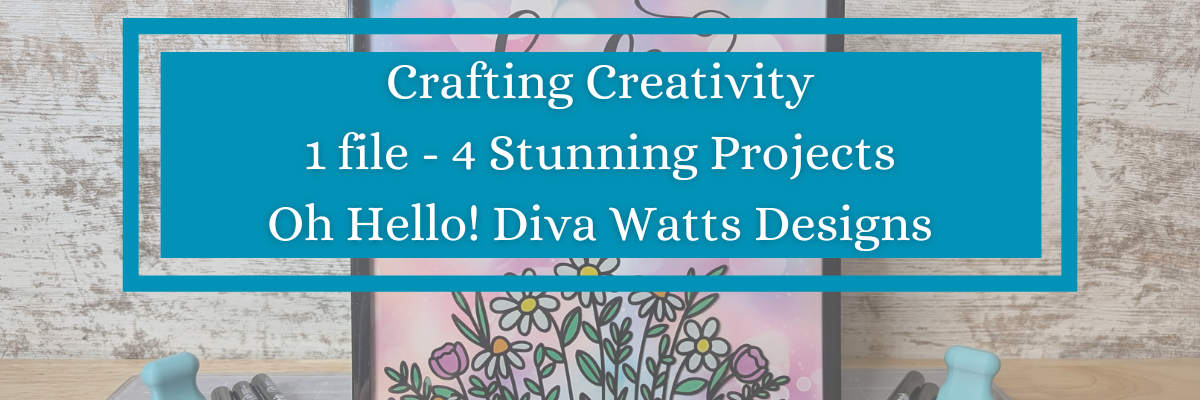
One SVG, Four Stunning Projects: Crafting with Diva Watts Designs and Silhouette

Silhouette Secrets+ with EllyMae

Looking for creative ways to get more out of your cut files? In this post, I’m sharing how I used one SVG file from Diva Watts Designs to create four unique and beautiful projects—all with Silhouette! From a layered cardstock sign with vinyl to an interchangeable home décor frame, greeting cards, and even a custom wood sign, you’ll see just how versatile one SVG project can be. Whether you’re crafting for fun, decorating your space, or creating gifts, this post is packed with inspiration and ideas to help you make the most of your designs.

Affiliate links may be present in the following blog post and as an Amazon Associate, I earn from qualifying purchases.

When you look at a design file, do you see one project idea, or can you envision it on multiple projects? I started the Crafting Creativity series to help spark ideas and inspiration to do more with your files.

Design featuring a floral pattern with the words 'Oh, Hello' on a circular background, accompanied by the logo of Diva Watts Designs.

I took this Oh Hello design by Diva Watts Designs and am sharing several projects below that could be created from this one file.

First, here is a look at a finished wood sign by Diva Watts Design using this design.

A round wooden sign featuring a floral design with the text 'Oh, Hello' in a stylish script. The sign has a natural wood background and a black band at the bottom with white lettering.

Crafting Creativity Projects with Diva Watts Designs

One simple design opens the door to endless crafting ideas. You may look at this design and say, “I don’t have a laser, so I cannot do anything with it.” But that’s simply not the case! Let’s take a look at a few possibilities.

Project #1 – Door Hanger with Cardstock and Vinyl

A round chalkboard sign featuring a floral design with the text 'Oh, hello' written in a playful font. 
Blog post features one SVG to create multiple projects.

Rather than limit yourself to a specific material, use different materials to create a similar style. I used cardstock and vinyl added to a pre-made wood backer for this design.

Check out this post – How to Make a DIY Door Hanger Sign with Cardstock & Vinyl Using Silhouette HERE for more details.

A round wooden sign featuring the phrase 'Oh Hello' with floral designs above and a dark horizontal band across the middle, resting on a crafting mat with tools nearby.

Additional Resources:

Supplies Used:

Project #2 – Card Designs

I love this one! I used just the hello part of the design, cut a bit off the left side using the Knife tool and then welded it to rectangle frame. Then I made an offset of the design and layered it together to make it pop.

A close-up of a layered cardstock project featuring the word 'hello' in a decorative font, set on a wooden table with adhesive tools and a cutting machine in the background.
Blog post features one SVG to create multiple projects.

Using just the text from the wood sign design I created the next cards. Don’t throw out those bits! In some cases, like this one, you can use the negative part of the design that’s been cut and create with it too!

Craft projects featuring the phrase 'Oh Hello' on colorful cardstock, along with crafting tools like scissors and a tape runner, displayed on a wooden surface.
Blog post features one SVG to create multiple projects.

When using the negative of a design, a quick trick to get the placement is to use the positive part of the design as your “stencil” and glue the pieces in place first. This means that the design will be placed exactly where you want it. I show using this technique in a video on the Swift Creek Customs channel HERE.

After I used the background as a stencil, I used double-sided foam tape to pop up the striped background to give it some dimension on it’s own card. One cut = 2 card designs.

Additional Resources for the tools I used to create the designs:

Supplies Used:

Project #3 – DIY Glass Frame Sign with Vinyl and Sharpie Markers

I love creating projects that can be repurposed and have use all year long! This glass frame with the flower portion of the design does just that.

A colorful glass frame sign featuring the text 'hello FRIENDS' with a floral illustration at the bottom, surrounded by crafting markers and tools.
Blog post features one SVG to create multiple projects.

I cut the flower design from adhesive vinyl and added it to the backside of the frame. Then colored that in using Sharpie markers on the backside. While that was drying and the adhesive vinyl curing, I designed several backgrounds to swap out in the frame. This really makes the project versatile and something that can be used year round.

A framed sign featuring the text 'life is beautiful' with a colorful gradient background and floral design at the bottom, surrounded by craft markers.
Blog post features one SVG to create multiple projects.

There are so many patterns & design sentiments options out there!

A framed design featuring floral elements and an inspirational quote, surrounded by craft markers and tools on a workspace.
Blog post features one SVG to create multiple projects.

This was another project that I didn’t even bother to use registration marks with. I designed it the size I needed and then used a paper trimmer to cut the straight edges to fit the frame. Sometimes I think we can overcomplicate projects just because we have a machine that can cut things. A good ole paper trimmer is a great tool to have in your tool box!

See the step-by-step tutorial for this project here – DIY Interchangeable Glass Frame Sign with Silhouette Studio – One Project for All Seasons

Additional Resources:

Supplies Used:

Project #4 – Wood Sign

Finished laser wood sign created with a design by Diva Watts Designs. Blog post features one SVG to create multiple projects.

I used my Glowforge laser to cut all the pieces out of a piece of Maple Plywood. Here is a look at the pieces etched, scored, and cut out.

Laser-cut wood pieces featuring the text 'Oh Hello' and floral designs on a cutting bed.

I prefer to mask my wood pieces before cutting with the laser and then I can simply remove the masking and they are much cleaner.

Once I had all the pieces cut, the Posca Paint Markers made this so easy to color in. Painting is not my favorite part of the finishing process and I hate waiting for things to dry, but I’m getting used to it. Coloring with the paint markers was so satisfying.

Close-up of a round wooden plaque with a floral design, surrounded by various colored markers and a measuring tool, showcasing crafting materials.

The larger pieces I did end up using a bit of acrylic paint to cover the larger surface area.

Crafting workspace with colorful markers, a green wood piece, and a round wooden sign adorned with flowers and the word 'hello' in yellow.
Blog post features one SVG to create multiple projects.

I shared my process including how I set up the “OH, hello” to score on the wood section so that I knew exactly where to glue the pieces in place in this video on the Silhouette Secrets+ YouTube channel HERE – Laser Engraved Wood Sign Using Silhouette Studio

A workspace displaying tools and materials for crafting a laser wood sign, featuring markers and a circular cut wood piece with flower designs.
Blog post features one SVG to create multiple projects.

Additional Resources:

Supplies Used:

All of these projects were completed using just 1 file from Diva Watts Designs! Stacey has so many more amazing designs too!

Find designs by Diva Watts Designs at:

Follow along with Diva Watts Designs on the Diva Watts Designs websiteFacebook and Instagram too!

A great big thank you to Stacey at Diva Watts Designs for contributing the free file for the Silhouette Secrets+ newsletter for the month of July! If you missed grabbing the free design in July, it is available in the Silhouette Design Store HERE.

This year I started offering a free file each month for Silhouette Secrets+ newsletter subscribers. I love designing in the Silhouette Studio software and have shared some of my creations as well as look forward to collaborating with more artists in the future too!

Silhouette Secrets+ Newsletter

Never miss out on the news, tips, “secrets”, deals, classes, and more that I share on Silhouette Secrets+. Sign up for the newsletter and get information delivered to your inbox every Friday.
Unsubscribe at anytime.

Sign up for the weekly newsletter HERE to have information delivered direct to your inbox and grab each month new freebie.

Did this give you some ideas? How about how you can take 1 file and create a variety of projects with it. I had so much fun brainstorming, designing, and creating with this file. See more ideas and inspiration in the Crafting Creativity section on the website HERE.

Save this for future reference by pinning the image below.

Collage of four crafting projects showcasing the 'Oh Hello' design by Diva Watts Designs, featuring a wooden sign, a floral artwork, and greeting cards, highlighting creative variations using Silhouette tools.

Enjoy !

THANK YOU for your support! How can you help? Click HERE & buy a coffee.
Every little bit helps with the cost of running the site.

Silhouette Classes

Never stop learning! Let me help you take the anxiety out of learning with Silhouette and get to creating faster! My Silhouette classes are heavily focused on software, so you can take the skills & techniques taught and apply them to many future projects!

Silhouette step-by-step Classes by Silhouette Secrets+

Silhouette Secrets+ with EllyMae
**This post may contain affiliate links. What that means is that I may receive compensation if you purchase through the links I have provided. The price you pay for the product or service is not higher but I may get compensated for sharing.
Posted on Leave a comment

Glowforge® Aura – new “craft” laser

Affiliate links may be present in the following blog post and as an Amazon Associate I earn from qualifying purchases.

Did you hear? Glowforge® recently announced the release of a new “craft” laser machine called Aura™. You can find the Glowforge® Aura™ at Michaels or Joann stores currently.

A “craft” laser sounds pretty cool and enticing. I think one thing that’s appealing to most is the price tag. While other models of Glowforge® have increased in price, the Glowforge® Aura™ is coming into the market at $1299 $1199. This is a lot less than a larger Glowforge® model, so I can see how it might be appealing.

But, I think there is more to it than just the price to consider.

Is the Glowforge® Aura™ right for you?

I cannot answer that, but I can give you some information about it and some things to think about in your decision making process.

I currently own a Glowforge® Pro and having a laser machine is pretty cool. I love using the Silhouette Studio Business Edition to create designs for use in the laser and I even have class on it too (more on that below).

While having a laser machine is cool, I think there are some things to note about it before diving in. And I would highly recommend doing your own research as well too! I’ll share some resources for more information at the end.

Things to Think About

“Craft” laser machine

What does that mean? Basically, it’s not as powerful as the other models of Glowforge® lasers. If you are looking for a laser machine to produce items to sell, this may not be the machine for you. The Aura™ is not going to be an efficient, high production machine. It is slower than other Glowforge® models, much slower.

The Glowforge® Aura™ is a 6 watt diode laser machine. This is what makes it slower than the other models of Glowforge® that are CO2 machines. To compare, the Glowforge® Pro, which is the model I have, is a 45 watt CO2 laser. From what I’ve seen in comparison watching it all unfold, it is about 4 times slower than the Glowforge® Pro.

Since it is a diode laser at 6 watts, it cannot cut all of the same materials that the CO2 lasers can. So make sure to research that as well to make sure it’s going to cut what you want.

The Glowforge® Aura™ has a bed that is 12″ x 12″. The smaller footprint is also what makes it a “craft” laser and more appealing for a crafter’s space.

Filter or Venting

Just like it’s bigger laser friends, the Glowforge® Aura™ has to be vented or used with a filter. This is something to consider before you purchase any laser.

I have my Glowforge® Pro vented out of a window in my space. I open the window and place the venting prop that my husband built in the window and close it down. It is constructed out of scrap plywood, nothing fancy.
We have pets, so leaving the window open while using the machine is not ideal.

He installed a dryer vent on the outside of the window prop, so it opens when the Glowforge® fan turns on.

If you live in an area that has fluctuating temperatures, I would recommend having a system that you can pull the venting back inside when not in use.

Glowforge® did release an air filter that can be used with the Glowforge® Aura™. It is $399 to purchase and is a replaceable filter. However, I have not been able to find any information on how much a replacement filter is. They do not seem to be available yet. The Glowforge website says the filter has a lifetime of 100 hours of printing.

On that note, I have followed several Glowforge® groups in the past 2 years and always see comments about users who cannot get replacement filters as they are always out of stock. It does not seem to be a matter that they sell out quickly, but they have been low inventory the last few years. If you are looking into a Glowforge®, I would highly recommend joining some Facebook groups and watch the posts and comments as part of your research.

Personally, I’d recommend venting it out a window if you are able to do that.

WIFI Connection

In order to use a Glowforge® laser machine, you have to be connected to WIFI at all times when using the software/app and machine. This means you need a good internet connection. And it requires a 2.4 GHz WIFI connection. It does not work off a 5 GHz connection.

The filter for the Glowforge® Aura™ connects by WIFI as well.

Materials

Another area you will want to research is materials. Materials used in the Glowforge® or any laser machine need to be laser safe. Not all materials are laser safe and some can be toxic when used with a laser.

I’d highly recommend starting with proof grade materials. This takes the guess work out of the settings and gives you a better chance of success quickly.

What are proof grade materials? These are Glowforge® materials that they know work in the machine. Materials by Glowforge® have a QR code on it and the camera reads it and recognizes the material. This makes getting started easier than a bunch of testing to find out what settings work.

Safety

A laser machine is fire. The machine should never be left unattended or running without supervision.

I’d recommend having a fire extinguisher or fire suppressant next to the laser machine just in case.

Another thing I’d highly recommend is laser safety glasses. While the Glowforge® Aura™ is a lower wattage laser, you only get one set of eyeballs. Please be safe in your use with lasers.

Maintenance

One of the biggest things I see that users run into problems with their machines is in the maintenance. Keeping the machine clean and following the cleaning instructions will help to increase the lifespan of your machine and decrease the likelihood of running into issues. A lot of issues can be prevented if the machine is cleaned regularly.

The materials that are used in the Glowforge® will make a difference in how often it needs cleaned. For instance, cutting or engraving wood produces different dust than cutting and engraving acrylic.

Location, Location, Location

Think about where you would put a laser machine. According to the Glowforge® website, the recommended operating temperature is 60 degrees F – 75 degrees F.

A location that is not temperature controlled can affect the lifespan of the equipment. Too hot or too cold of temperatures is not good for laser equipment.

The Glowforge® Aura™ has a 12 month warranty, however, if you are not following the guidelines recommended by Glowforge®, the warranty does not cover that. It is not their fault if you are operating outside of the recommendations.

Read more on the details HERE

Terminology

Glowforge® uses the term “printing” for everything. Even though it’s a laser that cuts and engraves, “print” is the terminology they use. So just keep that in mind when you are researching. It is not a printer like we think of that prints with ink on paper.

That is a lot of information, but I hope that it’s given you a few things to think about in your decision making process.

Resources

Silhouette and Glowforge®

If you do have a laser machine and it uses svg files, you can design in the Silhouette Studio Business Edition software and export it as a svg to use with the laser machine. I love the ability to customize and create my own designs to use with my Glowforge® Pro.

By request I designed a class called Creating SVG files in Silhouette Studio – Great for Laser machine owners or designers! The class shows you how to create a design for use in the laser machine and I show a demonstration with bringing it into the Glowforge® app/software to cut with your machine.

Glowforge® Aura Information

This was not written with the intention of detouring you from getting a Glowforge® Aura™, but to provide information for you to make the best decision for you.
As I mentioned above, I would highly recommend doing your own research to make sure that the machine you choose is going to be right for you. If you are an occasional user, it may not be worth the investment in a laser at this time or the Glowforge® Aura™ might be just right for you. If you are a business owner or looking to invest in a machine to get started with selling laser products, you might find that a bigger, faster machine is more efficient and will save you time and money for running a business.

If you are looking at a larger Glowforge model, click HERE to save a bit. With my referral link you could get the equivalent of $500 USD off a Pro, $250 USD off a Plus, and $125 USD off a Basic.

Here are a few additional resources for Glowforge® and the Glowforge® Aura™:

Glowforge website
Country Chic Cottage
Hey Let’s Make Stuff
Jennifer Maker

I hope that has helped to give you some thinking points on if a laser is the right equipment to add to your space!

Enjoy !

THANK YOU for your support! How can you help? Click HERE & buy a coffee.
Every little bit helps with the cost of running the site.

Silhouette Classes

Never stop learning! Let me help you take the anxiety out of learning with Silhouette and get to creating faster! My Silhouette classes are heavily focused on software, so you can take the skills & techniques taught and apply them to many future projects!

Silhouette step-by-step Classes by Silhouette Secrets+

SS Logo snip it
**This post may contain affiliate links. What that means is that I may receive compensation if you purchase through the links I have provided. The price you pay for the product or service is not higher but I may get compensated for sharing.