Posted on 22 Comments

Let’s Explore v4 – Magnet Trace

We are finishing up the Trace panel today by exploring the options of Magnet Trace. The Magnet trace is a feature that is unlocked when you have the Designer Edition upgrade to the software.

You will find this feature on the 3rd tab of the Tracing Panel, that is found on the right side of v4.

Magnet Trace Panel copy

While there are not many options on this Panel, it still has so much potential. Let’s take a look.

Magnetic Trace Panel copy

  1. Magnet Trace – Select your object to trace & then “Magnet Trace” is available. Click on it and you will get a red circle with a red dot in it. This is your trace tool.Magnet Trace Demo copy
  2. Size – Change the size of your Magnet Trace tool by using the slider bar, the arrow up or down keys or highlighting the numbers and typing new numbers in.Size copy
  3. Trace – After your Magnet trace is complete, click here to create your cut lines. You can see the red cut lines around my flower below. Trace option Note: this photo is on the Send tab, to get the bold red cut lines to show up. Trace
  4. Trace & Detach – Choose this option if you want your design to be detached from the background. This works great if you are wanting to do a Print and Cut project with your design.Trace and detach

This is a really neat feature and it took me a bit to think of what I would do with it. You can see that the edges of my design are not perfect and I would do some clean up on this image. So let’s do a little bit of point editing to clean it up.

First, check out these edit points, double click on the image to bring up the Point Editing window. All those little dots, those are edit points. Now, edit points can be intimidating but they can also be fun to play with. If we were to cut this as it is, it will sound funny as it cuts because the Silhouette machine has to hit every single one of those edit points when it cuts.

Edit points

Let’s zoom in and check out the edges.

Edit point zoom

As you can see there are some edges that can be cleaned up.

You are able to move and delete edit points to your desired effect. I can say that this cleanup took only a few minutes. The more you play with the edit points, the better you will understand what they do. Just by moving the edit points in towards the flower, I eliminated the excess background that the trace grabbed.

Edit point zoom cleanup

You can select multiple edit points by holding down the Shift key and dragging your mouse over the ones you want to highlight and then you can move them all at once or delete them all at once.

Cleaned up

What a difference a little edit point clean up makes.

Now here are all the edit points after I’ve cleaned it up. Since this is a flower with lots of curves, it will still have many edit points so you can keep the realistic look of the flower.

Cleaned up edit points

But, it has a lot less than the original trace.

Now, I’m sure as you read this you have asked yourself, what would you do with this? I’ll be honest, I did the same when I started looking into it because I have never played with this before. And now ideas are hitting me about all the possibilities.

If you do not have Photoshop or access to photo editing software, you can use the Silhouette software and this is one way to grab something from a photo.

Or you could use your own photos that you’ve taken and make Print and Cut stickers. These are photos of flowers I took at a friend’s poolside last summer. I think they would make gorgeous stickers that you could add to your planner or calendar to enjoy everyday.

Magnet Trace Demo final

To learn more on how to set up a Print and Cut check out the Page Setup Panel – Registration Marks post.

You can find all of the Let’s Explore v4 post HERE.

I hope you enjoyed exploring the Magnet Trace feature in the Silhouette Studio v4 software. This program is amazing and I learn new things every day!

Enjoy !

THANK YOU for your support! How can you help? Click HERE & buy a coffee. Every little bit helps with the cost of running the site.

Looking for more in-depth, step-by-step classes, check out all of my online Silhouette classes on my Teachable site HERE.

SS Logo snip it

**This post may contain affiliate links. What that means is that I may receive compensation if you purchase through the links I have provided. The price you pay for the product or service is not higher but I may get compensated for sharing.

Posted on 14 Comments

Let’s Explore v4 – Trace by Color

Last week, we started with the Trace Panel – Tab 1 which covers the Basic Tracing options. Now, we are moving on to Trace Panel – Tab 2: Trace by Color. This option is available if you have the Designer Edition upgrade (DE+ or BE).

Trace Panel copy

While the Silhouette Studio Basic software is available for free, I do feel the Designer Edition upgrade is a great investment and will save you so much time in the long run. Silhouette America has provided a chart that lists out what features are unlocked with each upgrade and you can find it HERE.

Some of the biggest features for me that Designer Edition unlocks are: opening svg & pdf files, rulers, trace by color, rhinestone conversion and glyph access.  Even if you do not know what all of those do at this time, you will learn more as you utilize the software.

Now, let’s explore the Trace by Color Panel.

First, open a design to be traced such as a png or jpeg file. For this example, I am using a png file from Scout and Rose Design Co called Too Cute to Pinch.

Demo design

Trace by Color Panel copy

  1. Trace by color – Click on Trace by color and then choose the color you want to trace. I clicked on the pink color and it highlighted all the pink of the design in yellow. This is what it will trace.Trace by Color 1
  2. Solid Fill vs Outline fill – Solid Fill is shown in the photo above. Outline fill is shown below. This is a matter of personal preference on how you want it to show.Outline Fill
  3. Single Area or All Areas – In my original photo in #1, All Areas was chosen and that highlights all of the pink areas of the design. Single Area will allow you to pick & choose a certain area, such as individual letters,  that you want to trace.Single Area
  4. Tolerance – This can be adjusted to increase or decrease the area that is picked up in a trace color. In my example, when I click on the light green, it picks up the dark green as well in my trace.Tolerance 50 percentHere you can see that the Trace picks up all shades of green with a 50% tolerance. Tolerance 6 percentAnd when the tolerance is lowered to 6% it deselects the dark green shamrock and only picks up the light green color in the trace. You would trace the shamrock and change the tolerance to get it to trace as well.
  5. Trace – After you have the design highlighted that you want to trace, click on trace and it will change to red cut lines around the object selected. You can then move the cut lines off the design and I fill with color to see the design better.Trace option
  6. Trace & Detach – This will trace & detach the image from the background. If you are using a jpeg, this is a great feature.

Now, I have my final pieces that I’ve filled with color and can move them around on my mat to cut them and then place them on to my project.

Final trace copy

And now you can go play with the Trace by Color Panel. This can be a great option if you only have the graphic file for a design.

Check out all the other posts in the Let’s Explore v4 series HERE.

Enjoy !

THANK YOU for your support! How can you help? Click HERE & buy a coffee. Every little bit helps with the cost of running the site.

Looking for more in-depth, step-by-step classes, check out all of my online Silhouette classes on my Teachable site HERE.

SS Logo snip it

**This post may contain affiliate links. What that means is that I may receive compensation if you purchase through the links I have provided. The price you pay for the product or service is not higher but I may get compensated for sharing.

Posted on 19 Comments

Let’s Explore v4 – Tracing Panel

If you are just joining in, we have explored our way through several of the icons on the v4 Silhouette software – you can find all of those HERE – starting with the Page Setup Panel.

And our next step in the Let’s Explore v4 series is the Tracing Panel – Tab 1.

This is a very popular Panel and there is so much that you can do with it from tracing an image to tracing a photo. But, I will say right from the get-go, it is not a one size fits all Panel. Each image you trace is going to require you to adjust it differently than the last one. So while the concepts can be taught, the technique varies some each time a trace is done.

You will find the Trace Panel on the right side of the v4 software and it resembles a butterfly or a piece of bread.

Trace Panel copy

Now, let’s take a look at the Trace Panel. Tutorial written in version 4.1.441 Updated 6/8/21 – trace panel has not changed since original post

Trace Panel detail v4.1

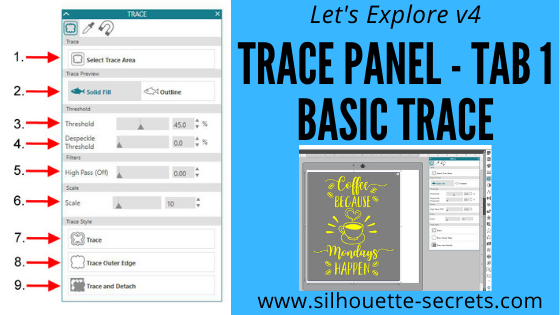
  1. Select Trace Area – Click on Select Trace Area and then draw a rectangle around the image you want to trace. A gray box shows up around the image and you should see some yellow show for your trace. For a good trace, you want as much yellow and as crisp, clear lines as possible. Select Trace v4.1.441
  2. Trace Preview – Choose between Solid Fill (as shown above) or Outline fill.Outline Fill v4.1.441 I prefer to use the Solid Fill so I know exactly where it will trace.
  3. Threshold – Determines how the trace filters are applied to your image.
  4. Despeckle Threshold – Eliminates noise in your trace. *
  5. High Pass Filter – Trace lines begin from the outside and work to the center of your image. *
  6. Scale –  Scale the trace up or down to get the look you want ** Each image will be different in how it traces and you will need to adjust the Threshold & filters to what works best for you particular image.
  7. Trace – Click on this when you want to trace around all the yellow of the design. This is the most common Trace and the one that I use the most often. After clicking trace, move your design away and the cut lines will be there around the area traced.Trace Style
  8. Trace Outer – This traces the outside edge of a design on your screen. If you stamped an image and wanted to trace around the outside edge of it, this is the option you choose. Then your cut lines will only generate on the outside of the image and as you can see below, it did not trace the 2 circles on the inside of my image. Trace Outer Edge 2 v4.1.441
  9. Trace and Detach – This will trace the image and then detach it from the background. It works great if you have a jpeg image. For instance, if I wanted to use this little guy for a Print and Cut Valentine. Trace and Detach v4.1

For a basic trace, black traces the absolute best. The resolution of your image also plays a big factor in your trace. If the file you are tracing is very pixelated, then it will trace all of those pixels. This results in a very choppy cut line and a lot of edit points.

And there you have your Trace Panel – Tab 1. It is a fun option to play around with and I suggest practicing with it and seeing what works best for you. A lot of it is moving the filters and finding out what works best for the image you are working with.

Affiliate links may be present in the following blog post and as an Amazon Associate I earn from qualifying purchases.

For my information on the filters, I consulted the Silhouette Handbook that is available in the Silhouette store.

Make sure to check out all the other sections of Let’s Explore v4 and learn more about what you can do in the software.

The images used in this post can be found here: CoffeeMondays by Scout and Rose Designs Stinkin Cute by Scout and Rose Designs Love Frog by MissKateCuttables

We would love to see what you are working on! Feel free post on the Silhouette Secrets+ Facebook Group.

Save this for future reference by pinning the image below.

Trace panel Pin

**This has been updated on 4-12-18 to reflect the changes released with the v4.1.441 software version.** *Updated 6/8/21 – the Trace panel has not changed since the original post was written.

Enjoy !

THANK YOU for your support! How can you help? Click HERE & buy a coffee. Every little bit helps with the cost of running the site.

Looking for more in-depth, step-by-step classes, check out all of my online Silhouette classes on my Teachable site HERE.

SS Logo snip it

**This post may contain affiliate links. What that means is that I may receive compensation if you purchase through the links I have provided. The price you pay for the product or service is not higher but I may get compensated for sharing.

Posted on 6 Comments

Layering vinyl with Silhouette

Well, this week has been such a crazy week. Snow days, 2 hour delays and just life has gotten in the mix – I am sure I’m not the only one out there who has these weeks.

I will have the Let’s Explore v4 – Tracing Panel post out next week, make sure to check out the previous posts in the Let’s Explore series.

I thought I would pop in here today and show you the projects we used last night on a webinar that I co-hosted.

The first one we created was a 2 layer decal.

2-8 Layered vinyl decal copy

So how did I create this?

  1. Type out the text and weld. I used the Mystical Wood Smooth Script font found at SoFontsy – you get 4 fonts all in one file when you purchase this.
  2. Create an Offset. The size of the offset is a matter of personal preference – I used the default of 0.125.
  3. Create the registration marks. Draw a rectangle, make a copy & move it to the right. Align the marks and group together.
  4. Click on the Send tab in top right corner, choose Cut by Fill Color, checking the boxes next to each color to select it to cut & uncheck the colors you do not want to cut. Cut by fill color -create
  5. Line up the registration marks to layer the decal. Always start with the top layer of a decal.

Here is my finished decal & I loved where Barbara placed her’s so I copied her and placed it on my Iris tote that holds my Oracal 651 sheets.

IMG_1896

Next, we created a 3 color vinyl decal.

3 layer decal

To create this design:

  1. Start by drawing a large circle using the Circle tool from the left side of v4.
  2. Download the circle heart frame HERE.
  3. Open the heart circle frame and resize to fit inside the circle you drew.
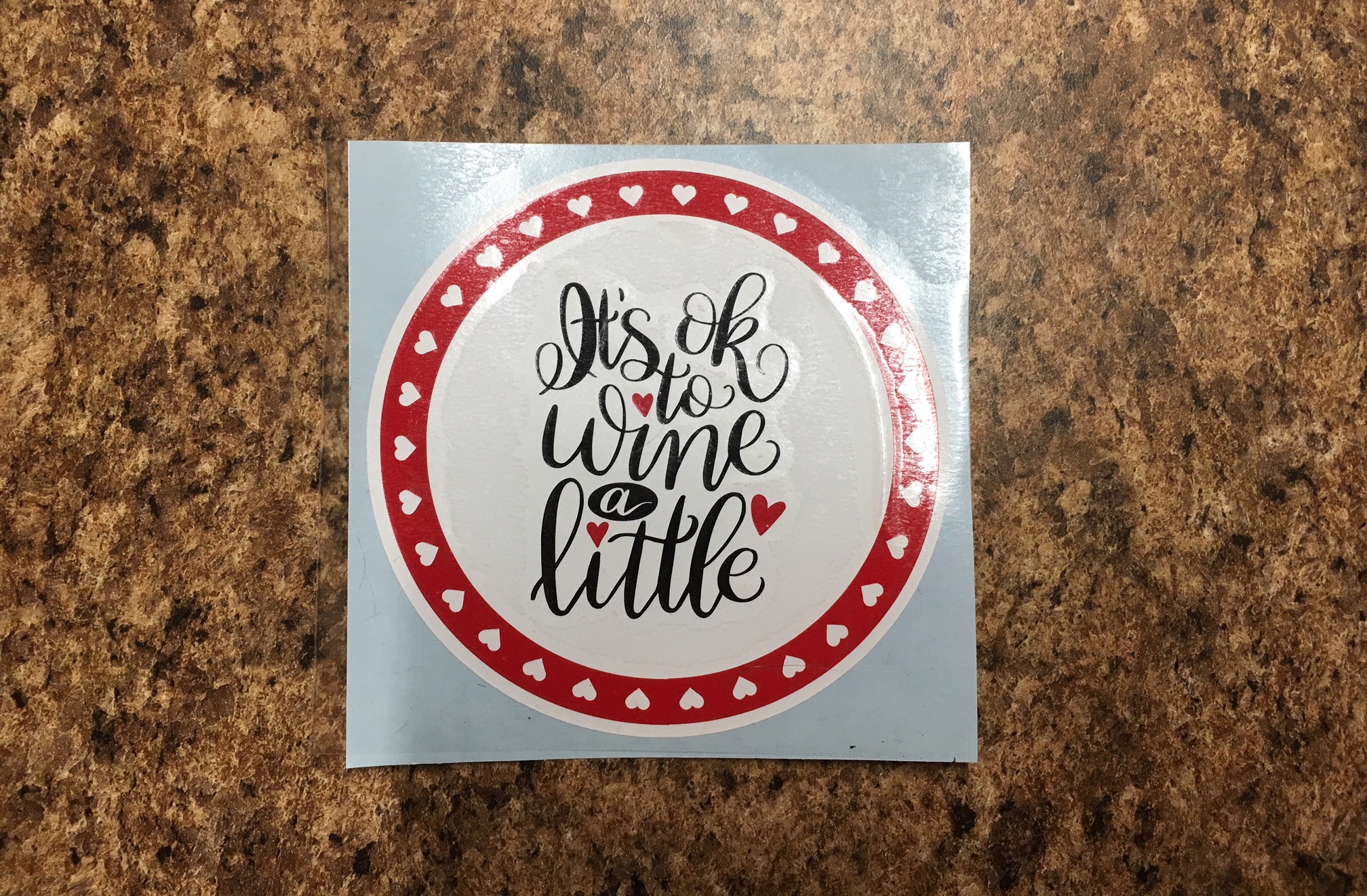
  4. Purchase the It’s Ok to Wine a Little by Dawn Nicole Designs – Design #227534 from the Silhouette Store. Open the design from your Silhouette library by double clicking the design.
  5. Choose the Fill Color Panel and fill the design with black.
  6. Resize the Wine a Little design to fit in the center of the white circle.
  7. Right click on the Wine a Little design and choose Ungroup. While holding down the Shift key, click on the 3 hearts – this will deselect them. Then right click and choose Group. Now your text is all Grouped back together.
  8. Hold the Shift key down and click on the 3 hearts. When they are all selected, right click and Group.
  9. Choose the Fill Color Panel on the right and fill the hearts with the same red that the heart circle frame is.
  10. Select all the layers and choose the center Align tool. Right click and Group those layers together.
  11. Create the registration marks. Draw a rectangle, make a copy & move it to the right. Align the marks and group together.
  12. Click on the Send tab in the top right corner, then Cut by Fill Color, checking the boxes next to each color to select it to cut & uncheck the colors you do not want to cut. Cut by fill color -3 layer
  13. Line up the registration marks to layer the decal. Always start with the top layer of a decal.

And there you go, a 3 color vinyl decal that is aligned perfectly.

IMG_1901

And all those little hearts will work perfect as nail decals, just in time for Valentine’s Day!

I also wanted to note that I used an Autoblade on my Cameo 3 to cut this out and as you can see, it has some pretty thin details. It cut beautifully!

IMG_1898

I hope you enjoyed seeing how I create a layered vinyl decal.

I would love to see what projects you create! Feel free to post on my Facebook group at Silhouette Secrets with EllyMae.

Enjoy !

THANK YOU for your support! How can you help? Click HERE & buy a coffee. Every little bit helps with the cost of running the site.

Looking for more in-depth, step-by-step classes, check out all of my online Silhouette classes on my Teachable site HERE.

SS Logo snip it
**This post may contain affiliate links. What that means is that I may receive compensation if you purchase through the links I have provided. The price you pay for the product or service is not higher but I may get compensated for sharing.

Posted on 37 Comments

Let’s Explore v4 – Line Style Panel

Did you know you can change the line style of your designs in the Silhouette Studio? Today we are going to Explore the Line Style Panel which you can find on the right side of your v4 Silhouette Software program.

Line Style Panel copy

First, I want to mention that you can change the default that your software Outlines in under the Preferences Panel. Preferences can be found by clicking on the gear icon in the bottom right corner of the Design Tab or in the top left corner under the Edit tab.

Preferences Edit tab copy

Open the Preferences Panel and Click on the Default tab at the top. You can then change whether the Default Fill Style is ‘Solid Fill’ or ‘Outline only’ and whether the line color is Black or Red.

Preferences copy

My program is set for outline only and red meaning that when I draw a shape it will show a red outline of my shape. This is a personal preference and you can change it at any time.

Now, let’s take a look at the Line Style Panel. Tutorial written in version 4.1.206

Line Style Panel diagram copy

  1. Style – Choose from a variety of dashed lines.Style drop down copyKeep in mind that changing the line style also changes how it will cut. If you have a dashed line, that is exactly what it will cut. This works good if you are trying to make a score line for a card or template, but it doesn’t work well to cut a design out.
  2. Thickness – Line thickness is defaulted to 0. That means if you were to print this design on your printer right now, it would not actually print anything because there is no line thickness. If you want to print the outline of a design, then you need to increase the line thickness.Thickness
  3. Corner – When using the line thickness, this determines if the corners of the design are round, flat or sharp. Corner copy
  4. End caps – This option has flat, adds a square on the ends or rounds off the ends of your line. End Caps copy
  5. Position – When using thick lines, you can choose to have the outline in front of the design or behind the design.Shape Outline in frontThe photo above has the Line Style Position in front of the design.Shape Outline in back And this photo shows the Line Style Position behind the design.
  6. Line Options – Print Lines of Selected Shapes – When your design is selected and you check this box, your Line will print with a line weight. Keep in mind,  it will print in whatever color you have set up on the design screen. I changed mine to black for this example. Here is my design: Print Lines of Selected Shapes And here is my printed page: IMG_1792 This is an awesome feature as you don’t have to change the line thickness to get a design to print unless that is the look you want.
  7. Line Style Panel – Tab 2: Line Color – change the line color to any of those in the Color Palette, change the transparency of the line color or click on the Advanced Options and open up a lot more color options.

    Line Color

    And that is the Line Style Panel! This can be very useful when you are printing designs, sending images to people, saving your designs as .jpegs (Business Edition feature) and so many more reasons. Take some time and play around with the Line Style options, you never know what you will learn!

    For this tutorial I used a file from the Silhouette Design store called Mom’s Fidget Spinner by Sweet Afron #202772 – find it HERE.

    Check out the entire “Let’s Explore v4” series HERE.

    Check out my Silhouette Instructions and Events tab for more information on Personalized Silhouette Instruction.

    Enjoy !

    THANK YOU for your support! How can you help? Click HERE & buy a coffee. Every little bit helps with the cost of running the site.

    Looking for more in-depth, step-by-step classes, check out all of my online Silhouette classes on my Teachable site HERE.

    SS Logo snip it

    **This post may contain affiliate links. What that means is that I may receive compensation if you purchase through the links I have provided. The price you pay for the product

Posted on 47 Comments

Let’s Explore v4 – Fill Color Panel

Today we are going to explore the Fill Color Panel located on the right side of Silhouette Studio v4.

Fill Color Panel copy

I use this feature a lot when I design in the Silhouette software for many reasons. Now, understand that by filling a design with color, it does not cut in that color. The color you fill it with will be a visual reference only, unless you are making a Print and Cut project. If you are creating a Print and Cut project, then the colors will be a representation of what colors will print on your printer.

I fill my designs and fonts with color so I can visualize the design better. Typically, I just fill it with black, but if I’m creating a multi-color image, I can then choose the colors that will best match my design. Another reason to fill it with color is to be able to select the design or font easier. When an image is transparent, you have to click on the red outline of the image to select it, which can sometimes be difficult. However, if you fill it with a color, you can click anywhere on that color to select the object.

For today’s example, I am using a font from the new SoFontsy site called Wine Not and will be creating my own design.

Wine not design2

You can see in my photo above that when I use the Text tool and type in my font, that it comes in transparent. Also, notice that the font name has a few extra letters in front of it, this is the Designer’s signature and something to keep in mind when you download fonts. You may need to pay close attention to the full font name to find it in your Text Style list.

Something else to point out here is the extra space around the font, as you can see my text selection box is 2.218″ in height but if you look at the grid spaces, the font is really less than 2″ in height. Check out this guest post I wrote at the Silhouette School blog on Forcing Accurate Text Sizes for more information on that.

So, how do you fill something with color? First, make sure your object is selected. You will see the selection box around it when it is selected. Then, you can click on the Fill Color Panel on the right side of your Silhouette software or it can also be found in the top left corner of the QAT (Quick Access Toolbar).

Fill Color demo copy

Now let’s Explore the Fill Color Panel.

Fill Color Panel1 copy

  1. Color Palette Selection – In this area click on one of the blocks of color and the design selected will change to that color.
  2. Eyedropper color selection – Click on this and then click on another color on your design mat to pick up that color and use it.
  3. Color Selection – This is the color that is currently chosen as the Fill color with the Eyedropper tool.Transparency copy
  4. Transparency – This changes the transparency of the Fill color chosen. In the above photo, the design at the top has my website placed over the top as you would place a watermark and the Transparency is decreased to 71% versus the design on the bottom that is still at 100%.
  5. Advanced Options – Opens up a panel where you can move the color selection around manually or under the color graph you can input the specific numbers for a certain color that you would like.
  6. Fill Gradient – Here you have many options to change the color and the gradient fill and change the properties of how the design looks. You can also decrease the transparency of the gradient, adjust the color even more, and change the angle of the gradient.Gradient fill copy
  7. Fill Pattern – Here there are many patterns for you choose from or you can add new patterns into the library and those will show up here. You also have the ability to change the Transparency of the pattern and under Advanced Options can choose to mirror, change the aspect ratio, rotate, change the angle, scale, and pan the pattern.
In the photos above, on the left, you can see I just clicked on the Fill Pattern option and chose a polka dot pattern, I did not change anything else. On the right, I changed the mirror, angle of the pattern, increased the scale, and panned the pattern so that it was a bit different.

As you can see, you have many options available when you are designing and using the Fill Color Panel. Keep in mind, that while you can change the color, gradient and pattern fills on the screen, the Cameo will still cut the color that you place on your mat. If you want the design to be how you have filled it on the screen, you need to look at creating a Print & Cut project. Check out more information here on last weeks exploration of Registration Marks for Print and Cut projects.

For our project today, I have used a font called Wine Not by Design Shark available on the new SoFontsy site. All the designs on the site come with a 100% Commercial Use license and are cuttable files.

And I’ve included the design used in the post as a freebie!

SS_winenot_freebie2

You can download this free Studio cut file HERE. Personal Use Only.

The graphics I used also came from the font file and I accessed them through the Glyphs Panel in my Silhouette Studio software. The Glyphs Panel is available in the Silhouette software for those who have the Designer Edition upgrade and higher than v4.1.197 of the Silhouette software. You can find great prices on the software upgrades at Swing Design if you need to purchase it. I highly recommend upgrading to at least the Designer Edition upgrade.

I hope you learned a bit about the Fill Color Panel and how useful it can be when you are creating in your Silhouette software.

Check out the entire “Let’s Explore v4” series HERE.

Check out my Silhouette Instructions and Events tab for more information on Personalized Silhouette Instruction.

Enjoy !

THANK YOU for your support! How can you help? Click HERE & buy a coffee. Every little bit helps with the cost of running the site.

Looking for more in-depth, step-by-step classes, check out all of my online Silhouette classes on my Teachable site HERE.

Enjoy !

THANK YOU for your support! How can you help? Click HERE & buy a coffee. Every little bit helps with the cost of running the site.

Looking for more in-depth, step-by-step classes, check out all of my online Silhouette classes on my Teachable site HERE.

SS Logo snip it

**This post may contain affiliate links. What that means is that I may receive compensation if you purchase through the links I have provided. The price you pay for the product

Posted on 28 Comments

Let’s Explore v4 – Registration Marks

Welcome back! Today we are talking something that I love to do – Print & Cut.

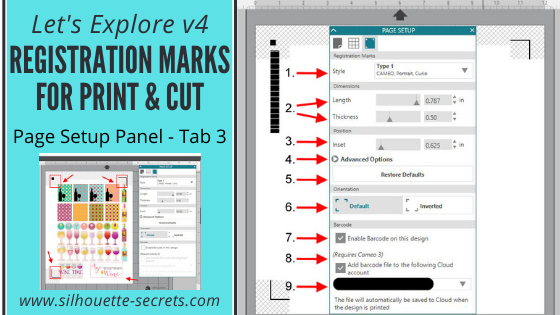
We have explored Tab 1 – Page Setting and Tab 2 – Grid setting the last two weeks and now it’s time to talk Tab 3 – Registration Marks. On the Page Setting Panel, the 3rd tab over is your Registration marks tab and you only use these when doing a Print and Cut project.

Tutorial written in v4.1.206

For software version v4.3+ check out this post HERE for updated information.

Registration Marks

Affiliate links may be present in the following blog post and as an Amazon Associate I earn from qualifying purchases.

First you will need to set your page size. If you have a printer that will only print Letter Size, then you need to change your Page Size to “Current Printer” (check out the Page Settings post on changing Page Size). This will adjust your page size down to the exact area that you can print. Turn your Orientation to the Portrait Orientation and it also helps to check the box next to ‘Show Print border’ and ‘Show Cut Border’.

Page Setup page size copy

Now, we are ready to click on the 3rd tab on the Page Setup Panel.

I first want to start out with a warning. While you can change a lot of the options on the Print and Cut, I highly recommend that you try cutting at the Default settings first and get to know the Print and Cut features before you go changing too many things.
I have great success with just the default settings and find I don’t have to change them, even though it is possible.

1 – Style – Under Style you have 3 options: Off, Type 1 & Type 2. Almost all users will choose the Type 1 option. Type 2 is only used for the Original or SD machines which are rare, they do still exist and are still going strong, but only a few users.
Choose Type 1 – Cameo, Portrait, Curio.
Style copy

2 – Length & Thickness – You can change the length and thickness of the Registration marks. Below I have shown 2 examples of changing the measurements and you can see the marks in the bottom left & top right change.

3 – Inset – Here you can change the placement of the Registration marks. The higher the number, the closer it moves to the Center of your page.
Inset

4 – Advanced Options – If you click on this, it will open up more options for you to change the Inset dimensions.
Advanced copy

5 – Restore Defaults – This is probably my favorite. This will reset anything you have changed to the Defaults of the original Print and Cut. Length at 0.787 in, Thickness at 0.50 in and Inset at 0.625 in. So if you get a wild hair to change things, you can always go back to basics and click on ‘Restore Defaults’ to change it back.

6 – Default vs Inverted – This will change the direction of where the Print and Cut is placed on your mat. Notice the direction of the arrow on the cutting mat, Inverted places it on the opposite corner of the mat & moves the registration marks on the page.

7 – Enable Barcode on this Design – This adds a barcode to the side of your page and it stores all of the cut settings data in the bar code that the Cameo 3 will read.
This is a Business Edition upgrade feature only.
Barcode copy

8 – Add Barcode file to the following Cloud account – Check this and the information will be saved to your Cloud account.

9 – Email address – this is the cloud account email address that the file will be saved to when you print it.

Some tips for Print and Cut: 

Start with the default settings and print the file from there first.

The design cannot be in any of the cross hatched areas of the Print and Cut screen. This is the area that the Optical scanner needs to read on the paper and if the design is in that area, then you may get a registration error.

You only need the Registration marks on if you are doing a true Print and Cut project, by printing first through your printer and then cutting the image with your Cameo.

The ‘M’ key on the keyboard toggles the Registration marks on and off. You can turn them on very easily without realizing it.

Feed the paper into the printer one sheet at a time.
If you have a tray or feed multiple sheets into the printer and print multiple copies of the page at once, the printer can pull it in too early or too late compared to the first print and this can affect where the print is on the page. This can give you a registration mark error.

So let’s check out my example. This is a design I purchased from the Silhouette store called Wine Themed Planner Stickers by Sandi Idleman Design #205613.

I can tell right away that if I sent this to print there will be issues.

PNC Example copy

I opened the file and know that I have to turn my registration marks on.
As you can see the alignment is off. There are areas of the design that are in the cross-hatched areas of my print and cut and the entire design is a bit too large for my print and cut area. So I will need to Select All and resize everything.

Final PNC

I have some Silhouette Clear Sticker paper so I’m going to load that in my printer and then click on the Printer icon in the top left tool bar.

Printer icon copy

Here is my printed page.

PNC page

And I am ready to place my design on my mat and click on the Send tab. When you place your printed image on the cutting mat, you want to make sure that you place it in the exact same location that you have it on your Design screen, in the top left corner.
Choose Sticker paper – Clear in my Cut settings & double check that all my cut lines are how I want them. And then load my mat, do a test cut to make sure my settings are correct and then click Send.

PNC2

And it cut beautifully!

Sticker final

Now I have some wine sticker for my planner.

Have you used the Print and Cut feature?
Tell me what you have used it for below in the comments.

Hope you enjoyed today’s overview of the Page Settings – Registration Marks tab!

Check out the entire “Let’s Explore v4” series HERE.

I would love to see what you are creating! Feel free to post on my Facebook group at Silhouette Secrets with EllyMae.

Save this for future reference by pinning the image below.

Enjoy !

THANK YOU for your support! How can you help? Click HERE & buy a coffee.
Every little bit helps with the cost of running the site.

Looking for more in-depth, step-by-step classes, check out all of my online Silhouette classes on my Teachable site HERE.

SS Logo snip it
**This post may contain affiliate links. What that means is that I may receive compensation if you purchase through the links I have provided. The price you pay for the product or service is not higher but I may get compensated for sharing.
Posted on 30 Comments

Let’s Explore v4 – Setup Panel – Tab 2

Welcome back to my new series “Let’s Explore v4“!
If you are just joining me you can check out my first post of the series HERE – about Tab 1 of the Page Setup Panel.

Today I am going to be going through the features of Tab 2 on the Page Setup Panel in Silhouette Studio v4.
This panel is located on the right side of your v4 software at the very top.

Tutorial written in v4.1.206

Affiliate links may be present in the following blog post and as an Amazon Associate I earn from qualifying purchases.

This panel is about your Grid spacing. Do you want your Grid to show? Do you want your designs or fonts to ‘Snap to grid’? What increments do you want your grid to show at? What color do you want your grid?

So let’s jump in and go through each option that is available to you. It is all a matter of personal preference and once you understand what each feature does, then you can decide what you want to use.

1 – Show Grid
This option allows you to turn the Grid lines on or off on your Design mat. These grid lines can be useful when you are designing and spacing out objects.Show Grid copy

2 – Snap to Grid
If you have this option checked then your design will jump from grid line to grid line. If you un-check this option you have more control over moving your design in smaller increments.

3 – Show Guides
By checking this option, you can pull “Guides” down from the top ruler or over from the right side ruler. If you click on the ruler, either on the top or right side and hold down and drag, it will drag a “guide” line out and you can place it where you’d like on your design mat. This is another tool used to line up designs or for example make sure you have a design in a square. These “guide” lines do not cut and they do not save to your file. Rulers are an upgrade feature, therefore this is an option only for those who have the Designer Edition upgrade or higher.Guides copy

4 – Snap to Guides
This works the same way as the ‘Snap to Grid’ feature does. If you have it checked and have placed guides on your Design mat, when you move your design, it will snap to the guide lines you have placed.

5 – Ruler
You can turn the rulers that are along the top & right side on & off by selecting this. Rulers are an upgrade feature available in the Designer Edition upgrade or higher.

6 – Crosshairs
This will toggle a cross-hair pointer at the end of your mouse pointer on your screen. If you look closely, you can see the lines running horizontally & vertically from the red square.
Cross hairs_copy

7 – Square vs Isometric
You can choose whether your grid lines show up in a square pattern or for further design purposes, you can change them to an Isometric pattern. Below on the left, I have Square chosen and on the right I have chosen the Isometric.

8 – Spacing
This is used to change the spacing of your grid lines to the increment you want. You can change the spacing by using the slider bar left or right, highlight & type a new number or by the arrow keys to the right of the number.

9 – Divisions
You can choose the number of divisions that your grid spacing is divided into. Below you will see I have my grid spacing set at 2″ for both photos, but the photo on the left I have my Divisions set for 5 and on the right my Divisions are set at 10.

10 – Color
You can change the color that your grid lines show on the screen. There are several colors pre-selected to choose from or you can select a custom color from the color box.Color

These are the features of the Page Setup Panel – Tab 2.
Most of these features are used for designing purposes within the software and you will find each user develops their own preferences for what they see on their screen.

I like to have my mat revealed 100%, while another user may not like that look at all. Now, you know what each feature is and what it does, so you can decide how you like your design mat to look when you are using the software.

I did mention that a few of the features are upgrade features. This means that in order for them to appear on your screen you would need a software upgrade. There are 3 steps of upgrades – Designer Edition, Designers Edition+, and Business Edition. You can find out what features are unlocked with each software upgrade by viewing the chart HERE at the Silhouette America website.
If you would like to purchase an upgrade to your software, I recommend buying through an authorized Silhouette retailer such as Swing Design. After your purchase, you are sent a instant code and can enter the code and activate your upgrade immediately.
Click HERE to be directed to the Swing Design site.

I hope you have enjoyed learning more about the Silhouette Studio v4 software today.

I have made a video of everything covered in the series today.
Check it out here:

The design used in today’s video is called Drink Your Wine We Have Crafts to Do by Lori Whitlock and can be found HERE.

Feel free to post your questions & project photos on my Facebook group at Silhouette Secrets with EllyMae.

Save this for future reference by pinning the image below.

Enjoy !

THANK YOU for your support! How can you help? Click HERE & buy a coffee.
Every little bit helps with the cost of running the site.

Looking for more in-depth, step-by-step classes, check out all of my online Silhouette classes on my Teachable site HERE.

SS Logo snip it
**This post may contain affiliate links. What that means is that I may receive compensation if you purchase through the links I have provided. The price you pay for the product or service is not higher but I may get compensated for sharing.
Posted on 37 Comments

Let’s Explore v4 – Page Setup Panel

Today I’m kicking off a new series called “Let’s Explore v4”. Each week I will highlight a new Panel available in Silhouette Studio v4 and explain a bit about that panel.

One of my goals as a TJC Licensed Silhouette Instructor is to not “reinvent the wheel”. There are lots of great posts, tutorials and videos that are a wealth of information and if you are on my Silhouette Secrets+ Facebook Page or Group, you will see that I share information from other colleagues and industry leader who I think you may benefit from. You will see me post links to their pages, share their information and link them up in my blog posts. Why? I am not in competition with them, we can all learn from multiple sources and what I’ve found is there is always something new to learn with the Silhouette Studio software & the Silhouette machines.

Now on to the fun stuff! I am using Silhouette Software v4.1.201, this information can be found under the Help>About in the software. If you are using an older software version, then my screen will look very different than yours and some of the options may not be available to you. If you’d like to upgrade your software to the latest version, you can find the upgrade HERE on the Silhouette America site, v4.1.206 is the most recent and it will work for these tutorials. You do not want to choose the Beta version unless you know the software very well and are able to spot a bug or two that may be in the program and report that back to Silhouette.

Page Setup Panel

The Page Setup Panel is located on the right side at the top of your Panel bar. Click on it and the Panel will pop up. Now with v4, you can move your panels around – this is called Floating Panels. If you grab the Blue area where it says Page Setup, you can move that panel around and drop it where you like. These Panels will stay open if you do move them on your screen, so it is a nice feature instead of having to keep clicking on the Panel icons on the right side.

Page Setup copy

If your Panel is not letting you grab and move it, check out the Preferences under Edit > Preferences. Under Defaults, change the Panel mode to ‘Flexible Panel Mode’.

Preferences - Flexible Panel mode copy

Now let’s break down the first tab in the Page Setup Panel.

LEv4-Page Setup copy

  1. Page Size – Here you can select the Automatic (machine) size and it will default to whichever machine you have plugged in to your computer or the last recognized connection. Click on the drop down arrow and you have many selections to choose from including a Current Printer option, if you have one connected.
  2. Width & Height – You can make the page size any size from 12″ wide to 10′ long. If I choose to change my Page size to 10″ x 12″, notice how it adjusts the white page or the red cut border (if Show Cut Border is checked). Something to note, if you have your page size set and your design is outside of that page size, it will not cut outside of the Page border. Custom page size
  3. Orientation – this will flip your page either vertical or horizontal on your mat.
  4. Cutting Mat – The Silhouette Cameo can cut any material that has a backing, such as vinyl & HTV without a mat. It can cut materials up to 10 feet long and this is how you accomplish that. You can tell the software you are cutting with ‘None’ or you can choose a 12″ x 12″ or 12″ x 24″ mat or several other options for other machines. Below you will notice that my Cut border is the full dimension of my mat. I have my Preferences set to ‘Cut to Edge of mat’. It does not always cut to the very edge, but it comes close. When you choose to cut with a mat, you are telling the software that it needs to feed that mat in to a certain location before it can begin cutting. It should only be cutting on the grid area of your mat. If it happens to cut higher than that, go check if you have it set to cut without a mat.Mat-Cut Border Now in the photo below, I have chosen Cutting Mat ‘None’ and I want to point out a few differences. You will see that the Cut border (red line) starts immediately at the top of the page. If your design is right at the top of the design mat, when you load your vinyl, it will begin cutting exactly where you have placed it on your screen. Also note, the Cut border on the left & right side. You lose about 1/4″ of cuttable space on both sides of your vinyl when you cut with no mat. This is the allowance that the machine needs to grip the vinyl in the machine. And you will see the Cut border end approximately 1″ from the back end of the page size, this is again cuttable space that is lost so the machine can hold that vinyl in the machine to finish the cut.No Mat - cut borderWhile you can cut without a mat, I personally prefer to use my mat any time that my material will fit on it. It provides stability and there is less that can go wrong, such as your vinyl sliding.Now, if you do decide to cut without a mat, I would strongly suggest investing in a roll feeder. I just used this for a large cut job and it worked beautifully and I did not have to babysit it as much as without. Here is what that looks like: Roll Feeder You can find the Silhouette roll feeder HERE.
  5. Reveal – This one is a favorite of mine. At 0% your design mat shows a white space that equals your page size. As you slide the bar up it starts to reveal the grid lines of the mat underneath that are the exact match to your Silhouette cutting mat. At 100%, it shows your entire cutting mat grid area and this is how I prefer to use my software most of the time.
  6. Rotate – this rotates the orientation of your mat on the screen. It is for visual purposes only and does not actually rotate your design or the way the mat is fed into the Cameo. Notice the photo on the left, it is at 0 degrees – the arrow is facing up. The arrow is the direction you load your Silhouette mat into the machine, it matches the arrow on the physical Silhouette mat. I have placed a design from the Silhouette store (Design #181402) on my mat, so you can see how it changes. Now, look at the photo on the right, I have changed the Rotate to 270 degrees and the arrow is now pointed to the left. This option rotates your entire mat and anything on your mat, but it does not change where your design will cut on your mat. It will still cut in the top left corner because you are loading the mat into the Cameo with the arrow pointing in.
  7. Show Print Border – If you check the box next to it, a gray box will appear on your screen. This is the Print Border for the current printer you have connected to your computer. It shows you the maximum border that you can put a design at to be able to print it on a material. Show Print Border
  8. Show Cut Border – This is another feature that I always have checked. As you can see in the photo above, I have the Show Cut Border feature checked and it shows a red line around what my maximum cut border is. I have it set to Letter size paper, so it is showing me it will cut to and 8.5″ x 11″ space. If I change my Paper size to 12″ x 12″, it will expand to the full 12″ x 12″ and outline my grid on my mat, as seen in several photos above.

I encourage you to check out each of these features in the Page Setup Panel and as you click on them, you will see things change on your screen. If you have an understanding of how these features work, you can spot and fix a problem when you notice something is not right.

I hope you have enjoyed the first session of “Let’s Explore v4.”

I am EllyMae with Silhouette Secrets+ and my goal as a TJC Licensed Silhouette Instructor is to teach the Silhouette Studio software. Once you know how to do things in the software, you have the skills to create any design for a project that you want.

Check out my Silhouette Instructions and Events tab for more information on Personalize Silhouette Instruction.

Have fun Exploring your Silhouette Software v4!

Enjoy !

THANK YOU for your support! How can you help? Click HERE & buy a coffee. Every little bit helps with the cost of running the site.

Looking for more in-depth, step-by-step classes, check out all of my online Silhouette classes on my Teachable site HERE.

SS Logo snip it

**This post may contain affiliate links. What that means is that I may receive compensation if you purchase through the links I have provided. The price you pay for the product or service is not higher but I may get compensated for sharing.

Posted on Leave a comment

Ornament boxes with Silhouette

Today I took down the ornaments on our Christmas tree and as I was packing away some of the ones my children had made in school, I had a thought to use a file I purchased in the Silhouette Design store called an ornament box. So as soon as the rest of the ornaments were packed up, I headed into the Studio to create these boxes.

Now, I will say these were probably designed with the idea of using them as a gift box and not to be used as a secure storage container. However, for my purpose I think they will be great…..

Scalloped ornament box

Above is the Scallop Ornament box by Samantha Walker. The Silhouette Design Store has many different styles of ornament boxes – find more HERE.

Now, what did I do….. I moved my design up a bit on my page & then go to my Send tab panel and select my Cut settings. That’s it – so simple!!!

Scalloped ornament box-cut settings

I chose Textured cardstock as my material (I cut almost all cardstock on this setting with great results), set my blade depth and click Test Cut. Yes, Test Cut!…. this cuts a small square with a triangle out of the center of it and let me tell you, it will save you so much material!!! If it doesn’t cut correctly, you can make adjustments to your settings or blade depth before you cut the entire design.

IMG_1358

After you have cut your design out, flip your mat over and peel your mat away from your material. This is a good practice to get in to for many reasons. I find that it helps my paper not to curl as bad and it also helps keep the adhesive on the mat longer. If you pull your paper or vinyl off the mat, it can bring up some of that adhesive with it.

Cutting comparison copy

On my second box, shown on the left, I noticed that my blade was not getting a crisp cut. Normally, I would recut this, but since I’m cutting for the purpose of my own storage box, I left it. However, I knew exactly how to fix it. A new cutting mat! Yes, as easy as that. The mat I was using with the one on the left (green) was well used and even though it felt sticky enough, if that cardstock moves even just a little bit, it can make your blade tear the cardstock. So when I went to cut my 3rd box, I pulled out a new mat and look at the difference on the right side (red). I changed nothing else, except using a new mat and it made such a better crisp cut. If you are having cutting issues and your mat is well used, even if you think it’s sticky enough, just try it – get a new mat out and see what the difference is. I do de-stick my mat a bit when I first open it by applying it to a clean cotton t-shirt a time or two before I stick my cardstock down on it.

If you are looking for a new mat or other Silhouette supplies, check out the prices at Swing Design – I always price check there first and they usually have the best prices. Plus, free shipping on orders over $35.

IMG_1359

Above are all the pieces of this box….. 3 – yes 3! And do you know what is even better? There is only 1 tab that needs to be glued together. It’s so simple and a great project for a beginner.

IMG_1361

I am a big fan of this liquid adhesive called Liquid Glass for any 3-D project. It is made by a company called Close to My Heart who is a papercraft & stamping company. I find just a little amount of the glue goes a long way and then I hold it together for the count of 10 and it’s stuck pretty good. You can find it HERE on my website.

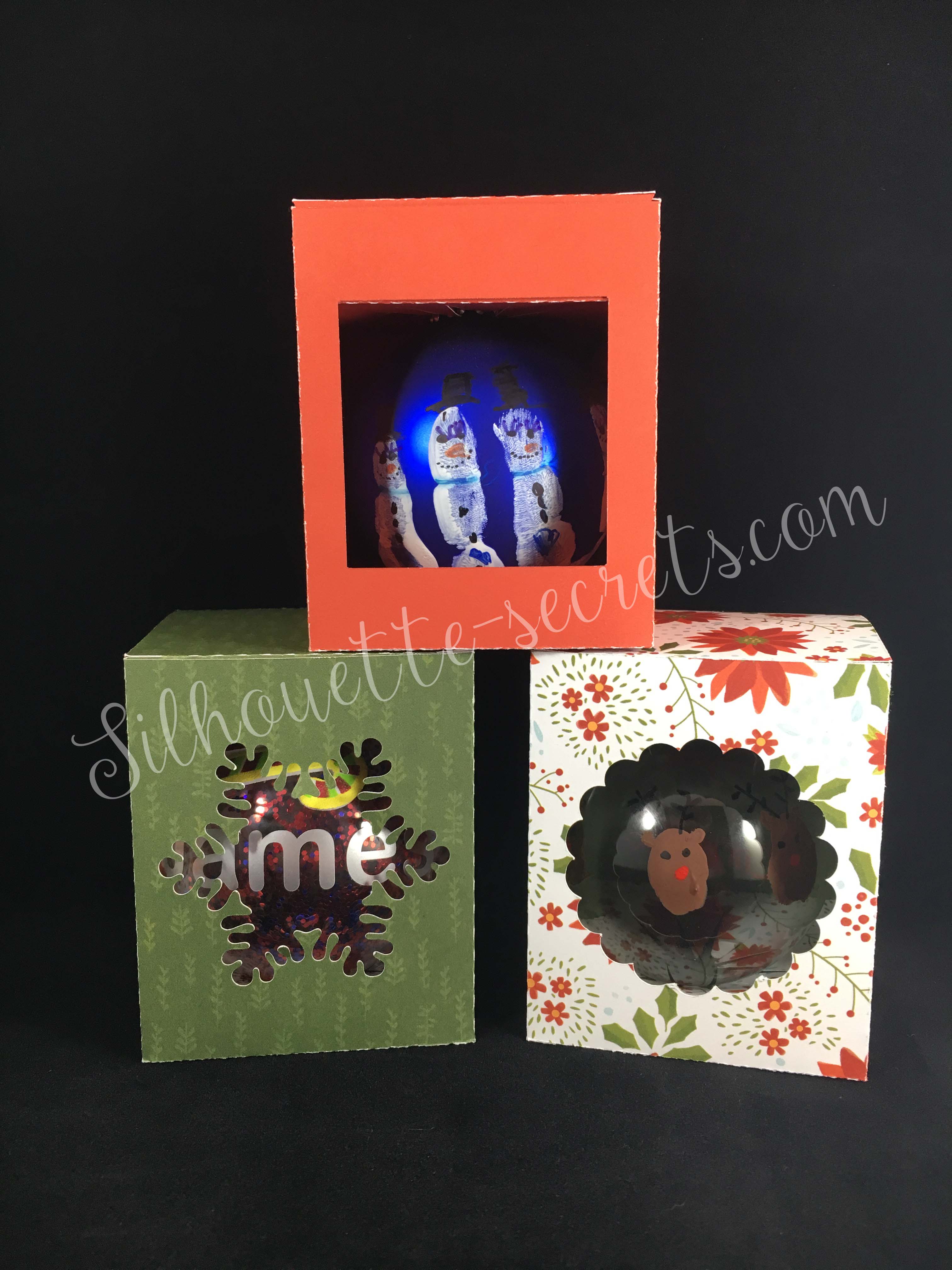
Now, I purchased both the Scalloped box and the Snowflake box and here are my completed boxes cut with the same double sided paper. I used the Beary Christmas paper from the Close to My Heart Holiday Expressions catalog. This expired tonight at midnight, so grab it quick – available while supplies last!

Ornament box altered -cut settings

And then I needed a 3rd box, so I decided to ungroup the original design, draw a rectangle that was the same dimensions as the snowflake and put that in for my 3rd box. This could be done with any shape that you would like to use. You can mix and match designs to your liking, but do keep in mind that it is the original creators file that you have used as your base.

And there you have it….. 1 cut, 1 tab glued and fold the box together. So simple!

There is a big sale going on in the Silhouette Design store right now, so pop on other there to grab this and so many others for 50% off.

IMG_1381_wm copy

I hope you enjoy your last evening in 2017 and I look forward to bringing you lots of new things in 2018!

Enjoy !

THANK YOU for your support! How can you help? Click HERE & buy a coffee. Every little bit helps with the cost of running the site.

Looking for more in-depth, step-by-step classes, check out all of my online Silhouette classes on my Teachable site HERE.

SS Logo snip it

**This post may contain affiliate links. What that means is that I may receive compensation if you purchase through the links I have provided. The price you pay for the product or service is not higher but I may get compensated for sharing.