Posted on 27 Comments

Cutting without a mat on the Cameo

Did you know you could cut without a mat with the Cameo? Yes! You can! The Portrait and all the Cameo machines have the ability to cut certain materials without a mat.

IMG_2940 copy

I see this asked a lot so let’s take a look at how to set it up properly to get a good cut.

You can only cut materials that have a backing without a mat on the Silhouette machines. Materials that have a backing would include adhesive vinyl or Heat Transfer vinyl (HTV), these are the most common ones I see. Single layer materials such as cardstock or fabric need to be placed on a mat or you risk jamming your machine when it cuts.

First, you want to set up the software to tell the Cameo that you are cutting without a mat.

No Mat setup copy

  1. Change the Page Size to the size of material you are using.
  2. Change the Cutting Mat to None. The arrow on the screen is indicating where the material will be loaded into the Cameo.
  3. Check the box to “Show Cut Border”. This will bring up a red cut border and will show you the maximum cut-able area of your vinyl.

No Mat setup - cut space

Next, something to keep in mind when cutting without a mat, you lose 1/4″ of cut-able space on your material on the left & right side and 1″ of cut-able space on the backside. This is so that your Cameo can hold the material securely in the machine while it cuts.

I have seen many times when someone tries to “trick” the machine to tell it the material is longer than it is, so they can get the design to cut in that last 1″ space, but most times, it will lose grip on the material and fall out the backside. Then you have wasted that cut of vinyl. So I don’t recommend that. Just know in advance that you have to work within those parameters on your material and checking the “Show Cut border” helps visualize that.

So now that we’ve told the software we are cutting without a mat, let’s set the machine up.

First, you need to make sure that your blade is installed correctly. The #1 issue I see is not having the blade installed in the machine with no gap. It should look like this with no gap at all between the blade and the housing. This is for all blades, not just the Autoblade, but it is especially important with the Autoblade as it cannot adjust correctly if it is not in properly.

Autoblade with arrow

Next, you want to move your right roller in to grab the edge of the vinyl. There are 4 positions that the right roller can be locked on the roller bar. These are all indicated by the blue arrows, which line up to grooves on the roller bar that the lock sits in.

IMG_2970

These are the only places that the right roller can be locked in on the roller bar. If you do not have the roller securely set in the groove, it will not lock in place. It may look like it’s locked but it is not.

Now, to move your right roller. Flip the roller bar lock down to release it (unlock). This lifts the right side of the roller bar, so you can move the roller.

Roller bar lock copy

Next, turn the right side of the Roller lock to the unlocked position. It is very difficult to see but there is a definite lock and unlock and a notch that has to be securely in place.

Roller bar lock zoom_edit

Once it is in the unlock position, you can carefully slide it along the roller bar until it securely sits in the groove that you want it in. Then make sure to turn the roller lock back to the locked position and turn the roller bar lock so it is pointing up. The terminology can get confusing so here is a visual.

Roller bar vs roller lock copy

Now, once your roller is securely locked in place and your roller bar lock is pointed up in the locked position, we want to make sure we are loading our vinyl correctly.

Place your vinyl next to the blue line on the left side, just like you would load the mat and the top edge of the vinyl up against the rollers. Don’t push it in, just hold it up to the rollers, so when you push the load button it will pull the vinyl into the machine.

Blue line

Now, see how the rollers are firmly gripping the edges of the vinyl.

Vinyl edges

Remember what I said earlier about losing 1/4″ of cut-able space on your left and right side of your vinyl? This is why. The rollers need that space to securely hold the vinyl in the machine.

Also, something to take note of is that your design will start cutting exactly at the top of your vinyl that is loaded in the machine. As you can see in this photo, the red cut border starts at the very top of the vinyl.

Cut at top of vinyl

It does not have to account for the extra space of the mat, so it begins cutting immediately.

Once your vinyl is loaded, you may also choose to advance the vinyl through the machine in order to see how it will track. On the Cameo touchscreen, click on the directional arrow icon in the bottom right corner.

Track feed

Then press on the down arrow to get it to feed through the machine.

Track through

This can help you identify any issues you may encounter with it feeding through the Cameo straight.

Now, that the software and the Cameo are set up correctly, we are ready to Send the design to Cut.

Creative cut

You want to keep the vinyl as straight as possible going into and coming out of the Cameo. If you are cutting something that is really long and have the vinyl hanging that can create an issue if the vinyl is pulling. Or if the vinyl doesn’t have room on the backside to pass through, then it can cause issues too.

It will depend on the length of the vinyl you are cutting, but I prefer to use my Silhouette roll feeder when cutting long length. I feel that I don’t have to babysit the cutting as much once I have the roll feeder set up, as long as the backside is clear.

IMG_2979

Now, I know it doesn’t look like much but it will hold your 9″ and 12″ vinyl rolls in place. I will be completely honest and say that I didn’t think I would have any use for it. But, I was wrong! I use this every time I have a large vinyl decal to cut.

The Cameo machine sits securely on top of the Silhouette Roll Feeder and the vinyl is fed through so it goes into the machine straight.

IMG_2980

Here is the video I watched by Silhouette to set up the roll feeder – The Silhouette Roll Feeder.

You can find the roll feeder here: Swing Design Silhouette America Amazon

I would highly suggest practicing this technique of not using a mat before you are under pressure to get a project done. And I still will always recommend that a beginner start by using a mat, so you can see how the machine works before you start changing too much of it.

IMG_2983

This is a great feature to have the ability to cut materials without a mat for things longer like this 12″ x 33″ wall decal!

I used Oracal 631 for this project and used the Vinyl, Matte setting in the Silhouette software to get a beautiful cut.

Cut settings

Can’t wait to see what you decide to cut without a mat! Share photos of your creations on my Facebook group at Silhouette Secrets+ by EllyMae.

Enjoy !

THANK YOU for your support! How can you help? Click HERE & buy a coffee. Every little bit helps with the cost of running the site.

Looking for more in-depth, step-by-step classes, check out all of my online Silhouette classes on my Teachable site HERE.

SS Logo snip it

**This post may contain affiliate links. What that means is that I may receive compensation if you purchase through the links I have provided. The price you pay for the product or service is not higher but I may get compensated for sharing.

Posted on 7 Comments

Let’s Explore v4 – Transform = Move

Did you know that you can Move objects on your Silhouette Design mat specifically into place?

Pretty neat when you start to look at it.

Under the Transform Panel on the right side, then the 4th tab at the top of the Panel is the “Move By” tab.

4-25 Transform -Move copy

This allows you to move an object to an exact location on the Design mat.

4-25 Transform -Move detail copy

  1. Directional arrows – Move left, move right, move up, move down – choose which direction you want to move your design.
  2. Distance – Set the exact distance you want your design to move.
    Here is the original design placed on my design mat:
    Distance before
    *Running Out Wine Cardio design #222003 by Megan Hardy Design

    Now see how it moved exactly 3.25″ when I select the design and click on the Move right directional arrow.

    Distance after

  3. X and Y coordinates – Set the exact X and Y location of your design on your mat.
    If you look in my above photo, when I moved it 3.25″ to the right, it also added in the X and Y coordinates. This means that I can also move something by changing those numbers. Here I entered my X as 5, so it moved it 5″ from the left side and my Y as 3″, so it moved it 3″ down from the top.X and Y

    You can also choose how it applies the X and Y coordinates by selecting the position on the square that you want it to apply from.
    My photo above has it applied in the top left corner.X Y position copy
    But you can choose what position works best for you, whether it’s the Center of the design or another location as well.

  4. Apply – Click here to apply the Move or hit Enter.

And that is how you can move things on your design screen to the exact location you want.
Can you move it manually? Yes, you sure can!
Drag and move it where you want.
Or you can use the Move tools and place it exactly.
Just like so many other functions in the Silhouette software – there are multiple ways to do things!

Enjoy !

THANK YOU for your support! How can you help? Click HERE & buy a coffee. Every little bit helps with the cost of running the site.

Looking for more in-depth, step-by-step classes, check out all of my online Silhouette classes on my Teachable site HERE.

SS Logo snip it
**This post may contain affiliate links. What that means is that I may receive compensation if you purchase through the links I have provided. The price you pay for the product or service is not higher but I may get compensated for sharing.

Posted on 4 Comments

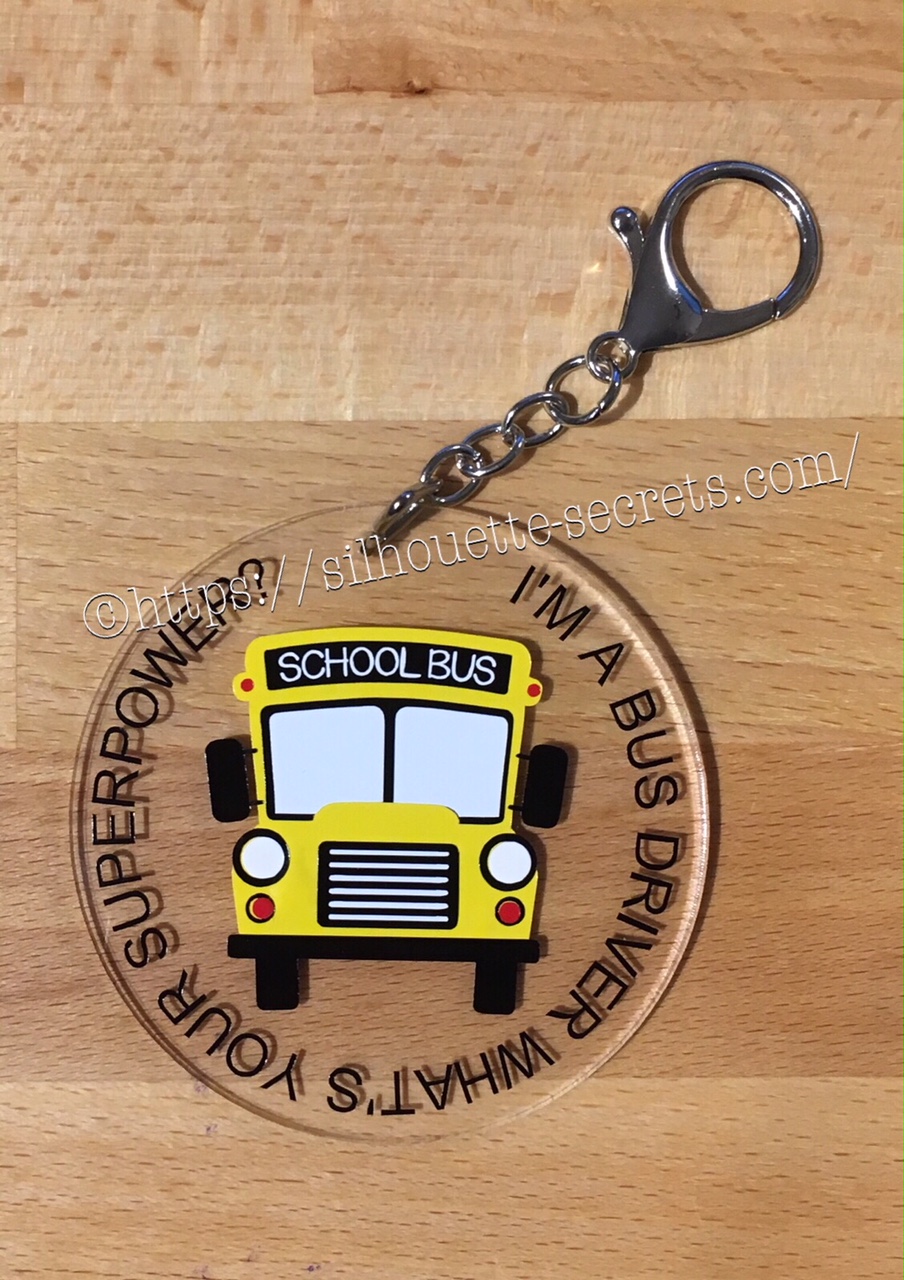
Bus Driver Appreciation gift

Over on the Silhouette School blog today I showed how to use the Cut by Fill Color option to create a layered vinyl decal for perfect placement.

 IMG_2823

Now I’m going to show you how I took that design, shrunk it down and used the same technique to create a bag tag for our Bus Driver.

I started with a 3″ clear acrylic circle blank from Craft Chameleon.

IMG_2824

I love that Craft Chameleon acrylics come with a cut file included. I opened up the template for this shape and copied and pasted it to a new design mat to use as my base. Or you could draw a perfect circle by holding down the Shift key and then resizing the circle to the exact dimensions under the Transform Panel – Scale tab.

Base Template

Now, I can use this to create my design in.

I took the School bus design by Kelly Lollar Designs that I used as an example in my guest post, and shrunk it down with the registration (layering) marks. I wanted to make sure that the bus fit in the center of the acrylic shape with space around the edges for text.

 Bus centered

Now, I duplicated my circle and made it a little bit smaller. This is so the text will fit down inside of the acrylic shape better. Move the original 3″ circle off the mat as it’s not needed any longer or you can delete it.

Then select just the bus and the circle and use the Align Tab in the Transform Panel to Align Center or from the QAT (Quick Access Toolbar). Do not include the registration (layering) marks in this, as it is just the bus and circle we want to center together.

Align center copy

Now, type out the text, select the font style and size. Double click back on the text to get the circle in the bottom left corner. Grab that circle and drag it to your circle shape.

Typing text copy

As you drag it to the circle you will notice it attaches to the circle. Play around with the alignment of the text to your liking and then use the slider bar to increase the distance from the circle either inside or outside of the circle.

Text to shape copy

Now, I decided to increase the Character Spacing under the Text Style Panel, just a bit on my letters to spread it out a bit. And then readjust your words around the circle. Each Font style that you choose will give you different looks, so you will need to adjust for whatever you choose.

Character spacing copy

Now, once the text is modified, it will no longer be editable text. This is a good time to make a copy of the text & circle and pull it off the mat, just in case you want to edit it later. If you select only the text to pull it off, it will release from the shape, so you want to select both the text and the shape and make a copy.

In order to separate the text from the circle, right click on the text and choose Convert to Path.

Convert to Path copy

And now, move the circle off the mat as we do not want it to cut.

Circle released

Now, we are ready to cut out decal just as I detailed in the Silhouette School guest post.

Once we have our decal cut out and layered together, we are ready to apply to the acrylic shape.

I went ahead and placed the shape on my Silhouette cutting mat on the sticky side, so it wouldn’t move while I applied the decal. The acrylic blanks come with a protective covering on them to prevent scratching before use, so make sure to peel that off before you add your decal.

IMG_2814

And then I lined the decal up and placed it down, burnishing it well and took the transfer tape off.

IMG_2815_edited

And with any project there’s always 1 piece that may not work just right. As you can see I’m missing the School bus title on it. This did not weed well when I was layering the decal and after messing with it, I decided I’d just re-cut it and apply.

I duplicated the design and then un-grouped everything and deleted all but the School Bus. Then I duplicated the School bus 3 times just in case…. if I had only cut it once you know it wouldn’t have weeded correctly, but since I cut it 3 times….. all 3 weeded beautifully with reverse weeding.

IMG_2817_edited2

Then I gathered the rest of the tools to attach the pieces of the bag tag.

IMG_2819

I just received these bent nose pliers from Craft Chameleon and using them 1 time, I’m in love with them. They are one of those tools like my Close to My Heart nonstick scissors that will be my go to tools. Now, I could have just gone to the garage and “borrowed” a couple pairs of pliers from there, but these were the perfect size for my hands and worked wonderfully. I am so glad I ordered them after watching Craft Chameleon’s live FB video a few weeks ago.

And now I have a little gift to give to the bus driver.

temp

Can you think of things you might layer with adhesive vinyl? Those first few times you attempt it can seem daunting, but it is another project that takes practice and the layering (registration) marks make it much more manageable to layer a design. What will you design and cut?

Enjoy !

THANK YOU for your support! How can you help? Click HERE & buy a coffee. Every little bit helps with the cost of running the site.

Looking for more in-depth, step-by-step classes, check out all of my online Silhouette classes on my Teachable site HERE.
SS Logo snip it

**This post may contain affiliate links. What that means is that I may receive compensation if you purchase through the links I have provided. The price you pay for the product or service is not higher but I may get compensated for sharing.

Posted on 13 Comments

Let’s Explore v4 – Rotate

Hi everyone! This week we are continuing on our journey to explore more of Silhouette Studio v4.

We are looking today at the Transform Panel – Rotate tab. You will find this on the right side of the Silhouette Studio v4 as shown below.

Rotate main copy

If  you want to manually rotate an object, you can do that on the design screen by grabbing the green circle at the top of the design when it’s selected and hold down the mouse button and drag it left or right.

Manual rotate copySoftball Mom by SM Designs

But if you want something more precise, then you want to use the Rotate tab on the Transform Panel.

Let’s take a look at how this can help.

Rotate detail copy

  1. Rotate to 0, 90, 180 or 270 degrees – Choosing one of these options will rotate your object to the exact degree you choose.Rotate 90 degrees copy
  2. Custom – Change the numbers in the box to a specific degree you would like it to rotate to.Custom rotation copy
  3. Rotate by 45 or 90 degrees, 180 degrees, -90 or -45 degrees – Using this option will move the design exactly the distance you select. For example, in my photo above, I have it selected at 30 degrees. If I now choose -45, it will rotate it to the left exactly -45 degrees from where it started at 30 degrees, placing it at 345 degrees.Rotate by -45 copy
  4. Custom – Type in a custom amount if you want something in between the standard options.
  5. Apply – You can click this after changing the custom amount or just hit the Enter key.

There are many reasons that you would use these rotate tools.

For instance, let’s draw a heart. Now, you’ll notice that the Drawing tools on the left side does not have a heart shape. So let’s make one. Select the Draw and Ellipse tool and then hold down the Shift key and drag your mouse on the design mat. This will draw a perfect circle. Now, let’s fill it with color so it’s easier to work with. (Check out the Let’s Explore Fill Panel here)

Draw heart

Next, make a copy of your circle. There are several ways to do this – Ctrl+c and Ctrl+v, right click & choose copy and then again for paste or hold down the Alt key and drag a copy off, or use the toolbar (QAT) at the top.

And then draw a perfect square by choosing the Draw a Rectangle tool and holding the Shift key down. Fill your square with color as well.

Draw heart2

Now let’s use the Rotate tab to turn our square to a 45 degree angle.

Draw heart3

Next move the square up to meet the circles and align them how you like it. You may need to enlarge your circles (select them both and resize) to get the dimensions of the heart to align.

Draw heart final

And there you have drawn a heart shape using just the basic shapes in the Silhouette software and the Transform panel – Rotate tab. Make sure to select all your shapes and choose weld or it will cut out the individual shapes.

Heart no weld.JPG

After you weld the shapes together you will have your heart design.

Heart weld

And there is one way you would use the Rotate tab and as a bonus you learned how to draw a heart from basic shapes.

Hope you’ve enjoyed the Let’s Explore v4 session today! Check out all the previous panels we’ve explored HERE.

Enjoy !

THANK YOU for your support! How can you help? Click HERE & buy a coffee. Every little bit helps with the cost of running the site.

Looking for more in-depth, step-by-step classes, check out all of my online Silhouette classes on my Teachable site HERE.

SS Logo snip it

**This post may contain affiliate links. What that means is that I may receive compensation if you purchase through the links I have provided. The price you pay for the product or service is not higher but I may get compensated for sharing.

Posted on 38 Comments

Let’s Explore v4 – Scale tab

Welcome back to Let’s Explore v4!

Today we are on to Tab 2 of the Transform Panel – the Scale tab. This is another tool I use almost every time I open my Silhouette program.

Just like almost all the other tools, there are many ways to do things in the software. While you can grab the corners of the Selection box and drag your design to the correct size, sometimes you need a more accurate measurement of your design.

Selection box copy
*I Craft Therefore I Hoard Phrase by Kolette Hall Design #152410

For instance, I am making these stencils for my husband to use in a woodworking project and he wants a maximum of 6.5 inches for the design, so it fits on the board he has. With the Transform Panel, it is possible to achieve this easily.

Stencil demo copy

Let’s take a look at the Scale Tab.

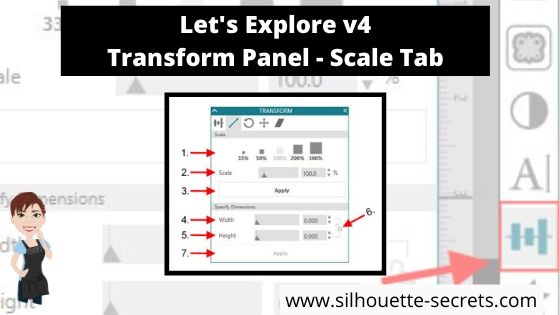
Scale tab details copy
  1. Scale by percent – There are a couple of preset percentages that you can choose for quick resizing of an object. Anything below 100% will decrease the size and higher than 100% increases the size.
    Scale percent
  2. Adjustable Scale – Highlight the number in the box and choose your custom percentage to resize the design.Resize custom percentage copy
  3. Apply – After changing the customized Scale option, click Apply (or hit Enter).
  4. Width – Highlight the numbers and replace or use the increase/decrease arrows  to a specific dimension.
  5. Height – This works the same as the width, highlight the numbers and replace or use the increase/decrease arrows Arrow up down copy to a specific dimension.
  6. Lock Aspect – This is a very important icon! The default is set to the unlock position. If you want to keep the proportions of a design the same when you resize it, click this icon to change it from unlocked Unlock copy to locked Locked copy.
    Specific dimensions copy

    What does that mean? If I change the Width of my design while it is unlocked, then it will adjust only the width of the design and I end up with some distorted shape the design. You can see here that now my state of Montana design, does not look how it should.Lock AspectVersus if I click on the Lock Aspect and lock it in, then it will adjust both the width and the height, keeping the proportions the same.

    Locked Aspect
    That makes quite a difference in the design.
  7. Apply – After making changes to the Width and Height you can click on Apply or hit Enter for the software to make the changes.

And now you have a better understanding the Scale Tab found under the Transform Panel in Silhouette Studio v4.

You can also find some of these tools in the QAT (Quick Access Toolbar) at the top of you program when your design is selected. How it appears on your screen, will be dependent on your screen size and you will notice that each person’s varies for that reason.
Some of the tools will have a fly out box and others will be fully visible as my width & height are.

QAT copy

I hope you take a few minutes to check out this Scale panel and see what it’s all about!

Check out the other posts in the Let’s Explore v4 Series HERE.

Save this for future reference by pinning the image below.

I would love to see what you are creating with your Silhouette! Feel free to join my Facebook group – Silhouette Secrets+ with EllyMae and share!

Enjoy !

THANK YOU for your support! How can you help? Click HERE & buy a coffee.
Every little bit helps with the cost of running the site.

Looking for more in-depth, step-by-step classes, check out all of my online Silhouette classes on my Teachable site HERE.

SS Logo snip it
**This post may contain affiliate links. What that means is that I may receive compensation if you purchase through the links I have provided. The price you pay for the product or service is not higher but I may get compensated for sharing.

Posted on 37 Comments

Let’s Explore v4 – Transform Panel – Align

Today we are exploring the Transform Panel – Align Tab.

This is a very important and useful panel when you are creating designs & one I use almost every time I open the Silhouette software.

Transform Panel copy

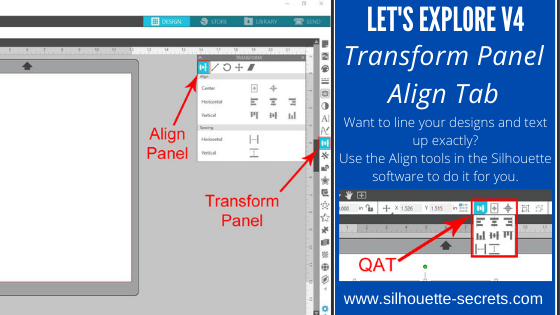
The Transform Panel is on the right side of Silhouette Studio v4 and the first tab on this panel is the Align Tab.

Let’s take a look at the entire Align tab.

Transform Panel details copy

  1. Center – This icon  Center to Page icon copy is the Center to Page and it will center the design in relation to the Page Size you have set under the Page Setup Panel – Page Size. Here I have resized my design (Softball Mom by SM Designs) and then hit the Center to Page icon and it centered that to my 12″ x 12″ page size.Center to Page demoThen you have the Center multiple objects copyCenter multiple objects icon. When multiple objects are selected, this will center those objects to each other. If I draw a circle and select both objects, click on the center multiple objects, it will center those designsCenter multiple objects demo
  2. Horizontal – There are 3 options here: (A) left edge, (B) center, (C) right edge.Horizontal Alignments copy (Dots Nice – A Dotty Handwritten font by One Oak Designs)
  3. Vertical – There are 3 align options here: (A) top, (B) center, (C) bottom edge.Vertical Alignment copy (SG Beach Vacay Dingbats Font by Sophie Gallo – Design #240727)
  4. Horizontal Spacing – With multiple objects selected (more than 3), this will space those objects equal distance apart horizontally.Horizontal spacing copy
  5. Vertical Spacing – With multiple objects selected (more than 3), this will space those objects equal distances apart vertically.Vertical spacing copy

And there you have the details of the Align tab in the Transform Panel of Silhouette Studio v4. Now, there is no need to eye-ball the spacing or alignment, let the software do the work for you.

You can also find the same icon in the Quick Access Toolbar (QAT) at the top when more than one object is selected.

QAT Align2

Check out the other posts in the Let’s Explore v4 Series HERE.

Save this for future reference by pinning the image below.

Transform Panel - Align Tab Pin

I would love to see what you are creating with your Silhouette machine. Feel free to post on my Facebook group Silhouette Secrets with EllyMae. If you have questions feel free to post below or on the Facebook group too!

Enjoy !

THANK YOU for your support! How can you help? Click HERE & buy a coffee. Every little bit helps with the cost of running the site.

Looking for more in-depth, step-by-step classes, check out all of my online Silhouette classes on my Teachable site HERE.

SS Logo snip it

**This post may contain affiliate links. What that means is that I may receive compensation if you purchase through the links I have provided. The price you pay for the product or service is not higher but I may get compensated for sharing.

Posted on 1 Comment

Hot Mess with your Silhouette Cameo

While the title could mean many things, this week it’s in reference to Spring Break at my house. I thought it would be a fun idea to try out this “Hot Mess” technique with the kids for a crafting project on Spring Break….

Now, I don’t know if it was a good idea to do this on Day 1 of Spring Break or not – would it have been better on Day 5? Who knows…. but I’m going to show you our results.

First, what is a Hot Mess? On some days, that could be my title but today I’m talking about a new crafting project that has everyone rushing out to pick up canvas from the craft store.

IMG_2483

How do you create these pieces of art?

  1. Grab a canvas and the paints you want to use. IMG_2446
  2. Paint any sort of pattern you so desire onto your canvas. Let it dry thoroughly.
  3. Cut a stencil using your Silhouette machine and some vinyl – I used Oracal 631 and 651. As you can see, this is what you get when you let an 8, 6 and almost 5 year old pick out their own stencil. IMG_2452
  4. Apply the stencil using transfer tape – I recommend Oracal transfer tape. You may need to help the vinyl stick to the canvas at first. Just be patient and go slow. IMG_2453
  5. And now paint your top layer of paint. You can choose any color you’d like, but we stuck with white on top. IMG_2456_edited
  6. Let that dry for a bit and then carefully peel off the vinyl stencil. You don’t want it to be too wet when you peel it and you don’t want the vinyl to sit on the canvas too long either as it may start to cure to the canvas.
  7. Let your works of art dry completely.

And there you have the “Hot Mess” technique.

I am so glad I did not start with the 12″ x 24″ canvas that jumped into my cart at Michael’s, as the kids were done after the first 30-40 minutes. And I can say it is a one and done crafting project for Spring Break 2018.

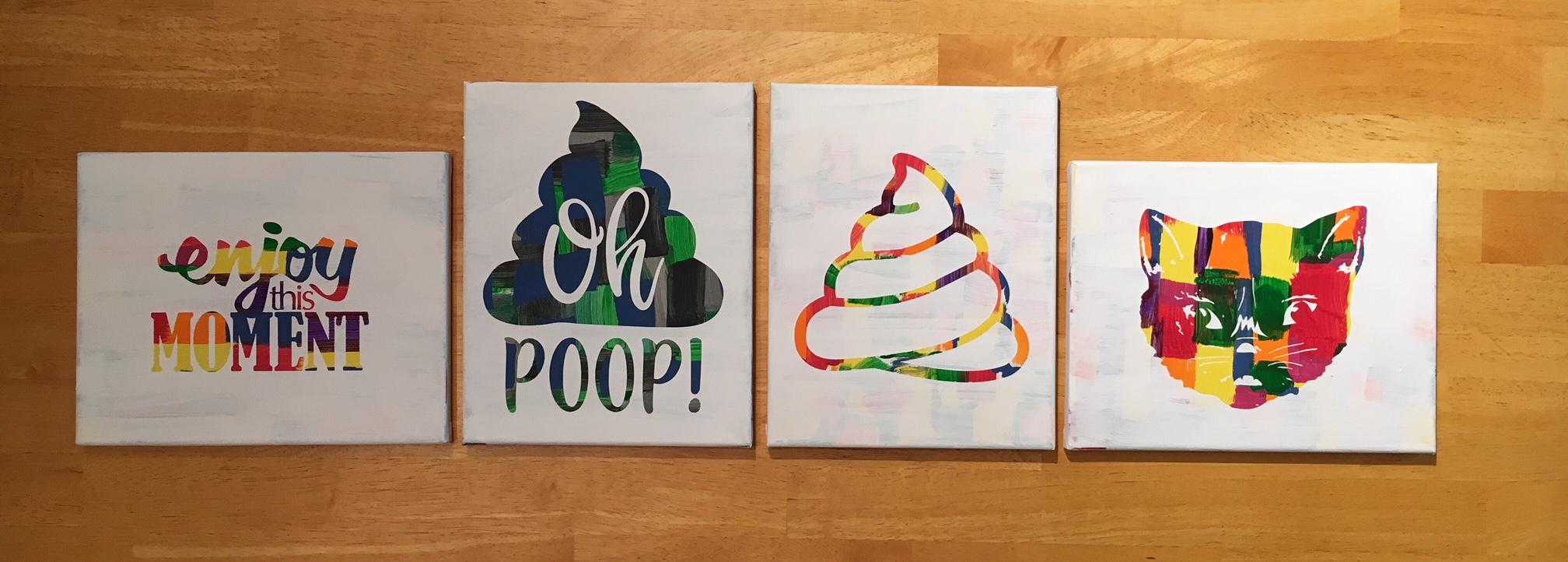
If you have any desire to use these same designs in your works of art, here is where I found them: – Enjoy this Moment by Kolette Hall Design #36196 from the Silhouette Design Store – Oh Poop! Quote by Sarah Hurley Design #209510 from the Silhouette Design Store – Cat by Basic Grey Design #65180 from the Silhouette Design Store – Other poo design created using tracing and point editing.

Next week we will be back to our “Let’s Explore v4” series, continuing through the different tools available to you in the Silhouette Studio v4 software.

In the meantime, check out the other posts in the Let’s Explore v4 Series HERE.

I would love to see what projects you create! Feel free to post on my Facebook group at Silhouette Secrets with EllyMae.

Enjoy !

THANK YOU for your support! How can you help? Click HERE & buy a coffee. Every little bit helps with the cost of running the site.

Looking for more in-depth, step-by-step classes, check out all of my online Silhouette classes on my Teachable site HERE.

SS Logo snip it

**This post may contain affiliate links. What that means is that I may receive compensation if you purchase through the links I have provided. The price you pay for the product or service is not higher but I may get compensated for sharing.

Posted on 7 Comments

Let’s Explore v4 – Text Style – Glyphs

Have you heard of Glyphs? These are special characters that some fonts have included with them. Glyphs can be flourishes, fancy letters, punctuation or characters with accents, shapes, etc.

Glyph

With the software Silhouette Studio version of v4.1.197 and the Designer Edition software upgrade, came the option to unlock the glyphs feature in Silhouette Studio. This is amazing as I had such a hard time with the small Character map on my PC.

Access the Glyphs panel on the second tab of the Test Style Panel on the right side of Silhouette Studio v4.

Glyphs panel copy

Let’s Explore the glyphs tab in the Text Style Panel!

Glyphs detailed copy

  1. Text Search bar – Just like on Tab 1,  the name of the font that is selected will appear in this box or you can highlight it and type a name in the box and it will select that font.
  2. Glyphs – This area is where you will see the glyphs of the font that you are using show up. Note: sometimes not all the glyphs will show up here and you will need to access those through Character Map (PC) or Fontbook (Mac).  It just depends on how the font was created.
  3. Recently Used Glyphs – This handy feature shows the ones you have recently accessed.
  4. Icon size – You can change the size of how the Icons appear in the glyphs panel. And when you hover over a glyph it magnifies it as well. Large vs small icons copy

Now, there is still 1 more tab option in the Text Style Panel and it’s a good one.

Spellcheck

If you type out a word that is either not in the dictionary or is not spelled correctly, you will see a green squiggly line show up under it. Here I’ve typed my business name with no space. That is not in the dictionary, so it let’s me know that.

Spell check copy

If I want to add that word to my dictionary, I can right click on it and choose “Add ‘SilhouetteSecrets’ to Dictionary”.

Add to Library copy

Once it is added to the dictionary, the green line disappears.

Added

So let’s explore the Spelling Panel.

Replace text copy

If you type out several words which are misspelled (which is very hard for me to do on purpose), you will notice the green squiggly lines under those that are not in the dictionary.

Click on Replace and it will pop up a list of suggestions to replace it with. Choose the one you want, click on Replace again and it will change it.

If you know the word is spelled correctly, choose Add to Dictionary and the green line will disappear. This word has now been added to your Silhouette dictionary.

The Arrows at the top of the panel are the Undo and Redo buttons, in case you picked the wrong replacement word, you can simply Undo it.

Undo Redo copy

And then you have some Advanced options.

Advance Dictionary copy

  1. Automatic Spellchecking – check it on or off.
  2. Select Language – Select your default language.
  3. Custom Dictionary – Any words you add to the dictionary will appear here.
  4. Text box – Type in a new word to add it to your dictionary.

If you ever need to delete a word you have added to the Dictionary, click on the word and the delete option will show up.

Dictionary delete

And there you have all of the Text Style Panel. Keep in mind that the Glyphs panel is an option available to you when you upgrade the software to Designer Edition or higher.

Check out the other posts in the Let’s Explore v4 Series HERE.

Enjoy !

THANK YOU for your support! How can you help? Click HERE & buy a coffee. Every little bit helps with the cost of running the site.

Looking for more in-depth, step-by-step classes, check out all of my online Silhouette classes on my Teachable site HERE.

SS Logo snip it

**This post may contain affiliate links. What that means is that I may receive compensation if you purchase through the links I have provided. The price you pay for the product or service is not higher but I may get compensated for sharing.

Posted on 35 Comments

Let’s Explore v4 – Text Style Panel

Let’s talk about text – the Text Style Panel!

Silhouette Studio software will pull in any font that you have installed on your computer. Once it’s installed, a text style name should show up in the Text Style Panel.

Let’s take a look.

Text Style Panel copy

  1. Text Search bar – The name of the font that is selected will appear in this box or you can highlight it and type a name in the box and it will select that font.Text Search bar copy
  2. Text Size – Use the drop down box to change the text size smaller or larger here or highlight and type in a new number to change the pt size.
  3. Text Style Panel – The first 2 sections to appear in the Panel are the “Frequently Used” and “Recently Used” sections. You may have other sections in the Panel because you’ve created folders in your Fonts folder in the Silhouette cloud library. When you choose a font style for your text, the font style name will be highlighted.
  4. Text Properties – If a font has the options, choose Bold, Italic or Underlined here. Some text styles may have additional options available and the drop down box next to U will be available to select.
  5. Text Alignment – Choose your text to be align left (default), align centered, align right or Full. Text Properties copy
  6. Horizontal/Vertical Text – Choose whether your text runs horizontally or vertically on your design mat.
  7. Line Spacing – Increase or decrease the space between each line of text. This will affect text created in the same text box.
  8. Character Spacing – Increase or decrease the spacing between each character. This can come in handy when you are trying to weld something and the letters do not overlap.
  9. Kerning – This feature adjusts the spacing between letters to make them look better, such as AW or AV. Instead of having such a wide space between then, you can turn the Kern on and they move closer together.Character Spacing

Now, let’s talk a little about how to create with Text.

First click on the Text Tool on the left side of the Silhouette Software. Click on the design mat & type out the words. Click off of the words to deselect it and then click back on the text once to select it. Fill the text with color to make it easier to see & work with. Click on the Text Style Panel on the right side.

Working with text copy

Now, click on a Font Style Name, the text will change to that font style. You can then either click on each font, use the text search bar if you know what you are looking for or use the arrow keys to scroll through the text list and as you do the words will change to each font – this is my favorite method if I don’t know what font I want.

Font Style copy

You will notice that I have red lines still going through my letters. Because my letters are overlapping, I want to weld this before I cut so that it will cut anything part that overlaps as one piece. Right click on the design and choose Weld.

Weld copy

This will change the text from editable text to a vector image, so you might want to make a copy and pull it off your mat before welding. Once it’s welded, you will see that any piece that was not overlapping will have now become it’s own separate section with a bounding box around it.

Weld separate pieces

To keep the pieces together, we want to Group. There are several ways to Group – right click & choose Group, Ctrl (Cmd) + G, Object tab at top & Group or use the QAT (Quick Access Toolbar) at the top and select the Group icon. Group QAT copy

And now your font is ready to cut.

Final Font

I hope that helps to explain the different parts of the Text Style Panel and how to create text designs.

If you want to learn even more about text and how to get accurate text sizes, check out my guest post on Silhouette School’s blog about Forcing Accurate Text Size.

Check out the other posts in the Let’s Explore v4 Series HERE.

Enjoy !

THANK YOU for your support! How can you help? Click HERE & buy a coffee. Every little bit helps with the cost of running the site.

Looking for more in-depth, step-by-step classes, check out all of my online Silhouette classes on my Teachable site HERE.

SS Logo snip it

**This post may contain affiliate links. What that means is that I may receive compensation if you purchase through the links I have provided. The price you pay for the product or service is not higher but I may get compensated for sharing.

Posted on 3 Comments

Let’s Explore v4 – Pixscan Panel

Now you may have noticed I skipped an icon as we were going down the right side of the Silhouette software. I wanted to get through the Tracing panel before we explored the Pixscan, since we will be using that feature here.

The Pixscan Panel can be very useful if you are scanning an object such as a stamped image or design off of a piece of scrapbook paper.

Here is how the Pixscan works:

  1. Gather your images you want to scan and place them on your Pixscan mat inside of the rectangle border.
  2. Take a photo of your Pixscan mat or use your Scanner to gather your image.IMG_1837
  3. Click on the Pixscan icon in the top right corner of the software.Pixscan copy
  4. Then you will choose Import PixScan Image from File and select your photo from where you have saved it. Pixscan no calibration copyMy software gave me the notice that “No Calibration Profile could be found….” and I tried to create a calibration file, but was unable to. I have an iphone 6s and it was not recognizing that, but I’ve still been able to get successful cuts even with this notice. This may not work for everyone.
  5. Click on Continue without Calibration and then be patient as it loads up the image onto your software mat.Continue with Calibration
  6. Next, trace or draw shapes around the images on the design mat.Pixscan demo
  7. Once there are cut lines, either by tracing or drawing shapes, click on the Send tab  and set the cut settings by choosing your material. You will notice above, there is one image on my mat that has no cut lines. When I did the trace on the monkey, while he is cute, he was not a very good image to trace around as he had edges that were not closed. He could still be used, however, would require a bit of extra manipulation of edit points in order to do so.
  8. Now, load the mat. Make sure that your rollers are on the edges of the mat and you have lined up the left edge with the blue line on the left.IMG_1838
  9. Now, cross your fingers and Click on the Send button. The Cameo will begin by reading the registration marks on the mat with the Optical eye, this is how it can line up the design and cut lines. And….. Success!!!IMG_1839 I see a few things are a bit off such as the Toscana Vigneto circle is not quite centered and the coffee stamps are a tad off….. but, all the others cut exactly how they showed on my screen.

Now, what I would suggest is practice. Is every one going to turn out perfect? No, probably not. But, with practice you will get the hang of what works and what does not.

Check out the “Let’s Explore v4” series HERE or at the top of the blog.

Check out my Silhouette Instructions and Events tab for more information on Personalized Silhouette Instruction.

Enjoy !

THANK YOU for your support! How can you help? Click HERE & buy a coffee. Every little bit helps with the cost of running the site.

Looking for more in-depth, step-by-step classes, check out all of my online Silhouette classes on my Teachable site HERE.
SS Logo snip it

**This post may contain affiliate links. What that means is that I may receive compensation if you purchase through the links I have provided. The price you pay for the product or service is not higher but I may get compensated for sharing.