Posted on 6 Comments

Let’s Explore v4 – Stipple Panel

If you are Silhouette Cameo 3, Cameo 4, or Curio owner and have plugged your machine into your computer, you will have access to the Stipple Panel.

Stipple panel copy

With a Cameo 3 or 4, you can use a pen or marker to stipple a design. This means that the design is a series of dots. With this feature you can turn any design or photo into a stippled image.

With a Curio, the Stippling tool and the embossing mat can be used together to create the stippled design on other media types. With the Curio, it actually makes small indents in the material such as the Stippling metal sheets. The Stippling tool is designed to be used with the Curio machine.

Stipple detail copy

  1. Stipple Edge – This option will add Stippling dots around the edges of the design on the screen.Stipple Edge copy *Mama Needs Wine by Dawn Nicole Designs – Design #209918
  2. Spacing – Adjust the spacing between the dots on the Stipple edge by increasing or decreasing the inches here.Spacing Stipple Edge copy
  3. Stipple Fill – Choose from many fill options. The way it fills in with a stipple will vary with each design.Stipple Fill demo
  4. Grid Spacing – Increase or decrease the grid spacing of the design being stippled.Grid Spacing demoHere I have decreased the grid spacing on all the designs to 0.500 inches. This places more of the design and stipple into a smaller grid area on the original object.
  5. Stipple Spacing – Increase or decrease the spacing of the stipple dots to be closer or farther from each other. Something to note here is that with some Stipple fill patterns, options may be grayed out because they do not apply. As you can see in the first 2 of my example here.Stipple SpacingHere I increased the Stipple spacing to 0.100 inches.
  6. Scale Factor – Increase or decrease the scale of the points by a percentage.Scale factorHere I scaled all of them down to 50%. As you can see, with each option, the look of the design changes and you can hardly recognize which options that I filled each with.
  7. Angle – Change the angle of how the design fills the object.Angle demoAbove, the Angle is set for 135 degrees on all the designs.
  8. Offset – This controls how far the fill pattern starts from the edge of the original design.Offset demoAbove, I have changed the offset to 0.250 inches and you can see that on all of the hearts, it has started the fill pattern 0.250 inches from the edge of the design.
  9. Stipple Size – Change the size of the Stipple point.Stipple sizeThis option only changes the visual look of your design and does not change how big of a point the pen or tool will stipple.
  10. Print Stipple – By checking this, the design can be sent to the printer to print the stippled image.

Keep in mind that the more dots you add to your design, the more details that is for your Studio program and computer to process. What does that mean? That means the more details you have in your design, the more data you computer is processing. If you experience a lag, be patient, the computer is working and will catch up.

Now, another thing to note, if you missed it in the beginning, is that this Stipple feature is only available for Cameo 3 or Curio owners, otherwise, the panel will be grayed out.

There are so many fun options to explore in the Silhouette software – hope you have fun creating today! Feel free to post on my Facebook group at Silhouette Secrets+ with EllyMae.

Enjoy !

THANK YOU for your support! How can you help? Click HERE & buy a coffee. Every little bit helps with the cost of running the site.

Looking for more in-depth, step-by-step classes, check out all of my online Silhouette classes on my Teachable site HERE.

SS Logo snip it

**This post may contain affiliate links. What that means is that I may receive compensation if you purchase through the links I have provided. The price you pay for the product or service is not higher but I may get compensated for sharing.

Posted on 2 Comments

Let’s Explore v4 – Pop Up Panel

Today we are exploring the Pop Up Panel. Did you know there was such a thing? If you have v4.1.197 or higher of the Silhouette software, then this is available to you.

This is a neat feature that you can take a design and make it pop out of base shape, such as a card.

Pop Up Panel copy

Let’s take a look at how we can go from this

Pop Up Card1

to this

temp

First, I started with my Page Size set at 5.5″ x 8.5″ for my card base and turned it to a Portrait Orientation.

Page Setup copy

Next, I drew a 5.25″ x 8.25″ rectangle to fit inside my card base. I used the Scale Tab to get the exact dimensions I wanted for my inner rectangle.

Scale tab copy Then, I used the Align Tool to Center the design to my Page.

Transform Panel copy

Then, I pulled down a vertical Guide (blue line) from the top to line it up with the center fold line of my card at 4.25″. Guides are a Designer Edition upgrade feature and you can turn them on and off under the Page Setup Panel – Tab 2.

Guide

Now, open the design you want to use for the Pop up card.

Pop Up Card 2

We are now ready to take a look at the Pop Up Panel features.

Pop Up Panel detail copy.jpg

  1. Convert Selected Shapes to Popup – Select the Design and click this to create your Popup shape on your base. Lines will show up on the design at the top and towards the bottom.Pop Up Card4The bottom line is the score line for the center of the card. Match the score line up with the Guide created at 4.25″When the design is selected, a directional arrow in the center appears & that can be used to move and adjust the design and pop up features and vary the length of the design to pop out of the base.Pop Up Card5.JPGThe farther down you pull the arrow, the more the features adjust. Pop Up Card6 Pull the red dots on either side of the score line out to the edges of the card, so it will score a fold line to the edge of the card. Score line extension
  2. Restore Original Shapes – This will restore the shape to the original design. This is great if you decide you don’t like it and want to start fresh.
  3. Release Popup – This releases the design into individual cut lines, which can be used to further manipulate the design how you like it.Pop Up Card7 Each line will now become it’s own separate piece and can be moved or deleted, as you see fit.
  4. Base Width – This will adjust the base width of the score line on the bottom edge of your design where it meets the card.Base widthHere I increased it to 57% to show you how it looks. Each design will vary in how it looks and the look you want to achieve.
  5. Min. Strut Width – This adjusts the Popup tabs at the top of the design. As the number increases the number of tabs goes down.Min Strut WidthI increased the Min. Strut Width to 0.269″ and it changes so there are only 5 tabs at the top of my design.
  6. Dash Pitch – Dash pitch adjusts the score line width and how far each line will cut before skipping to the next one.Dash pitch copy

And here is the final view on the Send tab before you go to cut the Popup design.

Send tab

Send your design to cut and assemble the card.

temp

This PopUp feature is amazing! So many options & so much fun to create with.

What is the best way to learn? Play, play, play!!! Will you make mistakes? YES! Everyone makes mistakes! But you learn as you go!

Now, set aside some time and play, play, play!

PopUp Panel

This card was created with Happy Face One Design #147176 by Sarah Bailey from the Silhouette Design Store, Close to My Heart cardstock, and Oracal 651 vinyl.

Yes, you read that right. I used Oracal 651 vinyl on a card. This would not work with all cardstock as it will depend on the fibers of the cardstock but a high quality, smooth cardstock you should have no issues using transfer tape to apply your design.

I would love to see what you create – feel free to post on my Facebook group at Silhouette Secrets+ with EllyMae.

Enjoy !

THANK YOU for your support! How can you help? Click HERE & buy a coffee. Every little bit helps with the cost of running the site.

Looking for more in-depth, step-by-step classes, check out all of my online Silhouette classes on my Teachable site HERE.

SS Logo snip it
**This post may contain affiliate links. What that means is that I may receive compensation if you purchase through the links I have provided. The price you pay for the product or service is not higher but I may get compensated for sharing.

Posted on 37 Comments

Let’s Explore v4 – Offset Panel

Offset Panel – Silhouette Studio v4

We are moving down the right side of the Silhouette Studio v4 software and going through the Panels in detail.

Let’s take a look at the Offset Panel.

6-5 Offset Panel copy

This tool can be very useful for many things such as creating a background layer for a decal, creating a shadow, thickening fonts, making frames, etc.

6-5 Offset Panel Detail copy

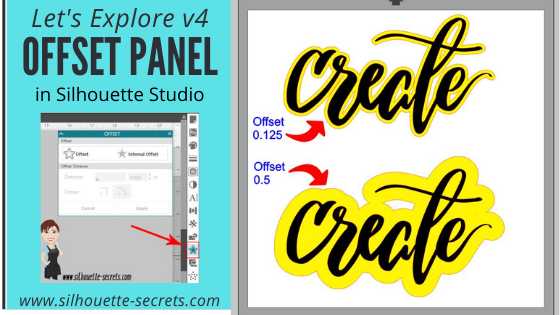
  1. Offset – This tool creates a copy of the design on the outside edge of the original shape. The default distance is 0.125 inches and that is what shows when Offset button is chosen, it can then be adjusted.Select your design and click on the Offset button.Offset demo *the offset is filled with yellow for you to see it better *Create by Cali Arroyo – Design #215617 Once the Offset is applied, it will automatically weld together and any parts that are overlapping will now be welded. Keep in mind that if there is a part of the design, such as a dot of an i, that is not overlapping, it will not be welded and it will need to be grouped after you create your Offset.
  2. Internal Offset – This will apply the offset inside of the design. The default is set for 0.125 inches here too and most likely you won’t see any offset created, if that is left. Once you decrease the offset distance, you can see a change happen.Internal Offset demoThis is one way to fill a font that you want to use the sketch pens with. By creating multiple internal offsets, the sketch pen will “fill” the font in by drawing all the internal offsets.Here is an example of creating multiple internal offsets to “fill” in a font to sketch. Offset multiples This was many internal offsets, so many I lost track of how many I created. First, I will say that it took a lot of ink to fill this in. I was using the Silhouette sketch pens and your results will vary depending on the pen you use and the tip it has on it. Sketch pen collage copy2 You can see above that even with multiple internal offsets, it did not fill in completely with the Silhouette sketch pen. In some cases, it is not worth the ink or the time to use the sketch pens like this and would be easier to use the Print and Cut feature instead.
  3. Offset Distance – Change the Distance of the offset to achieve the look you want.Offset Distance demo
  4. Offset Corner – Change the look of the offset created by changing the corner shape.Corner demo
  5. Cancel or Apply – Choose whether to Apply the Offset (can also hit Enter key) or Cancel.

Let’s take a look at some examples of using Offsets.

Creating an offset as a background to layer a decal:

Offset 2 layer decal

Check out how I created this and then used layering marks to line up the decal exactly HERE.

IMG_1896

Using a Offset to create a space when subtracting and layering HTV:

Knockout zoom copy

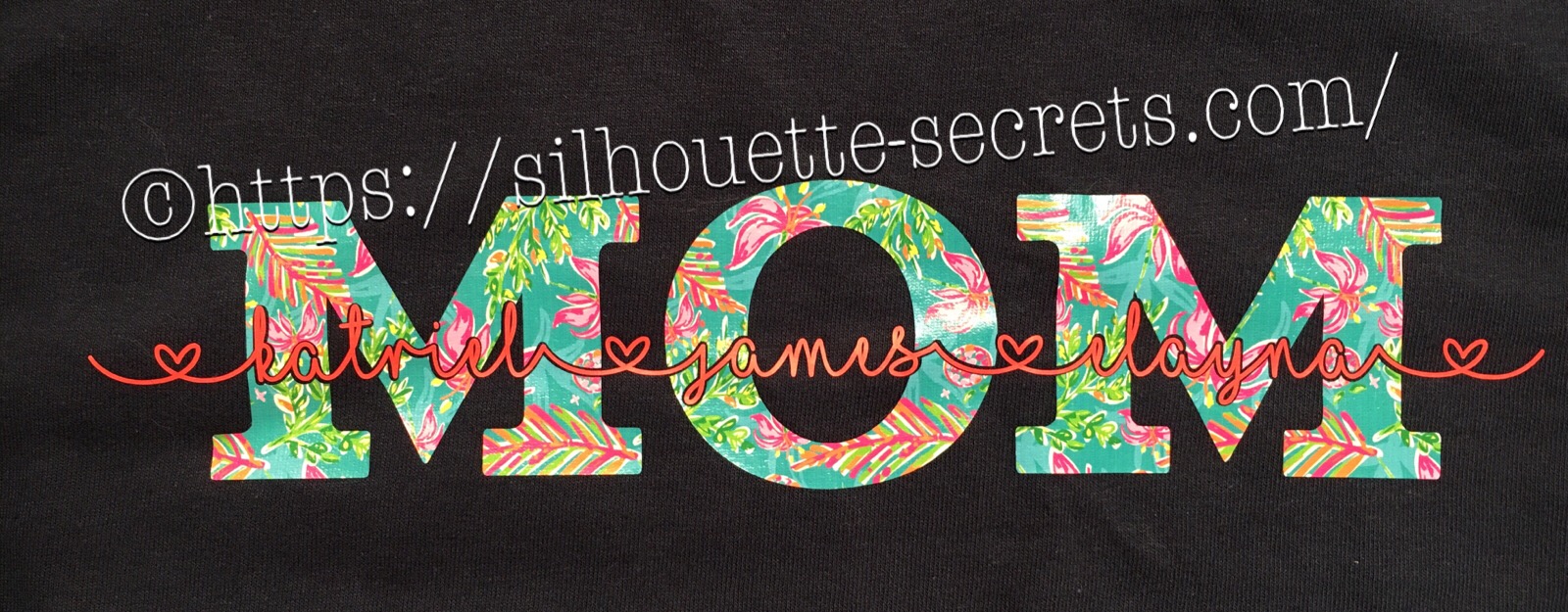
Mom Offset final

See details on how I created this shirt HERE.

temp_1

Using an Offset to thicken fonts for cleaner cutting:

Offset font

The Samantha font is very popular but it can sometimes be a pain to cut for small projects, a small offset can make a big difference without changing the look too much.

Using an Offset to make a frame:

Offset Frame

Make an Offset of the original design, select the offset & original, then right click and choose Make Compound path or use the Modify Panel and choose Make Compound path. Now, you have a frame.

There are many ways to use the Offset and these are just a few examples. How do you use the Offset feature? I would love seeing what you are creating – feel free to post on my Facebook group at Silhouette Secrets+ with EllyMae.

Save this for future reference by pinning the image below.

Offset Pin 2

Enjoy !

THANK YOU for your support! How can you help? Click HERE & buy a coffee. Every little bit helps with the cost of running the site.

Looking for more in-depth, step-by-step classes, check out all of my online Silhouette classes on my Teachable site HERE.

SS Logo snip it

**This post may contain affiliate links. What that means is that I may receive compensation if you purchase through the links I have provided. The price you pay for the product or service is not higher but I may get compensated for sharing.

Posted on 42 Comments

Let’s Explore v4 – Modify Panel – Compound Paths Explained

Silhouette Studio - Compound Paths

So last week we talked about the differences in welding, subtract, subtract all, intersect, divide and crop in the Modify Panel – Tab 1. This week we are moving on to something that I think is very often more confusing than it should be – Modify Panel – Part 2 – Compound Paths.

First, if you are just joining us, the Modify Panel is on the right side of the Silhouette Studio v4 software.

Modify Panel copy

Last week we dove into the top section of the panel under the Modify header and this week we are going to look at the bottom section – Compound Paths and Detach Lines.

Modify Panel details copy

So first, what is a compound path?

A compound path is a way 2 shapes interact with each other.

For example – let’s look at the letter ‘O’.

Compound path explaination.

The letter ‘O’ is made up of 2 ovals on top of each other that are a compound path (left). If you release the compound path, then you have 2 ovals stacked on top of each other (right).

Both of these will still cut the same, but a compound path design when filled with color, will look more like the end result of what you are cutting.

Let’s take another look:

Compound path example

I have used the USA State Dingbat Font by Sandi Idleman in the Silhouette Design Store, to create my state shape. Then I used the Text Tool to write out Montana and placed it across the design.

On the top, the 2 designs are layered on top of each other, they are treated as 2 designs.  The middle design is still just 2 designs that have been filled with a color. And the bottom design I selected both shapes and choose Make Compound path. This has taken and cut the Montana out of the bottom state shape, now they are one design.

Now, let’s look at them on the Send Panel.

Compound path Send panel

They all have the same bold cut lines. All of them will cut the same, the difference is how they look in the software when you are designing.

Now that we know a little more about how the Compound path works, let’s finish the Modify Panel.

Modify Panel details copy

7. Make Compound Path – This will take 2 or more designs and combine the paths making them 1 design.

For instance, some files from the Silhouette Design Store will open and you will notice if you fill it will color, that it looks odd. This is a Camera design by Amy Tangerine – Design #181402.

Make Compound Path

All of these camera designs will cut the same, but how they look on the design screen is affected by choosing Making Compound Path.

8. Release Compound Path – This will take 1 design and releasing it into multiple shapes.

For example, if I wanted to use this Fish Mandala design by Zigi Design Studio but I just want the outline of it, I can choose Release Compound Path.

Fish compound path demo

This will take the design from 1 layer and release all the layers. You may need to Ungroup the Design at this point, it just depends on how the Designer created and saved the file.

Ungrouped

Now, you can see all the selection boxes that are highlighted. The Compound Paths have been released and it is now in many layers.

Note: When you do this on such a complex design, it increased the amount of data in that file because each piece is now an individual layer. So keep that in mind when you do this, in case your computer seems sluggish or with a really complex design, you may get a Not Responding message. It’s a lot of date, so be patient.

Outline pulled away

There are many reasons why you would want to do this and it can be helpful to know how to “break up” a design by releasing the compound paths.

With these tools, you can make the designs you have go farther.

Make compound path fish copy

For example, after I released the Compound Path and moved the outline away, then I could add text in the middle of the design, select both and choose Make Compound Path and it would then cut the Montana text out of the center of the fish.

9. Detach Lines – If the image is filled with color, this option will separate the colored parts of the design from the lines of the design. This is a Spring Butterfly Set by Sophie Gallo – Design #56994.

Detach Lines

You could use this option when doing a Print and Cut project versus changing the line color on each design.

If you click on the Send tab, you will see that they both have Cut lines on the design, but one is the lines and one is the image with the fill.

Detach Lines Send tab

Here is the same idea but the Butterflies were filled with a pattern and then detach lines was chosen.

Detach Lines pattern

And there you have all the tools in the Modify Panel. Check out Part 1 of the Modify Panel HERE.

Modify Panel - Part 2

Now, the best way to learn is to play, play, play. Go find a design and see what compound paths do!

Share with us what you create with your Silhouette – post photos on my Facebook group at Silhouette Secrets+ with EllyMae.

Enjoy !

THANK YOU for your support! How can you help? Click HERE & buy a coffee. Every little bit helps with the cost of running the site.

Looking for more in-depth, step-by-step classes, check out all of my online Silhouette classes on my Teachable site HERE.

SS Logo snip it

**This post may contain affiliate links. What that means is that I may receive compensation if you purchase through the links I have provided. The price you pay for the product or service is not higher but I may get compensated for sharing.

Posted on 10 Comments

Subtracting Text for HTV in Silhouette Studio v4

These designs have been a big hit for Mother’s Day and we will walk through how to created one.

temp_1

First click on the Text Tool on the left side of the Silhouette Software. Click on the design mat & type out the words. Click off of the words to deselect it and then click back on the text once to select it. Fill the text with color to make it easier to see & work with. Click on the Text Style Panel on the right side.

Text Style copy

Now, click on a Font Style Name, the text will change to that font style. You can then either click on each font, use the text search bar if you know what you are looking for or use the arrow keys to scroll through the text list and as you do the words will change to each font – this is my favorite method if I don’t know what font I want.

Text Style Panel copy

For Mom, I chose a font called Gulana – I chose this one by just scrolling through my font list and seeing what I liked best. Now, resize it how you like it.

Next using the same text tools, type out your second layer.

Names text.JPG

I used the font MF I Love Glitter by Misti Fonts in this example. The swirl hearts are called Glyphs and are special characters within the font that you can add. Check out this post for more on the Glyphs feature HERE.

Since this font overlaps make sure to weld the letters together before you cut.

Now position your name design over the top of the Mom design and align it how you want it.

Mom aligned

We are going to Subtract the top layer (names) from the bottom layer (Mom).

First, I’d suggest creating an offset. When you are using HTV and pressing individual layers, the HTV can shrink as it’s applied with heat. To help with that we will create an offset, so we don’t have unwanted gaps in our design.

First, make a copy of your design and pull it off to the side in the holding area of the design space. Any time you are working with text, it’s a good idea to make a copy and pull the original off, just in case you need to go back. Once you edit text, it is no longer text and is now treated as a vector image – so the text is no longer editable.

Next, select your name text and click on the Offset Panel on the right side of Silhouette Studio v4.

Offset copy

Then next to the Distance highlight the numbers and type in 0.040, then click on Apply or hit Enter. The Distance of the offset will vary depending on the design you are using. Enter some larger or smaller offsets and see what you like – the Undo button will be your best friend.

The offset option gives you an outline around your text. It can also be used to make text thicker when you are using a very fine line font.

Offset zoom

Once you Apply the offset, it will weld any parts that are overlapping. Parts of the design that are not overlapping (like dots of an i) will not be welded together, so you will need to group the offset before you move it, so it all moves as one.

Now move your original text off of the Mom design.

Offset2.JPG

To create this design, we are going to use the Mom and the offset of our name text.

Select both Mom and the offset and under the Modify Panel, choose Subtract.

Mom knock out copy

This will Subtract the top layer (offset) from the bottom layer (Mom) and any pieces that are not connected will now be individual. I would group these together before anything gets moved.

Offset group copy

The Group option can be found in the QAT (Quick Access Toolbar) at the top of the software, right click and choose Group or under the Object menu at the top left of the software.

Now, we can move our original text back on top of our Mom design.

Knockout

You can see when we zoom in that we have created a gap in our layering. This is done with the purpose of allowing for the shrinkage of the HTV and not getting unwanted gaps in our design.

Knockout zoom

Do you have to do an offset before you use the Subtract option? No, but it can save some frustration when the HTV does shrink.

Now, you are ready to set it up to cut out the material.

I used this awesome Sparkleberry Vaca HTV by Sparkleberry Ink on the Mom design. This is a patterned vinyl and you do not have to mirror or flip your image when you cut their patterned vinyl.

For the name text, I am using Siser Easyweed HTV in Hibiscus from Swing Design. Since this is regular HTV, I will flip (mirror) the text prior to cutting.

Flip name text copy

Next, prepare your materials. Cut them down to the size you need or place each one on the mat individually, however you like to cut.

Click on the Send tab in the top right corner. Select your Material. Heat Transfer – Smooth is what I used for both the pieces I cut.

Send tab copy

Once your mat is loaded, I always suggest doing a Test Cut before cutting the full design. This can save you a lot of frustration in the long run.

Click on the Send button at the bottom and once it’s cut you can weed your designs.

Layer & press the designs on your t-shirt or tote bag and you have a custom made design.

temp_2

Subtracting text

What will you create with this technique today?

Enjoy !

THANK YOU for your support! How can you help? Click HERE & buy a coffee. Every little bit helps with the cost of running the site.

Looking for more in-depth, step-by-step classes, check out all of my online Silhouette classes on my Teachable site HERE.

SS Logo snip it

**This post may contain affiliate links. What that means is that I may receive compensation if you purchase through the links I have provided. The price you pay for the product or service is not higher but I may get compensated for sharing.

Posted on 29 Comments

Let’s Explore v4 – Modify Panel – Part 1

The Modify Panel has lots of neat tools in it that perform a variety of functions. It can be found on the right side of the Silhouette Studio v4.

Modify Panel v4

Let’s take a look at all the tools in this panel.

Modify Panel details copy

  1. Weld – Joining two or more objects that are overlapping together to form 1 object. This is often used with text when you want it to cut as one solid design vs individual letters.Weld3You will notice that the top text, the red lines from the characters overlaps the letter next to it. If you sent it to cut like this, it will cut out the red lines exactly how they show, so your letters would have cuts through them.Weld - zoom copyBy choosing to weld the font first, you can join the letters together so it cuts as one smooth piece. After you have welded, any piece of the text that is not overlapping will now be a separate object – like the dots of the i, so you want to make sure to Group them together to keep the text moving as one design. When you weld text, it does change it from editable text to a vector image, so make sure to make a copy & pull it off to the side so you have the original in case you need to go back.
  2. Subtract – Takes the top layer and subtracts it out of the bottom layer under it.SubtractOn top is the original design. Mom is typed out and behind the names. When you select both designs and choose Subtract, it subtracts out the names (top layer) from the Mom design (bottom layer). This works well for things like layering HTV where you don’t want the bulk of layering on your shirt or if you are using glitter HTV that is not recommended to be layered. Tip: with this design, I would create an offset of the original names and then use the offset to subtract from the Mom design. It gives you a little more flexibility in placement when you apply it to the shirt. Offset copy I used a 0.20 offset on this design. Then moved the original name text away and used the Mom (bottom layer) and the offset (new top layer) to Subtract. Offset demo Since I used an offset, this will allow you to place your names text inside of the area when applying the HTV and you won’t have to worry as much about shrinkage and getting it perfect. Offset final Move the name text back on top of your Subtracted design to get an idea of how it looks. On the top design, you have to get the exact placement of the names lined up with the bottom layer. On the bottom design, you will notice there is a bit of white showing around the name text, this will be beneficial when you are applying HTV so you don’t have to worry as much as about the HTV shrinking when you press each color. temp_1 I used MF I love glitter font by Misti Fonts and Gulana font. Keep in mind if you plan to sell creations with these fonts, you will want to purchase the Commercial License for each. If you are using adhesive vinyl, it is not as much of an issue because there is no shrinkage. But, you will still need to get it lined up perfectly and layering marks can help with that – check out how to do that HERE.
  3. Subtract All – This option removes any part of an design that is behind another design. I always start my pulling off a copy of my design to the holding area off the mat, so I can go back to the original if needed.Subtract All So above I drew a heart and moved it behind my Mom and name layers. Make sure to align the design how you want and then I chose Subtract All and it cuts out the top 2 layers from the very bottom layer (heart). This works great for making designs that you don’t want to have the bulk of materials overlapping. Again you could use an offset to help with ease of getting it lined up and not worrying about shrinkage.
  4. Intersect – When 2 or more designs are overlapping, this will keep only the part of the design that is intersecting between the designs and the rest is deleted.Intersect
  5. Divide – When 2 or more designs are overlapping, this will divide any parts that are overlapping, but keeps all of the pieces on the design mat. Nothing is deleted.Divide
  6. Crop – This will allow you to crop a shape out of a pattern, design or in this case a photo.CropDraw a heart over the photo, select both the photo and circle, then choose Crop and it will take that shape out of the layer under it.

There are so many neat things you can accomplish with these tools under the Modify Panel. I encourage you to draw some shapes, pull in some patterns and just play around with them to see what they do.

Save this for future reference by pinning the image below.

Pin - Modify Panel - Part 1

Find Part 2 of the Modify Panel HERE – Compound Paths & Detach Lines

So far in the “Let’s Explore v4” series we have covered: – Page Setup Panel – Tab 1 – Page Size, Cutting Mat, Rotate View, Print & Cut Borders – Page Setup Panel – Tab 2 – Grid OptionsPage Setup Panel – Tab 3 – Registration MarksFill Color PanelLine Style PanelTrace Panel – Basic TraceTrace Panel – Trace by ColorTrace Panel – Magnet TracePixscan PanelText Style Panel – Tab 1Text Style Panel – Tab 2 & 3 – Glyphs & Spell CheckTransform Panel – Align TabTransform Panel – Scale TabTransform Panel – RotateTransform Panel – Move ByTransform Panel – Shear byReplicate Panel – Tab 1 & 2Replicate Panel – Object to Path Whew! We’ve covered a lot!

I truly believe that if you learn how to create in the software, the possibilities are endless! The software is the key! And it is such a powerful program that is available for anyone to use.

I would love to see what you are creating or learning with your Silhouette! Feel free to post photos or questions on my Facebook group at Silhouette Secrets with EllyMae.

Enjoy !

THANK YOU for your support! How can you help? Click HERE & buy a coffee. Every little bit helps with the cost of running the site.

Looking for more in-depth, step-by-step classes, check out all of my online Silhouette classes on my Teachable site HERE.

SS Logo snip it

**This post may contain affiliate links. What that means is that I may receive compensation if you purchase through the links I have provided. The price you pay for the product or service is not higher but I may get compensated for sharing.

Posted on 12 Comments

Let’s Explore v4 – Replicate Object on Path

Replicate Panel – Object on Path

I am sure you have seen other projects where people had a design replicated multiple times in a shape and you’ve said “How did they do that?”

Well, today we are going to explore how to do that right in the Silhouette Studio v4.

The Replicate Object on Path tab can be found under the Replicate Panel on the right side and is tab 3 on the panel.

Replicate Object on Path copy

First add the design and the shape you want the design to follow onto the design mat.

For this design, I drew a heart using 2 circles and a square turned 45 degrees, then placed them overlapping and welded them. I resized the heart down to a manageable size. And then drew a perfect circle by holding down my Shift Key and dragging my Draw Ellipse tool out.

Replicate Object start

Now let’s take a look at the Object to Path tab.

Replicate Object detailed copy

  1. Show Grab Handle – Click on the Object you want to move to the shape to select it, then click on Show Grab Handle button in the panel. A grab handle will appear in the object and you click and drag that towards your shape.Show Grab Handle copyWhen you drag it on to the shape, it will replicate copies of that object around the shape. And you get another little circle (drag handle) on the shape to the right of the original object. By clicking and dragging on this drag handle you can increase or decrease the spacing between the objects on the path, this will also change the number of objects around the shape.

    *If for some reason the object will not snap to the path, try this – right click on it and choose Make Compound Path. Sometimes strange things happen and even though a design isn’t really a compound path at all, this seems to work to help it to decide it can snap to a path. 

    Drag to shape copy

    Here I moved the drag handle so there is more space between the objects. Notice that the numbers change on the panel as well under the Position.

    Drag copies copy

  2. Perpendicular – Change the orientation of the object on the path by leaving this box checked or un-check it to change the angle of your object.Perpendicular copy
  3. Start Angle – Change the rotation angle of your object on the path to an exact angle.Start Angle copy
  4. Increment Angle – Change how each object is placed in relation to the previous object. In this case, each heart is rotated 90 degrees from the previous heart.Increment angle
    This creates a pattern of your design around the shape. With this option, you can make many variations of the same design.
  5. Start Position – Change the position of the original object on the shape by changing. In this photo, I have changed the position to 0, which places the original object at the 3 o’clock position. You can also move the grab handle on the original object and move it manually too.Start Position copy
  6. Section Length – Changes the length between the beginning and end object on your path.Section Length copy
  7. Number of Repeats – Change the number of times the object is replicated on the path.Number of repeats copy
  8. Step length – Change the distance between each object on the path by adjusting this figure. This will change number of objects on the path.Step Length copy
  9. Release Copies – When the design is complete, click on this to release the objects from the path and remove the shape your were using as your path.Release CopiesAt this point, all of your objects are now single objects, as you can see by the selection boxes around each. I would suggest grouping these together before you go further, so you don’t accidentally move one.Release copies 2

And there you have the Replicate Object on Path – how cool is that?

What will you do with this neat feature?

Replicate final

Want to start at the beginning of the Let’s Explore v4 series – click HERE.


Enjoy !

THANK YOU for your support! How can you help? Click HERE & buy a coffee. Every little bit helps with the cost of running the site.

Looking for more in-depth, step-by-step classes, check out all of my online Silhouette classes on my Teachable site HERE.

SS Logo snip it
**This post may contain affiliate links. What that means is that I may receive compensation if you purchase through the links I have provided. The price you pay for the product or service is not higher but I may get compensated for sharing.

Posted on 2 Comments

Layered vinyl decal for a teacher gift

Today I am creating a vinyl decal that could be applied to a variety of items that would be great for a teacher.

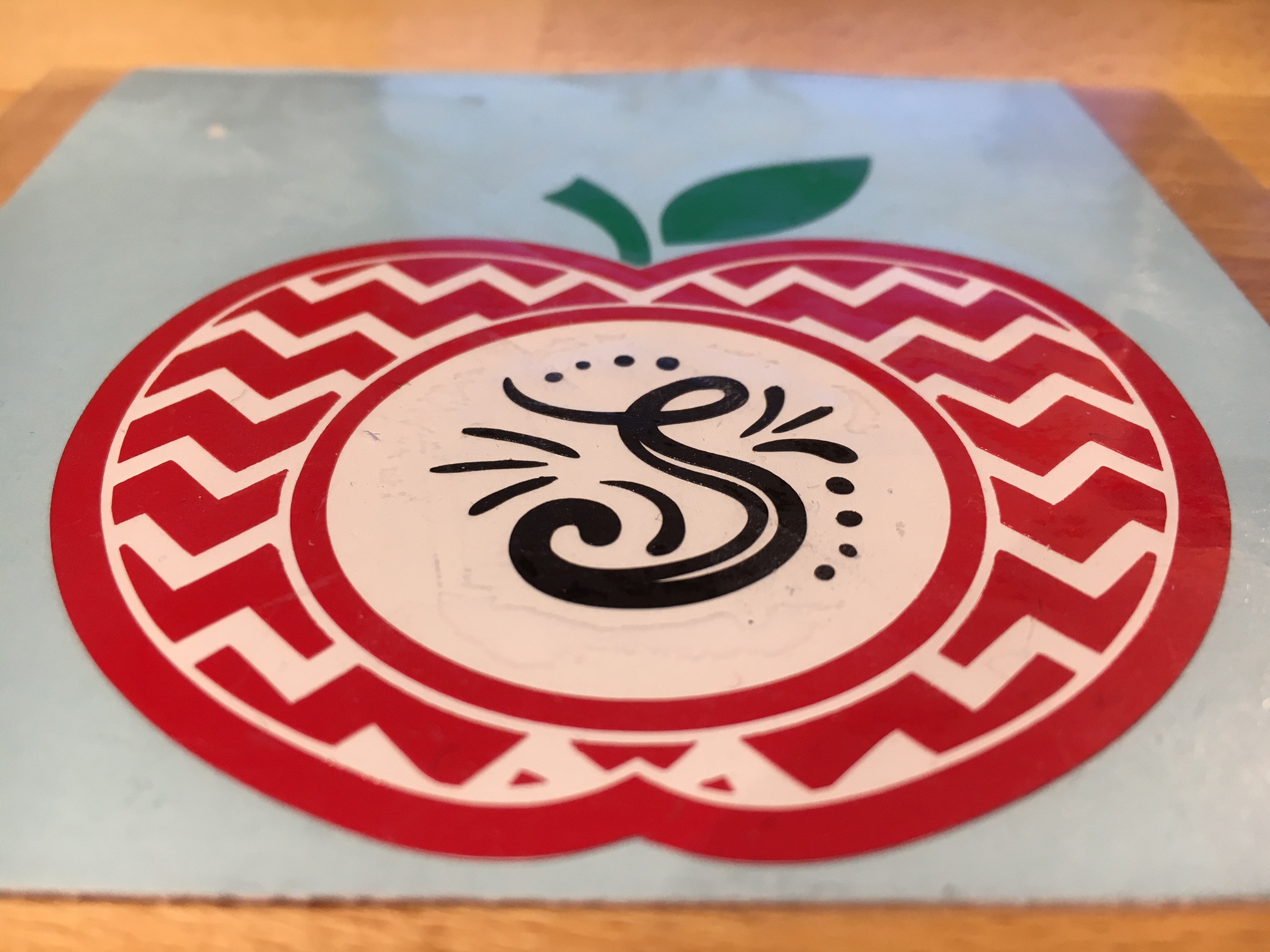
Vinyl decal

For this decal, I am combining 2 files found in the May Bundle at SoFontsyApple Monogram Frames and A-Z Hand lettered Initials.

Measure and create your design to the size you want. I added an apple layer of white behind the red, so that gives this design 4 colors to layer.

The mat is revealed at 50% here so I can see where on the cutting mat my decal would fit.

Vinyl decal demo copy

Since there are 4 colors to this decal, replicate the design with the registration marks so there are 4 copies on your design mat.

Replicate copy

Check out more information on the Replicate Panel HERE.

Move the copies to separate areas on your design mat, then un-group the design and delete the color on each copy that you do not want to cut. Make sure you do not move the design in any way when you are deleting the layers, as it is lined up properly with those registration marks.

It’s also helpful to pull off another copy of the original to the side of the mat, just in case you need to go back.

Vinyl decal copies

Now, you have all the layers of your decal ready to cut on one cutting mat. Cut your material or grab your scraps of vinyl and place them in the same location on the cutting mat as they are on the design screen. I am using Oracal 651 vinyl for my decal.

You’ll notice that I did not weed the bottom black layer. Since it had some small dots in the design I chose to apply the Oracal transfer tape first and use the Reverse weeding technique on it to keep those pieces in place.

IMG_3165

The first time I used the reverse weeding I did not like it as the vinyl stuck to me. But, it definitely has it’s uses and works great for those detailed images. With a little practice, you get the hang of it.

When you are layering the vinyl, you want to start with the top layer first and then work your way down. I started with the black, then green, then red and then white.

IMG_3167

I love how this decal turned out.

What would you apply it to? A coffee mug? An acrylic blank?

Enjoy !

THANK YOU for your support! How can you help? Click HERE & buy a coffee. Every little bit helps with the cost of running the site.

Looking for more in-depth, step-by-step classes, check out all of my online Silhouette classes on my Teachable site HERE.

SS Logo snip it

**This post may contain affiliate links. What that means is that I may receive compensation if you purchase through the links I have provided. The price you pay for the product or service is not higher but I may get compensated for sharing.

Posted on 18 Comments

Let’s Explore v4 – Replicate Panel

Want to make a copy of your design, font or an object? Then the Replicate Panel can be very helpful!

This is found on the right side of the Silhouette Studio v4.

Replicate panel copy

This tool works great if you are wanting to replicate several copies of your design. Let’s Explore the Replicate panel!

Replicate panel detailed copy

  1. Duplicate – Choose which way you want 1 copy of your design to replicate left, right, down or up.
  2. Rows or Columns – Choose to Replicate 2 copies right, 3 copies right, 2 copies down or 3 copies down.Replicate rows columns copy
  3. Fill Page – Choose to Replicate the design as many times as it takes to fill the page.Fill Page copy
  4. Mirror – Choose to Mirror 1 copy of the design down, up, left or right.MirrorSomething to note about the Replicate and Mirror tools above is that it may look like the designs are overlapped, however, they are placed just perfect so when you cut, it will cut both lines.Replicate placement As you can see in the photo above, there is no overlap in the cut lines and both copies will cut just fine.
  5. Rotate Copies – Choose to Replicate and rotate 1 copy, 2 copies, 3 copies or 5 copies.Rotate copies

The second tab under the Replicate Panel gives you even more options on choosing how many and where to replicate the design to.

Number of Copies tab copy

Number of Copies detailed copy

  1. Number of copies – Choose how many copies you would like to replicate of your design.
  2. Position of each Copy – Choose what direction you would like the copies to replicate in.
  3. Rotate each Copy – Choose a certain degree to replicate those copies to.Rotate number copies copyIn the photo above, I chose to make 3 copies, rotated to the right at 30 degrees. So each copy will rotate 30 degrees from the previous one.

There is so much that you can do with this Silhouette software and every time I open it, I love seeing what it can do.

The design I used in my example can be found in the May bundle at SoFontsy – it’s called Sports Ball Love/Mom Hearts by Svg Cuttables.

Web

I hope you have fun playing with the Replicate Panel – it can really come in handy when you are designing.

Enjoy !

THANK YOU for your support! How can you help? Click HERE & buy a coffee. Every little bit helps with the cost of running the site.

Looking for more in-depth, step-by-step classes, check out all of my online Silhouette classes on my Teachable site HERE.

SS Logo snip it

**This post may contain affiliate links. What that means is that I may receive compensation if you purchase through the links I have provided. The price you pay for the product or service is not higher but I may get compensated for sharing.

Posted on 4 Comments

Let’s Explore – Transform – Shear

Today we are on the final tab of the Transform Panel – the Shear tab. This Panel is available if you have the Designer Edition upgrade to the software.

This is another tool that is often overlooked. Why would you use it?

You can change the look of a basic shape, design or even font to give it a new look.

The Shear tab is found on the rights side of the Silhouette Studio v4 under the Transform Panel.

Shear Panel copy

Below I have a few examples of how you can use this tool to change the look for a font or design.

Shear examples

Let’s check it out and see some examples.

Shear Panel detail copy

  1. Horizontal Shear Preset- Shear or skew by preset degrees on a horizontal line – choose between -30, -15, 0, 15, or 30 degrees.Horizontal Preset shear
  2. Horizontal Custom – Shear or skew by typing in a custom number and it will shear to that degree on the horizontal line.Custome Horizontal shear
  3. Vertical Shear Preset – Shear or skew by preset degrees on a vertical line – choose between -30, -15, 0, 15, or 30 degrees.Vertical Shear Presets
  4. Vertical Shear Custom – Shear or skew by typing in a customer number and it will shear to the degree on the vertical line.Vertical Shear Custom
  5. Show Shear Handles – Check the box to show the Shear Handles that you can grab and skew your design manually instead of putting in a certain degree designation.Show Shear Handles copy

This can make the designs or shape you have in your library go a lot further when you know that you can manipulate and change them.

For instance, I took 2 basic shapes and created this rough sun design.

Sun demo

By cutting a circle in half, I created the main sun part. Then I took a rectangle and used the Shear Handles to manipulate each copy of the streaks.

Want to give your signature a more realistic slant to how it would be written?

Signature shear

Do you have a font that does not have the Italic option? Then create your own.

Italic demo

Whether you are creating your own designs or just want to play around, the Shear tool is definitely something to play around with.

Enjoy !

THANK YOU for your support! How can you help? Click HERE & buy a coffee. Every little bit helps with the cost of running the site.

Looking for more in-depth, step-by-step classes, check out all of my online Silhouette classes on my Teachable site HERE.

SS Logo snip it

**This post may contain affiliate links. What that means is that I may receive compensation if you purchase through the links I have provided. The price you pay for the product or service is not higher but I may get compensated for sharing.