Posted on — 2 Comments

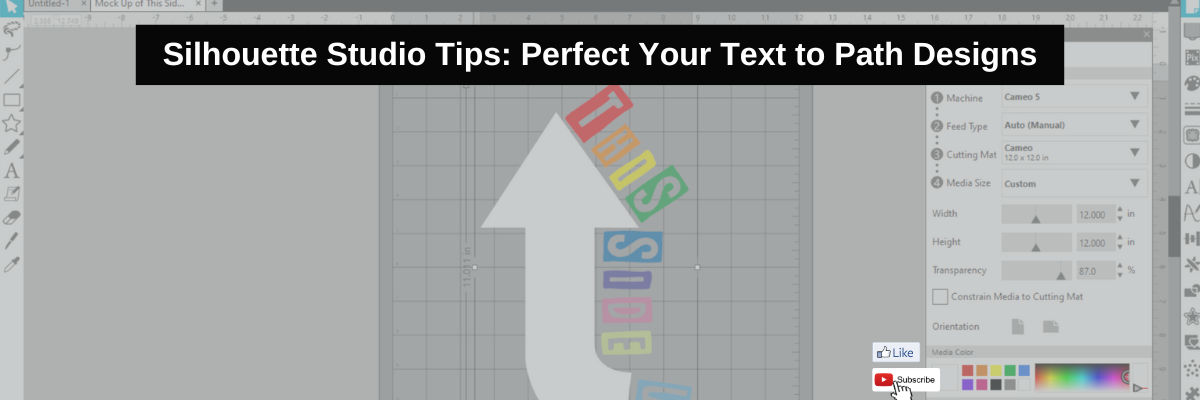
Silhouette Studio Tips: Perfect Your Text to Path Designs

Perfect Text to Path in Silhouette
Silhouette Secrets+ with EllyMae

Have you ever wanted to add text along a shape? A circle? Or even just along a wavy line? The Silhouette Studio software has just the tool and it is available for everyone! It’s called Text to Path and I have a new video tutorial out showing how I used this to create a fun t-shirt.

Affiliate links may be present in the following blog post and as an Amazon Associate, I earn from qualifying purchases.

T-shirt design with Text to Path in Silhouette Studio

This design was created in Silhouette Studio and I have a few tricks to show you. I used 1 arrow elements from a stencil/background design by Sarah Hurley and used it as my base to build on.

Arrow Background Stencil by Sarah Hurley

A few more tips came to mind after the video was recorded that can help you with Text to Path in Silhouette Studio for your future projects.

What is a Path?

A path is any line in Silhouette Studio. This can be a single line, a closed shape, a design. The red “cut” lines you see in the Silhouette software around a design are “paths”.

What is a Path in Silhouette Studio

The Text to Path tool works for text only and not designs around a shape. If you want to add a design to a shape, you can use the Replicate – Object to Path tool in Silhouette Studio.
Find more details on Replicate – Object to Path HERE.

If 2 or more “paths” are close together, it can get take some work to get the text to snap to the shape you want. The text may jump back and forth to the path you don’t want it on.

Text to Path Close Shapes Tips

Sometimes it can be easier to work with individual shapes and then put the design together after the text to path has been added.

Text Styles for Text to Path

There are millions of different font styles out there and each one can act a bit differently when added to a path. Every font style is unique and that means it can have different spacing, characters, glyphs, etc. However, it’s not just the font style, but can be the font style in combination with the shape/path that it’s added to.

Text to Path in Silhouette Font Style Tips

In the photo above are 3 examples of different font styles and how they can vary when added to a path. Probably the most difficult font styles to add and adjust so they look pleasing are scripty fonts. Since text has to be in editable mode, you cannot weld the font together prior to adding it to a path. Once it’s added to a path, the spacing may not look right for the script to connect.

Not all font styles will look good when added to a shape or path or they may need some additional manual manipulation to adjust.

Editable Text Mode – #1 Tip for Text to Path

The biggest factor for adding text to a path is that the text HAS to be in editable text mode. This means that you type the text out and immediately add it to path. It cannot be changed in any way such as welding, ungrouping, release compound path, etc. When text is modified in any of those manners, it is no longer editable text and you will not get the Text to Path Control point on the bottom left of the text box.

Text on Path Control Point in Silhouette

In the same manner, text designs cannot be added to a path since they are not editable text, but are vector designs.

Text to Path Video Tutorial T-shirt Design Creation

Check out the new video tutorial on the Silhouette Secrets+ YouTube channel HERE.

Text to Path Video Tutorial for Silhouette

Want to learn even more? Here are a few more tutorials and resources of the tools I used in the video linked above.

Please let me know if you have any questions in the comments below.

Save this for future reference by pinning the image below.

Text to Path Tutorial Silhouette Studio Pinterest

Enjoy !

THANK YOU for your support! How can you help? Click HERE & buy a coffee.
Every little bit helps with the cost of running the site.

Silhouette Classes

Never stop learning! Let me help you take the anxiety out of learning with Silhouette and get to creating faster! My Silhouette classes are heavily focused on software, so you can take the skills & techniques taught and apply them to many future projects!

Silhouette step-by-step Classes by Silhouette Secrets+

Silhouette Secrets+ with EllyMae
**This post may contain affiliate links. What that means is that I may receive compensation if you purchase through the links I have provided. The price you pay for the product or service is not higher but I may get compensated for sharing.
Posted on — 3 Comments

Install Fonts for Silhouette Studio: Tutorial for Crafters

Install Fonts for Silhouette
Silhouette Secrets+ with EllyMae

Sharing a bit of information today on how to install fonts for use in the Silhouette Studio software. Well, any program really. Fonts are installed directly on the computer and then software programs pull from the Fonts folder on the computer hard drive to access.

Windows computer fonts folder

Affiliate links may be present in the following blog post and as an Amazon Associate, I earn from qualifying purchases.

Font files are typically OTF or TTF font files. OTF stands for Open Type Font and if you have the option to install this, that is the one you should install. The OTF file is the newer font format and is the one that has all the special characters, also called glyphs, that we have seen evolve over time. Over time we have seen a shift in font development and are now seeing hundreds of characters in one font file versus the original 26 characters of the alphabet + numbers.

TTF stands for True Type Font and these are the older style font files that do not have as many special characters. If TTF is the only option you have to install for a font, that will work just fine. All it means is that the font file does not contain as many special characters.

How to Install Fonts for Silhouette

Check out the new video tutorial on the Silhouette Secrets+ YouTube channel as I’m sharing step-by-step how to install fonts for use in Silhouette.

How to Install Fonts for Silhouette

As a Silhouette user we’ve been kind of spoiled in seeing font file thumbnails show up in the Fonts folder of the Silhouette library and with most of your basic fonts, the font will install on the computer when the font thumbnail syncs to the library. However, with the Silhouette website migration issues that started on 5/22/24, we have seen fluctuation in files actually syncing properly to the Silhouette library.

The fonts from the Silhouette Design Store, do NOT have to sync to the library for use. It’s just kind of a perk that we have gotten used to. Once things are back to working like they should with the Silhouette websites someday, we may see things return to normal.

The Silhouette Fonts folder only contains thumbnails for fonts that are purchased and synced to the library directly from the Silhouette library. Font files can be found in many online sites. Check out the Recommended Design & Retailers for the group for more options HERE.

The same steps apply for all fonts to be installed no matter what site you obtain them from.

I also have a written tutorial that I published a few year back called Let’s Explore v4 – Installing Fonts. In this tutorial I have provided additional details on things you might encounter such as extracting downloaded files and installation steps for a MAC.

Installing Fonts in Silhouette Studio

As technology changes and we see updates from both Microsoft and Apple in the computer operating systems, there can be new ways they “hide” things or change things that users have to figure out. For instance, with the release of Windows 11, Microsoft hid the “Install for all users”. It is an important step in the process or the font file might not show up in all programs. That is also another change by Microsoft that occurred with Windows 10 release.
If you encounter any issues with installing fonts or see something different than my video tutorial shows, please check out the written tutorial HERE for more details.

If you have any questions, please let me know in the comments below.

Save this for future reference by pinning the image below.

How to Install Fonts for Silhouette Pinterest

Enjoy !

THANK YOU for your support! How can you help? Click HERE & buy a coffee.
Every little bit helps with the cost of running the site.

Silhouette Classes

Never stop learning! Let me help you take the anxiety out of learning with Silhouette and get to creating faster! My Silhouette classes are heavily focused on software, so you can take the skills & techniques taught and apply them to many future projects!

Silhouette step-by-step Classes by Silhouette Secrets+

Silhouette Secrets+ with EllyMae
**This post may contain affiliate links. What that means is that I may receive compensation if you purchase through the links I have provided. The price you pay for the product or service is not higher but I may get compensated for sharing.
Posted on — Leave a comment

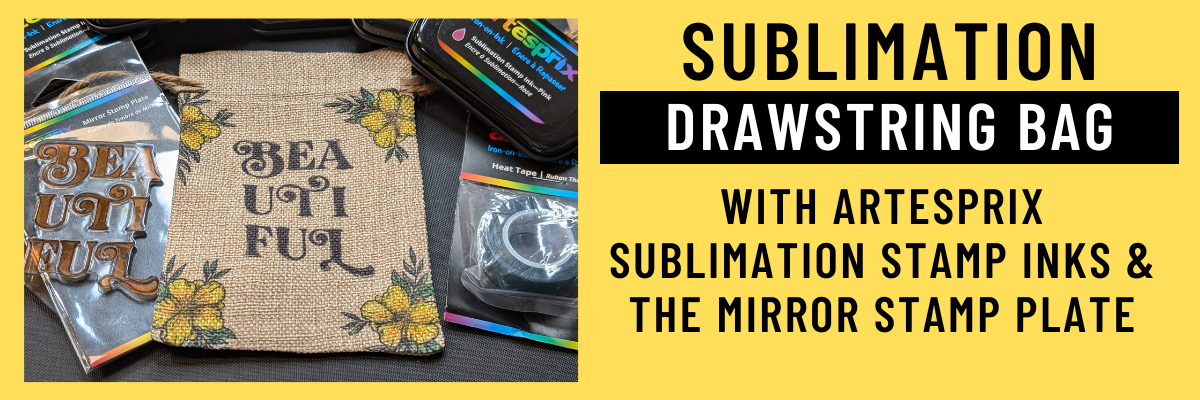
Sublimation Without a Printer: Easy DIY Drawstring Bag Tutorial Using Artesprix Inks

Artesprix Sublimation Inks to Create Custom Drawstring Bag
Silhouette Secrets+ with EllyMae

I love creating with the Artesprix Sublimation products! It has really helped me to just let go of my perfectionist tendencies and just create. These custom drawstring bags turned out FANTASTIC! I used the Artesprix mirror stamp plate for the text and then used it again as a color palette to pick up ink and paint the flowers. I wasn’t quite sure how the colors would show up on the background of the drawstring bag, but it was so bright and vibrant.

Custom Drawstring Bag: Sublimation Without a Printer Using Artesprix Sublimation Inks & Mirror Stamp Pad

Affiliate links may be present in the following blog post and as an Amazon Associate I earn from qualifying purchases.

Anyone can do this and you do NOT have to be an artist to create with the Artesprix Sublimation products. You also do NOT need a sublimation printer, so it is a great way to dip your toe in the water to test sublimation before investing in a bunch of equipment.

I am sharing the supplies I used to create the custom sublimation bag in the video that is linked below too!

Custom Drawstring Bag: Sublimation Without a Printer Using Artesprix Sublimation Inks & Mirror Stamp Pad

Supplies used to create custom sublimation bags:

Watch how I made these custom drawstring bags with the Artesprix Sublimation products in the new tutorial HERE on the Artesprix YouTube channel.

Find more ideas on creating with the Artesprix Drawstring Bag HERE.

You never know what you can create until you just do it and there are times I have to give myself a little pep talk and say “Just Do It!”… Just get started and see where it might take you!
Find more projects I’ve created using the Artesprix sublimation products HERE.

I’ll be sharing more so make sure to follow Artesprix on social media to see more projects!
YouTube channel
Blog
Facebook Page
Iron-on-Ink Inspirational Facebook Group

Save this for future reference by pinning the image below.

Artesprix Sublimation Ink Pads & Mirror Stamp Plate with Drawstring Bags


Want more creative ideas using the Artesprix sublimation products?
Check out all other projects HERE.

Grab some Artesprix sublimation products and get to creating today!

Enjoy !

THANK YOU for your support! How can you help? Click HERE & buy a coffee.
Every little bit helps with the cost of running the site.

Silhouette Classes

Never stop learning! Let me help you take the anxiety out of learning with Silhouette and get to creating faster! My Silhouette classes are heavily focused on software, so you can take the skills & techniques taught and apply them to many future projects!

Silhouette step-by-step Classes by Silhouette Secrets+

Silhouette Secrets+ with EllyMae
**This post may contain affiliate links. What that means is that I may receive compensation if you purchase through the links I have provided. The price you pay for the product or service is not higher but I may get compensated for sharing.
Posted on — Leave a comment

Create Custom Stencils: Using Grafix Stencil Film with Your Silhouette Machine

Grafix Stencil Film with Silhouette and Artesprix
Silhouette Secrets+ with EllyMae

Have you ever made your own custom stencils? Combining Grafix Stencil Film with a Silhouette cutting machine opens up endless possibilities for creative projects and designs. You can easily create a wide variety of customized pieces! Using the Silhouette, a design by Sarah Hurley, and Grafix Stencil Film, I created a custom stencil that can be used over and over again.

Affiliate links may be present in the following blog post and as an Amazon Associate, I earn from qualifying purchases.

For this project I used Artesprix Sublimation inks with the custom cut Grafix Stencil Film and created a sublimation journal cover.

DIY Stencils with Grafix Stencil Film and Silhouette

I would recommend having a dedicated blade for cutting different materials. This will help to increase the lifespan on the blades, as well as help with future cut issues. Each material will dull the blade differently and stencil material is plastic, so that does affect it differently than say cutting a much thinner material such as adhesive vinyl.

The best thing you can do is test cut to determine what settings are going to work for your blade, machine model, and the materials being used.

Silhouette settings used:

After the cut is finished, check the cut to see if it cut completely through before unloading the mat from the machine. I have to tell myself this constantly because I’m so quick to press that unload button, but it can save you time and materials if you get in the habit of checking the cut first and if it did not cut through, then you can send it again and it should cut in the same exact location.

Additional Resources:

Custom Stencils with Grafix Stencil Film and Silhouette

Check out the new video on the Grafix Arts YouTube channel where I share how I did this HERE and I’ve included a supply list below too!

Supplies used for DIY Custom Stencils with Grafix Stencil Film:

Custom Sublimation Journal with Artesprix Sublimation Inks, Grafix Stencil Film, and Silhouette

What kind of projects would you create with your own custom stencils? Let us know in the comments below, we would love to hear from you!

Save this for future reference by pinning the image below.

Grafix Stencil Film for DIY Custom Stencils with Silhouette and Artesprix

Enjoy !

THANK YOU for your support! How can you help? Click HERE & buy a coffee.
Every little bit helps with the cost of running the site.

Silhouette Classes

Never stop learning! Let me help you take the anxiety out of learning with Silhouette and get to creating faster! My Silhouette classes are heavily focused on software, so you can take the skills & techniques taught and apply them to many future projects!

Silhouette step-by-step Classes by Silhouette Secrets+

Silhouette Secrets+ with EllyMae
**This post may contain affiliate links. What that means is that I may receive compensation if you purchase through the links I have provided. The price you pay for the product or service is not higher but I may get compensated for sharing.
Posted on — 1 Comment

Creative Projects Using ClikChic Background Patterns in Silhouette: Cards, Coasters, and More

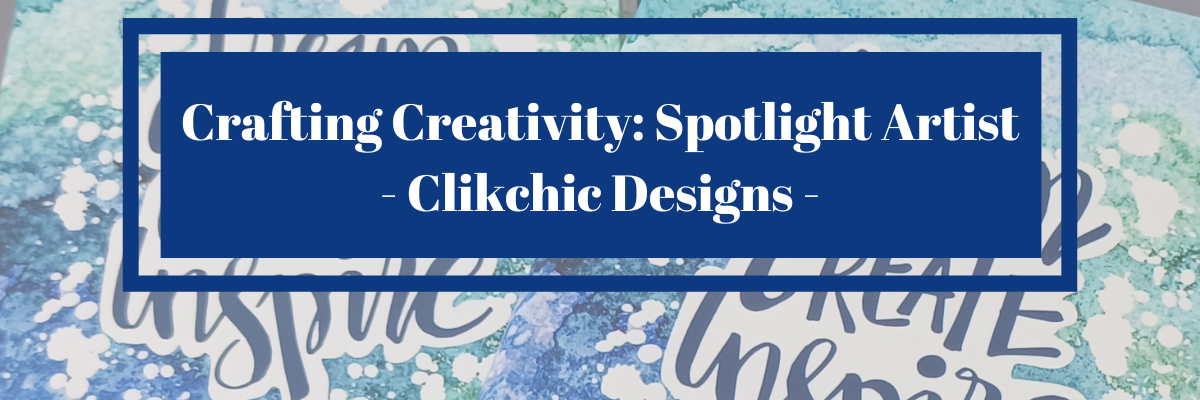
Crafting Creativity Spotlight Artist Clikchic Designs
Silhouette Secrets+ with EllyMae

In this edition of Crafting Creativity I’ll be sharing the projects I created through the month with a watercolor background pattern. Patterns can really make your project unique and be used in creative ways with Silhouette. A great big thank you to Clikchic Designs for providing the free file for the Silhouette Secrets+ July newsletter!

Clik Chick Designs Website

Affiliate links may be present in the following blog post and as an Amazon Associate, I earn from qualifying purchases.

Silhouette Background Patterns Projects

This past month I have had so much fun designing and creating with the Watercolor Background design by Clikchic Designs.

Blue Teal Green Watercolor Grunge Printable Background Pattern by Clik Chic Designs

I even went LIVE on YouTube – which for me is a big step, especially with all the issues Silhouette has been having. In the live video tutorial I shared all about pattern fill and how you can use it.

Check out the YouTube Live Tutorial – Design with Pattern Fill: Silhouette Studio Tips for Stunning Results HERE.

Silhouette Secrets YouTube Silhouette Tutorial Pattern Fill

I’ve been collaborating with designers this year and each week I am sharing new projects that can be created from 1 file. This is a file that the designer has provided for the Silhouette Secrets+ Newsletter subscribers. I want to share how you can take 1 design and think about different projects you can use it in to make your designs go farther!

Project #1 – Card Design with Watercolor Background

I used the Watercolor Grunge background and printed it on a 12″ x 12″ sheet of cardstock. Don’t worry if you don’t have the capability to print on 12″ x 12″ cardstock, the same technique can be done with letter size paper too!

Watercolor Background Cards Created with Background by Clik Chic Designs

I participated in a card swap and signed up to exchange 20 cards, so this was a perfect way to create 6 cards from one sheet of paper. And every one of these cards was different because of the unique watercolor grunge background.

Here is another set I made with a vertical layout.

Watercolor Background on Cards with Clik Chic Designs

Check out the written tutorial on how I made these cards in this post – Distressed or Grunge Background Designs in Silhouette Studio HERE

Additional Resources:

Supplies Used:

Project #2 – Sublimation Journal Cover

What started out as a sublimation tumbler idea, morphed into a sublimation journal cover project instead. I could not think of what I wanted to put as a saying onto a tumbler and while I was stumbling over that, I kept walking by these sublimation journals that I had ordered several weeks back.

Sublimation Journal Design with Clik Chic Designs Watercolor background pattern

Sometimes when the original project does not turn out, the next one is even better than you could imagine. I love these journal covers!

Additional Resources:

Supplies Used:

Project #3 – Eclipse Cards

Have you tried the eclipse card design? While it can be difficult to photograph, it can have a big WOW factor in person.

Eclipse Card with Watercolor Printable Background with Silhouette

When assembling the design you can use foam tape to either bump up the letters cut out or the background. Each can have a unique look to it.

Creating an eclipse Card with Silhouette

Play around with different design ideas and see what you like best.

Additional Resources:

Supplies Used:

Project #4 – T-shirt Design using Siser EasyColor DTV

Printable patterns can be used for all kinds of projects, including printable HTV. Siser EasyColor DTV is real HTV that can be used with an inkjet printer.

Printable Background Pattern using Siser EasyColor DTV with Clik Chic Design Background

I have had great success with the Siser EasyColor DTV and I would contribute that to following the printing and care instructions exactly. I have shirts that still look fantastic that I made when it was first released in August 2022.

In the video, Design with Pattern Fill: Silhouette Studio Tips for Stunning Results, I showed exactly how I created this design and you even get to see a little bit of troubleshooting LIVE while I tried to figure out what I was doing wrong and how I fixed it.

Additional Resources:

Supplies Used:

Project #5 & 6 – Sublimation Coaster, Earrings & Necklace

I had a misprint when I first did the sublimation print for the journal and I had a line of “tiling”, which is a sharp distinct line in the actual printout and would not look good on my finished project. I explained about this and showed exactly what it looks like in the YouTube video HERE.

But, I wasn’t just going to throw away the printed sublimation page. I can use it for other projects! So I started digging in my sublimation blanks to see what the design would fit completely on. The coaster was the perfect fit and now sits on my desk too!

Sublimation Coaster with Printable Background from Clik Chic Designs

For the photo, I paired it with a tumbler that I use all the time from a previous class on creating your own custom designs.

Sometimes mistakes can be a good thing!

Next, I took a few more sublimation blanks and made some earrings and a necklace pendant from the extra pieces of the mistake sublimation print.

Sublimation Earrings and Necklace with Background Pattern by Clik Chic Designs

I don’t even want to admit how many pieces of sublimation printed designs I have just hanging out waiting for the perfect blank. Shhhh…. we won’t talk about it.

Additional Resources:

Supplies Used:

I had so much fun crafting projects with the watercolor grunge background this month and still lots more ideas for future projects too!

Find more amazing designs by Clikchic Designs at:

Follow along with Clikchic Designs on their website, Facebook, and Instagram too!

A great big thank you to Clikchic Designs for contributing the free file for the Silhouette Secrets+ newsletter for the month of July! If you missed grabbing the free Watercolor Grunge Background, it is available in the Silhouette Design Store HERE.

This year I started offering a free file each month for Silhouette Secrets+ newsletter subscribers. I love designing in the Silhouette Studio software and have shared some of my creations as well as look forward to collaborating with more artists in the future too!

Silhouette Secrets+ Newsletter

Never miss out on the news, tips, “secrets”, deals, classes, and more that I share on Silhouette Secrets+. Sign up for the newsletter and get information delivered to your inbox every Friday.
Unsubscribe at anytime.

Sign up for the weekly newsletter HERE to have information delivered direct to your inbox and grab each month new freebie.

I hope this has given you some ideas on how one file can lead to many different projects!

Save this for future reference by pinning the image below.

Multiple projects created with a watercolor grunge background in Silhouette Studio

Enjoy !

THANK YOU for your support! How can you help? Click HERE & buy a coffee.
Every little bit helps with the cost of running the site.

Silhouette Classes

Never stop learning! Let me help you take the anxiety out of learning with Silhouette and get to creating faster! My Silhouette classes are heavily focused on software, so you can take the skills & techniques taught and apply them to many future projects!

Silhouette step-by-step Classes by Silhouette Secrets+

Silhouette Secrets+ with EllyMae
**This post may contain affiliate links. What that means is that I may receive compensation if you purchase through the links I have provided. The price you pay for the product or service is not higher but I may get compensated for sharing.
Posted on — Leave a comment

Sparkle and Shine: Creating Personalized Sequin Pillowcases with Artesprix Paints

Artesprix Sublimation Sequin Pillow with Heat Resistant Transfer Mask
Silhouette Secrets+ with EllyMae

Join me in creating a custom pillowcase that sparkles and shines! With the Artesprix Sublimation Sequin Pillowcase and the Artesprix Heat Resistant Mask, this project is not only fun but also easy to personalize. Using the Silhouette Cameo 5, I cut out a design that bring a unique flair to the pillowcase.

Sublimation Sequin Pillow Case with Artesprix Sublimation Paints and Heat Transfer Resistance Mask

Affiliate links may be present in the following blog post and as an Amazon Associate I earn from qualifying purchases.

Watch how you can make your own custom creation with the Artesprix Sublimation products in the new tutorial HERE on the Artesprix YouTube channel.

Supplies used for Sequin Sublimation Pillow Case:

Here is a list of the supplies I mentioned and demonstrated in the new YouTube video:

Artesprix Sublimation Sequin Pillow Case with Heat Resistant Transfer Mask

Find more ideas on creating with the Artesprix Sublimation Sequin Pillow Case HERE.

Let your imagination go and see what you could create to add some sparkle to your space! Find more projects I’ve created using the Artesprix sublimation products HERE.

I’ll be sharing more so make sure to follow Artesprix on social media to see more projects!
YouTube channel
Blog
Facebook Page
Iron-on-Ink Inspirational Facebook Group

Save this for future reference by pinning the image below.

Sublimation Sequin Pillow Case Artesprix Heat Transfer Resist Mask


Want more creative ideas using the Artesprix sublimation products?
Check out all other projects HERE.

Grab some Artesprix sublimation products and get to creating today!

Enjoy !

THANK YOU for your support! How can you help? Click HERE & buy a coffee.
Every little bit helps with the cost of running the site.

Silhouette Classes

Never stop learning! Let me help you take the anxiety out of learning with Silhouette and get to creating faster! My Silhouette classes are heavily focused on software, so you can take the skills & techniques taught and apply them to many future projects!

Silhouette step-by-step Classes by Silhouette Secrets+

Silhouette Secrets+ with EllyMae
**This post may contain affiliate links. What that means is that I may receive compensation if you purchase through the links I have provided. The price you pay for the product or service is not higher but I may get compensated for sharing.
Posted on — 1 Comment

Crafting Creativity: Spotlight Artist – Tanya Batrak – 3-D Design

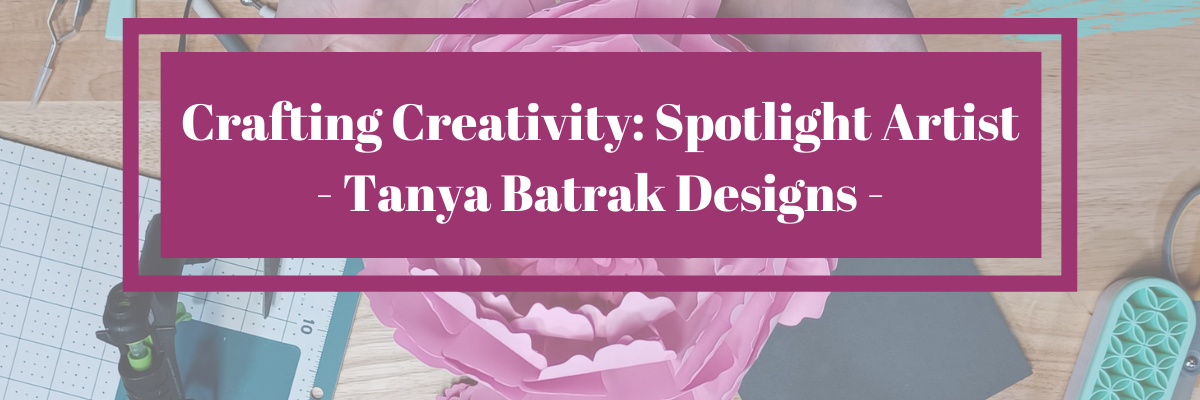
Crafting Creativity Artist Tanya Batrak
Silhouette Secrets+ with EllyMae

In this edition of Crafting Creativity I’ll be sharing the projects I created through the month with the 3-D flower flamingo file from Tanya Batrak. This is a 3-D design file that is easy to assemble. A great big thank you to Tanya for providing the free file for the Silhouette Secrets+ June newsletter!

Tanya Batrak Website

Affiliate links may be present in the following blog post and as an Amazon Associate, I earn from qualifying purchases.

3D Flower Flamingo File – 3-D Design

This past month I created with this 3-D Flower Flamingo File by Tanya Batrak.

3-D Flower Flamingo Design by Tanya Batrak

My goal each month that there is a featured designer in the newsletter is to show how you can take 1 file and create several projects with it. I want to help you start thinking about different ways you can make your designs go farther!

Project #1 – Table or home decor decoration

I started with creating the 3-D Flower Flamingo at the original size it was designed with and cutting all the pieces out of cardstock for assembly.

Cardstock Creation 3-D Flower Flamingo by Tanya Batrak

I always love cutting and creating with cardstock! I recorded my assembly process of this file too! Check out the new video below.

Additional Resources:

Supplies Used:

Project #2 – Large Paper Flower

Next, I used the flower pieces from the 3-D Flower Flamingo file and scaled it up to create a large paper flower.

Large Paper Flower with Silhouette

After I created this, I looked at the final photo and I saw 2 flowers. This could easily be 2 separate flowers with a very unique look.

Additional Resources:

Supplies Used:

Project #3 – Shoe Charm

This next design was a request from my daughter for a shoe charm. She had been watching me create and design with Grafix Shrink Plastic and wanted a new charm for her shoe.

Shoe Charm with Shrink Film (Plastic)

I took 2 of the flower shapes and the little heart from the 3-D Flower Flamingo file and added color to them to print onto Grafix Shrink Film.

Silhouette Print and Cut with Grafix Shrink Film for Shoe Charms

I added several more designs for future projects to the sheet of Grafix Shrink Film and cannot wait to finish creating with those too!

After cutting the Shrink Film with Silhouette, then I placed in the convection oven for 3 minutes at approximately 350 degrees. I love to see the before and after of these shrink plastic designs. It’s so neat!
After it was cooled, I sealed the designs with UV Resin for protection, and then glued the pieces together.

Additional Resources:

Supplies Used:

Project #4 – Flocking Flamingos using Print and Cut

Next up, I really was considering doing some cupcake toppers, but just ran out of time. But these ones are calorie free!

Instead of paper piecing the bodies together, I set it up as a print and cut project using glossy photo paper instead.

Silhouette Paper Crafting with Print and Cut

I took the original file size and then deleted one side of the flamingo head. Made a copy and then right clicked and chose Flip > Horizontal, so I knew the design would be mirrored exactly.

Silhouette Print and Cut Flamingo Bodies

Next, I ungrouped the file so the score line at the bottom was separated. Selected all of the body parts, excluding the score line and used Cut Edge on the Send tab to cut only the outer edge of the flamingo body. Check out the video below showing how I did this step.

Then I cut all the flower pieces out of cardstock and assembled the entire design.

Additional Resources:

Supplies Used:

All of these projects were completed using just 1 file from Tanya Batrak! Find more amazing designs at:

Follow along with Tanya Batrak on their website, Facebook, and Instagram too!

Check out this neat video that first caught my eye when she released these designs HERE.

A great big thank you to Tanya for contributing the free file for the Silhouette Secrets+ newsletter for the month of June! If you missed grabbing the free 3D Flower Flamingo file in June, it is available in the Silhouette Design Store HERE.

This year I started offering a free file each month for Silhouette Secrets+ newsletter subscribers. I love designing in the Silhouette Studio software and have shared some of my creations as well as look forward to collaborating with more artists in the future too!

Silhouette Secrets+ Newsletter

Never miss out on the news, tips, “secrets”, deals, classes, and more that I share on Silhouette Secrets+. Sign up for the newsletter and get information delivered to your inbox every Friday.
Unsubscribe at anytime.

Sign up for the weekly newsletter HERE to have information delivered direct to your inbox and grab each month new freebie.

I hope this has given you some ideas on how one file can lead to many different projects!

Save this for future reference by pinning the image below.

Fabulous Flamingo File by Tanya Batrak Pinterest

Enjoy !

THANK YOU for your support! How can you help? Click HERE & buy a coffee.
Every little bit helps with the cost of running the site.

Silhouette Classes

Never stop learning! Let me help you take the anxiety out of learning with Silhouette and get to creating faster! My Silhouette classes are heavily focused on software, so you can take the skills & techniques taught and apply them to many future projects!

Silhouette step-by-step Classes by Silhouette Secrets+

Silhouette Secrets+ with EllyMae
**This post may contain affiliate links. What that means is that I may receive compensation if you purchase through the links I have provided. The price you pay for the product or service is not higher but I may get compensated for sharing.
Posted on — Leave a comment

Custom Water Bottle with Artesprix Sublimation Inks

Artesprix Sublimation Ink - Custom Water Bottle
Silhouette Secrets+ with EllyMae

Join me as I share how you can take a few stamps and create a custom water bottle using the Artesprix sublimation inks.

Custom Sublimation Water Bottle with Artesprix Sublimation Ink

Affiliate links may be present in the following blog post and as an Amazon Associate I earn from qualifying purchases.

Watch how you can make your own custom creation with the Artesprix Sublimation products in the new tutorial HERE on the Artesprix YouTube channel.

Supplies used for Custom Water Bottle:

Here is a list of the supplies I mentioned and demonstrated in the new YouTube video:

Artesprix Sublimation Water Bottle with Inks

Find more ideas on creating with the Artesprix Sublimation Water Bottle HERE.

So much fun to create this custom water bottle! And I have more to share too! Find more projects I’ve created using the Artesprix sublimation products HERE.

I’ll be sharing more so make sure to follow Artesprix on social media to see more projects!
YouTube channel
Blog
Facebook Page
Iron-on-Ink Inspirational Facebook Group

Save this for future reference by pinning the image below.

Sublimation Water Bottle with Artesprix Inks


Want more creative ideas using the Artesprix sublimation products?
Check out all other projects HERE.

Grab some Artesprix sublimation products and get to creating today!

Enjoy !

THANK YOU for your support! How can you help? Click HERE & buy a coffee.
Every little bit helps with the cost of running the site.

Silhouette Classes

Never stop learning! Let me help you take the anxiety out of learning with Silhouette and get to creating faster! My Silhouette classes are heavily focused on software, so you can take the skills & techniques taught and apply them to many future projects!
Silhouette step-by-step Classes by Silhouette Secrets+

Silhouette Secrets+ with EllyMae
**This post may contain affiliate links. What that means is that I may receive compensation if you purchase through the links I have provided. The price you pay for the product or service is not higher but I may get compensated for sharing.
Posted on — 1 Comment

Creating a Bright and Unique DIY Necktie with Tim Holtz Crazy Birds Stamps

DIY Necktie with Artesprix Sublimation Paint & Stamp Pads
Silhouette Secrets+ with EllyMae

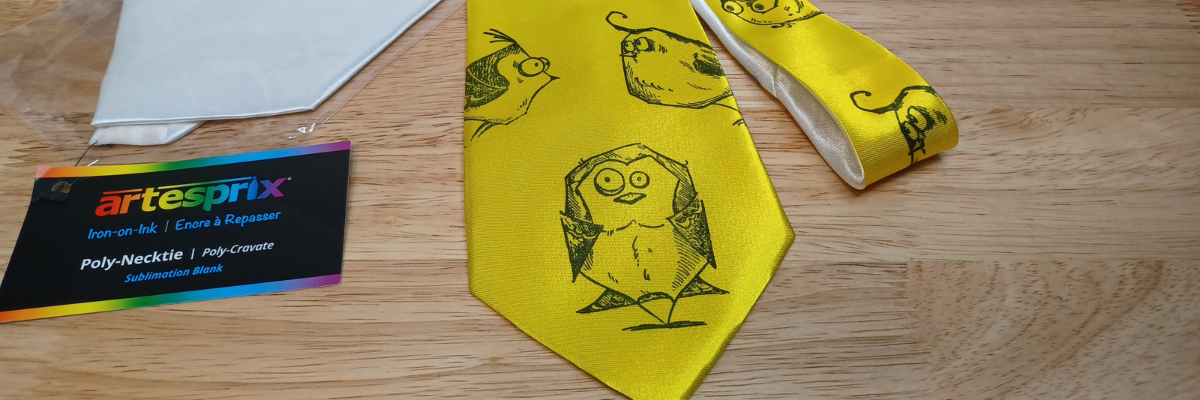
Want to create unique DIY items? This month I created this fun, bright colored DIY necktie that is definitely unique and a one-of-a-kind using the Artesprix sublimation paints, stamp ink, and a fun Tim Holtz – Crazy Birds stamp set. The best part is… you can do this too!

Artesprix DIY Sublimation Necktie

Affiliate links may be present in the following blog post and as an Amazon Associate I earn from qualifying purchases.

I went to ask my husband to tie this as I was trying to take the final photos and he had a friend over. The reaction I got was worth it all! They both loved it! A unique DIY necktie that is one-of-a-kind. I mentioned that it would take a special, fun event to wear this and his remark was, “Absolutely not.” I think he was ready to take it and prove me wrong. It was the perfect reaction to confirm I was on the right path with my unique creation.

Watch how you can make your own DIY creation with the Artesprix Sublimation products in the new tutorial HERE on the Artesprix YouTube channel.

I just love these fun spirited birds. They bring a smile to my face each time I see them.

Supplies used for DIY Necktie:

Here is a list of the supplies I mentioned and demonstrated in the new YouTube video:

Sublimation Necktie with Artesprix DIY

Find more ideas on creating with the Artesprix Sublimation Necktie HERE.

So much fun to create! And I have more to share too! Find more projects I’ve created using the Artesprix sublimation products HERE. And stay tuned for other fun projects because I just couldn’t stop creating with the ribbon and inks!

I’ll be sharing more so make sure to follow Artesprix on social media to see more projects!
YouTube channel
Blog
Facebook Page
Iron-on-Ink Inspirational Facebook Group

Save this for future reference by pinning the image below.

DIY Necktie with Artesprix Sublimation Paints and Stamp Pads


Want more creative ideas using the Artesprix sublimation products?
Check out all other projects HERE.

Grab some Artesprix sublimation products and get to creating today!

Enjoy !

THANK YOU for your support! How can you help? Click HERE & buy a coffee.
Every little bit helps with the cost of running the site.

Silhouette Classes

Never stop learning! Let me help you take the anxiety out of learning with Silhouette and get to creating faster! My Silhouette classes are heavily focused on software, so you can take the skills & techniques taught and apply them to many future projects!

Silhouette step-by-step Classes by Silhouette Secrets+

Silhouette Secrets+ with EllyMae
**This post may contain affiliate links. What that means is that I may receive compensation if you purchase through the links I have provided. The price you pay for the product or service is not higher but I may get compensated for sharing.
Posted on — Leave a comment

Art with Artesprix Sublimation Ink Refills

Artesprix Sublimation Ribbon and Stamp Ink Refills
Silhouette Secrets+ with EllyMae

This months video for the Artesprix YouTube channel took a turn when I had too much ink leftover and I loved the end result of my “accident” better than my original idea. I used the Artesprix Sublimation Stamp Ink Refills, mixed media paper, and Artesprix Satin Ribbon to create some fun and awesome creations. For my original idea, I used a paint brush and painted brushstrokes for my design, but then when I went to clean up my excess ink, I found that I loved the pattern it created so much better!

Affiliate links may be present in the following blog post and as an Amazon Associate I earn from qualifying purchases.

Artesprix Sublimation Satin Ribbon and Ink Refills

Do you ever have that happen? Think you have a plan and then it all changes and turns out even better than your original idea?

Watch how I made these custom ribbons with the Artesprix Sublimation products and added it to make custom ribbon in the new tutorial HERE on the Artesprix YouTube channel.

Artesprix Sublimation Supplies

Here is a list of the supplies I mentioned and demonstrated in the new YouTube video:

Bows with Artesprix Satin Ribbon and Sublimation

So much fun to create! And I have more to share too! Stay tuned for other fun projects because I just couldn’t stop creating with the ribbon and inks!

I’ll be sharing more so make sure to follow Artesprix on social media to see more projects!
YouTube channel
Blog
Facebook Page
Iron-on-Ink Inspirational Facebook Group

Save this for future reference by pinning the image below.

Artesprix Sublimation Stamp Pads, Ink Refills, Markers, Paints, and Stain Ribbon


Want more creative ideas using the Artesprix sublimation products?
Check out all other projects HERE.

Grab some Artesprix sublimation products and get to creating today!

Enjoy !

THANK YOU for your support! How can you help? Click HERE & buy a coffee.
Every little bit helps with the cost of running the site.

Silhouette Classes

Never stop learning! Let me help you take the anxiety out of learning with Silhouette and get to creating faster! My Silhouette classes are heavily focused on software, so you can take the skills & techniques taught and apply them to many future projects!

Silhouette step-by-step Classes by Silhouette Secrets+

Silhouette Secrets+ with EllyMae
**This post may contain affiliate links. What that means is that I may receive compensation if you purchase through the links I have provided. The price you pay for the product or service is not higher but I may get compensated for sharing.