Posted on Leave a comment

Silhouette Studio Business to Basic? Fix Missing Upgrade

Silhouette Secrets+ with EllyMae

If you’re suddenly seeing Silhouette Studio revert from Business to Basic (or Designer Edition or Designer Edition Plus to Basic) and panicking because your Silhouette upgrade is missing, take a deep breath—you’re not alone, and you didn’t lose your purchase. This is one of the most common Silhouette software issues users run into, and it usually comes down to account login and/or activation, hiccups. In this post, I’ll break down why this happens, what to check first, and how to get your paid features back where they belong. I’ll also link to a detailed video on the Silhouette Secrets+ YouTube channel where I walk through the fixes step by step and share additional troubleshooting tips.

Affiliate links may be present in the following blog post and as an Amazon Associate, I earn from qualifying purchases.

The good news is – YOU can fix this easily. I am providing written information below and have also released a video on the Silhouette Secrets+ YouTube channel that can be found HERE.

Why Silhouette Studio software upgrades disappear?

The most common reasons for a software upgrade to disappear are:

  • Silhouette Software version update – this does not happen every time you update software versions, but can happen
  • Computer OS (Operating System) updates – this is on both Windows and MAC computers.
    Computer OS updates can happen in the background without a user knowing it.
  • New computer – software upgrade activations are not automatically loaded when you install the software on a new computer

How to Activate a Silhouette Software Upgrade Easily

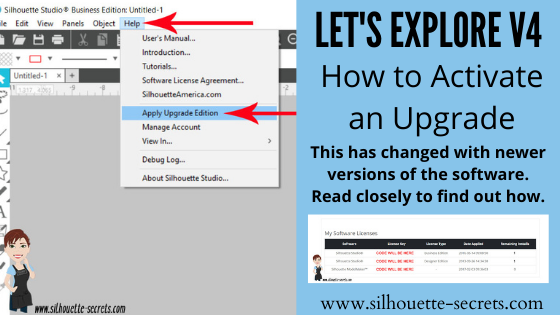
If you previously had a upgrade active and the Silhouette upgrade is missing, you can easily activate this again simply by going to the top left menu in Silhouette Studio, select Help > Apply Upgrade Edition.

Screenshot of the Silhouette Studio software interface showing the menu with 'Apply Upgrade Edition' highlighted.

Enter your email address and password associated with your Silhouette account.

Sign-in screen for activating a Silhouette Studio software upgrade, featuring email input field and activation button.

At the time I am writing this and recorded the video, I am not recommending Silhouette Studio version 5 due to many bugs in it. If you have a Silhouette Cameo5α (Alpha), then you HAVE to use version 5 and we would recommend v5.0.402 as there a some major issues we’ve seen with v5.0.414.
For most Silhouette users, I am recommending v4.5.812 which the screenshots are from above.

Here is a look at Silhouette v5.0.402 and you can see you’ll find it in the same location, however, there is a new splash screen when you open version 5 that you cannot bypass. You can find the Help menu on the new Home Page or on the other tabs in the version 5 software.

Screenshot of Silhouette Studio 5 interface showing the Help menu with an arrow pointing to 'Apply Upgrade Edition'.

If you have never activated a Silhouette software upgrade and you purchased it from a Silhouette retailer, you will first need to apply the upgrade to your Silhouette Account.
Please follow these steps to apply the code.

  • Log into the Silhouette America website HERE.
  • Move to the top right and move the mouse over the person icon, select My Account.
  • On the left side menu, choose License Keys and apply the Silhouette software upgrade code.
  • Then follow the instruction shown above to activate the code in the Silhouette Studio software.

This new method of easily activating the Silhouette software upgrades is available in any version of Silhouette v4.4.552 or higher.

Missing Tools & Features in Silhouette Studio?

This is the most common reason Silhouette users notice that a software upgrade has reverted to Basic Edition.

You can easily check what software version and upgrade is active on your Silhouette Studio software and determine if your Silhouette upgrade is missing and not active.

Instructions for Windows users:

  • Click on Help in top left menu
  • Then choose About Silhouette Studio

Instructions for MAC users:

  • Navigate to the top left of Silhouette Studio and select Silhouette Studio in the menu
  • Then select About
Screenshot of Silhouette Studio displaying the 'About' window, showing the software version and license information.

This About window will tell you what version is open and the upgrade that’s active.

If you have a Silhouette software upgrade and it is currently showing Basic Edition in this window, please follow the instructions above to activate the upgrade on your computer.

Screenshot of Silhouette Studio software showing the 'About' window with the version number and Basic Edition status highlighted.

Silhouette Studio Upgrade Information

Silhouette Studio software upgrades are a one time fee and you do not have to purchase again if it disappears.

The Silhouette upgrades can be active on up to 3 computers or 3 active devices.

With this new system, if you have 3 devices active and log into a new device or Silhouette Web, it will deactivate the software upgrade on the device that is oldest used date. This means you can easily activate the software upgrade on multiple devices, but it will only be active on up to 3 devices at one time.

Something new to mention here is that the new Silhouette Web (still being developed and in beta as I write this), that counts as one of the activations of the software upgrade license. This technically means that if you are logged into Silhouette Studio on your device and you log into the Silhouette web (web based software) on the same device, that it will use 2 software upgrade codes, even though it is the same device.

This is not an issue, but it can catch you off guard when you see the message that one device will be deactivated if you exceed the 3 upgrade log ins.

Screenshot of the Silhouette Web homepage displaying various design tools and featured library files.

Silhouette Web is a web based program that allows users who do not have a full computer operating system, such as a Chromebook to connect to a Bluetooth enabled Silhouette machine. It does not have the full Silhouette Studio software option. However, it does have some different features than Silhouette Studio and some of these are only available with a software upgrade. At the time I am writing this, it is still being developed and is changing.

I don’t feel it is stable and there are bugs and issues with it, so I have not done any tutorials with it. To be honest, if you have a computer with Silhouette Studio, I would recommend that to design in.

Another thing to mention here is, if you do decide to try it out, for MAC users, please note that you cannot cut directly from Silhouette Web. This is due to restrictions from Apple that it will not allow a web browser to connect to any outside systems. For Apple users, you would design in Silhouette Web, then open in Silhouette Go (mobile app) in order to connect to a Bluetooth enabled Silhouette machine in order to cut.

Troubleshooting Silhouette Upgrade Activation

If you encounter issues when trying to activate a Silhouette software upgrade, there are a few steps you can do before contacting Silhouette Support.

  1. Try again to log in with the email and password to make sure there was no mistypes or missed keystrokes.
  2. Log into the Silhouette America website HERE. Select My Account under the person icon in the top right > License Keys and do you see your software upgrades?
  3. Log into the Silhouette Design Store website HERE. Can you log in at both websites? The email and password has to be the same on both sites and in the Silhouette library.
  4. If you cannot log in to those 2 websites or the information is not the same on both sites, you can try resetting your password.
    The password reset is supposed to send a OTP (One Time Password) to your email account. Since the website migration (May 2024), there are issues with this and the OTP does not always come through.

If you still cannot log in or cannot reset your password, then you will need to contact Silhouette Support – support@silhouetteamerica.com

Tips for Contacting Silhouette Support

If you encounter any issues with your Silhouette account and the steps above have not resolved those, you will need to contact Silhouette Support.

Silhouette Support is the only one that can access your account information and investigate or reset things for you.

Here are some tips to help you get resolutions faster:

  • Email Silhouette Support at support@silhouetteamerica.com – we often have seen users complain they are not getting responses and they didn’t actually contact Silhouette, but had a mistype in their email submission
  • Provide as much information about the issue you are encountering as possible. Be clear and concise and provide the exact issue encountered as well as the steps you have tried already.
  • Do not email simply stating “I can’t log in.”
    That will not get a quick resolution and can be a million different issues.
  • Provide photos of what you are seeing so the support agent will hopefully understand what you are experiencing.
  • Follow any instructions and respond to the Support agent with descriptive information on what you did.
  • Continue to contact Silhouette Support until the issue is resolved.

Don’t be surprised if you get an AI response. This is new and it is Silhouette Supports “quick response”. It will be sent on to an agent after the AI response has been sent. Follow the instructions sent and reply back to their communication.

Don’t be surprised if the Silhouette Support Agent responds with the same response as the AI bot. This is not unusual. Both the AI bot and Support Agent use the Silhouette FAQ to provide initial responses. This is why it’s so important that a user provides as much information as they can when they first contact Support.

Remember that contacting Silhouette Support and stating a basic issue such as “I can’t log in.” or “My machine isn’t cutting.” does not give the Support agent enough information to provide a good troubleshooting answer and they have to start at a million reasons and narrow it down to 1. That can take time and a lot of back and forth with Support. The more information you can provide, the faster your resolution will be … hopefully.


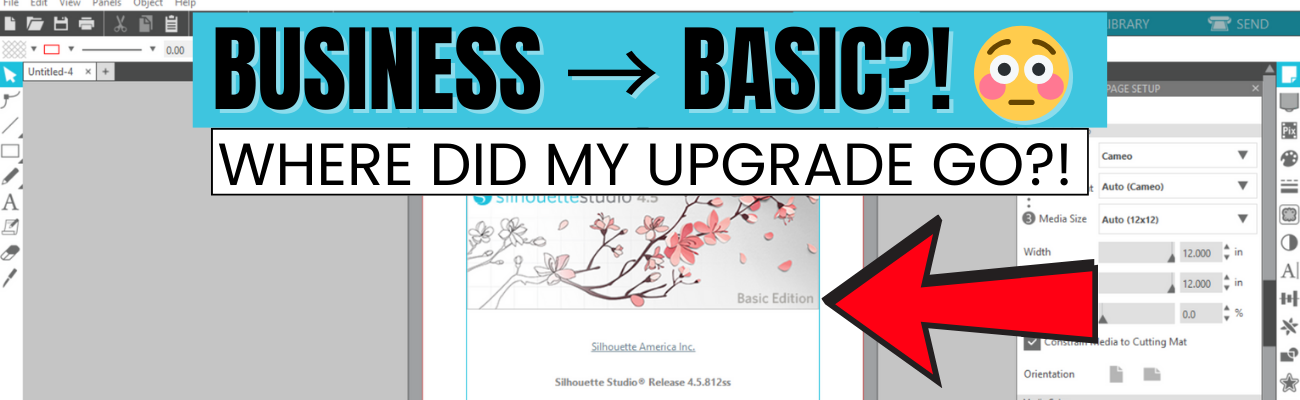
I have also included this information in the Silhouette Studio Business to Basic?! Why Your Upgrade Disappeared & How to Fix It video on the Silhouette Secrets+ YouTube channel. I would recommend viewing it as well, there may be points that I’ve covered that may click better on the video for some users.

Screenshot of Silhouette Studio Upgrade Issue, showing the software version and Basic Edition status with a decorative floral background.

This is one of the most common issues we see users encounter. I hope those tips have helped!


Looking for additional Silhouette Troubleshooting? I have been teaching Silhouette and troubleshooting Silhouette issues since 2016. We have seen a lot of changes and have helped a lot of users. I have launched the new Creative Community with EllyMae where I provide troubleshooting assistance and exclusive monthly tutorials. Find more details on that HERE.

I also have step-by-step classes to help you learn the Silhouette software and your machine – find those HERE.

As well as additional resources and tutorials on the Silhouette Secret+ website. Check out the A to Z Resources HERE.

Save this for future reference by pinning the image below.

A graphic showing a Silhouette Studio screen with text indicating a downgrade from Business to Basic Edition, featuring floral design elements and a worried face emoji.

Enjoy !

THANK YOU for your support! How can you help? Click HERE & buy a coffee.
Every little bit helps with the cost of running the site.

Silhouette Classes

Never stop learning! Let me help you take the anxiety out of learning with Silhouette and get to creating faster! My Silhouette classes are heavily focused on software, so you can take the skills & techniques taught and apply them to many future projects!

Silhouette step-by-step Classes by Silhouette Secrets+

Silhouette Secrets+ with EllyMae
**This post may contain affiliate links. What that means is that I may receive compensation if you purchase through the links I have provided. The price you pay for the product or service is not higher but I may get compensated for sharing.

Posted on 7 Comments

Silhouette Software Upgrades – My Favorite Features

Silhouette Secrets+ with EllyMae

Silhouette Studio Software Upgrades

Affiliate links may be present in the following blog post and as an Amazon Associate, I earn from qualifying purchases.

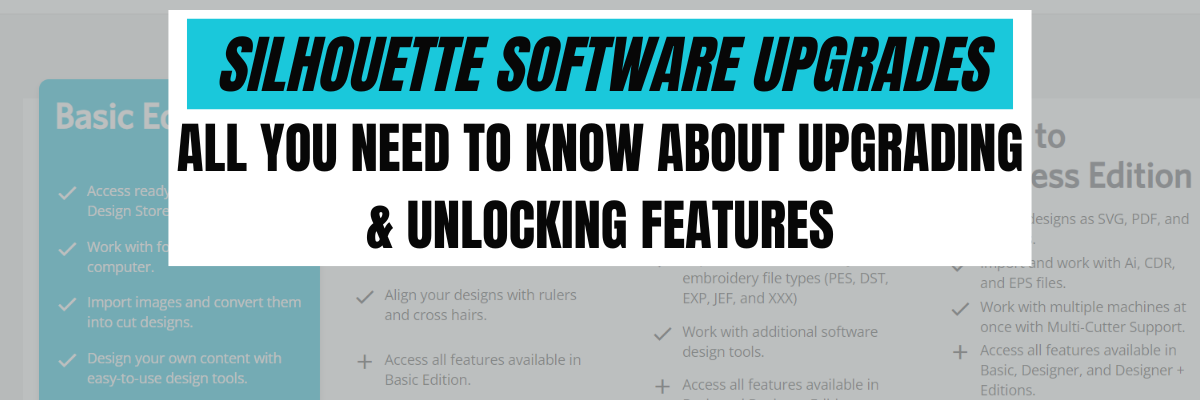
One of the most asked questions we see is about software upgrades and unlocking features in the Silhouette Studio software.

Silhouette Software Upgrades

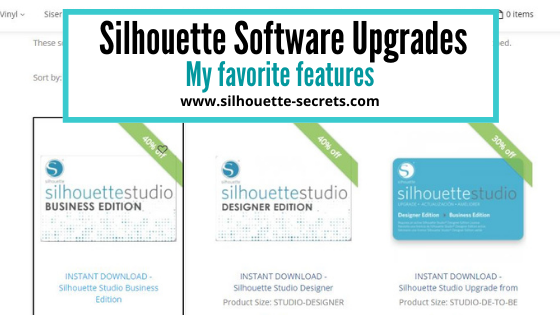
Software upgrades can be purchased through an authorized Silhouette retailer.
Please be careful buying through sites like Etsy, etc. as they can sometime not be the real deal or exactly as advertised. Look for reviews first.

Where to find the Silhouette software upgrades?
Swing Design
Silhouette America

Sales happen often – check each one to see where you might score the best deal!

What is an upgrade?

A software upgrade is a code you purchase that unlocks additional features in the software.
It is a one-time fee that can be active on up to 3 computers per code.

I highly recommend at least the Designer Edition upgrade for all of my students.
It makes life easier and saves you time and headache.
Just being able to open a SVG file and cut is well worth it.

But I LOVE the Business Edition upgrade because it unlocks it ALL and I never have to question if some tool/feature is available to me.
Both are well worth the investment!

Don’t let the name “Business” edition fool you though – you do not have to have a business to use it or have it be useful. There are just some features that are helpful to those that run a business such as using multiple machines.

If you have the basic (free) software, you will want to purchase 1 of 3 options depending on what upgrade you want to go to:
Option 1 – Silhouette Studio to Designer Edition (highly recommend at least this)
Option 2 – Silhouette Studio to Designer Plus (unlocks a few more features – see below)
In all honesty, if you are upgrading to Designer Edition Plus, you might as well go all the way and unlock it all
Option 3 – Silhouette Studio to Business Edition (unlocks it all)

Now here is the important part, if you already have an upgrade, you only need to purchase the step up to the next level you want.

For instance, if you already have the Designer Edition upgrade but you want to go to Business Edition, you want to buy the Designer Edition to Business Edition upgrade. You do not need to buy the full upgrade. You would purchase the level that you need to go from to the level you want to be at.
On the Silhouette website, you simply select the Business Edition upgrade, and it will recognize which upgrade(s) you already have when you are logged in and only show the price for the upgrade you need.

Now, keep in mind, if you purchase the upgrades in steps it is no different than purchasing the upgrade all together.

What does each level of upgrade do?

Here are a few of my favorite features and the ones I find most might use in the software:

Designer Edition unlocks:

Designer Edition Plus unlocks all of the above and

Business Edition unlocks all of the above and

  • Import Ai/CDR/EPS Files
  • Weed Line Feature
  • Multi-cutter Support (I use this one all the time)
  • Multiple Undo/Redo (one of my favorites)
  • Export SVG, PDF, JPG
  • Edition Toggle (this is great for those of us who teach, so we can see exactly what the students see in their version)
    And more…

Now, the list above is not the extensive list of all the features unlocked with each upgrade.
However, it is a list of the features I find the most useful in each upgrade.
For the complete comparison chart click HERE to go look at Silhouette America.

I want you to be successful and use your Silhouette software to the fullest!

How to activate the upgrade

It is now easier than ever to activate an upgrade!

I have all the details outlined in this post depending on what software version you are currently using.

Additional Resources on Silhouette Upgrades & Troubleshooting:

If you have question about an upgrade just let me know in the comments below.

Save this for future reference by pinning the image below.

Sign up for the Silhouette Secrets+ Newsletter for more information delivered to your inbox each week!

Silhouette Secrets+ Newsletter

Never miss out on the news, tips, “secrets”, deals, classes, and more that I share on Silhouette Secrets+. Sign up for the newsletter and get information delivered to your inbox every Friday.
Unsubscribe at any time.

Enjoy !

THANK YOU for your support! How can you help? Click HERE & buy a coffee.
Every little bit helps with the cost of running the site.

Silhouette Classes

Never stop learning! Let me help you take the anxiety out of learning with Silhouette and get to creating faster! My Silhouette classes are heavily focused on software, so you can take the skills & techniques taught and apply them to many future projects!

Silhouette step-by-step Classes by Silhouette Secrets+

Silhouette Secrets+ with EllyMae
**This post may contain affiliate links. What that means is that I may receive compensation if you purchase through the links I have provided. The price you pay for the product or service is not higher, but I may get compensated for sharing.
Posted on Leave a comment

3 Ways to Work with Rhinestones

Have you seen all the possibilities with rhinestone designs?

In this post, I’ll share 3 ways you can work with rhinestones.

Rhinestone Design Created in Silhouette Studio

Affiliate links may be present in the following blog post and as an Amazon Associate I earn from qualifying purchases.

Let’s Add Bling!
3 Ways to Work with Rhinestones

1. Create Your Own Rhinestone Designs

If you have the Silhouette Studio software Designer Edition upgrade (or higher), you can easily create your own rhinestone designs that can be cut out of rhinestone flock.

Rhinestone Template Material

I share how the Rhinestone Panel in Silhouette Studio Designer Edition works in this tutorial in the Let’s Explore v4 series
Let’s Explore v4 – Rhinestones

I also have a step-by-step class where I share how to create 4 different rhinestone designs and give tips for working with pre-made rhinestone designs, how to make your own, and how make faux rhinestone designs as well!

Silhouette Design & Rhinestone Class

Designing with Rhinestones – Creating 4 Projects on Teachable HERE

And there are even more options!
If you have the Silhouette Studio Business Edition upgrade, you can also create the rhinestone design and export as a svg file. This means that other cutting machine users could also use the svg file or you could use a different machine to cut the rhinestone flock for the template as needed.
As always, you would need to test with your specific cutting machine to find out the cut settings that work best.

Check out these tutorials for more details on
Saving as a SVG file and Perfect Cut Settings

To create your own rhinestone designs does require some additional supplies. Here is a list of the supplies I used in the Designing with Rhinestones class.

Supply list

– Silhouette Studio Software
– Silhouette Studio Designer Edition upgrade
at Crafter Cuts (use code SECRETS to save 10%)
Check for additional sales at Silhouette America The Vinyl SpectrumSwing Design
Hot Fix Rhinestones
Rhinestone Template Material
Hot Fix Transfer Tape
Siser Glitter HTV
– Blanks: zipper bagshirt, bag, etc.
Trim paint brush
– Tools: Scissorssharp weeding toolSilhouette Pick Me Up ToolSilhouette Spatula
– Optional: Rhinestone scoop, Rhinestone Supplies at The Rhinestone World ,
Bead ScoopLarger Trim Paint brushPaper TrimmerLint RollerTool Kit
– Silhouette cutting machine (or another cutting machine model)
– Heat Source: Siser Heat Press

In the class, I used a few more project specific designs.
Find all the details HERE or directly on Teachable HERE.

2. Order Pre-Made Rhinestone Transfers

Maybe you don’t want to invest in the supplies to cut designs out of rhinestone flock and make your own.

You can still create with bling!

I recently ordered some rhinestone transfers from Heat Transfer Warehouse to test.

Sure I could have made them on my own, but once I saw the prices, I ordered a few.
Well, maybe more than a few!

Here is one I ordered for my daughter to wear.

And of course I couldn’t pass this one up.

These are as easy as ordering and pressing according to the instructions.
Bing, bang, bling!

The most difficult part about rhinestone designs is getting a good photograph.
It is so hard to capture the sparkle and bling on these designs.
I have more to apply in the future too!

Check it out HERE

3. Order Custom Rhinestone Transfers

Do you have a custom design you want to have made with rhinestones?
Maybe you don’t have all the colors of the rhinestones you need or it is just too complex or it is cheaper to purchase than to create?

Heat Transfer Warehouse also offers custom transfers as well.

Custom Rhinestone Design by Heat Transfer Warehouse

Prices will vary depending on the size, color, and complexity of the design.

Check it out at Heat Transfer Warehouse HERE!

And have fun!
So many projects on my list for the future!
Hope you’ll continue on this journey with me!

Save this for future reference by pinning the image below.

3 Ways to Work with Rhinestone Designs with Silhouette

Enjoy !

THANK YOU for your support! How can you help? Click HERE & buy a coffee.
Every little bit helps with the cost of running the site.

Silhouette Classes

Never stop learning! Let me help you take the anxiety out of learning with Silhouette and get to creating faster! My Silhouette classes are heavily focused on software, so you can take the skills & techniques taught and apply them to many future projects!
Silhouette Step-by-Step Classes

SS Logo snip it
**This post may contain affiliate links. What that means is that I may receive compensation if you purchase through the links I have provided. The price you pay for the product or service is not higher but I may get compensated for sharing.
Posted on 5 Comments

Let’s Explore v4 – Activate an Upgrade

If you have used any sort of software in your lifetime, you know that there are always updates. In the Silhouette software updates and upgrades are 2 different things.

Updates are free and add features, fix bugs, allow new machines to be accessed, make changes, etc. I recommend downloading the updates direct from the Silhouette America website.

Upgrades are paid software codes that unlock additional features.

If you are reading this post, you probably already have an upgrade code. If you do not, I’d recommend checking out this post
Software Upgrades – My Favorite Features
In the post, I have listed my favorite features of each upgrade and have linked to the lowest prices to get the upgrades.

These 2 words – update vs upgrade – are often confusing for new users
(sometimes even experienced users don’t use them correctly either).
But, they are very important to understand the difference.

Updates reference the version of Silhouette Studio you are using. This information can be found in your Silhouette software.

How to find what software version you have

For Windows users, find your software version under Help > About Silhouette at the top of Silhouette Studio.
For MAC users, find your software version under Silhouette Studio in the top left and About Silhouette.

Note: I am a Beta tester and have a Beta testing version installed.

How to Activate an Upgrade

This process has changed recently so the following information is very specific to certain software versions and what you are using.

Please read the following very carefully!

This tutorial is published December 2021
updated on February 27, 2022

If you purchased an upgrade from an authorized Silhouette retailer, not direct at the Silhouette America site – follow Step 1 and 2
If you purchase direct from Silhouette America, skip to Step 2.

Step 1

If you just purchased a brand new upgrade code for the first time AND are using software of v4.4.554 or higher, you will go to the www.silhouette-america.com website.
Click on Software at the top.
Then choose Apply/Manage License Keys.
Then Sign In and follow the instructions.

Step 2

In the Silhouette Studio software, click Help > Apply Upgrade Edition
Enter your Silhouette America log in and click on
Apply a New License Key to your Account.
Enter your email address & password and click Sign In.
Do NOT click the blue arrow.
If the blue arrow is expanded, click to close it or it won’t work properly
Do NOT enter the code – it has already been applied to the Silhouette America website.
NOTE: this is for brand new upgrade purchases only!

If you already have an upgrade that has been applied in a prior software version the following applies:

If using software v4.4.554 or a higher version

You no longer have to enter the code on the computer you are using to activate it. The upgrade code is already activate on your account.

Open the Silhouette Studio software.
At the top choose Help > Apply Upgrade Edition

Then enter your Silhouette America account information and click on Sign In.
Do NOT click the blue arrow.
If the blue arrow is expanded, click to close it or it won’t work properly
Do NOT enter the code – it has already been applied to the Silhouette America website.

All codes that are connected to your Silhouette account will be activated on the computer.

A user is still only allowed to have 3 active computers associated with each upgrade code purchased. This means that if you log into a 4th computer, it will deactivate the upgrade on the computer that was used at the oldest timeframe.

What does that really mean?

As an example, if you have a computer that the upgrade was applied to that was used in January 2021. Then you have a 2nd computer that was used in March 2021. The 3rd computer was last used in November 2021. And now the you have a new computer you are trying to use the software on, a 4th computer, if you are using current software, when it activates, it will remove the code from the 1st computer that was last used in January 2021. It goes by the oldest date used.

Note: This only applies to computers that are using software versions of v4.4.554 or higher.

If you are using a Legacy version prior to v4.4.554

To activate the upgrade, open the Silhouette Studio software.
Click Help > Upgrade.
Enter the upgrade codes in the order you purchased them.
For instance, if you purchased it in steps, you would need to enter the Designer Edition upgrade first and then the Business Edition.

Don’t know what your codes are?

Go to the www.silhouette-america.com website
Sign in
Click on Account Settings in the top right corner (little person icon)

Then click on My Account and choose License Keys.

Scroll down on the page and you will see all the License Keys for your Silhouette upgrades you have activated on your account.

The Silhouette Studio software is always changing!
There are many, many neat features that have been released. However, I do not always recommend to update the software right away when it’s released. It will depend on each user’s situation and reasons they have for wanting to update.

This is one of those great features that will save the user and Silhouette Support time and frustration by being able to have it all automated and not have to manually reset the codes when a user hits 3 uses.

Keep in mind though that this new feature only affects users who are on software versions of v4.4.554 or higher.

Hope this helps you in your Silhouette journey!

I would love to see what you are creating with your Silhouette software or machines!
Feel free to post photos or questions on my Facebook group at 
Silhouette Secrets with EllyMae.

Save this for future reference by pinning the image below.

Enjoy !

This image has an empty alt attribute; its file name is logo.jpg

THANK YOU for your support! How can you help? Click HERE & buy a coffee.
Every little bit helps with the cost of running the site.

Or if you are looking for more in-depth, step-by-step classes, check out all of my online Silhouette classes on my Teachable site HERE.

SS Logo snip it
**This post may contain affiliate links. What that means is that I may receive compensation if you purchase through the links I have provided. The price you pay for the product or service is not higher but I may get compensated for sharing.
Posted on 12 Comments

Software Upgrades My Favorite Features

Let’s Explore v4
Silhouette Studio Software Upgrades

Affiliate links may be present in the following blog post and as an Amazon Associate I earn from qualifying purchases.

I am seeing a bunch of new Silhouette user’s join us and there is so much information out there.
Today let’s talk about software upgrades.
I highly recommend this.
Don’t be overwhelmed by all the options though!
You do not have to learn it all at once, but if you upgrade it will be ready for you when you are ready to learn about it.

What is an upgrade?

A software upgrade is an code you purchase that unlocks additional features in the software.
It is a one time fee that can be active on up to 3 computers per code.

I highly recommend at least the Designer Edition upgrade for all of my students.
It makes life easier and saves you time and headache.
Just being able to open a svg file and cut is well worth it.

But I LOVE the Business Edition upgrade because it unlocks it ALL and I never have to question if some tool/feature is available to me.
Both are well worth the investment!

Don’t let the name “Business” edition fool you though – you do not have to have a business to use it or have it be useful. There are just some features that are helpful to those that run a business such as using multiple machines.

If you have the basic (free) software, you would want to purchase 1 of 3 options depending on what upgrade you want to go to:
Option 1 – Silhouette Studio to Designer Edition (highly recommend at least this)
Option 2 – Silhouette Studio to Designer Plus (unlocks a few more features – see below)
In all honesty, if you are upgrading to Designer Edition Plus, you might as well go all the way and unlock it all
Option 3 – Silhouette Studio to Business Edition (unlocks it all)

Now here is the important part, if you already have an upgrade, you only need to purchase the step up to the next level you want.

For instance, if you already have the Designer Edition upgrade but you want to go to Business Edition, you want to buy the Designer Edition to Business Edition upgrade. You do not need to buy the full upgrade. You would purchase the level that you need to go from to the level you want to be at.

Now, keep in mind, if you purchase the upgrades in steps it is no different than purchasing the upgrade all together, except that you will need to enter the codes in that same order if you install it on another computer or have to re-enter your codes for any reason.

What does each level of upgrade do?

Here are a few of my favorite features and the ones I find most might use in the software:

Designer Edition unlocks:
– Ability to open svg and pdf file directly in the software
Rulers and guides can now be activated
– Additional Knife tools
– Additional Line Effects
Trace by Color
Magnet Trace
Glyphs Panel
– Ability to create Rhinestone designs
Warp Templates
And more…..

Designer Edition Plus unlocks all of the above and …..
Flexishapes
– Ability to open some embroidery file types (PES, DST, EXP, JEF, and XXX)
Puzzle Generator
Conical Warp
And more…..

Business Edition unlocks all of the above and …..
– Import Ai/CDR/EPS Files
Weed Line Feature
Multi-cutter Support (I use this one all the time)
– Multiple Undo/Redo (one of my favorites)
– Export SVG, PDF, JPG
– Edition Toggle (this is great for those of us who teach, so we can see exactly what the students see in their version)
And more…..

Now, the list above is not the extensive list of all the features unlocked with each upgrade.
However, it is a list of the features I find the most useful in each upgrade.
For the complete comparison chart click HERE to go look at Silhouette America.

I want you to be successful and use your Silhouette software to the fullest!
The Vinyl Spectrum has the upgrades to Designer Edition, Business Edition and from Designer to Business at a great price.
These are digital codes, so are emailed directly to you after purchase.
Check them out HERE.
If you are in need of extra supplies too, I have been impressed with their super fast shipping too!

How to activate the upgrade

In the Silhouette software, click on Help in the top left menu. Then choose Upgrade and a pop up window will show up. Enter the information in the window and type the upgrade code exactly as you received it.
Make sure you are entering the codes in the order that you purchased them in.

Help Upgrade copy

For example, if you ordered Designer Edition and then the Business Edition upgrade later.
To activate it on a computer, you would need to enter it in that order.
First the Designer Edition code and then the Business Edition code.

If you purchased the Silhouette Studio to Business Edition code right off the bat, then you only have 1 code to enter.

If for some reason the digital codes are “out of stock” at one retailer, you can buy the upgrades from another retailer.
See my list of recommended retailers and sites HERE.
Yes! Digital codes do go out of stock too because it is all an inventory item.
The retailer has to purchase the codes from Silhouette America, just like any other product. So it’s not uncommon to see things go in and out of stock as more people buy it.

If you have question about an upgrade just let me know.
Comment below or post on my Facebook group at Silhouette Secrets with EllyMae.
I would love to see what you creating with your Silhouette machine!

Save this for future reference by pinning the image below.

Enjoy!

This image has an empty alt attribute; its file name is logo.jpg

THANK YOU for your support! How can you help? Click HERE & buy a coffee.
Every little bit helps with the cost of running the site.

Or if you are looking for more in-depth, step-by-step classes, check out all of my online Silhouette classes on my Teachable site HERE.

SS_Signature copy
SS Logo snip it
**This post may contain affiliate links. What that means is that I may receive compensation if you purchase through the links I have provided. The price you pay for the product or service is not higher but I may get compensated for sharing.
Posted on 2 Comments

Let’s Explore v4 – Software upgrades

Let’s Explore v4
Silhouette Studio Software Upgrades

Affiliate links may be present in the following blog post.

Software upgrades are on sale right now over at Swing Design. So let’s explore a little bit about them.

Swing Design Upgrades

What is an upgrade?

A software upgrade is an additional purchase that gives you a code to unlock additional features in the software.

Do I need it?

That is all going to depend on each individual user. I highly recommend at least the Designer Edition upgrade for all of my students. It makes life easier and saves you time and headache. It is well worth the investment!

Which one to I get?

First, that depends on how far you want to go. Like I said above, I highly recommend the Designer Edition upgrade for all students. But, I love the Business Edition because all the features are unlocked and you never have to question if something is available to you.

Next, you have to consider if you already have an upgrade. There are different levels and you want to make sure to buy the correct level.

If you have the basic (free) software, you would want to purchase 1 of 3 options depending on what upgrade you want to go to:
Option 1 – Silhouette Studio to Designer Edition (highly recommend at least this)
Option 2 – Silhouette Studio to Designer Plus (unlocks a few more features – see below)
Option 3 – Silhouette Studio to Business Edition (unlocks it all)

SD upgrades

Now here is the important part, if you already have one of the upgrades above, you only need to purchase the step up to the next level you want.

For instance, if you already have the Designer Edition upgrade but you want to go to Business Edition, you want to buy the Designer Edition to Business Edition upgrade. You do not need to buy the full upgrade. You would purchase the level that you need to go from to the level you want to be at.

The options are:
Option 1Designer Edition to Designer Edition Plus (personally I would just go to Business)
Option 2Designer Edition to Business Edition
Option 3Designer Edition Plus to Business Edition

SD Upgrades 2

Now, keep in mind, if you purchase the upgrades in steps it is no different than purchasing the upgrade all together, except that you will need to enter the codes in that same order if you install it on another computer or have to re-enter your codes for any reason.

So how do you activate the code?

In the Silhouette software, click on Help in the top left menu. Then choose Upgrade and a pop up window will show up. Enter the information in the window and type the upgrade code exactly as you received it.
Make sure you are entering the codes in the order that you purchased them in.

Help Upgrade copy

For example, if you ordered Designer Edition and then the Business Edition upgrade later. To activate it on a computer, you would need to enter it in that order. First the Designer Edition code and then the Business Edition code.

If you purchased the Silhouette Studio to Business Edition code right off the bat, then you only have 1 code to enter.

Software Upgrade Details

What do each of the upgrades offer?

To see the full comparison chart, click HERE to go directly to the Silhouette America website and see the full chart. Click on the video camera icon next to each feature to see a short demo.

But, lets briefly name some of the features I find the most useful in each of the upgrades.

Designer Edition unlocks:
– Ability to open svg and pdf file directly in the software
Rulers and guides can now be activated
– Additional Knife tools
– Additional sketch effects
Trace by Color
Magnet Trace
Glyphs Panel
– Ability to create Rhinestone designs
Warp Templates
And more…..

Designer Edition Plus unlocks all of the above and …..
Flexishapes
– Ability to open some embroidery file types (PES, DST, EXP, JEF, and XXX)
Puzzle Generator
Conical Warp
And more…..

Business Edition unlocks all of the above and …..
– Import Ai/CDR/EPS Files
Weed Line Feature
Multi-cutter Support (I use this one all the time)
– Multiple Undo/Redo (one of my favorites)
– Export SVG, PDF, JPG
– Edition Toggle (this is great for those of us who teach, so we can see exactly what the students see in their version)
And more…..

Now, the list above is not the extensive list of all the features unlocked with each upgrade. However, it is a list of the features I find the most useful in each upgrade.
For the complete comparison chart click HERE to go look at Silhouette America.

I am all about making a Silhouette user save time and frustration in working with their software AND getting the best cut possible. I would highly recommend at least the Designer Edition to all users, for the ability to open a svg file, as that is generally the higher quality cut file when you compare it to a trace or dxf file.
Check out this post – Let’s Explore v4 – How to open a svg

If you have question about an upgrade just let me know. Comment below or post on my Facebook group at Silhouette Secrets with EllyMae.

I would love to see what you creating with your Silhouette machine!

Enjoy!

SS_Signature copySS Logo snip it

**This post may contain affiliate links. What that means is that I may receive compensation if you purchase through the links I have provided. The price you pay for the product or service is not higher but I may get compensated for sharing.
Posted on 8 Comments

Using multiple Silhouette machines

Using multiple Silhouette machines simultaneously

One of the great features of the Silhouette Business Edition upgrade is being able to run multiple Silhouette machines at the same time. The Business Edition upgrade has many great features and you do not have to have a business to use it or have a need for it. However, if you do have a business it has several features that may come in handy.

Check out the Silhouette Edition Comparison chart for all the features that are available with each software upgrade.

Now let’s jump in to how do you use multiple machines at once.

First, plug all the Silhouette machines in to the computer and then turn them on. With the Business Edition upgrade active, the software will recognize the machines that are plugged in.

Set up the file(s) you want to be sent to the Silhouette machines.

Once it is ready to go, then click on the Send tab in the top right corner.

Cameo job multiple machine copy

The file that is active on the design mat is what will be sent to the machine selected.

Click on the machine icon in the bottom right corner of the Send tab.

Machine icon copy
Note: depending on the software version being used, the machine icon may be farther on the right side of the tool bar. Screen shots are in v4.2.279

This will bring up a list of all the Silhouette machines that are recognized by the Silhouette software.

Icon definition copy

There are 2 connection designations – Bluetooth or USB.

There are several more things that you can see here too.
Status – Under the machine name, it will tell you the status of the machine – Available, Unavailable, Ready, etc.
Firmware – what version of firmware is on the Silhouette machine.

Status Firmware copy

Choose the machine that you want the design on the screen to be sent to.

The machine menu will disappear and the machine selected will now be the active machine.

Name change copy

Another neat feature is that you can name the machine. This is very helpful if you are running multiple machines and trying to keep track of which a job is being sent to.

Double click on the name above the machine photo and it will allow you to type a new name or right click and choose Rename from the menu.

Rename copy.jpg

I am sure you can come up with a cool name for your Cameo. I was in the middle of a big project when I named mine and just went with the color of my machine. One of these days I’ll rename it something different, but this works to help me keep track of which machine I am sending my job to.

Next, verify that all the cut settings are how they should be, do a test cut if needed and it is ready to Send the job to the Pink Cameo.

If you are cutting the same design and want to change to another machine, click on the machine icon again to select the next machine and verify everything is set up properly and click Send. You can do this for as many machines as you have ready to go.

Don’t forget to load your mat or material in the machine before you click on the Send button.

IMG_20190520_101723193 copy

Tip: If I am using a mat, then I cut my materials down with a paper trimmer to the size I need, this helps extend the life of my Silhouette mats as I’m not covering the full adhesive and pulling a material off of it each time. Check out this post with more tips on Getting the Most out of the Silhouette mat – HERE.

The above works if you are sending the same design to multiple machines, but what if you want to send different jobs to different machines?

Sending a new design to another Silhouette machine

I mentioned above that the design that is showing on the design mat is the one that will be sent to the machine selected.

If you want to send a different design job to a new machine, click back on the Design tab in the top right corner, open a new design mat & place the design on it, set it up how you like and click back on the Send tab. Repeat the steps above.

New design copy

Now, a difference here is if when switching between a Cameo or Portrait and the Curio. Currently, the software is set up that the machine that is selected on the Send tab, is the current Page Size and Cutting mat selection options on the Page Setup Panel.

This is changing with the upcoming v4.3 software updates and it is in Closed Beta testing now.

I love having this option to send to multiple machines with the Business Edition because I can set up one job to etch on my Curio and while it’s etching, I can still be using my Cameo, Portrait or even another Curio.

There is no numerical limit to the number of machines that you can running with the Silhouette Business Edition, however, you may be limited by the processing power of the computer. Keep in mind that each design sent to cut is sending data back and forth the Silhouette machines, the more files that are working equals more data being sent.

Curio etching copy

For instance, when etching a file, that has a lot more data involved than just a regular cut job. If the computer can handle the amount of data being processed, then you are all good. If it gets bogged down, you may experience the Silhouette machine stuttering or slowing down. Most times this will still cut or etch just fine. However, if you reach a certain point and the computer is maxed out, it could lead to a software crash. Make sure to save the file often. The only way to know what a computer can handle is to test it.

Etch fill zoom copy

When you do an etch or sketch fill, each of the red lines is now the equivalent of a cut line, the more cut lines (etch lines) the more data is in the file. For best results when using the Sketch or Emboss features, save often.

For tips on getting started with your Curio, check out this post –
The Curio – Getting Started.

This is amazing for large projects like wedding favors, cutting for classes or events like the All Things Silhouette Conference.

Note: in the process of writing this blog post, I did find that there is no difference when you are using the same type of Silhouette machine. However, the mat size does change to the current machine selected when you switch to a different machine. For instance, when I switched to my Curio, my cut border changed to the Curio cut border on all the projects open in my software. Even if I had already sent the file to be cut, it changed the cut border & the project did not cut outside of the border.
In the past, I have never had an issue with this and used my Curio & Cameo both simultaneously. But, it is something to make a note of because it could affect the way a Cameo cuts a project, if a smaller machine is activated at the same time.
The good news on this is that a solution is coming to this issue with the release of the v4.3 software, which is currently in closed Beta testing.

This is a time lapse video of using multiple Cameo 3 machines at the same time to cut cardstock. This works great when you have 100 wedding favor boxes to cut out.

These 2 projects below were created simultaneously from 1 computer with the Silhouette Studio v4.2.279 Business Edition upgrade.

On the left side, the HTV for this Cotton Canvas Garden flag was cutting on a Cameo 3, while the Curio was etching the circle acrylic.

Designs used:
American Flag of United States by Echo Park printed on ColorJet III Dark Printable Heat Transfer Paper by Specialty Materials
Home of the Free Because of the Brave by BasicGrey
Sunflower Mandala by Sweet Afton

Have you tried cutting with multiple machines? Did you know you could?
What would you use this feature for?

Feel free to post your comments and questions below or on my Facebook group at Silhouette Secrets with EllyMae.

Enjoy!

SS_Signature copySS Logo snip it

**This post may contain affiliate links. What that means is that I may receive compensation if you purchase through the links I have provided. The price you pay for the product or service is not higher but I may get compensated for sharing.
Posted on Leave a comment

Let’s Explore v4 – Advanced Rhinestones

There are so many neat features of the Silhouette Studio software as you move up in the software upgrades. The Advanced Rhinestone Panel is an option if you have the Designer Edition Plus or Business Edition upgrade.

Rhinestone Panel copy

At first glance or if you read the standard description, it may not seem like much of a feature, but let’s take a look at it more in depth.

Rhinestone Panel Detail copy

  1. Rhinestone Library – Contains images of rhinestone designs – 2 sectionsPre-set Images and Sizes – Choose which color and size that you would like to add to your design

    Rhinestone options

    User Rhinestones – designs can be added to the Rhinestone library by either drawing a shape or importing a photo

    Rhinestone Library - User section copy

  2. Size – Designates the size of the rhinestone chosen or the size of the rhinestone design you are creatingSize copy
    This will show grayed out if using a pre-set shape & size.

    If a shape is added to the rhinestone library, then a size can be designated and it is no longer grayed out.

    Size User created copy

  3. Add Selected Shape to Rhinestone Library – Add shape designs to the library for creating a new rhinestone option. Shapes can be drawn or imported from a photoAdd Selected Shape copy

    The default measurement can also be changed under the Preferences in the software. It can be set to inches (default), millimeters, centimeters, meters, inches or feet.

    Change measurement preference copy

    And then it will reflect in the panels that use measurements.

    Change measurement copy

    If the shape drawn is bigger than what is allowed, a pop up will appear stating this.

    Error size

  4. Draw Rhinestones – Single vs Multiple – Choose to draw one style of rhinestone designs or a multiple of designs from the library.Single – drawing rhinestone in repeat of 1 shape with a click of the mouse

    Draw Rhinestone Single click

    Multiple – Draw Rhinestone from a chosen list of varied designs pulled from rhinestone library.

    By clicking on the multiple option, a new option window expands and you can add or delete the order of the designs in the selection window.

    Draw Multiple pattern
    This would come in handy if you are trying to create a rhinestone pattern with different sizes.

    Or you can use the pre-set rhinestone designs and create a pattern too.

    Draw Multiple pattern on shape

  5. Angle – Change the angle of how the rhinestone design follows a shape.Standard = Rhinestones upright
    Center = Rhinestones point to center
    Perpendicular = Rhinestone align to contour

    Angle

  6. Spacing – Change the spacing between the rhinestones when applied to a shape.Spacing.JPG
  7. Angle Offset – Choose what angle the rhinestones are placed along a shape.Angle Offset.JPG
  8. Rhinestone placement – Choose how the rhinestones are placed – options are: Outer edge, perpendicular, or from center.Rhinestone Placement
  9. Draw Rhinestone – Single Click vs Replace – Add a rhinestone with a single mouse click or replace a rhinestone with a different rhinestone.Single = place 1 rhinestone with each click of the mouse
    Replace = Once a rhinestone is placed it can then be swapped out with a different rhinestone for another size or color
  10. Totals (All Shapes) – Gives a count of all the rhinestones on the mat or the image selected.Totals copy

 Now that we have explored the entire panel – what would you use this for?

Here I’ve created what is called a mock up and the design is laid on top of the photo of the tote bag.

Mock up photo

Now I may actually have to make the rhinestone decal for real.
Find out more information on creating a rhinestone template in the Let’s Explore v4 – Rhinestones post.

Have you played with the Rhinestone feature yet?
I would love to see your Silhouette projects! Feel free to post on my Facebook group at
Silhouette Secrets+ with EllyMae.

Enjoy!

SS_Signature copySS Logo snip it

**This post may contain affiliate links. What that means is that I may receive compensation if you purchase through the links I have provided. The price you pay for the product or service is not higher but I may get compensated for sharing.