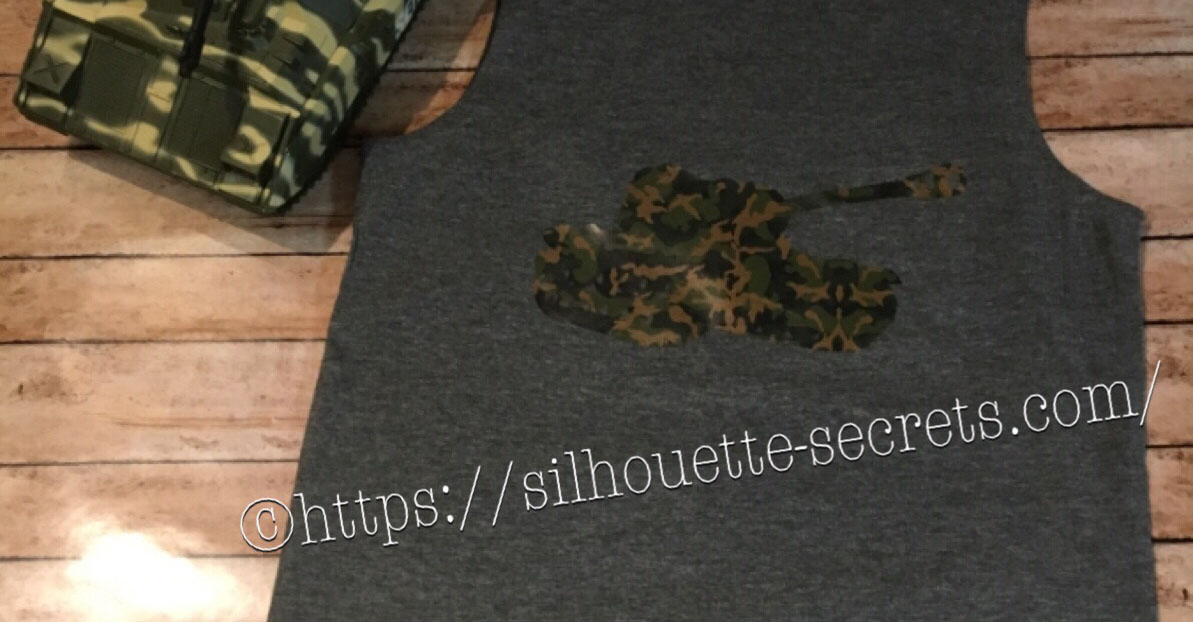
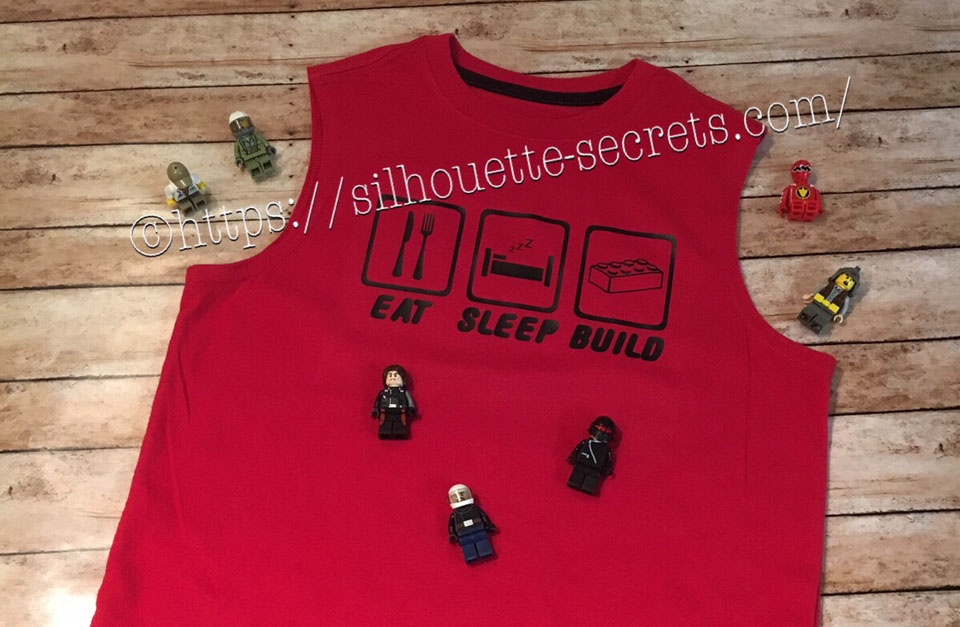
I created this shirt for my son to wear on vacation. He is all about Army and tanks at 6 years old and picked out this Military Set by Studio Ilustrado – Design #83790 in the Silhouette Design Store.
When this file is opened there are multiple designs so I had to right click on it then chose ungroup and deleted the designs I did not want.
THANK YOU for your support! How can you help? Click HERE & buy a coffee.
Every little bit helps with the cost of running the site.
Looking for more in-depth, step-by-step classes, check out all of my online Silhouette classes on my Teachable site HERE.
**This post may contain affiliate links. What that means is that I may receive compensation if you purchase through the links I have provided. The price you pay for the product or service is not higher but I may get compensated for sharing.
I am a big Pinterest lover. I pin a lot of things of all categories and sometimes just sit and pin ideas for hours. I find it relaxing. Do I make all the pins I save?
No – but I have made quite a few.
Check out my Pinterest boards HERE and maybe you’ll get some ideas.
My son was looking for something to put on a shirt and he found one he really liked. I realized I could re-create it with designs from the Silhouette Design Store. My son loves Legos. He will wake up and create something before his eyes are fully opened. And he is good! I have to have directions to follow to make something and that goes for anything – I just don’t have that engineering mind. He can just imagine something and then create it out of Legos. It’s amazing and love that at 6 years old, he is doing that.
While creating this shirt, I used many of the features we have already reviewed in the “Let’s Explore v4” series. Watch for links throughout this post that will explain more about each function I used in designing the shirt.
You can find more information on Compound Paths HERE.
I like to fill all my designs with color as it makes it easier to work with the design and you can see it better. Check out more information on the Fill Color Panel HERE.
Next, I took the drawing tools on the left side and drew a rounded rectangle.
Then I right clicked on the rectangle and chose “Convert to Path”.
This will set the design as a solid rectangle. Before convert to path is chosen, the red dots can still be moved in the top left corner and this will change the angle of the rounded rectangle corners.
Now, make an offset of the rounded rectangle. Find more information on creating an Offset HERE.
Then select both rectangles, right click and choose “Make Compound Path“. Then fill with color and now there is a rectangle outline.
Then the rectangle can be replicated 2 more times for design. Check out more information on the Replicate Panel HERE.
I accessed the Dingbat font in the Text Style Panel under the Glyphs panel and double clicked on the character I wanted.
For more information on accessing glyphs directly in the software click HERE.
Then I right clicked and chose “Release Compound Path“, deleted the spoon, moved the fork to the right side, selected both and grouped them back together.
Now I have all my designs and just need to resize them to fit inside the rectangles.
Now that the designs are sized how I like, I can use the Transform Panel – Align tools to make sure they are centered and the spacing between each section is the same.
Check out more information on using the Align tools HERE.
Once I have everything centered and aligned how I want it, I select it all and then Group it together, so it moves as one object.
Then I right clicked on the design and chose “Flip Horizontal”, since I am cutting this from Heat Transfer Vinyl. I prefer to flip the image myself and then tell the software to “Send As Is” when it gives me the pop up after clicking on Send, so there is no issue with it flipping it to the wrong side of my mat.
And now you are ready to send this to cut after making sure you blade is installed right and choosing the correct material.
My son loved his shirt and I loved creating it by combining several designs.
Are you not finding the exact design that you envision for a project?
Why not create your own?
Combine designs that you buy, create your own or a combination of both.
THANK YOU for your support! How can you help? Click HERE & buy a coffee.
Every little bit helps with the cost of running the site.
Looking for more in-depth, step-by-step classes, check out all of my online Silhouette classes on my Teachable site HERE.
**This post may contain affiliate links. What that means is that I may receive compensation if you purchase through the links I have provided. The price you pay for the product or service is not higher but I may get compensated for sharing.
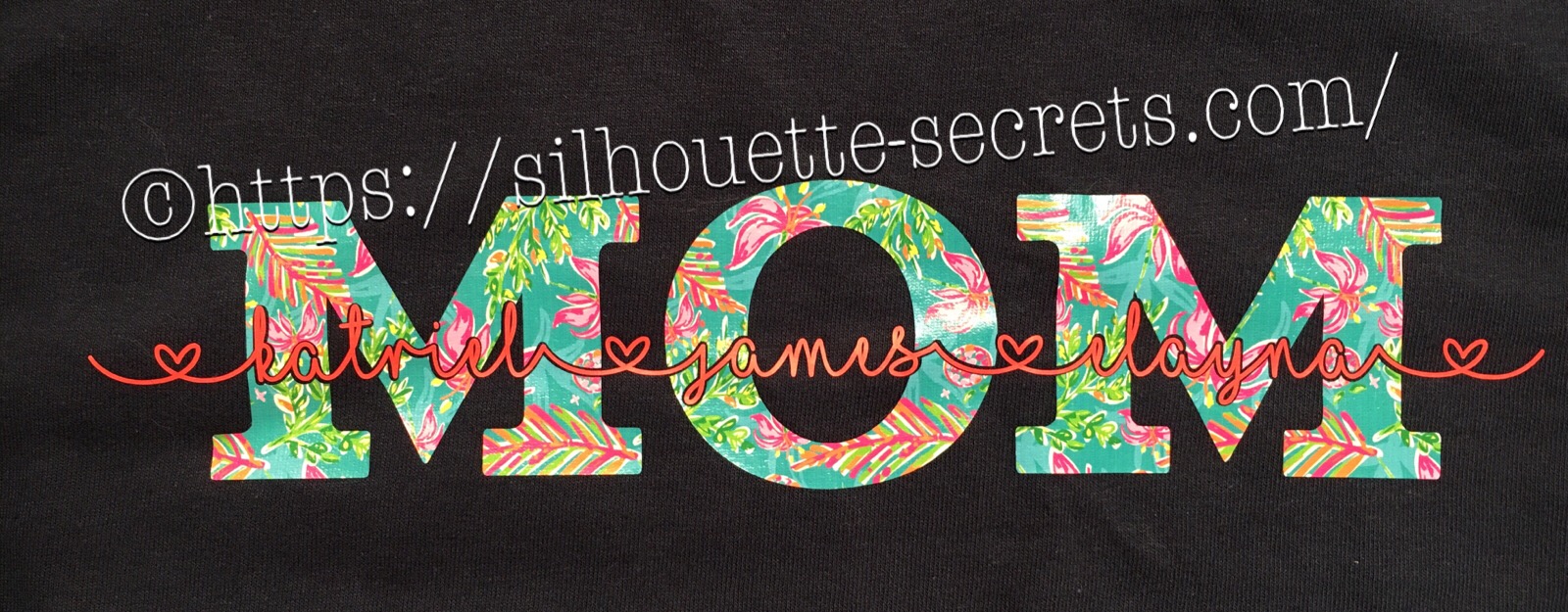
If you’ve ever wanted to turn a simple word into meaningful, personalized word art, the “subtract the name from Mom” technique is one of the most popular and impactful designs you can create in Silhouette Studio. By using basic subtract, weld, and text tools, you can carve a child’s name directly out of the word “Mom,” transforming it into a custom design that feels both modern and deeply personal. In this tutorial-style project, I’ll show you how to build this custom MOM shirt word art and then bring it to life by cutting it from HTV to create beautiful, custom apparel that’s perfect for gifts, family matching shirts, or keepsakes.
These designs have been a big hit for Mother’s Day and we will walk through how to created one.
Affiliate links may be present in the following blog post and as an Amazon Associate, I earn from qualifying purchases.
Create a Custom MOM Shirt with Silhouette & HTV
First click on the Text Tool on the left side of the Silhouette Software.
Click on the design mat & type out the words.
Click off of the words to deselect it and then click back on the text once to select it.
Fill the text with color to make it easier to see & work with.
Now, click on a Font Style Name, the text will change to that font style.
You can then either click on each font, use the text search bar if you know what you are looking for or use the arrow keys to scroll through the text list and as you do the words will change to each font – this is my favorite method if I don’t know what font I want.
For Mom, I chose a font called Gulana – I chose this one by just scrolling through my font list and seeing what I liked best.
Now, resize it how you like it.
Next using the same text tools, type out your second layer.
I used the font MF I Love Glitter by Misti Fonts in this example. The swirl hearts are called Glyphs and are special characters within the font that you can add.
Since this font overlaps make sure to weld the letters together before you cut.
Now position your name design over the top of the Mom design and align it how you want it.
We are going to Subtract the top layer (names) from the bottom layer (Mom).
First, I’d suggest creating an offset. When you are using HTV and pressing individual layers, the HTV can shrink as it’s applied with heat. To help with that we will create an offset, so we don’t have unwanted gaps in our design.
First, make a copy of your design and pull it off to the side in the holding area of the design space. Any time you are working with text, it’s a good idea to make a copy and pull the original off, just in case you need to go back. Once you edit text, it is no longer text and is now treated as a vector image – so the text is no longer editable.
Next, select your name text and click on the Offset Panel on the right side of Silhouette Studio v4.
Then next to the Distance highlight the numbers and type in 0.040, then click on Apply or hit Enter. The Distance of the offset will vary depending on the design you are using. Enter some larger or smaller offsets and see what you like – the Undo button will be your best friend.
The offset option gives you an outline around your text. It can also be used to make text thicker when you are using a very fine line font.
Once you Apply the offset, it will weld any parts that are overlapping. Parts of the design that are not overlapping (like dots of an i) will not be welded together, so you will need to group the offset before you move it, so it all moves as one.
Now move your original text off of the Mom design.
To create this design, we are going to use the Mom and the offset of our name text.
Select both Mom and the offset and under the Modify Panel, choose Subtract.
This will Subtract the top layer (offset) from the bottom layer (Mom) and any pieces that are not connected will now be individual. I would group these together before anything gets moved.
The Group option can be found in the QAT (Quick Access Toolbar) at the top of the software, right click and choose Group or under the Object menu at the top left of the software.
Now, we can move our original text back on top of our Mom design.
You can see when we zoom in that we have created a gap in our layering. This is done with the purpose of allowing for the shrinkage of the HTV and not getting unwanted gaps in our design.
Do you have to do an offset before you use the Subtract option? No, but it can save some frustration when the HTV does shrink.
Now, you are ready to set it up to cut out the material.
I used this awesome Sparkleberry Vaca HTV by Sparkleberry Ink on the Mom design. This is a patterned vinyl and you do not have to mirror or flip your image when you cut their patterned vinyl.
For the name text, I am using Siser Easyweed HTV in Hibiscus. Since this is regular HTV, I will flip (mirror) the text prior to cutting.
Next, prepare your materials. Cut them down to the size you need or place each one on the mat individually, however you like to cut.
Click on the Send tab in the top right corner. Select your Material. Heat Transfer – Smooth is what I used for both the pieces I cut.
Once your mat is loaded, I always suggest doing a Test Cut before cutting the full design. This can save you a lot of frustration in the long run.
Click on the Send button at the bottom and once it’s cut you can weed your designs.
Layer & press the designs on your t-shirt or tote bag and you have a custom made design.
This MOM shirt technique could be used to create many different custom designs such as DAD, NANA, GRANNY, etc.
Save this for future reference by pinning the image below.
Enjoy !
THANK YOU for your support! How can you help? Click HERE & buy a coffee. Every little bit helps with the cost of running the site.
Silhouette Classes
Never stop learning! Let me help you take the anxiety out of learning with Silhouette and get to creating faster! My Silhouette classes are heavily focused on software, so you can take the skills & techniques taught and apply them to many future projects!
**This post may contain affiliate links. What that means is that I may receive compensation if you purchase through the links I have provided. The price you pay for the product or service is not higher, but I may get compensated for sharing.
Have you heard of Glyphs? These are special characters that some fonts have included with them. Glyphs can be flourishes, fancy letters, punctuation or characters with accents, shapes, etc.
With the software Silhouette Studio version of v4.1.197 and the Designer Edition software upgrade, came the option to unlock the glyphs feature in Silhouette Studio. This is amazing as I had such a hard time with the small Character map on my PC.
Access the Glyphs panel on the second tab of the Test Style Panel on the right side of Silhouette Studio v4.
Let’s Explore the glyphs tab in the Text Style Panel!
Text Search bar – Just like on Tab 1, the name of the font that is selected will appear in this box or you can highlight it and type a name in the box and it will select that font.
Glyphs – This area is where you will see the glyphs of the font that you are using show up.
Note: sometimes not all the glyphs will show up here and you will need to access those through Character Map (PC) or Fontbook (Mac). It just depends on how the font was created.
Recently Used Glyphs – This handy feature shows the ones you have recently accessed.
Icon size – You can change the size of how the Icons appear in the glyphs panel. And when you hover over a glyph it magnifies it as well.
Now, there is still 1 more tab option in the Text Style Panel and it’s a good one.
Spellcheck
If you type out a word that is either not in the dictionary or is not spelled correctly, you will see a green squiggly line show up under it. Here I’ve typed my business name with no space. That is not in the dictionary, so it let’s me know that.
If I want to add that word to my dictionary, I can right click on it and choose “Add ‘SilhouetteSecrets’ to Dictionary”.
Once it is added to the dictionary, the green line disappears.
So let’s explore the Spelling Panel.
If you type out several words which are misspelled (which is very hard for me to do on purpose), you will notice the green squiggly lines under those that are not in the dictionary.
Click on Replace and it will pop up a list of suggestions to replace it with. Choose the one you want, click on Replace again and it will change it.
If you know the word is spelled correctly, choose Add to Dictionary and the green line will disappear. This word has now been added to your Silhouette dictionary.
The Arrows at the top of the panel are the Undo and Redo buttons, in case you picked the wrong replacement word, you can simply Undo it.
And then you have some Advanced options.
Automatic Spellchecking – check it on or off.
Select Language – Select your default language.
Custom Dictionary – Any words you add to the dictionary will appear here.
Text box – Type in a new word to add it to your dictionary.
If you ever need to delete a word you have added to the Dictionary, click on the word and the delete option will show up.
And there you have all of the Text Style Panel. Keep in mind that the Glyphs panel is an option available to you when you upgrade the software to Designer Edition or higher.
Check out the other posts in the Let’s Explore v4 Series HERE.
Enjoy !
THANK YOU for your support! How can you help? Click HERE & buy a coffee.
Every little bit helps with the cost of running the site.
Looking for more in-depth, step-by-step classes, check out all of my online Silhouette classes on my Teachable site HERE.
**This post may contain affiliate links. What that means is that I may receive compensation if you purchase through the links I have provided. The price you pay for the product or service is not higher but I may get compensated for sharing.
Here is another simple ornament made using basic shapes within the Silhouette Studio program. I created a long rectangle belt after measuring the circumference of my square ornament, which I then cut out of black 651 vinyl. Then I made 2 squares and used the Subtract all feature to make the belt, which I cut out of silver 651 vinyl.
I then used transfer tape to place the images onto my ornament.
And added a few clear rhinestones with some E6000 glue and you have a simple Santa belt ornament.
Hope you are able to create something today1
Enjoy !
THANK YOU for your support! How can you help? Click HERE & buy a coffee. Every little bit helps with the cost of running the site.
Looking for more in-depth, step-by-step classes, check out all of my online Silhouette classes on my Teachable site HERE.
**This post may contain affiliate links. What that means is that I may receive compensation if you purchase through the links I have provided. The price you pay for the product or servic
THANK YOU for your support! How can you help? Click the link to buy a coffee. Every little bit helps in the cost of running the site.