I started my Silhouette journey as a paper crafter and it has expanded from there. But, I always still love getting paper out and playing with it.
I love being able to make custom cards and unique items with my Silhouette machines.
It was my husband’s birthday last month, so I needed a card.
This year, while I was shopping for the perfect card idea, he was upstairs playing on the xbox and this one popped into my view – Happy Birthday Circuitry by Snapdragon Snippets – Design #78049.
When you open this file, here is how it looks.
The first thing I do is ungroup the file and then use the Fill Color Panel to add color to the design to make it easier to work with.
Now, I place one color on my mat, move the pieces of the design onto the virtual design mat and cut that color. Then I move those pieces off the virtual design mat and move another color on to cut, until I have all the pieces of my card cut out for assembly.
Normally, I don’t use a spray adhesive but this time, I thought it would be perfect since the card front had so many twists and turns.
A quick spray and it was ready to smooth down on the card base.
It was the perfect time to test my new Portrait 2 out.
**This post may contain affiliate links. What that means is that I may receive compensation if you purchase through the links I have provided. The price you pay for the product or service is not higher but I may get compensated for sharing.
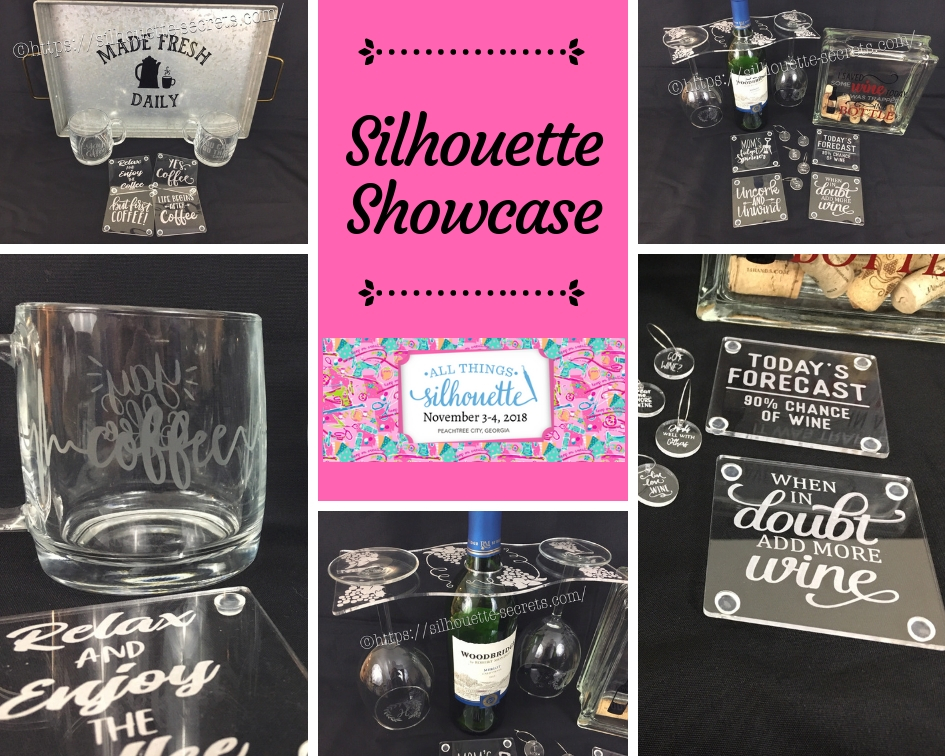
This year I am honored to be teaching several classes at the 2018 All Things Silhouette Conference hosted by Terri Johnson Creates. An option at the conference is participating in the Silhouette Showcase. This is a chance to show off things that you have made using your Silhouette machines or software and is open for all levels of users. Each person who enters gets an extra ticket to a prize drawing and while the staff is excluded from winning, we can display items in the hopes of inspiring others and showing all the possibilities with Silhouette.
I was so excited to be able to make up a few things to display during this event and wanted to share those with you.
Silhouette Showcase
Not sure what you start your day with, but mine is coffee.
So I started with this coffee inspired collection.
If you have followed me in my “Let’s Explore v4” series or on my Facebookpage or group, you may know that I enjoy a glass of wine at the end of the day.
So of course, a wine collection set is right up my alley.
Glass etched wine glasses.
For the etching stencil, I once again used the Oracal 651 vinyl and Etchall etching cream. The Monogram Wreath Font by Kristen Magee – Design #260225 was used to create these personalized glasses.
Don’t forget when doing a print and cut, to select all the objects that you do not want to cut out and then choose the No Cut option on the Send Tab.
For instance, all I want is the outside edge to cut, so all the Cut lines except the outside edge need to be turned off.
I started my Silhouette journey with paper crafting and continue to have a passion for it as well as all the other neat things you can do with it such as vinyl, glass etching & acrylic with the Curio, etc.
I could have just left it at that, but of course, I didn’t. I added a little detail to the back that makes it stand up even more.
This easel adds the perfect touch to my recipe, so I am easily able to transport it on the plane and display it at the Silhouette Showcase.
This is a file by Lori Whitlock called Easel for Back of Card – Design #76159 and I have used it many times when creating paper crafts.
I hope you have enjoyed seeing the projects I created using my Silhouette software and machines for the Silhouette Showcase at the 2018 All Things Silhouette Conference.
Enjoy!
I love seeing what you are creating with your Silhouette machines!
Feel free to post on my Facebook group at Silhouette Secrets with EllyMae.
**This post may contain affiliate links. What that means is that I may receive compensation if you purchase through the links I have provided. The price you pay for the product or service is not higher but I may get compensated for sharing.
With the Silhouette Business Edition upgrade, there is a Weeding Lines feature. It can be found on the right side at the bottom of the Panels icons. If you are on a smaller computer screen, click on the triangle for a fly out menu to open with more icons.
If you are new, the term “weeding” may be new to you. This is simply the removing the excess material around the design that you have cut. When you are using a material such as Oracal 651, it can be easier to remove in smaller sections.
What are weeding lines? These are lines or shapes you would use around a design to make it easier to weed the design. For instance, if you have a large decal cut out of Oracal 651 such as this 12″ x 12″ tile project, it can be much easier to weed it with smaller sections, since it is very sticky and easily sticks back to itself.
If you do not have the Business Edition upgrade to the Silhouette software, then you can create your own by drawing shapes or lines. For instance, in this design I drew 2 lines across the entire design, so it would cut the vinyl and break the design up into 3 smaller pieces to work with. A 3rd line could have been added between Cameo and the Established line as well.
I usually forget to add weeding lines until I’m in the middle of weeding a large decal and then wonder why I don’t use this feature more often.
However, with the Business Edition upgrade, there is a feature that will set the weeding lines automatically for you. But, it may not work exactly how you think it should. Once you understand how it works, then it may work better for you.
Let’s take a look at the Weeding Lines Panel.
Weed Settings Panel
Weed Lines – Choose an option on how the weeding lines should act. There are 5 options: Off, Horizontal, Vertical, H/V, or Recursive. 1. Off – no weeding lines applied to the Silhouette mat.
2. Horizontal – weeding lines on a horizontal axis where clear paths occur.
You can control how close or far away you want the weeding lines to the design.
Weed settings – Only Shapes on Media – Choose whether the weeding lines should include designs that are placed off of the design mat or only the shapes on the mat.Here is how it should look with the Only Shapes on Media unchecked.
It will place weeding lines around all the designs on your work space.
Now, there are some versions of the software that this feature does not work properly and it will put weeding lines around all the images on the work space whether the box is checked or not. I have found that if you turn the cut lines off on the designs that are off the design mat, then it only sees the designs with the cut lines on and includes those in the automatic weeding lines.
Here I have turned the cut lines off on the design that is off the mat and then the automatic weeding line feature only sees the design that is set to cut.
It will just depend on what version of the software you are using in how this part of the feature acts.
What does clear path mean?
In all of the options of weeding lines, I mentioned that it has to have clear paths in order to create a weeding line. What this means is that it has to be a clear path from left to right or top to bottom in order for it to make a weeding line automatically.
Now, while we may “think” there is a clear path, sometimes the software sees the space around the design or font when selected and reads it as a blocked path.
For instance, with the ever popular Samantha font, there is lots of excess space around the text in the selection box. This is because it is accounting for every single character and glyph in the font file.
If the weeding lines are turned on, even if it looks like there are clear paths for a weeding line, the software is reading the actual selection box around each text and it does not see a clear path.
In this case, before cutting, the text would need to be welded. Once you change the text in any way, it is no longer editable text, so I recommend making a copy of the original and pulling it off the design mat. If you have a font that does not overlap, then you can use the Convert to Path option and this will then only account for the letters in the design and not the entire font file for the selection box. For more information on Text Style click HERE.
Now, you can see the selection box around each text box has decreased in size to include only the letters that are in the design.
If the weeding lines are turned back on, you will see there are more clear paths.
I think the Automatic weeding lines feature that is available in the Business Edition upgrade can be very useful, once you understand how it works.
Save this for future reference by pinning the image below.
I would love to see what you are making with your Silhouette machines! Feel free to post photos or questions on my Facebook group at Silhouette Secrets with EllyMae.
Enjoy!
**This post may contain affiliate links. What that means is that I may receive compensation if you purchase through the links I have provided. The price you pay for the product or service is not higher but I may get compensated for sharing.
The Emboss Panel is such neat feature. Currently, it is only available to those who have plugged in a Curio machine.
It can be found on the right side of the Silhouette Studio v4 software and looks like a star with a shadow.
Since this is a currently a Curio feature only, if you have not plugged a Curio into your computer, the Panel will be grayed out. If you hover over the icon, you get this message.
So keep that in mind if you are looking at it along with me.
Deboss – the design will be created as seen on the screen & will press the design down into the material exactly as seen on screen. For example, if using cardstock, it will create a valley where the design is. Emboss – the design is flipped horizontally so it is mirrored BUT it does not show this on the screen. You will place your material face down on the embossing mat and the design will be pressed mirrored. When it’s finished, you will flip it over and the design should be raised on the side that was face down on the mat.
F – This tells you which way to put the material on the mat. For deboss, put the material face up. For emboss, put the material face down.
Embossing Patterns – Choose between 5 options: none, lined, concentric, cross hatched, or spiral. Lined Concentric Cross hatched Spiral Each design will vary in which pattern may look better for the emboss. Again it is a matter of personal preference. I prefer the look of the cross hatched pattern, especially when etching on acrylic. But, that is just my preference, you should play with the patterns and decide what you like.
Spacing– Increase or decrease the grid spacing between the lines of the pattern. This is 0.005 spacing – a really tight DebossIf we zoom in on the design, you will see the pattern.
Here the deboss is 0.025.
This is another area where you are changing a lot of data at one time, so be patient with your computer if it is thinking.
If the pattern spacing is smaller than what the Silhouette can process, then you will end up with a blue square or a square with an X in it.
Use the up arrow and increase the spacing just a bit or delete and type in a number just a bit higher than the current spacing, until the box disappears. Remember, be patient and go slow, it is processing a lot of data.
Above 0.015 was too small but increasing to 0.025 there was no longer the error.
Angle – Change the angle of the deboss or emboss pattern.
Release Emboss– Releases the lines of the emboss pattern. When you are satisfied with the pattern, click on the Release Emboss button.Once the emboss/deboss is released, you could add another pattern on top if you chose to.
Now, while I have not been that impressed with the emboss ability on cardstock, it is just not deep enough for my liking, I do love using the emboss features on materials such as metal and acrylic.
I hope you have learned a little bit about the Emboss Panel today. The Curio machine very quickly because a favorite of mine and now I can’t put it away.
I’d love to see what you are creating with your Silhouette machine. Feel free to post over on my Facebook group at Silhouette Secrets with EllyMae.
Enjoy!
**This post may contain affiliate links. What that means is that I may receive compensation if you purchase through the links I have provided. The price you pay for the product or service is not higher but I may get compensated for sharing.
Conical warp shapes your design given the dimensions that you enter to fit the conical object you are trying to place a design on.
A conical shape is one that is smaller at one end than the other, like a cup.
Have you ever tried to place a vinyl decal on a cup only to find that it doesn’t lay flat or line up? This is where the Conical Warp Panel will come in handy.
Conical Warp is a Designer Edition Plus feature or higher upgrade feature and can be found on the bottom right of the Silhouette Studio v4 software.
When the design is being warped you will see the red box with curved lines on the top and bottom appear around the design.
Diagram – Shows a diagram of the object you are entering the measurements for. As you add measurements the shape will change.
Top Measurement – Measure and enter the top measurement of the object.
Bottom Measurement – Measure and enter the bottom measurement of the object.
Top to Bottom Measurement – Measure and enter the measurements from the top to the bottom.
Size of Design – Increase or decrease the size of the design. Depending on the design you have, it not be a big difference you see on the screen. it will depend on the curvature of the object to be warped. As you enter the measurements, you should see it change on the screen.
Placement of design – Adjust the placement of the design from the top or bottom of the curvatures of the cup. As you can see, in this design it curves the arrows and that is noticeable.
Cancel or Apply – Choose to cancel or to keep the warp.Cancel will undo everything chosen.Apply will release the warp and the design will be ungrouped. Make sure to group it back together so it will move as one item.When you click on Apply, you may get a Processing pop up. This is a lot of data that it is changing, just be patient and it will depend on the computer processing power on how long it takes to finish.
Now, it is ready to cut with the warp that will help it apply straight onto the cup.
I hope this helps you understand the Conical Warp Panel in the Silhouette Studio v4 software! It is such a fun feature to play with and I encourage you to just try it!
Enjoy!
**This post may contain affiliate links. What that means is that I may receive compensation if you purchase through the links I have provided. The price you pay for the product or service is not higher but I may get compensated for sharing.
Unless you’ve worked in another graphics program, like Photoshop, you may be wondering what layers are. In the Silhouette software, you can create a design in layers which allows you to do many things such as hide, lock, rename, cut by layer, etc.
The Layers Panel is an option if you have the Designer Edition software upgrade or higher for the Silhouette Studio.
If you open the Layers Panel on a blank design mat, you will see that there isn’t much in there.
What this tells us is on the design mat I have open, there is 1 layer. If I start drawing shapes or text, it will place all of those pieces on Layer 1.
Here is how the layers panel looks for this design.
On the right side is the Layers Panel and it shows 1 layer and that this layer is grouped together. If I un-group the design, it will show each shape on that layer or each grouping of shapes, depending on how the file was created. But, the entire design is still on the same layer.
So let’s take a look at what all of this means and what you can do with the Layers Panel.
The layers panel can be found on the right side towards the bottom of the Silhouette Studio v4 software, if you have the Designer Edition upgrade to the Silhouette software.
There is a lot of information in this small panel, so let’s explore all the features.
File name – This is the name of the file that is currently open.
Layer details – The default name for each layer is “Layer 1” and then each proceeding one will be in numerical order, but you can change that by clicking on the word Layer and typing a new name or right clicking and choose Rename Layer.
There are many options here including: add a layer under this layer, rename layer, delete layer, cut, copy, paste, select or deselect.In additional to those options, there are toggle options too.
The eyeball can be toggled on and off which hides or shows a layer.
This can allow you to see how a design will look without moving the shape or object.
The lock can be toggled on or off and allows a layer to be locked so it cannot be moved by accident. Again very helpful when designing if you want something to stay in place.
When a layer is locked, it cannot be selected, moved or altered. The layer can be hidden by clicking on the eyeball, but no changes can be made to the layer without toggling the lock off.
Maximize and minimize the layer details by clicking on the circle next to the Layer name.
Designs on layer – All objects that are on that layer will be listed below the layer title in the order they are on the mat.Objects can be grabbed and dragged to rearrange the order within the Layers Panel.
Additional layers – Add as many layers as needed to a design. Having the parts of the design on separate layers allows more control over things while working with a design.
Add or Remove Layers – Use these quick button to Add or Remove layers as needed.
Layers can be fun to play around with and can also serve many useful purposes when designing or using more complex designs.
The other option available once layers have been created is to Cut by Layer.
On the Send tab, choose the option to Cut by Layer and it will open up a window with all the Layer options. Now the cut lines can be turned on and off, depending on which part of the design is being cut.
I hope this helps explain the layers panel just a bit more!
**This post may contain affiliate links. What that means is that I may receive compensation if you purchase through the links I have provided. The price you pay for the product or service is not higher but I may get compensated for sharing.
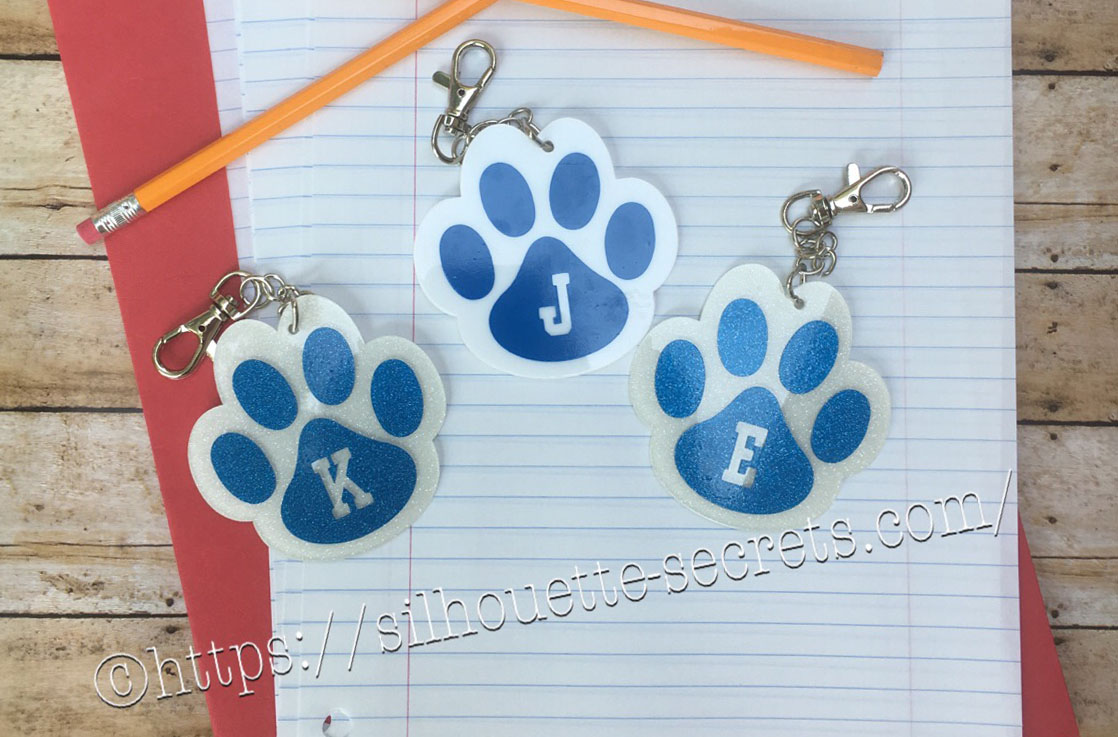
It is Back to School here for us and I made a little something to add to my kid’s backpacks. These bag tags are 3″ in size and with the lobster claw, perfect to clip onto their backpack zipper.
Our school colors are blue and white, so this little paw print acrylic from Craft Chameleon works great. There are many options for colors both solid and glitter, just click on the drop down box for more options. For the girl’s tags I used the white glitter with Siser PSV in blue and the boy’s are solid white with Oracal 651 blue.
It came with a cut file that is sized perfectly for the acrylic blank, so all you have to do is customize it if needed and set it up to cut.
*Line color added and thickened for visual
How to make the bag tag design
For these bag tags, I wanted to add the first initial into the design. I typed the first initial using the Text Style Tool and then changed the font using the Text Style Panel. I used Lori Whitlock’s School Font Design #273761 from the Silhouette Design Store because it was a nice bold font.
Once the properties (color, font style, etc) of the first letter is set, then make a copy of the letter and change the text to the next letter. I find this saves time when you are using multiple text designs that are similar. In this case, all of the initials would be the same font, so I just copied and pasted the letter and then changed it for the next one.
Place the letter in the design where you want and you are ready to cut.
The Cameo will cut exactly where you see the bold red cut lines when you click on the Send tab. I chose to Send mine to cut this way with weeding lines between the designs.
If you are creating a design to show to someone, you can make the design look more realistic and having the letter “cut out” or subtracted from the paw print by making it a Compound Path.
Both designs will cut the exact same way as you can see from the bold red cut lines on the Send tab.
I can’t wait to show the kids when they get home from school.
And here is a quick video on how I applied the vinyl to the acrylic blanks.
I love that with my Silhouette, I can make so many different custom projects.
Enjoy !
THANK YOU for your support! How can you help? Click HERE & buy a coffee.
Every little bit helps with the cost of running the site.
Looking for more in-depth, step-by-step classes, check out all of my online Silhouette classes on my Teachable site HERE.
**This post may contain affiliate links. What that means is that I may receive compensation if you purchase through the links I have provided. The price you pay for the product or service is not higher but I may get compensated for sharing.
If you only have the Basic software, you can still cut rhinestone designs, but you cannot create rhinestone designs. The Silhouette Design store has many rhinestone designs that can be opened and cut with the Basic software.
The diamond icon is what how you can tell at a glance that it is a rhinestone design or you can use the search box and type in “rhinestone” and it will bring designs up.
With a rhinestone design, it comes it at a specific size to use with certain stone sizes, so they cannot be resized if you are using stones.
The description of the design will also tell you more information about the design, such as size, number of rhinestones, and rhinestone sizes needed.
With the Designer Edition upgrade to the Silhouette Studio software, you can create your own rhinestone designs in just a few clicks.
There are so many options in creating your own designs in this panel, let’s take a look.
*Please note – throughout the entire post I have filled the rhinestone design in with color so it can be seen better. When a rhinestone design it is not filled with a color. Check out more information on the Fill Color Panel HERE.
Rhinestone Effect – 3 options for rhinestone placement Edge Effect – places rhinestones around the edge of the designLinear Effect – this fills the design in a linear formation
Here is another example of the linear effect
Radial Effect – fills the design in a radial pattern
Here is another example of the radial effect
Rhinestone Size – 4 options: 6 ss, 10 ss, 16 ss, 20 ss ss stands for Stone SizeChoose from the most popular stone sizes or adjust it to a custom size.
Rhinestone Spacing – further customize the design by adjusting the spacing between the rhinestones
Draw Rhinestones – left click and hold the mouse button down and draw a design. The rhinestone pattern will follow your drawing and the stone size will be what is chosen above in Rhinestone size.Here is a the Freehand rhinestone in action:https://youtu.be/DopgVUlOshQ
Release Rhinestones – releases all the rhinestone circles into individual design pieces. This allows you to manipulate the design even further by moving the rhinestone holes, adding more or deleting some. A selection box will appear around each rhinestone circle.Zoomed in to see the selection boxes.Here I have moved some and added more to fill in the blank spaces.
Something to keep in mind when you do release the rhinestones is you are breaking the file up from 1 object to LOTS of objects – each of those boxes around the hole is a new object. This means that it is a lot of data for your computer to process. Do not be surprised if you experience a little lag or it doesn’t react as fast as you’d like. This is normal and depends on the processing speed of your computer and how much data it can process at once.
After adjusting the design, select the entire image and then Group it back together, so the file will move as 1 object.
Totals (all Shapes) – this tells how many rhinestones are either on the mat or if 1 object is selected, how many are in the design.When no objects are selected, it totals all the rhinestones on the mat file.When 1 object is selected, it totals the rhinestone count for that 1 object.
Rhinestone designs can be so much fun to create and design!
The design is then cut out of a rhinestone template material that can be reused over and over again to create fabulous rhinestone designs.
And you have another customized project that you have created with the Silhouette machine.
Supplies used in this post: Love design by Silhouette Design #9651 Magic Flock rhinestone material, Hot Fix Transfer tape, and Rhinestones from The Rhinestone World Canvas Zipper bag from Craft Chameleon
THANK YOU for your support! How can you help? Click HERE & buy a coffee. Every little bit helps with the cost of running the site.
Silhouette Classes
Never stop learning! Let me help you take the anxiety out of learning with Silhouette and get to creating faster! My Silhouette classes are heavily focused on software, so you can take the skills & techniques taught and apply them to many future projects!
**This post may contain affiliate links. What that means is that I may receive compensation if you purchase through the links I have provided. The price you pay for the product or service is not higher but I may get compensated for sharing.
One of the options with the Silhouette machine is using pens in the tool holder and then the Silhouette will draw the design you choose. There are sketch designs that you can find in the Silhouette Design store and are all ready to use with your sketch pens.
This is one of my favorites I did while preparing for a class.
But, did you know that you can turn images into sketched designs? If you have the Designer Edition upgrade to the Silhouette software, you have the Sketch Panel available to you.
This is so fun to play around with and you never know what you may like until you try it.
Sketch Settings
Edge Sketch – 7 different edge style sketchesAs you can see, each one gives it a little different look. Keep in mind that the more lines you see or the darker the sketch is, the longer it will take to sketch out that design.
Fill Sketch – 8 different fill option for the sketch design.In the above example, an outer edge sketch line was chosen to help show the design better and then each one is a Fill option.
Release Sketch – This opens up a whole new world of possibilities in editing your sketch design. Once the sketch is released, then you can access individual point editing on the sketched design and can manipulate it how you like.
On the left is before the sketch is released. Each of the gray points is an edit point that can be manipulated in this design.
On the right is after the sketch has been released. Now, not only do you have the gray edit points, but the sketch fill lines have been released so you can move those as well. Keep in mind that a red dot means that it is an open point and not a closed object, so you will not be able to fill this with color. You can move the red dots towards each other and connect the dots to change the sketch fill.
And there are even more options
Advanced Sketch Settings
Edge Effect – 4 options for Edge Effect. These look the same when you first click on them, but with each one there may be more options for you to adjust the design.Plain – there are no further options given.
Continuous – Option for width, density & waver.
I have made a few adjustments from the photo above to show you the difference.
Rough – Option for stroke length, width, density, splay, curvature.
And this photo below shows a few adjustments and how it can change the look of the sketched design.
Scribble – Options for loop separation, loop size, randomness, and density.
And here is an example of adjustments made to the Scribble options.
Fill Type – 3 additional options for Fill type – none, zigzag, and hatchZigzag – Options for spacing, angle, offset
And here is adjusting those options.
Hatch – Options for spacing, angle, sweep, offset.
And more adjustments made to the Hatch fill.
Options – As shown in the examples above, these options change for each type of sketch fill you choose.
Fill Effect – 2 advanced OptionsRough – options for stroke length, width, density, splay, curvature.
And changing the options up a bit, yields a different sketched look.
Scribble – Options are loop separation, loop size, randomness, and density
And more adjustments to the options.
Now, did you know there were so many options? You could play with this feature for a long time and make many different designs with it, just by changing a few things.
Sketch pens are so fun to play with and can make very unique designs.
Keep in mind that that the Sketch Panel is available for those that have the Designer Edition upgrade to the Silhouette software.
Check out this video showing how to turn a design into a sketched design using this Sketch Panel.
Enjoy !
THANK YOU for your support! How can you help? Click HERE & buy a coffee.
Every little bit helps with the cost of running the site.
Looking for more in-depth, step-by-step classes, check out all of my online Silhouette classes on my Teachable site HERE.
**This post may contain affiliate links. What that means is that I may receive compensation if you purchase through the links I have provided. The price you pay for the product or service is not higher but I may get compensated for sharing.
Everyone starts out with one material or another, mine was paper. I started with my Silhouette as a paper-crafter and it has grown from there.
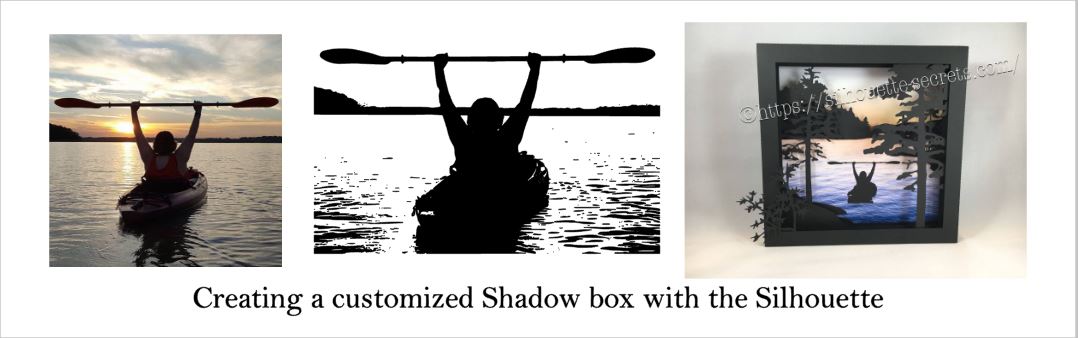
A while back I was visiting friends in Kansas and playing with the Silhouette and my friend asked if I could trace a photo for her that a friend took.
Now, photo tracing can be tricky. Each photo can yield different results tracing in the Silhouette Studio and you just never know until you try to see what will happen.
In this case, it was a great photo to trace.
Here is how the trace came out.
I used Basic Trace panel to achieve this.
Check out the Trace Panel HERE.
Then I released the compound path and deleted the water areas and used the point editing and deleting points to clean up edges and take out the skyline.
Now, like I said above, each photo is going to vary in how it traces and this one turned out to be pretty simple with a little time for editing.
Instead of adding the canoe, I cut and added my traced image of my friend on her kayak. It was perfect!
I am one of those people who has to do a project pretty much exactly like the demo, at least the first time. So I did go to the designer’s website and purchase the file again – yes, sounds crazy – but I wanted the backgrounds for this particular project.
However, you can use any background that you want and add it to your project.
What are you creating today?
Feel free to post your project photos & questions on my Facebook group at
Silhouette Secrets+ with EllyMae.
Enjoy !
THANK YOU for your support! How can you help? Click HERE & buy a coffee.
Every little bit helps with the cost of running the site.
Looking for more in-depth, step-by-step classes, check out all of my online Silhouette classes on my Teachable site HERE.
**This post may contain affiliate links. What that means is that I may receive compensation if you purchase through the links I have provided. The price you pay for the product or service is not higher but I may get compensated for sharing.
THANK YOU for your support! How can you help? Click the link to buy a coffee. Every little bit helps in the cost of running the site.




 *
*

 *
*




 If we zoom in on the design, you will see the pattern.




 Objects can be grabbed and dragged to rearrange the order within the Layers Panel.






 Choose from the most popular stone sizes or adjust it to a custom size.

 Here is a the Freehand rhinestone in action:
 Zoomed in to see the selection boxes.
 Here I have moved some and added more to fill in the blank spaces.

 When 1 object is selected, it totals the rhinestone count for that 1 object.


 As you can see, each one gives it a little different look. Keep in mind that the more lines you see or the darker the sketch is, the longer it will take to sketch out that design.
 In the above example, an outer edge sketch line was chosen to help show the design better and then each one is a Fill option.


 I have made a few adjustments from the photo above to show you the difference.

 And this photo below shows a few adjustments and how it can change the look of the sketched design.

 And here is an example of adjustments made to the Scribble options.

 And here is adjusting those options.

 And more adjustments made to the Hatch fill.

 And changing the options up a bit, yields a different sketched look.

 And more adjustments to the options.