Posted on 6 Comments

Scanning & Tracing in Silhouette Studio

Silhouette & School Projects

*this post was created using v4.3.353 of the Silhouette Studio software

My daughter came home from school and said, “Mom, I have homework and it says to do it as a family.”

Gingerbread homework copy

Permission granted. Silhouette to the rescue!
Note: affiliate links may be present in this post

The hardest part of this project was getting my 6 year old to decide what she wanted to disguise the gingerbread man as.

We went shopping in the Silhouette Design Store for disguises. She thought about a reindeer, an elf, Santa, a boy elf, a girl elf, and about a hundred other options. Guess what she settled on? A reindeer – the very first choice. Of course!

Of all the designs we viewed in the store, she chose one that I had already collected in my library. Santa & Friends Photo Props by Kolette Hall – Design #35760 was perfect.

Santa props file.JPG

Sometimes picking out the design is the longest part of a project.

But, once she settled on the reindeer she said, “But he won’t have a costume on the rest of his body.”

Well, we can fix that.

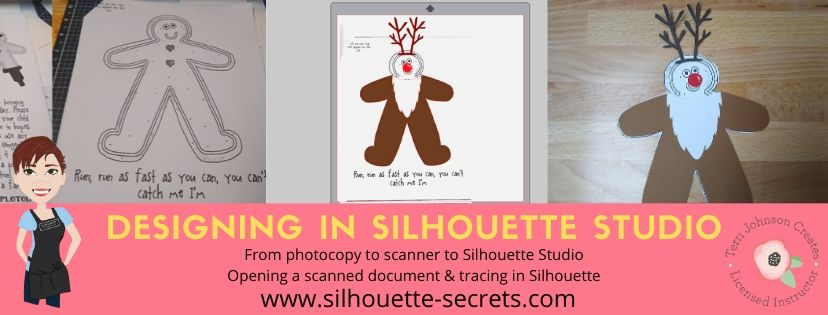
I took the Gingerbread man page, slipped it into my scanner and clicked scan. This saved the file to my computer as a PDF document. Then my little one was amazed when I used File > Open and found the PDF file and it opened up in my Silhouette software.
To open a PDF file, the Designer Edition upgrade or higher is required.

Gingerbread Scan copy.jpg

Once the design was in my Silhouette Software, I used the Basic Trace feature to trace around the outer edge of the Gingerbread man.

Basic Trace copy

I increased the threshold on the trace to get the design to show as much yellow on the outer edge of the design and keep it as smooth as possible.

Keep in mind that each design you work with will be different and there is no magic number for the threshold or adjustments to the features under the Trace Panel. Adjust it until you feel you have the best yellow around the area you want to trace as you can get.

Then, I clicked on the Trace Outer Edge because I only needed the outside edge of the Gingerbread Man.

Trace copy

Now you may notice a few extra things traced. This will depend on the image you are tracing. These artifacts should be removed or they will cut with your image. Again, each design you trace is going to react a little different. This image is a photocopy of a design, so it picks up the little shadows and such on the paper.

Right click on the design and choose Release Compound Path. Now, you will see each artifact in this design is now broken into separate objects.

Release Compound Path copy

While all of the pieces are selected, hold down the Shift key on the keyboard and click on the main part of the Gingerbread Man. This will deselect him and all the other artifacts will remain selected. Press the Delete key on the keyboard and the artifacts will be no more.

Delete artifacts copy.jpg

Next, I told my daughter I was going to cut his head off. She gasped and then started laughing.

I double clicked on the Gingerbread Man to bring up the Edit Points. These little gray dots may look intimidating when they show up, but they are very useful.
Check out the “Let’s Explore v4 – Edit Points” post for more information HERE.

The first thing I noticed is that there are a lot of edit points. This can happen on any object you trace. In the Edit Points Panel, click on the Simplify option and see if it helps decrease the edit points without changing the shape of the design too much.

Edit Points Simplify copy

Again, each design is going to vary in how it reacts.

Simplified copy.jpg

Keep in mind a few things when you trace. First, it traces each design around the edges of the yellow that you have on the screen when you do a trace. This means if the image is pixelated, then will trace all those pixels.
And, each of those edit points is a data point that the Silhouette machine has to hit when it is cutting. It is how it tells the machine how to cut around the design you send to it. If there are a lot of edit points, it can sound odd cutting and take a long time as it makes it’s way connecting all those dots.

Now, that I have fewer edit points, I can move the edit points, delete the ones not needed, and adjust their directional nodes to bring the neckline down on the reindeer costume.

Reindeer neckline copy

And there is our reindeer/gingerbread man body.

Next, we discussed that reindeer have a white stomach. I tried using the Line Drawing tool – Draw a Polygon to draw my own ruffly white belly, but I just wasn’t feeling it.

But, the Santa beard from the Santa & Friends Photo Props was ruffly. I copied it from my other file and pasted it into this design.

Knife tool copy.jpg

I then held the Shift key down and drew my knife across the beard to cut the mustache off. I selected the mustache and deleted it. Then I double clicked on the beard to bring up the edit points and deleted the ones in the center as those are not necessary.

To select multiple edit points at the same time, hold down the Shift key and drag the mouse across all the ones you want to select. This will select multiples at a time and you can then adjust or delete them.

Santa beard edited copy

Now, let’s add this to our reindeer.

Reindeer white copy

I used the bottom middle bounding box to elongate the white of the belly.

Next, I wanted the neckline to match with the brown reindeer part of the costume. Select both the brown and the white of the reindeer and make a copy. Drag this copy off the design mat. Select the brown and white reindeer on the design mat again and open the Modify Panel and choose Crop.

Modify - Crop copy.jpg

The new shape has taken on the color of the bottom layer. Change the color back to white using the Fill Color Panel and you have 2 pieces that will fit back together.

Reindeer body copy

Want to see how it will look as a finished design?

This is what is commonly referred to as a “mock up”. Taking the design you have creating and layering it on top of the original photo.

Mock Up copy

We cut all the pieces out of cardstock and my 6 year old helped with each part. She enjoyed taking the mat off the cardstock.
Tip: To help the cardstock to release from the mat, flip the mat over and peel the mat away from the cardstock. This will help the adhesive release, keep the paper from curling, and keep the adhesive on the mat.
Check out this post “Tips to Get the Most out of the Silhouette Mat” for more tips.

IMG_20191205_102446498 copy

Then my daughter used her scissor skills to cut out the gingerbread man and I asked if she wanted to go find a glue stick to attach the pieces and she says, “Mom, can you just use your good glue?” I had to laugh at that as I pulled out my Scrapbook Adhesives EZ Tape Runner. Of course, I’d much rather use that than a glue stick.

Check out this video below to go through the same steps I have walked through above.

And we had our cleverly disguised Gingerbread Man that we created together. I am amazed at the Silhouette software all the time. While I am no designer, once in awhile I may have an idea or two. And you never known when you will want to take a Santa beard and turn it into reindeer fur.

So for a recap of the tools used in the Silhouette software:
Basic Trace
Release Compound Path
Edit Points
Line Drawing Tool – Draw Polygon
– Knife Tool
Modify Panel – Crop
Fill Color Panel

It didn’t seem like that many as we worked through the project, but we covered a lot. The best way to learn is to continue to create and do things in the software.
All of the above features are linked to detailed posts in the “Let’s Explore v4” series. When you get a chance take a look and then play with something new that you learned.

I would love to see what you create, feel free to post on my Facebook group at Silhouette Secrets with EllyMae.

Enjoy!

SS_Signature copySS Logo snip it

**This post may contain affiliate links. What that means is that I may receive compensation if you purchase through the links I have provided. The price you pay for the product or service is not higher but I may get compensated for sharing.

Posted on 10 Comments

Let’s Explore the Mint & Silhouette v4

I have had this little machine for a while now, a couple years in fact. Before last weekend, I had only created 2 stamps.
Why? Time – there just isn’t enough time to do it all.

Mint Stamp machine copy

It all started with Christmas cards and one thing lead to another.
Check out my post last week for a FREE cut file for a Z Fold card that can be used for all occasions.

Now let’s see how it works!

Silhouette Mint Machine

The Silhouette Mint is a neat machine – find it out HERE.

What is the Silhouette Mint good for? Personalized stamps. And it’s so simple.

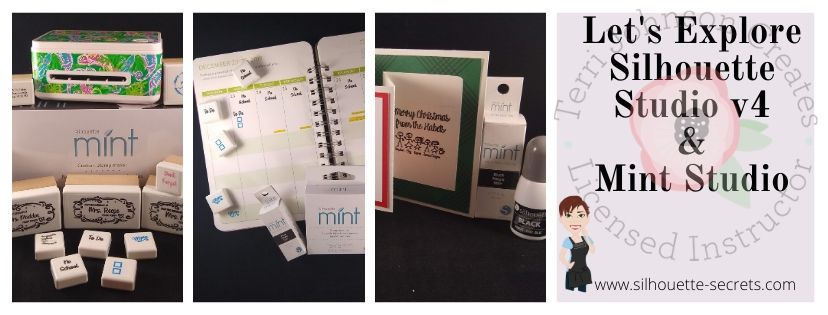
Create your design in Silhouette Studio. Open the design in the Mint Studio software. Choose the stamp size you are using. And follow the on screen directions to print your stamp. Ink it up and let the ink soak in for 5-10 minutes. Then stamp it off 20-30 times and you should be good to go. If the ink starts to fade, re-ink it and keep on stamping.

Done!

And you have unique stamps that you can use or give as gifts.

Ok, now let’s go into a little more detail.

Designing a Mint Stamp

First, I start in the Silhouette Studio software and design my stamp.

Do you know what the hardest part is for me? Settling on a design.

You would think it would be something software related, but no – it’s design related. I have a hard time committing to the design I like. I even sent this off to a friend to help me choose the design for these teacher stamps.

But, let me tell you when I do commit and put this little stamp through the machine, I do a little happy dance at the results.

Teacher stamp photo copy

I draw a box the size of the stamp I want to use and then place my design in it in order to see how it will look. Before I save the file, I delete the box.

I found it helpful to use the template (box) when designing and thought I would provide you with a FREE download of all the sizes.
Download it HERE or click on the photo.

Mint Stamp Template copy.jpg

Once I have the design I want on the stamp, I group the design together and then use File > Save As > Save to Hard Drive and choose a location to save the file to.

Save to Hard Drive copy

Open the Mint Studio software. I am using the v1.3.044 that is the most recent release of Mint Studio found on the Silhouette website HERE. I found it under the Beta section and it has worked beautifully.

When the initial window pops up, choose Open. Or use File Open in the Mint Studio and open the file that you saved from Silhouette Studio.

Mint Studio

In my design, I have 3 images that I will be creating stamps with.

Next, choose the stamp size you want to use.

Stamp Size copy.jpg

Select the design and then in the top left menu click on Object > Align > Center to Stamp.

Align Center copy

This will move the design into the center of the stamp area.

Align Stamp copy

I moved the other designs off the white space. Anything in the gray area is in the holding area and will not be used in the design of the stamp.

Once the design is placed how you like on the stamp space, click on the Send to Mint icon in the top right. 

Send to Mint copy.jpg

When you click on the “Send to Mint” icon, it will automatically mirror the image for the stamp and you will see that reflected on the screen.

Make sure the Mint machine is plugged into your computer, a power source, and turned on.

Next you will follow the Steps listed on the Send to Mint Panel.

Step 1 and 2

Step 1, in this case, I have no filters to check since I designed and opened it from Silhouette Studio.

Click on Start Mint in Step 2. The power button will flash on the Mint machine and in the bottom right of the software, the Mint machine icon it will start to register.

Start Mint copy

When it says Status: Insert Stamp Sheet, carefully place the stamp sheet arrow in to the back of the Mint Stamp Machine. Do not force the stamp sheet in. The machine will start to register it and pull it in as needed.

IMG_20191208_193554061 copy

And out pops a stamp. It’s magical!

Next, fold the chipboard back at the dotted line on the stamp sheet and peel the black stamp blank off.

IMG_20191208_195956817 copy

Then take the brown protective cover off the stamp block. Then carefully place the back of the stamp sheet onto the sticky side of the stamp block.

Carefully add Mint Ink to the stamps and let it soak in. Add another layer of ink if it soaks in quickly.

IMG_20191208_155350153 copy

I wipe any excess that didn’t soak in away with a paper towel and then stamp it off until the stamp is clear of excess ink.

And now you have a stamp made using the Silhouette software and Mint Studio. Both of these are free software programs that you can download HERE.
The possibilities are endless on what you could create with it.

Planner Stamps copy

Use it to create your own planner stamps or to create a unique gift to give.

Mint photo copy

Add a sentiment to a card.

IMG_20191209_112259954 copy

Check out last weeks blog post HERE on creating this Z-fold card with a FREE cut file.

Or grab one to give as a gift to someone HERE and then have a Mint stamping party!

You may have noticed that my Mint machine is not “naked” any longer. I have covered it with Cut Crawlers Sparkleberry Ink patterned vinyl using a file created by a friend & colleague Barbara Foster with Let’s Go Silhouetting.
Grab that file HERE!
It fits the Mint machine perfectly, right down to pieces that go on the usb & power cord.

eZy_watermark_31-08-2019_07-18-16

And that is not all. I have also created a short video following the steps listed above in creating a Mint stamp. You can view it on my Youtube channel HERE or below.

This only breaks the surface of all the neat things that you can do with the Silhouette Mint machine.
Check out this this video from Silhouette America HERE on more details when working with your Mint.

I would love to see what you create with your Silhouette software and Mint machine.  Feel free to post on my Facebook group at Silhouette Secrets with EllyMae.

Enjoy!

SS_Signature copySS Logo snip it

**This post may contain affiliate links. What that means is that I may receive compensation if you purchase through the links I have provided. The price you pay for the product or service is not higher but I may get compensated for sharing.
Posted on 59 Comments

Let’s Explore v4 – Drawing Tools

Do you use the Silhouette software to draw your own designs? Or maybe you are like me and don’t feel you are creative enough to draw your own designs?
Today we are going to talk about the Drawing Tools and hopefully, you will feel a little differently by the end.

Drawing Tools Panel copy

As I’ve mentioned in previous posts, you will find the Tools on the left side of the Design Tab and the Panels that control the properties of those Tools on the right side.

Tools vs Panels copy

Understanding the different terms in the software can help in remembering where to access some of these features. Check out this FREE PDF file that diagrams the Design Tab out with each of the Icon names.

Let's Explore v4 diagram copy

Let’s Explore v4 – Drawing Tools

Drawing Tools close up copy

Draw a Rectangle Tool

Select the Rectangle Tool on the left side and the cursor will change to a cross-hair. Click the left mouse button and hold to draw a rectangle of any size.

Draw rectangle copy

To draw a perfect square, hold down the SHIFT key as you draw and it will draw a perfect square.

But, be careful not to let go of the SHIFT key before you release the mouse button or it will not be an equal sided square.
The undo option is your best friend in the software at times.

Now, after you draw that rectangle, does your mouse keep on drawing shapes?
You can change this under the Preferences in the software.
Check out this post on Preference – Tools to find out how.

Draw a Rounded Rectangle

The draw a rounded rectangle tool works the same as the rectangle tool, except the corners are rounded and you have the option to adjust the curve of the corners by moving the red dots that appear on the corner.

Rounded Rectangle copy

The red dots can be adjusted individually for each side of the corner or if the SHIFT key is held down when grabbing one, it will adjust them proportionally on all sides.

Draw an Ellipse

Select the draw an Ellipse tool to draw an oval or circle shape.

Draw an ellipse copy

Again, holding down the SHIFT key will allow a perfect circle to be drawn.
If the SHIFT key is released before the mouse button, it will revert back and not be a perfect circle.

Draw a Regular Polygon

Select this tool to draw a polygon. The polygon can be adjusted with the red dots or by using the slider bar in the middle of the shape to adjust the number of sides from 3 to 60.

Regular Polygon tool copy

Now, those are your basic shapes and can be used together to make all kinds of designs. What can you think to create?

I created this snowflake just by using a few of these basic shapes.
A rounded rectangle, a circle, and an oval.
Group or weld the ovals to create the leaf design.

Snowflake design copy

After drawing all the shapes, I used the Align tool to line them all up by the Align Center option. Then weld the shapes together.
Next, mirror the welded shape below from the Replicate Panel and then move the copy up a little so they are overlapped, then weld.

Snowflake welded copy

Now, use the Replicate Two Copies option and weld in the Replicate Panel to create 2 more copies. Then weld the copies together.

Snowflake Replicate copies copy

And then I repeated the same steps for the next part of the snowflake.

Snowflake 2nd arm copy

Once both parts of the snowflake are created, select the smaller snowflake piece and Rotate By 30 degrees, using the Transform Rotate Panel. Select both parts of the snowflake and use the Align Center option under the Transform Panel.

Snowflake welded final copy

Ta-Da! You have drawn a snowflake with basic shapes found in the Drawing Tools on the left side of the Silhouette Studio.

Drawing Tools Pinterest

Want to save this for later? Pin the photo above to Pinterest to refer back to later.
I love Pinterest – find me HERE!

What will you draw or create in the Silhouette software now?
Want another tip?
Check out basic drawing books to see how they combine shapes to make designs and objects.

Feel free to post your comments and questions below or on my Facebook group at Silhouette Secrets with EllyMae.

Enjoy!

SS_Signature copySS Logo snip it

**This post may contain affiliate links. What that means is that I may receive compensation if you purchase through the links I have provided. The price you pay for the product or service is not higher but I may get compensated for sharing.

Posted on 6 Comments

Let’s Explore v4 – Preferences – Tools

When you use the drawing tools in the Silhouette Studio software, does every click of your mouse continue to draw another shape?

Did you know that you can change this behavior within the software?

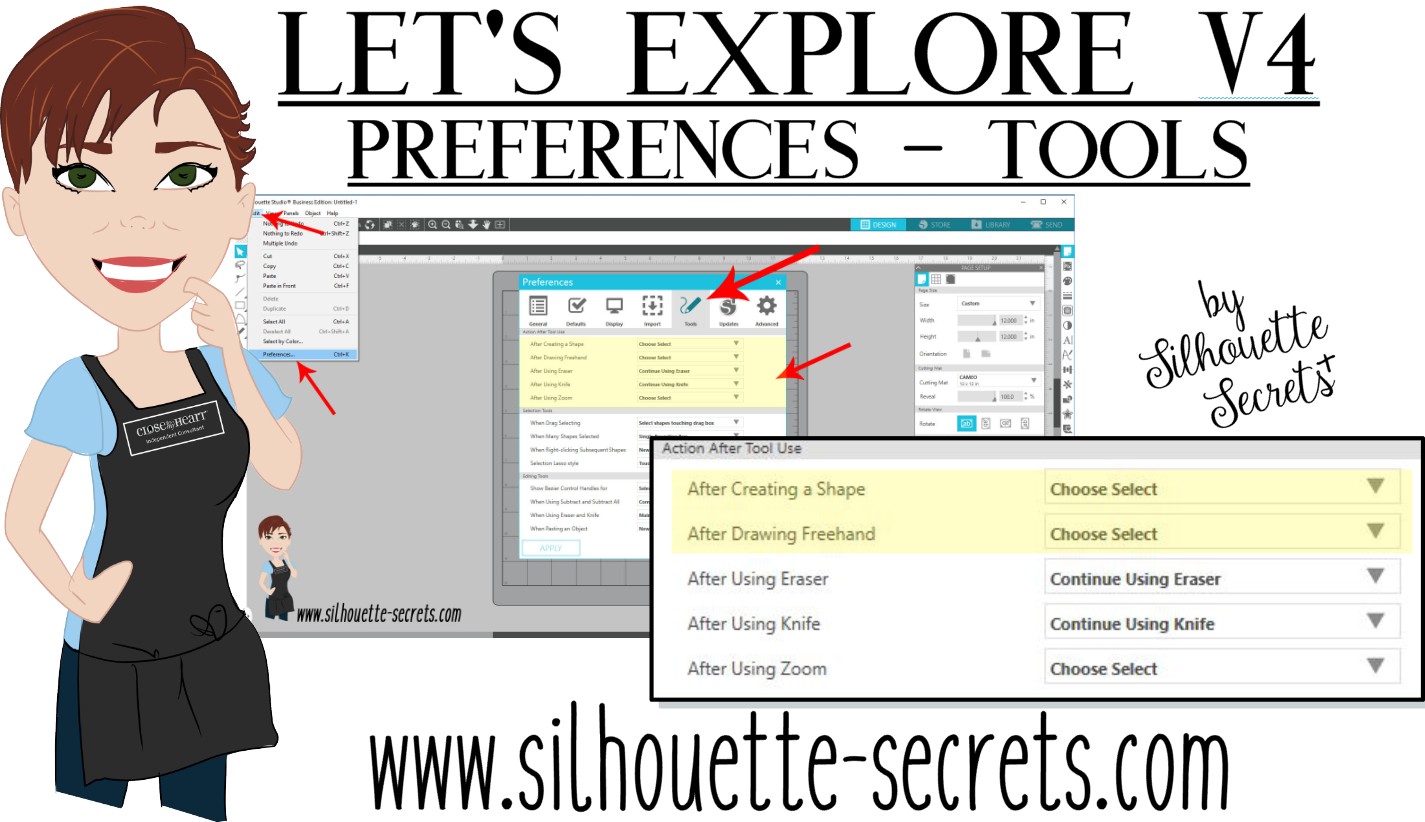
Click on the Preferences icon in the bottom right corner of the Design Tab or click on the Edit option in the top left menu & choose Preferences.

Preferences copy

Then choose the Tools tab at the top of the Preferences window.

If the software continues to draw shapes with each click of the mouse, this preference can be found under the “Action After Tool Use” section of the Tools tab.

After drawing Tools

I change the After Creating a Shape and the After Drawing Freehand to “Choose Select” then choose Apply and Ok.

Choose Select

Now when you choose a Drawing Tool or the Line Drawing Tool, it will go back to the selection arrow instead of continuing to draw shapes.

Tip: I keep the Eraser and the Knife tool as “Continue Using” because typically I will continue using the eraser or knife. I have the After Using Zoom set to “Choose Select” because I don’t want each click of my mouse to keep zooming in on the design. I prefer to have my selection tool again and if I need to zoom in more, I will choose zoom again.

Sometimes these defaults can get reset in the software, but after you know what they are and how to adjust them, you can easily go in and change it to what you prefer.

Each user will have a preference on how they like to work in the software. I prefer to draw one shape and then have the selection arrow as my next option as I am rarely drawing more than 1 of an item at a time when I’m designing.

Feel free to post your comments and questions below or on my Facebook group at Silhouette Secrets with EllyMae.

Enjoy!

SS_Signature copySS Logo snip it

**This post may contain affiliate links. What that means is that I may receive compensation if you purchase through the links I have provided. The price you pay for the product or service is not higher but I may get compensated for sharing.

Posted on 14 Comments

Mastering the Line Tools in Silhouette Studio: Your Ultimate Guide to Precision Design

Silhouette Studio Line Tools
Silhouette Secrets+ with EllyMae

Let’s Explore v4 – Line Tools in Silhouette Studio

When it comes to creating stunning designs in Silhouette Studio, the Line Tools are your secret weapon for precision and creativity. From drawing simple straight lines to crafting intricate custom shapes, these tools open up endless possibilities for your crafting projects. Whether you’re a beginner exploring the basics or an experienced designer looking to refine your techniques, understanding how to use the Line Tools effectively can take your designs to the next level. In this guide, we’ll walk you through each Line Tool, share pro tips for maximizing their potential, and show you how to incorporate them into your next Silhouette masterpiece. Let’s dive in!

Sometimes, I think that the tools on the left side of the Silhouette Software get lonely. There is so much that you can do within the software in creating your own designs and I love seeing what everyone comes up with.

First, let’s take a look at the Design Tab. On the left side are the Tools in the software and on the right side are the Panels which control the properties of the objects created.

Silhouette Studio: Tools vs Panels copy

Check out the Let’s Explore v4 series (HERE) to see more information on the Panels on the right side and how they can be used.

And if you need a little more detailed diagram of the Design tab, don’t forget to grab the FREE PDF in this post – HERE.

Silhouette Studio: Let's Explore v4 diagram

Silhouette – Line Tools

Today, we are going to cover the Line Tools located on the left side of the Silhouette Studio software. This is available for all users, no matter if you have a software upgrade or not.

Silhouette Line Tools on left side

Here is a close up of the options available in the Line Tools menu – Draw a Line, Draw a Polygon, Draw a Curved shape, and Draw an Arc

Silhouette Line Tools Close Up

Draw a Line

This will draw a simple line from Point A to Point B. Holding down the Shift key will make it a vertical, 45 diagonal, or horizontal line.

Silhouette: Draw a Line

I often will draw a line if I have to separate designs when cutting without a mat to make it easier to weed.

Silhouette Line as Weeding Lines

Sometimes, I’ll use the Weeding Lines within the Silhouette software, but other times, it’s just as easy to draw my own line.

If you want to connect 2 separate lines together, check out this post on How to Connect Lines in Silhouette HERE.

Draw a Polygon

This tool will continue to draw lines until you connect the red dots together to close the shape or double click to end the line.
Holding down the Shift key will also make it a vertical, horizontal, or 45 degree angle line.

Silhouette Polygon Line Tool

Have some fun and see what kinds of shapes you can draw. Turning on the Snap to Grid found under the Page Setup Panel – Tab 2, can also help in making sure that you get even spacing and help with drawing objects.

I’ll use this tool or the Draw Curve Shape to create my own weeding lines around a detailed design or when I’m cutting multiple designs on a page.

Silhouette Polygon Line Tool as Weeding Lines

A combination of tools can make it easier to weed a detailed design or a page filled with designs like the one above by allowing you to weed smaller areas instead of having a full sheet of Oracal 651 stick back to itself.

Draw a Curve Shape

This tool will draw a line each time you click the mouse, but the point will be a curved point.

Silhouette Draw a Curved Shape

Continue clicking the mouse to add points and curves in the shape. Double click to end the line or connect back to the first red dot to complete the shape.

After the design is complete, double click on the line and the Edit Points will pop up and the design can be altered more.

Silhouette Edit Points

Each point has 2 blue squares that are handles that can be adjusted. Or select an option from the Point Edit Panel on the right hand side.

Silhouette Edit Point Demo

Draw an Arc

Select this tool and click onto the design mat, this will be the starting point of the Arc line. Move the mouse and the next click completes the Arc.

Silhouette Draw an Arc Tool

In the center of the arc, there is a grab handle that can be moved in or out to alter the Arc even more.

Click off of the design and an arc line is left.

Silhouette Arc Tool

There are so many fun things that can be created with the tools in the software. You can create your own shapes, add weeding lines, or add Text to the Path you have created.

Silhouette Line Tools Text to Path Demo

What will you use the Silhouette Line tools for?

Save this for future reference by pinning the image below.

Silhouette Line Tools Pinterest

Enjoy !

THANK YOU for your support! How can you help? Click HERE & buy a coffee.
Every little bit helps with the cost of running the site.

Silhouette Classes

Never stop learning! Let me help you take the anxiety out of learning with Silhouette and get to creating faster! My Silhouette classes are heavily focused on software, so you can take the skills & techniques taught and apply them to many future projects!

Silhouette step-by-step Classes by Silhouette Secrets+

Silhouette Secrets+ with EllyMae
**This post may contain affiliate links. What that means is that I may receive compensation if you purchase through the links I have provided. The price you pay for the product or service is not higher but I may get compensated for sharing.
Posted on 4 Comments

Let’s Explore v4 – Pixscan project

Pixscan Project

I get an email from my husband asking if I can make him a phone cover out of some skull vinyl he has found online.

Well, of course, challenge accepted!

I order the vinyl and sat down to cross this off my to list. I wanted to get it done because sometimes the projects that are closest to us always seem to get pushed down the list. This time I wanted it to be first on my list.
Take some time, create something for yourself, a loved one, or a friend.
Enjoy what you can create!

Now on to the project!

I grabbed my Pixscan mat for the Cameo and took a photo using my old Iphone 6.

Pixscan photo

Next, I emailed myself the photo and when it asked what size I wanted to email, I chose “Actual Size”. If the photo is compressed when it’s sent, then it may not be read by the Silhouette Software.

After I download and save the file, I then clicked on the Pixscan Panel in the top right corner of the Silhouette Software.

Import Image copy

Choose Load Pixscan Image from File and find the location the file was saved when downloaded.

Pixscan Panel copy

Once the photo pops up, I get a notice about no Calibration Profile.

Calibration

I just click on “Continue without calibration” and the photo will load onto the Silhouette Studio design mat. Now you should see the Pixscan mat on the screen.

Pixscan screen copy

Now that the Pixscan mat is in the software, there may be several ways to get the cut lines needed.

Trace

With a basic Trace, I can trace the outer edge of the phone case.

Trace copy

I increased the Threshold until the edges turned solid yellow and then chose “Trace Outer Edge”.

Trace cut line copy

Now, in this photo I have increased the line thickness so you can see the cut line better. You will notice that the right side of the cut line is not perfectly aligned with the bottom edge of the phone. That is due to the shadow and it traced around the shadow. This can easily be moved to the edge of the phone.

Edit Points copy

If you double click on the cut line, the Edit Points will pop up and you can see that there are more than are really necessary. Anytime you have a trace you will find that it adds edit points. These can be simplified in the Edit Points Panel by either clicking on “Simplify” or deleting unnecessary ones.

Edit Points Panel copy

For more information on Edit Points, check out this post HERE.

I mentioned above, that there may be several ways to get the cut lines needed. What works best is going to depend on what image you are working with. The Trace did a good job getting the outer edge of the shape I needed for the outer cut line of the case. However, I need to cut the 2 circles out of this for the back of the phone and the Drawing Tools will do the job here.

Drawing

On the left side are the Drawing Tools. I will need the Draw Ellipse Tool and will hold down the Shift key to draw a perfect circle for the 2 objects I need it for.

Draw Ellipse Tool copy

And I now have the cut lines for cutting vinyl to apply to my husband’s phone.

Cut Lines copy

Since I am only needing the shape cut out and not cutting onto a specific media or stamped image, I can copy this shape and paste it onto a new design mat to cut it.

I do not need to cut directly on the Pixscan mat in this case. However, you could if you have an image such as a design on a scrapbook paper that you want to cut out or a stamped image and want to cut it directly on the mat, like in this post explaining the Pixscan Panel.

Cutting vinyl copy

I use the Reveal option on the Page Setup Panel to measure where the design will fit on my cutting mat and then cut my materials down to size with a paper trimmer. Then I am only applying the material to that section of the cutting mat and I save the adhesive on the other areas that it is not applied. This is one way that I can get a Silhouette cutting mat to last a long time.
For other tips on Getting the Most out of the Silhouette cutting mat check out this post HERE.

Loaded mat image copy

It’s ready to cut! Click on the Send tab, choose my Vinyl Glossy Material and click on Send at the bottom.

Send tab copy

And remember the old saying “Measure twice cut once” or you end up with a piece of vinyl that wasn’t quite long enough. But it’s just a little vinyl and I put a 2nd piece on the cutting mat and cut again. It happens to us all at one point or another.

IMG_20190718_193445383 copy

Now it’s ready to apply the Oracal transfer tape and put it on the back of the phone.

Here is a quick video on how I apply the Oracal transfer tape. I have used this for years both personally and in my classes and my students have no issues with it.

And now by using the Pixscan mat, my husband has the custom phone cover he requested. He has a clear phone protective case on it, so that will protect the adhesive vinyl even more.

Phone cover copy

Keep in mind that each object or design that you are working with may be different in what is needed to accomplish the goal. I used the Trace Panel and drawing tools to get the shapes I needed for my cut lines. A different object may need another tool or a combination of tools too!

The best way to learn is to play, play, play!

Feel like this is something you might use?
Grab one at Swing Design or Silhouette America to play (I mean test).

Have you used the Pixscan? I would love to hear how!

Feel free to share your projects, questions, or comments below or on my Facebook group at Silhouette Secrets with EllyMae.

Enjoy!

SS_Signature copySS Logo snip it

**This post may contain affiliate links. What that means is that I may receive compensation if you purchase through the links I have provided. The price you pay for the product or service is not higher but I may get compensated for sharing.

Posted on 13 Comments

Let’s Explore v4 – Library Snapshot

Library Snapshot

One of the new features in the Silhouette Studio v4.2 software is a Library Snapshot.

Library Snapshot General copy

This takes a “Snapshot” of the library as it is right now and also allows you to revert back to this “snapshot” of the library if needed.

To access and setup the Library Snapshot, click on the Library tab in the top right corner.

Library tab copy

Then click on your name in the top left corner.
You will need to be logged in to the Silhouette library.
Then choose Settings.

Library Snapshot copy

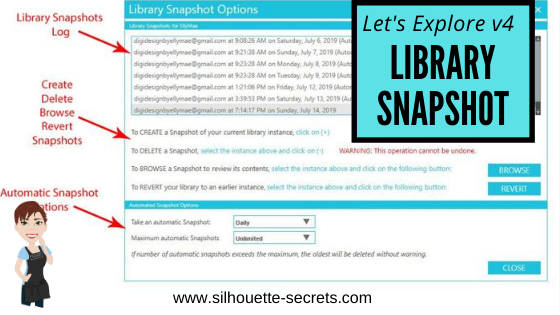
A Library Snapshot Options window will pop up.

Snapshot details copy

At the top of the Library Snapshot Options box is the log of all the snapshots that are taken of the software.

Close up copy

The middle section gives you options to create, delete, browse, or revert snapshots manually.

The bottom section allows you to set up automatic snapshots of the Silhouette library.
I would recommend setting the Snapshot option to Daily.
It never hurts to have multiple copies.

The Library Snapshots are computer specific. Depending on how it is set up, the snapshot will occur when you open the software.
If I have my snapshots set to daily but I leave my software open on my computer overnight, it will not take a snapshot the next day until I have closed and reopened the software again.

These snapshots are only stored on the computer you are accessing at the moment. Each computer will create a snapshot when the software is opened on it. So if I access my software from my computer upstairs, that snapshot is saved on my upstairs computer only. It is not stored in the cloud and synced between computers.

Does this replace making a backup of the library? No!

I would still highly recommend making a backup of your library on a regular basis and I would also recommend having your personal files saved to an outside source, which is also backed up as well too. There is nothing that is 100% safe and just like a computer crash, you cannot predict when something will happen.

Do you remember years ago when typing in Word documents and we were taught to save often? It is still a great habit to get into.
Save & backup often and you will not regret it.

Exporting a Backup

To make a backup of your library in Silhouette Studio v4, open the Library tab.
Click on your name in the top left corner (must be logged in).
Choose Library Export.

Library Export copy

A “Select Location” pop up window will come up.

Library Backup copy.jpg

Choose Browse and then select a safe location to save the backup file to.

This is a backup file only. It cannot be opened outside of the software and only can be imported back into the software if needed.
It does not contain individual files.
If you want the files saved individually, you will need to open each file and choose File > Save As > Save to Hard Drive.

I add the date to the file name and save in a Backup folder that I can find if needed.
I’d recommend making a backup of the library on a regular basis, just in case because you just never know.

If you ever need to import the backup back in, click on your name in the top left and choose Library Import.

Library Import

The Library Snapshot is just one of the new features in the v4.2 software.
Hopefully, you will never need to use it, but it is great that it is there.

Now, it’s a great time to go make a backup of your Silhouette library, no matter what version you are using and if you are in v4.2, set up the snapshot to your specifications.

Have questions or comments feel free to post below or on my Facebook group at Silhouette Secrets with EllyMae.

Enjoy!

SS_Signature copySS Logo snip it

**This post may contain affiliate links. What that means is that I may receive compensation if you purchase through the links I have provided. The price you pay for the product or service is not higher but I may get compensated for sharing.

Posted on 5 Comments

Let’s Explore v4 – Silhouette Studio PDF Diagram

Silhouette Studio Design Tab Diagram

Original post written in July 2019. Updated on May 21, 2020 with the current diagram link. Updated 5/31/25.

In January 2018, I started the “Let’s Explore v4” series with the intention of breaking down each of the panels on the right side of the Silhouette v4 software and explaining the parts of them. When I started, I had no idea how far it would go and it has grown to so much more than my original thought. I have learned so much by writing these posts and exploring other tools in the software that I have never used because I get stuck in the same old routines. It is so exciting to see something come to life in the Silhouette software and I love learning new things and being able to share those.

I do feel that the software is the key no matter what Silhouette machine you have. If you learn how to do something in the software, you can apply that to so many other projects that you create.

Today, I want to share a free PDF chart I created that maps out the Design tab of the Silhouette Studio v4 software.

Diagram of the Design Tab in Silhouette Studio v4 software, featuring various tools and panels labeled for user reference.

Click HERE or on the image above to download this PDF diagram.

This can either be printed as a reference guide or opened on a computer. When the file is opened on a computer with a PDF viewer, all of the blue titles have been linked to the blog post in the Let’s Explore v4 series that it corresponds with it.

I have had such great feedback on this series and I hope that it has helped you learn a little bit more about this powerful software by Silhouette!

Now, keep in mind that Silhouette is always adding new things into the software and I think this is awesome! What that means is that this chart is good for today and for users who are using a version of the Silhouette software that contain these features.

Just like many things in life, things change. Change can be hard for most of us, but it can also be good. I will update this free PDF with future changes, once I know those changes will be sticking around.

If you are not using the Silhouette Studio v4.2 software yet, I would highly encourage you to do so. You can download the current version of the software direct from the Silhouette America website HERE. I am using v4.2.279, which can be found under the Legacy section and it is what I’d recommend today.
As always with any software, they may be a “bug” or two in it. This happens with all software programs. There are 2 that are known in this version 4.2.279 I am recommending, but they are more just annoyances than anything.

I explain those “bugs” and how you can work with them in this post –
Let’s Explore v4 – Bugs.

And if you are considering updating or even if you are not, it is always a good time to backup the Silhouette library if you store personal files there – for more tips on the Silhouette Library prior to version 4.2 check out this post – Silhouette Library Tips.

Shape up your Silhouette Library copy

While you are exporting a backup, don’t forget to export your custom cut settings if you have those in the Silhouette software too! This is an awesome feature.
Check out how to do that in this post –  Add Cut Settings & Export.

Export Header copy

Don’t forget to grab the free PDF diagram of the Design Tab in the Silhouette Studio v4 software and save it some place safe on your computer to refer back to when needed.

Design Tab diagram

I’d love to hear your feedback or suggestions for things you would like to see in the future!

Enjoy !

THANK YOU for your support! How can you help? Click HERE & buy a coffee.
Every little bit helps with the cost of running the site.

Silhouette Classes

Never stop learning! Let me help you take the anxiety out of learning with Silhouette and get to creating faster! My Silhouette classes are heavily focused on software, so you can take the skills & techniques taught and apply them to many future projects!

Silhouette step-by-step Classes by Silhouette Secrets+

Silhouette Secrets+ with EllyMae

**This post may contain affiliate links. What that means is that I may receive compensation if you purchase through the links I have provided. The price you pay for the product or service is not higher but I may get compensated for sharing.

Posted on 18 Comments

Let’s Explore v4 – Flexi Shapes

Flexishapes

*This post may contain affiliate links.

New with the Silhouette Studio v4.2 software is a feature called FlexiShapes.
What are they?

FlexiShapes are another Tool in the Silhouette Software to help you create or add to a design.

Let’s take a look at the Silhouette Studio v4 layout. There are 2 side menus in the Silhouette software. The left side menu is where the Tools in the software can be found. Drawing tools, edit points, lasso tool, line drawing tools, shape drawing tools, text tool, notes, eraser, knife, and transfer properties eye dropper tool.
The right side menu is composed of Panels which control the properties of an object. Using the Panels on the right side, an object can be customized and the properties of it altered. This includes things such as fill color, line color, rotation, scale, font style, cropping, rhinestones, sketch, warp, etc.

Tools vs Panels copy.jpg
Check out the “Let’s Explore v4” series HERE or in the menu at the top of the blog to see a breakdown of the Panels on the right side.

FlexiShapes are available in the Silhouette Software v4.2 software version with the Designer Edition Plus or Business Edition upgrade.
The FlexiShapes can be found under the left side of the Silhouette software where all the Tools are found.

FlexiShapes copy

Look at all those new shapes that are now available with a few clicks of the mouse to start your own creations in the Silhouette software.

Each of the FlexiShapes will have different properties and ways that you can alter each one. Let’s take a look at a few FlexiShapes and how they can be adjusted.

On the left side I chose the flower FlexiShape, left clicked and moved my mouse out.
This creates the initial shape.

FlexiShapes Flower copy.jpg

Next, you will notice that each FlexiShape will vary in the edit nodes that it may have.

Zoom in on Shape white node

White nodes adjust the size of the shape or rotate the shape from the point of the white node.

Zoom in on Shape red node 1

Red nodes adjust the definition of the shape. In this flower shape, moving the red node will adjust the petal definition of the flower.

Zoom in Shape red node 2 copy

The slider bar in the center of the design will adjust the edges of the shape. In this flower example, it will decrease or increase the number of petals on the flower.

Zoom in Shape center adjustment copy
*Note – I have increased the line thickness in the photos to make it easier to see.

Each FlexiShape that you choose will have different options that can be adjusted to change the outcome. Some shapes may have more nodes or less.

Want a star? Start with the star shape and it can quickly become something else.

Star shape copy.jpg

Want a tear drop shape?

Tear drop copy

Create shapes and add them to your designs like these teardrops in the corners of this design created for the Curio Boot Camp for the June 2019 All Things Silhouette Conference.

Flamingo design copy

Both the teardrops and the scalloped rectangle frame are created using the FlexiShapes.

With the FlexiShapes there are so many options that you can create in the software.

Frames copy

Create a frame by adjusting the FlexiShape nodes and then make an Internal Offset, next select both the original shape & the offset and Make a Compound Path. This will take the 2 shapes and compress them into 1, creating the frame.
Fill the shape with color using the Color Fill Panel to see how it will look.

Create arrows of all shapes and sizes or create a picket fence from adjusting the nodes and replicating the shape. This are all created from the same starting arrow shape.

Arrow design copy

And once you start playing, it’s hard to stop.

I am in no way a designer, but you never know what you might create by combining a few shapes or playing around with some FlexiShape nodes today.

What can you think to create using the new FlexiShapes available in the Silhouette Studio v4.2 software?
I would love to see it!
Feel free to post photos on my Facebook group – Silhouette Secrets+ by EllyMae.

Save this for future reference by pinning the image below.

Pinterest

Enjoy!

Check out all of my online Silhouette classes on my Teachable site HERE.

SS_Signature copySS Logo snip it

**This post may contain affiliate links. What that means is that I may receive compensation if you purchase through the links I have provided. The price you pay for the product or service is not higher but I may get compensated for sharing.

Posted on 8 Comments

Using multiple Silhouette machines

Using multiple Silhouette machines simultaneously

One of the great features of the Silhouette Business Edition upgrade is being able to run multiple Silhouette machines at the same time. The Business Edition upgrade has many great features and you do not have to have a business to use it or have a need for it. However, if you do have a business it has several features that may come in handy.

Check out the Silhouette Edition Comparison chart for all the features that are available with each software upgrade.

Now let’s jump in to how do you use multiple machines at once.

First, plug all the Silhouette machines in to the computer and then turn them on. With the Business Edition upgrade active, the software will recognize the machines that are plugged in.

Set up the file(s) you want to be sent to the Silhouette machines.

Once it is ready to go, then click on the Send tab in the top right corner.

Cameo job multiple machine copy

The file that is active on the design mat is what will be sent to the machine selected.

Click on the machine icon in the bottom right corner of the Send tab.

Machine icon copy
Note: depending on the software version being used, the machine icon may be farther on the right side of the tool bar. Screen shots are in v4.2.279

This will bring up a list of all the Silhouette machines that are recognized by the Silhouette software.

Icon definition copy

There are 2 connection designations – Bluetooth or USB.

There are several more things that you can see here too.
Status – Under the machine name, it will tell you the status of the machine – Available, Unavailable, Ready, etc.
Firmware – what version of firmware is on the Silhouette machine.

Status Firmware copy

Choose the machine that you want the design on the screen to be sent to.

The machine menu will disappear and the machine selected will now be the active machine.

Name change copy

Another neat feature is that you can name the machine. This is very helpful if you are running multiple machines and trying to keep track of which a job is being sent to.

Double click on the name above the machine photo and it will allow you to type a new name or right click and choose Rename from the menu.

Rename copy.jpg

I am sure you can come up with a cool name for your Cameo. I was in the middle of a big project when I named mine and just went with the color of my machine. One of these days I’ll rename it something different, but this works to help me keep track of which machine I am sending my job to.

Next, verify that all the cut settings are how they should be, do a test cut if needed and it is ready to Send the job to the Pink Cameo.

If you are cutting the same design and want to change to another machine, click on the machine icon again to select the next machine and verify everything is set up properly and click Send. You can do this for as many machines as you have ready to go.

Don’t forget to load your mat or material in the machine before you click on the Send button.

IMG_20190520_101723193 copy

Tip: If I am using a mat, then I cut my materials down with a paper trimmer to the size I need, this helps extend the life of my Silhouette mats as I’m not covering the full adhesive and pulling a material off of it each time. Check out this post with more tips on Getting the Most out of the Silhouette mat – HERE.

The above works if you are sending the same design to multiple machines, but what if you want to send different jobs to different machines?

Sending a new design to another Silhouette machine

I mentioned above that the design that is showing on the design mat is the one that will be sent to the machine selected.

If you want to send a different design job to a new machine, click back on the Design tab in the top right corner, open a new design mat & place the design on it, set it up how you like and click back on the Send tab. Repeat the steps above.

New design copy

Now, a difference here is if when switching between a Cameo or Portrait and the Curio. Currently, the software is set up that the machine that is selected on the Send tab, is the current Page Size and Cutting mat selection options on the Page Setup Panel.

This is changing with the upcoming v4.3 software updates and it is in Closed Beta testing now.

I love having this option to send to multiple machines with the Business Edition because I can set up one job to etch on my Curio and while it’s etching, I can still be using my Cameo, Portrait or even another Curio.

There is no numerical limit to the number of machines that you can running with the Silhouette Business Edition, however, you may be limited by the processing power of the computer. Keep in mind that each design sent to cut is sending data back and forth the Silhouette machines, the more files that are working equals more data being sent.

Curio etching copy

For instance, when etching a file, that has a lot more data involved than just a regular cut job. If the computer can handle the amount of data being processed, then you are all good. If it gets bogged down, you may experience the Silhouette machine stuttering or slowing down. Most times this will still cut or etch just fine. However, if you reach a certain point and the computer is maxed out, it could lead to a software crash. Make sure to save the file often. The only way to know what a computer can handle is to test it.

Etch fill zoom copy

When you do an etch or sketch fill, each of the red lines is now the equivalent of a cut line, the more cut lines (etch lines) the more data is in the file. For best results when using the Sketch or Emboss features, save often.

For tips on getting started with your Curio, check out this post –
The Curio – Getting Started.

This is amazing for large projects like wedding favors, cutting for classes or events like the All Things Silhouette Conference.

Note: in the process of writing this blog post, I did find that there is no difference when you are using the same type of Silhouette machine. However, the mat size does change to the current machine selected when you switch to a different machine. For instance, when I switched to my Curio, my cut border changed to the Curio cut border on all the projects open in my software. Even if I had already sent the file to be cut, it changed the cut border & the project did not cut outside of the border.
In the past, I have never had an issue with this and used my Curio & Cameo both simultaneously. But, it is something to make a note of because it could affect the way a Cameo cuts a project, if a smaller machine is activated at the same time.
The good news on this is that a solution is coming to this issue with the release of the v4.3 software, which is currently in closed Beta testing.

This is a time lapse video of using multiple Cameo 3 machines at the same time to cut cardstock. This works great when you have 100 wedding favor boxes to cut out.

These 2 projects below were created simultaneously from 1 computer with the Silhouette Studio v4.2.279 Business Edition upgrade.

On the left side, the HTV for this Cotton Canvas Garden flag was cutting on a Cameo 3, while the Curio was etching the circle acrylic.

Designs used:
American Flag of United States by Echo Park printed on ColorJet III Dark Printable Heat Transfer Paper by Specialty Materials
Home of the Free Because of the Brave by BasicGrey
Sunflower Mandala by Sweet Afton

Have you tried cutting with multiple machines? Did you know you could?
What would you use this feature for?

Feel free to post your comments and questions below or on my Facebook group at Silhouette Secrets with EllyMae.

Enjoy!

SS_Signature copySS Logo snip it

**This post may contain affiliate links. What that means is that I may receive compensation if you purchase through the links I have provided. The price you pay for the product or service is not higher but I may get compensated for sharing.