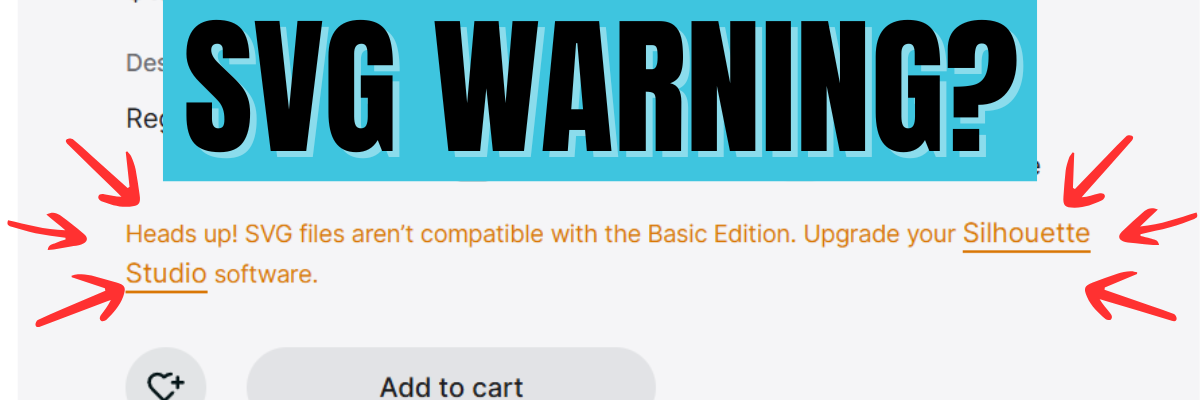
If you’ve clicked the SVG file option in the Silhouette Design Store recently, you may have noticed a message pop up that says: “Heads up! SVG files aren’t compatible with the Basic Edition. Upgrade your Silhouette Studio software.” Don’t worry—you’re not alone! This Silhouette SVG warning notice appears for everyone, even if you already own Designer Edition, Designer Edition Plus, or Business Edition. In this video, I’m breaking down exactly what this message means, why you’re seeing it, and how to confidently purchase SVG files from the Silhouette Design Store without confusion.
Affiliate links may be present in the following blog post and as an Amazon Associate, I earn from qualifying purchases.
Understanding the “Heads Up!” Silhouette SVG warning in the Silhouette Design Store can save you a lot of confusion (and unnecessary upgrades). Now that you know why it appears for everyone, you can shop for SVG files with confidence and focus on creating! 🎨✨ Be sure to watch the full video above for a step-by-step explanation, and don’t forget to subscribe to the Silhouette Secrets+ YouTube channel for more tips, tricks, and tutorials to help you get the most out of Silhouette Studio. Have you seen this message pop up? Share your experience in the comments below—I’d love to hear how you’re using SVG files in your projects!
Save this for future reference by pinning the image below.
Enjoy !
THANK YOU for your support! How can you help? Click HERE & buy a coffee. Every little bit helps with the cost of running the site.
Silhouette Classes
Never stop learning! Let me help you take the anxiety out of learning with Silhouette and get to creating faster! My Silhouette classes are heavily focused on software, so you can take the skills & techniques taught and apply them to many future projects!
**This post may contain affiliate links. What that means is that I may receive compensation if you purchase through the links I have provided. The price you pay for the product or service is not higher but I may get compensated for sharing.
If you get files from the Silhouette Design Store, make sure to check out the Free Design of the Week! Each week, Silhouette offers a brand-new design file at no cost — perfect for your cutting machine projects. These free files are typically added on Fridays now along with the new featured designer spotlight. In this post, I’m sharing a quick video tutorial that walks you through exactly how to get the free file for FREE.
Affiliate links may be present in the following blog post and as an Amazon Associate, I earn from qualifying purchases.
The Silhouette Design Store recently added a new subscription to the store and it appears as an option to select on every single file in the store. We’ve had several users confused by how to get the free weekly design for free without signing up for another subscription.
My biggest concern for users is that they know what they are signing up for and are not getting into a program that they don’t want.
To find out more details on this new Free Trial being offered, you can find the Free Trial button on the Silhouette Design Store website in the header.
Or there is a button on every single design when you click on it in the store.
Please make sure to read the terms of use and details of this program if you choose to sign up. You can find the details of the Free Trial HERE and the Terms of Use HERE.
Please note that the screenshots and video above are the current view as of this publication date 5/10/25 and Silhouette is still changing things on the websites. This means that while menu headers and designs will change from the screenshots, but the information is still relevant.
If you do sign up for the new Free Trial and do not want to continue or pay the monthly fee, please make sure you cancel in time. At the time of writing this, there are no instructions on the steps to cancel that I can find. I did ask for clarification and received no response. If you do need to contact Silhouette Support to cancel, please do so well in advance of the due date.
Want to help other Silhouette users? Please share this post and the video link with other Silhouette users.
Want to learn more about Silhouette? Check out these resources:
Save this for future reference by pinning the image below.
Enjoy !
THANK YOU for your support! How can you help? Click HERE & buy a coffee. Every little bit helps with the cost of running the site.
Silhouette Classes
Never stop learning! Let me help you take the anxiety out of learning with Silhouette and get to creating faster! My Silhouette classes are heavily focused on software, so you can take the skills & techniques taught and apply them to many future projects!
**This post may contain affiliate links. What that means is that I may receive compensation if you purchase through the links I have provided. The price you pay for the product or service is not higher but I may get compensated for sharing.
Sharing a bit of information today on how to install fonts for use in the Silhouette Studio software. Well, any program really. Fonts are installed directly on the computer and then software programs pull from the Fonts folder on the computer hard drive to access.
Affiliate links may be present in the following blog post and as an Amazon Associate, I earn from qualifying purchases.
Font files are typically OTF or TTF font files. OTF stands for Open Type Font and if you have the option to install this, that is the one you should install. The OTF file is the newer font format and is the one that has all the special characters, also called glyphs, that we have seen evolve over time. Over time we have seen a shift in font development and are now seeing hundreds of characters in one font file versus the original 26 characters of the alphabet + numbers.
TTF stands for True Type Font and these are the older style font files that do not have as many special characters. If TTF is the only option you have to install for a font, that will work just fine. All it means is that the font file does not contain as many special characters.
How to Install Fonts for Silhouette
Check out the new video tutorial on the Silhouette Secrets+ YouTube channel as I’m sharing step-by-step how to install fonts for use in Silhouette.
As a Silhouette user we’ve been kind of spoiled in seeing font file thumbnails show up in the Fonts folder of the Silhouette library and with most of your basic fonts, the font will install on the computer when the font thumbnail syncs to the library. However, with the Silhouette website migration issues that started on 5/22/24, we have seen fluctuation in files actually syncing properly to the Silhouette library.
The fonts from the Silhouette Design Store, do NOT have to sync to the library for use. It’s just kind of a perk that we have gotten used to. Once things are back to working like they should with the Silhouette websites someday, we may see things return to normal.
The Silhouette Fonts folder only contains thumbnails for fonts that are purchased and synced to the library directly from the Silhouette library. Font files can be found in many online sites. Check out the Recommended Design & Retailers for the group for more options HERE.
The same steps apply for all fonts to be installed no matter what site you obtain them from.
I also have a written tutorial that I published a few year back called Let’s Explore v4 – Installing Fonts. In this tutorial I have provided additional details on things you might encounter such as extracting downloaded files and installation steps for a MAC.
As technology changes and we see updates from both Microsoft and Apple in the computer operating systems, there can be new ways they “hide” things or change things that users have to figure out. For instance, with the release of Windows 11, Microsoft hid the “Install for all users”. It is an important step in the process or the font file might not show up in all programs. That is also another change by Microsoft that occurred with Windows 10 release. If you encounter any issues with installing fonts or see something different than my video tutorial shows, please check out the written tutorial HERE for more details.
If you have any questions, please let me know in the comments below.
Save this for future reference by pinning the image below.
Enjoy !
THANK YOU for your support! How can you help? Click HERE & buy a coffee. Every little bit helps with the cost of running the site.
Silhouette Classes
Never stop learning! Let me help you take the anxiety out of learning with Silhouette and get to creating faster! My Silhouette classes are heavily focused on software, so you can take the skills & techniques taught and apply them to many future projects!
**This post may contain affiliate links. What that means is that I may receive compensation if you purchase through the links I have provided. The price you pay for the product or service is not higher but I may get compensated for sharing.
Just a quick post to share something I stumbled upon yesterday while I was writing the weekly Silhouette Secrets+ newsletter. There is now a Silhouette Design Store direct download search feature!!!!
Silhouette Design Store – Direct Download Search
If you have been following along we are now 70+ days after the Silhouette website started to be migrated. The migration started on May 22, 2024 and it’s been well… a mess. It did not go as planned and it’s still ongoing. Little by little there are small improvements such as a new search is now available under the Downloads section on your Silhouette Account. This is BIG! For more than 70 days users have had to direct download if their Silhouette library was not working properly. However, that has had major issues too. For users like myself, who have thousands of designs, it was impossible to view them.
In the video I share how the Silhouette Design Store direct download search currently works and also options for accessing direct downloads too! Slowly, one step at a time, the website is improving… it might be baby steps, but at least it’s progress in the right direction.
I have more tips in the Silhouette Library & Account Issues: What to Do? Recommendations video HERE too.
Sign up for the Silhouette Secrets+ Newsletter for tips delivered weekly to your inbox and a new free file each month too! Subscribe HERE. Then make sure to confirm your subscription too!
Want to learn more? Check out the Silhouette A to Z Guide on the website HERE.
Save this for future reference by pinning the image below.
Hope that helps!
THANK YOU for your support! How can you help? Click HERE & buy a coffee. Every little bit helps with the cost of running the site.
Silhouette Classes
Never stop learning! Let me help you take the anxiety out of learning with Silhouette and get to creating faster! My Silhouette classes are heavily focused on software, so you can take the skills & techniques taught and apply them to many future projects!
**This post may contain affiliate links. What that means is that I may receive compensation if you purchase through the links I have provided. The price you pay for the product or service is not higher but I may get compensated for sharing.
If you have not seen the many thousands of posts on social media, then this may be news to you. Silhouette has been updating their websites. Both the Silhouette America website and the Silhouette Design Store website have been undergoing a major update where all the data has to be transferred from one system to another. Silhouette has run into issues with the site updates.
Updated 7/9/24 10:30 am CDT – Website & Library issues
User’s are starting to receive this email from Silhouette about a “fix” for the library (photo below). It is a slow roll out as described in the email dated 6/25/24.
Silhouette version 4.5.807 that is referenced, was released on Friday, July 5, 2024 as the “fix” under Open Beta version on the Silhouette website. This is all new territory for all of us and we have no idea what will happen or what will come in the future. So far we’ve seen mixed results.
RECOMMENDATIONS:
Do nothing until you get an email from Silhouette that your account is enabled. If you do try to sync before getting the email, then most likely your account is not enabled yet and it won’t work anyhow.
if you decide to test v4.5.807 – turn off and unplug all of your Silhouette machines and DO NOT connect to them until you decide if you are going to keep this version. v4.5.971+ have firmware updates required for newer model machines and is another reason we were not recommending that update. Neither v4.5.791 or v4.5.807 have much testing by users and we reported several bugs in .791. If you decide to keep v4.5.807 – you will need to process those firmware updates if it notifies you. There is no way around that unless you use older software – which means the library and new files may not successfully sync.
or wait and see what happens going forward
I honestly don’t like the fact that a software update is released and users are forced to update if they want their library to sync, but it’s not my call.
If you received the email and after following Silhouette’s instructions still have issues with the library syncing, files not downloading, download failed, logging into the websites, credit balances, subscriptions, or shopping in the Silhouette Design Store you will need to email Silhouette at support@silhouetteamerica.com as the email instructs.
For the best results you can expect from Support, be as detailed in the email and explain the steps that you have taken and provide any photos that help explain your issue as well as what you currently see. This will hopefully help them understand what your particular issue is.
I wish this were different, but please understand we are all experiencing the issues together.
Even if your library is still not syncing, I do have resources that can help for you to still be able to use your Silhouette software and machines….
How to Direct Download from the Design Store video HERE
Library Extractor for Windows and MAC Please read all the notes. This will extract library files that were synced to the computer prior to the website issues. It will not contain any files that have not successfully synced to the library. However, it does extract user created files too! I have tested this and it worked for me.
Please continue reading below for additional information that has been shared during this entire process. It has been a long 50 days as I type this of the mess, but we are all experiencing the issues together.
*****
Silhouette users who are signed up for email notifications were sent an email on May 21, 2024 notifying them of this update. Here is a copy of the email notice I received.
Affiliate links may be present in the following blog post and as an Amazon Associate, I earn from qualifying purchases.
Update: email sent to users on 6/24/24 5 pm CDT
Update: email sent to users on 6/14/24
Update: email sent to users on 5/30/24 “We are aware of the issues being encountered with the new websites. We apologize for any inconvenience and frustration this may have caused. Rest assured we are working diligently to resolve these problems and will have everything up and running smoothly soon. Our intent with this upgrade is to improve your experience and the offerings we provide. We thank you for your patience and understanding.”
The emails are only be sent out to those subscribed to receive their emails. Many users also found that the email ended up in their spam or junk folder, or the email provider marked it as spam and it was not received.
Silhouette also put up a notice on the websites that they were under maintenance starting at midnight on 5/22/24 and hoped it would be complete at 7 am MST on 5/22/24.
Unfortunately, technology did not follow their schedule and we are now (7) 9 days out and it is still not functioning properly.
So here we are…
I am going to provide some information below and will continue to update this post as things progress, so it may be a good one to bookmark for future reference.
Now “hold onto your butts” because this is a lot of information to share below…. (side note: we saw a car decorated as a Jurassic Park tour car last weekend and that saying was on the back window. The entire vehicle was decked out including a dinosaur riding on the dash – so it’s fresh in my mind)
Silhouette Website Updates
Updates 6/14/24 from Silhouette Secrets+ – Recommendations
Do NOT try to sync the library! Syncing has been turned off the past week or so, so it will not work while they continue to work on it.
Turn the library to “Working Offline”. Click the Library tab. Click your name in the top left. Make sure there is a red checkmark next to Working Offline. No red checkmark = not set to work offline.
Do not click the Sync button. I know that is a repeat but we’ve been repeating ourselves thousands of times.
Download any files directly from the Silhouette Design Store – video on how to do that HERE
If you are getting an error accessing the Design Store – type “Silhouette Design Store” into a Google search and use that link that comes up. Do not use auto suggested links as some are not working since the change over.
You can continue to use your Silhouette software and machines!!! Find out how HERE
Start thinking about storage options for the future!!! Once this is over and we see how things will be in real time, I will put out information on “What to Do Now”. But, I cannot begin to do that until I know how the changes will affect the Design Store and what the functionality will be. I use an external hard drive, well actually, I use 2. One is my everyday working hard drive and the other is my backup of that hard drive and I try to backup weekly. It will depend on how many files you save and how much you save on the size of storage you need or how often you back up your files, but I’d recommend at least once a month. Find out more on backups HERE *this is good information to save for the future!!!
UPDATE 6:00 PM CDT 6/9/24 Please read entirely.
Updates are still in process and they do not expect them to be fixed until sometime later this week….. that’s an estimate at this point.
DO NOT try to sync your libraries – it will not work as it’s been turned off while they are trying to fix it. If your library happens to sync, it’s a fluke and they might be testing things and have turned it back on for a short time. We have recommended this entire time to keep the library at Working Offline. That means you should see a red check mark next to Working Offline in the Library menu when you click on your name. If there is no red checkmark, it is NOT set to Working Offline completely.
Sales tax – sales tax charged “should” be fixed. Sales tax will be charged in all states that require that sales tax be charged in. It’s the law!!! It should only apply to purchases made with a credit card or Paypal. Anything covered by your subscription credit completely, should not be charged sales tax. If you go over your credit balance, you will be charged tax on that because it’s over the credit balance. There may still be issues here and there because they are NOT done fixing it.
Design Store sale – is 50% off but you may need to click on the actual item and the Quick Add to cart in order to see the sale price accurately. I did report that. Check out how to direct download your files from the Silhouette Design Store while these updates are being fixed HERE.
Free files – do NOT use the link in the email that Silhouette sent. It is not showing properly. I reported that too. Go directly to silhouettedesignstore.com and log in, then it should show properly.
Silhouette Design Store Access – we’d recommend that you DO NOT use the button in the Silhouette software to access the Design Store. Use a web browser and log in for best results. There are issues with accessing it through the button in the software.
Logging in to the Design Store – you WILL need to log in each and every time you visit the Design Store. Yes, we all know it’s a pain in the butt…. but it’s better than it was before during this mess, so I count that as a win right now. We need the little wins!!! Type in your email and password each time. DO NOT use the computer’s autofill for best results as we’ve seen issues with that too.
Cannot log in – you can try a password reset but there are no guarantees. If you cannot log in, then you will most likely have to wait until the mess is fixed.
Please continue reading below for additional information and specifics on the issues users are encountering during these updates.
Update 6/24 10:00 am CDT updates ongoing….. New video on how to direct download Silhouette Design Store files on the Silhouette Secrets+ YouTube channel HERE.
Update 6/5/24 8:30 am CDT Updates are still ongoing. Issues reports are listed below.
Update 6/4/24 5:30 am CDT Updates are still ongoing. Many different issues reported and being experienced by users and myself. – new designs not downloading properly – Silhouette library will not sync – maximum number of devices reached error – passwords not working (make sure you are accessing the Silhouette Design Store from a web browser, not the button in the software. And do not use an autofill on the computer for the password for best results) – credits and subscriptions not showing properly (they will address this as soon as the updates are functioning properly and they can get into the system to start fixes)
I do feel that a lot of the issues will resolve themselves once the websites are fully functional and stable. Right now, it’s having a major issue syncing the massive amounts of user data to each user’s Silhouette software.
Currently, I have 2 computers that the library is all messed up. I try to sync each day and it gives me a new error. I have tried every trick in my tool box to see if it will work and some have just made it worse. If your Silhouette library is showing up, I’d recommend turning it to Working Offline (instructions below) and do not try to sync it until this is all over. If your Silhouette library is not showing properly, I do not have a solution for a “fix” at this time. I’ve tried it all and it has just made my 2 computer libraries worse.
I will continue to update when I start seeing things change.
Update 6/2/24 4:20 pm CDT The updates are still in process and I am still seeing as well as experiencing issues. Lots of issues reported by users and they are not all the same. I hope for more progress this week.
I was able to shop in the Silhouette Design store last night and it was faster, however, I had mixed results on syncing to my library on 2 computers. My test computer, is a mess. It did say it was synced but only shows the new files I purchased as Download failed and 200 free with machine designs. The 2nd computer I tried to sync, which before had my full library synced on, has not deleted everything but the free with machine and the new files I bought last night. However, those files all show as fully synced and do not show as Download failed. My 3rd working computer is set to work offline and I am not risking it at this moment.
I am recommending that users do not try to sync their libraries or it can have a mixed result.
Update 6/1/24 11:00 am CDT As I type this to try to provide more information, the Design Store is not loading for me at all – I get a 504 error…. but if you can get it to load, the following information may be relevant.
Seeing all kinds of odd behaviors as listed below. Nothing is consistent and users should expect to see odd things if they are trying to sync, buy designs, or download designs. There is nothing we can do but wait to see what happens.
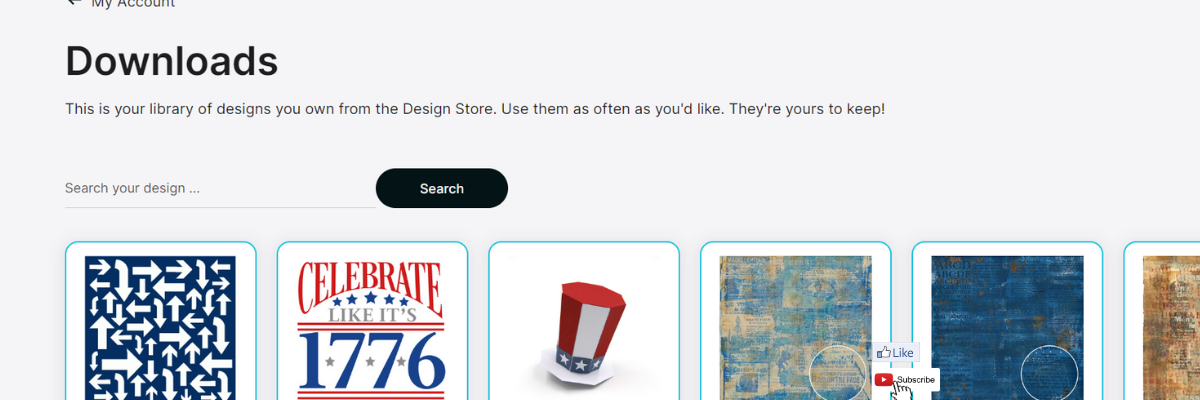
NEW!!! Direct Download option of Silhouette Designs. Click on heart or person icon in the top right of site. On the left side, select Downloads. Click on the thumbnail of design and it should open the downloads window. However, it is not easy to search through your designs for a specific file and you may spend more time scrolling and waiting on pages to load. Might work in a pinch, but will take time to process.
However, note that the site is super slow and the more users try to access it will affect the results. This is a catch 22 – it’s not functioning properly yet, but they also need traffic in order to see how that function is working and to be made aware that it is not going to hold up to the “normal” flow of user traffic. Please be aware of this and understand that at this moment, all I can guarantee is that it is NOT working properly and is super SLOW, if you can get the site to even load.
At this point, the only thing we can count on is…. it is going to take time for it to all be “normal” again.
Update 5/31/24 6:00 pm CDT We are starting to see some changes occurring. Some users have been able to log in and see their designs. However, we are also seeing a lot of strange and misfit information too! I do not think it’s over, but at least a step in the right direction. Some of the things we are currently seeing are: – file names not matching thumbnails – only free files showing – some not able to log in – download failed on files when library syncs – new files are not showing download failed – Silhouette Design Store is slow – syncing is super slow – website in and out at time I don’t think it’s over, but a few more good reports than there were earlier today!!!
——–
What we do know:
the websites are currently undergoing updates
anything that “talks” to the Silhouette servers can be affected
Silhouette is aware and is continuously working on it
Silhouette Support has been bombarded with complaints & user issues
Silhouette Support cannot “fix” anything at the moment until the website updates are finished
No one can do anything to “fix” it at the moment until the website updates are completed and stable
I have been reassured that the data is still there and Silhouette can see it, but we as a user may not be able to “see” it during this update because of the issues they are working through
I do believe that most of the issues we are seeing will be resolved when the Silhouette websites are 100% fully functional and stable. Most of the issues “should” work themselves out on their own once the systems are stable.
What is affected?
It might be easier to list what is not affected. Currently anything that has to “talk” to the Silhouette server to receive data may be affected. This includes the Silhouette library, Silhouette Design Store, and everything in between.
The Silhouette Design Tab and the cutting machine capabilities are all offline, so they should be able to still be used. However, we’ve already had reports starting today that the software is crashing when the library is trying to log back in or sync.
What can you do?
First, don’t panic. It won’t help anything and it will not “fix” it.
I am going to list some things that you can do to hopefully continue working in your Silhouette software below and I will update this as it progresses.
1 – If it’s possible, turn off the WIFI/internet from your computer for the next step. This will ensure that it will not try to “talk” to the servers before you complete the next step.
2 – With WIFI/internet disabled on the computer, open the Silhouette software, click on the Library tab in the top right corner and then click on your name in the top left corner of the library. Check the box next to Work Offline.
Now you “should” be able to use the Silhouette software without it trying to connect to the servers. You should be able to turn on the WIFI/Internet on your computer again.
Continue using your Silhouette Studio software and machines to cut projects as needed. You will be able to open any .studio files that you have saved from an external source such as your hard drive. If you have the Silhouette Studio Designer Edition upgrade or higher, you will be able to also open other file types such as a SVG file, which is a cut file as well.
If your Silhouette library is still showing, you will be able to use any files currently in the library (if it’s not showing at all, please continue reading below)
Save any files you are designing to an external source by using File > Save As > Save to Hard Drive and select a location.
3 – Click on your name in the top left corner and select Library Export. Save that file to your computer or an external source with the current date.
4 – Click on your name in the top left corner and select Export User Created Files. Save that file to your computer or external source with the current date.
Both steps 3 & 4 can be performed if your library is still showing and I am only recommending as a precaution. As a note, these are 2 steps that we recommend users are doing on a regular basis anyhow.
5 – Do NOT log out of the Silhouette library.
6 – Do NOT try to sync the Silhouette library.
7 – At this time, I do NOT recommend shopping in the Silhouette Design Store. The more users who are trying to access the Design Store website or trying to sync their accounts is bogging down the system. Having multiple web pages open on your computer trying to access designs “faster” in the Silhouette Design Store is not helping anyone.
8 – At this point and time, Silhouette Support cannot do anything to “fix” the issue. They are in the same boat as we are while we wait for the company in charge of the migration to figure their stuff out. Silhouette Support has received thousands of emails, many of which are complaints about how users don’t like the colors, the headers, the look in general, etc. All of those emails will take time to answer, but currently there are no answers until the websites are functioning properly again.
Silhouette Support is responding to the thousands of emails and here is an example that does confirm they are aware of the issues and continuing to work on it.
“Thank you for your email. We are sorry to hear of the issue encountered. Thank you for your continued patience. we have worked diligently over the weekend to get the website back to normal operation. Some things may still be non-functioning as the data that is being transferred from our old website to the new one is massive. Rest assured , none of your libraries have disappeared and will soon be functional once all of the data is transferred. You can expect some functions to be back to normal while others are not. The website will be very slow while all of the data is still transferring as well as the web traffic we are experiencing from customers trying to log in, change passwords and sync their libraries. We apologize for the delay in getting the website back to 100%. We are continuing working on this behind the scenes and we have a dedicated team that has worked through the weekend, the holiday and nights in order to move this process along. Again, we appreciate your patience and hope to have all sites back up and functioning as normal soon. We hope this information is helpful. Please let us know if you have any other questions.” Silhouette Support Team
9 – Do NOT uninstall and reinstall the Silhouette software. At this point, if you do, you may not be able to get it reinstalled and set up again. It will not “fix” this issue.
At this time there is nothing anyone can do to speed this up. The company in charge of the migration is working on it and we just have to wait. It is 15+ years of data that is being moved and stabilized onto a new system.
No one wants to be in this situation, especially Silhouette. But, at the moment we are in it and there is absolutely nothing you can do about it.
What to do if your Silhouette library has disappeared?
Updated Information 5/31/24 We have received reports that some users have been able to get their libraries to sync. However, reports go back and forth on it will sync and then kick them out again, and then they get error notifications. Users are still having issues and behavior is unknown.
If your library does sync, we would highly recommend that once that is complete, change the Silhouette library to “Working Offline” as explained above. We would recommend not trying to sync again until the websites are completely functioning and stable or you risk losing the library again.
—–
5/29/24 – original publication Unfortunately, there is nothing that can be done right now.
The Silhouette library “talks” to the Silhouette servers and if it cannot communicate with the server, it cannot pull the data it needs to show you the library.
I have been told that Silhouette can see the user information and all the information is still out there, but users just cannot “see” it in the library currently due to the upgrades.
I know it won’t help at all and will just make some users angry, but try not to panic. Panicking will not help the situation and it will only add to your stress. Silhouette is aware and they are trying to fix it.
I do believe that once the Silhouette website updates are complete that a lot of these issues will “fix” themselves and we can get back to our projects.
At this time, I am NOT recommending that users import a backup of the library into the Silhouette software simply because I have no idea how that might be treated once the Silhouette websites begin functioning again. It is possible it could duplicate the entire library, throw an error because it “thinks” the cloud storage is full, or freak it out altogether and do something different. It may cause more issues and take longer to resolve than if we just wait it out.
What to do if your Silhouette upgrade disappeared?
Unfortunately, the answers don’t get any happier. At the moment, there isn’t much you can do. In order to activate the upgrade, the software has to “talk” to the Silhouette server to get that data.
Your choices are:
try to activate the upgrade again under Help > Apply Upgrade – enter only your email and password
wait until the Silhouette websites are functioning again
If you do try to log in and activate the software upgrade again, please be aware that it may or may not work. If it cannot connect to the Silhouette servers to get that information, then it won’t work and you do risk the Silhouette library trying to sync and disappearing.
But, if you are trying to activate the upgrade to open SVG files, it may be worth the risk to still continue to work with the Silhouette software. Only you can make that decision.
What to do if you received an email that there was an error with your payment
With the systems down and not functioning properly, I know many have received emails that there was an error with their payment. This is probably not something to do with your actual payment method, but caused by the updates. At this point, we don’t know
Here is how I suggest you proceed:
1 – I would check with your payment source and see if the payment did actually go through. If it did grab a screen shot or photo of that. Gather the information you can from your payment source.
2 – Contact Silhouette Support with the information & provide a detailed description of what has happened. However, understand that Silhouette Support is backlogged with user emails and they currently cannot do anything to “fix” the issue until the system is back completely. At this time, all they can really do is respond with a message like I showed above.
So my recommendation is to add this to your to-do list to contact Silhouette Support when the websites are back online, functioning, and stable if you do not see that the issue has been resolved under your Account on the website.
Please understand that it will take time for all the issues to work out once the Silhouette websites are updated, functioning, and stable. The more information you can provide in your email to Support the faster the issue can be addressed.
What to do if you had credits expire during this down time?
At this point and time, there is nothing that anyone can do to fix that during this migration time frame. Silhouette is waiting on the company who is migrating all the data to get it stabilized and they cannot make any changes during that time.
Once the Silhouette websites are functioning properly and stable, they will begin addressing these issues and the expired credits is on their list. I have submitted the issue to several at Silhouette and they are aware. They want to fix it, but have to wait just like we do.
As mentioned, Silhouette Support is bogged down with complaints about everything from hating the new colors to actual real issues. I’d recommend making an note of what credits expired and once this is all said and done, compose a nice email to Silhouette providing the information you have.
Two things to remember here: 1. Silhouette Support agents have no control over this either, but they are taking the brunt of all the nasty emails and people yelling at them 2 – “You catch more flies with honey than vinegar.” – a please and thank you can go a long way. I’ve seen some of the emails that are being sent as users share online, they are not nice at all. Your email may make all the difference in that person’s day! I understand we are all frustrated, but it’s not their fault, they are just doing their job to respond to as many support requests as they can in their work day, including all the ones complaining about the colors of the website.
When will the updates be done?
At this point, we are on day (7) 9 and they had hoped it would be done overnight on 5/22. That did not happen, so the best answer I have for that is something I say to my kids when they ask when dinner will be ready….
It will be done when it’s done.
It is not what any of us want to hear, believe me – I know!
I am just as frustrated, if not MORE than you are! We have fielded thousands and thousands of comments, posts on social media, emails, and messages in regards to this. We CANNOT fix it either and all we can do is provide the information that we are seeing and experiencing.
I have been a Silhouette user for 11+ years now and this is the first time this has ever happened. They are changing system completely and things happen. It is not the norm and rarely are we ever down this long.
Now, a bit of humor because if I don’t laugh at something I might scream….
A few designs from my Silhouette library that you may want to grab once everything is back to “normal”.
This pretty much describes the last week as we have tried to navigate these issues and respond to thousands of user posts, comments, emails, and messages.
As a note, I grabbed that design before the typo could be fixed in the Silhouette Design Store a long time ago and have kept for my own use. I had planned to make a sign for my studio with it at some point. It fits in with the Swift Creek Customs logos I designed.
And after this is all over and done with, we might all need badges.
Note: I have NOT linked these designs as I am staying off the Silhouette Design Store website until the issues are resolved as I advised above.
We are all in the same boat… up a creek without a paddle…. we will get through it! Hopefully the information provided above can help most users.
I have also compiled a long list of issues we have seen or experienced and have sent that off to several of my contacts at Silhouette. They are aware of the issues and will continue to work through them as they can. The most important factor right now is getting the Silhouette websites functioning and stable, then other issues can be addressed. Hopefully, many of those issues will be resolved simply by the website functioning properly again.
Note: this blog post will be updated as information changes
I don’t even know how to sign off on this post…. to all my fellow Sh*t Creek members – hopefully we will have a resolution soon!
THANK YOU for your support! How can you help? Click HERE & buy a coffee. Every little bit helps with the cost of running the site.
Silhouette Classes
Never stop learning! Let me help you take the anxiety out of learning with Silhouette and get to creating faster! My Silhouette classes are heavily focused on software, so you can take the skills & techniques taught and apply them to many future projects!
**This post may contain affiliate links. What that means is that I may receive compensation if you purchase through the links I have provided. The price you pay for the product or service is not higher but I may get compensated for sharing.
Each week there is a new free file in the Silhouette Design Store.
And some weeks there may be more than 1 free file!
It’s free so you have nothing to lose by collecting the free ones that are available. They are only available for 1 week, so make sure to check back each week.
Affiliate links may be present in the below and as an Amazon Associate I earn from qualifying purchases.What that means is that I may receive compensation if you purchase through the links I have provided. The price you pay for the product or service is not higher but I may get compensated for sharing.
This week’s free file is a Sweet Summer Time design.
Grab this free cut file HERE and get to creating. Or save it for a later project. Once it’s in your library, it’s yours to use.
Silhouette Design Store files should download direct to your Silhouette library and they do not count against the cloud storage space. If you are experiencing issues with files not downloading direct to the library, check out these troubleshooting steps
We’d love to see what you are creating with your Silhouette software or machines! Feel free to post on my Facebook group at Silhouette Secrets with EllyMae.
Enjoy !
THANK YOU for your support! How can you help? Click HERE & buy a coffee. Every little bit helps with the cost of running the site.
Or if you are looking for more in-depth, step-by-step classes, check out all of my online Silhouette classes on my Teachable site HERE.
**This post may contain affiliate links. What that means is that I may receive compensation if you purchase through the links I have provided. The price you pay for the product or service is not higher but I may get compensated for sharing.
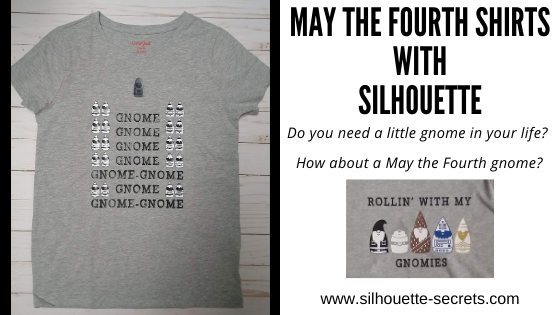
The Silhouette Design Store released this cute May the Fourth gnome inspired bundle in the store today and when they asked if I wanted to play with it, I said yes of course! My husband and I have been brainstorming ideas, thinking “outside the box”. This was the perfect “team” project as he could make design suggestions and I could put them into action.
Affiliate links may be present in the following blog post and as an Amazon Associate I earn from qualifying purchases.
Check out all of the Silhouette Design Store bundles HERE.
Here are a few that I have made so far.
I showed my son his new gnome shirt and he loved it! The expression on his face was so worth it when he read it out loud. I used the May the Fourth bundle and Gnome font by Lori Whitlock – Design #307096
Here is one I made for my husband. I used Siser Easyweed HTV with the PN In A Galaxy Far Away font by Illustration Ink – Design #111259 on the text. The red and blue are Siser Electric HTV.
And it’s a good thing that I only make shirts for my family, they don’t seem to mind that they might be a bit crooked. I really though I had it with this one, but I guess I was just too excited when I went to press it. I’ll just tell them to stand a bit crooked.
I have so many ideas still on my list and I’m really considering declaring May the Fourth an “official” holiday in our house this year. We all need something to look forward to and celebrate I think. I know the kid’s will be happy to have a break from virtual school and wear their new shirts for a movie marathon.
This gnome design bundle is so cute and these designs are exclusive to this bundle for the next month. After that you can pick up the designs individually in the store. Grab the May the Fourth bundle HERE to make a May the Fourth design for yourself. As a bonus, if you grab it in the first 24 hours, you get an additional 25% discount. This applies to all new bundle releases, so keep your eyes out for one that fits your needs.
I love to see what you are creating with your Silhouette machines! Feel free post on the Silhouette Secrets+ Facebook Group. We love to see what you are doing and creating with your Silhouette machines!
Save this for future reference by pinning the image below.
Enjoy!
THANK YOU for your support! How can you help? Click HERE & buy a coffee. Every little bit helps with the cost of running the site.
Or if you are looking for more in-depth, step-by-step classes, check out all of my online Silhouette classes on my Teachable site HERE.
**This post may contain affiliate links. What that means is that I may receive compensation if you purchase through the links I have provided. The price you pay for the product or service is not higher but I may get compensated for sharing.
As I write this post, it is Friday. And I need Friday! It’s been a long week and sometimes I just sit down and the only thing I want to do it turn my brain off and scroll through the new designs in the Silhouette Design Store. No thinking, no schedules, no late assignment notifications for virtual school – just mindless shopping. Maybe there are a few more of you out there with me today!
So today I’m going to quick share a few designs that caught my eye just because!
Affiliate links may be present in the following blog post and as an Amazon Associate I earn from qualifying purchases.
In the Silhouette Design Store is a “New” category and I sit down a couple of times a week, during “mind-less” time and browse it. This section is reset every Monday morning to feature the new items that are released into the store during the week. If I like something, I’ll click on the heart and if I love it and want it now, I add it to my cart.
This week there are almost 500 new designs in the “New” category and why I sometimes shop several times a week.
I grabbed this one earlier this week thinking ahead to a Fall banner after the Halloween decor comes down.
Those are just a couple of the designs that caught my eye this week. I find I like to relax and check out the store “New” category each week, so I don’t have to scroll through so many pages when a really super sale comes up. If they are in my Wishlist, I can find them easily.
And don’t forget about the weekly FREE design! Grab it with the svg and the Commercial Use license for FREE each week! This week is It’s Spooky Season by Silhouette – Design #331926
I would love to see which design have caught your eye in the Silhouette Design Store recently. Feel free to share on my Facebook group at Silhouette Secrets with EllyMae.
Save this for future reference by pinning the image below.
Enjoy!
**This post may contain affiliate links. What that means is that I may receive compensation if you purchase through the links I have provided. The price you pay for the product or service is not higher but I may get compensated for sharing.
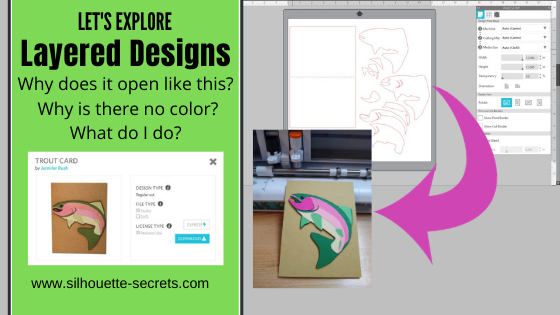
I often see posts or comments on files from the Silhouette Design Store that open up like this.
Blog post written in Silhouette Studio v4.3.372 Affiliate links may be present in the following blog post and as an Amazon Associate I earn from qualifying purchases.
Why?
Why does it open with no color? Why are all the pieces separated? Why does it not look like the original example photo?
So let’s take a look at this and hopefully you will understand a little bit better why the files open like this and how to work with them.
Why does it open with no color?
There are probably a couple of reasons this is. One reason is adding color to a file increases the data size of the file. When I first started with Silhouette 7+ years ago, this is how most files opened. A lot of things have changed in that 7 years with computers, file sizes, and program capabilities. Keep in mind that any digital file that is loaded somewhere takes up storage space. Adding color into the file, or multiple colors, adds more code into that file and increases the data size.
Designers create files in different ways and with different programs. Over the years, this has also evolved in that designers are now creating files that will open in multiple programs for multiple machines. They are not just creating a file for Silhouette use only. Which means that a file has to be universal for all programs.
Why are all the pieces separated?
The reason files were created has also changed over the years. When I first started most files were created for cardstock and paper piecing. Which means that you cut each piece out of a different color of cardstock and then glued them together. This is what the Trout card example shows.
In the past couple of years, the trend has moved more towards cutting vinyl. There is also the option to cut by Fill Color which means that you don’t necessarily have to move the colors around on the design mat to cut the file. This was not an option when I started with my Silhouette years ago.
Something to keep in mind is that once a file is created, the designer doesn’t typically go “re-do” the file just because the trends have changed. Knowing how to work with files in both ways will be beneficial to you in the future.
Why does it not look like the original example photo?
Typically, the image you see in the file preview is a photo of the completed design. For instance in this example, it is a photo of the completed card.
Tip: when in the Silhouette Library tab, move the mouse over top of the design icon and a little square bracket appears in the bottom left corner. Click on this and a image of the design with information will pop up. This can be a larger photo or clearer photo than what you can see from the Silhouette Design Store page.
How do I work with a file like this?
The great thing about the Silhouette software is that you have the freedom & tools to do so much in it. You control how things work!
The first thing I do is bring a photo of the design. I am working on a PC, so I use the Snipping Tool. I keep this Snipping Tool pinned to my taskbar because I use it so much. You can also use a screen shot of the design file as well.
I copy this “snip” and then paste it onto my design workspace. Then increase the size if needed. Note that you may see a yellow triangle appear in the top left corner of the design area. This just indicates that if you printed this image, it would most likely be low resolution and fuzzy. I don’t need image clarity to print as this is just for a visual of the project.
Now, we can start working with the file. Click on the file and in this case it is all Grouped together. I need to right click on it and choose Ungroup, so then the pieces are all individual pieces and can be edited.
Notice once it is Ungrouped, there are individual selection boxes around each piece. Click off of the grouping and then back on each piece to select individually.
Select each piece and then use the Fill Color Panel and add color to it using the image as a guide.
Keep in mind that the colors do not have to be perfect unless you are doing a print and cut project, the colors do not matter. It will cut out of whatever color material you place on your cutting mat.
Now, if you want, you can move the pieces around to position the image to reflect how it will look when finished. In this case, I do not really need to do this since I will be cutting each piece out of a different color of cardstock and then placing them together. But, here is a photo of what it would look like if I did. I am going to copy all of the pieces to show it off to the side.
Notice the smaller pieces are all still grouped together. In this case, that is because they will be cut out of cardstock and it is designed to keep them close together to save on materials. You could ungroup it and move them around on the fish to place them, but that is only necessary if you were to turn this file into a print and cut file.
What you will notice is that designs and files you work with will all be different. Whether it is differences in designers and how they are creating the files or in what the original purpose of the file was created for. The more familiar you can get with the Silhouette software, the easier it will be for you to figure out what each file needs in order to complete your particular project.
It is not that the file is created wrong or is a bad file. It is just created differently than others. Some files will require a little bit more work to get it how you want. I will be 100% honest, there are some files I’ve opened and I just don’t feel like it at the time to work with it. Some days I have the patience to play with it and others I do not.
For instance, this was one of those “nope” days. I know the card will be cute once created, but I just didn’t have the patience to complete it.
No, it is just an easier way to visualize what colors are cut out of what materials and keep track of what you have cut and haven’t cut.
Cutting the file
Next, on this file, I want to double check the size of the card it will cut.
One of the great things about the Silhouette software is that you can size a design to whatever size you need. If the file is in a file format that can be resized without losing image quality, such as a .studio or .svg file, then you should not encounter an issue. If it is a jpeg or png file, those are graphics files and cannot be resized without losing image quality in most cases, since the pixel size is set and it’s a flattened graphic.
I used the Transform Panel – Rotate Tab to turn the card design horizontal and I can tell by the measurements on the edges of the card that it is 5.5″ x 8.5″, which means that folded my card will be 4.25″ x 5.5″. This is a standard card size.
Make sure that if you increase the size of the card, that you also select the entire design and increase the size of it at the same time.
Now, I am ready to cut my file. When I’m working with a file that has multiple pieces to cut out of several colors, I start with all my pieces on the left side and then as I finish cutting with them, I move them off the cutting mat to the right side. This way I can keep track of what I’ve cut and what still needs to be done.
I also use the Transparency (Reveal) option on the Page Setup Panel to reveal my cutting grid on my mat and then I cut down each color I need and place it in the same location as I have placed on my design mat as shown above.
This saves me time and the adhesive on my cutting mat, so it can make my mats last longer because I’m not removing a full sheet of cardstock/material each time I cut a piece out. Find more tips on getting the most out of your cutting mats HERE.
After all the pieces are cut, use adhesive to piece the design together.
The more you do things in the software, the more you will pick up. The best way to learn is to play, play, play. Check out the full “Let’s Explore v4” series HERE for more information on tools and features in the software.
We’d love to see what you are creating with your Silhouette machine! Feel free to post photos or questions on my Facebook group at Silhouette Secrets with EllyMae.
Save this for future reference by pinning the image below.
Enjoy!
**This post may contain affiliate links. What that means is that I may receive compensation if you purchase through the links I have provided. The price you pay for the product or service is not higher but I may get compensated for sharing.
Affiliate links may be present in the following blog post and as an Amazon Associate I earn from qualifying purchases.
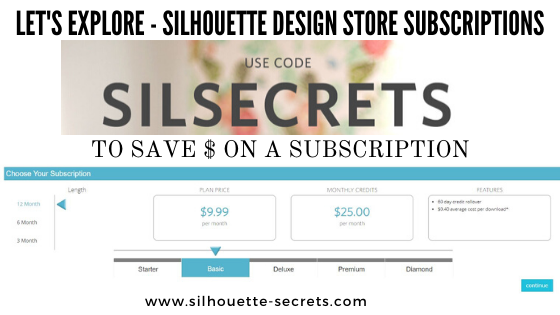
What is a Silhouette Design Store Subscription?
A subscription to the Design Store means that you pay a set price per month and you get a certain amount of credit for that price. For instance, if you choose the Basic subscription plan, you pay $9.99 per month and get $25 in credits to spend in the Silhouette Design Store. On average most designs are $0.99, which means that if you were to pay full price, you could buy about 10 designs if you spent $9.99 per month. But, with a subscription that money goes even further. You would get about 25 designs for the $9.99 spent each month. All of this is based on a $0.99 item, which means with a subscription you are paying an average of $0.40 per design.
I started with the Basic subscription to test the waters and found that I loved being able to shop or just go click a design and buy it without a second thought when I had credits to use.
The higher the subscription, the greater the savings.
A Deluxe Subscription = $14.99 per month = $50 credit *average cost is $0.30 per design *if credits are depleted you get 25% off all designs until your next credit
A Premium Subscription = $19.99 per month = $150.00 credit *average cost is $0.13 per design *if credits are depleted you get 50% off all design until your next credit *Free download of all “Last Chance Designs”
A Diamond Subscription = $29.99 per month = $250.00 credit *average cost is $0.12 per download *if credits are depleted you get 50% off all designs until your next credit *Free download of all “Last Chance Designs”
All subscriptions allow the credits to be rolled over for 60 days, just make sure to use them before that time limit hits or they expire. (I never seem to have a problem using up mine.)
These examples above are all using the 12 month option, but there are also options for 6 months and 3 months too.
How to save more
There are a couple of ways you can save even more.
Pay the full year in advance. This is what I do and it gives you even more of a discount.
Use the credits when there is a sale. I save things to my wishlist all the time and then when a sale comes along, I’ll go through my wishlist and decide what I want to purchase.
For instance, if there is a 50% off sale in the Design Store and you have a Basic Subscription, that means that your credit will go twice as far. Instead of the average of $0.40 per design, you will getting those design for $0.20 because they are 50% off.
I started with the Basic and found I like it enough to keep on going. Each user is going to vary in what works for you. Some find they love it, while others may not, but I want to let you know how to save the most you can.
I love to design my own, but I don’t always have time to do that or I am overly-critical of my designs, which then means I end up spending more time arguing with myself than I do cutting and getting the job done.
Hope this helps explain a little about subscriptions and you get more things done with your Silhouette!
Let me know if you have any questions on my Facebook group Silhouette Secrets+ with EllyMae. I would love to see what you are creating with your Silhouette machines!
Save this information for later by pinning the image below.
Enjoy!
**This post may contain affiliate links. What that means is that I may receive compensation if you purchase through the links I have provided. The price you pay for the product or service is not higher but I may get compensated for sharing.
THANK YOU for your support! How can you help? Click the link to buy a coffee. Every little bit helps in the cost of running the site.