Today I wanted to share the Back-to-School goody bags that I made up for my kids friends group! They have been a hit!
This is something that could easily be done for teachers, birthday gifts, girls night out, teenager go bags, a moms gift, or many more ideas!
I loaded these up with a few fun goodies for the kids to enjoy. Not necessarily to take to school with them, but just to have for fun.
Affiliate links may be present in the below and as an Amazon Associate I earn from qualifying purchases.What that means is that I may receive compensation if you purchase through the links I have provided. The price you pay for the product or service is not higher but I may get compensated for sharing.
DO NOT forget to add the TTD Easy Mask to your order also if you are planning to do a print and cut around designs. Solid color designs do not need the mask, but if your design has multiple pieces, you do need the mask to transfer it to your garment.
My daughter picked out the Color fonts to use for the boys and girls bags. If you have never used Color Fonts before, they are fun to play with. Check out the Let’s Explore v4 – Color Fonts tutorial HERE.
I set up the design as a print and cut project and rotated the names to fit as many as I could on the page.
Print and cut is one of my favorite things to do with Silhouette. The color fonts are designed for print and cut projects and are not individual cut pieces. Grab some and start playing!
For more tips on Print and Cut, check out these new videos I released on YouTube
I would highly recommend when working with a product such as the Siser DTV which has a white background, that you utilize the Print Bleed feature in the Silhouette software. This adds a bit of color (called a bleed) around the outside edge of the design, so when you cut around the image, you shouldn’t be left with a white edge. Each design will vary in what print bleed distance works and looks good.
As a note: print bleed is currently broken in the v4.4.9xx series of software versions as of this publishing date. I mention this a few times in the video tutorials above. You can always create your own print bleed by using the Offset Tool around your design. Adjust the distance of the offset as needed and fill it with color.
I would recommend software version v4.4.554 found under the Legacy section if you do want a version that it works properly in.
After printing, I weeded the designs. The Siser EasyColor DTV weeds so smooth with a good cut – it really is like butter.
Next is to cut apart.
Time to mask and press each of the names to the bags. I used a folded up towel inside the zipper bags to help bump up the area being pressed so the seams did not interfere with the pressure on the DTV.
Then I lint rolled the bags, hung the edge of the zipper off the edge of the heat press platen, pre-pressed the bag, and then pressed the Siser DTV onto the bag using the recommended settings from the Siser website.
The Siser EasyColor mask can be reused if no color has transferred from the print or fibers from the garment. I knew to watch for the ink, but the fibers caught me off guard. These black canvas bags, even when lint rolled, left fibers on the mask. These fibers then will transfer over to the next image being pressed. Just something to keep in mind!
What would you use these gift bags for? Leave a comment below or share on the Facebook group at Silhouette Secrets with EllyMae.
Save this for future reference by pinning the image below.
Enjoy !
THANK YOU for your support! How can you help? Click HERE & buy a coffee. Every little bit helps with the cost of running the site.
Or if you are looking for more in-depth, step-by-step classes, check out all of my online Silhouette classes on my Teachable site HERE.
**This post may contain affiliate links. What that means is that I may receive compensation if you purchase through the links I have provided. The price you pay for the product or service is not higher but I may get compensated for sharing.
Check out the new video tutorial HERE Don’t forget to Like and Subscribe to be notified of future video tutorials on my YouTube channel.
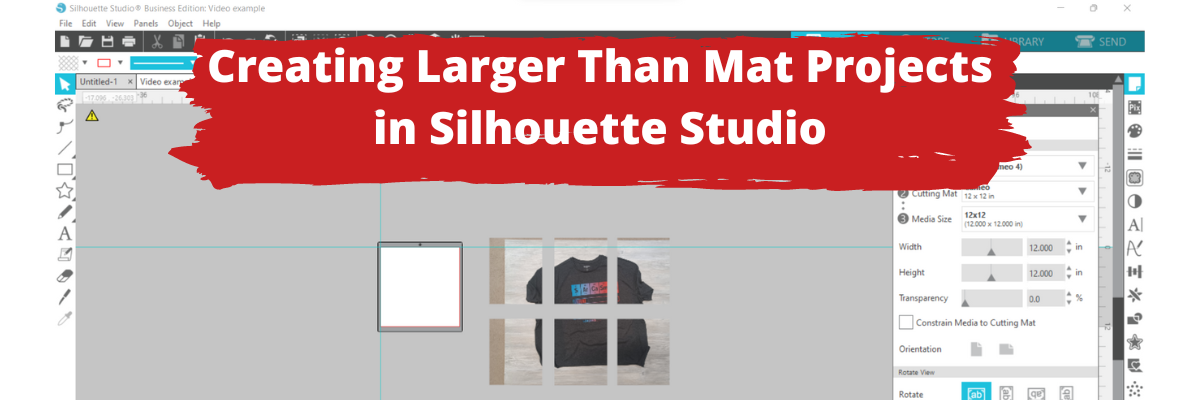
I used a random photo from one of my recent projects I’ve been working on, but you can do this with any image. A jpeg or png file will be the easiest to work with since it’s a flattened graphics and consists of 1 layer. You could still work with a svg file, but it may require a bit more playing with it, since it’s made up of pieces.
Here are a few of the resources I posted in the video description to help with future projects: – New! Print and Cut Tutorial Video HERE – Silhouette Guides and Rulers HERE – Knife Tool Tutorial HERE – Knife Thickness Tutorial HERE – Print & Cut written Tutorial HERE – Printing Large Format Tutorial HERE
Have you made a larger than mat project?
I used it when I cut the black backing for this large reindeer gnome.
I would love to see what you are creating with your Silhouette software or machines! Feel free to post photos or questions on my Facebook group at Silhouette Secrets with EllyMae.
Save this for future reference by pinning the image below.
Enjoy !
THANK YOU for your support! How can you help? Click HERE & buy a coffee. Every little bit helps with the cost of running the site.
Or if you are looking for more in-depth, step-by-step classes, check out all of my online Silhouette classes on my Teachable site HERE.
**This post may contain affiliate links. What that means is that I may receive compensation if you purchase through the links I have provided. The price you pay for the product or service is not higher but I may get compensated for sharing.
Affiliate links may be present in the below and as an Amazon Associate I earn from qualifying purchases.What that means is that I may receive compensation if you purchase through the links I have provided. The price you pay for the product or service is not higher but I may get compensated for sharing.
Last week Siser announced a new product called Siser EasyColor DTV. This new product is an actual Heat Transfer Vinyl that can be printed with a home, inkjet printer.
Up until now there has been a product on the market called Heat Transfer Paper, which many users get confused by and call printable HTV. But, it’s really not. It is paper, not actual vinyl. I’ve used several brands and had success with it and have even taught classes using it. Each brand may have different results.
Now, there is a new option out there. Siser EasyColor DTV and I’ve been testing it this past week. So far, I am loving it!
I wanted to share a bit about that process so I made up a “quick” video. I say “quick” because it is longer than I intended as I give a lot of tips about print and cut in the video. We troubleshoot thousands of Silhouette issues each week on social media and most times it is something that can easily be fixed to get successful print and cuts. So I shared several of those tips in the video. I want YOU to be successful and it’s always best to practice the print and cut technique on copy paper or cardstock before using your more expensive materials such as EasyColor DTV.
I have so many ideas to use this material with and cannot wait to share more!
I would love to see what you are creating with your Silhouette software or machines! Feel free to post on my Facebook group at Silhouette Secrets with EllyMae.
Save this for future reference by pinning the image below.
Enjoy !
THANK YOU for your support! How can you help? Click HERE & buy a coffee. Every little bit helps with the cost of running the site.
Or if you are looking for more in-depth, step-by-step classes, check out all of my online Silhouette classes on my Teachable site HERE.
**This post may contain affiliate links. What that means is that I may receive compensation if you purchase through the links I have provided. The price you pay for the product or service is not higher but I may get compensated for sharing.
There are several things you can do for your Silhouette machine maintenance. In 2021, I published a tutorial on several things you can do to keep your machines in good condition. Check out the Silhouette Machine Maintenance tutorial HERE.
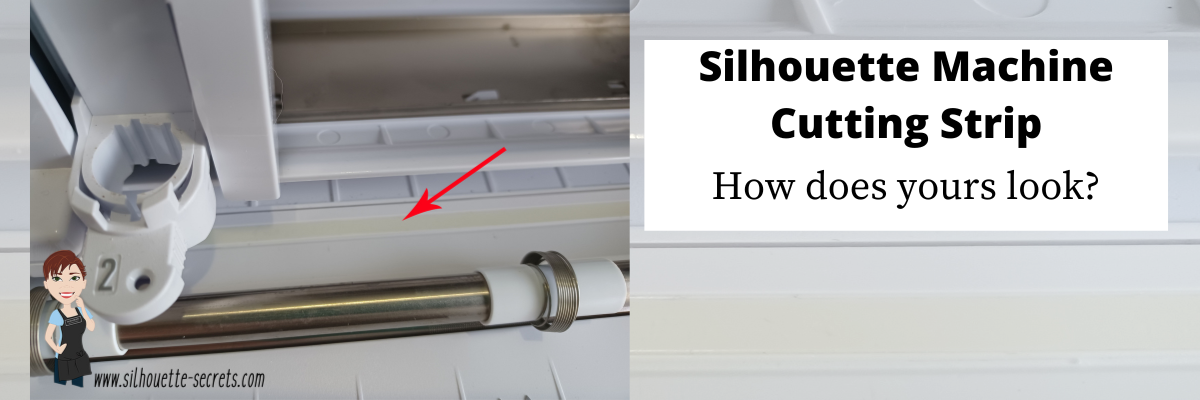
One of those things I touched on was the cutting strip on the Silhouette machines. I changed mine this year after 2 years of owning the Cameo 4 and I was surprised by what I found. Read below to see what I found on my machine. This is a very important piece. Let’s explore more about that in detail.
Cutting Strip
The cutting strip is the rubber strip that runs below the housing of all Silhouette model machines except the Curio, Alta, and Mint.
If it’s damaged, it will cause inconsistent cutting issues that have a wide range of results. This could be missed areas cut, cutting too deep, not cutting at all, blade getting stuck, etc. For each user it can be different because each situation is different.
When we troubleshoot, the cutting strip is the last thing we look at if nothing else has fixed it. But we first go through everything else that could be affecting the cut. The cutting strip is what provides the even surface underneath where the blade cuts. If that is uneven from damage, that can affect the cut.
The cutting strip is an important component of how the machine can complete the cuts whether you are using a mat or cutting matless. It provides the “solid” bottom to where the blade cuts in order to complete that cut. If it is uneven or missing, the blade just pushes down and meets no resistance, which means the material gets pushed into a “hole”. The cut will be incomplete, missing areas, etc.
Damage to the cutting strip may be visible or able to be felt by running your hand along the strip. But, often times we may not even be able to see the damage that there is to the cutting strip because it’s translucent and only seen when it’s removed. That was the case for my Cameo 4. The damage was not visible to me. We won’t even talk about my Cameo 1, my cutting strip looks like a complete wreck, but it still cuts perfectly fine, so I do not mess with it.
Here is mine after replacing it on my Cameo 4. Keep in mind that this is after 2 years of thousands and thousands of cuts, class development, and testing on the Cameo 4.
Lines cut through and a chunk missing on the edge of the cutting strip.
More cuts and damage to the cutting strip.
Completely cut through on the end.
Damage to the cutting strip can happen for several reasons. Here are a few, however, this is not an extensive list. – cut settings too deep – blade depth too deep – blade getting stuck in the material or mat – sending to cut without material loaded – using the Kraft or Rotary blade with too deep of settings – cutting completely through materials with no mat
For those who replaced and it didn’t fix the issue, it’s generally for 2 reasons. 1. It was not the issue to begin with. 2. They didn’t install it completely flat. I’ve seen users rush and not remove the old adhesive completely or install it with an edge lifted. Both will affect the cuts. If the instructions are followed carefully, it is pretty easy to do.
Affiliate links may be present in the below and as an Amazon Associate I earn from qualifying purchases.What that means is that I may receive compensation if you purchase through the links I have provided. The price you pay for the product or service is not higher but I may get compensated for sharing.
How to Replace the Cutting Strip
The cutting strip can be replaced easily if the directions are followed carefully. The hardest part of the task is removing the adhesive completely from beneath the cutting strip. But, it is the most important part! If the cutting strip is not completely flat, it can cause future cutting issues.
I found that using the Silhouette Pick Me Up Tool and a little bit of elbow grease mixed in with some patience, that it was not difficult at all.
An alcohol swab will help remove some of the sticky residue and make the surface clean for the application.
Next, make sure you buy the correct cutting strip for your machine model.
Then follow the instructions step-by-step from Silhouette America found HERE. I printed them off and found it very easy to follow.
Ta-da! Nice new cutting strip ready for many Silhouette projects.
Enjoy !
THANK YOU for your support! How can you help? Click HERE & buy a coffee. Every little bit helps with the cost of running the site.
Or if you are looking for more in-depth, step-by-step classes, check out all of my online Silhouette classes on my Teachable site HERE.
**This post may contain affiliate links. What that means is that I may receive compensation if you purchase through the links I have provided. The price you pay for the product or service is not higher but I may get compensated for sharing.
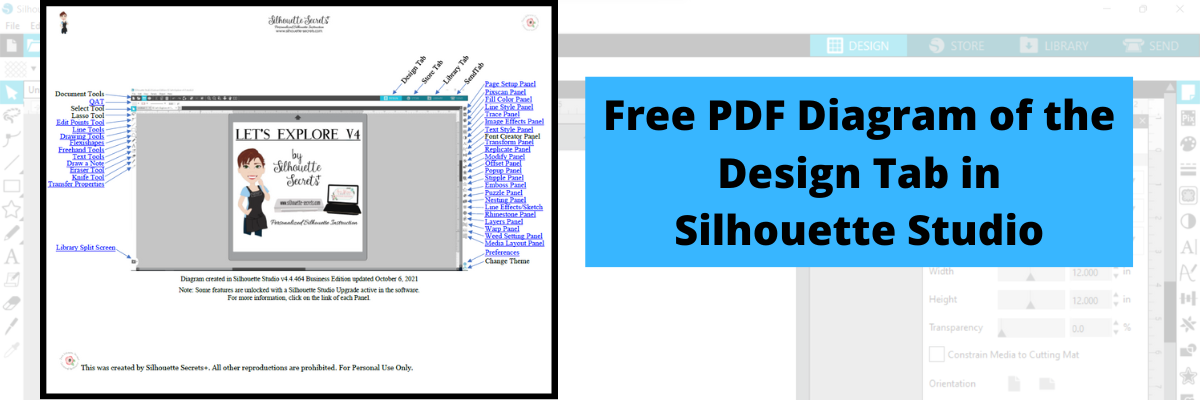
Download this to your computer and open it. Then click on the blue links to be taken to more in-depth information on each of the tools or features.
Print it for a visual reference while working in the software too!
Grab the free PDF file HERE or click the image below.
I have had many comment with feedback that this is very helpful to them when getting familiar with the Silhouette Studio v4 software. All of the information provided is part of the “Let’s Explore v4 series” on the blog HERE.
We love seeing what you are creating with your Silhouette machines or software. Feel free to post photos or questions on my Facebook group at Silhouette Secrets with EllyMae.
Save this for future reference by pinning the image below.
Enjoy!
THANK YOU for your support! How can you help? Click HERE & buy a coffee. Every little bit helps with the cost of running the site.
Or if you are looking for more in-depth, step-by-step classes, check out all of my online Silhouette classes on my Teachable site HERE.
**This post may contain affiliate links. What that means is that I may receive compensation if you purchase through the links I have provided. The price you pay for the product or service is not higher but I may get compensated for sharing.
Lots of things happening behind the scenes, which means that things are happening, but I can’t share until they are ready to publish.
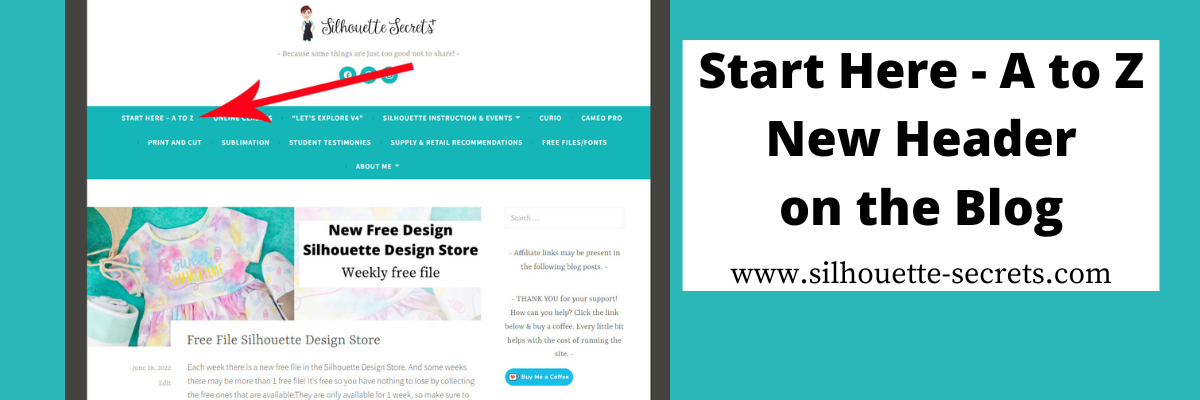
One of those things has been on my to-do list much longer than I want to admit. That is a site map for the Silhouette Secrets+ blog. I have been writing tutorials and creating classes since 2016, which means there is a lot of information on the website. Finding a way to organize that in an easy to view format can be difficult and I hope that I have found a way to make it easier with the A to Z Guide.
I have linked keywords, topics, classes, tutorials, and word combinations in alphabetical order in this A to Z guide that includes some of the most searched Silhouette topics.
Click on the keyword to open up a new web page with more information on that topic.
I hope this makes it easier to find information on the Silhouette Secrets+ blog. I was amazed as I went back post by post for the past years at some of the projects I’d forgotten about.
If I don’t have information specific to a topic on the blog, for instance, something like the Alta, I linked to where you could find more information such as the Silhouette America website.
Save this for future reference by pinning the image below.
Enjoy !
THANK YOU for your support! How can you help? Click HERE & buy a coffee. Every little bit helps with the cost of running the site.
Silhouette Classes
Never stop learning! Let me help you take the anxiety out of learning with Silhouette and get to creating faster! My Silhouette classes are heavily focused on software, so you can take the skills & techniques taught and apply them to many future projects!
**This post may contain affiliate links. What that means is that I may receive compensation if you purchase through the links I have provided. The price you pay for the product or service is not higher but I may get compensated for sharing.
Affiliate links may be present in the below and as an Amazon Associate I earn from qualifying purchases.What that means is that I may receive compensation if you purchase through the links I have provided. The price you pay for the product or service is not higher but I may get compensated for sharing.
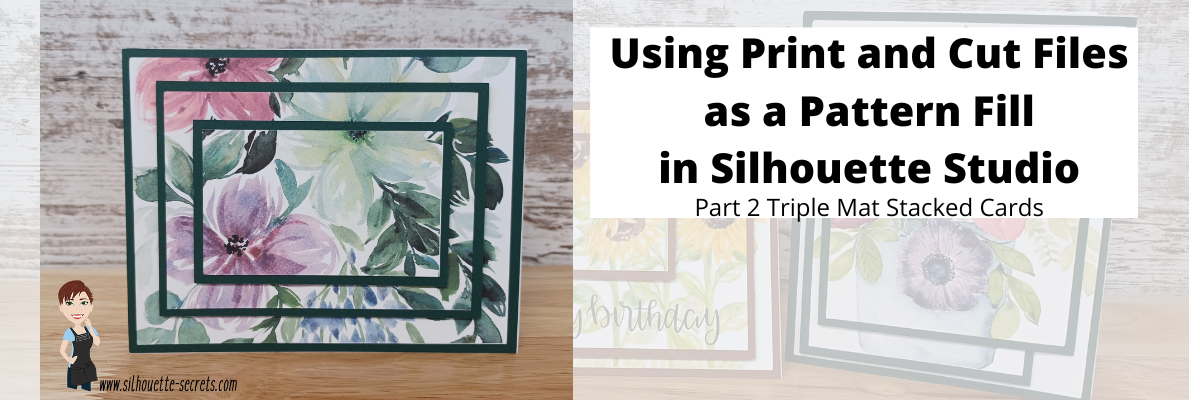
In Part 2, I am sharing how you can use a print and cut file and use it as a pattern fill.
I hope you get into the Silhouette software and play today!
I would love to see what you are creating with your Silhouette software or machines! Feel free to post on my Facebook group at Silhouette Secrets with EllyMae.
Save this for future reference by pinning the image below.
Enjoy !
THANK YOU for your support! How can you help? Click HERE & buy a coffee. Every little bit helps with the cost of running the site.
Or if you are looking for more in-depth, step-by-step classes, check out all of my online Silhouette classes on my Teachable site HERE.
**This post may contain affiliate links. What that means is that I may receive compensation if you purchase through the links I have provided. The price you pay for the product or service is not higher but I may get compensated for sharing.
Each week there is a new free file in the Silhouette Design Store.
And some weeks there may be more than 1 free file!
It’s free so you have nothing to lose by collecting the free ones that are available. They are only available for 1 week, so make sure to check back each week.
Affiliate links may be present in the below and as an Amazon Associate I earn from qualifying purchases.What that means is that I may receive compensation if you purchase through the links I have provided. The price you pay for the product or service is not higher but I may get compensated for sharing.
This week’s free file is a Sweet Summer Time design.
Grab this free cut file HERE and get to creating. Or save it for a later project. Once it’s in your library, it’s yours to use.
Silhouette Design Store files should download direct to your Silhouette library and they do not count against the cloud storage space. If you are experiencing issues with files not downloading direct to the library, check out these troubleshooting steps
We’d love to see what you are creating with your Silhouette software or machines! Feel free to post on my Facebook group at Silhouette Secrets with EllyMae.
Enjoy !
THANK YOU for your support! How can you help? Click HERE & buy a coffee. Every little bit helps with the cost of running the site.
Or if you are looking for more in-depth, step-by-step classes, check out all of my online Silhouette classes on my Teachable site HERE.
**This post may contain affiliate links. What that means is that I may receive compensation if you purchase through the links I have provided. The price you pay for the product or service is not higher but I may get compensated for sharing.
I love being able to recreate just about anything in the Silhouette Studio software!
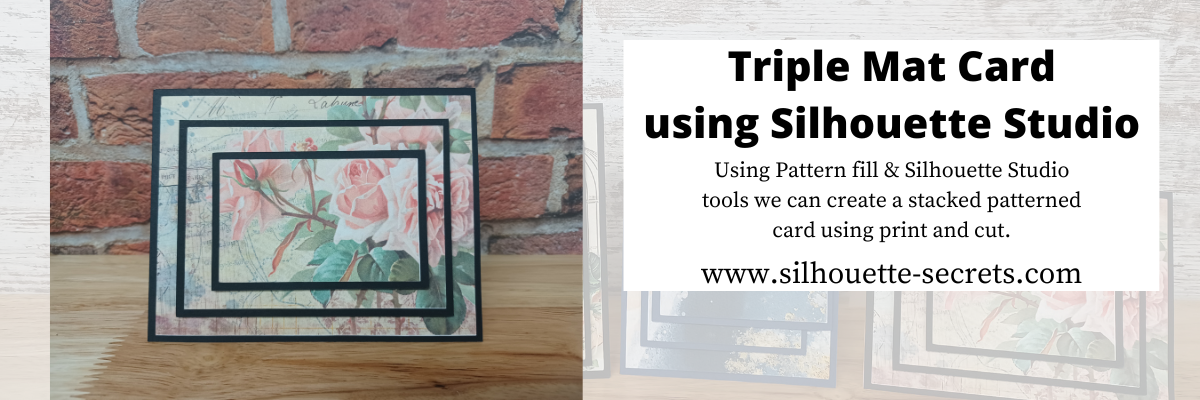
I’ve seen the triple mat technique in the stamping community for many, many years and even created cards with stamps using this same effect. Today we are going to take a look at how we can easily recreate this look with any pattern in the Silhouette Studio software.
First, a great big Thank You to Teresa P. for inspiring and helping with this tutorial.
I also have a video tutorial on my YouTube channel HERE.
Blue words in this tutorial are linked to more information on that particular topic. Click on the word and it will open a new window with a tutorial on that subject.
Creating a Triple Mat Card with Silhouette Studio
Open Silhouette Studio and set up the Page Setup Panel. Select Letter size media or the size page you will be printing on. Select Portrait Orientation. I have the best results with print and cut on Portrait orientation.
I will be using a standard U.S. card size in the tutorial, however, you can adjust this to your desired card size. Create along with me for the technique and then play around with the sizes you normally create a card in.
Using the Drawing Tools on the left side, draw a rectangle any size.
Make a copy of the rectangle. There are about 10 different ways (or more) to copy and paste in the Silhouette Studio software. A couple are Ctrl+C and Ctrl+V, right click choose copy & paste, or right click and choose duplicate. My favorite shortcut is to hold down the Alt key (Option on a MAC) then move the mouse over the red cut line and the cursor changes to a +. Left click on the mouse and drag a copy away.
Resize the 2nd rectangle to 5.25″ W x 4″ H.
Do this 4 more times and resize each rectangle as shown below.
Rectangle Copy 3 – 4.5″ W x 3.25″ H Rectangle Copy 4 – 4.25″ W x 3″ H Rectangle Copy 5 – 3.5″ W x 2.25″ H Rectangle Copy 6 – 3.25″ W x 2″ H
You should end up with 6 rectangles all at different sizes that will make up the stacked technique.
Select Rectangle #1, hold the Shift key down and click Rectangle #3 & #5 to select them all at once. Move those off the design mat area to the gray holding area. Next, with all 3 selected, fill those with black using the Fill Color in the QAT or the Fill Color Panel on the right side. These are the mats that will be cut out of black cardstock or any other color you desire.
With the 3 rectangles centered and selected, right click and choose Make Compound Path. Compound paths are one of the most difficult concepts for a Silhouette user to understand. However, in this case, we are using the Compound Path option in a little bit different way. Check it out below.
Next, click on the Show/Hide Library option in the bottom left corner.
This opens up a split screen of the Library and the Design tab.
Click on the Patterns folder in the library.
Affiliate links may be present in the below and as an Amazon Associate I earn from qualifying purchases.What that means is that I may receive compensation if you purchase through the links I have provided. The price you pay for the product or service is not higher but I may get compensated for sharing.
Now, it may look a bit odd right now, but hang tight and you’ll see the magic happen on the screen.
Click the Show/Hide library button to close the split screen library.
Now, we can adjust the pattern a bit before we move on. Open the Fill Color Panel and click on the 3rd tab at the top. Then click on the Advanced section to open up more options.
Under the Advanced section, you can Scale the pattern up and also Pan the pattern around. Just be careful to watch for white lines to appear as the pattern is “tiled”. The white lines indicate the edge of the pattern page. If you see those on the screen, it will print that way as well.
Adjust the settings to your liking.
Now, are you ready for the magic?
Right click on the rectangles and choose Release Compound Path.
Ta-da! Move the rectangles away and you can see that the pattern fill is now in all 3 rectangles in the exact location that it was when it was stacked together.
What a nifty little trick!
Now that we have our card design, it’s time to set up the print and cut.
Open the Page Setup Panel & make sure the page is setup properly if needed. Choose Letter size (or the size you are printing on). Choose Portrait Orientation.
Then click on the Tab 3 at the top of the Page Setup Panel for the Registration Marks. Choose On. Click the Restore Defaults button. *This is an important step if you have ever had issues with print and cut or are just getting started. The default registration marks are where the machine can read the most accurately.
Arrange the designs on the page within the red cut border and stay away from the cross-hatched area. If needed, use the Transform Panel – Rotate Tab to rotate the design to fit within the red cut border of the print and cut page.
The cross-hatched area is very, very important in the success of the accuracy in the print and cut! The optical eye is a laser eye that turns on when registration marks are on the project. This eye searches for those black registration marks and any part of the design that is in the cross-hatched area can interfere with an accurate reading. It may look like it read the marks, but if it picked up part of the design instead of the edge of the registration mark, it can affect where it cuts. Dark colors in, near, or between the cross-hatched areas can interfere with the reading. If you have every had an issue, look at where your design is placed and are you using the defaults to give the machine the best chance to read?
Some users can successfully adjust the print and cut boundaries, but NOT ALL! The most accurate results with print and cut are with the default registration marks. Once you have established a baseline with the defaults, then you can start changing things and see what works. It does NOT work for all users to adjust.
Print and Cut is an amazing feature on the Silhouette software! Here are some tips on how to set up a basic print and cut Let’s Explore v4 – Print and Cut Basics Starting with the basics will give you the most accurate print and cut results.
Once your page is ready, send it to print using File > Print.
Printed on a Canon TS9521C Craft Printer
I am often asked what printer to buy for print and cut. Any good quality printer will work. Start with the one you have and start with the Basics of Print and Cut, test it and see how it does.
Place the printed page on the cutting mat, exactly as it shows on the Silhouette Design screen in the top left corner and covering the grid lines on the mat.
Using a Silhouette cutting mat will also be the greatest chance of an accurate print and cut. Other 3rd party cutting mats are not the same dimensions and can affect the accuracy of a print and cut project.
Load the cutting mat in the Silhouette machine. On a Cameo, the left edge of the cutting mat should be next to the line on the left and not over top of it. Hold the cutting mat flat as it registers the marks for best results.
Click on the Send tab in the top right corner. Select the material type and adjust the cut settings as needed for your material. Click the Send button in the bottom right corner when ready to cut.
After it’s cut, unload the cutting mat, flip the mat over and carefully peel the mat away from the cardstock.
Add the black cardstock (or other color) to the cutting mat. Click on the Design tab again in Silhouette Studio. Select all 3 of the black rectangles, copy and paste to a new design mat and arrange to cut.
Send to cut.
After it’s cut, unload the cutting mat, flip the mat over and carefully peel the mat away from the cardstock.
Now that the pieces are cut, gather the supplies for assembly.
And since you are already setting up a print and cut, you can also add a sentiment that could either be added directly to the pattern area or create your own shape as well. Print it right along with your pattern pieces.
I would love to see what you are creating with your Silhouette software or machines! Feel free to post on my Facebook group at Silhouette Secrets with EllyMae.
Save this for future reference by pinning the image below.
Enjoy !
THANK YOU for your support! How can you help? Click HERE & buy a coffee. Every little bit helps with the cost of running the site.
Or if you are looking for more in-depth, step-by-step classes, check out all of my online Silhouette classes on my Teachable site HERE.
**This post may contain affiliate links. What that means is that I may receive compensation if you purchase through the links I have provided. The price you pay for the product or service is not higher but I may get compensated for sharing.
Check out the description on the video for links to the supplies used in the video and more information on each Silhouette Studio tool used to create this project.
Watch for the written tutorial coming on Sunday.
Hope you have a fabulous day!
Save this for future reference by pinning the image below.
Enjoy !
THANK YOU for your support! How can you help? Click HERE & buy a coffee. Every little bit helps with the cost of running the site.
Or if you are looking for more in-depth, step-by-step classes, check out all of my online Silhouette classes on my Teachable site HERE.
**This post may contain affiliate links. What that means is that I may receive compensation if you purchase through the links I have provided. The price you pay for the product or service is not higher but I may get compensated for sharing.
THANK YOU for your support! How can you help? Click the link to buy a coffee. Every little bit helps in the cost of running the site.