Posted on — 3 Comments

3 ways to distress the edges of a photo

Have you ever wanted to soften the edges of a photo or distress the edges of a photo so it’s not such a sharp edge?

Blue words in this tutorial are linked to more information on that particular topic. Click on the word and it will open a new window with a tutorial on that subject.

Let’s look at 3 ways we can do this in the Silhouette Studio software.

#1 Softening edges with a svg file
#2 Softening edges with a .studio file from the Design Store
#3 Softening edges with a png file

There are 2 things I want to mention first

The first thing is that when you are working with photo files or distressed files as we will be, they can be large files and they can be data heavy. You may need to be patient with your computer as it processes the data and makes the changes. This will vary for each user and for some users it may cause your software to crash because it’s a lot of data that is being changed.

If you experience a crash on the software, close all other programs on the computer and close all tabs in the Silhouette Studio software and try again.

The second thing is if you are cutting the design out, keep in mind that it will cut around the distressed areas. Depending on what material you are cutting it from, you may have a bit of weeding to do.

Let’s get started!

I started in Photoshop Elements with digital scrapbooking before I was a Silhouette user and in the graphics programs we worked with “clipping masks”. Which basically means, a mask (design) that you are clipping (combining) to a photo or image. This means the photo takes on the shape of the “mask”.

A lot has changed in the past 9 years and a “clipping mask” can be called many different things today. It is still basically the same thing, just new words & new file formats to be recognized for the same technique. When working in the graphic programs such as Photoshop, we used png files mostly as the clipping mask, but other file types can be used as well.

Let’s take a look at how to do it in Silhouette Studio

Affiliate links may be present in the below and as an Amazon Associate I earn from qualifying purchases. What that means is that I may receive compensation if you purchase through the links I have provided. The price you pay for the product or service is not higher but I may get compensated for sharing.

#1 Softening edges with a svg file

A svg file is a ready to cut file, which means it already has a cut line around the design.
For more information on svg files check out these posts:
File Formats for Silhouette Studio

Open a photo image that you would like to work with.
Resize the photo if needed using the Scale Tools and center it to the page using the Align Tools.
These tools can be found in the Panels on the right side or in the QAT Toolbar at the top.

*Photo images can be large files and open large. Each photo will vary in size according to the original photo file. Keep in mind image quality if you are printing the photo. If a yellow triangle appears in the top left of Silhouette Studio, the image may be low resolution to print at the size you currently have on the design page.

Open the svg file that you want to use by File > Open in the Silhouette software.
To open a svg file in Silhouette Studio, you do need the Designer Edition upgrade or higher. Find out more details on opening svg files HERE.

I am opening a file from Design Bundles called Bleach Effect Background svgs by Little Type Factory.

Bleach Effect Background SVG by Little Type Factory

This file is great because you have several file type options!
A few keywords to search for are: bleach effect svg, clipping mask svg, or photo mask svg. For this technique, make sure of the file types you are receiving with the file and that svg is an option.

By opening using File > Open the svg file opens on a new design mat. Since this is a large file, I prefer it opens on a new design mat so I can make any changes needed on that design mat before the next step.

Copy and paste the svg file to the design mat with the photo and close the original svg.

Resize the svg file to the desired size for your photo. I use the corner bounding box unless I need a specific size. If I need a specific size, then I would use the Scale tools.

Select both the photo and the svg file at the same time.
This can be done by left clicking and holding the left mouse button down and dragging across both objects or by holding the Shift key down on the keyboard and clicking on each object you would like to select.

Open the Modify Panel and with both objects selected, choose Crop.
Be patient with your computer! This is where the data is changing.

Ta-da! The photo now has a distressed look around the edges that match the svg file chosen.

As I mentioned at the beginning, if you are cutting a distressed object, it will now cut that distressed shape.

Click the Send tab in the top right corner.
Select the design by clicking on it (very important!) and choose Cut.
Bold red cut lines will appear around the design.

The Silhouette machine will cut everywhere you see those bold red cut lines.

#2 Softening edges with a .studio file

Files you get from the Silhouette Design Store automatically download to your Silhouette library. These are .studio file types.
A .studio is a proprietary file to Silhouette and is a ready to go cut file.

*If files from the Silhouette Design Store are not downloading directly to your library, follow the tutorial HERE step-by-step to correct that.

*If a .studio file from the Silhouette Design Store does not have bold red cut lines around it when you go to the Send tab when cutting, check out the tutorial on how to fix it HERE.
Hint: it is NOT by tracing it

In the Silhouette Design Store you can search for design such as:

Brushstroke

Grunge

Mixed Media

Other search options are: paint, splatter, distressed, or inkpen

If you want to narrow the search down even more try using quotation marks around the specific terms. For instance, type “grunge” in the search bar.
Another way to narrow the search is in the filters on the left side, uncheck the printable patterns, print and cut, 3D crafts, sketch, and rhinestone. This means the search will bring up regular cut files and fonts.

Any cut file or dingbat font would work for this technique. We will be using a cut file as an example.

Since a .studio file is a cut file, the steps are pretty much the same as the svg file.

Open a photo image that you would like to work with.
Resize the photo if needed using the Scale Tools and center it to the page using the Align Tools.

Open the file you want to crop the image to.
If the file contains multiple objects, I open it on a new design mat as it can be easier to work with.

I am using Mixed Media Brush Stroke Shapes by Faith & Grace – Design #405377

Copy and paste the design to the photo design mat.
You may need to ungroup the design to only copy 1 part of it. All designs will vary and it is dependent on how the Designer saved the file.

Adjust the design to your liking. In this case, I scaled the design up and rotated it.

Select the photo and the design at the same time.

Open the Modify Panel and with both objects selected, choose Crop.

Pay close attention to the file after you crop. On distressed images, you can end up with smaller bits and “artifacts” that you don’t necessarily need or want. However, each design is going to vary. You will be able to see these if you look close at your design and watch for the selection boxes around small areas. In this case, these are “artifacts” and are not needed for the image.

I can move the original main image off, draw a wide selection box around the design mat area where the original was and you will see those “artifacts” show up with the selection boxes indicating where they are. Press delete on the keyboard to remove them.

Move the original design back on the mat, click the Send tab in the top, select the design by clicking on it (very important!), and then choose Cut. Bold red cut lines should turn on around your image.

Ta da! You did it!

#3 Softening the edges with a png file

The 3rd way in this tutorial is to use a png file. A png file is not typically a cut file, which means it will require additional steps to turn it into a cut file. A png is a flattened photo file and does not contain pieces or cut lines (typically).

I will also state right off the top that this method is going to take longer, because of the data processing time and your computer. But, if your only option is a png image, grab a cup of coffee and check your email while the computer is processing the data. You will see what I mean in a few minutes.

There are 2 ways you can turn a png into a cut file.
1. In versions of the Silhouette Studio software of v4.4 software there is now a feature called Autotrace. Autotrace is defaulted ON and when a transparent png file is opened, it should automatically trace around the outer edge of the transparent png file.
However, there are still bugs in the Autotrace feature and it can vary by software version.
The only way to know if you are affected or if a particular design is affected will be to test it.

Keep in mind that when you trace a png file, that is adding more data to your file exponentially. That means A LOT of data! This can be a lot for your computer to handle and each user may experience something different.

If you experience crashing following along with this same file I use, try a simpler file and see if your computer can handle that. This file used even taxed my computer and I had to be patient.

A few of the things that you might experience with Autotrace are:
– png files opening very large
– opening a png file takes longer (sometimes a lot longer)
– the software crashes
– working with the png to resize after it opens is jumpy or takes a lot longer

If you experience any of that, I would recommend turning the Autotrace off and go to the 2nd way to work with png files.

Check out the tutorial on Autotrace for more details HERE.

2. Trace a png file to get cut lines.
Check out the tutorial on the Basic Trace Panel HERE.
The basic trace is all you should need for #3, so let’s take a look at how to do that.

Open a photo image that you would like to work with.
Resize the photo if needed using the Scale Tools and center it to the page using the Align Tools.

Open the png file. This should open onto a new design mat.
A png file can be opened in all versions of the Silhouette Studio software.

I am using the Photo Clipping Mask Bundle by Digitail Designs from Design Bundles.

If the png file opens large, scale it down as desired. If the png file opens small, do not resize it. This will affect how it traces. A png file is an image file, which means it’s made up of pixels. If you increase the size of a photo file, this can pixelate the image. This means that a trace will trace all of those pixels.

I opened DD2024 Clipping Mask 4 and it opened large than my mat, so I scaled it down a bit.

Open the Trace Panel.
Click Select Trace Area.
Draw a box around the area to be traced.

Tracing an object will vary by the object.
This is something that is affected by color, gradients, design, etc.
Black always traces the best!
White does not trace without “tricking” the software in some way.

The Trace Panel can have different adjustment options depending on what software version is being used.

If needed, I adjust the Threshold up or down to get the yellow as solid around the area I want to be traced.

In this case, we are wanting the distressed look. So I am tracing it exactly as it is showing on the screen.

After all adjustments are made that you want, then click the Trace button at the bottom of the Trace Panel.

Be patient with your computer!
Remember when I said above that tracing adds more data exponentially to the file. Using the Trace Panel does not seem to require as much processing time as the Autotrace option, but this will vary by user’s computer.

Just look at all those red cut lines around the design now.

Move the png file off the design mat.

Look at all those red lines. Those are cut lines. This is a distressed image.
Keep that in mind if you are cutting the image. It will cut all of those.

For this tutorial, that is the effect we are going for.

If you want to eliminate some of those areas, I won’t go step-by-step with photos now, but here is how to do it. Right click on the trace and choose Release Compound Path. Be PATIENT – like really patient – this will depend on the design completely but it can take awhile – do NOT continue clicking or the software may crash. It could crash the software still if it’s too complex. When the compound path is released, all the little pieces will show with individual selection boxes. Click off and click back on each piece to select it and delete. When finished editing, select the entire image, right click and choose Make Compound Path.

Fill the design with color to see how it looks using the Fill Color Tools. It should look like the png file that was traced.

Now, that we have the cut lines we can follow the same steps as we did for the first 2 methods.

If you want to keep this file after you’ve traced it, save it as your template file to use in the future.

——–

As a side note here – I accidentally double clicked on the traced image and the Edit Points popped up. Remember when I said a trace adds more data?

Wow! Check out those gray dots!
Each one of those is a data point the Silhouette machine has to hit in order to complete a cut. If you are cutting this design or any design with a lot of edit points, you might want to try clicking the Simplify option in the Edit Points window that pops up.
Just make sure you do not simplify too much and get red dots. Red dots mean open points and the cuts will not connect.
Check out more on Edit Points HERE. It is a great tool to understand and play with!

This is why your computer may need time to process the steps you are doing. When you are making changes, the software has to recalculate all those edit points every single change. This is also why some designs do not cut well when they are scaled down because you are squishing those edit points into a smaller space.

——–

Copy and paste the traced design to the original photo design mat.

If it helps to change the Fill Color to Transparent so you can see where to place the image, use the Fill Color Panels and choose the cross-hatched (transparent) option.

Adjust the mask design as desired on top of the photo.

Select the photo & design together.
Open the Modify Panel, choose Crop with both objects selected.

Be patient with your computer!
I know I keep saying that, but even for my computer this is a lot of data to process and change! The more distressed the image is, the more edit points it has, the quality of the trace are all factors in the data of the file.

After the computer processes and crops, you may notice that it has a lot of gray boxes and in my example, it is so many that it looks black around it. These are those distressed bits. Immediately after the crop is finished, while all these parts are selected, Group the design together. Either press Ctrl+G (Command+G on Mac) or right click and choose Group.

Now, I will say, for this example that I choose, I probably will not cut it as it’s too complex and will probably just tear up the material. But, I can print it and use it for sublimation or other projects.

I grabbed a towel blank and just did a test print with my Epson F-170 printer. Then heat pressed it onto the towel.

Guess what? If you are printing, be patient with your computer and printer as this is a large file and data to send from one device to another.
Did you think you’d already heard it enough? I know you may not want to hear it again, but I see it mentioned often on groups when we are troubleshooting.
It can take some time to process and I want to prepare you for that.

This is a blank I received in my Vapor Apparel Foam Decoration Kit, so I thought why not do another test?
When pressing sublimation onto colored blanks, the color of the blank will affect the final outcome of the pressed colors. In this design, it turned out pretty well.

And I’ll share one more, even though it didn’t turn out perfect – although in the photo you cannot tell. But, in real life this looks a bit green, which means it’s undercooked. I followed the instructions I found online for pressing for 30 seconds and I do not think it was long enough.

For more tips on Sublimation with Silhouette, check out the Sublimation section on the blog HERE.

——

If you find your computer is running slow after working with all this data or with larger files, make sure you are closing everything and doing a full system shut down and/or a restart on the computer. Both never hurts to clear out things in the computer and should be done on a regular basis.

Even just closing the Silhouette software can help to reset things.
I would also recommend that if you have any Recovered Documents showing up, clear those out. The Recovered Documents section is not designed as a file storage and it has to remember all the data for every single file when you open the software.
Check out more on Recovered Documents HERE.

I hope you learned something new in this post! It is packed with a lot of information. Make sure to save it to come back to later!

I would love to see what you are creating with your Silhouette software or machines!
Feel free to post on my Facebook group at 
Silhouette Secrets with EllyMae.

Save this for future reference by pinning the image below.

Enjoy !

This image has an empty alt attribute; its file name is logo.jpg

THANK YOU for your support! How can you help? Click HERE & buy a coffee.
Every little bit helps with the cost of running the site.

Or if you are looking for more in-depth, step-by-step classes, check out all of my online Silhouette classes on my Teachable site HERE.

SS Logo snip it
**This post may contain affiliate links. What that means is that I may receive compensation if you purchase through the links I have provided. The price you pay for the product or service is not higher but I may get compensated for sharing.
Posted on — Leave a comment

New Silhouette Class Released

Creating a Custom Knockout Design in Silhouette Studio

New Silhouette class available on my Teachable site HERE.

This class is one I created for the May 2022 All Things Silhouette Conference and it was a hit! The attendees took the class ideas and ran with it. I loved seeing all of their creations and it really inspired me to want to create even more.

I’ll be honest and typically after all the time that goes into the testing, recording, and editing to create a new class – I usually am “over” the class topic and it might be awhile for me to do it again. For instance, my Foil Quill didn’t get unpacked for a year after teaching at an ATS conference a few years back.
But, this class has been different as I see all the creations coming in. I am sharing a few of those below the class information so make sure to keep scrolling below.

This is a step-by-step class that explores the complete process of creating your own unique design. We start with downloading an image, tracing, discuss compound paths, text, offset, and the modify-subtract tools. This class is jam-packed with information that will help you in many future projects!

Check out the full class details

HERE

I am including the list of supplies I used in the class below.
Affiliate links may be present in the below and as an Amazon Associate I earn from qualifying purchases. What that means is that I may receive compensation if you purchase through the links I have provided. The price you pay for the product or service is not higher but I may get compensated for sharing.

Class Supplies:

-Silhouette machine, blade, cutting mat
– Paint Stroke design from Pixabay – Download HERE – how to download will be included in the class – alternate options are listed below as well
– Hello Friend Brush Script Font by Gina Marshall – Design #271670
– Optional Text Design by Silhouette Secrets – download HERE or use text style of choice
– Patterned HTV, Transfer Mask (if needed), Solid color HTV of your choice
– Sparkleberry Ink Patterned HTV – Staci’s Watercolor HTV used in class photo
Use code SILSECRETS to save 10% at Sparkleberry Ink
– Transfer Mask for Sparkleberry HTV
– Siser Easyweed color to match – Siser Easyweed Sky Blue used in class photo
– Shirt, tote, pillow, or other blank to press on

Optional design options:- Brush Stroke design alternatives – no tracing needed: Design #400679, Design #405377, Design #240013, Design #398421, Design #314334, Design #290326, Design #393147,
– Other Sparkleberry Ink combinations: Watercolor Wash (video class), Confetti Blue, etc.

I have also included a list of the class content in the description on Teachable.
There is a lot of information packed into this class. The best part is once you are registered, you can watch at your convenience and as many times as needed to really soak in the information.
Check out all the details HERE.

During the All Things Silhouette Conference attendees will post their completed project photos in our private Facebook group and WOW! I was blown away with their creations and the variety of different patterns, shapes, and text used in this class.

It truly shows that the techniques learned in the class can be used in many different ways for all users.

Custom Knockout Show & Tell

Here are a few that I received permission from the creators to share with you all.

Design Creation by C following the Custom Knockout Class
Design Creation by Paula P. following the Custom Knockout Class
Design Creation by Renee H. following the Custom Knockout Class
Design Creation by Nikki H. following the Custom Knockout Class
Design Creation by Sheri S. following the Custom Knockout Class
Design Creation by Darlene T. following the Custom Knockout Class
Design Creation by Michele M. following the Custom Knockout Class

There were so many fabulous creations!
It is a good thing it was not a contest as I could not have picked just one!

When creating a class, I always have several demos that I’ve created in the testing and recording times of the course. Here are a few more I created using this same technique.

I do not necessarily like the feel of glitter HTV on a shirt that I wear, but I still love the look of glitter. This is Siser Glitter HTV applied to a piece of fabric and then I glued the fabric to the photo backing.

Here is the same design with a different pattern on a tote bag.

And once you start, sometimes it’s hard to stop, especially when you have a stash of patterned HTV.

And one more!

I have had this patterned HTV for several years and never found a design that I wanted to use it for. This pattern reminds me of a Lisa Franks design and it was perfect for this Inspire and Create design by Donna Downey – Design #32502.

And now after seeing all the creations from those who’ve already done the class, I have so many more ideas. I’ll have new shirts for the rest of the year!

Check out this class

HERE

And I would love to see what you create with it!
I’d love to see what you are creating with your Silhouette software & machines!
Feel free to post on my Facebook group at 
Silhouette Secrets with EllyMae.

Save this for future reference by pinning the image below.

Enjoy !

This image has an empty alt attribute; its file name is logo.jpg

THANK YOU for your support! How can you help? Click HERE & buy a coffee.
Every little bit helps with the cost of running the site.

Or if you are looking for more in-depth, step-by-step classes, check out all of my online Silhouette classes on my Teachable site HERE.

SS Logo snip it
**This post may contain affiliate links. What that means is that I may receive compensation if you purchase through the links I have provided. The price you pay for the product or service is not higher but I may get compensated for sharing.
Posted on — Leave a comment

Etched Acrylic Décor Class Released

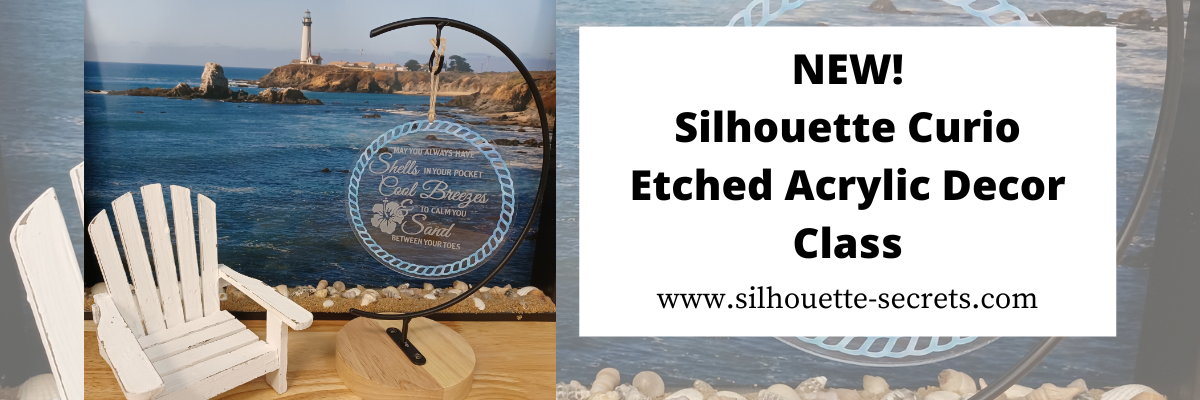
New! I’ve just released the a new Silhouette Curio class on my Teachable site!

Etched Acrylic Decor with the Silhouette Curio

Not only do we set up to etch on acrylic, but I also share how to cut adhesive vinyl on the Curio and why I added it onto this project.

Check it out

HERE

and join me in this class to create a unique décor item and learn more about the Silhouette Curio!

I am also including the list of supplies that I used in the class if you’d like to create along with me.

Affiliate links may be present in the below and as an Amazon Associate I earn from qualifying purchases. What that means is that I may receive compensation if you purchase through the links I have provided. The price you pay for the product or service is not higher but I may get compensated for sharing.

Class Supplies:
– Silhouette Curio machine
– Silhouette Etching tool – use code 10OFF to save 10% at Silhouette America
– Silhouette black blade (ratchet) or premium blade – if cutting vinyl with the Curio
– (2) Silhouette Curio cutting mats – Very important! – 1 mat for cutting & 1 mat for etching
**Cutting adhesive vinyl can also be done on a Cameo or Portrait, but the class will show cutting with the Curio
– Double sided tape from Craft Chameleon
– Beach Blessing design by Deborah Stine – Design #62386
– Rope Frames Circle by Snapdragon Snippets – Design #30736
– Curio Etching Kit by Craft Chameleon
Kit includes: (3) 5” Round Acrylic discs, (1) Curio Etching 5” round template, (1) Diamond Tip Reamer, (1) twine, (3) 6”x 6” adhesive vinyl – random colors/patterns
– Transfer Tape
Optional: Adhesive vinyl of color choice
– Digital Calipers – highly recommend

Check out all 11 Curio classes on my Teachable site HERE.

As well as all available Silhouette classes HERE.
And…. for those who’ve read this far I’ll give a little hint – I have 1 more Silhouette class releasing very soon too!

I’d love to see what you are creating with your Silhouette software & machines!
Feel free to post on my Facebook group at 
Silhouette Secrets with EllyMae.

Save this for future reference by pinning the image below.

Enjoy !

This image has an empty alt attribute; its file name is logo.jpg

THANK YOU for your support! How can you help? Click HERE & buy a coffee.
Every little bit helps with the cost of running the site.

Or if you are looking for more in-depth, step-by-step classes, check out all of my online Silhouette classes on my Teachable site HERE.

SS Logo snip it
**This post may contain affiliate links. What that means is that I may receive compensation if you purchase through the links I have provided. The price you pay for the product or service is not higher but I may get compensated for sharing.
Posted on — 3 Comments

10 Sublimation Tips For You!

This past weekend I participated in the Sublimation Camp that was hosted by Cori George from Hey Let’s Make Stuff and Angie Holden from the Country Chic Cottage and I just have to say WOW!
It was an amazing event that was jam packed with information for all levels of those in the sublimation process.

It was an event for Crafters by Crafters and I really found that the information provided answered the questions that I see posted every single day by beginners or those wanting to learn more about sublimation.
You can still gain access HERE at the time this post is published.

Sublimation is a hot topic currently and more and more we are getting questions on the Silhouette Secrets with EllyMae Facebook Group. I signed up so I could pick up tips and tricks to help out more Silhouette users.

The biggest thing I learned right away is that – I CANNOT do it all!
There is just too many projects and not enough time to do it all.
I also realized that there are just things that I do not experience that others have happen to them, such as printers not printing colors correctly.
And over the years of troubleshooting, I have found that it is very difficult to reproduce an issue on purpose. So it can be difficult to cover it ALL!

And that is what I am hear to say today – my tagline on the blog has been
“Because some things are too good not to share!”

So today, I’m here to share with you 10 things that I learned or re-learned during this event and the resources where you can find more information.
I do feel that we all can learn from others in the industry and can gain inspiration from so many amazing instructors out there!

Affiliate links may be present in the below and as an Amazon Associate I earn from qualifying purchases.

10 Things I Picked Up at Sublimation Camp

#1 – Testing Materials

Get some 100% polyester fabric from the craft store to test your prints on. I picked this tip up from Angie Holden at the Country Chic Cottage.
I thought this was a fabulous idea – I mean really, how easy is that?
I’d rather use up a sheet of printed ink on some cheaper fabric than waste one of my blanks and it not look good!
I couldn’t wait to hop in the car and head to JoAnn Crafts to pick up some testing fabric.
I bought 2 yards of White 100% Polyester Fabric and it cost me $13.98.
Now I am set to test my prints.

Another option that was mentioned in the camp by Courtney Brickner with The Crafty Brick was getting a 100% polyester shower curtain off Amazon and use that as your test surface.

#2 – Print a Test Page

A test color page can save you time, money, and materials.
And I am saying this from experience because it was the first thing I did when I started watching the Sublimation Camp and I found that my Epson F170 was not printing properly and I needed to do a cleaning on it. I had not printed in several weeks and it did affect it.
Jennifer Maker had an amazing download (#385) when you sign up on her site that worked great for colors and being able to see what prints out.

I knew immediately when it printed out that it was not correct.

Then I was able to do a print head test and see where the problem was.
I was on my way quickly after finding that and doing a cleaning.
Even though I have an Epson F170 sublimation printer, I had not used it for a couple weeks and it definitely made a difference.

#3 – Blanks

Sublimation does require special blanks. They need to be treated specifically for sublimation or the ink will not bond to the blank.
Sublimation ink binds with polyester and that is why you need a high polyester count or sublimation blanks. It will just wash out of other materials or non-treated items.
Not all blanks are created equal! Quality matters too!
If you have a design that hasn’t turned out, it may not be the ink, print, heat source, or sublimation paper that is the problem. It may be the actual blank.
Testing is the only way to know!

Sublimation also needs to be done on light colored objects if you are just printing and pressing. Sublimation ink does not print white and it is a translucent ink, so background colors will show through.
This can work for some designs like the below photo but not for all. The color of the blank will affect the ink colors of the print on the final object.

Sublimation on a 95% polyester light colored shirt from a local vendor.

#4 – Clean the blanks

I’ll admit this was one of the first things I did not know about when I started pressing sublimation prints. I had pressed hundreds of tote bag prints before I even heard this tip.
Use a lint roller to get any debris, fuzz, etc. off the blank you are using.
I found out the hard way when blue flecks showed up on the shirt I was pressing.

For hard surface blanks, an alcohol swab to get rid of debris and oils as well.

#5 – Color Profiles

I hear often that colors are not printing at the colors that users think they should. I learned many things at Camp about this. It can be for several reasons.
One of the biggest that I heard instructors say over and over was that converted printers do not print correctly because they are calibrated for inkjet ink. So you may need to use a ICC color profile. Cori George with Let’s Make Stuff had great tips to finding and testing ICC color profiles.

It can also vary, even with using the same ICC profile between the software programs you are printing from.

This is one of those things that I cannot recreate with my own equipment because I don’t see to have the same issues with my colors from printing through Silhouette to my inkjet or my sublimation printers.

If you are having issues with colors, I would recommend checking out Cori’s blog for more tips on ICC profiles and sublimation in general.
She has a ton of information on sublimation there.

#6 – Off Colors

I heard several times through the entire event from Angie Holden at the Country Chic Cottage that colors can be off if the blank was undercooked or overcooked. One easy indicator that she mentioned was undercooked the color would look too green and overcooked the color would look brown.

#7 – Air Purifier

Sublimation stinks!
I mean even the sublimation blanks just smell bad when they are heat pressed. Then you add in the actual pressing of the sublimation print when it’s pressed. It is always a good idea to make sure your space is well ventilated!
I was having some allergy and asthma attacks during the event weekend, so I already didn’t feel great and when this air purifier was mentioned, I ordered one.
I’ve only used it a couple times, but I already noticed a big difference!

I was surprised that it was a bit bigger than what I expected, which is awesome!
Now I plan to run it anytime my heat press or my GlowForge is running.

#8 – Don’t forget to mirror the design

This happens to us all, whether it’s for cutting HTV or sublimation. You are not alone!
I try to always make mirroring the design the final step. If you have a sublimation printer, it will do it automatically for you unless you tell it not to, but if you have a converted printer, you will need to manually do this step.

#9 – Some things are going to FAIL!

You are learning a new skill! In the beginning, you will go through more supplies as you are learning. In my experience this holds true for all things! We see it all the time with beginning Silhouette users. You will go through blades and mats faster in the beginning because you are learning what works and what doesn’t. The more you do it, you pick up tips & tricks that extend the life of your supplies.

And then you will still have failures because you forgot to mirror, applied it upside down, or some other random reason. Most times I make mistakes because I’m trying to rush or multi-task.

#10 – Sublimation is Print and Press

Basically, any program you can print from, you can use for sublimation.
The basics are printing and pressing.
There are many users getting into sublimation and a wide variety of software programs they are using. I saw Canva, Photoshop, Illustrator, Design Space, Word, Silhouette Studio, ProCreate, and more during the event.
As you get into it, you can get into more complex things which may require certain software, ICC profiles, cutting with the machines, etc.

But the basics are printing and pressing in the technique.

I’ve been having so much fun creating different things!


Like I said at the beginning, I CANNOT do it all. This past weekend at Sublimation Camp has reconfirmed that for me.
There are just too many cool projects and not enough time in the day.

My expertise is in the Silhouette software, Silhouette machines, and in troubleshooting Silhouette. There are just some areas that I am not an expert in. I love taking classes and learning new things. Sometimes that means knowing who to refer users to when they have a specific situation. We can all gain inspiration and creative ideas from others in the crafting community.
Follow these great resources above for tips & tricks to get creative ideas that you can adapt to your projects.

After attending the Sublimation Camp I bit the bullet and order a convection oven and finished my first sublimation tumbler. Of course, I’m hooked!
This design was part of the class by Charynn Olesheski with Pineapple Paper Co showing how to create it in ProCreate. I loved this class! I am no where near her skill level in ProCreate, but I did try. I used her design template and a font in this tumbler below.

For more sublimation tips with Silhouette check out these tutorials below:
Basic Sublimation Print from Silhouette
Printing Sublimation Designs from Silhouette Studio – Basics
Sublimation Markers and Silhouette

I would love to see what you are creating with your Silhouette software or machines!
Feel free to post on my Facebook group at 
Silhouette Secrets with EllyMae.

Save this for future reference by pinning the image below.

Enjoy !

This image has an empty alt attribute; its file name is logo.jpg

THANK YOU for your support! How can you help? Click HERE & buy a coffee.
Every little bit helps with the cost of running the site.

Or if you are looking for more in-depth, step-by-step classes, check out all of my online Silhouette classes on my Teachable site HERE.

SS Logo snip it
**This post may contain affiliate links. What that means is that I may receive compensation if you purchase through the links I have provided. The price you pay for the product or service is not higher but I may get compensated for sharing.
Posted on — 1 Comment

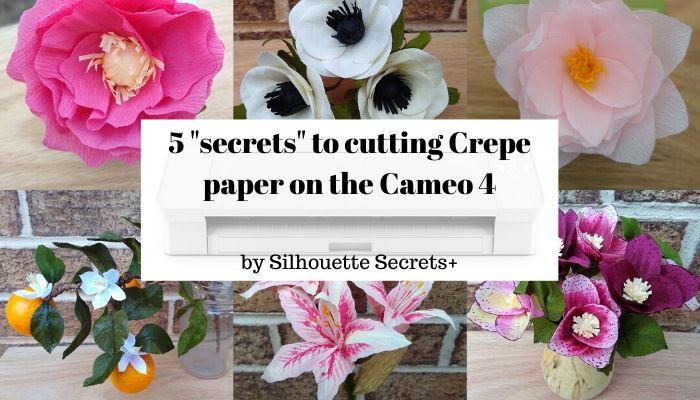
5 “Secrets” to Cutting Crepe Paper with the Cameo 4

Originally published February 2020 – republished May 2022
I have jumped into cutting crepe paper on the Cameo 4 since the November 2019 All Things Silhouette Conference and the release of the new Cameo 4 machine.
And I have to say it’s addicting.

Crepe Paper Supplies copy
Affiliate links may be present in the following blog post and as an Amazon Associate I earn from qualifying purchases.

Today, I want to share my top 5 “secrets” to cutting crepe paper flowers on the new Cameo 4 with the rotary blade.

5 “Secrets” to cutting crepe paper on the Cameo 4

Secret #1 – Use a good sticky cutting mat!

Because of the stretch in crepe paper you want to make sure it is good & secure on the cutting mat. I use a new cutting mat that I designate for crepe paper, smooth it on straight with my hand, and then use a brayer to roll across it to make sure it is good and secure to the cutting mat. You want to try to get it as smooth as possible without stretching the crepe paper. Any bumps or folds in the crepe paper will cause uneven cuts. If the paper moves while cutting it will either not connect the cuts or it will bunch the crepe paper up.

IMG_20200202_135920371 copy

Won’t it stick too much to the cutting mat and tear?
No, so far I have not had this issue. If you are careful when removing the crepe paper after the cut, I have had no issues with it being too sticky. I do de-stick my mat after I first open it by applying it to my clean t-shirt or a clean cotton towel.

Secret #2 – Pick designs that will work well. 

The rotary blade is just like a hand-held rotary blade. It is not designed for intricate cuts. Think about if you enlarged the design, could you cut it with a hand-held rotary blade?

Single petal designs or broad petal & leaf designs are what I find that works well. Designs with lots of inner curves may not cut as well.

Single vs complex copy

Here are 10 flower designs I found in the Silhouette Design Store that would work with the Cameo 4 and rotary blade:

3D Flower (6) by Amy Robinson – Design #75970
3D Large Flower with Petals (2) by Alaa’ K – Design #196852
Anenome 3D – by The Bleu Dahlia – Design #271113
Giant Sunflower by Amanda McGee –Design #300726
Icelandic Poppy 3D by The Bleu Dahlia – Design #216825
Hellebore Double Petal by The Bleu Dahlia – Design #216816 
Oriental Lily 3D by The Bleu Dahlia – Design #217974
Starburst Flower – Big by Echo Park – Design #193696
Peony Flower – Small by Echo Park – Design #193711
Water Lily 3D – by The Bleu Dahlia – Design #271114
(See the bottom of this post for project photos of some of these designs)

Now, these files are originally designed for cutting paper flowers, so here is how I modified it for crepe paper. Each of these petals has a cut up the center to make it easier for paper assembly, however, with crepe paper that is not necessary. First, I scaled the design down to the size I wanted. Then, I right clicked and chose ungroup. Each design will vary in how it was created, so you may need to ungroup again to get the individual cut lines, or right click and release compound path.  Once they are all separate pieces, I deleted the middle cut line in the petals.

Anemone file copy

So it is one outer cut line to make the petal design. Then follow the instructions for the number of each petal that needs cut. Move the text instructions off the mat prior to cutting.

Anemone file petals copy

Note that a few of these designs mentioned are for giant flowers. You can still use them by scaling them down to what you need for the project you are completing. Now, you can cut out of cardstock, frosted paper, or crepe paper.
One design and so many options – from small projects to large projects.

IMG_20200203_135741479 copy

On these flower designs you will notice the parts for the stamen have lots of cut lines. One of the tips I picked up from watching the videos on the Lia Griffith site is to just cut a strip of crepe paper the same size that it shows in the software (or close) and then use your scissors really quick to make those fringed edges. Crepe paper is more fragile than cardstock & the Cameo 4 rotary blade is not designed for intricate cuts, so it would just shred trying to cut out the fringe.

Stamin bits copy

But, I think this brings up a few good points! First, flowers are all unique and it doesn’t have to be a perfectly cut edge because not every single petal on a flower is exactly the same in nature. And next, sometimes we may over-complicate things by wanting the machine to cut a rectangle shape out vs just grabbing a paper trimmer and cutting a section of crepe paper to 1″ x 4″.

IMG_20200203_153143178_MP copy

Although if I was cutting a bunch of them I would set up the Cameo to cut the rectangles out, but since it was just a couple flowers, the paper trimmer worked great.

And what about the leaves?

I found several petal sets in the Silhouette Design Store that can either be used for flower petals or leaves. There are so many possibilities when you mix and match these together.

Flower Petals Set by Alaa’ K – Design #186166
Flower Petals by Alaa’ K – Design #15463
Flower Petals by Alaa’ K – Design #15464
Flower Petals by Alaa’ K – Design #16305 

Secret #3 – Watch where the hooks and loops are. 

When you go to the Send tab and turn on the Tool 2 – Rotary blade, you will see “hooks” and “loops” appear on the screen around the design.

hooks and loops copy

These are part of the Smart Cut technology in the Silhouette software that determines how the blade will have to turn to rotate the rotary blade. The Smart Cut technology places hooks and loops where it determines is best to complete the cut of the design on the screen. These hooks and loops only show on the Send tab and are not parts that can be moved. However, you will notice that the hooks and loops will change depending on where the design is on the cutting mat, what the design shape is, and how many pieces are set to cut on the cutting mat.

Makes sure that there are no hooks and loops inside the design that is being cut and that each piece of the design has adequate space between the next piece.

Why the hooks & loops?

Think of using a hand-held rotary blade. It does not make sharp corners. You have to lift it and either turn the material or the direction that you are cutting to start a new direction.

Rotary blade example copy

If you wanted to cut this design in the photo above with a hand held rotary blade, you would not cut it all in one pass without lifting the blade up. You would have to make multiple cuts to change direction. The blue lines show an example of the motion you might use with a hand held rotary blade in order to cut this shape.

It is the same with the Cameo 4 Rotary blade. It has to lift, touch down to rotate the blade to the new direction & then start the next cut line.

You may have never noticed this before, but the regular Silhouette blades do the exact same thing at the beginning of the cut. Watch your Silhouette machine the next time you are cutting a material. The first move the housing does is move to the left side of the cutting mat and tap down once to get the swivel blade in the correct position.

Did you see the tape right at the beginning of the cut on the left edge of the mat? This orientates the blade tip to the correct location to begin the cut.

The big difference here is that the regular Silhouette cutting blades are a smaller, sharper angle, so it only has to do this at the beginning of the cut versus the Rotary blade that is a broader blade that can’t turn as sharp.

Secret #4 – Don’t fill the page with the design.

As tempting as it might be to go “all in”. Start with cutting 1 petal. Don’t fill the page with the entire file to be cut on the first try.

If that cuts well, then duplicate the image, move it next to the first piece, turn the cut lines off on the 1st design, and then send it to cut. This way you still know where the first design cut on your material.

Cut line off and on copy

2 tips here:
1 – Make sure that the design is selected to turn the cut lines on or off. Select the design by clicking on it and you will see a gray selection box around it. If there is nothing selected on the design mat, there is nothing to tell it to No Cut or Cut.
2 – Make sure that once the design is selected that you turn the cut lines Off under Tool 1 before turning the cut lines On on Tool 2.
Otherwise, you are telling the machine to complete the Action with both tools.

Secrets #5 – Just do it!

In my recent interview with Lia Griffith (found HERE) she said,
“When you are making a crepe paper flower, it is really hard to make an ugly crepe paper flower. It’s really hard…. I mean you can…. but, it’s really hard.
Every crepe paper flower is a beautiful crepe paper flower. “

Just like any other project – Just get started!

Just a warning though – It’s addictive! Lia said the same in her interview and I have been saying it since I started really working with it in December. The more I play with the it, the more ideas I have, and the greater the urge to just start cutting.

And….. as Terri’s grandson says, “But wait, there’s more……“

Bonus “Secrets”

Watch this video on Lia Griffith’s YouTube channel

and next….

Grab Lia’s Crepe Paper Flowers book!

It is a great place to start for beginners as it is packed with information on crepe paper, tips on cutting, how to assemble the flowers, and how to arrange your creations. It has 21 different flower files and instructions that are perfect for a beginner to get started.

Do you have to buy the book to cut crepe paper?

No, but I’d highly recommend it!

Crepe paper is all new to me and I am soaking up as many tips as I can. I think anyone can do this with the right tools and resources. I found that in Lia Griffith Crepe Paper book and on her website at LiaGriffith.com.

Find my full tutorial on cutting crepe paper with your Cameo 4 and rotary blade here
Cutting Crepe Paper on the Cameo 4.

Crepe Paper Header

While I can share my “secrets” for cutting crepe paper on the Cameo 4 with the rotary blade, I am not an expert on what to do after it’s cut. I just followed the tips & directions I found on the Lia Griffith website and in her book.

To learn more about Lia Griffith find my full interview with HERE.
Lia is an energizing person and I hope that you feel that as you read through her answers about her journey, tips for beginners, flower favorites, and experiences in the interview.

Here are a few of the crepe paper flowers I have had fun creating.

Photo collage copy
Top left – Design #75970 – 3D Flower, top middle – Design #27113 – Anenome, top right – Design #271114 – Water Lily
Bottom left – Satsuma branch on LiaGriffith.com, bottom middle – Design #217974 – Oriental Lily, bottom right – Design #216816 – Hellebore

Rose bouquet copy
Lia Griffith Crepe Paper Rose Flower Kit all cut on the Cameo 4 with the rotary blade

Can you cut the crepe paper on older Silhouette models?

No, not easily because of how the crepe paper is made. The regular Silhouette blades just drag and tear across the crepe paper. But, the rotary blade made for the Cameo 4 machine, rolls across the material when it cuts and works beautifully for this.

If you are looking to add a Cameo 4 and rotary blade to your tools here are a few places to find it:
Amazon
Heat Press Nation
Silhouette America
Swing Design

I hope that you will get started cutting this new material with your Cameo 4!

Pin the image below to save it for future reference.

Pinterest photo

Enjoy!

SS_Signature copySS Logo snip it

**This post may contain affiliate links. What that means is that I may receive compensation if you purchase through the links I have provided. The price you pay for the product or service is not higher but I may get compensated for sharing.
Posted on — Leave a comment

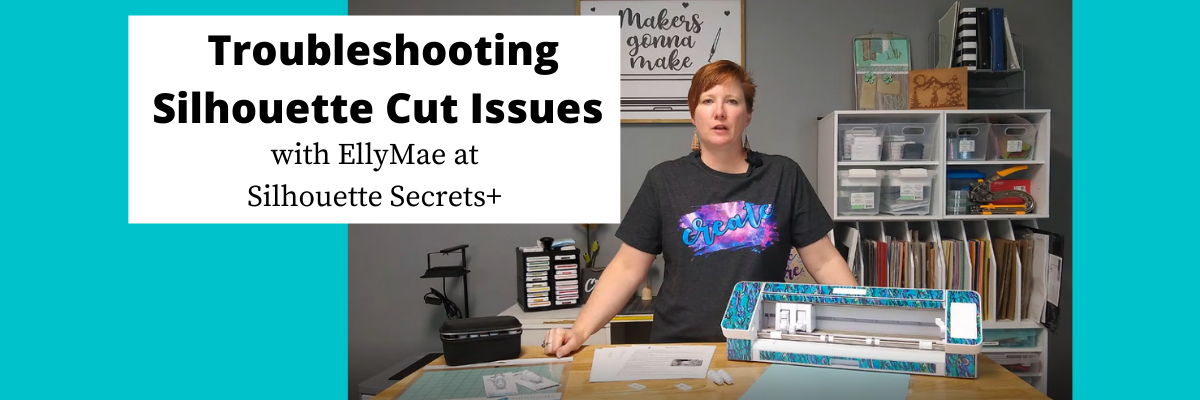
New! Troubleshooting Cut Issues with Silhouette Video

We troubleshoot hundreds maybe even thousands of Silhouette issues on the Silhouette Secrets with EllyMae Facebook group each week. Over the years of troubleshooting and teaching, we have found that most cut issues can be corrected by following a few simple steps.
However, the biggest factor here is you have to start at Step 1.
If you do not, you may only be applying a band-aid to the issue and not resolving the actual issue. You may have inconsistent cut results which can lead to more frustration if the source of the issue is not solved.

In December 2021 I published a troubleshooting tutorial on the blog and it has been extremely popular. Because this is such a big topic for Silhouette users, I’ve now released it in video format and in a free PDF printable format as well.

Check out the new YouTube Video on my channel HERE or clicking the photo below.

The free PDF Guide is available as a download exclusively for confirmed newsletter subscribers.
Download the PDF and click on the blue links in the document to get more information and print it out for a handy reference.

Join the Newsletter

Subscribe to get our latest content by email.
    We respect your privacy. Unsubscribe at any time.

    I hope this helps you with any of your cutting issues you might have and save you some frustration!

    Watching your machine and learning how it works can help you in pinpointing cut issues that you may encounter. This will save you time, frustration, and materials in the future.

    Please let me know if you have any questions.
    Happy Cutting!

    Save this for future reference by pinning the image below.

    Enjoy !

    THANK YOU for your support! How can you help? Click HERE & buy a coffee.
    Every little bit helps with the cost of running the site.

    Silhouette Classes

    Never stop learning! Let me help you take the anxiety out of learning with Silhouette and get to creating faster! My Silhouette classes are heavily focused on software, so you can take the skills & techniques taught and apply them to many future projects!

    Silhouette step-by-step Classes by Silhouette Secrets+

    **This post may contain affiliate links. What that means is that I may receive compensation if you purchase through the links I have provided. The price you pay for the product or service is not higher but I may get compensated for sharing.

    Posted on — Leave a comment

    Chalkboard Décor with the Curio

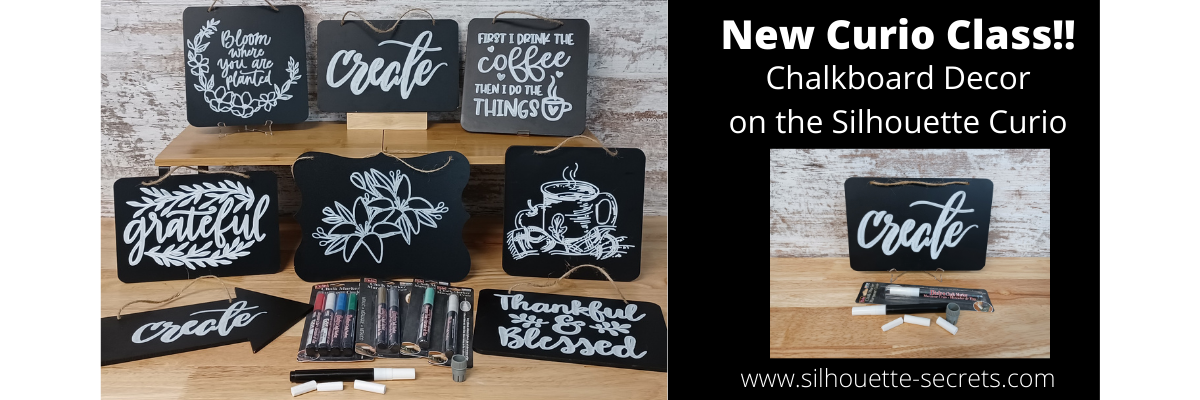
    Just a quick post today to share my newest Silhouette class. It is a Silhouette Curio class that I was in the process of creating for an in-person event before everything was shut down a couple years ago. I finally picked it back up where I left off and it is now available for all to view anytime after you’ve registered on my Teachable site.

    New! Chalkboard Decor with the Silhouette Curio class is now available.

    This is a step-by-step class on using a chalk marker in the Silhouette Curio to sketch directly on a chalkboard.
    Find the class and full details on my Teachable site HERE

    Check out the demo video on my YouTube channel HERE.

    I had so much fun playing with the chalk marker and these chalkboard signs.
    Here are a few more that I created

    Affiliate links may be present in the below and as an Amazon Associate I earn from qualifying purchases. What that means is that I may receive compensation if you purchase through the links I have provided. The price you pay for the product or service is not higher but I may get compensated for sharing.

    These are the supplies I used in this class to create these chalkboards:
    – Silhouette Curio machine, Silhouette small base cutting mat, Curio platforms and base
    – Chalkboard sign – Michaels – 6.6” square, arrow shape, rectangle shape
    Michaels bulk chalkboard options – rectangle 8 pk, arrow 8 pk, Square 8 pk
    or Amazon
    NOTE: chalkboards can vary in thickness – it needs to be under 5 mm thick & fit on the Curio base
    No frames or borders. Remove any twine attached.

    – Create by Cali Arroyo – Design #215617
    – Bistro Chalk Marker by Marvy Uchida White
    – Optional: Bistro Markers Colors – Fluorescent, Primary
    – Silhouette Pen Holder Type A – Silhouette America, Amazon
    – Digital Calipers – highly recommend for Curio projects
    – Ruler with mm
    – White Chalk
    – Clean Towel
    – Notepad & pen
    – Optional designs also featured: Design #317171, Design #404761, Design #304784,
    Design #400058, Design #229894, Design #154513
    – Optional: extra twine, scissors

    I have so many more ideas I want to try and test!

    I hope you will join me in this Silhouette class!
    Check out the full details on my Teachable site HERE

    Whether you join or not, I’d love to see what you are creating with your Silhouette software & machines!
    Feel free to post on my Facebook group at 
    Silhouette Secrets with EllyMae.

    Save this for future reference by pinning the image below.

    Enjoy !

    This image has an empty alt attribute; its file name is logo.jpg

    THANK YOU for your support! How can you help? Click HERE & buy a coffee.
    Every little bit helps with the cost of running the site.

    Or if you are looking for more in-depth, step-by-step classes, check out all of my online Silhouette classes on my Teachable site HERE.

    SS Logo snip it
    **This post may contain affiliate links. What that means is that I may receive compensation if you purchase through the links I have provided. The price you pay for the product or service is not higher but I may get compensated for sharing.
    Posted on — Leave a comment

    Cameo Pro Project Video Timelapse

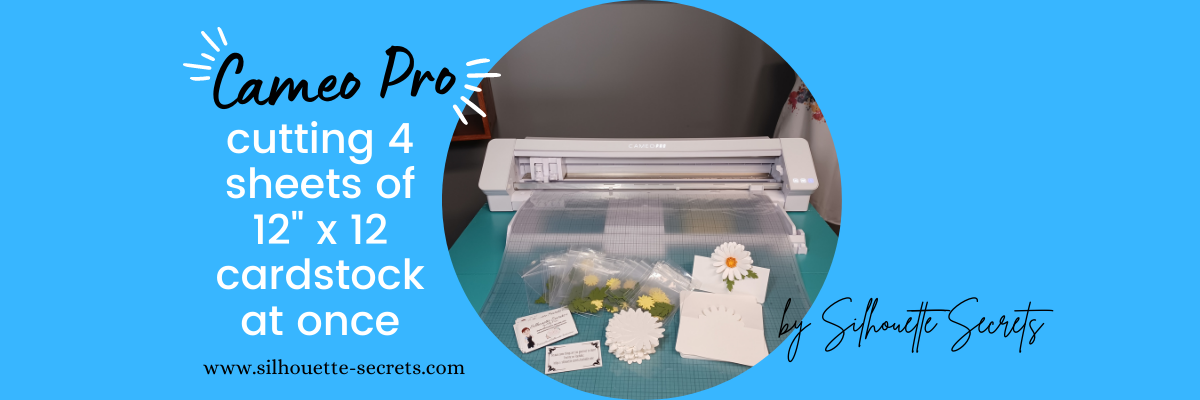
    This week I cut the pieces to make up 40 card kits for an event I’m teaching at. I set the video camera up to record a time lapse of the entire cutting process.

    This was 3 hours of real time cutting.
    23 – 12″ x 12″ sheets of cardstock cut on a 24″ x 24″ cutting mat with the Cameo Pro
    40 card bases
    80 daisy pieces
    320 flower center pieces
    80 leaves

    I have added the video to my YouTube channel HERE.
    It is condensed down to 7 minutes for the 3 hours in real time it took.

    I’m sharing more tips below too!

    Tips for cutting 4 sheets of cardstock on the
    Cameo Pro at one time.

    Guides

    Use Guides in the Silhouette Studio software placed at the 12″ marks to show where your pages will meet. Keep the design away from the edges of the cardstock.

    Guides are a Designer Edition upgrade or higher feature. For more on guides check out the Let’s Explore v4 – Page Setup Panel Tab 2 tutorial HERE.

    Cameo Pro Workspace

    One of the biggest issues I see when troubleshooting issues on the Cameo Pro is not having an adequate workspace setup for it to function properly.

    This machine is big and it needs a large workspace to function and feed properly. It cannot work against gravity or the cuts will not line up consistently.

    If you are using the 24″ cutting mat, it should have a workspace of 38″- 40″ in width for the machine to be securely and stable on and 52″ of length that is absolutely flat. This allows for 22″ in front and 22″ behind the machine for it to feed the cutting mat as flat as possible in and out of the machine as it cuts.

    Check out this post HERE on the Cameo Pro Table Options for more tips & workspace suggestions.

    Make sure the right roller is locked in position properly

    The right roller should be rolling on the edge of the cutting mat and not across the adhesive on the cutting mat. The middle indent of the right roller should be lined up with the gray arrow on the machine at the 24″ mat mark.

    The right roller can only be locked in place where the gray arrows point to on the machine roller bar. For the 24″ cutting mat, that is the far right gray arrow.

    If you look at your machine closely, you will see that the right roller is directly under the indent on the white pinch bar. That is the only place that the roller makes contact with the surface underneath, so placement is very important for feeding properly.

    If the right roller is not placed properly you may experience future cut issues which can include:
    – gumming up the roller and there is no easy way to clean this roller on the Pro
    – wearing a groove in the cutting mat which causes an uneven surface for cutting
    – mat can get stuck inside the machine
    – feed issues as the rollers do not roll at the same rate of speed because the right roller is either getting stuck or the roller is slipping on the material
    – affect print and cut accuracy if the rollers are rolling at different rates
    – cuts not connecting
    – mat can skew
    Note: the rollers rolling at different rates is not something you can usually see with the naked eye, even when studied closely. However, you can see it when the cuts do not connect completely.

    Cutting Mat is loaded properly

    The Cameo Pro is different than other machine models. It has 2 load lines. The line on the left side of the arrows is ONLY for the 24″ cutting mat.

    The line on the right side of the arrows is for ALL other sizes of materials and cutting mats.

    If the cutting mat is not loaded properly it can cause feed issues or it to skew in the machine as it’s cutting.

    Above I shared a photo of the right roller, but where is the left one exactly?
    If you look closely at the left roller, it is directly below the dot on the roller bar. This is where the roller grips the mat or material.

    The 24″ x 24″ mat is a monster of a cutting mat and it has heft to it. The load line and the right roller placement is very specifically designed to gripe each side of the mat so it can feed it in properly.

    If the mat catches on something or does not load completely straight, unload it and load it again – as many times as needed. If it does not start off straight, it’s not going to cut in the properly locations and the cuts may be off.
    On my 1st set of daisies being cut, I did not notice that the mat was slightly off and it did affect a few of the flowers getting cut off a bit.
    It happens – plan for it!
    If in doubt, always reload the cutting mat.

    Use the Autoload feature whenever possible

    This will help to ensure that you are able to support the mat and hold it up to the rollers as even as possible. The monster mat can be difficult to get the hang of, but keep on practicing and you will get it. It is much easier to load if you have the proper clearance in front of the machine to help keep the mat flat and not hanging down over the edge.

    Check out this video on how the Autoload feature works on my YouTube channel HERE.

    Clean Debris off the Cutting Mat

    Any debris on the cutting mat can interfere with the cut being clean as it creates an uneven cutting surface. Clean off any previous bits of debris left behind by the materials.

    In the video I shared above, when I load the 2nd set of white cardstock, you can see me smoothing it down to secure it to the mat. When I did, I noticed uneven areas under the cardstock and I lifted it to clean it and placed it back down. Any debris can affect your cuts.

    Weed carefully.

    Sure you see videos of people all the time that seem to just rip off the excess of the material whether it’s for cardstock or vinyl. But, it is not always the case.

    Go slow when weeding and you will find you can save your design most times. My Autoblade is very well used and it’s still cutting well, but the design I was using had interior corners and cuts. It cut, but by carefully removing the excess cardstock, I didn’t rip off any petals from the flowers or pieces of the centers.

    I hope these tips have helped to show you a few things about the Cameo Pro!
    For more tips and troubleshooting on the Cameo Pro –
    check out the header on the blog HERE.

    Check out how I created this Pop Out Topper card in the Silhouette Studio software in this video tutorial on my YouTube channel HERE.

    I would love to see what you are creating with your Silhouette software or machines!
    Feel free to post on my Facebook group at 
    Silhouette Secrets with EllyMae.

    Save this for future reference by pinning the image below.

    Enjoy !

    This image has an empty alt attribute; its file name is logo.jpg

    THANK YOU for your support! How can you help? Click HERE & buy a coffee.
    Every little bit helps with the cost of running the site.

    SS Logo snip it
    **This post may contain affiliate links. What that means is that I may receive compensation if you purchase through the links I have provided. The price you pay for the product or service is not higher but I may get compensated for sharing.
    Posted on — 1 Comment

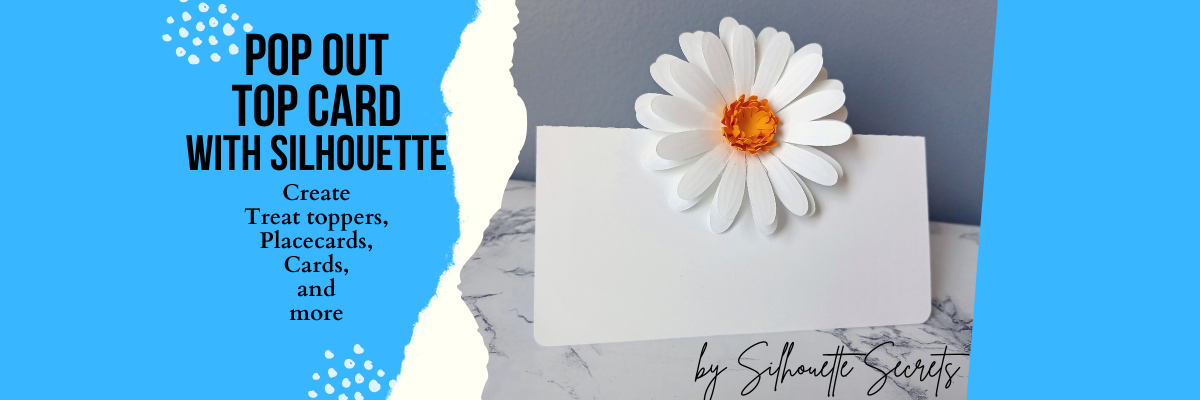
    DIY Pop Out Top Place Card: Versatile as a Treat Topper or Card for Any Celebration

    Silhouette Secrets+ with EllyMae

    How to Create a Pop Out Top Place Card

    This pop out top place card technique could be used to create many different projects including a treat topper, a place card for an event, a card for a friend, and more!

    Pop Out Place Card created with Silhouette

    Affiliate links may be present in the below and as an Amazon Associate I earn from qualifying purchases.

    I used the daisy from the Envelope with 3D Daisy Flowers by Lucilla Paper – Design #350668 to create this pop out top place card example.

    Daisy Pop Top Place Card

    Here’s a fun twist on the Pop Out Top Place Card! For this project, I added an adorable Bunny Butt design to transform it into a cute treat topper! This is just one of the many ways you can customize the place card for different occasions and projects. The possibilities are endless! Whether you’re prepping for a party or just want to make something fun and unique, this bunny-inspired treat topper is sure to bring smiles.

    Pop Top Treat Bag Toppers with Silhouette

    For this treat topper, I used the Jumping Easter Bunny Butt Outline by Wispy Willow Designs – Design #404567 and LD Pirate Pegleg font by Illustration Ink – Design #381497.

    What kind of project would you use the pop out top place card technique for?

    Check out the video tutorial on the Silhouette Secrets+ YouTube channel HERE to see how this pop out top place card was created in the Silhouette Studio software.

    Pop Top Place Card with Silhouette

    Be sure to watch this video on Shaping a Paper Daisy Flower for creative tips to make your paper projects even more unique!

    Shaping a Paper Daisy

    Save this for future reference by pinning the image below.

    Pop Top Place Card with Silhouette Pin

    Find more tutorials in the A to Z to Silhouette on the website HERE.

    Enjoy !

    THANK YOU for your support! How can you help? Click HERE & buy a coffee. Every little bit helps with the cost of running the site.

    Silhouette Classes

    Never stop learning! Let me help you take the anxiety out of learning with Silhouette and get to creating faster! My Silhouette classes are heavily focused on software, so you can take the skills & techniques taught and apply them to many future projects!

    Silhouette step-by-step Classes by Silhouette Secrets+

    Silhouette Secrets+ with EllyMae
    **This post may contain affiliate links. What that means is that I may receive compensation if you purchase through the links I have provided. The price you pay for the product or service is not higher but I may get compensated for sharing.** The pop out top place card technique discussed here can be adapted based on project needs.
    Posted on — 4 Comments

    Let’s Explore v4 – Text to Path

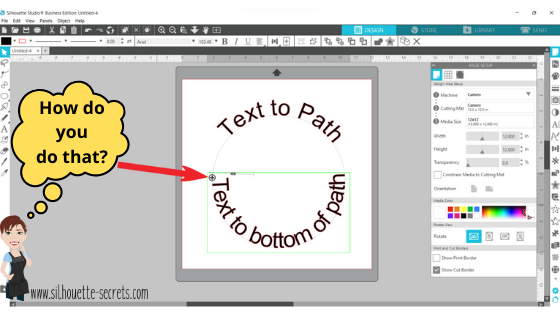
    How do you place text around a circle? This is the question I see most often. It’s a very neat feature called Text to Path and it’s pretty simple to use.

    I have updated this tutorial to include a video that is available on my
    YouTube channel HERE.
    Check out the full written tutorial below showing all the different aspects of Text to Path.

    Text to path

    *original post written 3/2019 created in version 4.2 of the Silhouette software – all features are still current and up to day for 3/2022 v4.4

    Let’s explore how to take ordinary text and make it more interesting by adding it onto a path. The most common way I see this used is when you want the text to form to a circle or oval shape.
    But why stop there? You can add text onto so many other paths.

    Text to Path photo copy

    Let’s take a look at how to do this.

    Click on the Text tool on the left side, then click on the mat to get a text cursor and type out the text.

    Text to Path 1 copy

    Next, I fill my text with color using the Fill Color Panel on the right side. This helps to see the text better and select the object easier.

    Then, click on the Text Style Panel on the right side and change the text style.

    Now, draw the shape that you want the text to snap to. Let’s start with an oval, since this is the most common shape I see users try to use.
    Note: I have increased the Line thickness so that you can see my shape easier.

    Text to Path on circle copy

    Double click on the text and a control point will appear in the bottom left corner.
    Note: if the text has been changed in any way, such as welding or converting to path, it is no longer editable text and this will not appear.

    Text to Path Circle2 copy

    Grab the control point and drag it to the object you want it to conform to.

    When the text snaps to the shape, a slider bar will appear on the left side and the text can be adjusted.

    Text slider out copy

    Moving the slider up on the bar, moves the text out away from the shape.

    Text Slider in copy

    Moving the slider down on the bar, moves the text inside of the line of the shape.

    Make any additional changes to the text, such as increasing the character spacing, etc.

    If you have a script text, right click and choose Weld.

    Weld copy

    This will weld any overlapping letters and then release the font from the shape.
    Now, keep in mind that the text is no longer editable once it is welded. Make a copy and pull it to the side if you want to keep the original text to go back to.

    Each font style is going to look different and you may need to adjust the character spacing on the Text Style Panel to make it overlap so it welds.

    If the text is not overlapping, right click on the text and choose Convert to Path.

    Convert to path copy

    This will release the font from the shape.
    Now, the text is a design and no longer editable text.

    This is an important step, especially if you are cutting the design from HTV and need to flip the image before you cut. If the text is not converted to a path, it will not flip correctly.

    Flip Horizontally copy

    Now, if that ever happens, you know why and how to fix it.
    Make sure to convert to path or weld before you flip the design.

    Now, let’s play with some shapes.

    Flexi-Shapes are a great option to play with. This is a Designer Edition Plus or Business Edition upgrade feature only. Flexi-shapes are found on the left side.
    More details on Flexi-Shapes can be found HERE.
    I chose the star and then changed the points to 5.

    Flexi Shapes copy

    I have increased the Line thickness again, so it can be seen better.

    Now, type out the text.

    If the text does not fit on one line, grab the teal slider bar on the right side and move it farther right, until all the text is on one line.

    Now, grab the control point that appears in the bottom left corner of the text box and drag it to the shape. Move it around the shape until you have it how you like.

    Twinkle star control point copy

    Each font and shape will vary in what looks better or if it splits words, etc. Play with the character spacing, the text size, and more until the desired look is achieved.

    Want the text on a wave?

    Use the Draw Curve Shape found under the Line tools on the left side and draw your wave.

    Text to wave copy

    Type out the text, grab the control point in the bottom left, and drag to the wavy line.

    Text to wave2 copy

    When it’s positioned how you like, right click and choose Convert to Path. Now, the line can moved away.

    Wave finished copy

    Now, what can you think of to create with the Text to Path feature?

    What about adding to a pre-made design to personalize it?

    Granny design copy
    Up Up Away copy

    Or inside a banner?

    Happy Birthday Banners copy

    A design for a card or a sign on a wall?

    Welcome Little One copy

    Each one of these shapes works a bit differently and you will need to play with it to see how the Text to Path snaps to the image.

    Don’t forget to make a copy of the design before right clicking on the image and choosing Convert to Path.

    I would love to see what you create with this feature!

    Affiliate links may be present in the following blog post and as an Amazon Associate I earn from qualifying purchases.

    Here are some of the designs used in the examples above:
    Heart Arrow by Sophie Gallo – Design #177769
    Hot Air Balloon by Rhonna Farrer – Design #182992
    Banner by American Crafts – Design #19529
    Banner by Skyla Design – Design #267349
    Basic Banner by Silhouette – Design #141887
    Baby Footprint Heart by Studio Illustrado – Design #198883

    I would love to see what you are creating with your Silhouette software or machines!
    Or if you have any questions, feel free to post photos or questions on my Facebook group at 
    Silhouette Secrets with EllyMae.

    Save this for future reference by pinning the image below.

    Enjoy !

    THANK YOU for your support! How can you help? Click HERE & buy a coffee.
    Every little bit helps with the cost of running the site.

    Silhouette Classes

    Never stop learning! Let me help you take the anxiety out of learning with Silhouette and get to creating faster! My Silhouette classes are heavily focused on software, so you can take the skills & techniques taught and apply them to many future projects!

    Silhouette step-by-step Classes by Silhouette Secrets+

    SS Logo snip it
    **This post may contain affiliate links. What that means is that I may receive compensation if you purchase through the links I have provided. The price you pay for the product or service is not higher but I may get compensated for sharing.