Posted on Leave a comment

Silhouette Curio 2 Guide to Blades and Tools + Free PDF Chart

The Silhouette Curio 2: Blade & Tools Chart

Have you ever wondered what tools are compatible with the Silhouette Curio 2? The Silhouette Curio 2 flatbed cutting machine can use a few additional tools that are not designed for the Silhouette Cameo 5 models. Let’s take a look at those today!

Affiliate links may be present in the following blog post and as an Amazon Associate, I earn from qualifying purchases.

I have created a free PDF chart of all the tools that can be used in the Silhouette Curio 2 . This chart is available as a free download exclusively for confirmed newsletter subscribers.

Join the Newsletter

Subscribe to get our latest content by email.
    We respect your privacy. Unsubscribe at any time.

    I always recommend stocking up on extra blades and cutting mats to have on hand. It can be very frustrating to be in the middle of a project with a dull blade or and adhesive mat that is no longer sticky. It is also one of the fastest ways to rule out a cutting issue you might have.

    You can find blades & tools at Silhouette America, Crafter Cuts, or check out the other retailers in the Silhouette Secrets+ Recommended Retailers list HERE.
    *use code SECRETS at CrafterCuts to save 10% off supplies and free shipping on orders over $35

    For some of the specialty tools listed below I’ve also included links for tutorials and more information on their usage as well.

    Silhouette Blades

    Silhouette Autoblade Type B

    Silhouette Autoblade – Type B
    Carriage 1
    Used for paper, cardstock, sticker sheets, adhesive vinyl, HTV, Chipboard, Acetate, and select specialty materials.
    Materials under 1 mm thick
    Available at Silhouette America or Crafter Cuts
    *This is the blade I use most often. Most cut issues occurring with this blade can be fixed by following the steps in this video HERE – Troubleshooting Cut Issues


    Silhouette 1 mm Manual Blade
    Carriage 1
    Used for paper, cardstock, sticker sheets, adhesive vinyl, HTV, Chipboard, Acetate, and select specialty materials.
    Materials under 1 mm thick

    Silhouette 1 mm Manual Blade

    Silhouette 2 mm Manual Blade

    Silhouette 2 mm Manual Blade
    Carriage 1
    Used for paper, cardstock, sticker sheets, adhesive vinyl, HTV, Chipboard, Acetate, Craft Foam, and select specialty materials.
    Materials under 2 mm thick


    Silhouette 2 mm Kraft Blade – Type B
    Carriage 1
    Used for chipboard, acetate, craft Foam, leather, and select specialty materials
    Materials up to 2 mm thick
    *15+ Tips for using the Kraft blade found HERE

    Silhouette Kraft blade 2 mm - Type B

    Silhouette Adapter Set

    Silhouette Tool Adapter Set
    Carriage 1
    Adapters are color coded for specific blades/tools
    Black adapter = Silhouette blade (ratchet) & Premium blade
    White adapter = 2 mm Kraft blade
    Gray adapter = Deep Cut blade
    Blue adapter = Silhouette Sketch pens


    Silhouette Blade – often referred to as a “ratchet” blade but the official name is Silhouette blade
    Carriage 1 with black adapter
    Used for paper, cardstock, sticker sheets, adhesive vinyl, HTV, Chipboard, Acetate, and select specialty materials.
    Materials under 1 mm thick

    Silhouette ratchet blade

    Silhouette Premium blade

    Silhouette Premium Blade
    Carriage 1 with black adapter
    Used for paper, cardstock, sticker sheets, adhesive vinyl, HTV, Chipboard, Acetate, and select specialty materials.
    Materials under 1 mm thick


    Silhouette Deep Cut Blade
    Carriage 1 with gray adapter
    Used for paper, cardstock, sticker sheets, adhesive vinyl, HTV, Chipboard, Acetate, Craft Foam, and select specialty materials.
    Materials under 2 mm thick

    Silhouette Deep Cut blade

    Silhouette Kraft Blade 2 mm

    Silhouette 2 mm Kraft Blade
    Carriage 1 with white adapter
    Used for chipboard, acetate, craft Foam, leather, and select specialty materials
    Materials up to 2 mm thick
    *15+ Tips for using the Kraft blade found HERE


    Silhouette 3 mm Kraft Blade
    Carriage 2
    Used for chipboard, acetate, craft Foam, leather, and select specialty materials
    Materials up to 3 mm thick
    *15+ Tips for using the Kraft blade found HERE

    Silhouette 3 mm Kraft blade

    Silhouette Rotary Blade

    Silhouette Rotary blade
    Carriage 2
    Used for fabrics, crepe paper, felt, wool, and select specialty materials
    *Rotary Blade Tutorial HERE

    Additional Silhouette Tools

    Silhouette Pen Holder Type B
    Carriage 1
    Use with a variety of pen styles to sketch onto materials such as cardstock, paper, faux leather paper, etc.
    *Step-by-step Sketching Class HERE
    **More tutorials on sketching HERE

    Silhouette Pen Holder - Type B

    Silhouette Punch Tool

    Silhouette Punch Tool
    Carriage 2
    Used with adhesive vinyl or HTV to punch a hole to designate where to weed the material out.
    Also used with the Cameo 5 for etching on Silhouette metal sheets.
    *12+ Tips for Etching with the Silhouette Cameo 5 HERE


    Silhouette black bodied sketch pens
    Carriage 1 with blue adapter
    Used to sketch onto materials such as cardstock, paper, faux leather paper, etc.
    *Step-by-step Sketching Class HERE
    **More tutorials on sketching HERE

    Silhouette Sketch Pens

    Silhouette Pen Holder Type C

    Silhouette Pen Holder – Type C
    Carriage 2
    Use with a variety of pen styles to sketch onto materials such as cardstock, paper, faux leather paper, etc.
    Type C Pen Holder has a broader barrel on the end so you can use wider bodied pens and markers


    Silhouette Embossing Tool Set – Type C
    Carriage 2
    Embosses onto materials such as cardstock, embossable foil, etc.
    Set includes a fine and wide tip.

    Silhouette Embossing Tools

    Silhouette Heat Pen Set

    Silhouette Heat Pen Set – Powered Tool
    Carriage 2
    Applies foil transfer material to surfaces of many materials such as cardstock, faux leather, etc.
    Cordless design and powered by the Cameo 5 Tool 2 housing
    *Heat Pen Setup & Foiling tutorials HERE


    Silhouette Heat Pen Super-Fine
    Carriage 2
    Applies foil transfer material to surfaces of many materials such as cardstock, faux leather, etc.
    Cordless design and powered by the Cameo 5 Tool 2 housing
    0.5 mm Super Fine Tip


    Silhouette Power Engraver

    Silhouette Power Engraver
    Carriage 2
    Surface engraves on materials such as metal sheets, acrylic, etc.
    To be used with the Silhouette Curio Debris Tray
    *Beginner Acrylic Etching Class with Power Engraver HERE
    **Additional Silhouette Curio 2 Information HERE


    Silhouette Leather Punch Tool
    Carriage 2
    Powered tool to punch holes in compatible materials such as cardstock and leatherette.
    Not for use with real leather.
    To be used with the Silhouette Curio Debris Tray
    1 mm, 3 mm, and 5 mm Tip included
    Replacement tips are available for purchase.

    Silhouette Leather Punch Tool

    Additional Supplies

    There are a few additional supplies for use with some of the specialty tools listed above.

    Silhouette 12″ x 12″ Embossing Mat
    For use with the Silhouette Embossing Tools

    Silhouette Embossing Mat

    Silhouette Heat Transfer Foil

    Silhouette Heat Transfer FoilGold & Silver
    For use with the Silhouette Heat Pen Set
    2 heat foil rolls (3 in x 33 feet)
    *Heat Pen Setup & Foiling tutorials HERE


    Silhouette Curio 2 Debris Tray
    For use with the Silhouette Power Engraver


    Silhouette Electrostatic Protector Sheet

    Silhouette Electrostatic Protection Sheet
    12″ x 12″ – 2 per pack
    Protects the Electrostatic Bed from damage.

    Grab the free PDF chart of all the Silhouette Curio 2 tools for future reference when you subscribe to the Silhouette Secrets+ newsletter.
    *chart is the current tools available for the Silhouette Curio 2January 2024

    Join the Newsletter

    Subscribe to get our latest content by email.
      We respect your privacy. Unsubscribe at any time.

      Find even more information on the Silhouette Curio 2 HERE including an unboxing, setup, first cuts, and the Electrostatic Bed.

      Please let me know if you have any questions in the comments below.

      Save this for future reference by pinning the image below.

      Silhouette Curio 2 Blade and Tool Chart

      Enjoy !

      THANK YOU for your support! How can you help? Click HERE & buy a coffee.
      Every little bit helps with the cost of running the site.

      Silhouette Classes

      Never stop learning! Let me help you take the anxiety out of learning with Silhouette and get to creating faster! My Silhouette classes are heavily focused on software, so you can take the skills & techniques taught and apply them to many future projects!

      Silhouette step-by-step Classes by Silhouette Secrets+

      **This post may contain affiliate links. What that means is that I may receive compensation if you purchase through the links I have provided. The price you pay for the product or service is not higher but I may get compensated for sharing.
      Posted on 2 Comments

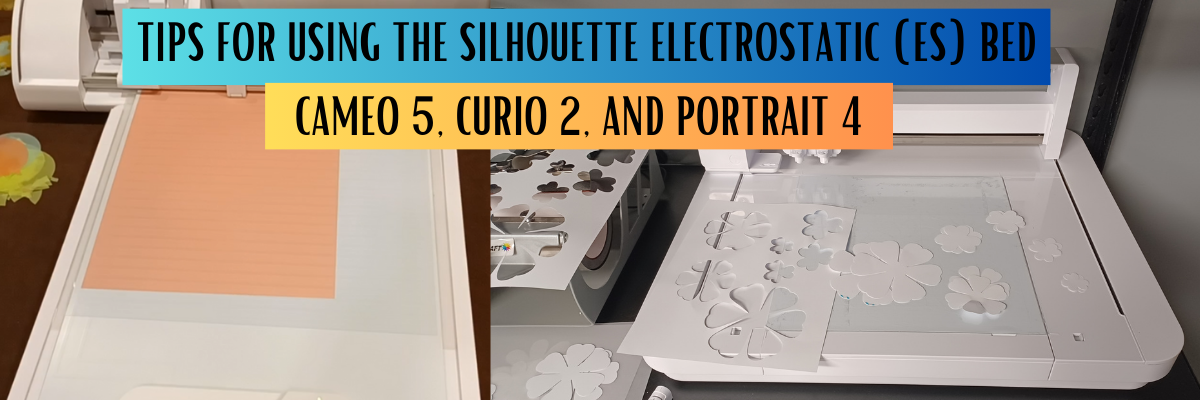
      Silhouette Electrostatic (ES) Bed Tips

      The new Silhouette Electrostatic (ES) Bed for the Silhouette Cameo 5, Curio 2, and Portrait 4 model machines was announced and demonstrated at the Silhouette Summit in September 2023. It was pretty cool to see this new technology in action.

      Silhouette Cameo 5 Electrostatic Bed Tips

      Affiliate links may be present in the following blog post and as an Amazon Associate, I earn from qualifying purchases.

      I recorded the Electrostatic Bed demo from Silhouette Summit and shared it on the Silhouette Secrets+ YouTube channel HERE. I loved seeing everything first hand and in action at the Silhouette Summit!

      But, until you get the equipment in hand and start to use it, you never really know how it’s going to go. This is new technology and it does have to be set up properly. It is designed to work with thin, smooth materials that can maintain a charge between the ES bed and the material while it’s being cut.

      This was the first time in Silhouette’s history that they released the new machines and features at Silhouette Summit. Usually, in the past, there has been a 4-6 month gap between the announcement and when the new items are released.

      The Silhouette Curio 2 was available first and it comes with the Electrostatic (ES) Bed in the box. For the Silhouette Cameo 5 and Portrait 4 models, the Electrostatic (ES) Bed is an additional accessory that can be purchased separately.

      I received my Silhouette Curio 2 and immediately started testing and seeing what it could do. I have cut vellum, 65 lb. cardstock, 110 lb. cardstock, sticker paper, adhesive vinyl, and copy paper with the Electrostatic (ES) bed so far.

      Check out the video – Tips for Success with the New Silhouette Electrostatic (ES) Bed – Cameo 5, Curio 2, and Portrait 4 HERE.

      I share how you can be successful with the Electrostatic (ES) Bed. These tips will work for the Electrostatic (ES) Bed no matter which Silhouette machine model you are using it with. I’ve also included a few more tips down below this video in this post as well.

      Electrostatic (ES) Bed Tips

      1. The Electrostatic (ES) Bed is powered by the Silhouette machine.
        This is one reason that the Electrostatic (ES) bed is not compatible with older model Silhouette machines. The older machines do not have the technology in them to send power to the ES bed.
      2. The electrostatic charge has to be built up.
        The ES bed needs to be turned on to start building up the charge. It takes time, usually less than a minute for the electrostatic charge to build. It is not a slap it and go. You have to set it up properly for success!
        Place Electrostatic (ES) Protective Sheet on the Bed and smooth out any air bubbles. Make sure that the Electrostatic (ES) Bed has not turned off.
        In early versions of the software with the Silhouette Curio 2, the ES Bed automatically turns off after the cut and the user will need to turn it back on each time.
      3. Not all materials work with the Electrostatic Bed.
        Materials need to be completely flat and smooth to be able to hold and maintain the electrostatic charge. Textured materials will not work or maintain that charge to hold it in place while it’s being cut.
        Smooth materials down on top of the ES Protective Sheet and allow time to build the charge.
      4. Test the materials with your fingertips to see if the materials move. If it moves, it’s not ready. Start again & take the time to build the charge.
        If the charge is broken at any time while it’s being cut, it will be a lost cut.
      5. Keep the design away from the edges of the materials.
        If the cut goes over the edge of the material, it can break the electrostatic charge and the material may move.
      6. Not all designs will work well with this new technology.
        Keep in mind that the smaller the cut pieces are, the less surface area there is for the material to maintain the electrostatic charge. Pieces that are completely cut may move out of place. This may or may not affect the entire cut. If a loose piece of material gets stuck on the blade as it’s cutting, it may hinder the cutting of the blade.
      7. Get extra materials! It is going to take time and practice to learn a new skill and new equipment.

      Supplies used or mentioned in the video:

      And I have more tips!!!!

      Check out this video HERE to see how to install the Silhouette Electrostatic (ES) Bed on the Silhouette Cameo 5. The installation for the Silhouette Portrait 4 will be the same once the electrostatic bed is available.

      I will admit, this is pretty cool technology and not having to remove delicate materials from the adhesive cutting mat is pretty darn awesome!

      Will it work for every project? No!

      But it is definitely fun to play around with and see what can be done with it!

      Here are a few examples of projects I’ve done with the Silhouette Electrostatic (ES) Bed.

      Silhouette Curio 2 Electrostatic Bed Tips

      Koala sticker paper cut using the Silhouette Electrostatic bed. You can find the Silhouette Curio 2 Print and Cut with the ES (electrostatic) Bed HERE on the Silhouette Secrets+ YouTube channel.

      Silhouette Curio 2 Electrostatic Bed Cutting Cardstock

      Recollections 65 lb. cardstock 12″ x 12″ print and cut using the Electrostatic (ES) Bed. See this in action on this video Silhouette Curio 2 Print and Cut 12″ x 12″ with the ES Bed HERE.

      Vellum Flowers cut with the Silhouette Curio 2 Electrostatic Bed

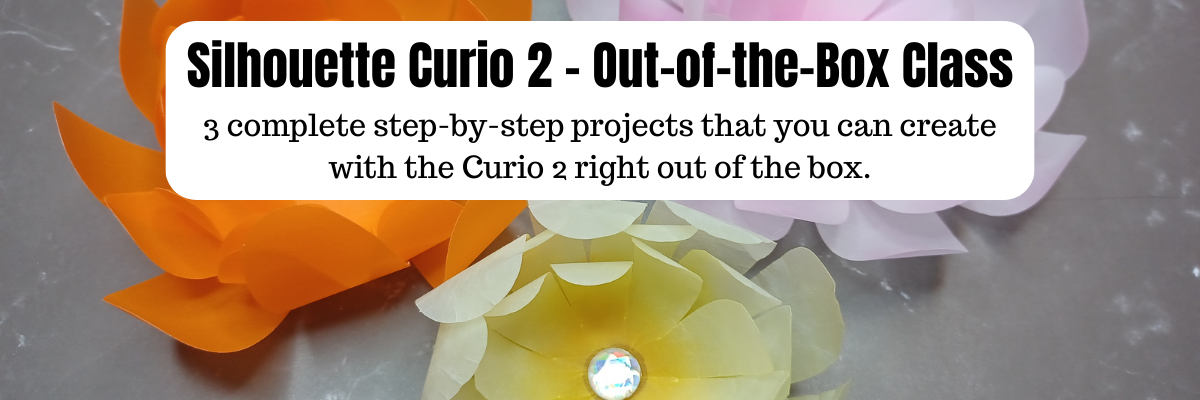
      I cut & created these vellum paper flowers for the Silhouette Curio 2 – Out of the Box class where I share 3+ projects you can complete with the Curio 2 right out of the box. Find more details on that HERE.

      Silhouette Tips for Cutting Small Fonts & Designs

      This is an example of adhesive vinyl from a class I released called Easily Create Custom Gift Tags & Keepsake Ornaments in Silhouette found HERE. In the class I share a demonstration of cutting adhesive vinyl with the Curio 2 on the Electrostatic Bed.

      I also released a tutorial on Silhouette Tips to Cutting Small Fonts and Designs found HERE that can be applied to any Silhouette model machine you are using.

      Silhouette Curio 2 Electrostatic Bed cutting copy paper

      And here is one that I just completed this week cutting copy paper using the new IPT technology to cut 2 sheets that are stacked on top of each other. Yes, you read that right! Stacked materials cut at the same time with the Electrostatic Bed.
      I’ll be sharing more on that soon!

      I’ll be adding more information to the blog and Silhouette Secrets+ YouTube channel as I create projects and play with this new technology. Stay tuned for more!

      I hope those tips help you get started and creating with your new Silhouette model machines and the Electrostatic (ES) Bed.

      Save this for future reference by pinning the image below.

      Silhouette Electrostatic Bed Tips

      Enjoy !

      THANK YOU for your support! How can you help? Click HERE & buy a coffee.
      Every little bit helps with the cost of running the site.

      Silhouette Classes

      Never stop learning! Let me help you take the anxiety out of learning with Silhouette and get to creating faster! My Silhouette classes are heavily focused on software, so you can take the skills & techniques taught and apply them to many future projects!

      Silhouette step-by-step Classes by Silhouette Secrets+

      Silhouette Secrets+ with EllyMae
      Silhouette Secrets+ with EllyMae
      **This post may contain affiliate links. What that means is that I may receive compensation if you purchase through the links I have provided. The price you pay for the product or service is not higher but I may get compensated for sharing.
      Posted on 4 Comments

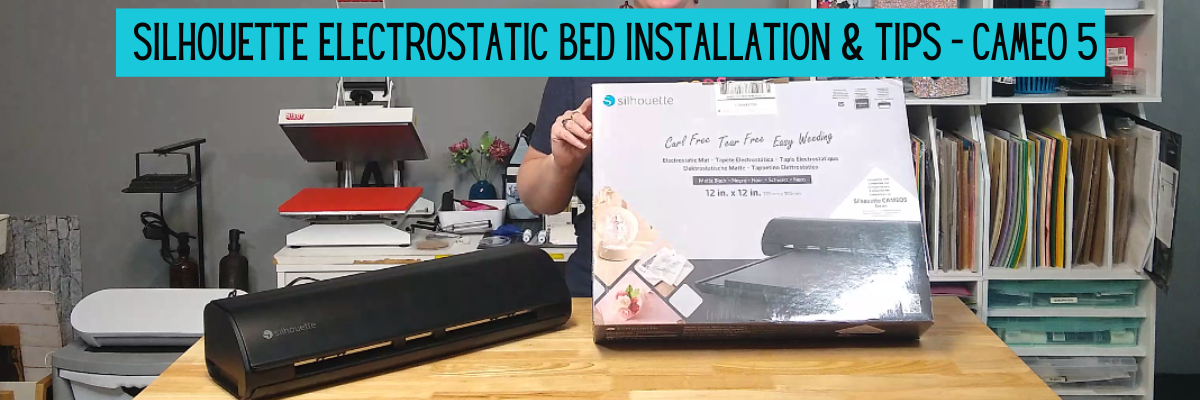
      Silhouette Electrostatic Bed Installation & Tips – Cameo 5

      Affiliate links may be present in the following blog post and as an Amazon Associate, I earn from qualifying purchases.

      Silhouette Electrostatic Bed Installation & Tips

      New equipment is always fun to get to know and play around with. I will admit that when I opened the box for the Silhouette Electrostatic Bed, I had a bit of a questionable moment as I saw something in the box I didn’t know about.

      I had no idea what the “guard tape” was. There is an instruction sheet in the box. Make sure to keep the instructions, your box, and this guard tape for future use.

      I shared more information in the Silhouette Electrostatic Bed Installation & Tips – Cameo 5 video on the Silhouette Secrets+ YouTube channel found HERE.

      In this video I am using the following supplies:

      Find additional tips on using the Silhouette Electrostatic Bed HERE in the Tips for Success with the New Electrostatic (ES) Bed – Cameo 5, Curio 2, and Portrait 4 video on the YouTube channel.

      The Electrostatic Bed is awesome! I have loved creating with some delicate materials using it and can’t wait to share more!

      If you are a Silhouette Curio 2 owner, the Electrostatic Bed comes with the machine. Check out additional information on the Silhouette Curio 2 HERE.

      Save this for future reference by pinning the image below.

      Enjoy !

      THANK YOU for your support! How can you help? Click HERE & buy a coffee.
      Every little bit helps with the cost of running the site.

      Silhouette Classes

      Never stop learning! Let me help you take the anxiety out of learning with Silhouette and get to creating faster! My Silhouette classes are heavily focused on software, so you can take the skills & techniques taught and apply them to many future projects!
      Silhouette step-by-step Classes by Silhouette Secrets+

      **This post may contain affiliate links. What that means is that I may receive compensation if you purchase through the links I have provided. The price you pay for the product or service is not higher but I may get compensated for sharing.
      Posted on Leave a comment

      Beginner Acrylic Engrave/Etch with the Silhouette Curio 2

      Affiliate links may be present in the following blog post and as an Amazon Associate I earn from qualifying purchases.

      The Silhouette Curio 2 is a unique machine that I am enjoying so much! Just like it’s predecessor, it functions a bit differently than the Silhouette Cameo and Portrait model machines. I am not sure it really should have been called a curio, but it is what it is and I don’t control that. What I can control is me and what I’m creating.

      I am having a blast learning it and I do think that anyone can use it and learn it if they are willing to take the time to! That is why I’ve created classes to help Silhouette Curio 2 users get started faster and take the guess work out of it. Less anxiety in learning a new machine! I’ve made the mistakes and I am showing step-by-step how you can be successful with your Curio 2 in my classes.

      I am so excited to announce this class – Curio 2 – Beginner Engraving/Etching on Acrylic class using the Silhouette Power Engrave Tool!!

      Here is a look at a few of the designs that I have been creating on acrylic rounds.

      In this class you will learn how to:

      • setup a template for exact placement for projects
      • recognize “no compatible cut setting” errors and why you see it
      • set up the Silhouette Curio 2 Debris tray for cutting & engraving/etching
      • set up to cut with the Silhouette Curio 2 to create the template
      • use the Auto height detection & how it works
      • use the Layers Panel in Silhouette Studio
      • set up an engrave/etch for the Silhouette Power Engrave Tool
      • create a custom setting for acrylic etching/engrave
      • do a manual height detection and why I love it!
      • and more! Bonus tips & demos included as well!

      Silhouette Curio 2 –
      Beginner Acrylic Engrave Class

      Step-by-step class for setting up the Curio 2 for exact placement on blanks, creating a template, creating a custom setting for the Acrylic Engrave, auto & manual height detection and why you would use either, engrave tips, and more!

      Supplies Used for Beginner Curio 2 Engrave Class:

      Design used in class:

      Additional bonus designs shown in testing:

      Optional:

      • Handheld vacuum or wet wipes – do not inhale or get the acrylic dust in your eyes
      • Small paint brush to clean off engraving tool

      Save this for future reference by pinning the image below.

      Silhouette Curio 2 Engrave Etch

      Enjoy !

      THANK YOU for your support! How can you help? Click HERE & buy a coffee.
      Every little bit helps with the cost of running the site.

      Silhouette Classes

      Never stop learning! Let me help you take the anxiety out of learning with Silhouette and get to creating faster! My Silhouette classes are heavily focused on software, so you can take the skills & techniques taught and apply them to many future projects!

      Silhouette step-by-step Classes by Silhouette Secrets+

      **This post may contain affiliate links. What that means is that I may receive compensation if you purchase through the links I have provided. The price you pay for the product or service is not higher but I may get compensated for sharing.
      Posted on 4 Comments

      New! Silhouette Heat Pen Setup & Foiling

      The Silhouette Heat Pen is compatible with the new Cameo 5, Curio 2, and Portrait 4 (with adapter included with machine).

      Affiliate links may be present in the following blog post and as an Amazon Associate, I earn from qualifying purchases.

      I’ve been testing out the new heat pen and wanted to share how to set it up in the Silhouette software. I will be demonstrating on the Curio 2, but the setup process is the same in the Silhouette software no matter which machine you are using that is compatible.

      This written tutorial will be photo heavy.
      I also have a video tutorial on the Silhouette Secrets+ YouTube channel HERE
      and a printable PDF available as a free download exclusively for confirmed newsletter subscribers.

      Join the Newsletter

      Subscribe to get our latest content by email.
        We respect your privacy. Unsubscribe at any time.

        Supplies Used in This Tutorial

        Optional supplies:

        How to Set Up the Silhouette Heat Pen for Foiling

        Step 1 – Set up cutting mat by placing cardstock on the cutting mat.

        For Curio 2 users only – tape Silhouette cutting mat to debris tray securely.
        It is NOT recommended to use the heat pen on top of the electrostatic bed. You do not want to damage the electrostatic bed or it will not function properly and will need to be replaced.

        Silhouette Heat Pen Setup Curio 2

        Step 2 – Unpack the Silhouette Heat Pen set and select the items you want to use.

        Silhouette Heat Pen Unpacking

        The Silhouette Heat Pen set includes a 1 mm heat pen, 2.5 mm heat pen, roll of Silhouette masking tape, roll of gold foil, and roll of silver foil. 0.5 mm, 1 mm, and 2.5 mm heat pen, roll of Silhouette masking tape, roll of gold foil, and a roll of silver foil.

        I used the 2.5 mm heat pen and the gold foil for this tutorial.

        Step 3 – Install the Silhouette heat pen in the Tool 2 carriage and a Silhouette blade in the Tool 1 carriage of the machine.

        Silhouette Heat Pen Installation

        The Portrait 4 only has 1 tool housing and will need the power adapter installed prior to installing the Silhouette heat pen (power adapter is included with the Portrait 4 – do not throw it away or lose it). Check out the Portrait 4 unboxing HERE for more information.

        Do not worry if the light does not turn on immediately on the front of the Heat Pen. It will come on as the project is set up.

        Step 4 – Set up design in the Silhouette software to foil & then cut.
        You do not want to cut the foil. Silhouette makes it easy for us to set it up for one action and then the other.

        First, set up the Page Setup Panel for the machine you are using, the cardstock size and orientation.

        Silhouette Studio Heat Pen Setup

        I selected the design I wanted – Hi by Diva Watts DesignDesign #399489 and drew a rounded rectangle around the design with the Drawing Tools on the left side.
        Then with both the design and the rectangle selected, I used the Center Align tool in the top Quick Access Toolbar (QAT).

        Placing the design at the bottom of the sheet of material can make it easier to set up the foiling process and you don’t have to work around the housing. With the Cameo and Portrait machines, it will also make it easier to remove the foil as you do not want to unload the mat between the foiling and cut process.

        Silhouette Studio Hot Foil Design Setup

        Select the design and open the Specialty Tools Panel in the top right corner, directly below the Page Setup Panel. Choose the Heat Pen Panel and choose your fill pattern and spacing. I used the cross-hatched pattern and the default fill which showed as 0.016″.

        Then I changed the line color of my foiling design to blue using the QAT Line Color option in the top left corner. This is going to allow us to use the Send by Line Color option and set up the design for foiling first and the cut second.

        Click the Send button in the top right corner.

        Silhouette Send by Line Color

        Choose the Line option at the top right of the Send tab. Uncheck the red color. Keep the blue color checked and select the “2” option for Tool 2.

        *Tip – I do not use the pause option between foiling and cutting as pause does not always work properly.

        When the Silhouette Heat Pen is recognized in the software, a pop up will come up and ask if you want to start heating the Heat Pen.

        Silhouette Heat Pen Message

        There is no default material setting for the Silhouette Heat Pen currently in the software, but that is no problem. We can create one simply by clicking on the More button in the bottom right of the Send tab. This opens up the Advanced Material Settings and we can set up a material for our foiling.

        Silhouette Custom Setting Setup

        Click the plus sign on the right side to create a new material. Name the new material to designate what you want. Choose the machine model when asked and then select Carriage 2.

        Silhouette Custom Setting Setup Foil Action

        Next, select the larger + sign and select Add Foil Action.

        Silhouette Foil Action Setup

        With Carriage 2 still selected, click on the Sketch Action and choose Remove Action.

        Silhouette Custom Setting Save

        Adjust the settings for the foil, choose Save, and click the X in the top right corner.

        I started with a Force of 10. The only way to know what will work for your material, foil, design, and heat pen is to test it. Start with a small design and test, test, test!

        Silhouette Heat Pen Test

        Next, select the new material you created. The setting will be at the bottom of the materials list as a user defined setting.

        Verify that the correct color is the one you are changing and that the blue is the color that will be sent to foil.

        Step 5 – While the pen is heating, add foil on top of the cardstock in the exact location of the design.

        Start by taping the diagonal corners and pulling it as smooth as possible.

        Silhouette Foil Setup

        Then tape the other 2 corners. Adjust as needed until it is securely held and as smooth as possible. Any movement in the foil can cause the heat pen to catch and the project to be lost.

        Silhouette Foil Setup Cardstock

        Step 6 – When the Silhouette Heat Pen shows as Ready, click the Send button to send the job to foil.

        If using the Silhouette Curio 2, you will need to do the manual height detection. The height detection does not work accurately on clear or shiny surfaces, so you want to follow the directions to manually detect the height in the software. Check out the video tutorial for a visual on how I do this HERE.

        With the Heat Pen set up properly, the auto height detection is automatically disabled to allow for you to set the height manually. This is important to get an accurate reading of the thickness of the material with the Curio 2.

        Silhouette Foil Check

        Peek at foiling job when complete. Sometimes if it didn’t foil properly, you could send again if you don’t move the foil too much.

        Silhouette Heat pen Foil

        If it’s successful, remove the tape, save and reuse it.

        If using a Silhouette Cameo 5 or Portrait 4 , do NOT unload the cutting mat.

        Step 7 – Send the job to cut.

        Silhouette Heat Pen Cut

        Uncheck the blue cut line and check the red cut line. The blue lines will turn off and the bold red cut line should turn on. Select the appropriate cut setting for your material. Then click Send.

        Step 8 – Carefully remove the cut piece.

        Silhouette Heat Pen Project

        Keep in mind that if you have the force too high, it can cement the cardstock down to the cutting mat. Be careful removing it and a Silhouette spatula works nicely to help lift it without damaging it.

        Silhouette Heat Pen Project Removal with Spatula

        I also tested with Spellbinders hot foil and We R Makers Foil Quill Foil and both worked well.

        Silhouette Hot Foil Testing

        If cardstock does stick to the cutting mat, carefully remove it with a scraper, but don’t press too hard and remove the adhesive on the mat.

        Silhouette cleaning mat with scraper

        Just be careful and do not dig into the cutting mat with it.

        Silhouette clean mat

        Ta-da! Clean mat!

        This little scraper tool is also amazing at removing little bits of a cut design quickly and easily. Check out this video where I show that HERE.

        Silhouette Heat Pen Projects and Testing

        Have fun and just play!!!

        Check out the video tutorial on the Silhouette Secrets+ YouTube channel HERE
        and grab the printable PDF available when you confirm the newsletter subscription HERE.

        Save this for future reference by pinning the image below.

        Silhouette Heat Pen Pinterest

        Enjoy !

        THANK YOU for your support! How can you help? Click HERE & buy a coffee.
        Every little bit helps with the cost of running the site.

        Silhouette Classes

        Never stop learning! Let me help you take the anxiety out of learning with Silhouette and get to creating faster! My Silhouette classes are heavily focused on software, so you can take the skills & techniques taught and apply them to many future projects!

        Silhouette step-by-step Classes by Silhouette Secrets+

        **This post may contain affiliate links. What that means is that I may receive compensation if you purchase through the links I have provided. The price you pay for the product or service is not higher but I may get compensated for sharing.
        Posted on Leave a comment

        Silhouette Curio 2 – Resources

        Affiliate links may be present in the following blog post and as an Amazon Associate I earn from qualifying purchases.

        Silhouette Curio 2 – Resources

        The Silhouette Curio 2 is new but I have resources that can help! I have been having a lot of fun getting to know this new machine and want to share some things that can help you!

        If you have happened on this page before getting a Silhouette Curio 2, you’ll be off to a great start with this information for when you receive it. You can find the Curio 2 at CrafterCuts HERE.

        Silhouette Curio 2 Manual

        The new Silhouette machines now have a QR code on the side of the box and that should be your first step when you open the box. It will help in getting setup with the new machine and your Silhouette account.

        Or you can go to www.silhouetteamerica.com/setup

        It also has a link to the Silhouette Curio Manual, but I find that users often skip over that section and then later on are asking where to find it.

        Find the Silhouette Curio 2 User Manual HERE on the Silhouette America website.

        Additional Silhouette Curio 2 Information

        The Silhouette America website also has additional information about the Curio 2 in the Support area. These topics are usually frequently asked questions that Silhouette Support gets asked over and over, so it’s a great resource to check out and see if your answer is there before you contact Silhouette Support.

        There is no need to Log in, simply type “Curio 2” into the search box and all the articles about the Curio 2 will pop up.

        The information provided here can be very helpful and save you from doing things with your machine that it was not designed or tested for. Such as etching with the Tool 1 housing on the Curio 2.

        My goal as an instructor is to help users have the best experience they can. I don’t want to be responsible for any issues you encounter with your machine, so you will not see me instruct or recommend techniques with your machine that could have an effect on the warranty or the lifespan of your machine. Others don’t always consider this when they advise a user to do it. As a Silhouette instructor, I feel I just can’t do that. Your experience and being able to get help when you have a problem matter to me.

        I hope you will check out the Silhouette Support Freshdesk for more information!
        It is an important resource that I use ALL THE TIME!

        I have more tips for this resource in this post HERE.

        Silhouette Secrets+ YouTube Channel – Curio 2

        Check out the Silhouette Curio 2 playlist on the Silhouette Secrets+ YouTube channel HERE.

        As I add videos specific to the Curio 2, they will show up in the playlist.

        Or you can see all the videos I have on the Silhouette Secrets+ YouTube channel HERE.

        Make sure to Like, Subscribe, and click the bell for notifications so you don’t miss anything. It is also a big help to me as a creator as well. The more people watch, interact, like, and comment on a video helps the algorithms show others more.

        So a great big thank you to those who interact on the Silhouette Secrets+ YouTube channel. I appreciate it!

        Silhouette Curio 2 Classes

        If you are looking to get started faster and avoid the guessing game, I have also released step-by-step Silhouette Curio 2 classes.

        Silhouette Curio 2
        First Cuts Step-by-Step

        Step-by-step video class to getting started with the Silhouette Curio 2. Learn about proper setup for the Electrostatic Bed, about IPT, and complete the first cuts with the Curio 2. Click below for the full class description.

        Silhouette Curio 2 –
        Out-of-the-box Class

        Step-by-step class to complete 3 projects with the Curio 2 right out of the box.
        Cutting vellum with the electrostatic bed, perfect print and cut, sketching on thicker materials, and creating templates for exact placement. Click below for the full class description.

        Silhouette Curio 2 –
        Beginner Acrylic Engrave Class

        Step-by-step class for setting up the Curio 2 for exact placement on blanks, creating a template, creating a custom setting for the Acrylic Engrave, auto & manual height detection and why you would use either, engrave tips, and more!

        Find all of the Silhouette classes available on the Silhouette Secrets+ Teachable site HERE.

        Silhouette Classes

        Never stop learning! Let me help you take the anxiety out of learning with Silhouette and get to creating faster! My Silhouette classes are heavily focused on software, so you can take the skills & techniques taught and apply them to many future projects!

        Silhouette step-by-step Classes by Silhouette Secrets+

        I hope you have as much fun with your Silhouette Curio 2 as I have been! I’ll be adding additional resources and classes soon – Stay tuned!

        Save this for future reference by pinning the image below.

        Enjoy !

        THANK YOU for your support! How can you help? Click HERE & buy a coffee.
        Every little bit helps with the cost of running the site.

        **This post may contain affiliate links. What that means is that I may receive compensation if you purchase through the links I have provided. The price you pay for the product or service is not higher but I may get compensated for sharing.
        Posted on Leave a comment

        Silhouette Curio 2 – Out-of-the-box Class

        What can you do with the Silhouette Curio 2 right out of the box? LOTS!

        I have just released the new Silhouette Curio 2 – Out-of-the-box class where you will complete 3 projects step-by-step and learn all about your Curio 2 and setting yourself up for success! No power tools needed!

        Silhouette Curio 2 – Out-of-the-Box Class

        The first project is creating vellum flowers using the new electrostatic bed on the Silhouette Curio 2. In the class, I’ll share 2 ways you can cut thin, delicate materials on the ES bed. We will look at the differences in a regular cut and the new IPT (Intellectual Path Technology) method. You might find that this new method is successful for more materials that previously did not have a high success rate.

        The second project is setting up a print and cut file for a successful cut with sticker paper. While it may seem very basic in written word, I’m sharing my tips for success and the more you can practice with the Silhouette Curio 2 and the electrostatic bed, the more successful you will be in your future projects.

        We will use an amazing design by Diva Watts Designs that is provided in the class.
        Thank you Diva Watts Designs! Check out all her fabulous designs HERE.

        The third project is utilizing the new 20 mm clearance on the Silhouette Curio 2 by sketching on thicker materials. I will share tips for the new height detection, how to perform a manual height detection exactly on your project, and how to create a template so you can get exact placement for your designs on your material. I’ll be showing several different thicknesses in materials and you will have options for this class depending on what you want to sketch on and try first.

        And I couldn’t stop sharing, so there are some additional bonus sections in this Curio 2 – Out-of-the-box class where I’m sharing even more tips too!

        What you’ll also learn in the class is exactly how I troubleshoot issues when they do come up. You will encounter issues or have times that a project just doesn’t turn out. I did and show how I worked through those and explain why they might happen as well.

        I hope you’ll join me in this class to get started making fabulous projects with your Silhouette Curio 2.

        Silhouette Curio 2 –
        Out-of-the-box Class

        Step-by-step class to complete 3 projects with the Curio 2 right out of the box.
        Cutting vellum with the electrostatic bed, perfect print and cut, sketching on thicker materials, and creating templates for exact placement. Click below for the full class description.

        I’ve had a blast creating with the Silhouette Curio 2 and I can’t wait to see what you create with it!

        Affiliate links may be present in the following blog post and as an Amazon Associate I earn from qualifying purchases.

        If you want to add the new Silhouette Curio 2 to your toolbox right now, you can find it HERE.

        Save this for future reference by pinning the image below.

        Enjoy !

        THANK YOU for your support! How can you help? Click HERE & buy a coffee.
        Every little bit helps with the cost of running the site.

        Silhouette Classes

        Never stop learning! Let me help you take the anxiety out of learning with Silhouette and get to creating faster! My Silhouette classes are heavily focused on software, so you can take the skills & techniques taught and apply them to many future projects!

        Silhouette step-by-step Classes by Silhouette Secrets+

        **This post may contain affiliate links. What that means is that I may receive compensation if you purchase through the links I have provided. The price you pay for the product or service is not higher but I may get compensated for sharing.
        Posted on Leave a comment

        Silhouette Curio 2 – First Cuts Class

        I have been having so much fun creating with the Silhouette Curio 2 and seeing what it can do right out of the box. Let me help you get set up for success and get started with the Silhouette Curio 2 quickly in this step-by-step First Cuts Class!

        In this step-by-step video class, we dive into the exciting world of the Curio 2 and its electrostatic bed. You will learn how to set up the Curio 2 with the electrostatic bed, ES protective sheet, and copy paper to ensure successful cuts.
        Additionally, we will explore two different cutting techniques using the electrostatic bed, including a regular cut and a more detailed cut.
        I will demonstrate and explain the importance of Intelligent Path Technology (IPT) and how it can contribute to your cutting success.

        This class is designed to help you get started quickly with your new Silhouette Curio 2 and set up properly for successful cuts.

        Silhouette Curio 2
        First Cuts Step-by-Step

        Step-by-step video class to getting started with the Silhouette Curio 2. Learn about proper setup for the Electrostatic Bed, about IPT, and complete the first cuts with the Curio 2. Click below for the full class description.

        I hope you will join me in learning more about the Silhouette Curio 2 machine!

        Affiliate links may be present in the following blog post and as an Amazon Associate I earn from qualifying purchases.

        If you want to add the new Silhouette Curio 2 to your toolbox right now, find it HERE.

        Save this for future reference by pinning the image below.

        Enjoy !

        THANK YOU for your support! How can you help? Click HERE & buy a coffee.
        Every little bit helps with the cost of running the site.

        Silhouette Classes

        Never stop learning! Let me help you take the anxiety out of learning with Silhouette and get to creating faster! My Silhouette classes are heavily focused on software, so you can take the skills & techniques taught and apply them to many future projects!

        Silhouette step-by-step Classes by Silhouette Secrets+

        **This post may contain affiliate links. What that means is that I may receive compensation if you purchase through the links I have provided. The price you pay for the product or service is not higher but I may get compensated for sharing.
        Posted on 2 Comments

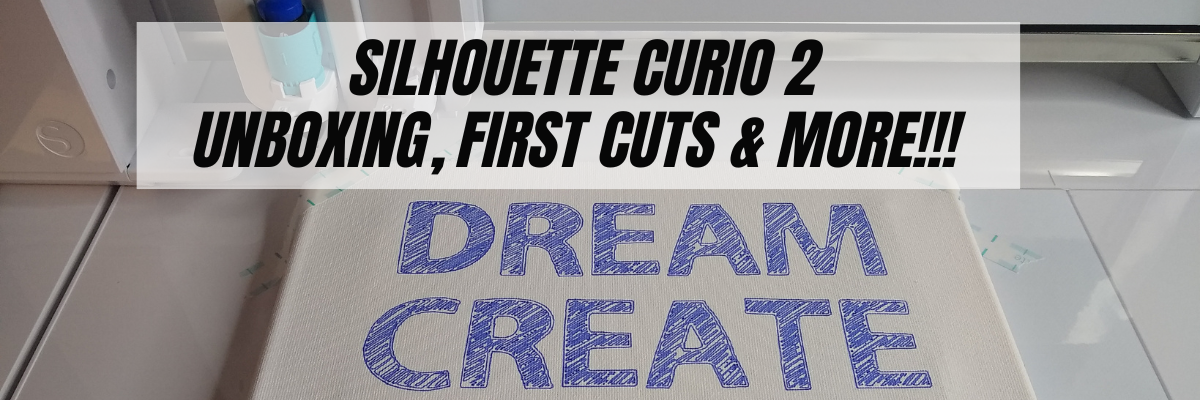
        Silhouette Curio 2 – Unboxing, First Cuts & More!!!

        What an exciting week it’s been! The new Silhouette Curio 2 arrived on my doorstep this week and I’m having a ball playing with it and testing it out!

        If you have followed me for any time, you’ll know that I am proficient with the Curio 1 and love all the fantastic projects that can be made with it. It is still a good machine and if you have one, you can still use it! I can help with that too!

        On the Silhouette Secrets+ Teachable site you will find 10 step-by-step classes that are all focused on the Curio 1. Check it out HERE.

        Now that the Silhouette Curio 2 has been released, I’ll be developing step-by-step classes for that too! So watch the Silhouette Secrets+ Teachable site for future classes.

        Affiliate links may be present in the following blog post and as an Amazon Associate I earn from qualifying purchases.

        For all the details regarding the 3 new machine models released at the Silhouette Summit 2023, check out this post – New!!! Curio 2, Cameo 5, and Portrait 4

        Now, before I go too much farther, I do want to let you know that the Curio 2 is limited in quantity in 2023. What is currently available is what is the inventory for the rest of 2023. But, don’t panic! There will be more coming in 2024 and there is lots of time to learn this new machine.

        If you want to add the new Silhouette Curio 2 to your toolbox right now, you can find it at CrafterCuts HERE.

        Whether you are diving into using the Silhouette Curio 2 or watching and waiting, I have resources that can help with this new machine.

        I have been updating my Silhouette Secrets+ YouTube channel with new videos as I am testing the machine.

        And to make it easy to find machine specific information, I’ve created a Silhouette Curio Playlist on the Silhouette Secrets+ YouTube channel. Find that HERE.

        The Silhouette Curio 2 is a completely different machine than the first model! It is a large machine too! The footprint of the machine measures in at 20″ x 24″ and will need a dedicated space to function properly. Please consider that before you purchase!

        However, I had a group member bring up a really good point. While the Silhouette Curio 2 is a large footprint that needs a dedicated space for it, it does take up less room than if you purchased a Silhouette Cameo 5 and the new Electrostatic Bed for the Cameo 5. It really depends on what your specific situation is and how your workflow is for you! Each user might be different and one machine may work better for one person vs another.

        I am having a blast with the new Silhouette Curio 2! It is a new machine and it will take time to learn! I feel that every single person could be successful with this machine IF you take time to learn it and use it properly. If you do not, you will likely hate it. That is not a machine fault, it is simply a personal preference.

        I want to share a few projects I’ve been doing with the Silhouette Curio 2.

        Here are my first cuts on Vellum paper using the Electrostatic (ES) bed on the Silhouette Curio 2.

        Such clean cuts. Check out my Silhouette Curio 2 First Cuts video HERE to see how I did, what issues I encountered, and how I worked through it.

        I had several questions about print and cut, so of course I had to test that! Here is a letter size sheet of sticker paper that was cut on the Curio 2 using the new ES bed. The new ES bed means that you no longer have to use a cutting mat for materials that are flat and smooth. The materials can be held in place by static charge. The ES bed is new for the Silhouette Cameo 5, Curio 2, and Portrait 4. It will take time to learn and you will need to set it up properly, but I can see so many new possibilities on projects and successful cuts when using it. The ES bed comes with the Silhouette Curio 2 in the box.

        Check out my videos on Silhouette Curio 2 Print and Cut with the ES bed and Tips for Success with the New Electrostatic Mat HERE.

        I used Koala sticker paper and a design by Wispy Willow Designs called Small Business Sticker Sheet.

        And then of course, once I showed this someone else asked about 12″ x 12″ cardstock, so that was the next project on my list.

        This is Recollection Cardstock from Michaels and I used several designs from Diva Watts Designs.

        And you probably guessed it, I shared it on YouTube too! Find the video on Silhouette Print and Cut – 12″ x 12″ HERE. See how easy it was with the new ES bed and cutting cardstock.

        On a side note, while at the Silhouette Summit 2023, I also was able to meet several of the Silhouette Design Store Designers for the first time – Wispy Willow Designs, Diva Watts Designs, and Sarah Hurley. We spent several meals together and it was a blast. Check out my introduction video direct from Summit HERE. Make sure to follow these amazing designers too, they are a few of my favorites from the Design Store. I look forward to future collaborations with them! Stay tuned!

        One of the new features of the Silhouette Curio 2 is it has a clearance of 20 mm. WOW! Yes, 20 mm. This is clearance under the tool housing. It is NOT cutting depth.

        It also has auto detection of material thickness. This is awesome!

        This means it opens up the possibilities of what projects can be done with the Silhouette Curio 2. Such as sketching on canvas and other thicker materials.

        I used a Silhouette sketch pen in the blue sketch pen adapter and sketched out this design on a 8″ x 10″ canvas with a sketch font called SNF Sketchbook by Illustration Ink. There is also a new sketch pen holder (Type C) coming for the Tool 2 housing that will be compatible with the Silhouette Cameo 5 and the Silhouette Curio 2.

        You will notice that the canvas is taped down on top of the ES Protective Sheet. I did have the ES bed on so the ES Protective sheet was secure and then taped the canvas to the machine so it would not move. Due to the surface of the backside of the canvas, it will not build up a charge directly on the ES bed to secure it. I also have a piece of wood inside the middle of the canvas for support.

        I did try to use the Silhouette Type A pen holder in the Carriage 1 housing, but 3 different pens I tried did not reach the material. I will need to test that some more and figure out why it wasn’t working like it normally would.

        Watch for a new video showing the sketch project on the Silhouette Secrets+ YouTube channel soon!

        I can’t wait to share more! So many projects, so little time!

        Save this for future reference by pinning the image below.

        Sign up for the Silhouette Secrets+ Newsletter too! Tips, “secrets”, announcements, tutorials, classes, and more delivered to your inbox each Friday.

        Silhouette Secrets+ Newsletter

        Never miss out on the news, tips, “secrets”, deals, classes, and more that I share on Silhouette Secrets+. Sign up for the newsletter and get information delivered to your inbox every Friday.
        Unsubscribe at anytime.

        Enjoy !

        THANK YOU for your support! How can you help? Click HERE & buy a coffee.
        Every little bit helps with the cost of running the site.

        Silhouette Classes

        Never stop learning! Let me help you take the anxiety out of learning with Silhouette and get to creating faster! My Silhouette classes are heavily focused on software, so you can take the skills & techniques taught and apply them to many future projects!

        Silhouette step-by-step Classes by Silhouette Secrets+

        **This post may contain affiliate links. What that means is that I may receive compensation if you purchase through the links I have provided. The price you pay for the product or service is not higher but I may get compensated for sharing.
        Posted on 13 Comments

        New!!! Curio 2, Cameo 5, and Portrait 4

        Are you ready for this? I am!

        Just announced at Silhouette Summit in Hawaii (September 2023)!!!
        Silhouette will be releasing 3 new machine models!
        Curio 2, Cameo 5, and a Portrait 4.

        All of these models have been redesigned and I’ll be sharing new tutorials and classes for each of them. Make sure to read to the end as I have a couple additional tips as well!

        Follow me on social media on Facebook, YouTube, Instagram, and Teachable for lots more information coming out as I get these machines and learn the ins and outs.

        Let’s take a quick look at each of these models and I’ll share a bit on some of the new features with each model.

        Affiliate links may be present in the following blog post and as an Amazon Associate I earn from qualifying purchases.

        Curio 2

        If you have followed me in the past, you’ll know the Curio 1 was amazing and I have quite a few classes where I show how to make fabulous things available on Teachable. All of those classes will still apply to the Curio 1.

        The Curio 2 is updated and completely redesigned! Now available at CrafterCuts HERE!

        New Curio 2 Features:

        • Flatbed cutting machine
        • Material stays stationary instead of rolling through machine
        • Clearance of thicker materials – up to 20 mm
        • Autodetection of material thickness
        • 12″ cutting area
        • 12″ Silhouette cutting mats can be used
        • 12″ Embossing mat available
        • Electrostatic bed and cutting mat – holds material in place without an adhesive mat. Additional accessories needed.
        • Curio Debris Tray – for use with Power Engraver, cutting mat, or Embossing mat
        • Tool 1 housing utilizes current Auto detection tools such as Type B Autoblade (see below)
        • Powered Carriage 2 housing
        • Carriage 2 has higher cutting force – max 5 kgf
        • New Tools for Tool 2: Heat Pen, Power engraver, and Leather Punch Tool (cannot be used for genuine leather), Embossing Tool, and Pen Holder
        • Emergency Stop to quickly stop a job without turning power off or disconnecting
        • Bluetooth

        Things to note:

        • Limited quantities as it rolls out, but more on the way
        • Accessories are not yet available at release but are coming!
        • Compatible Tools for Curio 2
          Carriage 1 – Autoblade Type B, Manual blade 1 mm, Manual blade 2 mm, 2 mm Kraft blade, Pen Holder Type B
          Carriage 2 – Rotary Blade, Punch Tool, 3 mm Kraft blade, Power Engraver, Leather Punch Tool, Heat Pen Set, Embossing Tool Type C, Pen Holder Type C

        Available at CrafterCuts HERE – $429.99

        Search Curio

        I am so excited to open the box on this new Curio 2 model! I love the challenge of learning a new machine and this is no different. I think this is going to be great with the ability to accommodate up to 20 mm in material thickness. Now, keep in mind, that does NOT mean a cutting depth of 20 mm. The cutting depth is still going to be only what the blade maximum length is, with test cuts and practice.

        As with any new machine model, it will take time to learn! Rome was not built in a day. You will need to take some time to get the feel for any new machine!

        Cameo 5

        New Cameo 5 features:

        • New sleek design including sliding lid
        • Easy Adjust Rollers – can adjust down to utilize 5″ wide materials
        • Autoblade adjustment area updated for efficiency
        • Adaptive Sensor – automatically adjusts the sensitivity of scanning sensor to properly scan materials for scanning on shiny or glossy surfaces
        • Electrostatic 12″ x 12″ mat for use with Electrostatic Protection Sheet
        • Attachable Roll Holder – included with machine
        • Auto Crosscutter – on front of machine
        • Repeat Job available on touchscreen
        • 12″ cutting width
        • Powered Carriage 2 housing
        • Carriage 2 has higher cutting force – max 5 kgf
        • New Tools for Tool 2: Heat Pen, Embossing Tools, and Pen Holder
        • Can utilize 12″ x 12″ Embossing mat
        • Emergency Stop to quickly stop a job without turning power off or disconnecting
        • Bluetooth
        • Colors being released: matte black, white, matte pink, bianco carrara (marbled)
        • Also available in Cameo 5 Plus – white – cutting width of 14.6″ like current Cameo 4 Plus

        Things to note:

        • Limited availability as it is released, but more on the way! New releases always take time.
        • Accessories are not yet available at release but are coming!
        • Compatible Tools for Cameo 5
          Carriage 1 – Autoblade Type B, Manual blade 1 mm, Manual blade 2 mm, 2 mm Kraft blade, Pen Holder Type B
          Carriage 2 – Rotary Blade, Punch Tool, 3 mm Kraft Blade, Heat Pen Set, Embossing Tool Type C, Pen Holder Type C

        Available at CrafterCuts HERE – $329.99

        Search Cameo 5

        Black machines will be the first available
        Cameo Plus will be available in white
        Please note the shipping notices and be aware that machines are in transit. This means that there could be delays. We all know that shipping delays are unpredictable, especially the past 3 years. Nothing as changed in that area or can be predicted.

        Many of the items that users were asking for on the Cameo 4 are now available on the Cameo 5. This includes the ability to move the rollers easier and in more places, repeat job, additional tools, embossing, cut and sketching ability without swapping tools, and more!

        I look forward to testing this out! Watch for more details on the Silhouette Secrets+ social channels I linked at the beginning.

        Portrait 4

        New Portrait 4 features:

        • Easy Adjust Rollers – can adjust roller down for smaller widths
        • Adaptive Sensor – automatically adjusts the sensitivity of scanning sensor to properly scan materials for scanning on shiny or glossy surfaces
        • Electrostatic mat for use with Electrostatic Protection Sheet
        • Auto Crosscutter – on front of machine
        • Repeat Job button
        • 8.5″ cutting width
        • Powered housing
        • New Tools: Heat Pen Set
        • Emergency Stop to quickly stop a job without turning power off or disconnecting
        • Bluetooth

        Things to note:

        • Limited availability as it is released, but more on the way! New releases always take time.
        • Accessories are not yet available at release but are coming!
        • Compatible Tools for Portrait 4
          Carriage 1 – Autoblade Type B, Manual blade 1 mm, Manual blade 2 mm, 2 mm Kraft blade, Pen Holder Type B

        Will be available at CrafterCuts HERE – $199.99

        Search Portrait
        Please note the shipping notices and be aware that machines are in transit. This means that there could be delays. We all know that shipping delays are unpredictable, especially the past 3 years. Nothing as changed in that area or can be predicted.

        The Portrait model is great for those who travel, sticker makers, quick cuts, or those who do not need to cut wider than 8.5″. It is easily portable at 4.41 lbs (2.0 kg). While lightweight and the smallest machine that Silhouette manufacturers, it is a powerful machine that can utilize the Silhouette Studio software offline, just like the larger Silhouette models.

        —————————

        Whew! That is a lot of information to throw out at you!
        I am excited! I love to learn new things and to share them!

        This news is fresh out of the Silhouette Summit September 2023, which means that things announced are not always available immediately. You will see these new things rolling out over the next few months.

        Now, the bigger question is….. Do you need any of these machines?

        Only you can answer that! Will you use them? Do you have a need (or want) for the new features on the Curio 2, Cameo 5, or Portrait 4?

        If the answer is yes – grab it CrafterCuts HERE or wait and follow along on my journey with the new machines. I will be sharing new things as I unbox and start to test the machines and see what they can really do!

        One of the biggest things I can tell you is all new machines take time to learn! It really does not matter your experience level and often we find that “experienced” users have a harder time adjusting to a new machine because they think it should work like the older model. New machine = new cut settings = new ways of doing things = new tools = new learning curve = new possibilities!

        The next biggest tip I can give is, if you do get it, GET IT OUT OF THE BOX! If it’s just going to sit in the box, then there is no rush to get a new machine. These are brand new, freshly released machines and will be around for awhile. There is no need to rush into anything.

        See, I don’t make a great salesperson. I am not a salesperson at all. I want you to be successful and I want to see you make fabulous things! That is why I share and teach!

        I hope you will join me on my journey of learning! Make sure to follow on my social media channels Facebook, YouTube, Instagram, and Teachable as I share more!

        Sign up for the Silhouette Secrets+ Newsletter too! Tips, “secrets”, announcements, tutorials, classes, and more delivered to your inbox each Friday.

        Silhouette Secrets+ Newsletter

        Never miss out on the news, tips, “secrets”, deals, classes, and more that I share on Silhouette Secrets+. Sign up for the newsletter and get information delivered to your inbox every Friday.
        Unsubscribe at anytime.

        Save this for future reference by pinning the image below.

        Enjoy !

        THANK YOU for your support! How can you help? Click HERE & buy a coffee.
        Every little bit helps with the cost of running the site.

        Silhouette Classes

        Never stop learning! Let me help you take the anxiety out of learning with Silhouette and get to creating faster! My Silhouette classes are heavily focused on software, so you can take the skills & techniques taught and apply them to many future projects!

        Silhouette step-by-step Classes by Silhouette Secrets+

        SS Logo snip it
        **This post may contain affiliate links. What that means is that I may receive compensation if you purchase through the links I have provided. The price you pay for the product or service is not higher but I may get compensated for sharing.