Posted on 1 Comment

Silhouette Library Issues

We troubleshoot thousands of issues each week on social media and one of the questions we see often is about Library issues.

Most times it is a simple fix if the steps are followed properly.

One of the common ones we see is when a user’s library is showing as “Working Offline” in the bottom left corner. I find this happens if my internet connection changes such as when I’m traveling or the internet connection is dropped.

We saw it so much that in 2020 I published a tutorial called Let’s Explore v4 – Designs Not Downloading and shared the steps to take to fix this issue.

Check out that tutorial HERE.
It still solves 98%+ of the library issues.

However, there are times that the above does not work, so I thought I’d share where you can find more information about specific library issues.

Silhouette America has recently updated their Support FAQ area and it is a bit more search friendly to find information you might need.
Check out this post HERE on the Updates to the Silhouette America website.

Backup User Designs!!!!

As a note, it is ALWAYS recommended that you have any of your user designs backed up to an outside source. I do not recommend using the Silhouette library as your file storage as it is not designed as an all inclusive storage area but as a syncing device. This is one reason that the library is limited on storage space.

If you are using a Silhouette Studio version of v4.4.552 or higher, you can easily export individual user created designs as individual files and I HIGHLY recommend that you do this – right now if you have not already done it!

Check out this tutorial on how you can Export Individual User Designs HERE.

Silhouette America Support Information

I want to share more information that can easily be found on the new Silhouette Support site.
If you are experiencing any of these issues below, click on the title to be taken to step-by-step tips to help get you back on track.

Missing Library Content Between Computers or Programs

User Content Lost from Library

Library Sync Error – Doesn’t Ever Stop Syncing

Moving to a New Computer
Also check out this tutorial on the Silhouette Secrets blog on New Computer Tips HERE

Library Sync Error – Too Many Devices

Library Sync Error – Insufficient Storage

Library Sync Error – General Error Icon

Design Thumbnail Partially Missing
Note: at the time of this publication, I am not recommending v4.5.152 – if you choose to update to fix this issue, I would recommend updating to Beta v4.5.171 – however, please note that Beta versions can have unknown bugs. But, I still would recommend it over the bugs that are in v4.5.152.

Now, those are just a few of the items when I searched “library” under the new Silhouette America Support site.

Silhouette America Support

Silhouette Support has changed over the years since I started as an TJC Licensed Silhouette Instructor.
At the time of this publication, they have not had phone support in 4-5 years.
I can agree with this 100% as troubleshooting by telephone is very, very difficult – if not impossible in most situations. You cannot provide photos or videos of the issue you are having and the Support staff cannot provide a list of instructions that will help to solve the problem.

Currently, the only way to get in touch with Silhouette Support is through the online Support request found HERE or in the bottom right corner of the Silhouette America website.

Most issues that a user has could be solved by a quick search of the Silhouette America Support Solutions center and following the instructions exactly like they are written.

However, there are some cases where a Support tech is needed to address an issue. In that case, you will need to fill out all of the questions regarding the support request. And then make sure you complete it & that it gets fully submitted to them.

When you submit a request to Support, the best thing you can do is provide as detailed of a description as possible, photos of the issues, and/or video of the issue if necessary. This can help you get a diagnosis faster in most cases.

A support ticket that states “My machine won’t cut, fix it!”, really does not help you get an answer faster or help the Support Staff diagnose what issue you are having. It’s like throwing mud against the wall to see what sticks.

After you have submitted the issue to them, you will need to be patient and wait. The emails are answered in the order they are received in and you are in a line. There are other users with an issue that are ahead of you in that line and you don’t get to skip to the front because you feel your issue is more important.

Again, the more details you can provide when you submit your issue, the better chance you have of getting a diagnosis faster.

On that note, if you are having cut issues, follow this Troubleshooting Video HERE step-by-step and it fixes 98%+ of the cutting issues that we see.

We troubleshoot thousands of issues weekly across social media platforms and in most cases ask for photos and/or videos in order to diagnose the issue. You would probably be amazed at how many times we spot something in the photo or video that we weren’t even looking for that is culprit of a cut or software issue. Without seeing the photo or video, we would have never diagnosed it and the user would have continued to be frustrated.

I posted this on the Silhouette Secrets+ with EllyMae Facebook Group awhile back and thought I’d share here too!

Troubleshooting tip….

When we ask for a photo of the blade installed in the machine with the mat loaded, it is NOT just to look at the blade installation. There are MANY things we can tell from this photo that can help in identifying the problem. Most times it’s a quick fix. Otherwise it can be like throwing mud against a wall to see what sticks….. And sometimes it’s not specifically what we are looking for but what doesn’t look right – for instance, an adjustment hole blocked or vinyl stuck to the bottom of the blade.

A photo is really worth a thousand words.

Here are just a few things I can identify from a photo:
– blade housing alignment
– is the cutting mat covering adjustment holes
– adjustment holes have debris
– adhesive build up on rollers
– debris stuck in the machine
– what machine model it is
– what blade is being used
– is the cutting mat loaded sideways
And yes, if the blade is installed and locked in.

Those are just a few…. it would amaze you the little things we have picked up on that are the cause of a cut issue just from a photo. And until the underlying issue is identified and resolved, a user will continue to experience cut issues.

Silhouette “Secrets”

This blog post originally started as just troubleshooting for the Silhouette library and issues you may have. However, I couldn’t just stop there.

What is my “secret” to troubleshooting?

1 – Experience!
On my recent trip to Italy with Siser, our tour guide in Venice said she would get so many people questioning how she knew something. She said it took her awhile but she finally came up with an answer.
EXPERIENCE!

The more you do this, the more you watch your machine, the more familiar you become with the Silhouette software and the Silhouette machines, you will start to see how things work. Or be able to spot when something is “off” and then upon closer examination can figure out what is the cause.

I have been teaching Silhouette users since 2016 and I troubleshoot daily. I see a lot! I also watch my machines work and I listen to them! Yes, they will talk to you or at least you can hear when they yell at you when something might be wrong.

2 – I have no “secret”.
I treat each case I troubleshoot as a new issue because there is no one button fix for all issues.
No matter the experience level of the user, I follow the same steps in troubleshooting.
To be honest, for experienced users it’s often harder to troubleshooting with them because they are not always as willing to following instructions or provide us the information needed to help them.

Tip: When asked to provide information, photos, or video – the faster you do it, the faster you are going to get help and fix any issue you are having.
Help us, help you!


I hope these tips help you on your Silhouette journey!

Watch for more from me on the Silhouette Secrets+ blog and YouTube channel!
Make sure to subscribe to the blog, sign up on my Teachable site, and Like and Subscribe to YouTube so you don’t miss anything new!

Find all the current Silhouette classes on my Teachable site HERE.

Want to save on Silhouette supplies?

CrafterCuts, a Silhouette Authorized reseller

And I have a coupon code to save 10% on your order
Use code SECRETS at CrafterCuts
Get free shipping with a $35 order
I always recommend having extra blades and mats on hand for your projects!

We love seeing what you are creating with your Silhouette machines or software.
Feel free to post photos or questions on my Facebook group at 
Silhouette Secrets with EllyMae.

Save this for future reference by pinning the image below.

Enjoy !

This image has an empty alt attribute; its file name is logo.jpg

THANK YOU for your support! How can you help? Click HERE & buy a coffee.
Every little bit helps with the cost of running the site.

Or if you are looking for more in-depth, step-by-step classes, check out all of my online Silhouette classes on my Teachable site HERE.

SS Logo snip it
**This post may contain affiliate links. What that means is that I may receive compensation if you purchase through the links I have provided. The price you pay for the product or service is not higher but I may get compensated for sharing.
Posted on 1 Comment

SVG Merge – a Neat Tool To Save Time!

Just a quick post to share a very neat tool that I find is going to save me a lot of time in the future!

Affiliate links may be present in the below and as an Amazon Associate I earn from qualifying purchases. What that means is that I may receive compensation if you purchase through the links I have provided. The price you pay for the product or service is not higher but I may get compensated for sharing.

If you have not heard about this awesome company called Dreaming Tree, they are a company that has files for paper crafters of all kinds. A lot of 3-D paper crafting projects, but also flat ones as well!

They have lots of FREE files too in case you just want to play and test whether you will like the files or not.

Make sure to scroll down on each file to see the assembly video that they record for every single svg file they create!

Now, the Dreaming Tree website is not the main news I wanted to share, but it is an awesome site and brings me to the neat tool!

When you download Dreaming Tree files, you will notice that the pieces to each file are saved individually and not all in one svg file. This may seem odd at first, but here is why.
This makes the files compatible with many different cutting machines.
In the past, some programs changed the way they opened svg files and when the pieces were saved all as one file, it caused issues. This meant that Dreaming Tree had to redesign every single file to be compatible with those changes for certain programs.
So instead, they now offer each piece as an individual file.
Dreaming Tree has a vast collection of files and some of those can have a lot of pieces.
They are so neat when they are constructed!

This also means that you have to open each piece and then merge them onto one file if you so choose.

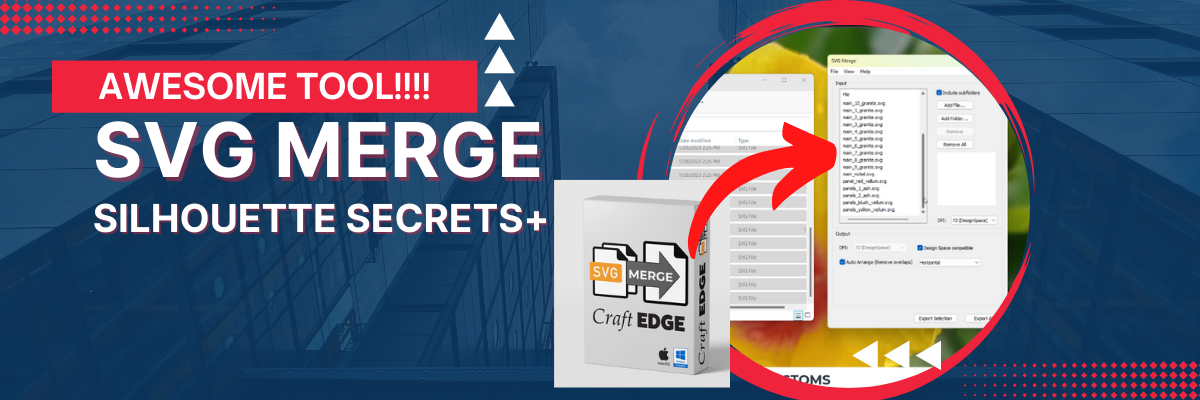
Unless you have this neat tool called SVG Merge!

Now, yes – this is a separate purchase, but I totally think it’s worth the cost if you use the Dreaming Tree site!

But, don’t take my word on it, let me show you!

I have 2 new videos out showing how this can help you as a Silhouette user or a Siser Juliet or Romeo cutting machine user.

First, here is the Silhouette Studio video.

Video from the Silhouette Secrets+ YouTube channel

And here is the video showing how it works in Leonardo Design Studio for the Siser Juliet & Romeo cutting machines.

Video from the Swift Creek Customs YouTube channel

As you can see in either video, I was so excited to share!

If you think this might be something that is a good tool for you, check it out

HERE

And I’ll share a couple of the Dreaming Tree files that I recently cut.

Tipsy Turkey Wine Wrapper and I turned it into a card as well.

This is the Father’s Day Crate and a poinsettia from the Poinsettia Planter file.

I have seen so many cool ideas done with this crate on the Dreaming Tree Facebook Group HERE.
There are often times that I may not be jumping to grab the design right away when it’s released, like this Father’s Day Crate, but then I see all the amazing pieces of artwork that other users are creating with it in the group and I HAVE to get it!

I also have all the pieces cut to build myself a snowman, but just need to take the time to do that.
Hopefully soon!

Frosty Gift box file found HERE.

I’ll share more when I have him finished up!

I hope you have a great day and get to be creative!

Save this for future reference by pinning the image below.

Enjoy !

THANK YOU for your support! How can you help? Click HERE & buy a coffee.
Every little bit helps with the cost of running the site.

Looking for more in-depth, step-by-step classes, check out all of my online Silhouette classes on my Teachable site HERE.

SS Logo snip it
**This post may contain affiliate links. What that means is that I may receive compensation if you purchase through the links I have provided. The price you pay for the product or service is not higher but I may get compensated for sharing.


Posted on 1 Comment

Silhouette Software Updates – Curio & Alta Owners

Changes. No one really likes them, but they are a fact of life!

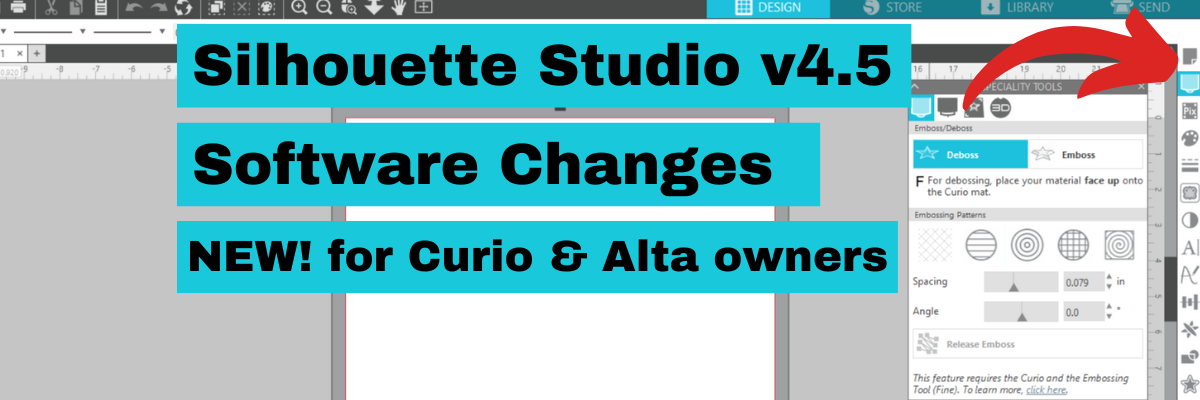
That is no different in the Silhouette Studio software. Today I am sharing a new change in the Silhouette Studio software in versions of v4.5 and higher.

This change affects Curio & Alta owners most, but all users will notice a new icon appear on the right side of the Silhouette Studio software after updating to version 4.5+.

While I am NOT recommending to update to v4.5 versions at this moment unless you absolutely have to, I do want to make you aware of the change so you don’t panic when you see it.

In the top right corner of the Silhouette Studio software on versions of v4.5 and higher, you will now see a new icon that is called Machines Featured Panel.
This is where the Curio Panels and the Alta Panel is now located.

Here is a little bit closer look.

Nothing has disappeared, it is just in a new location.

If you have purchased one of my Silhouette Curio classes on the Silhouette Secrets+ Teachable site, I have now added a new video section in to the beginning of each class that explains this update.

You can also find a quick video showing the update on the Silhouette Secrets+ YouTube channel HERE.

Hope this information helps when you see that odd new icon show up on your software.

Again, at the time I’m writing this, I am still not recommending v4.5.152 which is the current version. There are some not so nice bugs in it.

Let me know in the comments below if you have questions.

Save this for future reference by pinning the image below.

Enjoy !

THANK YOU for your support! How can you help? Click HERE & buy a coffee.
Every little bit helps with the cost of running the site.

Looking for more in-depth, step-by-step classes, check out all of my online Silhouette classes on my Teachable site HERE.
SS Logo snip it
**This post may contain affiliate links. What that means is that I may receive compensation if you purchase through the links I have provided. The price you pay for the product or service is not higher but I may get compensated for sharing.
Posted on Leave a comment

Artesprix Stamp Pads & Guest Blog Post

I am so excited to share this post today! I have a hard time keeping things under wraps, especially when I had so much fun creating a project!
But due dates do that to us – they make us exercise patience!

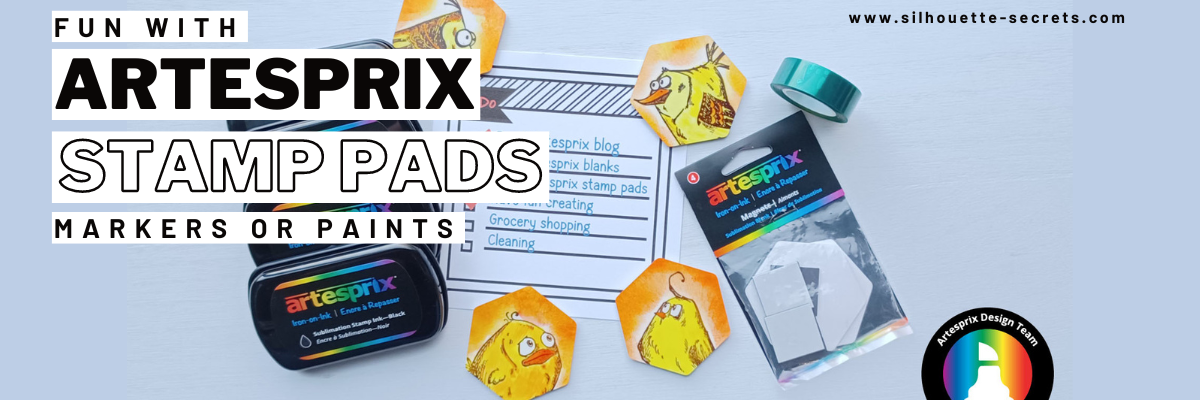
I was asked to be a guest designer on the Artesprix blog for January 2023 and in the beginning of December 2022 I started playing with my supplies. Well, it snowballed and the project was done before I knew it and then I had to wait a whole month to share! But it’s here – check out these funny birds!

I have a full step-by-step tutorial on the Artesprix blog showing you how easy it is to make something like this! All of the supplies are linked on the step-by-step tutorial so you can create too!

Click HERE
to see the step-by-step on the Artesprix blog

And I also have a step-by-step YouTube video on the
Silhouette Secrets+ YouTube channel.

Check it out HERE!

There are so many mix and match possibilities with the Artesprix supplies.
Whether it is stamps, markers, paints, with a cutting machine or without – so many projects, so little time!
Can’t wait to create more things and share!

Save this for future reference by pinning the image below.

Enjoy !

THANK YOU for your support! How can you help? Click HERE & buy a coffee.
Every little bit helps with the cost of running the site.

Looking for more in-depth, step-by-step classes, check out all of my online Silhouette classes on my Teachable site HERE.

SS Logo snip it
**This post may contain affiliate links. What that means is that I may receive compensation if you purchase through the links I have provided. The price you pay for the product or service is not higher but I may get compensated for sharing.
Posted on 3 Comments

New Silhouette Curio Acrylic Etching Class Released

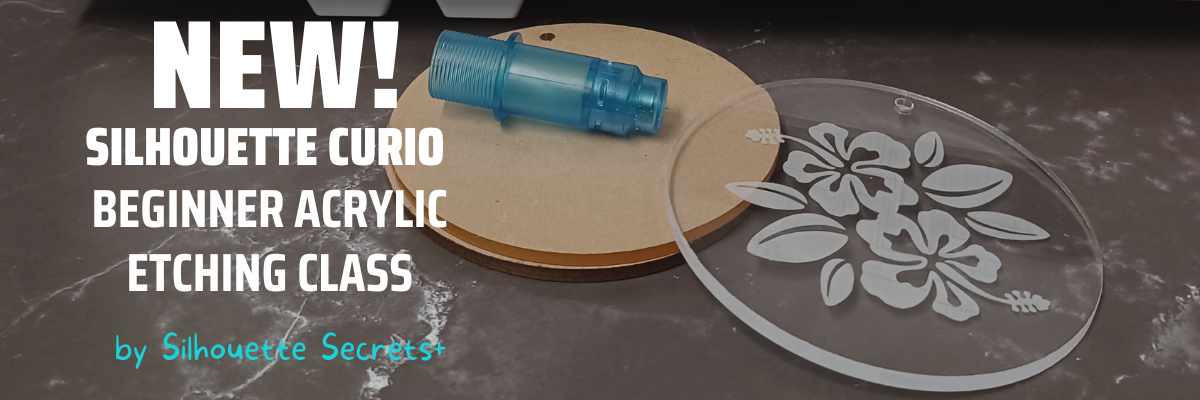
I’ve just released this new Silhouette Curio Beginner Acrylic Etching Class on the
Silhouette Secrets+ Teachable site!

This new Curio etching class has been designed to show how the Silhouette Studio software has changed in v4.5 software (don’t worry, you do NOT need to update), but I show you how it has changed.
And I designed this class with tips for all acrylics in general, not just from one source.

In this step-by-step class we will discuss the supplies for etching acrylics with the Silhouette Curio and the entire process to get set up etching acrylics. I will share all of my tips & tricks for getting a good etch on acrylics. This class is designed to give you the tools and resources so you can test and etch on any acrylics that you might be able to source.
Plus bonus information on etching on other size blanks too!

Find it HERE on the Silhouette Secrets+ Teachable site

I am also including the class supply list and the supplies I shared in the bonus examples too!
This information is also in the class description on the Silhouette Secrets+ Teachable site and again in the class as a downloadable PDF document too!

Affiliate links may be present in the below and as an Amazon Associate I earn from qualifying purchases. What that means is that I may receive compensation if you purchase through the links I have provided. The price you pay for the product or service is not higher but I may get compensated for sharing.

Supply list

– Silhouette Curio Machine with all platforms & cutting mat
– Silhouette Etching Tool
– Acrylic Blanks
143Vinyl Acrylic Blanks can be found HERE
*I will update and add more as I test with new vendors
– Double sided tape
Hibiscus Flower Bunch by Samantha Walker – Design #10873
Digital Calipers or a ruler with mm
– Sharp point weeding tool

– Additional Supplies shown in bonus information
Acrylic Square Blank for LED Base
Acrylic Circle for LED Base
Shape template files available from 143Vinyl for acrylics purchased
Sea Turtle Wisdom design by Jillibean Soup
Not All Storms Come to Disrupt design by Jillibean Soup
Wood base from Amazon
LED light base from Amazon (optional)

I designed the class so you can start with the small design and then apply the same exact techniques to larger projects such as these below. In the bonus information I share tips on how to work with these different size acrylic blanks.

The biggest thing is TO JUST GET STARTED!

The Silhouette Curio is an awesome machine and I share why in this new class. Get it out and start creating fabulous projects with it!

I hope you will join me and then share your creations on the Silhouette Secrets+ Facebook Group!

I have several more Silhouette Curio Classes available on my Teachable site HERE
as well as other Silhouette Classes too!

Save this for future reference by pinning the image below.

Enjoy!

THANK YOU for your support! How can you help? Click HERE & buy a coffee.
Every little bit helps with the cost of running the site.

SS Logo snip it
**This post may contain affiliate links. What that means is that I may receive compensation if you purchase through the links I have provided. The price you pay for the product or service is not higher but I may get compensated for sharing.
Posted on Leave a comment

Silhouette Curio Chalkboard Class

This is not something I do often, well in fact, it’s the first time ever!
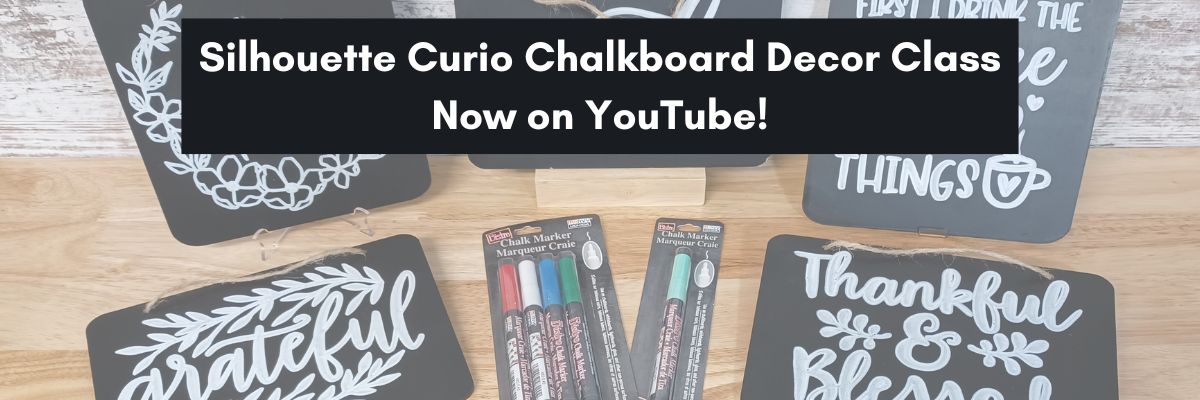
I just published one of my step-by-step Silhouette Curio classes to the
Silhouette Secrets+ YouTube channel.

It can also be found for Free on my Silhouette Secrets+ Teachable site HERE, if you prefer not to watch through YouTube.

This is a rare “wild hair” because classes take a lot of time to develop, test, record, and edit.
But, why not mix things up a bit this year!

If you have a Curio, this is a fun project to do!

This is the full, step-by-step course. Nothing is left out or skipped over to shorten it for YouTube release. I share so many tips to working with the Curio in this video, it would be hard to chop it up.
In fact, I edited the videos again to add 2 bonus videos to the end so you can see it all exactly as I created it.
The full class is 1 hour and 30 minutes long and you can view it all!

Supply list

Affiliate links may be present in the below and as an Amazon Associate I earn from qualifying purchases. What that means is that I may receive compensation if you purchase through the links I have provided. The price you pay for the product or service is not higher but I may get compensated for sharing.

These are the supplies I used in this class to create these chalkboards:
– Silhouette Curio machine, Silhouette small base cutting mat, Curio platforms and base
– Chalkboard sign – Michaels – 6.6” square, arrow shape, rectangle shape
Michaels bulk chalkboard options – rectangle 8 pk, arrow 8 pk, Square 8 pk
or Amazon
NOTE: chalkboards can vary in thickness – it needs to be under 5 mm thick & fit on the Curio base
No frames or borders. Remove any twine attached.

Create by Cali Arroyo – Design #215617
Bistro Chalk Marker by Marvy Uchida White
– Optional: Bistro Markers Colors – Fluorescent, Primary
– Silhouette Pen Holder Type A – Silhouette America, Amazon
Digital Calipers – highly recommend for Curio projects
– Ruler with mm
White Chalk
– Clean Towel
– Notepad & pen
– Optional designs also featured: Design #317171, Design #404761, Design #304784,
Design #400058, Design #229894, Design #154513
Optional: extra twine, scissors

I hope you’ll join me in creating fabulous projects with your Silhouette Curio!
Find all the Silhouette Curio classes on my Teachable site HERE.

Save this for future reference by pinning the image below.

Find the video on the Silhouette Secrets+ YouTube channel
or on my
Silhouette Secrets+ Teachable website.

Enjoy!

THANK YOU for your support! How can you help? Click HERE & buy a coffee.
Every little bit helps with the cost of running the site.

SS Logo snip it
**This post may contain affiliate links. What that means is that I may receive compensation if you purchase through the links I have provided. The price you pay for the product or service is not higher but I may get compensated for sharing.
Posted on Leave a comment

January Featured Silhouette Class & More!

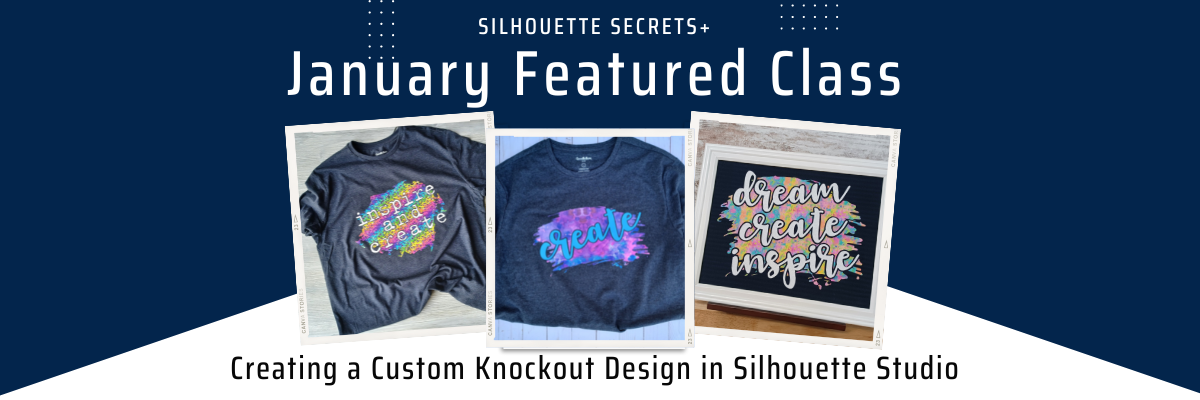
Something new I’m starting for 2023 is a featured class each month with a coupon code for that class.

This month’s features class is

Creating a Custom Knockout Design in Silhouette Studio

In this class, you will create your design!
I show you how to download an image, trace, work with compound paths, text, offset, and the modify-subtract tools. Through this step-by-step class I explain what we are doing with each tool used. The techniques learned in class can be apply to many future projects.
I cannot wait to see what you create!

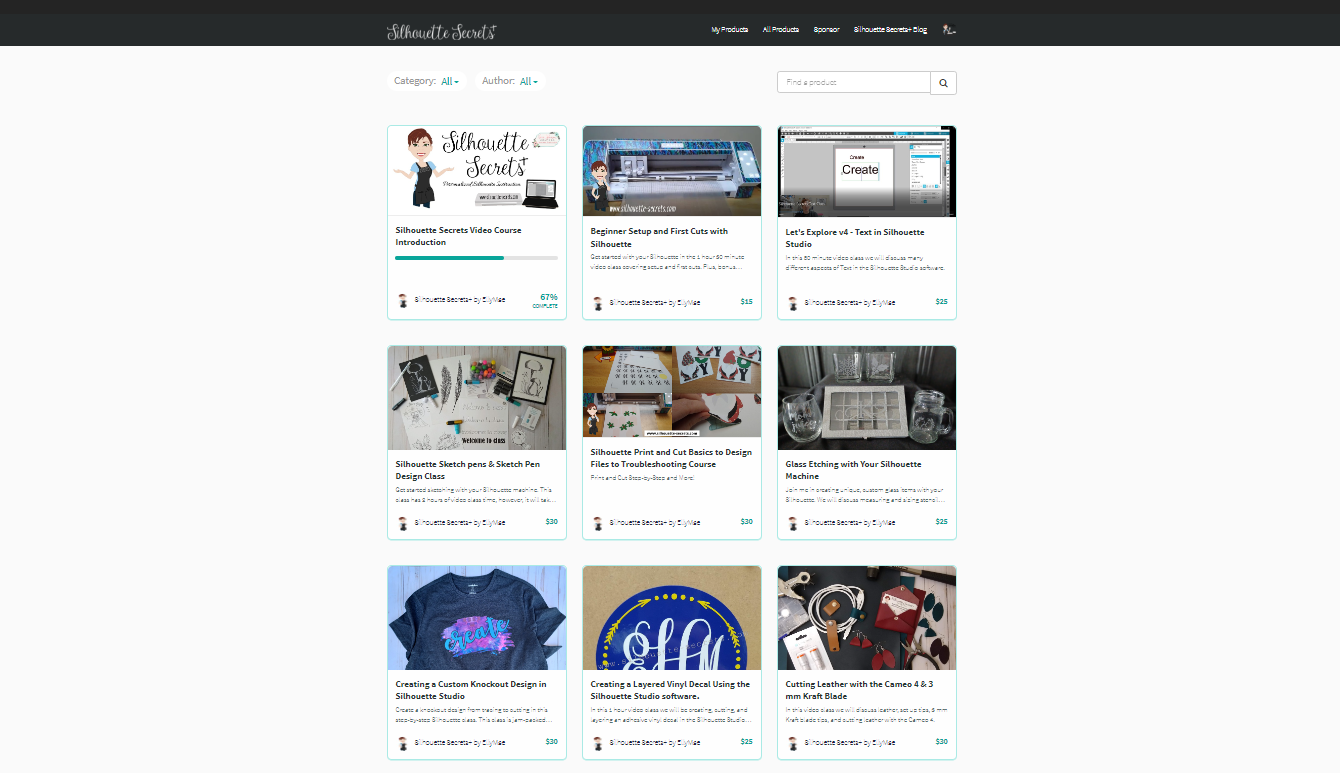
Check out the full class description, supply list, and class content HERE.

And use coupon code KNOCKOUT2023 to save $5 off this class.
Good through 1/31/23.
There are now 2 purchase options.
A 60-day access and a lifetime access. This is also NEW for 2023!

I am also sending out a newsletter on the 5th of each month from my Teachable site. Anyone who is registered on the Silhouette Secrets+ Teachable site and has not opted out of the notifications will receive the newsletter and information early in the month.

Silhouette “Secrets”
– Because some things are just too good not to share! –

One other thing I am starting for 2023 is sending out some of the “secrets” I have taught either through written tutorials or videos throughout the past years. I have 6+ years of blog tutorials that are available to access any time. This will help to highlight some tools that you may not even know you want to learn about.

Silhouette “Secret” #1

As we begin this new year, let’s talk organization!
First, I am not a great example of keeping things organized. If you get a glimpse of my files, I am more of a “hot mess express” as I’ve collected things over the years.
However, if I could go back and start over, I would.
I do have a system and it works for me, it just may be a little crazy at times.

Last year I published a series of specific tutorials regarding organization that pertain to your Silhouette files.

These include:
Silhouette Backups – Most Important!
Silhouette Library Organization
and
File Organization

Find them all on the Organization Section on the blog HERE.

You will also see a tutorial in the Organization Section about How to Export Individual Files.
This can be very helpful to those users who save their files to the Silhouette Library.
Find it HERE.

Silhouette “Secret” #2

How about tools?
I love tools but what I love more is having tools handy and ready for me to grab easily for my project. I recently received a new tool kit and fell in love with 2 tools in particular – the weeding pen and the scraper.

Check out this new video on the Silhouette Secrets+ YouTube channel where I share the use of these tools HERE.

And I couldn’t stop there, but I also shared 5 Tips for Weeding Success on the blog HERE.

The pink weeding tool turned out to be my favorite in this design that took 2 hours and 20 minutes to weed completely. It was the most comfortable to use and the sharp point stabbed those small pieces well.

Silhouette “Secret” #3

As I look through tutorials, I can’t share just one as the 3rd secret.
I’ll try to be more precise in the future, but I’ll keep it short by just providing a list of a few that might be helpful and maybe one will jump out at you.

Silhouette “Secret” to Working with an Uncolored Design
Cutting Multiple Colors at Once with Silhouette
How to Apply Vinyl Straight on Acrylics
Silhouette Studio v4.5 Updates – SVG Files Opening Blank
How to Install a Legacy Version of Silhouette Studio

I hope this month’s “secrets” help you to be more successful with your Silhouette!

Watch for more from me on the Silhouette Secrets+ blog and YouTube channel this month!

Find all the current Silhouette classes on my Teachable site HERE.

I wish you a great start to 2023 and I hope I can help you learn more about your Silhouette!

THANK YOU for your support! How can you help? Click HERE & buy a coffee.
Every little bit helps with the cost of running the site.

SS Logo snip it
**This post may contain affiliate links. What that means is that I may receive compensation if you purchase through the links I have provided. The price you pay for the product or service is not higher but I may get compensated for sharing.
Posted on 1 Comment

New Craft Favorite Tools to use with Silhouette and other cutting machines!!!

Short and sweet today but I’m so excited to share this with you!

A few weeks back I posted about a great gift idea for a crafter.
Tool Kits – check out that post HERE!

I’ve been using the tools and I’m in love with a few in particular.

This week I shared a new YouTube video on the Silhouette Secrets+ YouTube channel this week showing a demonstration of why I’m in love and I wanted to share that with you.

Check out that new video

HERE

I am in LOVE! I know I get excited about the little things but I do!

And maybe only another paper crafter will understand my excitement but this tool kit is great no matter what kind of crafter you are!

Here is a close up clip of the pieces flying off my cutting mat

Affiliate links may be present and as an Amazon Associate I earn from qualifying purchases.

This CrafterCuts 7 piece Vinyl Tool Kit can be found HERE.
Use code SECRETS to save 10% too!
And free shipping on orders over $35.
Don’t forget to stock up on Silhouette cutting mats and blades if you need them!

I can’t wait to see what you create this year!
I know with this tool I won’t be shying away from some intricate paper cuts.

Save this for future reference by pinning the image below.

Enjoy !

THANK YOU for your support! How can you help? Click HERE & buy a coffee.
Every little bit helps with the cost of running the site.

Or if you are looking for more in-depth, step-by-step classes, check out all of my online Silhouette classes on my Teachable site HERE.

SS Logo snip it
**This post may contain affiliate links. What that means is that I may receive compensation if you purchase through the links I have provided. The price you pay for the product or service is not higher but I may get compensated for sharing.
Posted on 3 Comments

Silhouette Studio & a New Computer

New computer – Now what?

Are you a Silhouette owner and just got a new computer? Not sure where to go from there?

It is pretty easy to get setup and running with a new computer and I’m going to share a few tips.

First when you get a new computer, be prepared that it will take a little bit for it to be ready for you to start using. There will be some computer setup instructions for you to follow. And if you are a Windows owner, you may find that you have a lot of Windows updates that need to install in order to get it ready for use.
Be patient and let it setup correctly. I know you are excited, believe me, I always am too!
But, there really is no rushing it.
The updates will finish when they finish.

Steps to Setting Up a New Computer with Silhouette Studio

Below I’m going to list the steps to start with when setting up a new computer with Silhouette Studio.
Each step in this process has some tips that can help you get set up faster and I’ve included important information in detail below.
I would highly recommend reading the entire post before you get started.

1 – Download Silhouette Studio from the Silhouette America website
2 – Activate Software Upgrades
3 – Log in to the Silhouette Library
4 – Install Fonts
5 – Export User Designs

IMPORTANT TIPS!

1. Silhouette Studio Software Installation

When you get a new computer, you will first need to download the software on to the new computer.
This can be found on the Silhouette America website.
Click on Software & then Get Software

For the Silhouette cutting machines, you will select the Silhouette Studio option.

For the current version of the software, you simply click Download and it will download the current version to your computer.
It is the Basic software program. We will talk about upgrade activation further down.

Note: As of the publication date of this post, I DO NOT recommend the current version unless you have a Silhouette Auto Sheet Feeder to use. I would highly recommend v4.4.554 for most users.

Legacy Versions

To find Legacy versions click on Learn More

Click on Download Legacy Versions

Choose which Legacy version you want to install

This will download the installer to your computer and you will open that to start the installation.

Click HERE to go directly to the Software download page.

There may be some pop ups that come up that need approval in order to proceed. Watch the bottom task bar for any flashing shields if the pop up doesn’t actually pop up.

If a flashing shield appears, click on it and then approve ALL the pop ups.
If you do not click on the shields to approve, it will look like it stalled, but it is waiting on you!

Once the installation is complete, you can open the Silhouette Software.

If by chance you have a new Windows Computer and it is running in S mode, it will not let any program that is outside of the Microsoft Store install on the computer. You will need to take it out of S mode in order to install any programs, including the Silhouette software.
For more information on how to take it out of Windows S mode click HERE.

2. Activate Silhouette Studio Upgrade

Affiliate links may be present in the following blog post and as an Amazon Associate I earn from qualifying purchases.

Silhouette software upgrades include Designer Edition, Designer Edition Plus, and Business Edition. These upgrades unlock features that are in the software.
To see what each upgrade unlocks, click the Feature Comparisons to find out more information.
Find this HERE

This will bring up a chart you can scroll down through to see what features are with each upgrade.

Check out my favorite features of the software upgrades HERE in this post on
Software Upgrade – My Favorite Features.

Upgrades activation on current software

If you are using a software version of v4.4.554 or higher, you do not need to enter your upgrade codes in the software. Click on Help – Apply Upgrade Edition and enter your log in information. Do NOT enter your upgrade codes. Once you log in with your Silhouette account info, your upgrade should be active on any computer you log in to.

This is a new feature and is only available in software versions of v4.4.554 or higher. The upgrade can only be active on 3 computers at a time. If you log into a 4th computer, it will deactivate on the oldest computer that has not been active.

For more information on this in detail, check out this post
Let’s Explore v4 – How to Activate an Upgrade

Upgrades activation on legacy software

For older software, software upgrades do not automatically activate when you download the Silhouette software to a new computer. If you have ever entered an upgrade code, you will need enter the upgrade codes in the order that you purchased them for it to activate on the new computer. So if you purchased the Designer Edition and then the Business Edition later, you would need to enter the code for Designer first and then Business next. If you try to enter Business Edition first, you will get an error and it will not activate.

If you are a brand new user, there is a new system that is in process and you can activate the upgrade on the Silhouette America website to be used on any computer you log into. This is still very new and only available for those that are brand new and have never entered an upgrade code as of 10/15/21.

If you do not remember what the codes were, you can easily access them under your Silhouette account information in the Silhouette Design Store. Open the Silhouette Design Store, make sure you are signed in, move the mouse over the person icon in the top right corner, and then choose Account Settings.

Design Store screenshot copy.jpg

Then click on the License Keys section.

3. Log in to the Silhouette Library

Once the software is open, click in the top right corner on the Library tab.

Library tab copy.jpg

Enter your Silhouette Account information and all of the files that are in the Silhouette Cloud should Sync up. It will depend on how many files you have in your Silhouette library on how long it will take to fully sync. Another hurry up and wait moment.

As a point of reference, I have high speed internet and 12,000+ files. This took approximately 3 hours to sync my library completely. Keep in mind that each of those files has to sync fully to the new computer.
That is a LOT of data, but just depends on how many files you have in the library.

Plug in Silhouette machines to computer & turn on

If you have an older model Silhouette machine of a Cameo 3 or older, the free files download to the library once the machine is recognized. Plug in the Silhouette machine, turn it on, and click on the Send tab.
Once it has recognized the machine, then the files will download to the library.
You will need to do this for ALL machines that you have had plugged into your software to get those free files to download.

If you have multiple machines, click on the little machine icon in the bottom right corner of the Send tab to choose the machine you want active.

This will also unlock any panels that are associated with a particular machine such as the Emboss Panel for the Curio or the Stipple Panel for the Cameo 4, Cameo 3, Portrait 2, and Curio machines.

Exporting files on old computer

Note: this is only needed if files cannot be recovered in another way

If there are files that did not show up when you logged in and the library synced, the first reason would be they are the free with machine and I would suggest looking at the above information again. If you have done that, then it could be because those files were only stored on the Local User section of the old computer. This will be dependent on the Silhouette software version you were using before. If you were using a version prior to v4.1, you will find more tips on exporting the library in this post – Library Tips (v4.1).

If you have a library backup file, it can then be imported into the Silhouette library by clicking on your name in the top left of the Library and choose Library Import, then select the location of the file backup.

Screenshot from v4.4.892

But this only needs to be done if files are missing and you cannot get them to sync up any other way.
If you do it and it’s not needed, you can end up with many duplicate files, which you’ll need to remove manually.

4. Install fonts on the new computer

Keep in mind that when you set up a new computer, you are starting from scratch. That means you will need to install any program or file that you were using on the old computer, if you want it on the new computer. This includes fonts. The new computer comes loaded with the default fonts only and these can vary by computer.

While I have heard of others being able to copy and paste the entire font file from their computer programs folders on the old computer and then pasting it into the new computer fonts folder, I have had mixed results with this. I had to right click on the font and choose “Install for All Users”.

Luckily, I had saved all my font files that I’ve collected onto a folder in my external hard drive, so I could access them direct from the external drive. While I still had to install over 500 fonts, I did get to also pick and choose which ones I really “needed” on the new computer.

I have had several new computers in the last few years and on one I had to install each font and on the other, some worked by copy and paste.

BIG TIP TO NOTE: If you created designs using certain fonts, when you open the design file, if that font is not installed on the computer you are using to open the file, the font will revert to the default font style on that computer.

5. Export User Designs from Silhouette Library

If you have downloaded the current version or a version higher than v4.4.552, there is also a new feature that allows you to export all User Designs from the library as individual files.

Click on your name in the top left corner of the library tab and choose Export User Created Designs.

For more details on this specific features, check out this post HERE

While I do NOT recommend storing your personal files in the Silhouette library, there are times that it is handy when you are accessing files on multiple computers or using Pattern Fills in the Silhouette software.

One big thing to note

when exporting these User Designs is that it will export the entire library folder structure. However, any designs from the Silhouette Design Store, the folders will be empty. Only the user created designs will be exported. This is due to the proprietary nature of the .studio files and to protect the designers of those files from theft.

I would HIGHLY recommend using this export feature when you update to the software of v4.4.552 or higher because it is a really nice feature.
However, as a general note, I do not recommend that all users update to this version or higher. There are many factors that I consider before advising a user on whether they should update. It really comes down to the user’s choice, however, before I make a recommendation I do ask for more information.
If you would like to know what I’d recommend for your situation, feel free to post on the
Silhouette Secrets+ with EllyMae Facebook group and we can take a look at the factors.

Keep in mind that the Silhouette library is not designed as an all inclusive storage area but as a syncing device. This is one reason the Silhouette cloud storage is limited in size. All users get 1 GB of storage space, but if you are a Silhouette Club Member or a Silhouette Design Store Subscriber, you get 5 GB of storage.

————

I hope this helps you start enjoying that new computer and your Silhouette software a little bit quicker!
The biggest tip I can say is to be patient! I am not the most patient person when it comes to setting up a new computer, but if I tell myself that in the beginning sometimes it helps.

We love seeing what you are creating with your Silhouette machines or software.
Feel free to post photos or questions on my Facebook group at 
Silhouette Secrets with EllyMae.

Save this for future reference by pinning the image below.

Enjoy !

This image has an empty alt attribute; its file name is logo.jpg

THANK YOU for your support! How can you help? Click HERE & buy a coffee.
Every little bit helps with the cost of running the site.

Or if you are looking for more in-depth, step-by-step classes, check out all of my online Silhouette classes on my Teachable site HERE.

SS Logo snip it
**This post may contain affiliate links. What that means is that I may receive compensation if you purchase through the links I have provided. The price you pay for the product or service is not higher but I may get compensated for sharing.