Posted on 1 Comment

Grafix Frisket Film with Silhouette

Frisket Film Card Designs
Silhouette Secrets+ with EllyMae

There are so many possibilities when you have a cutting machine and can cut any design that you want. Combine that with the Grafix Frisket Film and wow! Endless card designs and projects you can create. I’m sharing a few cards I created below and I hope it sparks some ideas of projects you could create too!

Affiliate links may be present in the following blog post and as an Amazon Associate, I earn from qualifying purchases.

For this project I used several flower designs in Silhouette Studio and cut those from the Grafix Frisket Film on the Silhouette Cameo 5. You could use any brand of cutting machine or a die cut machine as well to cut the Grafix Frisket Film.

Silhouette Studio Setup Flower Designs

Cut settings for materials can vary by machine, blade life, material, and more! Test cuts are the only way you will know for sure what will work best and not waste materials.

For the Grafix Frisket Film, I used Silhouette settings of:
Blade Depth – 2, Force – 10, and Speed – 5

Additional Resources:

Cards with Grafix Frisket Film

Take a look at these stunning cards—yes, you can create them too! I am sharing the video tutorial and supply list below to start crafting your own beautiful designs today!

Grafix Frisket Film to Create Cards with Silhouette

Find the new video on the Grafix Arts YouTube channel where I share how I did this HERE and I’ve included a supply list below too!

Supplies used for Creating Cards with Grafix Frisket Film:

Flower Designs I used in the video:

Grafix Frisket Film Cards Close Up

Every card you create can be unique and you can use the Grafix Frisket Film over and over again or cut new designs to use too!

Save this for future reference by pinning the image below.

Grafix Frisket Film for Card Masking

Enjoy !

THANK YOU for your support! How can you help? Click HERE & buy a coffee.
Every little bit helps with the cost of running the site.

Silhouette Classes

Never stop learning! Let me help you take the anxiety out of learning with Silhouette and get to creating faster! My Silhouette classes are heavily focused on software, so you can take the skills & techniques taught and apply them to many future projects!

Silhouette step-by-step Classes by Silhouette Secrets+

Silhouette Secrets+ with EllyMae
**This post may contain affiliate links. What that means is that I may receive compensation if you purchase through the links I have provided. The price you pay for the product or service is not higher but I may get compensated for sharing.
Posted on 2 Comments

Create Stunning Silhouette Projects with Sarah Hurley’s Designs: Cards, T-shirts & More

Crafting Creativity Sarah Hurley
Silhouette Secrets+ with EllyMae

In this edition of Crafting Creativity I’ll be sharing the projects I created through the month with an arrow background/stencil design. So many great options from one file! A great big thank you to Sarah Hurley for providing the free file for the Silhouette Secrets+ August newsletter!

Affiliate links may be present in the following blog post and as an Amazon Associate, I earn from qualifying purchases.

Sarah Hurley website

What is Crafting Creativity?

I started sharing a blog post each month where I’m sharing the projects I’ve created with 1 file from an artist I have collaborated with. This is a file that the designer has provided for the Silhouette Secrets+ Newsletter subscribers and each month is something new! My goal is to share how you can take 1 design and think about different projects use it in to make your designs go farther! In each blog post, I’m sharing the projects created, the supply list, and additional resources that can help you learn more and advance your skills!

Sarah Hurley Arrow Background Stencil Design Silhouette Design Store

Crafting Creativity with Sarah Hurley

Project #1 – Fun Card with Bosh Cat and Arrow Background

Card created with designs by Sarah Hurley

I knew the moment I saw the Bosh cat design that I wanted to use him on a project. In following Sarah Hurley on social media and saw that she had adopted him, so I watch for his appearances. I always wonder what he’s thinking and feel like many of her designs would fit right in with Bosh’s thoughts.

Additional Resources:

Supplies Used:

Project #2 – Fun Interchangeable Sign

Fun Interchangeable Sign with Silhouette with designs by Sarah Hurley

Projects seem to take on a life of their own and I am getting better about just going with the flow of things and the direction it takes me. I knew I wanted to start with something bigger with this project and it developed along the way.

This fun sign is magnetic and the saying can be swapped out depending on what mood strikes you. Feeling snarky? Add a snarky saying. Sarah Hurley has some good ones in the Silhouette Design Store and sometimes I just enjoy scrolling through them for a laugh.
Need a pick-me-up? Add an inspiration saying…. or – leave them guessing at what will be up next.

Watch the video on the Silhouette Secrets+ YouTube channel and learn how to create your own interchangeable sign. Find it out HERE or click the image below.

Video Tutorial link to Silhouette Secrets+ YouTube channel for Interchangeable Sign
Video tutorial on the Silhouette Secrets+ YouTube channel HERE

Additional Resources:

Supplies Used:

Project #3 – This Side Up T-Shirt Using Text to Path

Text To Path T-Shirt Design in Silhouette with designs by Sarah Hurley

This was a fun way to use up scraps and create a fun shirt for myself. Anyone who’s ever traveled with me knows that I can trip over thin air. It’s genetic or that’s what we joke about because I get it from my Mom. If you ever see me on the ground, you’ll know why.

Text to Path is an awesome feature in the Silhouette Studio software and is available for all users. Check out how easy it is in this new video – Silhouette Tutorial: Quick and Easy Text to Path Tutorial HERE.

Silhouette Tutorial Text to Path

Additional Resources:

Supplies Used:

Project #4 – Sublimation Journal Cover with a Stencil

Grafix Stencil Film with Silhouette

I love being able to create my own projects and modify them as needed. That is exactly what I did in creating this stencil with the Grafix Stencil Film. The arrow background/stencil design came in as a square, but I was able to modify it with a few simple steps to make it for what I needed.

Check out more details on how I created the stencil in this blog post:
Create Customs Stencils: Using Grafix Stencil Film with Your Silhouette HERE

Stencil Design in Silhouette Studio with Sarah Hurley design

This was a fun project I created in a collaboration with Grafix Arts. Find the new video tutorial on the Grafix YouTube channel HERE

Additional Resources:

Supplies Used:

Project #5 – Bookmarks with Print and Cut

Silhouette Print and Cut Bookmarks with a Holographic Overlay with Sarah Hurley design

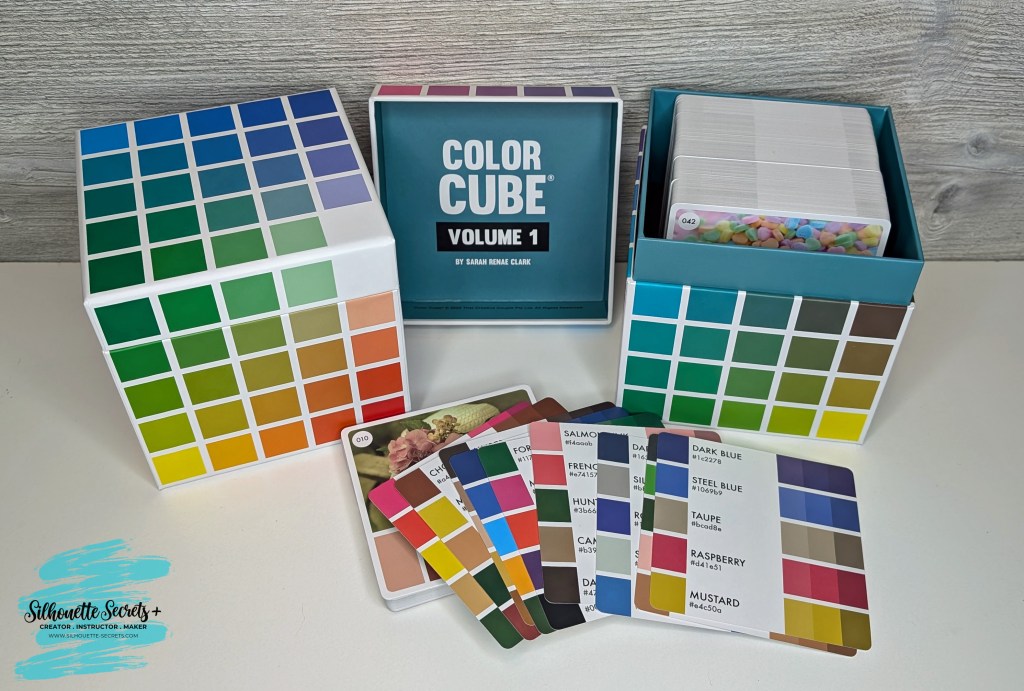
I used the arrow background/stencil design to create these bookmarks and then added my own custom color to it with the help of the Color Cubes by Sarah Renae Clark to select a color palette for the 2 different designs.

I shared how I did that in this video – Silhouette Studio Custom Color Palette Add Colors found HERE on the Silhouette Secrets+ YouTube channel.

Custom Color Palette in Silhouette Studio

The holographic overlay adds a fun touch as well as protects the bookmark front too!

Additional Resources:

Supplies Used:

I hope this edition of Crafting Creativity with Sarah Hurley has sparked a few ideas about what you can create. Write those ideas down and see where they take you!!!

Find more amazing designs by Sarah Hurley at the Silhouette Design Store. Follow along with Sarah Hurley on their website, Facebook, and Instagram too!

A great big thank you to Sarah Hurley for contributing the free file for the Silhouette Secrets+ newsletter for the month of August! If you missed grabbing the free Arrow Background/Stencil, it is available in the Silhouette Design Store HERE.

Sign up for the weekly newsletter HERE to have information delivered direct to your inbox and grab the new freebie each month.

Silhouette Secrets+ Newsletter

Never miss out on the news, tips, “secrets”, deals, classes, and more that I share on Silhouette Secrets+. Sign up for the newsletter and get information delivered to your inbox every Friday.
Unsubscribe at anytime.

I hope this has given you some ideas on how one file can lead to many different projects!

Save this for future reference by pinning the image below.

Multiple Projects from 1 Design by Sarah Hurley

Enjoy !

THANK YOU for your support! How can you help? Click HERE & buy a coffee.
Every little bit helps with the cost of running the site.

Silhouette Classes

Never stop learning! Let me help you take the anxiety out of learning with Silhouette and get to creating faster! My Silhouette classes are heavily focused on software, so you can take the skills & techniques taught and apply them to many future projects!

Silhouette step-by-step Classes by Silhouette Secrets+

Silhouette Secrets+ with EllyMae
**This post may contain affiliate links. What that means is that I may receive compensation if you purchase through the links I have provided. The price you pay for the product or service is not higher but I may get compensated for sharing.
Posted on 2 Comments

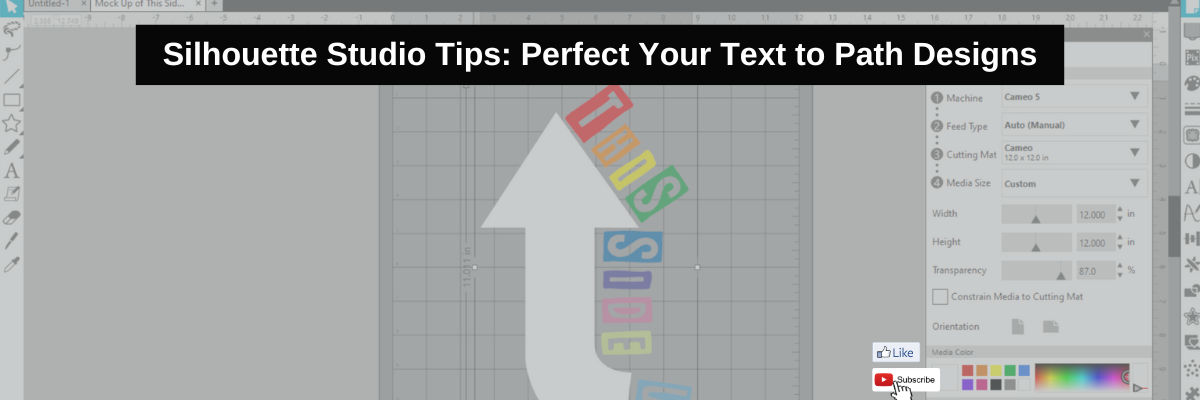
Silhouette Studio Tips: Perfect Your Text to Path Designs

Perfect Text to Path in Silhouette
Silhouette Secrets+ with EllyMae

Have you ever wanted to add text along a shape? A circle? Or even just along a wavy line? The Silhouette Studio software has just the tool and it is available for everyone! It’s called Text to Path and I have a new video tutorial out showing how I used this to create a fun t-shirt.

Affiliate links may be present in the following blog post and as an Amazon Associate, I earn from qualifying purchases.

T-shirt design with Text to Path in Silhouette Studio

This design was created in Silhouette Studio and I have a few tricks to show you. I used 1 arrow elements from a stencil/background design by Sarah Hurley and used it as my base to build on.

Arrow Background Stencil by Sarah Hurley

A few more tips came to mind after the video was recorded that can help you with Text to Path in Silhouette Studio for your future projects.

What is a Path?

A path is any line in Silhouette Studio. This can be a single line, a closed shape, a design. The red “cut” lines you see in the Silhouette software around a design are “paths”.

What is a Path in Silhouette Studio

The Text to Path tool works for text only and not designs around a shape. If you want to add a design to a shape, you can use the Replicate – Object to Path tool in Silhouette Studio.
Find more details on Replicate – Object to Path HERE.

If 2 or more “paths” are close together, it can get take some work to get the text to snap to the shape you want. The text may jump back and forth to the path you don’t want it on.

Text to Path Close Shapes Tips

Sometimes it can be easier to work with individual shapes and then put the design together after the text to path has been added.

Text Styles for Text to Path

There are millions of different font styles out there and each one can act a bit differently when added to a path. Every font style is unique and that means it can have different spacing, characters, glyphs, etc. However, it’s not just the font style, but can be the font style in combination with the shape/path that it’s added to.

Text to Path in Silhouette Font Style Tips

In the photo above are 3 examples of different font styles and how they can vary when added to a path. Probably the most difficult font styles to add and adjust so they look pleasing are scripty fonts. Since text has to be in editable mode, you cannot weld the font together prior to adding it to a path. Once it’s added to a path, the spacing may not look right for the script to connect.

Not all font styles will look good when added to a shape or path or they may need some additional manual manipulation to adjust.

Editable Text Mode – #1 Tip for Text to Path

The biggest factor for adding text to a path is that the text HAS to be in editable text mode. This means that you type the text out and immediately add it to path. It cannot be changed in any way such as welding, ungrouping, release compound path, etc. When text is modified in any of those manners, it is no longer editable text and you will not get the Text to Path Control point on the bottom left of the text box.

Text on Path Control Point in Silhouette

In the same manner, text designs cannot be added to a path since they are not editable text, but are vector designs.

Text to Path Video Tutorial T-shirt Design Creation

Check out the new video tutorial on the Silhouette Secrets+ YouTube channel HERE.

Text to Path Video Tutorial for Silhouette

Want to learn even more? Here are a few more tutorials and resources of the tools I used in the video linked above.

Please let me know if you have any questions in the comments below.

Save this for future reference by pinning the image below.

Text to Path Tutorial Silhouette Studio Pinterest

Enjoy !

THANK YOU for your support! How can you help? Click HERE & buy a coffee.
Every little bit helps with the cost of running the site.

Silhouette Classes

Never stop learning! Let me help you take the anxiety out of learning with Silhouette and get to creating faster! My Silhouette classes are heavily focused on software, so you can take the skills & techniques taught and apply them to many future projects!

Silhouette step-by-step Classes by Silhouette Secrets+

Silhouette Secrets+ with EllyMae
**This post may contain affiliate links. What that means is that I may receive compensation if you purchase through the links I have provided. The price you pay for the product or service is not higher but I may get compensated for sharing.
Posted on 2 Comments

Install Fonts for Silhouette Studio: Tutorial for Crafters

Install Fonts for Silhouette
Silhouette Secrets+ with EllyMae

Sharing a bit of information today on how to install fonts for use in the Silhouette Studio software. Well, any program really. Fonts are installed directly on the computer and then software programs pull from the Fonts folder on the computer hard drive to access.

Windows computer fonts folder

Affiliate links may be present in the following blog post and as an Amazon Associate, I earn from qualifying purchases.

Font files are typically OTF or TTF font files. OTF stands for Open Type Font and if you have the option to install this, that is the one you should install. The OTF file is the newer font format and is the one that has all the special characters, also called glyphs, that we have seen evolve over time. Over time we have seen a shift in font development and are now seeing hundreds of characters in one font file versus the original 26 characters of the alphabet + numbers.

TTF stands for True Type Font and these are the older style font files that do not have as many special characters. If TTF is the only option you have to install for a font, that will work just fine. All it means is that the font file does not contain as many special characters.

How to Install Fonts for Silhouette

Check out the new video tutorial on the Silhouette Secrets+ YouTube channel as I’m sharing step-by-step how to install fonts for use in Silhouette.

How to Install Fonts for Silhouette

As a Silhouette user we’ve been kind of spoiled in seeing font file thumbnails show up in the Fonts folder of the Silhouette library and with most of your basic fonts, the font will install on the computer when the font thumbnail syncs to the library. However, with the Silhouette website migration issues that started on 5/22/24, we have seen fluctuation in files actually syncing properly to the Silhouette library.

The fonts from the Silhouette Design Store, do NOT have to sync to the library for use. It’s just kind of a perk that we have gotten used to. Once things are back to working like they should with the Silhouette websites someday, we may see things return to normal.

The Silhouette Fonts folder only contains thumbnails for fonts that are purchased and synced to the library directly from the Silhouette library. Font files can be found in many online sites. Check out the Recommended Design & Retailers for the group for more options HERE.

The same steps apply for all fonts to be installed no matter what site you obtain them from.

I also have a written tutorial that I published a few year back called Let’s Explore v4 – Installing Fonts. In this tutorial I have provided additional details on things you might encounter such as extracting downloaded files and installation steps for a MAC.

Installing Fonts in Silhouette Studio

As technology changes and we see updates from both Microsoft and Apple in the computer operating systems, there can be new ways they “hide” things or change things that users have to figure out. For instance, with the release of Windows 11, Microsoft hid the “Install for all users”. It is an important step in the process or the font file might not show up in all programs. That is also another change by Microsoft that occurred with Windows 10 release.
If you encounter any issues with installing fonts or see something different than my video tutorial shows, please check out the written tutorial HERE for more details.

If you have any questions, please let me know in the comments below.

Save this for future reference by pinning the image below.

How to Install Fonts for Silhouette Pinterest

Enjoy !

THANK YOU for your support! How can you help? Click HERE & buy a coffee.
Every little bit helps with the cost of running the site.

Silhouette Classes

Never stop learning! Let me help you take the anxiety out of learning with Silhouette and get to creating faster! My Silhouette classes are heavily focused on software, so you can take the skills & techniques taught and apply them to many future projects!

Silhouette step-by-step Classes by Silhouette Secrets+

Silhouette Secrets+ with EllyMae
**This post may contain affiliate links. What that means is that I may receive compensation if you purchase through the links I have provided. The price you pay for the product or service is not higher but I may get compensated for sharing.
Posted on Leave a comment

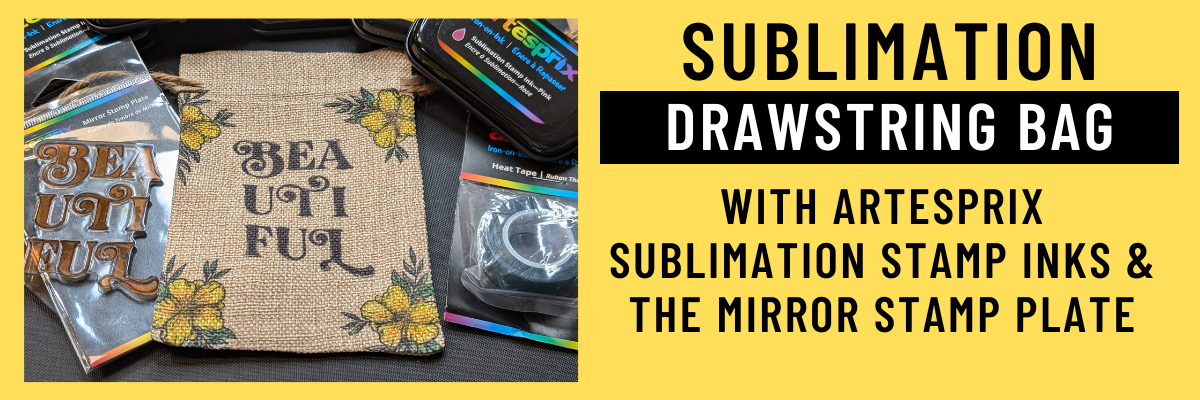
Sublimation Without a Printer: Easy DIY Drawstring Bag Tutorial Using Artesprix Inks

Artesprix Sublimation Inks to Create Custom Drawstring Bag
Silhouette Secrets+ with EllyMae

I love creating with the Artesprix Sublimation products! It has really helped me to just let go of my perfectionist tendencies and just create. These custom drawstring bags turned out FANTASTIC! I used the Artesprix mirror stamp plate for the text and then used it again as a color palette to pick up ink and paint the flowers. I wasn’t quite sure how the colors would show up on the background of the drawstring bag, but it was so bright and vibrant.

Custom Drawstring Bag: Sublimation Without a Printer Using Artesprix Sublimation Inks & Mirror Stamp Pad

Affiliate links may be present in the following blog post and as an Amazon Associate I earn from qualifying purchases.

Anyone can do this and you do NOT have to be an artist to create with the Artesprix Sublimation products. You also do NOT need a sublimation printer, so it is a great way to dip your toe in the water to test sublimation before investing in a bunch of equipment.

I am sharing the supplies I used to create the custom sublimation bag in the video that is linked below too!

Custom Drawstring Bag: Sublimation Without a Printer Using Artesprix Sublimation Inks & Mirror Stamp Pad

Supplies used to create custom sublimation bags:

Watch how I made these custom drawstring bags with the Artesprix Sublimation products in the new tutorial HERE on the Artesprix YouTube channel.

Find more ideas on creating with the Artesprix Drawstring Bag HERE.

You never know what you can create until you just do it and there are times I have to give myself a little pep talk and say “Just Do It!”… Just get started and see where it might take you!
Find more projects I’ve created using the Artesprix sublimation products HERE.

I’ll be sharing more so make sure to follow Artesprix on social media to see more projects!
YouTube channel
Blog
Facebook Page
Iron-on-Ink Inspirational Facebook Group

Save this for future reference by pinning the image below.

Artesprix Sublimation Ink Pads & Mirror Stamp Plate with Drawstring Bags


Want more creative ideas using the Artesprix sublimation products?
Check out all other projects HERE.

Grab some Artesprix sublimation products and get to creating today!

Enjoy !

THANK YOU for your support! How can you help? Click HERE & buy a coffee.
Every little bit helps with the cost of running the site.

Silhouette Classes

Never stop learning! Let me help you take the anxiety out of learning with Silhouette and get to creating faster! My Silhouette classes are heavily focused on software, so you can take the skills & techniques taught and apply them to many future projects!

Silhouette step-by-step Classes by Silhouette Secrets+

Silhouette Secrets+ with EllyMae
**This post may contain affiliate links. What that means is that I may receive compensation if you purchase through the links I have provided. The price you pay for the product or service is not higher but I may get compensated for sharing.
Posted on Leave a comment

Create Custom Stencils: Using Grafix Stencil Film with Your Silhouette Machine

Grafix Stencil Film with Silhouette and Artesprix
Silhouette Secrets+ with EllyMae

Have you ever made your own custom stencils? Combining Grafix Stencil Film with a Silhouette cutting machine opens up endless possibilities for creative projects and designs. You can easily create a wide variety of customized pieces! Using the Silhouette, a design by Sarah Hurley, and Grafix Stencil Film, I created a custom stencil that can be used over and over again.

Affiliate links may be present in the following blog post and as an Amazon Associate, I earn from qualifying purchases.

For this project I used Artesprix Sublimation inks with the custom cut Grafix Stencil Film and created a sublimation journal cover.

DIY Stencils with Grafix Stencil Film and Silhouette

I would recommend having a dedicated blade for cutting different materials. This will help to increase the lifespan on the blades, as well as help with future cut issues. Each material will dull the blade differently and stencil material is plastic, so that does affect it differently than say cutting a much thinner material such as adhesive vinyl.

The best thing you can do is test cut to determine what settings are going to work for your blade, machine model, and the materials being used.

Silhouette settings used:

After the cut is finished, check the cut to see if it cut completely through before unloading the mat from the machine. I have to tell myself this constantly because I’m so quick to press that unload button, but it can save you time and materials if you get in the habit of checking the cut first and if it did not cut through, then you can send it again and it should cut in the same exact location.

Additional Resources:

Custom Stencils with Grafix Stencil Film and Silhouette

Check out the new video on the Grafix Arts YouTube channel where I share how I did this HERE and I’ve included a supply list below too!

Supplies used for DIY Custom Stencils with Grafix Stencil Film:

Custom Sublimation Journal with Artesprix Sublimation Inks, Grafix Stencil Film, and Silhouette

What kind of projects would you create with your own custom stencils? Let us know in the comments below, we would love to hear from you!

Save this for future reference by pinning the image below.

Grafix Stencil Film for DIY Custom Stencils with Silhouette and Artesprix

Enjoy !

THANK YOU for your support! How can you help? Click HERE & buy a coffee.
Every little bit helps with the cost of running the site.

Silhouette Classes

Never stop learning! Let me help you take the anxiety out of learning with Silhouette and get to creating faster! My Silhouette classes are heavily focused on software, so you can take the skills & techniques taught and apply them to many future projects!

Silhouette step-by-step Classes by Silhouette Secrets+

Silhouette Secrets+ with EllyMae
**This post may contain affiliate links. What that means is that I may receive compensation if you purchase through the links I have provided. The price you pay for the product or service is not higher but I may get compensated for sharing.
Posted on Leave a comment

Upcoming Crafting Events

Silhouette Secrets+ with EllyMae

Affiliate links may be present in the following blog post and as an Amazon Associate, I earn from qualifying purchases.

Just a quick note to share 3 crafting events that are coming up soon!!!

August 2024 events

Gifts & Business Summit – August 23-25, 2024 – details HERE

Bespoke Earrings & Custom Gift Packaging with Digital Patterns

I am teaching a class called Creating Bespoke Earrings & Custom Gift Packing with Digital Patterns.

Class description: Boost your crafting skills and create unique, personalized gifts with ease! Design one-of-a-kind bespoke earrings that showcase your style and pair them with beautifully coordinated gift packaging. Impress your friends and family with delightful, handmade gifts they’ll adore! Don’t forget to create extras for yourself too!

Earrings with Siser EasyColor DTV and matching Gift Boxes

I show how to set up the design for print and cut in Silhouette Studio, tips for print and cut with Silhouette, and assembly of the earrings and gift boxes too!
For this project I used Siser EasyColor DTV on which is an inkjet printable HTV (real HTV) made by Siser, and added that to wooden earring blanks. Find more details on the Siser EasyColor DTV here.

Check out all the classes offered and register for your free ticket HERE.

Gifts & Business Summit

*****

Maker’s Retreat – Virtual Event – August 28-31, 2024 – details HERE

I am not an instructor at this event, but I attended the in-person Maker’s Retreat in Texas in July and had a blast! They wanted more to be able to attend the event and have opened it up for a virtual retreat!
Erin Reed, Eileen Hull, and Kassandra Louise are amazing instructors!
This is NOT a cutting machine event and all are welcome!

Makers Retreat 2024

Get ready for the 2024 Virtual Maker’s Retreat!! It is going to be an amazing event filled to the brim with projects, classes, techniques and LIVES. The Maker’s Retreat is an event that caters to the maker and crafter who loves to do a little bit of everything. From cardmaking to sublimation to mixed media to journaling and so much more!! You will learn how to create over 14 different projects and try out over 18 different techniques all from the comfort of your home. The Maker’s Retreat is a virtual event, so you get to enjoy all the classes, live streams, and events all in your jammies, and it is all happening from August 28 to Aug 31st!

Maker's Retreat Virtual 2024

Find all the details and register HERE.

*****

Crafty Con 2024 – September 4-6, 2024 – details HERE

Crafty-Con features over 30 workshops led by experts, all designed to help you break free from any crafting ruts, master new skills, and strengthen your Cricut or Silhouette fundamentals.

Crafty Con - Intro to Print and Cut in Silhouette by EllyMae

I am teaching Intro to Print and Cut in Silhouette where we will use print and cut to create tags.

Class description: In this workshop, you’ll learn the basics of the Print and Cut feature on your Silhouette machine. EllyMae will guide you through the process of designing and creating custom tags using text and graphics. By the end of the session, you’ll have hands-on experience in setting up your design, printing it, and then using your Silhouette to cut it out perfectly. Perfect for adding a personalized touch to gifts, party favors, or any project that needs a special tag! And you’ll be set up for success to create your next print and cut project with your Silhouette.

Register for your FREE ticket HERE.

Crafty Con Speakers 2024

And Save the Date for future events coming up too!

September & October 2024 Events

September 23, 2024 – Silhouette Secrets+ YouTube LIVE tutorial and Q & A
Save the Date – October 10-12, 2024
Save the Date – October 21, 2024 – Silhouette Secrets+ YouTube LIVE tutorial and Q & A

Check out all the events HERE.

I hope I’ll “see” you at a future event soon!

Enjoy !

THANK YOU for your support! How can you help? Click HERE & buy a coffee.
Every little bit helps with the cost of running the site.

Silhouette Classes

Never stop learning! Let me help you take the anxiety out of learning with Silhouette and get to creating faster! My Silhouette classes are heavily focused on software, so you can take the skills & techniques taught and apply them to many future projects!

Silhouette step-by-step Classes by Silhouette Secrets+

Silhouette Secrets+ with EllyMae
**This post may contain affiliate links. What that means is that I may receive compensation if you purchase through the links I have provided. The price you pay for the product or service is not higher but I may get compensated for sharing.
Posted on 2 Comments

Understanding Compound Paths in Silhouette Studio: Beginner-Friendly Tips

Silhouette Studio: Compound Paths
Silhouette Secrets+ with EllyMae

Compound paths are one of the things in Silhouette Studio that can take the longest to grasp. We see compound paths every day but are not always really “seeing” them. Most often the initial experience with compound paths leaves you saying, “What the heck?” or something along those lines. Or “Why did it do that?

Affiliate links may be present in the following blog post and as an Amazon Associate, I earn from qualifying purchases.

Compound Paths in Silhouette Studio

In this month’s LIVE YouTube tutorial we covered compound paths and I walked through several different demonstrations starting with simple compound paths and working our way up to a little more complex designs with compound paths.

Those who attended live were able to ask questions and I answered those on the spot and showed additional demonstrations.

Check out this month’s YouTube LIVE on the Silhouette Secrets+ YouTube channel HERE.

Demystify Compound Paths in Silhouette Studio YouTube video tutorial

Additional Resources:

Make sure to check out the Events Tab HERE for upcoming LIVE tutorials and more events too!

Save this for future reference by pinning the image below.

Compound Paths in Silhouette Studio

Enjoy !

THANK YOU for your support! How can you help? Click HERE & buy a coffee.
Every little bit helps with the cost of running the site.

Silhouette Classes

Never stop learning! Let me help you take the anxiety out of learning with Silhouette and get to creating faster! My Silhouette classes are heavily focused on software, so you can take the skills & techniques taught and apply them to many future projects!

Silhouette step-by-step Classes by Silhouette Secrets+

Silhouette Secrets+ with EllyMae
**This post may contain affiliate links. What that means is that I may receive compensation if you purchase through the links I have provided. The price you pay for the product or service is not higher but I may get compensated for sharing.
Posted on 1 Comment

Creative Projects Using ClikChic Background Patterns in Silhouette: Cards, Coasters, and More

Crafting Creativity Spotlight Artist Clikchic Designs
Silhouette Secrets+ with EllyMae

In this edition of Crafting Creativity I’ll be sharing the projects I created through the month with a watercolor background pattern. Patterns can really make your project unique and be used in creative ways with Silhouette. A great big thank you to Clikchic Designs for providing the free file for the Silhouette Secrets+ July newsletter!

Clik Chick Designs Website

Affiliate links may be present in the following blog post and as an Amazon Associate, I earn from qualifying purchases.

Silhouette Background Patterns Projects

This past month I have had so much fun designing and creating with the Watercolor Background design by Clikchic Designs.

Blue Teal Green Watercolor Grunge Printable Background Pattern by Clik Chic Designs

I even went LIVE on YouTube – which for me is a big step, especially with all the issues Silhouette has been having. In the live video tutorial I shared all about pattern fill and how you can use it.

Check out the YouTube Live Tutorial – Design with Pattern Fill: Silhouette Studio Tips for Stunning Results HERE.

Silhouette Secrets YouTube Silhouette Tutorial Pattern Fill

I’ve been collaborating with designers this year and each week I am sharing new projects that can be created from 1 file. This is a file that the designer has provided for the Silhouette Secrets+ Newsletter subscribers. I want to share how you can take 1 design and think about different projects you can use it in to make your designs go farther!

Project #1 – Card Design with Watercolor Background

I used the Watercolor Grunge background and printed it on a 12″ x 12″ sheet of cardstock. Don’t worry if you don’t have the capability to print on 12″ x 12″ cardstock, the same technique can be done with letter size paper too!

Watercolor Background Cards Created with Background by Clik Chic Designs

I participated in a card swap and signed up to exchange 20 cards, so this was a perfect way to create 6 cards from one sheet of paper. And every one of these cards was different because of the unique watercolor grunge background.

Here is another set I made with a vertical layout.

Watercolor Background on Cards with Clik Chic Designs

Check out the written tutorial on how I made these cards in this post – Distressed or Grunge Background Designs in Silhouette Studio HERE

Additional Resources:

Supplies Used:

Project #2 – Sublimation Journal Cover

What started out as a sublimation tumbler idea, morphed into a sublimation journal cover project instead. I could not think of what I wanted to put as a saying onto a tumbler and while I was stumbling over that, I kept walking by these sublimation journals that I had ordered several weeks back.

Sublimation Journal Design with Clik Chic Designs Watercolor background pattern

Sometimes when the original project does not turn out, the next one is even better than you could imagine. I love these journal covers!

Additional Resources:

Supplies Used:

Project #3 – Eclipse Cards

Have you tried the eclipse card design? While it can be difficult to photograph, it can have a big WOW factor in person.

Eclipse Card with Watercolor Printable Background with Silhouette

When assembling the design you can use foam tape to either bump up the letters cut out or the background. Each can have a unique look to it.

Creating an eclipse Card with Silhouette

Play around with different design ideas and see what you like best.

Additional Resources:

Supplies Used:

Project #4 – T-shirt Design using Siser EasyColor DTV

Printable patterns can be used for all kinds of projects, including printable HTV. Siser EasyColor DTV is real HTV that can be used with an inkjet printer.

Printable Background Pattern using Siser EasyColor DTV with Clik Chic Design Background

I have had great success with the Siser EasyColor DTV and I would contribute that to following the printing and care instructions exactly. I have shirts that still look fantastic that I made when it was first released in August 2022.

In the video, Design with Pattern Fill: Silhouette Studio Tips for Stunning Results, I showed exactly how I created this design and you even get to see a little bit of troubleshooting LIVE while I tried to figure out what I was doing wrong and how I fixed it.

Additional Resources:

Supplies Used:

Project #5 & 6 – Sublimation Coaster, Earrings & Necklace

I had a misprint when I first did the sublimation print for the journal and I had a line of “tiling”, which is a sharp distinct line in the actual printout and would not look good on my finished project. I explained about this and showed exactly what it looks like in the YouTube video HERE.

But, I wasn’t just going to throw away the printed sublimation page. I can use it for other projects! So I started digging in my sublimation blanks to see what the design would fit completely on. The coaster was the perfect fit and now sits on my desk too!

Sublimation Coaster with Printable Background from Clik Chic Designs

For the photo, I paired it with a tumbler that I use all the time from a previous class on creating your own custom designs.

Sometimes mistakes can be a good thing!

Next, I took a few more sublimation blanks and made some earrings and a necklace pendant from the extra pieces of the mistake sublimation print.

Sublimation Earrings and Necklace with Background Pattern by Clik Chic Designs

I don’t even want to admit how many pieces of sublimation printed designs I have just hanging out waiting for the perfect blank. Shhhh…. we won’t talk about it.

Additional Resources:

Supplies Used:

I had so much fun crafting projects with the watercolor grunge background this month and still lots more ideas for future projects too!

Find more amazing designs by Clikchic Designs at:

Follow along with Clikchic Designs on their website, Facebook, and Instagram too!

A great big thank you to Clikchic Designs for contributing the free file for the Silhouette Secrets+ newsletter for the month of July! If you missed grabbing the free Watercolor Grunge Background, it is available in the Silhouette Design Store HERE.

This year I started offering a free file each month for Silhouette Secrets+ newsletter subscribers. I love designing in the Silhouette Studio software and have shared some of my creations as well as look forward to collaborating with more artists in the future too!

Silhouette Secrets+ Newsletter

Never miss out on the news, tips, “secrets”, deals, classes, and more that I share on Silhouette Secrets+. Sign up for the newsletter and get information delivered to your inbox every Friday.
Unsubscribe at anytime.

Sign up for the weekly newsletter HERE to have information delivered direct to your inbox and grab each month new freebie.

I hope this has given you some ideas on how one file can lead to many different projects!

Save this for future reference by pinning the image below.

Multiple projects created with a watercolor grunge background in Silhouette Studio

Enjoy !

THANK YOU for your support! How can you help? Click HERE & buy a coffee.
Every little bit helps with the cost of running the site.

Silhouette Classes

Never stop learning! Let me help you take the anxiety out of learning with Silhouette and get to creating faster! My Silhouette classes are heavily focused on software, so you can take the skills & techniques taught and apply them to many future projects!

Silhouette step-by-step Classes by Silhouette Secrets+

Silhouette Secrets+ with EllyMae
**This post may contain affiliate links. What that means is that I may receive compensation if you purchase through the links I have provided. The price you pay for the product or service is not higher but I may get compensated for sharing.
Posted on 2 Comments

New Silhouette Design Store Feature: Search Direct Downloads

Silhouette Design Store Search Downloads
Silhouette Secrets+ with EllyMae

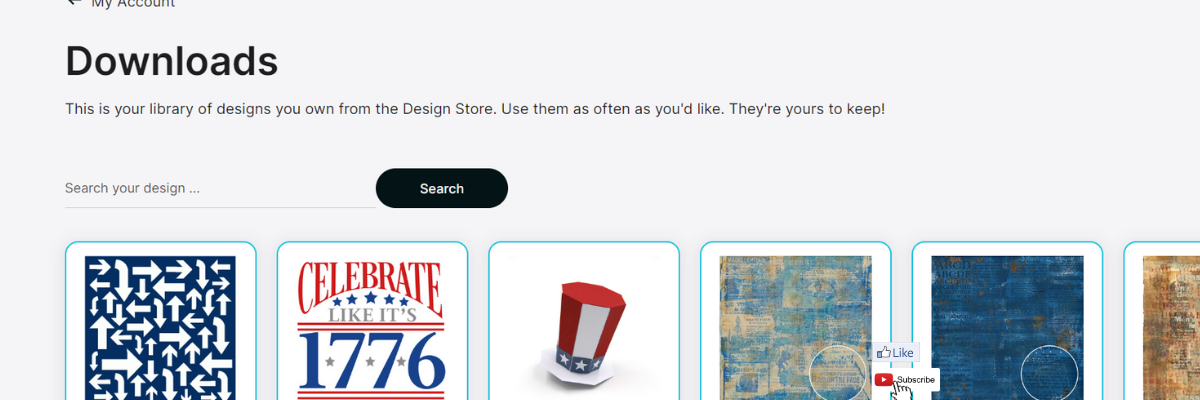
Just a quick post to share something I stumbled upon yesterday while I was writing the weekly Silhouette Secrets+ newsletter. There is now a Silhouette Design Store direct download search feature!!!!

If you have been following along we are now 70+ days after the Silhouette website started to be migrated. The migration started on May 22, 2024 and it’s been well… a mess. It did not go as planned and it’s still ongoing. Little by little there are small improvements such as a new search is now available under the Downloads section on your Silhouette Account. This is BIG! For more than 70 days users have had to direct download if their Silhouette library was not working properly. However, that has had major issues too. For users like myself, who have thousands of designs, it was impossible to view them.

Check out the new video – Silhouette Website Updates – Direct Download Options & NEW!!! Search Downloads on the Silhouette Secrets+ YouTube channel HERE.

Silhouette Website Issues - How to Direct Download

In the video I share how the Silhouette Design Store direct download search currently works and also options for accessing direct downloads too! Slowly, one step at a time, the website is improving… it might be baby steps, but at least it’s progress in the right direction.

I have more tips in the Silhouette Library & Account Issues: What to Do? Recommendations video HERE too.

Sign up for the Silhouette Secrets+ Newsletter for tips delivered weekly to your inbox and a new free file each month too! Subscribe HERE.
Then make sure to confirm your subscription too!

Want to learn more? Check out the Silhouette A to Z Guide on the website HERE.

Save this for future reference by pinning the image below.

New Search in Silhouette Design Store

Hope that helps!

THANK YOU for your support! How can you help? Click HERE & buy a coffee.
Every little bit helps with the cost of running the site.

Silhouette Classes

Never stop learning! Let me help you take the anxiety out of learning with Silhouette and get to creating faster! My Silhouette classes are heavily focused on software, so you can take the skills & techniques taught and apply them to many future projects!

Silhouette step-by-step Classes by Silhouette Secrets+

Silhouette Secrets+ with EllyMae
**This post may contain affiliate links. What that means is that I may receive compensation if you purchase through the links I have provided. The price you pay for the product or service is not higher but I may get compensated for sharing.