Posted on Leave a comment

Unlock Creativity: 5 Stunning Projects You Can Create with Just One Design by Megan Hardy

Crafting Creativity with Megan Hardy
Silhouette Secrets+ with EllyMae

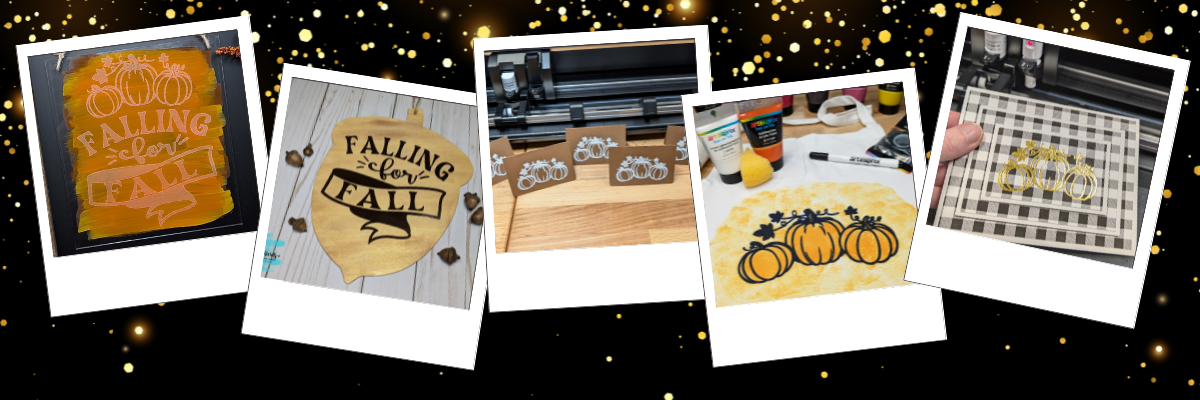
Discover the magic of versatility with Megan Hardy’s creative designs! In this post, we’ll show you how you can transform a single design into five unique projects that are perfect for any occasion. From an etched acrylic sign with the Silhouette Curio 2 to a wood sign using adhesive vinyl, a personalized apron using Artesprix sublimation markers and paints, a sketched place card for stylish gatherings, and a dazzling foiled card featuring the triple mat stacked technique—this post is packed with inspiration and tips to make the most of your crafting tools. Do more with your designs and bring your creativity to life!

Affiliate links may be present in the following blog post and as an Amazon Associate, I earn from qualifying purchases.

Each month in the Silhouette Secrets+ newsletters, I collaborate with an amazing designer to bring you a free file. Throughout the month, I work with the newsletter file to create and share a variety of projects, showcasing the many ways it can be used.

Make sure to sign up for the Silhouette Secrets+ newsletter HERE for future free files & project inspiration.

Crafting Creativity with Megan Hardy

Project #1 – Etched Acrylic Sign with the Silhouette Curio 2

Etched Acrylic Sign with the Silhouette Curio 2 - Design by Megan Hardy

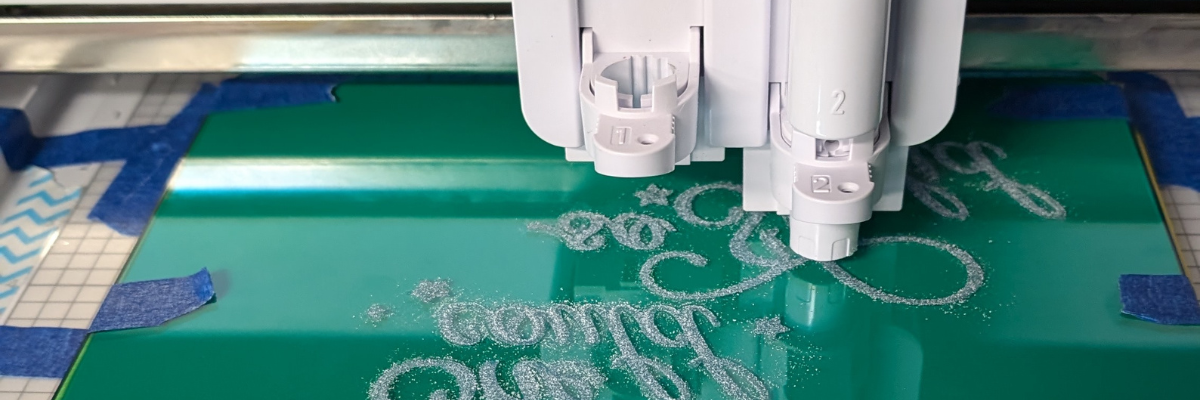
I used the Silhouette Curio 2 with the Power Engraver to etch on a clear acrylic sign.

Silhouette Curio 2 Acrylic Etching Engraving with the Power Engraver

In most cases, I prefer to etch on the backside of acrylic, however, I knew I want to paint on the back, so I etched the front for this design. The Silhouette Power Engraver leaves a pretty smooth finish, but that will also vary based on the actual acrylic being used and the fill options chosen. The only way to know how it will turn out is to test.

I use shapes in the Silhouette Studio software to create a “template” in order to align the design where I want on the blank I’m using. Just make sure to turn the “cut” line off for the template before you send it to etch or it will also etch the outer edge of your blank as well.

Silhouette Studio Setup for Curio 2 Etching

Also make sure to keep the design away from the taped edges or it could affect the etch results. I got lucky in this etching and it still etched through the painters tape, however, that can also gum up the Power Engraver tool too with the tape particles and adhesive.

Silhouette Curio 2 Engraving Tips

Additional Resources:

Don’t have a Silhouette Curio 2 to etch with? No problem!
Check out these other ideas for Acrylic Sign Decor with Silhouette HERE.

Supplies Used:

Project #2 – Wood Sign with Adhesive Vinyl

Wood Sign with Adhesive Vinyl decal - design by Megan Hardy

I grabbed a plain wood sign from my stash that I had picked up years ago in a Target dollar spot. Added a couple layers of paint to the sign and let it dry. Then measured the inside of the blank and used a rectangle as a template to size the design. Once I had the design sized, I moved my rectangle off to the left side and drew in some weeding lines with the line tools so it was easier to weed in pieces.

Silhouette Studio Software - Adding Weeding Lines to a Design

I also cut my material down to the size I need so I can save the adhesive on my cutting mat and don’t have to peel a full sheet of material off the mat each time. To do this I decrease the Transparency on the Page Setup Panel so I can reveal the cutting grid and know what size to cut my material down to.

Cutting Adhesive Vinyl with Silhouette

Now I am not using the adhesive on the rest of the mat and it will increase the lifespan on the cutting mat.

Weeding Lines on Adhesive Vinyl

Adding weeding lines in the Silhouette software may take a couple extra seconds before you send the design to cut, but can save you frustration when weeding adhesive vinyl.

Additional Resources:

Supplies Used:

Project #3 – Sketched Place Cards

Sketched Place Cards with Silhouette - design by Megan Hardy

I love how these turned out! This place card was designed in the Silhouette software, using a rectangle, dashed line for scoring, and the pumpkin design from the Falling for Fall design.

Silhouette Sketched design with white pen - design by Megan Hardy

Let’s not talk about the fact that I created these for Thanksgiving dinner and then totally forgot to use them. There is always next year!

But, they turned out looking awesome! I love the painted liked texture that the sketch fill with the white pen gave it. Each one turned out just a bit different in the way the ink laid down and moved.

After creating these, I did a LIVE tutorial on the Silhouette Secrets+ YouTube channel sharing more on sketching tips and a demo using the Silhouette Electrostatic Mat as well.

Silhouette Sketching & Electrostatic Mat Demo & Tutorial

Watch that Sketching tutorial video HERE.

Additional Resources:

Supplies Used:

Project #4 – Custom Apron with Artesprix Sublimation Markers and Paints

Custom Apron with Artesprix Sublimation - design by Megan Hardy

Artesprix sublimation products are a great way to test and investigate if you want to go deeper into the sublimation side of things. I used the Artesprix black sublimation marker to sketch out the design with my Silhouette.

Silhouette Studio Sketching with Artesprix - design by Megan Hardy

With Artesprix sublimation products, you don’t need any special paper! Plain ordinary copy paper is all that’s needed and if you don’t like what you’ve made, you aren’t out much. I love playing with the Artesprix products and seeing what can happen.

Once the main design was sketched, then I sponged on some paint in 2 shades of orange around the design to complete the custom apron.

Check out more details in the blog post HERE.

Sublimation Custom Apron with Artesprix Sublimation Markers and Paints

Additional Resources:

Supplies Used:

Project #5 – Foiled Card Design with the Triple Mat Stacked Technique

Foiled Card Design with Triple Mat Stacked Technique - design by Megan Hardy

Make your cards pop with the Triple Mat Stacked technique and add heat foil to that for even more wow factor. I love combining things to make unique projects!

This was completed using a digital pattern in Silhouette Studio, setting it up for a print and cut, then using the setup for foiling the design before cutting.

Silhouette Print and Cut plus Foiling a Card Design with Triple Mat Stacked Technique

Foiling can really add a unique touch to your projects! It does take extra time in creating, but can definitely be worth it.

Silhouette Heat Pen Foiling for a card design

You can see this in action in this video – Quick Foil Card Design: Silhouette Cameo 5, Heat Pen, and Print and Cut video on the Silhouette Secrets+ YouTube channel.

Foil Card Magic with Silhouette Cameo 5 & Heat Pen

Additional Resources:

Supplies Used:

Find more designs by Megan Hardy at the Silhouette Design Store or on Etsy.

Follow along with Megan Hardy here:
Facebook: https://www.facebook.com/MeganHardyDesigns
Instagram: https://www.instagram.com/meganhardydesigns/

I love exploring how one design can inspire multiple creative projects! The Crafting Creativity blog series is your go-to source for endless inspiration, packed with innovative ideas, practical tips, and expert techniques to elevate your crafting. Whether you’re reimagining a favorite design, experimenting with new materials, or mastering advanced skills, these posts are here to ignite your imagination and help you bring your creative visions to life. Head over to the Crafting Creativity series HERE and discover where your creativity can take you!

Save this for future reference by pinning the image below.

5 Projects with 1 Design by Megan Hardy

Enjoy !

THANK YOU for your support! How can you help? Click HERE & buy a coffee.
Every little bit helps with the cost of running the site.

Silhouette Classes

Never stop learning! Let me help you take the anxiety out of learning with Silhouette and get to creating faster! My Silhouette classes are heavily focused on software, so you can take the skills & techniques taught and apply them to many future projects!

Silhouette step-by-step Classes by Silhouette Secrets+

Silhouette Secrets+ with EllyMae
**This post may contain affiliate links. What that means is that I may receive compensation if you purchase through the links I have provided. The price you pay for the product or service is not higher but I may get compensated for sharing.
Posted on 1 Comment

Beautifully Etched Acrylic Clipboard Created with Silhouette Curio 2

Etched Acrylic Clipboard with the Silhouette Curio 2 and Power Engraver
Silhouette Secrets+ with EllyMae

Looking to personalize your office supplies or make a custom gift? In this post, I’m excited to share a recent project I created using the Silhouette Curio 2 and the Power Engraver: a beautifully etched acrylic clipboard featuring a design by Sarah Hurley. This project showcases the versatility of the Curio 2, turning a simple clipboard into a stylish, functional piece. Create your own etched masterpiece, perfect for home, office, or as a unique gift. Read on to discover how to elevate your DIY etching projects with the Silhouette Curio 2!

Affiliate links may be present in the following blog post and as an Amazon Associate, I earn from qualifying purchases.

Etched Acrylic Clipboard created with the Silhouette Curio 2

When I get an idea in my head, there are times, it just will not leave until I do something. That is how this project came to be. The first one I did, I etched on the backside of the clipboard.

Etched Acrylic Clipboard with Silhouette Curio 2

It looks great in person, but I had to hold up a sheet of black cardstock behind it in order to get it to show up on a photo. This one was a bit tricky because the hardware on the clipboard is not removable, so I had to rig up some supports underneath the clipboard to make it a completely flat surface. It was definitely a trial and I am so happy with how it turned out, but I knew I wanted to try again.

Test #2 actually was a failure. I switched to etching on the top of the clipboard to see how it would work and I could hear that something was not right while it was etching. Eventually, it just stopped etching entirely. I thought I’d take the Power Engraver out to clean it. Don’t do that during an etch! When the power tool was removed, it did not start up again when I put it back in while the machine was paused.

Silhouette Curio 2 Etching Failure

It is NOT a waste though! The one thing I’ve learned through the years in all the testing and troubleshooting that I do is that things WILL go wrong. Get extra blanks because something is going to happen. And if it doesn’t, well, you have extra blanks to use. Not a waste! A learning experience and opportunity.

I could not figure out what the issue was, so I swapped out the Silhouette Power Engraver for a new one and marked the old one with issues. I’ll troubleshoot that another day.

Test #3 was a success! The Silhouette Power Engrave tool has a smooth finish so even though this etch is on the top of the clipboard, it is not rough to the touch.

Etched Acrylic Clipboard with the Silhouette Curio 2

I used a lint roller to clean up the acrylic dust that the Silhouette Power Engraver creates before I removed anything. Be careful with any debris and keep your machine clean for best results. Do not inhale the acrylic dust or get it in your eyes.

Supplies Used for Etched Acrylic Clipboard with the Silhouette Curio 2

Silhouette Curio 2 Resources

Tips for Etching

  • Get extra blanks
  • Secure the blank well – any movement and it will be a dud as the etching is permanent
  • Not all acrylic is good acrylic – some will just smoosh versus etch – testing is the only way to know what will work
  • Start small – I prefer a 3″ round or a coaster when practicing and testing – cheaper to test and mess up with
  • Do not remove the tool from the machine, even if it is paused.
  • Be careful with any debris and keep your machine clean for best results. Do not inhale the acrylic dust or get it in your eyes.

Silhouette Curio 2 Classes

Want to get started with the Silhouette Curio 2 faster? I have step-by-step classes available on Teachable from out-of-the-box projects to setting up for successful etching on acrylic.

Silhouette Curio 2 Classes by EllyMae at Silhouette Secrets+

Check out all the Silhouette Classes HERE.

Find more Silhouette Curio 2 information on the website HERE.

And more videos on the Silhouette Secrets+ YouTube channel HERE.
Silhouette Curio 2 playlist HERE.

Silhouette Curio 2 Playlist on the Silhouette Secrets+ YouTube channel

Save this for future reference by pinning the image below.

Silhouette Curio 2 Acrylic Etching

Enjoy !

THANK YOU for your support! How can you help? Click HERE & buy a coffee.
Every little bit helps with the cost of running the site.

Silhouette Classes

Never stop learning! Let me help you take the anxiety out of learning with Silhouette and get to creating faster! My Silhouette classes are heavily focused on software, so you can take the skills & techniques taught and apply them to many future projects!

Silhouette step-by-step Classes by Silhouette Secrets+

Silhouette Secrets+ with EllyMae
**This post may contain affiliate links. What that means is that I may receive compensation if you purchase through the links I have provided. The price you pay for the product or service is not higher but I may get compensated for sharing.
Posted on 3 Comments

Master Perfect Silhouette Cuts: Top Tips for Electrostatic Mat

Master the Silhouette Electrostatic Mat
Silhouette Secrets+ with EllyMae

As a paper crafter I am loving the Silhouette Electrostatic (ES) Mat! This new technology is pretty darn cool and not having to remove the cut pieces from an adhesive cutting mat can save time. Especially when cutting for large projects! In this post, I’m sharing more tips on having successful results when using the Silhouette Electrostatic (ES) Mat.

Affiliate links may be present in the following blog post and as an Amazon Associate, I earn from qualifying purchases.

How Does the Silhouette Electrostatic Mat Work?

When the electrostatic mat is turned on, a static charge is built up between the electrostatic mat and the protective sheet. This holds the protective sheet in place and materials can be placed on top of it. The charge then builds between the protective sheet and the material, which holds it in place while it’s being cut. Once the design is cut simply break that charge by either lifting the protective sheet off the ES Mat or turning the ES mat off. The charge will dissipate and the material can easily be removed.

The Silhouette Electrostatic Mat is an accessory that is compatible with the Silhouette Cameo 5 models or Silhouette Portrait 4. The Silhouette Curio 2 comes with the Electrostatic Mat.

What materials does the Silhouette Electrostatic Mat Work With?

Materials that are smooth and completely flat are going to work best with the Silhouette ES Mat. The material has to be able to build up that electrostatic charge and be held in place the entire time it’s being cut. Textured materials, “breathable” materials such as fabric, or curled materials are not going to work well because it cannot build up a charge to hold it in place.

I have cut vellum, copy paper, sticker paper, 65 lb cardstock, 85 lb cardstock, 110 lb cardstock, adhesive vinyl, and I’m sure I’m probably forgetting a few others in the past year that I’ve been testing it.

I did try a thicker cardstock by Bazzill which was their smooth cardstock and it cut, but it was not as clean of a cut as I prefer. However, I have had the same results when using Bazzil on an adhesive cutting mat too. Some cardstocks are just a bit more difficult to cut cleanly with the Silhouette. I tend to stay away from those for cutting projects, but they work well when cut with a paper trimmer.

Tips for Successful Cuts with the Silhouette ES Mat

While cutting pieces for demo projects for an upcoming class, I knew I wanted to share the tips I’ve learned during testing to achieve successful cuts. The best way to learn what works and what doesn’t is often through the failures encountered along the way. And even though I’ve been using cutting machines for many years, there are still failures along the way.

Check out the new video on the Silhouette Secrets+ YouTube channel where I am sharing a look at the cutting process and sharing things that work and things that don’t work.

Silhouette Cutting Secrets: Master the Electrostatic Mat video tutorial

Don’t forget to like, subscribe, and click the bell for notifications on the Silhouette Secrets+ YouTube channel!

A Closer Look at the Final Cuts

Silhouette Electrostatic Mat cutting cardstock leaves

It is so nice to just lift off the cardstock after the cut and see the pieces laying there.

Silhouette ES Mat Cutting Cardstock Flowers

You will start to see the pieces pile up on the right side of the photos as I share the progression.

Silhouette Electrostatic Mat cutting cardstock pink flowers

These projects and cuts can also be successful on an adhesive cutting mat, but it was so nice to just be able to slide the finished cuts off and be ready for the next sheet of cardstock.

Silhouette ES Mat cutting detailed details

Especially when you have a million tiny pieces like on these film strips!

In the video, I also show how my first attempt at cutting these film strips was not successful. I had the design placed too close to the edge of the cardstock and a piece lifted during the cut and it pretty much ate my cardstock. I simply unloaded the ES Mat, cleaned all the bits up, reset the machine, and then moved my design down on the design mat a little bit and sent it again to cut. Perfect cuts!

Silhouette Electrostatic Mat detailed cuts

Now, this design cut beautifully. The ring design is 2 pieces cut for a background. However, I did have to babysit it a little bit more as some of the cavities of the design would lift as it was being cut with the movement under the roller bar. I carefully removed the pieces as they were lifting during the cut and showed that in the video too.

Silhouette ES Mat cutting cardstock

All of these designs were created in the Silhouette Studio software from scratch for an upcoming class. The cutting process is a bit of the behind-the-scenes of that class creation. Watch the Upcoming Events tab or sign up for the Upcoming Craft Events emails and I’ll send an email direct to your inbox when new events open for registration.

Silhouette ES Mat Cuts

Sometimes, the cut won’t stay in place when the excess is removed. This can happen with smaller designs as there is a smaller surface area to hold the electrostatic charge in place.

Master Perfect Silhouette Cuts: Top Tips for Electrostatic Mat

  • the ES Mat needs a secure connection that is completely flat to connect to the Silhouette Cameo 5 or Portrait 4 machine
  • materials need to be completely flat to maintain the charge
  • designs placed too close the edges can cause cut issues and/or lifting which can affect cut results
  • test cut, test cut, test cut!
  • make sure ES Mat is turned on and remains on during the entire cut
  • you will make mistakes!
  • take time to practice

Silhouette Supplies

A Look at the Finished Projects

Card Design #1

Card Design by EllyMae

Card Design #2

Card Design #2 by EllyMae

Scrapbook Layout #1

Scrapbook Layout #1 by EllyMae

Scrapbook Layout #2

Scrapbook Layout #2 by EllyMae

I was having so much fun in designing for these class projects and love how they turned out.

I hope the tips help you to be successful with the Silhouette ES Mat!

Additional Resources on the blog:

Save this for future reference by pinning the image below.

Silhouette ES Mat Pin

Enjoy !

THANK YOU for your support! How can you help? Click HERE & buy a coffee.
Every little bit helps with the cost of running the site.

Silhouette Classes

Never stop learning! Let me help you take the anxiety out of learning with Silhouette and get to creating faster! My Silhouette classes are heavily focused on software, so you can take the skills & techniques taught and apply them to many future projects!
Silhouette step-by-step Classes by Silhouette Secrets+

Silhouette Secrets+ with EllyMae
**This post may contain affiliate links. What that means is that I may receive compensation if you purchase through the links I have provided. The price you pay for the product or service is not higher but I may get compensated for sharing.
Posted on Leave a comment

Amazon Prime Day Deals 2024

Amazon Prime Day Deals
Silhouette Secrets+ with EllyMae

Affiliate links may be present in the following blog post and as an Amazon Associate, I earn from qualifying purchases.

The 2024 Amazon Prime Days are here!

I’ll be sharing more deals throughout the entire sale as I find them in my Amazon Storefront HERE.

I’ve found a few deals on Silhouette machines too!

Silhouette Cameo 5 Bundle

Silhouette Cameo 5 – Black Bundle – click HERE

Silhouette Cameo 5 - White bundle

Silhouette Cameo 5 – White Bundle – click HERE

Silhouette Cameo 5 - White

Silhouette Cameo 5 – White – machine only – click HERE

Silhouette Curio 2

Silhouette Curio 2 – click HERE

I’ll be adding more deals I find to the Silhouette Secrets+ Prime Day list in my Amazon storefront. Check it out HERE.
Deals change quickly during the Prime Days.

And one more deal I want to share. Siser has teamed up with Creative Fabrica for Christmas in July.

Creative Fabrica and Siser team up!!!

Christmas in July is back and Siser has teamed up with Creative Fabrica to offer a free gift along with the Creative Fabrica subscription.

Check it out HERE.

Creative Fabrica Christmas in July Siser

I am not normally a big subscription person, but I have to say that I have gotten a lot of use out of my Creative Fabrica subscription.

Grab this deal or extend your subscription during this promotion HERE. And then make sure to fill out the form to grab you free gift HERE – mine arrives quickly.

Enjoy !

THANK YOU for your support! How can you help? Click HERE & buy a coffee.
Every little bit helps with the cost of running the site.

Silhouette Classes

Never stop learning! Let me help you take the anxiety out of learning with Silhouette and get to creating faster! My Silhouette classes are heavily focused on software, so you can take the skills & techniques taught and apply them to many future projects!

Silhouette step-by-step Classes by Silhouette Secrets+

Silhouette Secrets+ with EllyMae
**This post may contain affiliate links. What that means is that I may receive compensation if you purchase through the links I have provided. The price you pay for the product or service is not higher but I may get compensated for sharing.
Posted on Leave a comment

Crafting Creativity: Spotlight Artist – Wispy Willow Designs

Crafting Creativity - Artist Spotlight - Wispy Willow Designs
Silhouette Secrets+ with EllyMae

In this edition of Crafting Creativity I’ll be sharing the projects I created through the month with the butterfly file from Wispy Willow Designs. A great big thank you to Hannah from Wispy Willow Designs for providing the free file for the Silhouette Secrets+ May newsletter!

Wispy Willow Designs website

Affiliate links may be present in the following blog post and as an Amazon Associate, I earn from qualifying purchases.

Wispy Willow Designs is another one of my favorite designers that I’ve grown to collecting over the years. It was great to meet Hannah at the Silhouette Summit in September 2023 and put a face with the name in person.

Silhouette Summit Wispy Willow Designs and EllyMae at Silhouette Secrets+
Silhouette Summit 2023 Demo Room with Wispy Willow Designs

Wispy Willow Design Butterfly File

This past month I worked with Butterfly design – Design #345188

Silhouette Butterfly Wispy Willow Designs

My goal each month that there is a featured designer in the newsletter is to show how you can take 1 file and create several projects with it. I want to help you start thinking about different ways you can make your designs go farther!

Project #1 – Adhesive vinyl cut and layered

Flower Wreath Wood Sign designed with Silhouette

I created this flower wreath design in Silhouette Studio for a class I taught at Bella Con 2024. It sat for a couple weeks until I settled on a design for the center. The butterfly design is cut from black Oracal 651 and then orange glitter adhesive vinyl is layered on top.

Flower wreath wood sign created in Silhouette

It was perfect for the finishing touches on this wood sign creation!

Silhouette Cameo 5 intricate cuts

And look how small and detailed those cuts are! I cut this using the Silhouette Cameo 5 and the Silhouette Autoblade. It took a few exact moments to weed the design to make sure all the pieces stayed in one place, but it was totally worth it!

Additional Resources:

Supplies Used:

Project #2 – Card Embellishment with Holographic Cardstock

Silhouette Cardstock Butterfly with Holographic Cardstock

I’ve been wanting to use this holographic cardstock that I had purchased for awhile and this added that special sparkle to the card. I added some foam tape to the backside and popped it off the card.

The card base was one I had made previously for the Silhouette Cameo 5 & Curio 2 – Type C Pen Holder video where I showed sketching with the new pen holder. The sentiment was sketched and the card was just waiting for something more. 

Additional Resources:

Supplies Used:

Project #3 – Holographic Butterfly Stickers

Silhouette Print and Cut with Holographic Stickers

I used the pattern fill option in Silhouette Studio to add a different fill to each of the butterflies and make them all unique.

Glossy or holographic materials can sometimes be problematic for users to get an accurate print and cut on. Check out the video on the Silhouette Secrets+ YouTube channel where I shared the creation and tips too!

Silhouette Print and Cut Holographic Stickers with Patterns Video

Additional Resources:

Supplies Used:

Project #4 – Acrylic Etched with the Silhouette Curio 2

Acrylic Etching with the Silhouette Curio 2 and Power Engraver

Here is a look at the acrylic etchings that I tested. I had not intended to do more than 1, but then I messed up and didn’t decrease the spacing on the first one I did (middle), so I ended up going down the rabbit hole and etched 3 more with different etch fills and spacing.

And then I started playing around with some alcohol markers. The alcohol ink sort of spreads into the etching and can be fun to play with. Normally I do not fill my etchings in because I don’t have complete control and nothing is permanent when you color an etch in.

Acrylic Etching with the Curio 2 colored with Alcohol Makers

My favorite has to be the one on the far right, but I also like the look of the first one I etching with the larger fill pattern too. With each one I played with different techniques but they are all growing on me.

Acrylic Etching with the Curio 2 filled with color using alcohol markers

While I do not like the look of the Silhouette Power Engrave tool marks that show as a spiral on the single line outline (1st photo, top left), it does give a neat look once filled with the alcohol markers.

New video out on the Silhouette Secrets+ YouTube channel sharing a quick look at the process of etching these acrylics and testing the fills with the alcohol markers – check it out HERE.

Additional Resources:

Supplies Used:

All of these projects were completed using just 1 file from Wispy Willow Designs! Find more amazing designs by Wispy Willow at:

Follow along with Wispy Willow Designs on their website, Facebook, and Instagram too!

A great big thank you to Hannah at Wispy Willow Designs for contributing the free file for the Silhouette Secrets+ newsletter for the month of May! If you missed grabbing the free flower file in May, it is available in the Silhouette Design Store HERE.

This year I started offering a free file each month for Silhouette Secrets+ newsletter subscribers. I love designing in the Silhouette Studio software and have shared some of my creations as well as look forward to collaborating with more artists in the future too!

Silhouette Secrets+ Newsletter

Never miss out on the news, tips, “secrets”, deals, classes, and more that I share on Silhouette Secrets+. Sign up for the newsletter and get information delivered to your inbox every Friday.
Unsubscribe at anytime.

Sign up for the weekly newsletter HERE to have information delivered direct to your inbox and grab each month new freebie.

I hope this has given you some ideas on how one file can lead to many different projects!

Save this for future reference by pinning the image below.

Silhouette Projects with Wispy Willow Designs - Wood sign, Adhesive vinyl, Intricate cuts, Holographic Cardstock, Stickers with laminate overlay, Curio 2 Acrylic Etching

Enjoy !

THANK YOU for your support! How can you help? Click HERE & buy a coffee.
Every little bit helps with the cost of running the site.

Silhouette Classes

Never stop learning! Let me help you take the anxiety out of learning with Silhouette and get to creating faster! My Silhouette classes are heavily focused on software, so you can take the skills & techniques taught and apply them to many future projects!

Silhouette step-by-step Classes by Silhouette Secrets+

Silhouette Secrets+ with EllyMae
**This post may contain affiliate links. What that means is that I may receive compensation if you purchase through the links I have provided. The price you pay for the product or service is not higher but I may get compensated for sharing.
Posted on 1 Comment

Heat Pen Panel – Silhouette Specialty Tools

Silhouette Heat Pen Panel
Silhouette Secrets+ with EllyMae

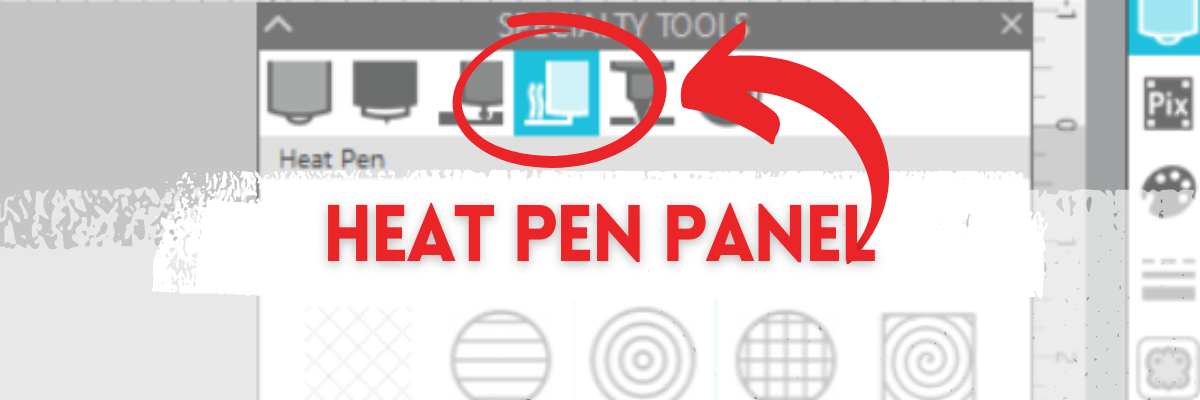
Under the new Specialty Tools Panel on Tab 4 in Silhouette Studio, is the Heat Pen Panel.

This tutorial was written in Silhouette Studio version 4.5.770.

The Specialty Tools Panel was released in v4.5+ software versions. If you don’t see it on the right side of the Silhouette Studio, your software version may be older than v4.5.

Affiliate links may be present in the following blog post and as an Amazon Associate, I earn from qualifying purchases.

The Silhouette Heat Pen is one of the new powered tools that was announced and released in September 2023. It is compatible with the Silhouette Cameo 5, Portrait 4, and Curio 2.

Silhouette Heat Pen - Foil on Cardstock

The Silhouette Heat Pen can be found at CrafterCuts, Silhouette America, or Amazon.
CrafterCuts has free shipping on orders over $35 and use code SECRETS to save 10% on supplies & accessories (not valid on machines).
Silhouette America has free shipping on orders over $50 if you are a Silhouette Club member.

Specialty Tools Panel – Heat Pen – Tab 4

Here is a look at the details of the Heat Pen Panel in Silhouette Studio.

Silhouette Heat Pen Panel - Specialty Tools

1 – Heat Pen Fill Patterns – choose from None, Lined, Concentric, Cross-hatched, and Spiral

Silhouette Heat Pen Fill Patterns

All designs will vary in how the pattern fills in the area. I used Hi by Diva Watts Design – Design #399489 and at the size shown, there isn’t much inside the Concentric Pattern fill at a 0.079 spacing. Testing is the only way to know what fill pattern and spacing will look good on the finished project.

2 – Spacing – Increase or decrease the grid spacing between the lines of the pattern. A spacing of 0.004″ will fill in the design more, but depending on the pattern chosen, there can still be some bare spots.

Silhouette Concentric Fill Pattern 0.004" spacing

In this example, the Concentric fill pattern at a 0.004″ spacing fills in most areas, but there are still some white spaces in certain areas. Zoom in on your designs so you can see the tight fills and how each pattern fills in the designs.

Silhouette Heat Pen Concentric Fill Zoomed In

These spaces may or may not affect the outcome of the final project. Testing is the the only way to know what will work and all designs will vary.

This is another area where you are changing a lot of data at one time, so be patient with your computer if it is thinking.

3 – Angle – Change the angle of the fill pattern.

4 – Release Heat Pen Fill – selecting this option will take the fill from an editable fill pattern and makes it a vector design.

When using this feature, be aware that once the fill has been released and file saved and closed, it is a permanent change to that file. If the design needs to be adjusted, you would need to start over.

Silhouette Heat Pen

Here are a few examples created with the Silhouette Heat Pen.

Silhouette Heat Pen Examples

Check out the full tutorial and written instructions on using the Silhouette Heat Pen HERE.

I tested several brands of hot foil with the Silhouette Heat Pen and here are the supplies I used when testing and creating the projects shown above.

Supplies Used

Optional supplies:

Additional Resources:

  • Silhouette Curio 2 additional resources found HERE

Silhouette Studio Specialty Tools Panel Tabs (coming soon)

  • Specialty Tools Panel – Tab 1 – Emboss Panel details HERE
  • Specialty Tools Panel – Tab 2 – Score & Emboss – details HERE
  • Specialty Tools Panel – Tab 3 – Power Engraver – details HERE
  • Specialty Tools Panel – Tab 4 – Heat Pen – details above

Save this for future reference by pinning the image below.

Silhouette Heat Pen Pinterest

Enjoy !

THANK YOU for your support! How can you help? Click HERE & buy a coffee.
Every little bit helps with the cost of running the site.

Silhouette Classes

Never stop learning! Let me help you take the anxiety out of learning with Silhouette and get to creating faster! My Silhouette classes are heavily focused on software, so you can take the skills & techniques taught and apply them to many future projects!

Silhouette step-by-step Classes by Silhouette Secrets+

Silhouette Secrets+ with EllyMae
**This post may contain affiliate links. What that means is that I may receive compensation if you purchase through the links I have provided. The price you pay for the product or service is not higher but I may get compensated for sharing.
Posted on 1 Comment

Power Engraver – Silhouette Specialty Tools Panel

Silhouette Curio 2 Power Engraver Panel
Silhouette Secrets+ with EllyMae

Under the new Specialty Tools Panel on Tab 3 in Silhouette Studio, is the Power Engraver Panel.

This tutorial was written in Silhouette Studio version 4.5.770. The Specialty Tools Panel was released in v4.5+ software versions. If you don’t see it on the right side of the Silhouette Studio, your software version may be older than v4.5.

Affiliate links may be present in the following blog post and as an Amazon Associate, I earn from qualifying purchases.

The Power Engraver is specific to the Silhouette Curio 2 and is one of the new powered tools that was announced and released in September 2023.

Silhouette Curio 2 Power Engraver

The Silhouette Power Engraver is designed to be used along with the Curio 2 Debris Tray, which helps to contain any debris from the materials being etching.

Silhouette Power Engraver for the Curio 2

The backside of the Power Engraver features a power plug that sits in the Carriage 2 housing and powers the device through the Silhouette Curio 2 machine. The end of the tool is a router tip that spins to perform the engrave process. It functions like a Dremel tool and sounds like one too. The sound changes depending on the materials being used.

And I’ll just say – I love it!

Specialty Tools Panel – Power Engraver – Tab 3

Here is a look at the details of the Power Engraver Panel in Silhouette Studio.

Silhouette Power Engraver Panel

1 – Power Engraver Etch Fill Patterns – choose from None, Lined, Concentric, Cross-hatched, and Spiral

Silhouette Power Engraver Tool

2 – Spacing – Increase or decrease the grid spacing between the lines of the pattern. The dark red star shows a 0.004″ spacing – a really tight etch fill

Silhouette Power Engraver Fill Spacing

This is another area where you are changing a lot of data at one time, so be patient with your computer if it is thinking.

3 – Angle – Change the angle of the etch pattern.

4 – Release Engraving Fill – selecting this option will take the fill from an editable fill pattern and makes it a vector design.

This can be helpful if you are trying to stack multiple layers of etch for engraving on harder materials. It is not necessary to do this with simple etch designs or softer materials such as acrylic.

When using this feature, be aware that once the fill has been released and file saved and closed, it is a permanent change to that file. If the design needs to be adjusted, you would need to start over.

Silhouette Curio 2 Power Engraver

Here are a few examples of etching on acrylic with the Silhouette Power Engraver.

Silhouette Curio 2 Acrylic Etching with Power Engraver

I’ve had a lot of fun creating with the Silhouette Curio 2 and Power Engraver!

Find more details on etching with the Curio 2 in this post Beginner Acrylic Engrave/Etch with the Silhouette Curio 2 found HERE.
I share the supply list used for the projects and also details on the Silhouette Curio 2 – Beginner Acrylic Engrave Class that will take you step-by-step through the process. The class aims to quickly help you succeed in etching on the Curio 2.

Additional Resources:

  • Silhouette Curio 2 additional resources found HERE

Silhouette Studio Specialty Tools Panel Tabs (coming soon)

  • Specialty Tools Panel – Tab 1 – Emboss Panel details HERE
  • Specialty Tools Panel – Tab 2 – Score & Emboss – details HERE
  • Specialty Tools Panel – Tab 3 – Power Engraver – details above

Find the Silhouette Curio 2, Power Engraver Tool, and the Curio Debris Tray at either CrafterCuts, Silhouette America, or Amazon.
CrafterCuts has free shipping on orders over $35 and use code SECRETS to save 10% on supplies & accessories (not valid on machines).
Silhouette America has free shipping on orders over $50 if you are a Silhouette Club member.

Save this for future reference by pinning the image below.

Silhouette Specialty Tools Power Engraver Panel

Enjoy !

THANK YOU for your support! How can you help? Click HERE & buy a coffee.
Every little bit helps with the cost of running the site.

Silhouette Classes

Never stop learning! Let me help you take the anxiety out of learning with Silhouette and get to creating faster! My Silhouette classes are heavily focused on software, so you can take the skills & techniques taught and apply them to many future projects!

Silhouette step-by-step Classes by Silhouette Secrets+

Silhouette Secrets+ with EllyMae
**This post may contain affiliate links. What that means is that I may receive compensation if you purchase through the links I have provided. The price you pay for the product or service is not higher but I may get compensated for sharing.
Posted on 6 Comments

Silhouette Specialty Tools Panel – Score & Emboss

Score & Emboss with Silhouette
Silhouette Secrets+ with EllyMae

Under the new Specialty Tools Panel on Tab 2 in Silhouette Studio, is the Score & Emboss Panel.

This tutorial was written in Silhouette Studio version 4.5.770. The Specialty Tools Panel was released in v4.5+ software versions. If you don’t see it on the right side of the Silhouette Studio, your software version may be older than v4.5.

Affiliate links may be present in the following blog post and as an Amazon Associate, I earn from qualifying purchases.

The score & emboss process is designed to cut a shallow line before embossing, intending to deepen the embossing.

Silhouette Score & Emboss Panel

This option is available to Silhouette Curio 1, Silhouette Curio 2, and Silhouette Cameo 5 model owners. If one of these machines is not plugged in and recognized, the panel will gray out, and you may not be able to select the options.

Specialty Tools Panel – Score & Emboss – Tab 2

Here is a look at the details of the Score & Emboss Panel.

Silhouette Score & Emboss Panel Details

1 – Tool Selection – Choose either the Fine or Wide Embossing tool according to what you are using.

Fine Embossing tool is a 1 mm tip and designated by a light blue/green top.
Wide Embossing tool is a 3 mm tip and designated by a darker blue top.

Silhouette Embossing Tools

2 – Passes – choose the number of passes for the tool to complete from 1 – 10
3 – Fill – check this to add a fill to the object selected.
4 – Apply Score & Emboss Lines – selecting this confirms to the software that you want to apply both these actions to the selected object

Score & Emboss on the Send Tab in Silhouette

Once you apply the Score & Emboss, clicking on the Send tab will display both a red cut line and a blue emboss line around the design.

Silhouette Score & Emboss Send Tab

Carriage 1 performs the red cut line with a blade installed, and Carriage 2 performs the blue emboss line with the embossing tool.

To be honest, I tested both with and without the Score line and it did not make a difference that I could tell with my cardstock, except that scoring increased the time & caused more debris. All cardstock will vary and testing is the only way to know what will work best with your brand and thickness of cardstock.

Here is a look at just embossing cardstock with the Silhouette Curio 2.

Silhouette Curio 2 Embossing Cardstock

Here is a look at the Score & Emboss results. I noticed that it created debris and separation in some areas where it scored and embossed.

Silhouette Score & Emboss Results

Results may vary depending on the actual cardstock being used. Silhouette does have a Score & Emboss paper that they recommend for this method. However, you can test with any cardstock and simply select the Score & Emboss Paper as the material on the Send tab.

Tips to Keep in Mind with Score & Emboss

When using the Score & Emboss feature, keep in mind that it increases the time for the project to complete because you have 2 tools working consecutively. Depending on what you tell the software to do, it can be a lot of data to process, so be patient with your computer if it is thinking.

Embossing is available on the following Silhouette model machines: Curio 1, Curio 2, Cameo 5.

The Silhouette Embossing tools (fine & wide tip) work in conjunction with the Silhouette 12″ x 12″ Embossing mat.

At the time of publishing this post, a bug persists in the Silhouette software for the Silhouette Cameo 5 causing it not to emboss where it shows on the screen. I will not release a tutorial until this bug is fixed, as I don’t want users to ruin their $30 embossing mat, as I did on the first try.

Silhouette Embossing Mat Cameo 5

If you do attempt to do this with the Silhouette Cameo 5, I would highly recommend that you use a full 12″ x 12″ sheet of cardstock to protect the entire emboss mat surface.

Cutting completely through a material on top of the Silhouette Embossing mat is not recommended as it can damage the embossing pad and tear it up.

As new information is released and the bugs are fixed, I will add additional resources for embossing.

  • Silhouette Cameo 5 additional resources found HERE
  • Silhouette Curio 2 additional resources found HERE

Silhouette Studio Specialty Tools Panel Tabs (coming soon)

  • Specialty Tools Panel – Tab 1 – Emboss Panel details HERE
  • Specialty Tools Panel – Tab 2 – Score & Emboss – details above
  • Specialty Tools Panel – Tab 3 – Power Engraver – details HERE

Save this for future reference by pinning the image below.

Silhouette Score & Emboss Pinterest

Enjoy !

THANK YOU for your support! How can you help? Click HERE & buy a coffee.
Every little bit helps with the cost of running the site.

Silhouette Classes

Never stop learning! Let me help you take the anxiety out of learning with Silhouette and get to creating faster! My Silhouette classes are heavily focused on software, so you can take the skills & techniques taught and apply them to many future projects!

Silhouette step-by-step Classes by Silhouette Secrets+

Silhouette Secrets+ with EllyMae
**This post may contain affiliate links. What that means is that I may receive compensation if you purchase through the links I have provided. The price you pay for the product or service is not higher but I may get compensated for sharing.
Posted on 4 Comments

Silhouette Specialty Tools Panel – Emboss Panel

Silhouette Embossing Panel
Silhouette Secrets+ with EllyMae

New for the Silhouette Studio version 4.5+ software is the Specialty Tools Panel on the right side of the Silhouette Studio software. It originally started with only a few options showing available, such as the Silhouette Emboss Panel and Alta options. When Silhouette released the Cameo 5 and Curio 2 along side software version 4.5.735+, they introduced more options.

If you are using older software prior to v4.5, check out this post on the Emboss Panel HERE.

Affiliate links may be present in the following blog post and as an Amazon Associate, I earn from qualifying purchases.

The Specialty Tools Panel resides on the right side, just below the Page Setup Panel. Upon its addition, all other icons shifted downward, and the Silhouette Emboss Panel became nested under the Specialty Tools.

Silhouette Specialty Tools Panel

The Emboss Panel is available to Silhouette Curio 1, Silhouette Curio 2, and Silhouette Cameo 5 model owners. If one of these machines is not plugged in and recognized, the panel will appear grayed out, and you may not be able to select the options.

Specialty Tools Panel – Emboss Tab – Tab 1

Silhouette Emboss Panel

1 – Deboss – the design will be created as seen on the screen & will press the design down into the material exactly as seen on screen.
For example, if using cardstock, it will create a valley where the design is.
Emboss – the design is flipped horizontally so it is mirrored BUT it does not show this on the screen. You will place your material face down on the embossing mat and the design will be pressed mirrored. When it’s finished, you will flip it over and the design should be raised on the side that was face down on the mat.

2 – F – This tells you which way to put the material on the mat.

For deboss, put the material face up.

For emboss, put the material face down.

3 – Embossing Patterns – Choose between 5 options: none, lined, concentric, cross hatched, or spiral.

Silhouette Emboss Patterns

Each design will vary in which pattern may look better for the emboss. Again it is a matter of personal preference. I prefer the look of the cross hatched pattern for most projects. However, the only way to know what might look best on any material is to test it.

5 – Spacing – Increase or decrease the grid spacing between the lines of the pattern. The dark blue heart shows a 0.004″ spacing – a really tight Deboss

Silhouette Emboss Spacing

If we zoom in on the design, you will see the pattern.

Silhouette Emboss Tight Fill Crosshatched Pattern

This is another area where you are changing a lot of data at one time, so be patient with your computer if it is thinking.

If you ever encounter a blue square/rectangle with an X in it, it may be smaller than what the Silhouette can process. Use the up arrow and increase the spacing just a bit or delete and type in a number just a bit higher than the current spacing, until the box disappears. Remember, be patient and go slow, it is processing a lot of data.

Here is an example of what it might look like.

Silhouette Emboss Error

5 – Angle – Change the angle of the deboss or emboss pattern.

6 – Release Emboss – Releases the lines of the emboss pattern. When you are satisfied with the pattern, click the Release Emboss button. You will not really see it do anything, but it is no longer an editable fill pattern.
Once you release the emboss/deboss, you can add another pattern on top if you choose to.

Embossing is available on the following Silhouette model machines: Curio 1, Curio 2, Cameo 5.

Here is a look at embossing cardstock with the Silhouette Curio 2.

Silhouette Curio 2 Embossing Cardstock

The Silhouette Embossing tools (fine & wide tip) are designed to work in conjunction with the Silhouette 12″ x 12″ Embossing mat.

At the time of publishing this post, a bug persists in the Silhouette software for the Silhouette Cameo 5 causing it not to emboss where it shows on the screen. I will release a tutorial until this bug is fixed, as I don’t want users to ruin their $30 embossing mat, as I did on the first try.

Silhouette Embossing Mat Cameo 5

If you do attempt to do this with the Silhouette Cameo 5, I would highly recommend that you use a full 12″ x 12″ sheet of cardstock to protect the entire emboss mat surface.

Cutting completely through a material on top of the Silhouette Embossing mat is not recommended as it can damage the embossing pad and tear it up.

On the Send tab, select Score & Emboss paper to have the settings for embossing. If you want the emboss settings with any other material, you would need to create your own custom setting.

Silhouette Emboss Setting - Score & Emboss Paper

And then test, test, test! Remember that the preset settings in the Silhouette Studio software are just a starting point to test!!! All cardstock and materials will vary and there is no perfect setting for all materials worldwide.
More information on Perfect Cut Settings found HERE.

Additional resources

I will add additional resources for embossing as new information is released and the bugs are fixed.

Silhouette Cameo 5 additional resources found HERE
Silhouette Curio 2 additional resources found HERE

Silhouette Studio Specialty Panel Tabs 2-6 Info (coming soon)

  • Specialty Tools Panel – Tab 1 – Emboss Panel details above
  • Specialty Tools Panel – Tab 2 – Score & Emboss – details HERE
  • Specialty Tools Panel – Tab 3 – Power Engraver – details HERE

Save this for future reference by pinning the image below.

Silhouette Emboss Panel Pinterest

Enjoy !

THANK YOU for your support! How can you help? Click HERE & buy a coffee.
Every little bit helps with the cost of running the site.

Silhouette Classes

Never stop learning! Let me help you take the anxiety out of learning with Silhouette and get to creating faster! My Silhouette classes are heavily focused on software, so you can take the skills & techniques taught and apply them to many future projects!

Silhouette step-by-step Classes by Silhouette Secrets+

Silhouette Secrets+ with EllyMae
**This post may contain affiliate links. What that means is that I may receive compensation if you purchase through the links I have provided. The price you pay for the product or service is not higher but I may get compensated for sharing.
Posted on 2 Comments

Sketching with Silhouette

Silhouette Secrets+ with EllyMae

Have you ever sketched designs or fonts with your Silhouette machine? It can give your projects a unique look or just be fun to play around with.

I’m fascinated by the countless creative applications Silhouette users create with sketching options, from addressing envelopes to crafting signs and beyond!

Today I wanted to share some tips and resources that can help when you are sketching with your Silhouette machines. Sketching can be done with all Silhouette machine models, with the right tools.

This week I released a new video on the Silhouette Secrets+ YouTube channel sharing information on sketching with the Silhouette Cameo 5 and the new Type C pen holder. Even if you do not have a Cameo 5, the information in the video can be helpful and I’ve had several comments from users who learned new things.

Silhouette Cameo 5 Sketch

Check out the new video HERE.

Affiliate links may be present in the following blog post and as an Amazon Associate, I earn from qualifying purchases.

Sketching Supplies for Silhouette

As I mentioned above, sketching can be done with any Silhouette model machines. However, the tools for each machine may vary just a bit.

That’s why I wrote up the Sketching Supplies blog post and have broken it down into a list by machine model.

Sketching Supplies for Silhouette

Find out which Silhouette pens fit in each machine model, what adapters you might need, and which pen holder is compatible with your Silhouette machine HERE.

How to Fill in a Sketch with Silhouette

One of the most common things we see asked is how to fill in a font or design.

The Silhouette machines do what the user tells them to do. They are designed as cutting machines, so the red cut lines that you see on the screen around a design is the exact path that any tool placed in the Silhouette machine would follow.

Silhouette Sketching Example

In the photo above, the design is showing exactly what a pen would sketch out using a font called Willow Bloom Modern Calligraphy Font by Angele Kamp. The red lines that you see are the exact path the pen would follow.

Since all text that is typed in Silhouette Studio now defaults to Cut Edge, you don’t need to weld it prior to sending, however, you still want to look closely to make sure that the letters are overlapping. If a letter does not overlap another letter, then it will be sketched as an individual letter. Personally, I always weld my text, just because it’s a routine step in my process and I know I’ve looked closely at the font to make sure it’s going to do what I want before I send it.

Remember that once you change a font in any way, such as welding, it is no longer editable text and is now a vector design. I recommend making a copy of the text so you always have an original before you make changes.

Another big thing to note here is that since text now defaults to Cut Edge, that also affects some sketch fonts and how they behave. In the example below, I used BFC Fantasy Sketch by Blush Fonts. Notice how there are sections that are missing or are not highlighted bold red? It is going to sketch exactly as you see on the screen.

Silhouette Sketch Font Line Missing

This is easily fixed by selecting the entire design and choose Sketch instead of the Sketch Edge. The most important factor here is that the design has to be selected first before you can change the action.

Now that we’ve covered the normal behavior of a font, can you fill in a font or design? Yes!

The best method to use is the Line Effects or Sketch Fill Panel. This is the same exact panel, however, the name has changed depending on the software version you are using.

The Sketch Panel gives you the most fill options and can be used for a wide variety of things.

Silhouette Sketch Fills

Keep in mind when filling in a design or font, that the pen follows every single red line in the design. If you use a tight fill pattern, the pen will completely fill in the object, however, it can also be more difficult to remove from the cutting mat as the pen has gone over and over that design many times.

Check out the full tutorial on the Silhouette Sketch Panel HERE.

Tips for a Successful Sketch

  • Scribble with the pens prior to installing in the machine to get the ink flowing. The machine writing with a pen is just like writing with a pen by hand. If the pen won’t write smoothly by hand, you can’t expect the machine to magically make it happen either.
  • Use a clean cutting mat free of debris.
    Any bits of paper or debris that are stuck to the cutting mat will affect how that pen reacts on the paper and you could have skipping in the sketch.
  • Keep the Silhouette cutting mat completely level and flat the entire time it is sketching. If the mat is hanging down in front or behind, it can bubble up in the middle and the pen can hit it and cause marks as it travels to complete the sketch.
  • Keep the material completely flat and secure on the cutting mat.
    Any variance in the thickness of material can affect how it sketches. For example the flap on the envelope will create a bump that can affect how the pen writes over that area. Keep that in mind when you are sketching.
  • When using the Silhouette pen holders, use the pen holder cap to set the pen depth. Not sure what I mean, check out the YouTube video and I show a demo of how this is done.
    Or another method is to place a popsicle stick (craft stick) underneath the tool housing. Then place the pen in the housing. When the tip touches the popsicle stick, lock the pen holder in place.
Silhouette Sketch Popsicle Stick Trick
Silhouette Cameo 3 with Type A Pen Holder

This is easier to do on the older Silhouette machine models. The newer machine models have different housings and not as easy to maneuver.

And DON’T FORGET to take the popsicle stick out after you are done setting the blade depth.

  • Test, test, test!!! Have fun with it!
Silhouette Sketch Fonts Examples

Want to see how a font will sketch out? Type out the name of the font style and select that font and then sketch it out. The photo above is an example how I did just that. All of these are fonts I have from the Silhouette Design Store and that is exactly what I did.

This is a tip I shared last year in the Silhouette Secrets+ weekly newsletter. If you’d like tips, information, news, sales, and more “secrets” delivered to your inbox on a regular basis, make sure to subscribe and confirm your subscription.

Silhouette Secrets+ Newsletter

Never miss out on the news, tips, “secrets”, deals, classes, and more that I share on Silhouette Secrets+.
Sign up for the newsletter and get information delivered to your inbox every Friday.

Silhouette Secrets+ Newsletter

Want to learn even more?
Check out the Silhouette Sketch Pen & Sketch Pen Design Class on the Silhouette Secrets+ Teachable site HERE!

Silhouette Sketch Class by EllyMae at Silhouette Secrets+

The Sketching with Your Silhouette class has been one of my most popular classes released. I have been blown away at the feedback from this class by those who’ve enrolled.

And just have FUN!!!!

Oh and if you have a Silhouette Curio 2, there are even more possibilities for sketching on thicker materials too! The Silhouette Curio 2 has a clearance of 20 mm, which is the highest clearance of any cutting machine out there!!! So exciting and fun to play with!

Silhouette Curio 2 Sketching on Thicker Materials

Find more details on sketching with the Silhouette Curio 2 HERE.

And …. there’s more!!! The sketch abilities can also be used for foiling projects too! Check out more information on foiling with the Silhouette Heat Pen HERE or with the We R Memory Keepers Foil Quill HERE.

Save this for future reference by pinning the image below.

How to Sketch with Silhouette

Enjoy !

THANK YOU for your support! How can you help? Click HERE & buy a coffee.
Every little bit helps with the cost of running the site.

Silhouette Classes

Never stop learning! Let me help you take the anxiety out of learning with Silhouette and get to creating faster! My Silhouette classes are heavily focused on software, so you can take the skills & techniques taught and apply them to many future projects!

Silhouette step-by-step Classes by Silhouette Secrets+

Silhouette Secrets+ with EllyMae
**This post may contain affiliate links. What that means is that I may receive compensation if you purchase through the links I have provided. The price you pay for the product or service is not higher but I may get compensated for sharing.