Posted on 3 Comments

Let’s Explore v4 – Silhouette Designs – Part 2

Last week in the Silhouette Designs – Part 1, I showed how to make designs go farther by using some of the tools in the software such as releasing the compound path, grouping different pieces of the design together, and making new compound paths to create a different look.

Today let’s take it a step further and I’ll show you how I created this stacked pumpkin design by moving the Layers around, and then welding the black background together..

eZy_watermark_23-09-2019_01-03-40 copy

Again, don’t get overwhelmed here. I did not get it in the first try but kept on testing different steps to get it to do what I wanted.

Let’s take a look at how I did it.

First, open all the pumpkin files that we created in last week’s post –
Silhouette Designs – Part 1.
We will be using the Modify Panel and the Layers Panel to create the pumpkin stack.

Stack Pumpkins copy

If you have grouped the design back together, right click on it and ungroup. Move the green stems away from the 2 bottom pumpkins. They will not be needed and could be deleted.

Layers panel copy

Open the Layers Panel. Once the pumpkin is ungrouped, each piece of the pumpkin will show as a separate item in the Layers Panel. The black background of the bottom pumpkin is selected and the item labeled “Polygon” that matches will highlight. Polygon is a general name because it’s a shape, if you right click on it, the option to rename the layers is available.
I did not ungroup the pumpkin at the top of the page. In the Layers Panel, you can see that this object is labeled “Group”. When this object is ungrouped, it will break up into separate items in the Layers Panel, like the others show below in the layers list.

Layers Panel renamed copy

I have renamed all of the Layers in the panel so it is easier to know which ones match the design.

To make this design stack on each other and cut the black shadow out of all one piece. I moved the layers around so the black shadow layers are next to each other by grabbing the name in the Layers Panel and dragging it down the list.

Organize layers copy

Now I can select the black bottom and the black middle pumpkin layers and right click and choose Weld. Notice that the orange pumpkin part is now overlapping. We will use the OffsetModify Panels in a minute to fix that.

Weld bottom layers copy

When you weld the 2 layers together, notice that the name changes back to “Polygon”. It can be renamed again if needed.

To make this easier to work with and selecting the correct part of the design, I selected all of the design and changed the Fill Color to transparent.

Select the middle pumpkin, open the Offset Panel, create a small offset of 0.040″, and click Apply.

Offset copy

With the Offset selected, hold the Shift key down and select the bottom pumpkin.

Open the Modify Panel and choose Subtract. This will subtract the middle pumpkin offset from the bottom pumpkin, leaving a space between the pumpkins.

Subtract copy

Fill the pumpkins with orange and the back layer with black to see how the design will look.

Here is a comparison of how the design looks with the Offset vs without the Offset.

Comparison copy

Now, did I have to do this? No, but I wanted the pumpkin designs to be separated in some way so they didn’t look like one giant orange blob.

Now, to add the top pumpkin to the stack, we will repeat the steps for that pumpkin.

Move the top pumpkin above the bottom 2, position as desired, and ungroup the design.

Top Pumpkin copy.jpg

Once the top pumpkin is ungrouped, the layers will separate in the Layers Panel and it will show 3 new Polygon layers. I have gone ahead and renamed the layers to make it easier to see.

Top pumpkin layers copy

In the Layers Panel, move the black background layer of the top pumpkin down the list next to the Black background of the design. With both the black layers selected, right click and choose Weld.

Top pumpkin black layer copy.jpg

Now, you’ll see the top and the middle pumpkin overlap.

Select the top pumpkin, open the Offset Panel, and create a 0.040″ offset. It may be easier to select the designs if the color is removed from the design first.

Top pumpkin offset copy

With the top pumpkin offset selected, hold the Shift key down, and select the middle pumpkin. Using the Modify Panel, choose Subtract. Now the Offset is subtracted from the middle pumpkin and you have a separation between the designs.

Fill the design back in with color to see how it will look.

Full design with color copy

Scale the design to the size you want. I knew I had about 24″ to work with in my area, so I sized the design about 19″ tall. You can use a 12″ x 24″ cutting mat or cut without a mat.
Check out this post on Cutting Without a Mat for tips on setting up for a successful cut without a mat.

Full design scaled copy

I added layering marks to the top of the design by drawing a rectangle, making a copy, aligning the rectangles, and grouping them together. Now, I will cut these layering marks with each color of the design, so I can use them to line the image up. Check out this post on Layering Vinyl for more information on how to create the layering marks.

I also moved the green stem off the design mat, so it did not cut with the 2 long layers. I can cut that from a much smaller piece of vinyl and add it on separate.

Then I used the Cut by Fill Color option and chose which colors I wanted it to cut each time.

Cut by Fill Color copy

Click on the Send tab in the top right corner. Then choose Fill Color in the menu just below the Send menu.

Check the box next to the colors that you want to cut. I want the layering marks to cut with both the black layer and the orange layer, so the light green will remain checked for both cut.

When a color is selected by clicking on the box next to it, you will notice that the cut lines of the design on that color will become bold. In the photo above, the black and the light green have bold cut lines around them. When cutting by Fill Color, the cut lines will be the same color as the Fill color.

I cut the black first, then unchecked the black and checked the box next to the orange.

Cut by Fill orange copy

After the design is all cut, weed away the excess and then layer the design together using the layering marks to line it up.

Check out this time lapse video of piecing this design together.

This is the longest decal that I have attempted to layer. I would suggest starting with a smaller size and practicing with the layering marks to line things up before attempting a large design.

eZy_watermark_23-09-2019_12-57-56

I repeated the process for the evil jack-o-lanterns on the right side.

And yes, even though the bottom right jack-o-lantern decided to go rogue and not stay in his designated spot when I placed him, I just let him be his own self. I do think there was a vinyl issue when I was cutting and the vinyl got stuck a little bit and caused the cut to be off. It happens and it happens to us all.

The designs used in this post are all from the Silhouette Design Store and can be found here:
Pumpkin by Wild Pilot – Design #274430
Pumpkin by Wild Pilot – Design #274429
Pumpkin by Wild Pilot – Design #274427
Pumpkin by FoxSister – Design #273881
Pumpkin by FoxSister – Design #273880
Pumpkin by FoxSister – Design #273879

Now, I played with pumpkins, but this can be used for any design.
What will you play around with and see what you can create?

I would love to see your projects feel free to post on my Facebook group at Silhouette Secrets with EllyMae.

Enjoy!

SS_Signature copySS Logo snip it

**This post may contain affiliate links. What that means is that I may receive compensation if you purchase through the links I have provided. The price you pay for the product or service is not higher but I may get compensated for sharing.

Posted on 3 Comments

Let’s Explore v4 – Silhouette Designs – Part 1

Today I’m going to show you how to make the most out of your designs that you purchase. Now, each design will be different because all designs are created differently, but let’s take a look at how we can make a few changes to the designs and get a different look.

Last year, I cut out this position-able skeleton and put him up on my front door for the “Let’s Explore v4 – Warp Panel” post – HERE.

Skeleton door sign
Position-able Skeleton by Samantha Walker – Design #4828

Well, the kids did not want me to take him down, but they decided that we should decorate him all year long.

For the holidays, he received a new hat.

IMG_6844 copy
Santa hat from Santa & Friends Photo Props by Kolette Hall – Design #35760

For Easter he received a make over and dressed up as a bunny.
Check out these posts Designing with ShapesCreating Your Own Designs.

Silhouette_Secrets_skeleton

And for the Spring, he debuted as a ball player helping me show how to change the Selection Preferences in the software and helping hold our No Soliciting sign. What a great helper! Since putting up this sign we do not have constant sales people knocking on our door. No one has brought wine or done my laundry but I’m ok with that if I don’t have to listen to sales pitches.

IMG_20190429_144932346_HDR

Now, he has decided he is a Pirate. He has gone almost a full year without a name, so I think I’ll call him Jack.

Sil_Secrets_FallDoor copy
Pirate Photobooth Props by Rivka Wilkins – Design #49887

How to Make Your Designs Go Farther

**Tutorial written in Silhouette Studio v4.3.263 – you may see additional icons or options on my screen that are available in v4.3. All techniques are available in previous versions of the software. 

One way to get your money out of a design is to keep it up all year long. But, that wasn’t actually the reason I started writing this post.

I try to ask the kids what they would like when we change out the door decorations each season. This time they said jack-o-lanterns in addition to dressing “Jack” up as a pirate.
So I grabbed these designs from the Silhouette Design Store.
Pumpkin by Wild Pilot – Design #274430
Pumpkin by Wild Pilot – Design #274429
Pumpkin by Wild Pilot – Design #274427
Pumpkin by FoxSister – Design #273881
Pumpkin by FoxSister – Design #273880
Pumpkin by FoxSister – Design #273879

I’ll take one of these (Design #274430) and use it to show how you can alter it to get a couple different looks using some of the features we’ve covered in the
“Let’s Explore v4” series.

When Pumpkin – Design #274430 is opened, this is what you will see.

Pumpkin 274430 copy

I always fill my designs or text with color using the Fill Color Panel to see how it will look when cut or if there are additional things I need to do, such as Make a Compound Path of the design.

Fill Color Panel copy

The design must be selected in order to change the property of it. Click on the red line of the design and the Selection box should appear around the image, then click on a color in the Fill Color Panel to add a color.

Once the design is filled with color, it can be selected by clicking anywhere in the color of the object. You do not have to be as precise in clicking on the red line of the design to select it. This is another reason I fill my designs with color as it makes

You can see in the above photo that if I cut this out exactly as it opens, it will cut the outline of the pumpkin and the face features inside. There is no background to the pumpkin and that can work for many designs, but I wanted a background.

I made a copy of the pumpkin so you will see the comparison.

Right click on the Pumpkin – Design #274430 and choose Release Compound Path.

Release Compound Path copy

This takes the design and releases all the pieces that make up the design. This will allow us to work with the pieces of the design individually and change it how we want.
You will notice that since we have filled it with color, it is now all the same color.

Release CP color copy

Click on the Fill Color Panel and choose the Transparent option to take the color back out.

Each file may be different in the exact steps you will need to take on how you get it all broken down into pieces. However the same features and tools will work, but they may need to be completed in a different order. This is dependent on how the designer created the file. But, knowing how each feature works will help you in deciding what steps you need to try to get it to the results you want.

You will notice in the photo above, that after the compound path is released, the selection box is still 1 around the entire design. This file is all grouped together. Right click on the design and choose Ungroup.

Ungroup copy

Now, the design is broken up into some pieces.

Left click on the mouse in the top left corner above the design, hold the left mouse button and drag across the entire design. All the objects that the drag box covers will be selected.
Hold the Shift key on the keyboard down and then click on the outer edge of the pumpkin and the 2 stem pieces. This will deselect those pieces.
Next, right click and choose Make Compound Path. This will compress all of those pieces back into 1 object.

Next, to see how the compound path worked, use the Fill Color Panel again and fill that section with color.

Select the stem pieces. Click on 1 piece of the stem and hold down the Shift key on the keyboard, then select the 2nd piece of the stem. Right click and choose Group. Then fill the stem with green.

2nd copy copy.jpg

Select the outer edge of the pumpkin and fill that with black.

Now you can see that we have taken a few additional steps and have a design that is more than just an outline of the pumpkin.

Compound paths can be something that takes a little bit of working with to really understand how they work. Check out this post on the Modify Panel – Part 2 to see more examples of Compound Paths.
The best way to reinforce the concept is to take a design and just play with it.

eZy_watermark_23-09-2019_01-03-40 copy

I did the same thing for all 3 of these happy pumpkins and these not-so-happy jack-o-lanterns.

eZy_watermark_23-09-2019_01-03-20 copy

Don’t look too close or you will see that my bottom jack-o-lantern decided to mess with me and not follow the rules. He decided to go rogue and not to lay in his designated spot.
It happens!

Next week, we will explore how I stacked the pumpkins all together, combined the black backgrounds to cut it all out of one piece of black vinyl, and how I pieced it together.
Find Part 2 HERE – Silhouette Designs – Part 2.

I love that I can take one design and turn it into another or modify it in a way that I can use bits and pieces if I want. With a few of the tools in the Silhouette software the possibilities of what you can do are endless.

As I mentioned above, each design may vary in the steps that it may take to alter it and this is dependent on how the designer saved the design.
But, it sure is fun to play around with!

I would love to see your projects feel free to post on my Facebook group at Silhouette Secrets with EllyMae.

Enjoy!

SS_Signature copySS Logo snip it

**This post may contain affiliate links. What that means is that I may receive compensation if you purchase through the links I have provided. The price you pay for the product or service is not higher but I may get compensated for sharing.
Posted on 4 Comments

Let’s Explore v4 – 3-D tank project

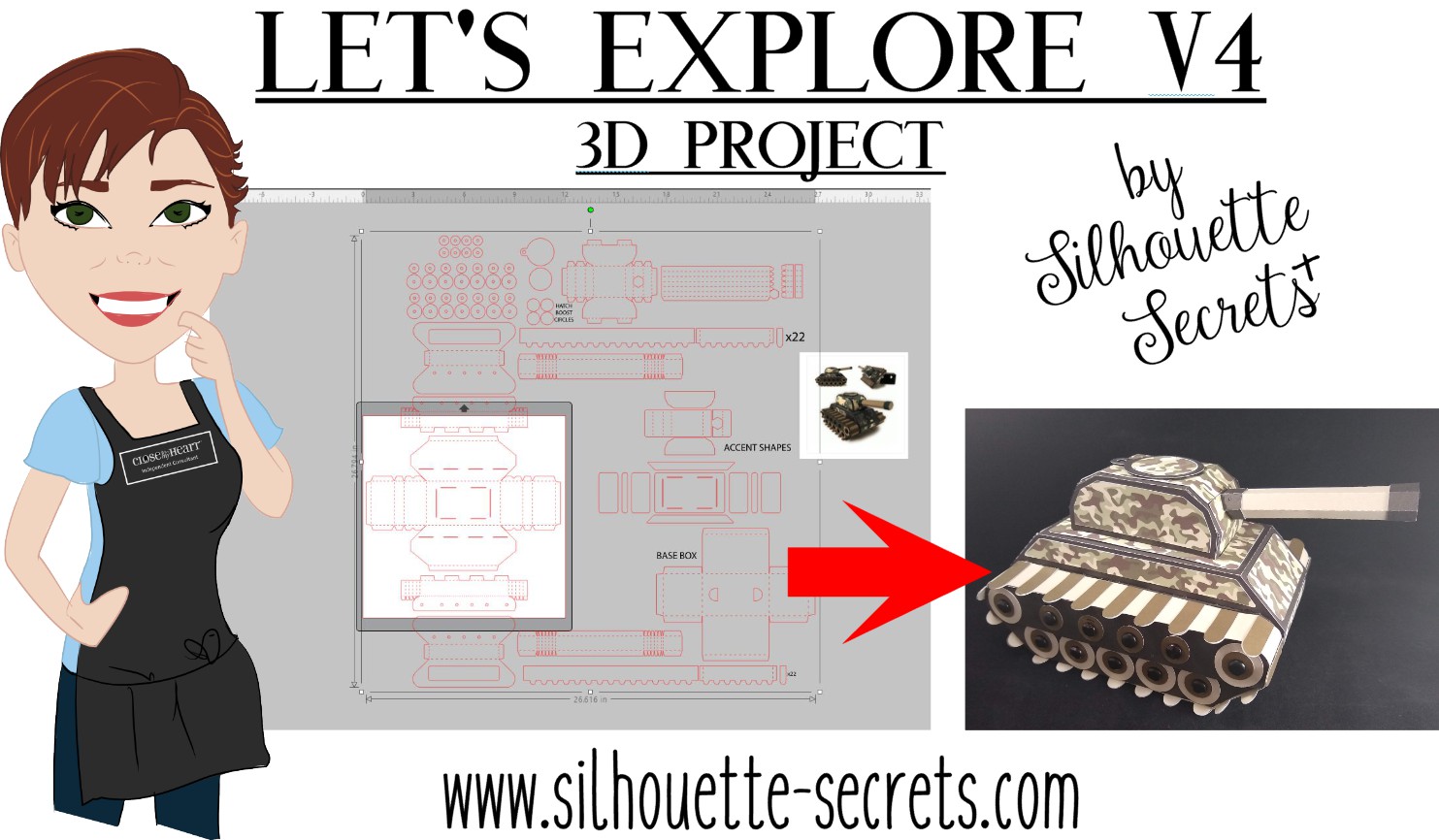
I love creating 3-D paper projects and my kids love to shop over my shoulder when I’m looking in the Silhouette Design Store. My son who loves army, tanks, and soldiers saw this Combat Tank 3D Box design in the store a few weeks back and has been asking me to build it ever since.

Tank design photo

I think his idea of building it was a bit different than mine. He was glued to my side while cutting all the pieces. He even helped unload the mat and remove some of the pieces off the cutting mat. Then he ran off, like little boys do.

When I’m working with a file that has many pieces to it, the first thing I do is open it up and take a look. I have to tell you when I first purchased this file, I opened it and then closed it. I wasn’t going to cut it that night.

Tank design copy

That is a lot of pieces, but it is a 3-D project after all and I love seeing it all come together.

The first thing I like to do when working with a 3-D file is to screen grab a photo of the design.

I am a PC gal, so I use the Snipping Tool. If you have a Windows computer, type Snipping Tool in the bottom left search bar and it will pop up.
I use this tool so often that I have it pinned to my bottom task bar for quick access.

Windows search bar

When it pops up, it looks like this.

Snipping Tool copy

Click on New and then draw a box around the object you want to “snip” on the page. Then choose to save that “snip” to the computer or copy and paste it into the Silhouette Design mat.

(On a MAC – Hold down the Command button, Shift & 4 – then drag the cursor around the object)

Tank scale up copy

This gives me a reference to look at when I’m working with the file.

Since I have the ability to cut 12″ wide, I scaled this file up to cut it as large as I could. I moved the largest piece that would be cut on top of the Silhouette virtual mat and used the bounding box in the corner to increase the size of the entire design.

Make sure if you resize a design, that you are resizing the entire design at the same time to keep it all at the same scale, or the pieces will not fit together.

Next, I ungroup the entire design if needed and then fill all the pieces with the color it will be cut out of. Then I move the same colors together to all be cut at the same time.

Tank colored copy

Now, you will see on the left side that those are not filled in. I did not have any Camouflage paper, so I went back to the Silhouette Design Store and found this Camouflaged Print Pattern by Nilmara Quintela.

Camo paper

By that time, my son had run back into the room and was excited to see how I was going to take this image on my screen and print it onto paper to cut out.

Now just like so many other things in the Silhouette software, there are a couple ways you can do this. Let’s Explore the difference between using the Modify Panel vs Pattern Fill.

Modify Panel

Step 1 – Open a new design mat.

Step 2 – From the Silhouette library, choose the Camouflaged Print Paper file.

Step 3 – Next, I scaled the paper down to fit on my 12 x 12 virtual design mat.

Step 4 – Copy the pieces from the 3-D design mat and paste them onto the new design file.

Modify Panel copy
*note – line thickness has been increased on the tank pieces for visual reference

Step 5 – Select all of the objects on the virtual design mat.

Step 6 – Open the Modify Panel and choose Crop.

Crop design copy
And I can still hear the gasp from my 7 year old son when he saw it change on the screen. That had to be the best part! I even had to do it over again and again for him to watch it.

Pattern Fill

Step 1 – Open a new Design mat.

Step 2 – Copy the 3-D file pieces and paste onto the new design mat.

Step 3 – Select all the pieces.

Pattern Fill copy

Step 4 – Open the Fill Color Panel and choose the 3rd tab = Fill Pattern.

Step 5 – Find the pattern in the fill pattern options and select it.

Pattern Fill 2 copy
This method looks a bit different and you have more options to Scale & Pan the Pattern. It is really a matter of personal preference on how you want the objects to be filled.

For this tank & camouflage pattern, I used the Modify Panel.

Next, I set this up as a Print and Cut file.

Print and Cut pattern paper copy.jpg

I follow the same steps every single time to setting up a print and cut and it works great. Check out this Print & Cut – Part I blog post for step by step setup and troubleshooting tips too!

Then, I printed it on my Canon 9521C large format printer. I have to say, I was hesitant to add this to my craft studio because it was more than I wanted to spend on a printer, but I am so glad I did. I purchased it after the November 2018 All Things Silhouette Conference and I have not regretted it since. I have printed so many high quality images for blog posts, classes, gifts, and more.

IMG_20190628_183626245 copy

Always double check that all the registration marks printed correctly and are not missing. For more tips on troubleshooting Print & Cut projects – click HERE.

Once all the pieces for the tank are cut, comes the assembly time.

The first thing I did was go look in the Silhouette Design Store and see if the designer had linked instructions in the description. This is a lot of pieces and having a tutorial is helpful in assembly.

Tank instructions copy

The link did not take me directly there, but a quick search of the blog and it popped right up.

Tank instruction search copy

Why does this happen? It can be for many reasons. Sometimes a link just doesn’t code correctly, a page was moved or renamed, etc. This was an easy one to find and often I find a quick search is all that is needed. But, when I find these things, I do let Silhouette know so they are aware.

And I have to say, this was a was great tutorial to put this tank together.

Tutorial copyFind the full tutorial for this Combat Tank 3-D Box by Snapdragon Snippets – HERE.

Now, some assembly photos.

Assembly photo 1 copy

I used a combination of Scrapbook Adhesives E-Z Runner and Liquid Glass by Close to My Heart to assemble these parts.

IMG_20190703_133734387 copy

For the smaller pieces, I used my Xyron Sticker maker which makes this so much easier.


Once it was all assembled it was time for photos.

IMG_20190703_144602281 copy

And of course he wanted to do some staging.

IMG_20190703_144854432 copy

It was a bit big for my photo box, but he didn’t care.

IMG_20190703_145258822 copy

And we had to take it for a test drive.

IMG_20190703_145455413 copy

And the Army guys definitely blend in. How many can you spot?

IMG_20190703_150129411 copy

He even set up a little battle, although I think one side was a bit overpowered.

IMG_20190709_105414284 copy

He was more than tickled to go put on his “Tank top” from last summer, his Camo pants and pose for this photo. I think this was a success!

Have you tried a 3-D project? Check out the 3-D section in the Silhouette Design Store for lots of fun projects.

3D projects copy

I would love to see what projects you create! Feel free to post on my Facebook group at Silhouette Secrets with EllyMae.

Enjoy!

SS_Signature copySS Logo snip it

**This post may contain affiliate links. What that means is that I may receive compensation if you purchase through the links I have provided. The price you pay for the product or service is not higher but I may get compensated for sharing.

Posted on 2 Comments

“Tank” top

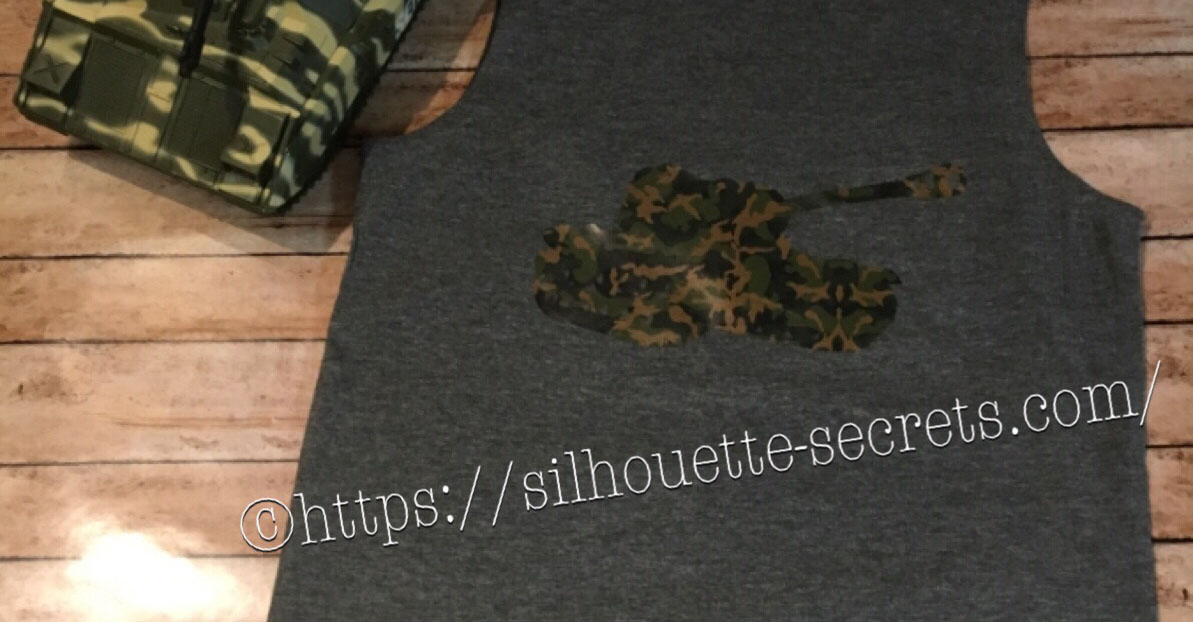
I created this shirt for my son to wear on vacation. He is all about Army and tanks at 6 years old and picked out this Military Set by Studio Ilustrado – Design #83790 in the Silhouette Design Store.

Design Store file

When this file is opened there are multiple designs so I had to right click on it then chose  ungroup and deleted the designs I did not want.

Design file ungroup copy

Then I always fill my design with color, so I can see how it will look when it’s cut.

Fill with color

And now came time to add this Camo Sparkleberry Ink HTV my cutting mat.

Sparkleberry ink camo

It turned out perfect.

temp

And as you can see, he loved it.

He told everyone the entire weekend of camping “Look at my Tank Top – get it? Tank Top”

IMG_4733

Feel free to share the creations you make on my Facebook group at Silhouette Secrets+ with EllyMae.

Enjoy !

THANK YOU for your support! How can you help? Click HERE & buy a coffee. Every little bit helps with the cost of running the site.

Looking for more in-depth, step-by-step classes, check out all of my online Silhouette classes on my Teachable site HERE.

SS Logo snip it

**This post may contain affiliate links. What that means is that I may receive compensation if you purchase through the links I have provided. The price you pay for the product or service is not higher but I may get compensated for sharing.

Posted on 2 Comments

Using multiple files to create a design

Where do you find your ideas?

I am a big Pinterest lover. I pin a lot of things of all categories and sometimes just sit and pin ideas for hours. I find it relaxing. Do I make all the pins I save? No – but I have made quite a few.

Check out my Pinterest boards HERE and maybe you’ll get some ideas.

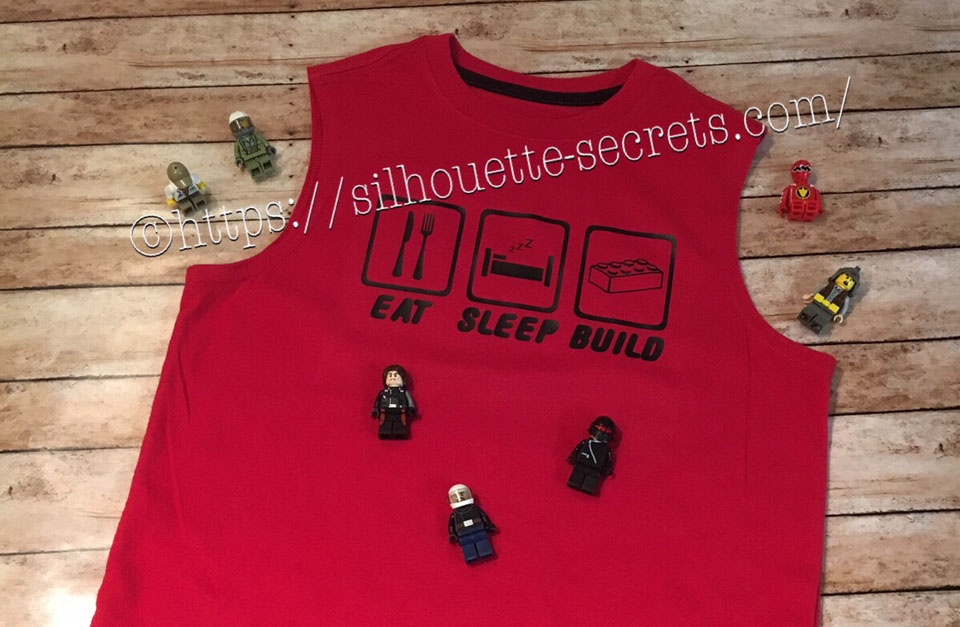
My son was looking for something to put on a shirt and he found one he really liked. I realized I could re-create it with designs from the Silhouette Design Store. My son loves Legos. He will wake up and create something before his eyes are fully opened. And he is good! I have to have directions to follow to make something and that goes for anything – I just don’t have that engineering mind. He can just imagine something and then create it out of Legos. It’s amazing and love that at 6 years old, he is doing that.

While creating this shirt, I used many of the features we have already reviewed in the “Let’s Explore v4” series. Watch for links throughout this post that will explain more about each function I used in designing the shirt.

temp_1

First, I went shopping in the Silhouette Design Store and here are the designs I picked up:

Sleep Icon by Rhonna Farrer – Design #200750 Sleep photo DS

ZP Brick Blocks Print by ScrapNFonts – Design #120497 ZP Brick Blocks Print

Building Block by Snapdragon Snippets – Design #34936 Building Block DS

Kitchen Dingbats by Lori Whitlock – Design #215176 Kitchen Dingbats by LW

Now, I am ready to create my design. I opened each of the designs from my Silhouette library and have them on my mat.

Designs on page1

Now I can start editing them to delete the pieces I do not need.

By releasing and making compound paths, I was able to alter both of these designs to ones that I could use in with HTV on the shirt.

Designs on page1

You can find more information on Compound Paths HERE.

Altered designs

I like to fill all my designs with color as it makes it easier to work with the design and you can see it better. Check out more information on the Fill Color Panel HERE.

Next, I took the drawing tools on the left side and drew a rounded rectangle.

Rounded Rectangle copy

Then I right clicked on the rectangle and chose “Convert to Path”.

Convert to Path copy

This will set the design as a solid rectangle. Before convert to path is chosen, the red dots can still be moved in the top left corner and this will change the angle of the rounded rectangle corners.

Now, make an offset of the rounded rectangle. Find more information on creating an Offset HERE.

Offset

Then select both rectangles, right click and choose “Make Compound Path“. Then fill with color and now there is a rectangle outline.

Rectangle outline

Then the rectangle can be replicated 2 more times for design. Check out more information on the Replicate Panel HERE.

Replicate rectangle

Next, I used the Lori Whitlock Kitchen Dingbats for my fork and knife.

I accessed the Dingbat font in the Text Style Panel under the Glyphs panel and double clicked on the character I wanted.

For more information on accessing glyphs directly in the software click HERE.

LW Dingbats copy

Then I right clicked and chose “Release Compound Path“, deleted the spoon, moved the fork to the right side, selected both and grouped them back together.

Now I have all my designs and just need to resize them to fit inside the rectangles.

Transform Panel - Align

Now that the designs are sized how I like, I can use the Transform Panel – Align tools to make sure they are centered and the spacing between each section is the same. Check out more information on using the Align tools HERE.

All that is left is to create my text. For this, I used the ZP Brick Blocks Print by ScrapNFonts from the Silhouette Design Store.

Block font

I used the Text Style Panel to choose the font that I wanted and then used the Transform -Align Panel to center the words to each rectangle.

Once I have everything centered and aligned how I want it, I select it all and then Group it together, so it moves as one object.

Flip Horizontal

Then I right clicked on the design and chose “Flip Horizontal”, since I am cutting this from Heat Transfer Vinyl. I prefer to flip the image myself and then tell the software to “Send As Is” when it gives me the pop up after clicking on Send, so there is no issue with it flipping it to the wrong side of my mat.

Flip copy

And now you are ready to send this to cut after making sure you blade is installed right and choosing the correct material.

This design is cut out of Siser Easyweed Black HTV and I applied it using my heat press with a Siser Pressing pillow to help raise the design area above the seams.

IMG_4003_edited

My son loved his shirt and I loved creating it by combining several designs.

temp

Are you not finding the exact design that you envision for a project? Why not create your own? Combine designs that you buy, create your own or a combination of both.

Feel free to share the creations you make on my Facebook group at Silhouette Secrets+ with EllyMae.

Enjoy !

THANK YOU for your support! How can you help? Click HERE & buy a coffee. Every little bit helps with the cost of running the site.

Looking for more in-depth, step-by-step classes, check out all of my online Silhouette classes on my Teachable site HERE.

SS Logo snip it

**This post may contain affiliate links. What that means is that I may receive compensation if you purchase through the links I have provided. The price you pay for the product or service is not higher but I may get compensated for sharing.

Posted on 1 Comment

Hot Mess with your Silhouette Cameo

While the title could mean many things, this week it’s in reference to Spring Break at my house. I thought it would be a fun idea to try out this “Hot Mess” technique with the kids for a crafting project on Spring Break….

Now, I don’t know if it was a good idea to do this on Day 1 of Spring Break or not – would it have been better on Day 5? Who knows…. but I’m going to show you our results.

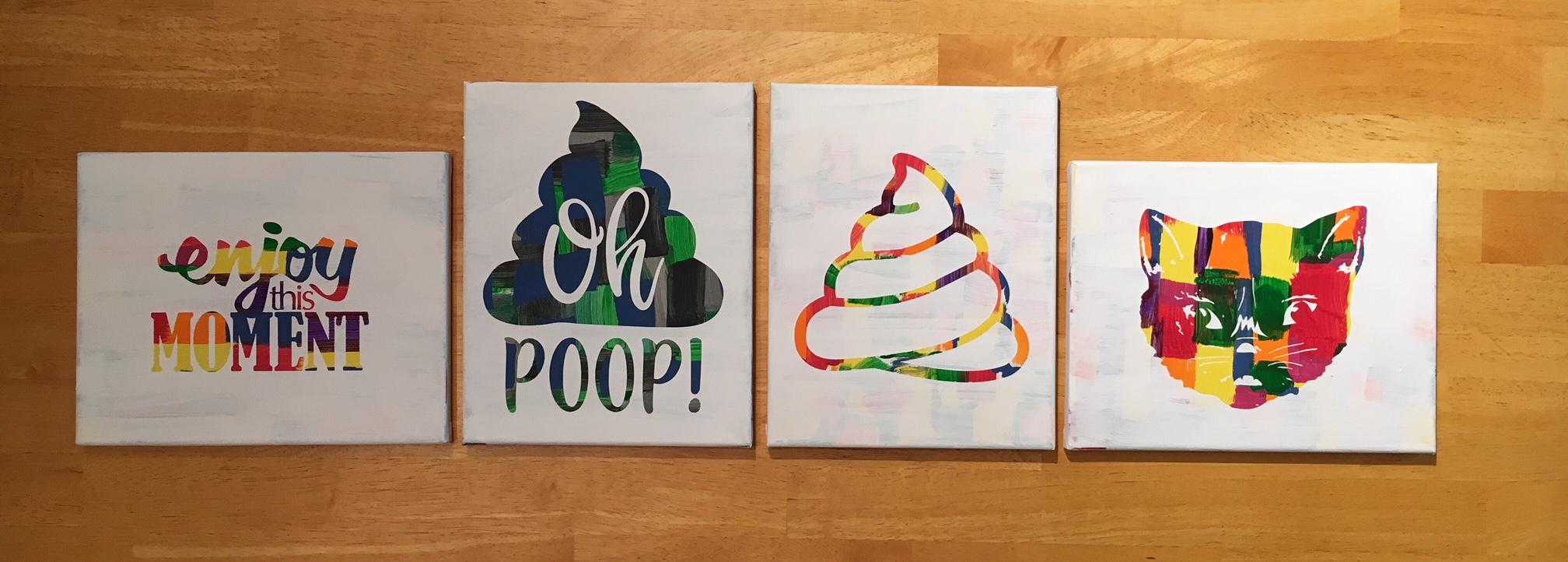
First, what is a Hot Mess? On some days, that could be my title but today I’m talking about a new crafting project that has everyone rushing out to pick up canvas from the craft store.

IMG_2483

How do you create these pieces of art?

  1. Grab a canvas and the paints you want to use. IMG_2446
  2. Paint any sort of pattern you so desire onto your canvas. Let it dry thoroughly.
  3. Cut a stencil using your Silhouette machine and some vinyl – I used Oracal 631 and 651. As you can see, this is what you get when you let an 8, 6 and almost 5 year old pick out their own stencil. IMG_2452
  4. Apply the stencil using transfer tape – I recommend Oracal transfer tape. You may need to help the vinyl stick to the canvas at first. Just be patient and go slow. IMG_2453
  5. And now paint your top layer of paint. You can choose any color you’d like, but we stuck with white on top. IMG_2456_edited
  6. Let that dry for a bit and then carefully peel off the vinyl stencil. You don’t want it to be too wet when you peel it and you don’t want the vinyl to sit on the canvas too long either as it may start to cure to the canvas.
  7. Let your works of art dry completely.

And there you have the “Hot Mess” technique.

I am so glad I did not start with the 12″ x 24″ canvas that jumped into my cart at Michael’s, as the kids were done after the first 30-40 minutes. And I can say it is a one and done crafting project for Spring Break 2018.

If you have any desire to use these same designs in your works of art, here is where I found them: – Enjoy this Moment by Kolette Hall Design #36196 from the Silhouette Design Store – Oh Poop! Quote by Sarah Hurley Design #209510 from the Silhouette Design Store – Cat by Basic Grey Design #65180 from the Silhouette Design Store – Other poo design created using tracing and point editing.

Next week we will be back to our “Let’s Explore v4” series, continuing through the different tools available to you in the Silhouette Studio v4 software.

In the meantime, check out the other posts in the Let’s Explore v4 Series HERE.

I would love to see what projects you create! Feel free to post on my Facebook group at Silhouette Secrets with EllyMae.

Enjoy !

THANK YOU for your support! How can you help? Click HERE & buy a coffee. Every little bit helps with the cost of running the site.

Looking for more in-depth, step-by-step classes, check out all of my online Silhouette classes on my Teachable site HERE.

SS Logo snip it

**This post may contain affiliate links. What that means is that I may receive compensation if you purchase through the links I have provided. The price you pay for the product or service is not higher but I may get compensated for sharing.

Posted on Leave a comment

Halloween decor – yes that’s right!

Halloween is of course several months in the past, but when you can pick something up on clearance…. why wait until next year to finish it.

I found a couple signs at Target that were perfect to add vinyl to.

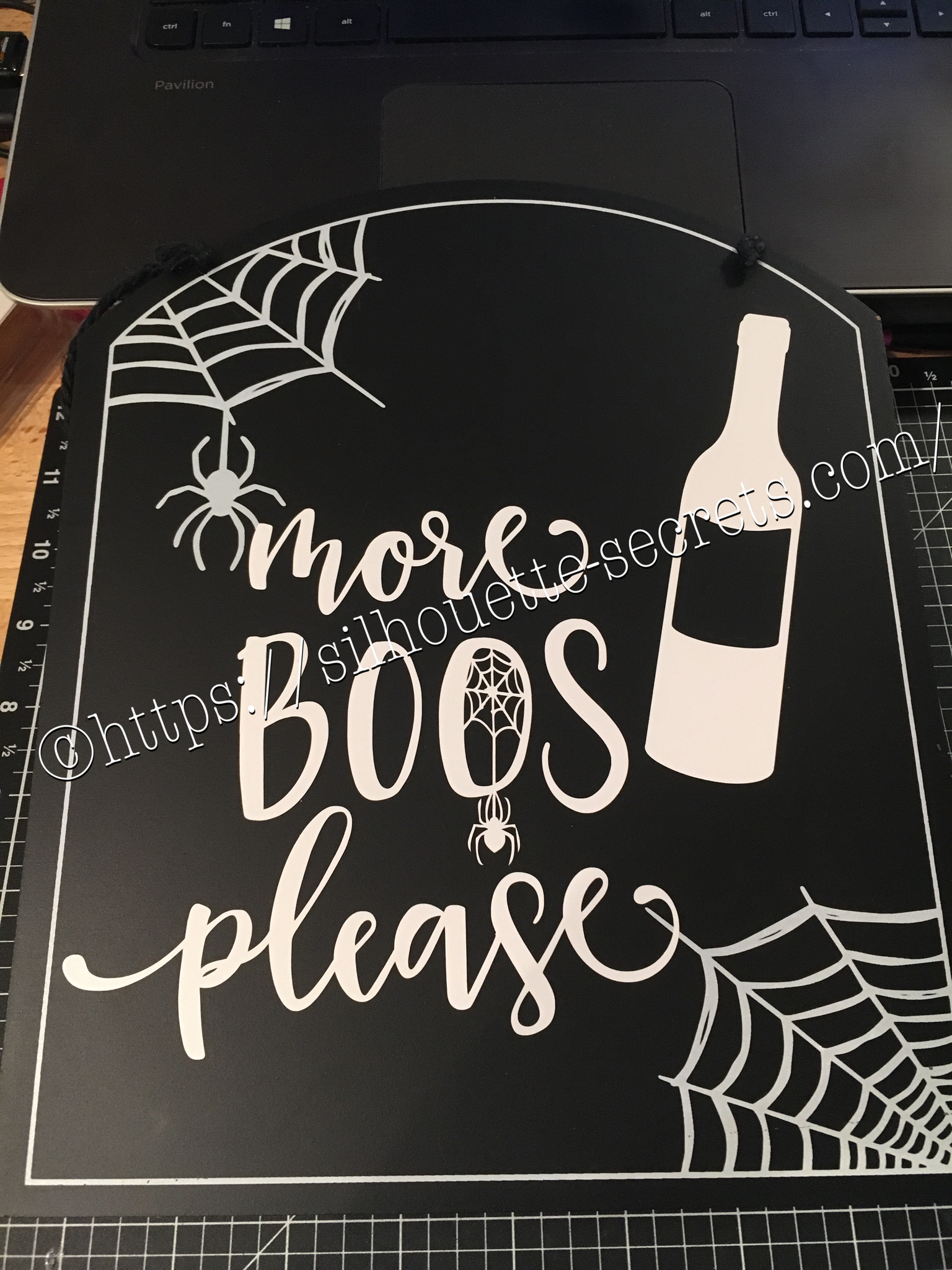
I had a couple files from the Silhouette store & they were perfect for these…..

img_6072-1

With my first design, I weeded the large area first & then I applied my transfer tape & uses a technique commonly called “reverse weeding” in the Vinyl crafting lingo.

How do you reverse weed?

Burnish your design well, so it all sticks to your transfer tape.
Then peel the backing off of your vinyl design & very carefully weed out the bits of vinyl from the delicate parts of your image.
This works especially well if you have small eye pieces or small dots for letters, etc. It does take some practice to get the hang of it.
The first time I did it, I hated it because my transfer tape kept sticking to me.
But, the more you practice & get the hang of it, the more you fall in love with the technique & use it for those delicate designs that you don’t want your pieces moving on.
In my design, I used this for the spider web that was in the center of my “O”.

After weeding my design, I then carefully placed my design on my sign & burnished it down really well. Then I carefully peeled the transfer tape off, watching for any vinyl that did not come off the transfer tape and I would put it back down & burnish it some more to get it to stick.

img_6074-1

And my second design, also from the Silhouette Design Store.


img_6075-1

Now these are ready to pull out for next year and will go perfectly in my dining room that has a wine theme.

Whenever you get the chance to grab some decor items at a discount, grab them, but don’t let them sit around too long without adding all the finishing touches.

Enjoy !

THANK YOU for your support! How can you help? Click HERE & buy a coffee. Every little bit helps with the cost of running the site.

Looking for more in-depth, step-by-step classes, check out all of my online Silhouette classes on my Teachable site HERE.

SS Logo snip it
**This post may contain affiliate links. What that means is that I may receive compensation if you purchase through the links I have provided. The price you pay for the product or service is not higher but I may get compensated for sharing.