Posted on 2 Comments

Install Fonts for Silhouette Studio: Tutorial for Crafters

Install Fonts for Silhouette
Silhouette Secrets+ with EllyMae

Sharing a bit of information today on how to install fonts for use in the Silhouette Studio software. Well, any program really. Fonts are installed directly on the computer and then software programs pull from the Fonts folder on the computer hard drive to access.

Windows computer fonts folder

Affiliate links may be present in the following blog post and as an Amazon Associate, I earn from qualifying purchases.

Font files are typically OTF or TTF font files. OTF stands for Open Type Font and if you have the option to install this, that is the one you should install. The OTF file is the newer font format and is the one that has all the special characters, also called glyphs, that we have seen evolve over time. Over time we have seen a shift in font development and are now seeing hundreds of characters in one font file versus the original 26 characters of the alphabet + numbers.

TTF stands for True Type Font and these are the older style font files that do not have as many special characters. If TTF is the only option you have to install for a font, that will work just fine. All it means is that the font file does not contain as many special characters.

How to Install Fonts for Silhouette

Check out the new video tutorial on the Silhouette Secrets+ YouTube channel as I’m sharing step-by-step how to install fonts for use in Silhouette.

How to Install Fonts for Silhouette

As a Silhouette user we’ve been kind of spoiled in seeing font file thumbnails show up in the Fonts folder of the Silhouette library and with most of your basic fonts, the font will install on the computer when the font thumbnail syncs to the library. However, with the Silhouette website migration issues that started on 5/22/24, we have seen fluctuation in files actually syncing properly to the Silhouette library.

The fonts from the Silhouette Design Store, do NOT have to sync to the library for use. It’s just kind of a perk that we have gotten used to. Once things are back to working like they should with the Silhouette websites someday, we may see things return to normal.

The Silhouette Fonts folder only contains thumbnails for fonts that are purchased and synced to the library directly from the Silhouette library. Font files can be found in many online sites. Check out the Recommended Design & Retailers for the group for more options HERE.

The same steps apply for all fonts to be installed no matter what site you obtain them from.

I also have a written tutorial that I published a few year back called Let’s Explore v4 – Installing Fonts. In this tutorial I have provided additional details on things you might encounter such as extracting downloaded files and installation steps for a MAC.

Installing Fonts in Silhouette Studio

As technology changes and we see updates from both Microsoft and Apple in the computer operating systems, there can be new ways they “hide” things or change things that users have to figure out. For instance, with the release of Windows 11, Microsoft hid the “Install for all users”. It is an important step in the process or the font file might not show up in all programs. That is also another change by Microsoft that occurred with Windows 10 release.
If you encounter any issues with installing fonts or see something different than my video tutorial shows, please check out the written tutorial HERE for more details.

If you have any questions, please let me know in the comments below.

Save this for future reference by pinning the image below.

How to Install Fonts for Silhouette Pinterest

Enjoy !

THANK YOU for your support! How can you help? Click HERE & buy a coffee.
Every little bit helps with the cost of running the site.

Silhouette Classes

Never stop learning! Let me help you take the anxiety out of learning with Silhouette and get to creating faster! My Silhouette classes are heavily focused on software, so you can take the skills & techniques taught and apply them to many future projects!

Silhouette step-by-step Classes by Silhouette Secrets+

Silhouette Secrets+ with EllyMae
**This post may contain affiliate links. What that means is that I may receive compensation if you purchase through the links I have provided. The price you pay for the product or service is not higher but I may get compensated for sharing.
Posted on 1 Comment

Heat Pen Panel – Silhouette Specialty Tools

Silhouette Heat Pen Panel
Silhouette Secrets+ with EllyMae

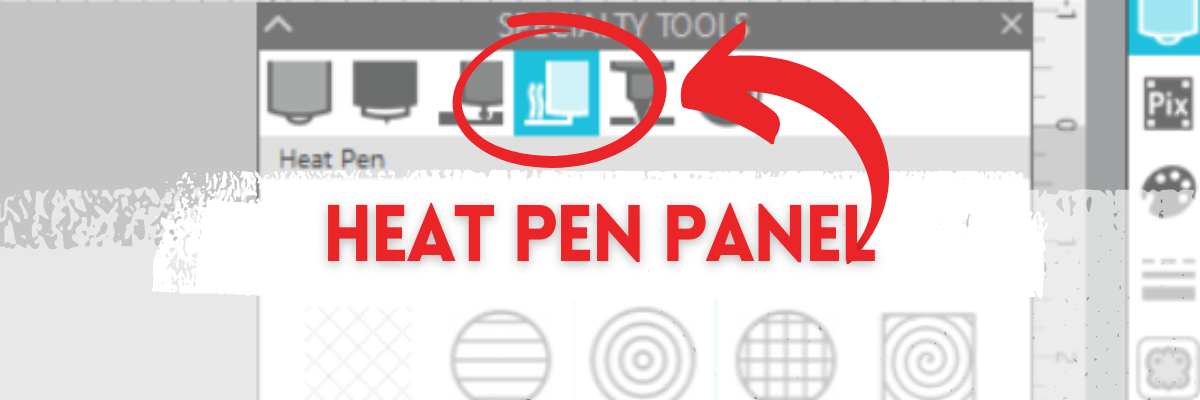
Under the new Specialty Tools Panel on Tab 4 in Silhouette Studio, is the Heat Pen Panel.

This tutorial was written in Silhouette Studio version 4.5.770.

The Specialty Tools Panel was released in v4.5+ software versions. If you don’t see it on the right side of the Silhouette Studio, your software version may be older than v4.5.

Affiliate links may be present in the following blog post and as an Amazon Associate, I earn from qualifying purchases.

The Silhouette Heat Pen is one of the new powered tools that was announced and released in September 2023. It is compatible with the Silhouette Cameo 5, Portrait 4, and Curio 2.

Silhouette Heat Pen - Foil on Cardstock

The Silhouette Heat Pen can be found at CrafterCuts, Silhouette America, or Amazon.
CrafterCuts has free shipping on orders over $35 and use code SECRETS to save 10% on supplies & accessories (not valid on machines).
Silhouette America has free shipping on orders over $50 if you are a Silhouette Club member.

Specialty Tools Panel – Heat Pen – Tab 4

Here is a look at the details of the Heat Pen Panel in Silhouette Studio.

Silhouette Heat Pen Panel - Specialty Tools

1 – Heat Pen Fill Patterns – choose from None, Lined, Concentric, Cross-hatched, and Spiral

Silhouette Heat Pen Fill Patterns

All designs will vary in how the pattern fills in the area. I used Hi by Diva Watts Design – Design #399489 and at the size shown, there isn’t much inside the Concentric Pattern fill at a 0.079 spacing. Testing is the only way to know what fill pattern and spacing will look good on the finished project.

2 – Spacing – Increase or decrease the grid spacing between the lines of the pattern. A spacing of 0.004″ will fill in the design more, but depending on the pattern chosen, there can still be some bare spots.

Silhouette Concentric Fill Pattern 0.004" spacing

In this example, the Concentric fill pattern at a 0.004″ spacing fills in most areas, but there are still some white spaces in certain areas. Zoom in on your designs so you can see the tight fills and how each pattern fills in the designs.

Silhouette Heat Pen Concentric Fill Zoomed In

These spaces may or may not affect the outcome of the final project. Testing is the the only way to know what will work and all designs will vary.

This is another area where you are changing a lot of data at one time, so be patient with your computer if it is thinking.

3 – Angle – Change the angle of the fill pattern.

4 – Release Heat Pen Fill – selecting this option will take the fill from an editable fill pattern and makes it a vector design.

When using this feature, be aware that once the fill has been released and file saved and closed, it is a permanent change to that file. If the design needs to be adjusted, you would need to start over.

Silhouette Heat Pen

Here are a few examples created with the Silhouette Heat Pen.

Silhouette Heat Pen Examples

Check out the full tutorial and written instructions on using the Silhouette Heat Pen HERE.

I tested several brands of hot foil with the Silhouette Heat Pen and here are the supplies I used when testing and creating the projects shown above.

Supplies Used

Optional supplies:

Additional Resources:

  • Silhouette Curio 2 additional resources found HERE

Silhouette Studio Specialty Tools Panel Tabs (coming soon)

  • Specialty Tools Panel – Tab 1 – Emboss Panel details HERE
  • Specialty Tools Panel – Tab 2 – Score & Emboss – details HERE
  • Specialty Tools Panel – Tab 3 – Power Engraver – details HERE
  • Specialty Tools Panel – Tab 4 – Heat Pen – details above

Save this for future reference by pinning the image below.

Silhouette Heat Pen Pinterest

Enjoy !

THANK YOU for your support! How can you help? Click HERE & buy a coffee.
Every little bit helps with the cost of running the site.

Silhouette Classes

Never stop learning! Let me help you take the anxiety out of learning with Silhouette and get to creating faster! My Silhouette classes are heavily focused on software, so you can take the skills & techniques taught and apply them to many future projects!

Silhouette step-by-step Classes by Silhouette Secrets+

Silhouette Secrets+ with EllyMae
**This post may contain affiliate links. What that means is that I may receive compensation if you purchase through the links I have provided. The price you pay for the product or service is not higher but I may get compensated for sharing.
Posted on 1 Comment

Power Engraver – Silhouette Specialty Tools Panel

Silhouette Curio 2 Power Engraver Panel
Silhouette Secrets+ with EllyMae

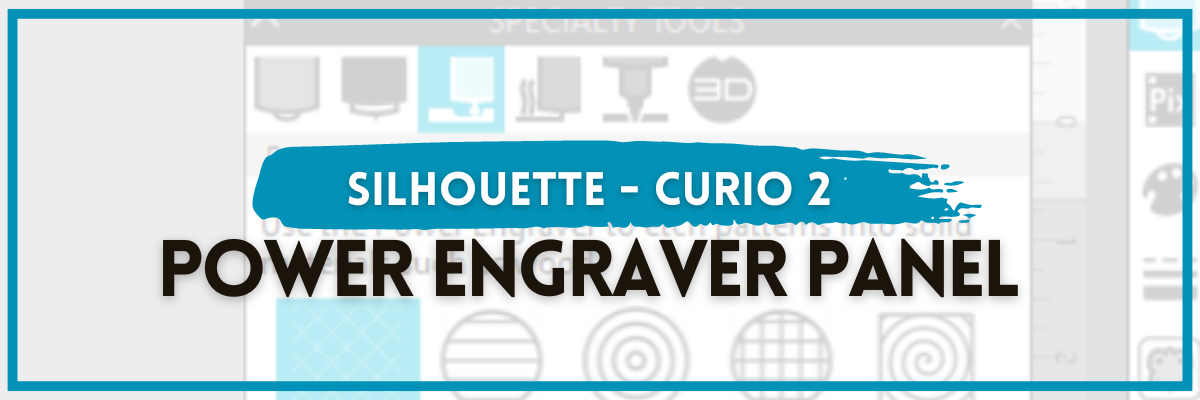
Under the new Specialty Tools Panel on Tab 3 in Silhouette Studio, is the Power Engraver Panel.

This tutorial was written in Silhouette Studio version 4.5.770. The Specialty Tools Panel was released in v4.5+ software versions. If you don’t see it on the right side of the Silhouette Studio, your software version may be older than v4.5.

Affiliate links may be present in the following blog post and as an Amazon Associate, I earn from qualifying purchases.

The Power Engraver is specific to the Silhouette Curio 2 and is one of the new powered tools that was announced and released in September 2023.

Silhouette Curio 2 Power Engraver

The Silhouette Power Engraver is designed to be used along with the Curio 2 Debris Tray, which helps to contain any debris from the materials being etching.

Silhouette Power Engraver for the Curio 2

The backside of the Power Engraver features a power plug that sits in the Carriage 2 housing and powers the device through the Silhouette Curio 2 machine. The end of the tool is a router tip that spins to perform the engrave process. It functions like a Dremel tool and sounds like one too. The sound changes depending on the materials being used.

And I’ll just say – I love it!

Specialty Tools Panel – Power Engraver – Tab 3

Here is a look at the details of the Power Engraver Panel in Silhouette Studio.

Silhouette Power Engraver Panel

1 – Power Engraver Etch Fill Patterns – choose from None, Lined, Concentric, Cross-hatched, and Spiral

Silhouette Power Engraver Tool

2 – Spacing – Increase or decrease the grid spacing between the lines of the pattern. The dark red star shows a 0.004″ spacing – a really tight etch fill

Silhouette Power Engraver Fill Spacing

This is another area where you are changing a lot of data at one time, so be patient with your computer if it is thinking.

3 – Angle – Change the angle of the etch pattern.

4 – Release Engraving Fill – selecting this option will take the fill from an editable fill pattern and makes it a vector design.

This can be helpful if you are trying to stack multiple layers of etch for engraving on harder materials. It is not necessary to do this with simple etch designs or softer materials such as acrylic.

When using this feature, be aware that once the fill has been released and file saved and closed, it is a permanent change to that file. If the design needs to be adjusted, you would need to start over.

Silhouette Curio 2 Power Engraver

Here are a few examples of etching on acrylic with the Silhouette Power Engraver.

Silhouette Curio 2 Acrylic Etching with Power Engraver

I’ve had a lot of fun creating with the Silhouette Curio 2 and Power Engraver!

Find more details on etching with the Curio 2 in this post Beginner Acrylic Engrave/Etch with the Silhouette Curio 2 found HERE.
I share the supply list used for the projects and also details on the Silhouette Curio 2 – Beginner Acrylic Engrave Class that will take you step-by-step through the process. The class aims to quickly help you succeed in etching on the Curio 2.

Additional Resources:

  • Silhouette Curio 2 additional resources found HERE

Silhouette Studio Specialty Tools Panel Tabs (coming soon)

  • Specialty Tools Panel – Tab 1 – Emboss Panel details HERE
  • Specialty Tools Panel – Tab 2 – Score & Emboss – details HERE
  • Specialty Tools Panel – Tab 3 – Power Engraver – details above

Find the Silhouette Curio 2, Power Engraver Tool, and the Curio Debris Tray at either CrafterCuts, Silhouette America, or Amazon.
CrafterCuts has free shipping on orders over $35 and use code SECRETS to save 10% on supplies & accessories (not valid on machines).
Silhouette America has free shipping on orders over $50 if you are a Silhouette Club member.

Save this for future reference by pinning the image below.

Silhouette Specialty Tools Power Engraver Panel

Enjoy !

THANK YOU for your support! How can you help? Click HERE & buy a coffee.
Every little bit helps with the cost of running the site.

Silhouette Classes

Never stop learning! Let me help you take the anxiety out of learning with Silhouette and get to creating faster! My Silhouette classes are heavily focused on software, so you can take the skills & techniques taught and apply them to many future projects!

Silhouette step-by-step Classes by Silhouette Secrets+

Silhouette Secrets+ with EllyMae
**This post may contain affiliate links. What that means is that I may receive compensation if you purchase through the links I have provided. The price you pay for the product or service is not higher but I may get compensated for sharing.
Posted on 6 Comments

Silhouette Specialty Tools Panel – Score & Emboss

Score & Emboss with Silhouette
Silhouette Secrets+ with EllyMae

Under the new Specialty Tools Panel on Tab 2 in Silhouette Studio, is the Score & Emboss Panel.

This tutorial was written in Silhouette Studio version 4.5.770. The Specialty Tools Panel was released in v4.5+ software versions. If you don’t see it on the right side of the Silhouette Studio, your software version may be older than v4.5.

Affiliate links may be present in the following blog post and as an Amazon Associate, I earn from qualifying purchases.

The score & emboss process is designed to cut a shallow line before embossing, intending to deepen the embossing.

Silhouette Score & Emboss Panel

This option is available to Silhouette Curio 1, Silhouette Curio 2, and Silhouette Cameo 5 model owners. If one of these machines is not plugged in and recognized, the panel will gray out, and you may not be able to select the options.

Specialty Tools Panel – Score & Emboss – Tab 2

Here is a look at the details of the Score & Emboss Panel.

Silhouette Score & Emboss Panel Details

1 – Tool Selection – Choose either the Fine or Wide Embossing tool according to what you are using.

Fine Embossing tool is a 1 mm tip and designated by a light blue/green top.
Wide Embossing tool is a 3 mm tip and designated by a darker blue top.

Silhouette Embossing Tools

2 – Passes – choose the number of passes for the tool to complete from 1 – 10
3 – Fill – check this to add a fill to the object selected.
4 – Apply Score & Emboss Lines – selecting this confirms to the software that you want to apply both these actions to the selected object

Score & Emboss on the Send Tab in Silhouette

Once you apply the Score & Emboss, clicking on the Send tab will display both a red cut line and a blue emboss line around the design.

Silhouette Score & Emboss Send Tab

Carriage 1 performs the red cut line with a blade installed, and Carriage 2 performs the blue emboss line with the embossing tool.

To be honest, I tested both with and without the Score line and it did not make a difference that I could tell with my cardstock, except that scoring increased the time & caused more debris. All cardstock will vary and testing is the only way to know what will work best with your brand and thickness of cardstock.

Here is a look at just embossing cardstock with the Silhouette Curio 2.

Silhouette Curio 2 Embossing Cardstock

Here is a look at the Score & Emboss results. I noticed that it created debris and separation in some areas where it scored and embossed.

Silhouette Score & Emboss Results

Results may vary depending on the actual cardstock being used. Silhouette does have a Score & Emboss paper that they recommend for this method. However, you can test with any cardstock and simply select the Score & Emboss Paper as the material on the Send tab.

Tips to Keep in Mind with Score & Emboss

When using the Score & Emboss feature, keep in mind that it increases the time for the project to complete because you have 2 tools working consecutively. Depending on what you tell the software to do, it can be a lot of data to process, so be patient with your computer if it is thinking.

Embossing is available on the following Silhouette model machines: Curio 1, Curio 2, Cameo 5.

The Silhouette Embossing tools (fine & wide tip) work in conjunction with the Silhouette 12″ x 12″ Embossing mat.

At the time of publishing this post, a bug persists in the Silhouette software for the Silhouette Cameo 5 causing it not to emboss where it shows on the screen. I will not release a tutorial until this bug is fixed, as I don’t want users to ruin their $30 embossing mat, as I did on the first try.

Silhouette Embossing Mat Cameo 5

If you do attempt to do this with the Silhouette Cameo 5, I would highly recommend that you use a full 12″ x 12″ sheet of cardstock to protect the entire emboss mat surface.

Cutting completely through a material on top of the Silhouette Embossing mat is not recommended as it can damage the embossing pad and tear it up.

As new information is released and the bugs are fixed, I will add additional resources for embossing.

  • Silhouette Cameo 5 additional resources found HERE
  • Silhouette Curio 2 additional resources found HERE

Silhouette Studio Specialty Tools Panel Tabs (coming soon)

  • Specialty Tools Panel – Tab 1 – Emboss Panel details HERE
  • Specialty Tools Panel – Tab 2 – Score & Emboss – details above
  • Specialty Tools Panel – Tab 3 – Power Engraver – details HERE

Save this for future reference by pinning the image below.

Silhouette Score & Emboss Pinterest

Enjoy !

THANK YOU for your support! How can you help? Click HERE & buy a coffee.
Every little bit helps with the cost of running the site.

Silhouette Classes

Never stop learning! Let me help you take the anxiety out of learning with Silhouette and get to creating faster! My Silhouette classes are heavily focused on software, so you can take the skills & techniques taught and apply them to many future projects!

Silhouette step-by-step Classes by Silhouette Secrets+

Silhouette Secrets+ with EllyMae
**This post may contain affiliate links. What that means is that I may receive compensation if you purchase through the links I have provided. The price you pay for the product or service is not higher but I may get compensated for sharing.
Posted on 2 Comments

Let’s Explore v4 – Cut by Fill Color in Silhouette Studio

Silhouette Studio Cut by Fill Color
Silhouette Secrets+ with EllyMae

Silhouette Studio – Cut by Line Color

In this Let’s Explore v4 tutorial, we will cover the Silhouette Cut by Fill option. The Silhouette Studio software, has 4 options on the Send Tab on how to send the design to be cut – in the top right corner of the Send tab you will find the options Simple, Line, Fill, and Layers.

I’ve covered both the Send Tab – Simple option and the Send Tab – Line option in-depth in previous tutorials.

Silhouette Studio Send Tab - Cut by Fill Color

Affiliate links may be present in the following blog post and as an Amazon Associate, I earn from qualifying purchases.

The Silhouette Cut by Fill option allows you to cut a project by fill color. The Silhouette software generates the list shown under the Fill option based on the colors that you (or the designer) has filled the design with.

Silhouette Studio Fill Color

In this example using the Mardi Gras Mask file by Cut Files Makers, the file is already filled with color. If a design is not, you would need to select the pieces you want to fill and then select the color you want designated for that piece from the Fill Color Panel on the right or the Fill Color icon in the QAT in the top left of the Silhouette Studio software.

Silhouette Send Fill Color Option

In this Send – Fill option, you have each fill color separated out in it’s own line and you can adjust the settings accordingly.

If you see an option that has a crosshatched pattern in it, that means there is no fill color for that cut line. This can happen when shapes haven’t been filled with a color or there is an image such as a png or jpeg on the file.

Silhouette Cut By Fill Color

Details of the Silhouette Cut by Fill Color

Let’s take a look at what the actions are at the top of the Send tab in Silhouette for Cut by Fill Color.

Silhouette Cut by Fill Color

Tool No.
Choose whether you will be using Tool 1 or Tool 2, also called Carriage 1 and Carriage 2

On/Off
Checked = Cut lines On
Unchecked = Cut lines Off

Bold color lines will be around the design that the cut lines are turned ON for. Notice the purple and yellow lines are not bold since they are turned OFF. Some colors are more difficult to see the bold edge, such as white.

Silhouette Send Cut by Fill Color

Weld
The outer edge of overlapping objects of the color selected will be cut. Welding typically combines objects, but in this instance, the objects remain separate and the Cut Edge is activated.

Fill Color
The same colors of the fill that were set up on the Design Tab, should all show in the list under Fill Color. Different shades of a color will show up as different options.

Material
Choose the Material type you are using for each color.
Each fill color will need to be changed separately if you did not select the material on the Simple tab before clicking on the Cut by Fill Color option.

Action
Choose what action you will want to perform.

Tool/Carriage
Choose what tool you will be using to perform the action.

If you were to keep all of the colors checked and have the cut lines ON, the order in which they appear in the list is the order in which the action will be done. For instance in my photo that would mean, the green would cut first, then the yellow, and then the purple.

You can rearrange the order by clicking and grabbing a color and move it up or down in the list as shown in the video below demonstrating with the line color option.

Moving down the right side of the Send tab – Fill Option, you will see that the cut settings are expanded further down to show what the settings are for each option you have chosen.

Silhouette Cut by Fill Color Selection

The color that is highlighted (selected) at the top of the panel will be the settings that you see at the bottom. In my photo, the green color is highlighted, so it shows the settings for the green lines in the bottom.

Here is where you can adjust the settings as needed. The key here is to make sure that the color you want to change is the one highlighted at the top AND the color shows on the bottom. We are seeing many users changing the settings for the wrong color.

This happens so often, that I put out a video on the Silhouette Secrets+ YouTube channel showing exactly what I mean. Check it out HERE.

Silhouette cutting issues with Cut by Line or Fill Color

You can also add a Pause in between the difference color actions if you would like to do that versus unchecking the box to turn the cut lines off. Each user is going to vary in what they prefer to do. I prefer to check and uncheck the boxes as needed, just in case I have to step away from my machine.
But you can test out which way works best for you.
See a quick demo of Adding a Pause HERE.

Now, the rest of this panel is the same as when using the Simple tab.
Check out the in-depth tutorial on the Send Tab – Simple Option HERE for all those details.

Having options in the Silhouette Studio software is fantastic! I’m also thrilled with my new shirt adorned with ThermoFlex Plus Metal Flake HTV. Be sure to check out the “Crafting a Shirt with ThermoFlex and Silhouette (Poli-Tape)” video available on the Silhouette Secrets+ YouTube channel right HERE.

Silhouette PoliTape ThermoFlex Plus Mardi Gras Shirt

Save this for future reference by pinning the image below.

Silhouette Cut by Fill Color Pinterest

Enjoy !

THANK YOU for your support! How can you help? Click HERE & buy a coffee.
Every little bit helps with the cost of running the site.

Silhouette Classes

Never stop learning! Let me help you take the anxiety out of learning with Silhouette and get to creating faster! My Silhouette classes are heavily focused on software, so you can take the skills & techniques taught and apply them to many future projects!

Silhouette step-by-step Classes by Silhouette Secrets+

Silhouette Secrets+ by EllyMae
Silhouette Secrets+ with EllyMae
**This post may contain affiliate links. What that means is that I may receive compensation if you purchase through the links I have provided. The price you pay for the product or service is not higher but I may get compensated for sharing.
Posted on 8 Comments

Let’s Explore v4 – Library Organization

Let’s Explore v4 – Library Organization

In the first part of the Let’s Explore v4 Organization series we discussed backups and making a backup of all things Silhouette related and more. Find that tutorial HERE.

The next part of the series we are going to discuss the Silhouette Studio library and organizing it.

Tutorial written in Silhouette Studio v4.4.552
Affiliate links may be present in the following blog post and as an Amazon Associate I earn from qualifying purchases.

First there are 2 things I do want to highlight here

1 – The Silhouette Library is not designed as an all inclusive storage device.

While you can move outside files into the Silhouette library, the only files that Silhouette can guarantee to recover are those files from the Silhouette Design Store. Personally, I do not store many files to my Silhouette library. Since it is not designed as an all inclusive storage area, the storage space is limited. If you get close or exceed the storage space limit, it can cause issues within your software. Each user is given 1 GB of storage space. If you are a Silhouette Club member or a have a Silhouette Design Store subscription, you get 5 GB.
(Use code SILSECRETS to save on the Design Store Subscription)

Silhouette Design Store file do NOT count towards this storage limit. Only files that you save to the library or store within the library.

The tips in this post will apply to both Silhouette Design Store files and files that you place in the library as well.

2 – Library organization may vary for each user.

How you organize your files may not be the same way I organize my files. I will share the tips on how you can do it, but you will need to decide what is going to work best for you.

The Silhouette Studio Library Tree

The Silhouette Studio library is accessed by clicking on the Library button in the top right corner or under File > Library in the top left corner menu.

The library tree is found on the left side. This is all the different folders that make up your library organization.

Before we do anything to change the library, let’s look at the parts of it.

Any folder with a + sign on it can be expanded out farther and may have subcategory folders.

The number next to the folder indicates how many files are in that folder.

The main folders are:

All Files – if selected, you are viewing all the files in the entire Silhouette library
If you move files into folders from here, you will not see the files disappear from your view because you are viewing All Files. This will make a bit more sense farther down.

Favorites – you can designate favorite files to be added to this folder by clicking on the gray star in the bottom right corner of the design icon. The star should turn blue and will be added under the Favorites folder.

This is a great feature if you are working on a project or have a file you want to cut and don’t want to forget which one it is.

Fonts – only fonts from the Silhouette Design Store will appear in this folder.
This folder can also be organized and we will discuss that in a bit.

Designs – this is where designs will download automatically from the Silhouette Design Store. Click the + sign and expand to see the subcategories.

Subcategories under Designs Folder

If you have downloaded any of the Silhouette eBooks, they will show up in their own folder. You can find those eBooks HERE.

Cameo 4 (all models) or Portrait 3 owners will have a folder called Free with Machine after they have completed the machine registration on a new machine.

If you have purchased a Project in the Silhouette Design Store, the designs in those Projects should show under the Project Designs folder.

Files from the Silhouette Design Store will download into the Recent Downloads folder.

And a folder for User Designs where you can add or save files.

Patternsprintable pattern file types from the Silhouette Design store will download into this folder and then are accessible through the Fill Color Panel – Pattern Fill tab.
Cut patterns will not show up in this folder.

Recycle Bin – when files are deleted from the library, they first go to this folder before you permanently delete them

Organizing the Library

The very first step to organizing the library is to Export your current library as is. I would recommend you do this BEFORE and AFTER you make any changes.
I would recommend doing both a Library Export and Exporting User Designs (if available) export as well.
How do you export the library?
Check out this post – New Feature – Export Individual Files

The next thing I would suggest is to make sure that you are signed in to the library and the library is synced with the current date and time.

You will find this in the bottom left corner of the Library tab.

If you are not logged in or cannot get it to sync with the current date and time, follow the steps in this post exactly – Let’s Explore v4 – Designs Not Downloading

Designs

You can create your own folders by right clicking on a folder name and select ‘New Folder’ from the menu.

Then name the folder that was just created.

Now this is where you are going to have to decide what works best for you and your work flow. Do you organize by holiday, season, shape, type, etc?

As you can see, I have a lot of folders created in my library.
But I also have 6,155 files in my Recent Downloads folder that have not been organized either. I am a work in progress too and get lazy about organizing.
So I am doing this right along with you.

You can also create more subcategories under each of these folders by following the same steps as above.

To move files into those folders, grab the design you want and hold the left mouse button down and drag it into the folder.

To select multiple files to move at once, click on the first file, hold the Shift key down and click on the last file you want. Then move them as a group into the folder you want.

Note: in Silhouette Studio versions v4.4.8xx+ or higher the ability to move multiple files at one time is broken. You will need to move the files 1 at a time or go back to a lower version. I am using v4.4.552 in this tutorial and the multiple selection and movement works.

If you have the Recent Downloads folder selected, you will see the design icon disappear and the number increase next to the folder that you moved the design to.

If you have the All Files folder selected and move files into the folder, you will not see the file “disappear” because you are viewing the folder that shows all the files in the entire library.

Now, a very IMPORTANT part is to make sure that your library syncs with the current date and time after you are finished organizing.

If the library does not sync up with the current date and time, any file organization you created may not be saved.

After you are finished moving files, make another backup of the library by exporting it.
(How to export files)

User Designs

The User Designs Folder can be organized in the same manner as the Recent Downloads folder. This User Design Folder is where you will save your personal designs or designs you move into the library.

Keep in mind that the Silhouette library storage is limited and any files you save to the library or add to the library in this section will use up that storage space.

Fonts

Fonts from the Silhouette Design Store can be organized too!

Click on the + sign next to the Fonts folder to expand it if there are folders.

Right click on the Fonts folder and choose ‘New Folder’ to create a new folder. Name the new folder that was created.

I have 4 folders under my Fonts folder that I’ve created: Sketch, Monogram, Script, and Dingbats. And one lone ‘Untitled Folder’ that I must have created for a Demo at some point.

Then you can move the fonts into the folders by grabbing and dragging to the folder.

Note: there are some fonts that will not move to a created folder – these include fonts that are considered “Premium” fonts. These font files are usually the ones with a bunch of special characters in them. You will also find that you have to manually install these “Premium” fonts directly onto the computer to have full access to them.

If you need information on installing fonts, check out this post
Let’s Explore v4 – Installing Fonts

Now, here is the cool part!

This font organization shows up in the Text Style Panel.

Click on the Design Tab and open the Text Style Panel.
Scroll up on the Text Style Panel and you will see the folders you’ve created and the fonts you’ve organized in those folders.

This does not mean that it takes it out of the main fonts list but it is a quicker way to see those fonts you’ve organized into categories.

So cool!

Why does it only apply to Silhouette Design Store fonts?

This is because those font files come directly from the Silhouette Design Store and “part” of the code is embedded in the Silhouette Studio software.

Fonts from outside sources are not downloaded into the software, but they are pulled from your computer Fonts Folder on the C: drive after they are installed and show up in the Text Style Panel.

Since the data is pulled from the C: drive on your computer, there is no way to organize it in Silhouette. I do not recommend messing with the organization in the C: Fonts folder as it can mess up other software programs on your computer as those fonts are also pulled into those programs.

Patterns

Another great area to organize is the Patterns Folder. Whether you add a pattern yourself or just have patterns from the Silhouette Design Store.

Right click and choose New Folder to create a folder and then name it.

And this pattern organization will show up in the Fill Color Panel – Pattern Tab.

If you have the Designer Edition upgrade or higher, you can add Patterns into the Patterns folder and they will also appear in the Fill Pattern Panel.
These patterns that you are adding into the library do take up cloud storage space and something to keep in mind is patterns, which are typically jpeg files can be quite large. They are a photo file.

So many neat features!

Again, make sure to Sync the library after you make any chances.
AND export a backup copy.

Favorites Folder

This folder does not allow new folders to be created.
This is just a quick way to access a file that you know you would like to use. Add it to your Favorites folder so you find it easily.

Quirks

I am going to call these Quirks because they do not affect all users and sometimes just show up and/or disappear again. Maybe they should be grouped in with the gremlins.

Duplicate folders

This one isn’t particularly harmful, but I know can be annoying to some. Folders will appear that have a duplicate name, but are usually empty. Even if you delete it, they just come back.

Personally, I bounce between several versions as a Beta tester, so I can never remember what version my duplicates show in or don’t show in.

You can try to delete them and if they keep coming back, forget them!
It’s not worth your time or effort to keep trying. Wait and see, they may resolve themselves.

Files Moved Don’t Stay Put

This one is definitely more of a headache!

This is why I recommend making a backup before and after you do the export. Then at least you will have a backup that you could try to import back in.

I don’t know why it happens and again, it doesn’t happen to all users.

That is a lot of information wrapped up in one place. How will you organize your library?

Check out the video tutorial on my YouTube Channel HERE.


Now that we’ve gone through all the ways you can organize the Silhouette library, let’s get to it! I’m right there with you and it’s my goal this week.

Check out the rest of the Organization series here:
Part 1 – Let’s Explore v4 – Silhouette Backups
Part 3 – Let’s Explore v4 – Silhouette File Organization

I would love to see what you are creating with your Silhouette software or machines!
Or if you have any questions, feel free to post photos or questions on my Facebook group at 
Silhouette Secrets with EllyMae.

Save this for future reference by pinning the image below.

Enjoy !

This image has an empty alt attribute; its file name is logo.jpg

THANK YOU for your support! How can you help? Click HERE & buy a coffee.
Every little bit helps with the cost of running the site.

Or if you are looking for more in-depth, step-by-step classes, check out all of my online Silhouette classes on my Teachable site HERE.

SS Logo snip it
**This post may contain affiliate links. What that means is that I may receive compensation if you purchase through the links I have provided. The price you pay for the product or service is not higher but I may get compensated for sharing.
Posted on 5 Comments

Let’s Explore v4 – Project Wizard

Did you know that there are a few project templates in the Silhouette Studio software?

This can be a quick way to get started. Let’s take a look at how to find this and use the Project Wizard tools.

Project Wizard in Silhouette Studio

In the top left corner, click File > Project Wizard or the keyboard shortcut – Ctrl+Shift+N
(MAC – Command+Shift+N)

Then choose which project you would like to get started on.
You have the options for:
Blank document
Card
Emboss
Gift Tag
PixScan
Print and Cut
Rhinestones
Sketch
Stamping
Stipple

When you choose a certain project, the design page will open and if a specific panel is used, it will also open at the same time.

Some projects may be specific to certain machine models and may not be unlocked unless you have that machine recognized by the software. For instance, the Emboss project is specific for a Curio. The Stipple project is specific to the Cameo 3, Curio, Cameo 4, or Portrait 3 models.

Today, let’s just choose a simple one as an example. I’m going to choose the Gift Tag option.

As soon as I click on Gift Tag, it opens up a gift tag shape on the mat.

Pretty simple, right?

Now, I have a design shape and can start adding to it for my project.
If I want to add more designs to it, I can use the Merge feature to bring in additional designs.
Check out this post here – Let’s Explore v4 – Merge Files
to see how you can use this feature.

Use the Replicate panel to fill the page and create your design.

While it doesn’t seem like anything fancy, it can be a fun tool to play around with.

I used it in the Foil Quill Beginner’s Tutorial to create a quick tag.
Check out that post HERE.

Let’s take a look at one more and I’ll share a tip.
Using the Project Wizard, I chose the card option.

This will open up a template for a 5″ x 7″ card base.
This is great for creating a quick card, however, I don’t like this particular perforated line for the score line as it’s too close together.

Right click on the design and choose Ungroup.
Click off the design and then back on the score line only.
Open the Line Style Panel and change the Style to a wider perforated line.

I also prefer to move the score line away from the edge of the card so it doesn’t cut through.

I use the corner bounding box and decrease the size just a bit. Then use the Align tools to make sure it’s centered in the card base.

Once the score line is how you like it, right click and choose Group or use the keyboard shortcut – Ctrl+G (MAC – Command+G)

Now the card base is set up for a 5″ x 7″ card.
Add designs to the card to create your project.

Thank You Floral Frame by Lilium Pixel SVG – Design #326331

Take some time to explore the Silhouette software and see what things you might find!

I’d love to see your creations!
Feel free post on the
Silhouette Secrets+ Facebook Group.

Save this for future reference by pinning the image below.

Enjoy!

This image has an empty alt attribute; its file name is logo.jpg

THANK YOU for your support! How can you help? Click HERE & buy a coffee.
Every little bit helps with the cost of running the site.

Or if you are looking for more in-depth, step-by-step classes, check out all of my online Silhouette classes on my Teachable site HERE.

SS Logo snip it
**This post may contain affiliate links. What that means is that I may receive compensation if you purchase through the links I have provided. The price you pay for the product or service is not higher but I may get compensated for sharing.
Posted on 1 Comment

Let’s Explore v4 – Merging files

Let’s Explore v4 – Merging files

Have you ever wanted to add designs to the same work space you are currently working on? You can always use the copy and paste method if a design opens on a new design mat, but there is also the option to use the Merge feature and it will add it to your current workspace on the software.

Depending on where the files are located will depend on how you access the Merge feature.
Let’s take a look at how you can merge designs onto the current workspace.

Affiliate links may be present in the following blog post and as an Amazon Associate I earn from qualifying purchases.

Merging files from the Silhouette library

Open up Silhouette Studio and set up the page as you would like to get started.
I am going to create a 5″ x 7″ card for this project.

Click on the Library tab in the top right corner.
Right click on the design you want and choose “Merge”.

Now, the design will come in on your workspace that you have set up.

Thank You Word Phase by Samantha Walker – Design #13766

Note: In some versions of the software & some files, if you double click it will also place it on your current design mat. But this is not universal for all files or all software versions.

You can add more design elements to your file using the same steps listed above.
Keep in mind that the more objects or text on your file increases the size of the data of the file.

Merging files from outside the Silhouette software

Open up Silhouette Studio and set up the page as you would like to get started.
I’m going to use a 12″ wood round as an example project, so I’ve drawn a 12″ circle and added a light brown color to it.

I use shapes often when I’m designing to gauge the size that a design should be to fit onto my project.

Next, choose File > Merge in the top left corner.
Or use the keyboard shortcut – Ctrl+Shift+O

Locate where the file is saved and select it. The file will “merge” onto the current design mat.

Arrange the design as you want for your project. Add more elements to the design mat by repeating those same steps each time.

Drag and Drop onto the current workspace

Another way to add designs to the current workspace is to drag and drop from the Explorer folder (Windows) or the Finder folder (MAC).

This feature may only be available for some users if you have the Designer Edition upgrade or higher. This may depend on the software version you are using.
Find out more about the upgrades here – Software Upgrades – My Favorite Features
I tested this in Silhouette Studio v4.4.552 and it would allow the drag and drop for png and jpeg files.

With the software open on the desktop, open the Explorer folder (or Finder folder) where the file is located and simply grab the file and drag and drop it onto the design mat.

Here is a quick video showing the drag and drop process.

Keep in mind that the level of software you have will determine what file types you can open.
A software upgrade will unlock additional features and file types you can open. For instance, with the Designer Edition upgrade or higher, you can open svg files.

There are so many options available in the Silhouette software!
The Merge function is just one of many cool things!

We love to see what you are working on with your Silhouette software or machines!
Feel free post on the
Silhouette Secrets+ Facebook Group.

Save this for future reference by pinning the image below.

Enjoy!

THANK YOU for your support! How can you help? Click HERE & buy a coffee.
Every little bit helps with the cost of running the site.

Or if you are looking for more in-depth, step-by-step classes, check out all of my online Silhouette classes on my Teachable site HERE.

SS Logo snip it
**This post may contain affiliate links. What that means is that I may receive compensation if you purchase through the links I have provided. The price you pay for the product or service is not higher but I may get compensated for sharing.
Posted on 3 Comments

Lets Explore v4 – How to connect lines in Silhouette

Silhouette Secrets+ with EllyMae

Have you ever wanted to connect 2 lines together in the Silhouette Studio software?

Two shapes are pretty easy with the Weld tool. Since they are closed shapes, when the shapes overlap, weld can be used to join those shapes and make them cut as one continuous line.
But what happens when it’s just line objects and not closed shapes?

Let’s start with a simple example.
Using the Line drawing tool on the left side, draw a line.
Tip: hold down the Shift key to draw a straight line
Then either make a copy of the line or draw another line.

Next select both lines together.
Tip: Either left click and hold the mouse button down. Then drag across both objects to drag select. Or click on one object, hold the Shift key down and click on the next objects you want selected.

When multiple objects are selected, you will see selection boxes around each object that is selected.

With both lines still selected, right click and choose Make Compound Path.

Tip: Make Compound Path can also be found under the top menu Object > Make Compound Path or the Modify Panel on the right side

Next, double click on the lines and it should bring up the Edit Points.
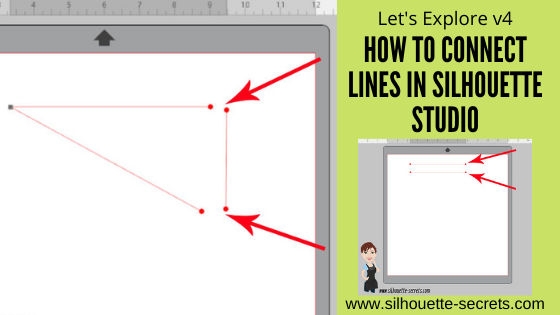
You will see red dots at the ends of the lines. Red dots mean an end point.

If you ever see a red dot in a design once the edit points have been brought up, that means it’s a broken line. The cut will stop where that red dot is and lift to go to the next cut line.

To connect the 2 lines, double click the red dot to activate it and drag one red dot to another. They will snap together and close.

Once they connect, the dot changes from a red dot to a square, gray edit point.

And that’s it.
Now, in this example the 2 lines are connected.
It is still not a closed shape, since there are 2 red dots.

Draw another line to connect those 2 lines together.

Follow the steps above to connect the red dots to make a closed shape.

Now the shape is fully closed and will cut as one solid line.

Using Edit Points can increase what you can do with designing.
Check out this post – Let’s Explore v4 – Edit Points for more details on edit points and the Edit Points Panel.

The best way you can remember this is to practice. Just draw out a couple of lines on the design screen and connect them together.

Save this for future reference by pinning the image below.

Enjoy !

THANK YOU for your support! How can you help? Click HERE & buy a coffee.
Every little bit helps with the cost of running the site.

Silhouette Classes

Never stop learning! Let me help you take the anxiety out of learning with Silhouette and get to creating faster! My Silhouette classes are heavily focused on software, so you can take the skills & techniques taught and apply them to many future projects!

Silhouette step-by-step Classes by Silhouette Secrets+

Silhouette Secrets+ with EllyMae
**This post may contain affiliate links. What that means is that I may receive compensation if you purchase through the links I have provided. The price you pay for the product or service is not higher, but I may get compensated for sharing. not higher but I may get compensated for sharing.

Posted on 2 Comments

Let’s Explore v4 – Transfer Properties

There are so many neat tools in the Silhouette software and one of those is called Transfer Properties.

It is found on the left side of the Silhouette Studio software.
The Transfer Properties feature is a Designer Edition or higher upgrade feature.
For more about software upgrades check out this post
Software Upgrades – My Favorite Features

This is a neat feature in the software when you get to creating and designing. You are able to take the properties that are added to one design and then transfer them to the next design you have selected without starting over.

The keyboard shortcut for Transfer Properties is the Ctrl button on a Windows computer and the Command key on a MAC. MAC users, if your right click keyboard shortcut includes the Command key, you may have experienced changes in your design and not know how you activated that. By pressing the Command key, it is activated and if you have another object selected when you click, it will now transfer those properties.
It can definitely be an odd behavior if you are not aware of this keyboard shortcut.

Here is a quick video showing how this neat feature works.

You never know what new and exciting thing you might learn by just pressing a few buttons. I know that may sound scary, but sometimes it’s the best way to learn.

I love to see what you are creating with your Silhouette machines!
Feel free post on the
Silhouette Secrets+ Facebook Group.

Save this for future reference by pinning the image below.

Enjoy!

This image has an empty alt attribute; its file name is logo.jpg

THANK YOU for your support! How can you help? Click HERE & buy a coffee.
Every little bit helps with the cost of running the site.

Or if you are looking for more in-depth, step-by-step classes, check out all of my online Silhouette classes on my Teachable site HERE.

SS Logo snip it
**This post may contain affiliate links. What that means is that I may receive compensation if you purchase through the links I have provided. The price you pay for the product or service is not higher but I may get compensated for sharing.