Posted on — 37 Comments

The Offset Panel in Silhouette Studio

Silhouette Secrets+ with EllyMae

Offset Panel – Silhouette Studio v4

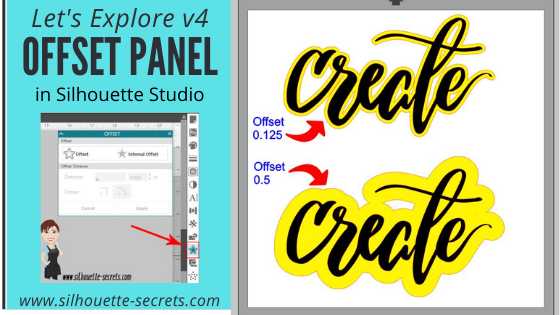
The offset panel in Silhouette Studio is a really useful and functional tool that can be used in many project designs from creating frames, thickening fonts, making layers, and more! This tutorial will show the details of the offset panel and then examples of how an offset can be used several ways.

Photos shows the Offset Panel in the Silhouette Studio software with a red arrow pointing to where it is found on the right side tool bar.

Affiliate links may be present in the following blog post and as an Amazon Associate, I earn from qualifying purchases.

This tool can be very useful for many things such as creating a background layer for a decal, creating a shadow, thickening fonts, making frames, etc.

Photo shows a detailed image of the Offset Panel in Silhouette Studio with the numbers 1-5 showing the different sections of the Offset panel.

  1. Offset – This tool creates a copy of the design on the outside edge of the original shape. The default distance is 0.125 inches in older software versions and that is what shows when Offset button is chosen, it can then be adjusted. Select your design and click on the Offset button.

    *The default distance was updated in later versions of 4 and will be the last used distance number.
    • Photo shows an example of creating an offset in Silhouette Studio.


      *the offset is filled with yellow for you to see it better

      *Create by Cali Arroyo – Design #215617

      Once the Offset is applied, it will automatically weld together and any parts that are overlapping will now be welded. Keep in mind that if there is a part of the design, such as a dot of an i, that is not overlapping, it will not be welded and it will need to be grouped after you create your Offset.

  2. Internal Offset – This will apply the offset inside of the design. The default is set for 0.125 inches here too and most likely you won’t see any offset created, if that is left. Once you decrease the offset distance, you can see a change happen.

    *The default distance was updated in later versions of 4 and will be the last used distance number.

    Photo shows an example of an internal offset in Silhouette Studio.

    This is one way to fill a font that you want to use the sketch pens with. By creating multiple internal offsets, the sketch pen will “fill” the font in by drawing all the internal offsets.Here is an example of creating multiple internal offsets to “fill” in a font to sketch.

    Photo shows an example of using multiple internal offsets to "fill" in text for a sketch option in Silhouette Studio.

    This was many internal offsets, so many I lost track of how many I created.


    First, I will say that it took a lot of ink to fill this in. I was using the Silhouette sketch pens and your results will vary depending on the pen you use and the tip it has on it.


    Photo shows an example of using internal offsets for sketching and how it can leave blank areas.

    You can see above that even with multiple internal offsets, it did not fill in completely with the Silhouette sketch pen.


    In some cases, it is not worth the ink or the time to use the sketch pens like this and would be easier to use the Print and Cut feature instead.

  3. Offset Distance – Change the Distance of the offset to achieve the look you want.


  4. Offset Corner – Change the look of the offset created by changing the corner shape.

    Photo shows an example of the Sharp corner versus the rounded corner option of the offset in Silhouette Studio.
  5. Cancel or Apply – Choose whether to Apply the Offset (can also hit Enter key) or Cancel.

Let’s take a look at some examples of using Offsets.

Creating an offset as a background to layer a decal:

Photo shows an example of an offset on the word create and being used as a layered decal design.

Check out how I created this and then used layering marks to line up the decal exactly HERE.

Photo shows a layered vinyl decal attached to a scrapbook tote.

Using a Offset to create a space when subtracting and layering HTV:

Photo shows an example of using an offset to Subtract within a design to create a gap in Silhouette Studio.

Photo shows a design in Silhouette Studio using the subtracted offset to make text stand out.

See details on how I created this shirt HERE.

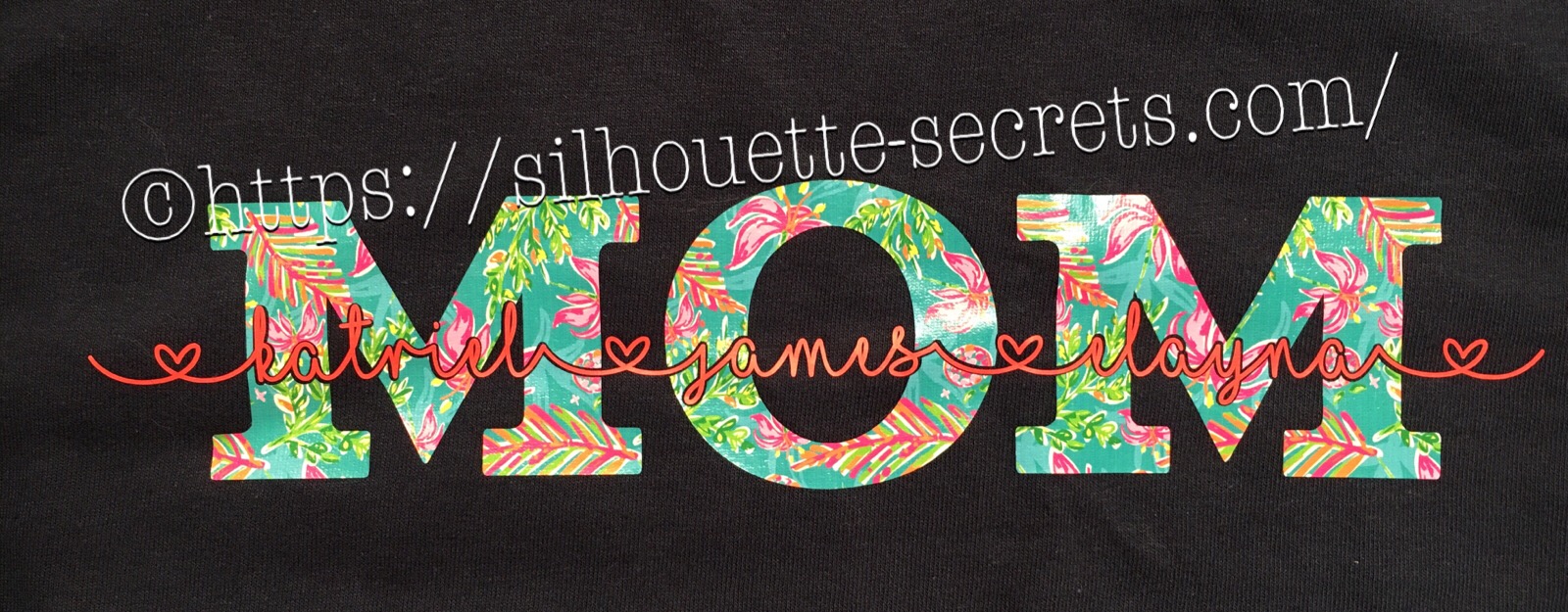
Photo shows a MOM design with an offset of names subtracted out on a shirt.

Using an Offset to thicken fonts for cleaner cutting:

Photo shows an example of using an offset to thicken a font.

The Samantha font is very popular but it can sometimes be a pain to cut for small projects, a small offset can make a big difference without changing the look too much.

Using an Offset to make a frame:

Photo shows an example of using an offset in Silhouette to make a frame.

Make an Offset of the original design, select the offset & original, then right click and choose Make Compound path or use the Modify Panel and choose Make Compound path. Now, you have a frame.

There are many ways to use the Offset and these are just a few examples.
How do you use the Offset feature?

Save this for future reference by pinning the image below.

Enjoy !

THANK YOU for your support! How can you help? Click HERE & buy a coffee.
Every little bit helps with the cost of running the site.

Silhouette Classes

Never stop learning! Let me help you take the anxiety out of learning with Silhouette and get to creating faster! My Silhouette classes are heavily focused on software, so you can take the skills & techniques taught and apply them to many future projects!

Silhouette step-by-step Classes by Silhouette Secrets+

Silhouette Secrets+ with EllyMae
**This post may contain affiliate links. What that means is that I may receive compensation if you purchase through the links I have provided. The price you pay for the product or service is not higher, but I may get compensated for sharing.

Posted on — 10 Comments

Subtracting Text for HTV in Silhouette

Silhouette Secrets+ with EllyMae

If you’ve ever wanted to turn a simple word into meaningful, personalized word art, the “subtract the name from Mom” technique is one of the most popular and impactful designs you can create in Silhouette Studio. By using basic subtract, weld, and text tools, you can carve a child’s name directly out of the word “Mom,” transforming it into a custom design that feels both modern and deeply personal. In this tutorial-style project, I’ll show you how to build this custom MOM shirt word art and then bring it to life by cutting it from HTV to create beautiful, custom apparel that’s perfect for gifts, family matching shirts, or keepsakes.

These designs have been a big hit for Mother’s Day and we will walk through how to created one.

Affiliate links may be present in the following blog post and as an Amazon Associate, I earn from qualifying purchases.

Create a Custom MOM Shirt with Silhouette & HTV

First click on the Text Tool on the left side of the Silhouette Software.

Click on the design mat & type out the words.

Click off of the words to deselect it and then click back on the text once to select it.

Fill the text with color to make it easier to see & work with.

Click on the Text Style Panel on the right side.

Photo shows a screenshot of Silhouette software to complete the first steps to create a custom design with text.

Now, click on a Font Style Name, the text will change to that font style.

You can then either click on each font, use the text search bar if you know what you are looking for or use the arrow keys to scroll through the text list and as you do the words will change to each font – this is my favorite method if I don’t know what font I want.

Screenshot of Silhouette software creating MOM from custom text styles for a custom shirt design.

For Mom, I chose a font called Gulana – I chose this one by just scrolling through my font list and seeing what I liked best.

Now, resize it how you like it.

Next using the same text tools, type out your second layer.

Photo shows a screenshot of the next steps to creating a custom word art design for a MOM t-shirt.

I used the font MF I Love Glitter by Misti Fonts in this example. The swirl hearts are called Glyphs and are special characters within the font that you can add.

Check out this post for more on the Glyphs feature HERE.

Since this font overlaps make sure to weld the letters together before you cut.

Now position your name design over the top of the Mom design and align it how you want it.

Photo shows MOM design with text names on top in Silhouette Studio.

We are going to Subtract the top layer (names) from the bottom layer (Mom).

First, I’d suggest creating an offset. When you are using HTV and pressing individual layers, the HTV can shrink as it’s applied with heat. To help with that we will create an offset, so we don’t have unwanted gaps in our design.

First, make a copy of your design and pull it off to the side in the holding area of the design space. Any time you are working with text, it’s a good idea to make a copy and pull the original off, just in case you need to go back. Once you edit text, it is no longer text and is now treated as a vector image – so the text is no longer editable.

Next, select your name text and click on the Offset Panel on the right side of Silhouette Studio v4.

Photo shows the step of creating an offset of the names to create a custom MOM t-shirt design in Silhouette Studio.

Then next to the Distance highlight the numbers and type in 0.040, then click on Apply or hit Enter. The Distance of the offset will vary depending on the design you are using. Enter some larger or smaller offsets and see what you like – the Undo button will be your best friend.

The offset option gives you an outline around your text. It can also be used to make text thicker when you are using a very fine line font.

Photo shows a zoomed in look at the offset of the text names over top of the MOM text in Silhouette Studio.

Once you Apply the offset, it will weld any parts that are overlapping. Parts of the design that are not overlapping (like dots of an i) will not be welded together, so you will need to group the offset before you move it, so it all moves as one.

Now move your original text off of the Mom design.

Photo shows the original names text moved away and the offset layered on top of the MOM text for the custom shirt design in Silhouette Studio.

To create this design, we are going to use the Mom and the offset of our name text.

Select both Mom and the offset and under the Modify Panel, choose Subtract.

Photo shows the offset being subtracted from the MOM text in Silhouette Studio.

This will Subtract the top layer (offset) from the bottom layer (Mom) and any pieces that are not connected will now be individual. I would group these together before anything gets moved.

Photos shows the next step of grouping the MOM text together after the offset was subtracted in Silhouette Studio.

The Group option can be found in the QAT (Quick Access Toolbar) at the top of the software, right click and choose Group or under the Object menu at the top left of the software.

Now, we can move our original text back on top of our Mom design.

Photo shows the original names text moved back on top of the area where the offset was subtracted from MOM for the custom shirt design in Silhouette.

You can see when we zoom in that we have created a gap in our layering. This is done with the purpose of allowing for the shrinkage of the HTV and not getting unwanted gaps in our design.

Photo is a zoomed in look at the gap around the original text created by subtracting the offset, which will account for shrinkage of the HTV when pressed.

Do you have to do an offset before you use the Subtract option? No, but it can save some frustration when the HTV does shrink.

Now, you are ready to set it up to cut out the material.

I used this awesome Sparkleberry Vaca HTV by Sparkleberry Ink on the Mom design. This is a patterned vinyl and you do not have to mirror or flip your image when you cut their patterned vinyl.

For the name text, I am using Siser Easyweed HTV in Hibiscus. Since this is regular HTV, I will flip (mirror) the text prior to cutting.

Photo shows the right click menu for mirroring the HTV design by selecting Flip Horizontal in Silhouette Studio.

Next, prepare your materials. Cut them down to the size you need or place each one on the mat individually, however you like to cut.

Click on the Send tab in the top right corner. Select your Material. Heat Transfer – Smooth is what I used for both the pieces I cut.

Photo shows what the design looks like on the Send tab in Silhouette Studio prior to cutting on HTV.

Once your mat is loaded, I always suggest doing a Test Cut before cutting the full design. This can save you a lot of frustration in the long run.

Click on the Send button at the bottom and once it’s cut you can weed your designs.

Layer & press the designs on your t-shirt or tote bag and you have a custom made design.

Photo shows the final t-shirt design with the custom MOM design on the shirt.

This MOM shirt technique could be used to create many different custom designs such as DAD, NANA, GRANNY, etc.

A screenshot of Silhouette Studio software showing a design for a banner with the words 'MOM', 'DAD', 'GRANNY', and 'NANA' in various colorful fonts. The design area includes a paper setup section with size dimensions.

Save this for future reference by pinning the image below.

Photo shows a variety of designs including MOM, DAD, GRANNY, NANA that could be created with this custom technique.

Enjoy !

THANK YOU for your support! How can you help? Click HERE & buy a coffee.
Every little bit helps with the cost of running the site.

Silhouette Classes

Never stop learning! Let me help you take the anxiety out of learning with Silhouette and get to creating faster! My Silhouette classes are heavily focused on software, so you can take the skills & techniques taught and apply them to many future projects!

Silhouette step-by-step Classes by Silhouette Secrets+

Silhouette Secrets+ with EllyMae
**This post may contain affiliate links. What that means is that I may receive compensation if you purchase through the links I have provided. The price you pay for the product or service is not higher, but I may get compensated for sharing.

Posted on — 29 Comments

Let’s Explore v4 – Modify Panel – Part 1

The Modify Panel has lots of neat tools in it that perform a variety of functions. It can be found on the right side of the Silhouette Studio v4.

Modify Panel v4

Let’s take a look at all the tools in this panel.

Modify Panel details copy

  1. Weld – Joining two or more objects that are overlapping together to form 1 object. This is often used with text when you want it to cut as one solid design vs individual letters.Weld3You will notice that the top text, the red lines from the characters overlaps the letter next to it. If you sent it to cut like this, it will cut out the red lines exactly how they show, so your letters would have cuts through them.Weld - zoom copyBy choosing to weld the font first, you can join the letters together so it cuts as one smooth piece. After you have welded, any piece of the text that is not overlapping will now be a separate object – like the dots of the i, so you want to make sure to Group them together to keep the text moving as one design. When you weld text, it does change it from editable text to a vector image, so make sure to make a copy & pull it off to the side so you have the original in case you need to go back.
  2. Subtract – Takes the top layer and subtracts it out of the bottom layer under it.SubtractOn top is the original design. Mom is typed out and behind the names. When you select both designs and choose Subtract, it subtracts out the names (top layer) from the Mom design (bottom layer). This works well for things like layering HTV where you don’t want the bulk of layering on your shirt or if you are using glitter HTV that is not recommended to be layered. Tip: with this design, I would create an offset of the original names and then use the offset to subtract from the Mom design. It gives you a little more flexibility in placement when you apply it to the shirt. Offset copy I used a 0.20 offset on this design. Then moved the original name text away and used the Mom (bottom layer) and the offset (new top layer) to Subtract. Offset demo Since I used an offset, this will allow you to place your names text inside of the area when applying the HTV and you won’t have to worry as much about shrinkage and getting it perfect. Offset final Move the name text back on top of your Subtracted design to get an idea of how it looks. On the top design, you have to get the exact placement of the names lined up with the bottom layer. On the bottom design, you will notice there is a bit of white showing around the name text, this will be beneficial when you are applying HTV so you don’t have to worry as much as about the HTV shrinking when you press each color. temp_1 I used MF I love glitter font by Misti Fonts and Gulana font. Keep in mind if you plan to sell creations with these fonts, you will want to purchase the Commercial License for each. If you are using adhesive vinyl, it is not as much of an issue because there is no shrinkage. But, you will still need to get it lined up perfectly and layering marks can help with that – check out how to do that HERE.
  3. Subtract All – This option removes any part of an design that is behind another design. I always start my pulling off a copy of my design to the holding area off the mat, so I can go back to the original if needed.Subtract All So above I drew a heart and moved it behind my Mom and name layers. Make sure to align the design how you want and then I chose Subtract All and it cuts out the top 2 layers from the very bottom layer (heart). This works great for making designs that you don’t want to have the bulk of materials overlapping. Again you could use an offset to help with ease of getting it lined up and not worrying about shrinkage.
  4. Intersect – When 2 or more designs are overlapping, this will keep only the part of the design that is intersecting between the designs and the rest is deleted.Intersect
  5. Divide – When 2 or more designs are overlapping, this will divide any parts that are overlapping, but keeps all of the pieces on the design mat. Nothing is deleted.Divide
  6. Crop – This will allow you to crop a shape out of a pattern, design or in this case a photo.CropDraw a heart over the photo, select both the photo and circle, then choose Crop and it will take that shape out of the layer under it.

There are so many neat things you can accomplish with these tools under the Modify Panel. I encourage you to draw some shapes, pull in some patterns and just play around with them to see what they do.

Save this for future reference by pinning the image below.

Pin - Modify Panel - Part 1

Find Part 2 of the Modify Panel HERE – Compound Paths & Detach Lines

So far in the “Let’s Explore v4” series we have covered: – Page Setup Panel – Tab 1 – Page Size, Cutting Mat, Rotate View, Print & Cut Borders – Page Setup Panel – Tab 2 – Grid Options – Page Setup Panel – Tab 3 – Registration Marks – Fill Color Panel – Line Style Panel – Trace Panel – Basic Trace – Trace Panel – Trace by Color – Trace Panel – Magnet Trace – Pixscan Panel – Text Style Panel – Tab 1 – Text Style Panel – Tab 2 & 3 – Glyphs & Spell Check – Transform Panel – Align Tab – Transform Panel – Scale Tab – Transform Panel – Rotate – Transform Panel – Move By – Transform Panel – Shear by – Replicate Panel – Tab 1 & 2 – Replicate Panel – Object to Path Whew! We’ve covered a lot!

I truly believe that if you learn how to create in the software, the possibilities are endless! The software is the key! And it is such a powerful program that is available for anyone to use.

I would love to see what you are creating or learning with your Silhouette! Feel free to post photos or questions on my Facebook group at Silhouette Secrets with EllyMae.

Enjoy !

THANK YOU for your support! How can you help? Click HERE & buy a coffee. Every little bit helps with the cost of running the site.

Looking for more in-depth, step-by-step classes, check out all of my online Silhouette classes on my Teachable site HERE.

SS Logo snip it

**This post may contain affiliate links. What that means is that I may receive compensation if you purchase through the links I have provided. The price you pay for the product or service is not higher but I may get compensated for sharing.

Posted on — 27 Comments

Cutting without a mat on the Cameo

Did you know you could cut without a mat with the Cameo? Yes! You can! The Portrait and all the Cameo machines have the ability to cut certain materials without a mat.

IMG_2940 copy

I see this asked a lot so let’s take a look at how to set it up properly to get a good cut.

You can only cut materials that have a backing without a mat on the Silhouette machines. Materials that have a backing would include adhesive vinyl or Heat Transfer vinyl (HTV), these are the most common ones I see. Single layer materials such as cardstock or fabric need to be placed on a mat or you risk jamming your machine when it cuts.

First, you want to set up the software to tell the Cameo that you are cutting without a mat.

No Mat setup copy

  1. Change the Page Size to the size of material you are using.
  2. Change the Cutting Mat to None. The arrow on the screen is indicating where the material will be loaded into the Cameo.
  3. Check the box to “Show Cut Border”. This will bring up a red cut border and will show you the maximum cut-able area of your vinyl.

No Mat setup - cut space

Next, something to keep in mind when cutting without a mat, you lose 1/4″ of cut-able space on your material on the left & right side and 1″ of cut-able space on the backside. This is so that your Cameo can hold the material securely in the machine while it cuts.

I have seen many times when someone tries to “trick” the machine to tell it the material is longer than it is, so they can get the design to cut in that last 1″ space, but most times, it will lose grip on the material and fall out the backside. Then you have wasted that cut of vinyl. So I don’t recommend that. Just know in advance that you have to work within those parameters on your material and checking the “Show Cut border” helps visualize that.

So now that we’ve told the software we are cutting without a mat, let’s set the machine up.

First, you need to make sure that your blade is installed correctly. The #1 issue I see is not having the blade installed in the machine with no gap. It should look like this with no gap at all between the blade and the housing. This is for all blades, not just the Autoblade, but it is especially important with the Autoblade as it cannot adjust correctly if it is not in properly.

Autoblade with arrow

Next, you want to move your right roller in to grab the edge of the vinyl. There are 4 positions that the right roller can be locked on the roller bar. These are all indicated by the blue arrows, which line up to grooves on the roller bar that the lock sits in.

IMG_2970

These are the only places that the right roller can be locked in on the roller bar. If you do not have the roller securely set in the groove, it will not lock in place. It may look like it’s locked but it is not.

Now, to move your right roller. Flip the roller bar lock down to release it (unlock). This lifts the right side of the roller bar, so you can move the roller.

Roller bar lock copy

Next, turn the right side of the Roller lock to the unlocked position. It is very difficult to see but there is a definite lock and unlock and a notch that has to be securely in place.

Roller bar lock zoom_edit

Once it is in the unlock position, you can carefully slide it along the roller bar until it securely sits in the groove that you want it in. Then make sure to turn the roller lock back to the locked position and turn the roller bar lock so it is pointing up. The terminology can get confusing so here is a visual.

Roller bar vs roller lock copy

Now, once your roller is securely locked in place and your roller bar lock is pointed up in the locked position, we want to make sure we are loading our vinyl correctly.

Place your vinyl next to the blue line on the left side, just like you would load the mat and the top edge of the vinyl up against the rollers. Don’t push it in, just hold it up to the rollers, so when you push the load button it will pull the vinyl into the machine.

Blue line

Now, see how the rollers are firmly gripping the edges of the vinyl.

Vinyl edges

Remember what I said earlier about losing 1/4″ of cut-able space on your left and right side of your vinyl? This is why. The rollers need that space to securely hold the vinyl in the machine.

Also, something to take note of is that your design will start cutting exactly at the top of your vinyl that is loaded in the machine. As you can see in this photo, the red cut border starts at the very top of the vinyl.

Cut at top of vinyl

It does not have to account for the extra space of the mat, so it begins cutting immediately.

Once your vinyl is loaded, you may also choose to advance the vinyl through the machine in order to see how it will track. On the Cameo touchscreen, click on the directional arrow icon in the bottom right corner.

Track feed

Then press on the down arrow to get it to feed through the machine.

Track through

This can help you identify any issues you may encounter with it feeding through the Cameo straight.

Now, that the software and the Cameo are set up correctly, we are ready to Send the design to Cut.

Creative cut

You want to keep the vinyl as straight as possible going into and coming out of the Cameo. If you are cutting something that is really long and have the vinyl hanging that can create an issue if the vinyl is pulling. Or if the vinyl doesn’t have room on the backside to pass through, then it can cause issues too.

It will depend on the length of the vinyl you are cutting, but I prefer to use my Silhouette roll feeder when cutting long length. I feel that I don’t have to babysit the cutting as much once I have the roll feeder set up, as long as the backside is clear.

IMG_2979

Now, I know it doesn’t look like much but it will hold your 9″ and 12″ vinyl rolls in place. I will be completely honest and say that I didn’t think I would have any use for it. But, I was wrong! I use this every time I have a large vinyl decal to cut.

The Cameo machine sits securely on top of the Silhouette Roll Feeder and the vinyl is fed through so it goes into the machine straight.

IMG_2980

Here is the video I watched by Silhouette to set up the roll feeder – The Silhouette Roll Feeder.

You can find the roll feeder here: Swing Design Silhouette America Amazon

I would highly suggest practicing this technique of not using a mat before you are under pressure to get a project done. And I still will always recommend that a beginner start by using a mat, so you can see how the machine works before you start changing too much of it.

IMG_2983

This is a great feature to have the ability to cut materials without a mat for things longer like this 12″ x 33″ wall decal!

I used Oracal 631 for this project and used the Vinyl, Matte setting in the Silhouette software to get a beautiful cut.

Cut settings

Can’t wait to see what you decide to cut without a mat! Share photos of your creations on my Facebook group at Silhouette Secrets+ by EllyMae.

Enjoy !

THANK YOU for your support! How can you help? Click HERE & buy a coffee. Every little bit helps with the cost of running the site.

Looking for more in-depth, step-by-step classes, check out all of my online Silhouette classes on my Teachable site HERE.

SS Logo snip it

**This post may contain affiliate links. What that means is that I may receive compensation if you purchase through the links I have provided. The price you pay for the product or service is not higher but I may get compensated for sharing.

Posted on — 7 Comments

Let’s Explore v4 – Transform = Move

Did you know that you can Move objects on your Silhouette Design mat specifically into place?

Pretty neat when you start to look at it.

Under the Transform Panel on the right side, then the 4th tab at the top of the Panel is the “Move By” tab.

4-25 Transform -Move copy

This allows you to move an object to an exact location on the Design mat.

4-25 Transform -Move detail copy

  1. Directional arrows – Move left, move right, move up, move down – choose which direction you want to move your design.
  2. Distance – Set the exact distance you want your design to move.
    Here is the original design placed on my design mat:
    Distance before
    *Running Out Wine Cardio design #222003 by Megan Hardy Design

    Now see how it moved exactly 3.25″ when I select the design and click on the Move right directional arrow.

    Distance after

  3. X and Y coordinates – Set the exact X and Y location of your design on your mat.
    If you look in my above photo, when I moved it 3.25″ to the right, it also added in the X and Y coordinates. This means that I can also move something by changing those numbers. Here I entered my X as 5, so it moved it 5″ from the left side and my Y as 3″, so it moved it 3″ down from the top.X and Y

    You can also choose how it applies the X and Y coordinates by selecting the position on the square that you want it to apply from.
    My photo above has it applied in the top left corner.X Y position copy
    But you can choose what position works best for you, whether it’s the Center of the design or another location as well.

  4. Apply – Click here to apply the Move or hit Enter.

And that is how you can move things on your design screen to the exact location you want.
Can you move it manually? Yes, you sure can!
Drag and move it where you want.
Or you can use the Move tools and place it exactly.
Just like so many other functions in the Silhouette software – there are multiple ways to do things!

Enjoy !

THANK YOU for your support! How can you help? Click HERE & buy a coffee. Every little bit helps with the cost of running the site.

Looking for more in-depth, step-by-step classes, check out all of my online Silhouette classes on my Teachable site HERE.

SS Logo snip it
**This post may contain affiliate links. What that means is that I may receive compensation if you purchase through the links I have provided. The price you pay for the product or service is not higher but I may get compensated for sharing.

Posted on — 38 Comments

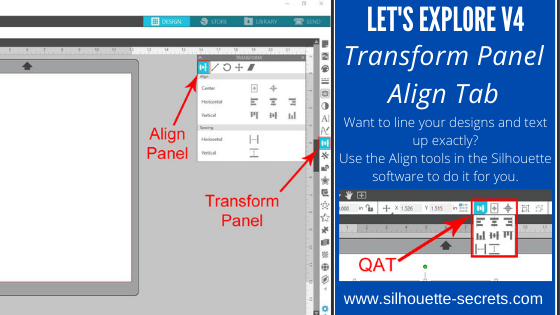
Let’s Explore v4 – Transform Panel – Align

Today we are exploring the Transform Panel – Align Tab.

This is a very important and useful panel when you are creating designs & one I use almost every time I open the Silhouette software.

Transform Panel copy

The Transform Panel is on the right side of Silhouette Studio v4 and the first tab on this panel is the Align Tab.

Let’s take a look at the entire Align tab.

Transform Panel details copy

  1. Center – This icon  Center to Page icon copy is the Center to Page and it will center the design in relation to the Page Size you have set under the Page Setup Panel – Page Size. Here I have resized my design (Softball Mom by SM Designs) and then hit the Center to Page icon and it centered that to my 12″ x 12″ page size.Center to Page demoThen you have the Center multiple objects copyCenter multiple objects icon. When multiple objects are selected, this will center those objects to each other. If I draw a circle and select both objects, click on the center multiple objects, it will center those designsCenter multiple objects demo
  2. Horizontal – There are 3 options here: (A) left edge, (B) center, (C) right edge.Horizontal Alignments copy (Dots Nice – A Dotty Handwritten font by One Oak Designs)
  3. Vertical – There are 3 align options here: (A) top, (B) center, (C) bottom edge.Vertical Alignment copy (SG Beach Vacay Dingbats Font by Sophie Gallo – Design #240727)
  4. Horizontal Spacing – With multiple objects selected (more than 3), this will space those objects equal distance apart horizontally.Horizontal spacing copy
  5. Vertical Spacing – With multiple objects selected (more than 3), this will space those objects equal distances apart vertically.Vertical spacing copy

And there you have the details of the Align tab in the Transform Panel of Silhouette Studio v4. Now, there is no need to eye-ball the spacing or alignment, let the software do the work for you.

You can also find the same icon in the Quick Access Toolbar (QAT) at the top when more than one object is selected.

QAT Align2

Check out the other posts in the Let’s Explore v4 Series HERE.

Save this for future reference by pinning the image below.

Transform Panel - Align Tab Pin

I would love to see what you are creating with your Silhouette machine. Feel free to post on my Facebook group Silhouette Secrets with EllyMae. If you have questions feel free to post below or on the Facebook group too!

Enjoy !

THANK YOU for your support! How can you help? Click HERE & buy a coffee. Every little bit helps with the cost of running the site.

Looking for more in-depth, step-by-step classes, check out all of my online Silhouette classes on my Teachable site HERE.

SS Logo snip it

**This post may contain affiliate links. What that means is that I may receive compensation if you purchase through the links I have provided. The price you pay for the product or service is not higher but I may get compensated for sharing.

Posted on — 1 Comment

Hot Mess with your Silhouette Cameo

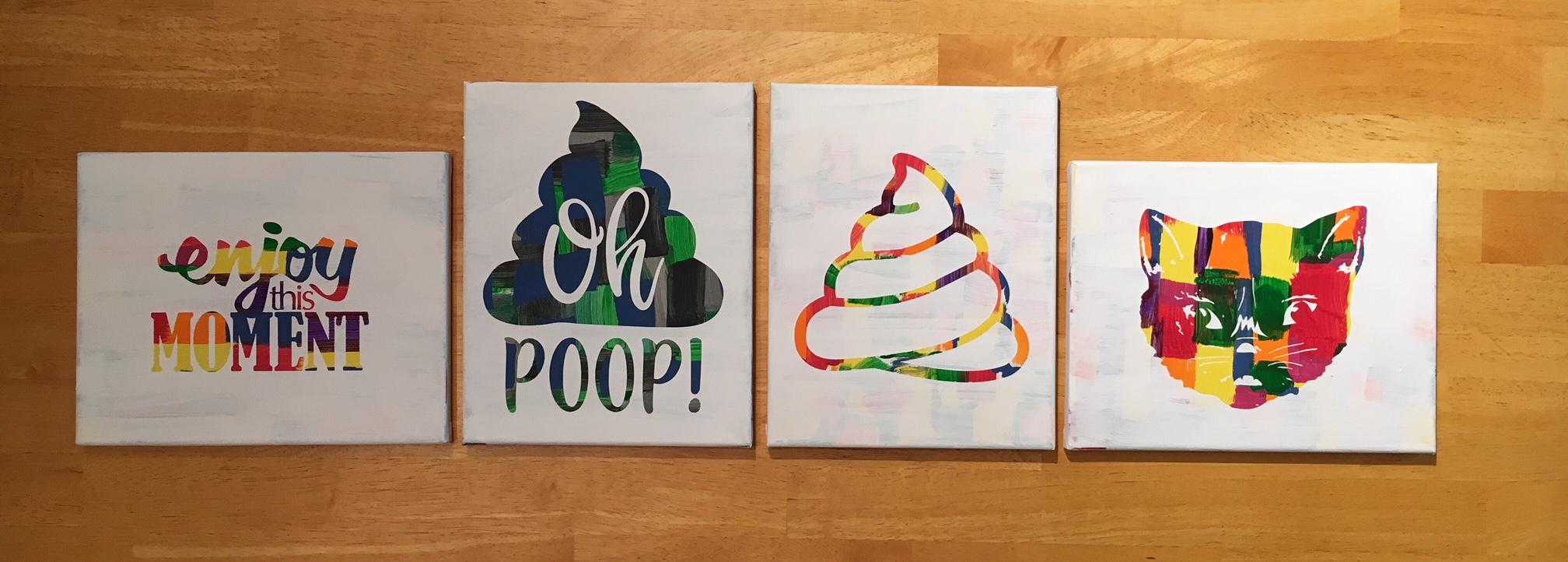
While the title could mean many things, this week it’s in reference to Spring Break at my house. I thought it would be a fun idea to try out this “Hot Mess” technique with the kids for a crafting project on Spring Break….

Now, I don’t know if it was a good idea to do this on Day 1 of Spring Break or not – would it have been better on Day 5? Who knows…. but I’m going to show you our results.

First, what is a Hot Mess? On some days, that could be my title but today I’m talking about a new crafting project that has everyone rushing out to pick up canvas from the craft store.

IMG_2483

How do you create these pieces of art?

  1. Grab a canvas and the paints you want to use. IMG_2446
  2. Paint any sort of pattern you so desire onto your canvas. Let it dry thoroughly.
  3. Cut a stencil using your Silhouette machine and some vinyl – I used Oracal 631 and 651. As you can see, this is what you get when you let an 8, 6 and almost 5 year old pick out their own stencil. IMG_2452
  4. Apply the stencil using transfer tape – I recommend Oracal transfer tape. You may need to help the vinyl stick to the canvas at first. Just be patient and go slow. IMG_2453
  5. And now paint your top layer of paint. You can choose any color you’d like, but we stuck with white on top. IMG_2456_edited
  6. Let that dry for a bit and then carefully peel off the vinyl stencil. You don’t want it to be too wet when you peel it and you don’t want the vinyl to sit on the canvas too long either as it may start to cure to the canvas.
  7. Let your works of art dry completely.

And there you have the “Hot Mess” technique.

I am so glad I did not start with the 12″ x 24″ canvas that jumped into my cart at Michael’s, as the kids were done after the first 30-40 minutes. And I can say it is a one and done crafting project for Spring Break 2018.

If you have any desire to use these same designs in your works of art, here is where I found them: – Enjoy this Moment by Kolette Hall Design #36196 from the Silhouette Design Store – Oh Poop! Quote by Sarah Hurley Design #209510 from the Silhouette Design Store – Cat by Basic Grey Design #65180 from the Silhouette Design Store – Other poo design created using tracing and point editing.

Next week we will be back to our “Let’s Explore v4” series, continuing through the different tools available to you in the Silhouette Studio v4 software.

In the meantime, check out the other posts in the Let’s Explore v4 Series HERE.

I would love to see what projects you create! Feel free to post on my Facebook group at Silhouette Secrets with EllyMae.

Enjoy !

THANK YOU for your support! How can you help? Click HERE & buy a coffee. Every little bit helps with the cost of running the site.

Looking for more in-depth, step-by-step classes, check out all of my online Silhouette classes on my Teachable site HERE.

SS Logo snip it

**This post may contain affiliate links. What that means is that I may receive compensation if you purchase through the links I have provided. The price you pay for the product or service is not higher but I may get compensated for sharing.

Posted on — 14 Comments

Let’s Explore v4 – Trace by Color

Last week, we started with the Trace Panel – Tab 1 which covers the Basic Tracing options. Now, we are moving on to Trace Panel – Tab 2: Trace by Color. This option is available if you have the Designer Edition upgrade (DE+ or BE).

Trace Panel copy

While the Silhouette Studio Basic software is available for free, I do feel the Designer Edition upgrade is a great investment and will save you so much time in the long run. Silhouette America has provided a chart that lists out what features are unlocked with each upgrade and you can find it HERE.

Some of the biggest features for me that Designer Edition unlocks are: opening svg & pdf files, rulers, trace by color, rhinestone conversion and glyph access.  Even if you do not know what all of those do at this time, you will learn more as you utilize the software.

Now, let’s explore the Trace by Color Panel.

First, open a design to be traced such as a png or jpeg file. For this example, I am using a png file from Scout and Rose Design Co called Too Cute to Pinch.

Demo design

Trace by Color Panel copy

  1. Trace by color – Click on Trace by color and then choose the color you want to trace. I clicked on the pink color and it highlighted all the pink of the design in yellow. This is what it will trace.Trace by Color 1
  2. Solid Fill vs Outline fill – Solid Fill is shown in the photo above. Outline fill is shown below. This is a matter of personal preference on how you want it to show.Outline Fill
  3. Single Area or All Areas – In my original photo in #1, All Areas was chosen and that highlights all of the pink areas of the design. Single Area will allow you to pick & choose a certain area, such as individual letters,  that you want to trace.Single Area
  4. Tolerance – This can be adjusted to increase or decrease the area that is picked up in a trace color. In my example, when I click on the light green, it picks up the dark green as well in my trace.Tolerance 50 percentHere you can see that the Trace picks up all shades of green with a 50% tolerance. Tolerance 6 percentAnd when the tolerance is lowered to 6% it deselects the dark green shamrock and only picks up the light green color in the trace. You would trace the shamrock and change the tolerance to get it to trace as well.
  5. Trace – After you have the design highlighted that you want to trace, click on trace and it will change to red cut lines around the object selected. You can then move the cut lines off the design and I fill with color to see the design better.Trace option
  6. Trace & Detach – This will trace & detach the image from the background. If you are using a jpeg, this is a great feature.

Now, I have my final pieces that I’ve filled with color and can move them around on my mat to cut them and then place them on to my project.

Final trace copy

And now you can go play with the Trace by Color Panel. This can be a great option if you only have the graphic file for a design.

Check out all the other posts in the Let’s Explore v4 series HERE.

Enjoy !

THANK YOU for your support! How can you help? Click HERE & buy a coffee. Every little bit helps with the cost of running the site.

Looking for more in-depth, step-by-step classes, check out all of my online Silhouette classes on my Teachable site HERE.

SS Logo snip it

**This post may contain affiliate links. What that means is that I may receive compensation if you purchase through the links I have provided. The price you pay for the product or service is not higher but I may get compensated for sharing.

Posted on — 19 Comments

Let’s Explore v4 – Tracing Panel

If you are just joining in, we have explored our way through several of the icons on the v4 Silhouette software – you can find all of those HERE – starting with the Page Setup Panel.

And our next step in the Let’s Explore v4 series is the Tracing Panel – Tab 1.

This is a very popular Panel and there is so much that you can do with it from tracing an image to tracing a photo. But, I will say right from the get-go, it is not a one size fits all Panel. Each image you trace is going to require you to adjust it differently than the last one. So while the concepts can be taught, the technique varies some each time a trace is done.

You will find the Trace Panel on the right side of the v4 software and it resembles a butterfly or a piece of bread.

Trace Panel copy

Now, let’s take a look at the Trace Panel. Tutorial written in version 4.1.441 Updated 6/8/21 – trace panel has not changed since original post

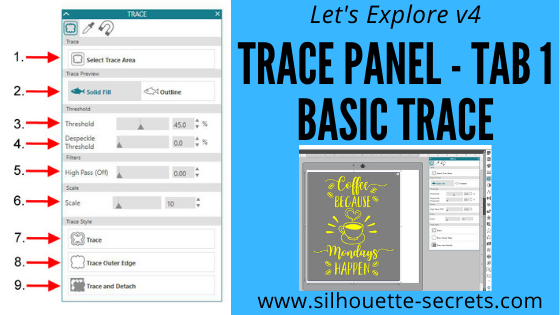
Trace Panel detail v4.1

  1. Select Trace Area – Click on Select Trace Area and then draw a rectangle around the image you want to trace. A gray box shows up around the image and you should see some yellow show for your trace. For a good trace, you want as much yellow and as crisp, clear lines as possible. Select Trace v4.1.441
  2. Trace Preview – Choose between Solid Fill (as shown above) or Outline fill.Outline Fill v4.1.441 I prefer to use the Solid Fill so I know exactly where it will trace.
  3. Threshold – Determines how the trace filters are applied to your image.
  4. Despeckle Threshold – Eliminates noise in your trace. *
  5. High Pass Filter – Trace lines begin from the outside and work to the center of your image. *
  6. Scale –  Scale the trace up or down to get the look you want ** Each image will be different in how it traces and you will need to adjust the Threshold & filters to what works best for you particular image.
  7. Trace – Click on this when you want to trace around all the yellow of the design. This is the most common Trace and the one that I use the most often. After clicking trace, move your design away and the cut lines will be there around the area traced.Trace Style
  8. Trace Outer – This traces the outside edge of a design on your screen. If you stamped an image and wanted to trace around the outside edge of it, this is the option you choose. Then your cut lines will only generate on the outside of the image and as you can see below, it did not trace the 2 circles on the inside of my image. Trace Outer Edge 2 v4.1.441
  9. Trace and Detach – This will trace the image and then detach it from the background. It works great if you have a jpeg image. For instance, if I wanted to use this little guy for a Print and Cut Valentine. Trace and Detach v4.1

For a basic trace, black traces the absolute best. The resolution of your image also plays a big factor in your trace. If the file you are tracing is very pixelated, then it will trace all of those pixels. This results in a very choppy cut line and a lot of edit points.

And there you have your Trace Panel – Tab 1. It is a fun option to play around with and I suggest practicing with it and seeing what works best for you. A lot of it is moving the filters and finding out what works best for the image you are working with.

Affiliate links may be present in the following blog post and as an Amazon Associate I earn from qualifying purchases.

For my information on the filters, I consulted the Silhouette Handbook that is available in the Silhouette store.

Make sure to check out all the other sections of Let’s Explore v4 and learn more about what you can do in the software.

The images used in this post can be found here: CoffeeMondays by Scout and Rose Designs Stinkin Cute by Scout and Rose Designs Love Frog by MissKateCuttables

We would love to see what you are working on! Feel free post on the Silhouette Secrets+ Facebook Group.

Save this for future reference by pinning the image below.

Trace panel Pin

**This has been updated on 4-12-18 to reflect the changes released with the v4.1.441 software version.** *Updated 6/8/21 – the Trace panel has not changed since the original post was written.

Enjoy !

THANK YOU for your support! How can you help? Click HERE & buy a coffee. Every little bit helps with the cost of running the site.

Looking for more in-depth, step-by-step classes, check out all of my online Silhouette classes on my Teachable site HERE.

SS Logo snip it

**This post may contain affiliate links. What that means is that I may receive compensation if you purchase through the links I have provided. The price you pay for the product or service is not higher but I may get compensated for sharing.

Posted on — 6 Comments

Layering vinyl with Silhouette

Well, this week has been such a crazy week. Snow days, 2 hour delays and just life has gotten in the mix – I am sure I’m not the only one out there who has these weeks.

I will have the Let’s Explore v4 – Tracing Panel post out next week, make sure to check out the previous posts in the Let’s Explore series.

I thought I would pop in here today and show you the projects we used last night on a webinar that I co-hosted.

The first one we created was a 2 layer decal.

2-8 Layered vinyl decal copy

So how did I create this?

  1. Type out the text and weld. I used the Mystical Wood Smooth Script font found at SoFontsy – you get 4 fonts all in one file when you purchase this.
  2. Create an Offset. The size of the offset is a matter of personal preference – I used the default of 0.125.
  3. Create the registration marks. Draw a rectangle, make a copy & move it to the right. Align the marks and group together.
  4. Click on the Send tab in top right corner, choose Cut by Fill Color, checking the boxes next to each color to select it to cut & uncheck the colors you do not want to cut. Cut by fill color -create
  5. Line up the registration marks to layer the decal. Always start with the top layer of a decal.

Here is my finished decal & I loved where Barbara placed her’s so I copied her and placed it on my Iris tote that holds my Oracal 651 sheets.

IMG_1896

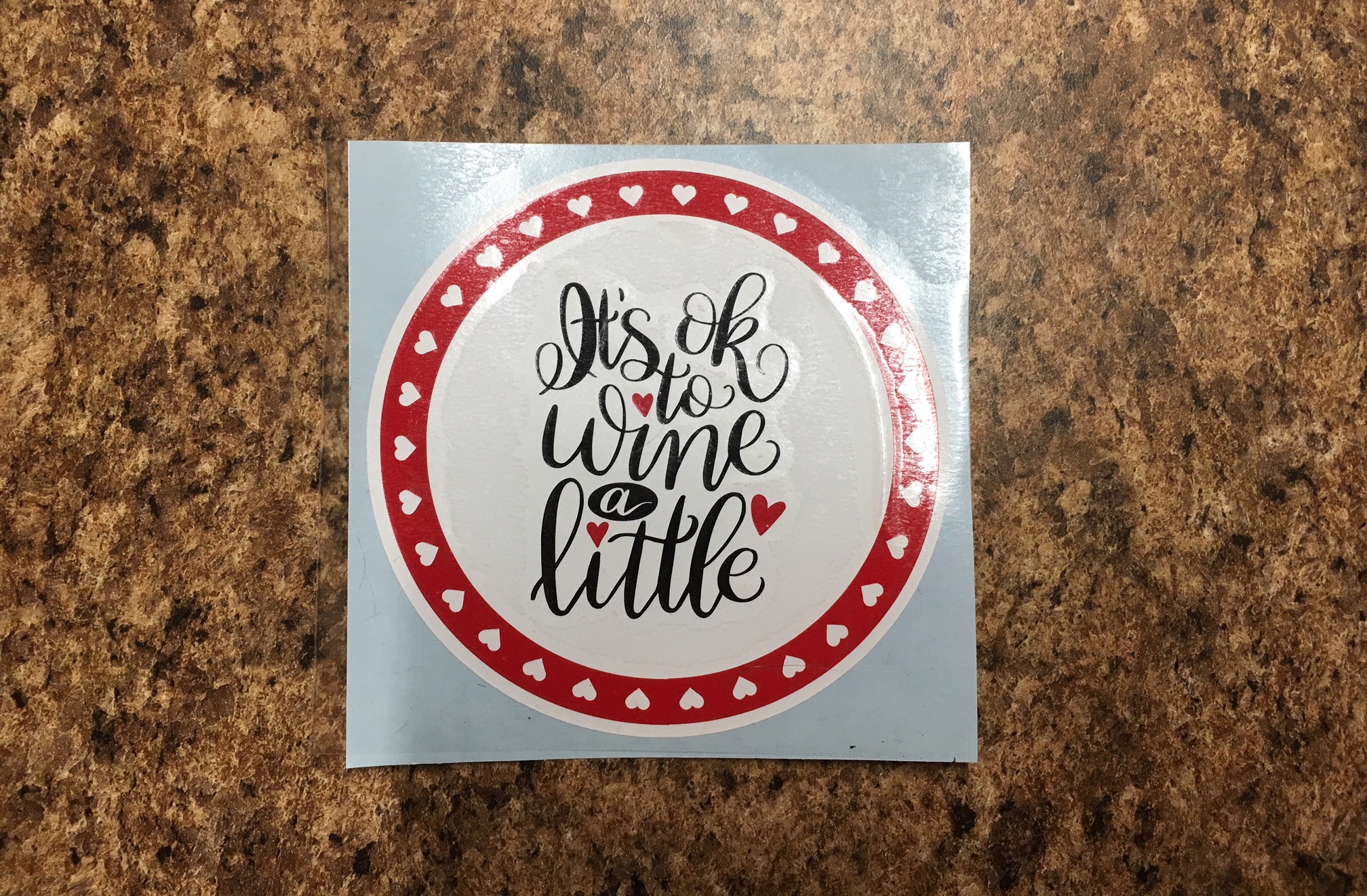
Next, we created a 3 color vinyl decal.

3 layer decal

To create this design:

  1. Start by drawing a large circle using the Circle tool from the left side of v4.
  2. Download the circle heart frame HERE.
  3. Open the heart circle frame and resize to fit inside the circle you drew.
  4. Purchase the It’s Ok to Wine a Little by Dawn Nicole Designs – Design #227534 from the Silhouette Store. Open the design from your Silhouette library by double clicking the design.
  5. Choose the Fill Color Panel and fill the design with black.
  6. Resize the Wine a Little design to fit in the center of the white circle.
  7. Right click on the Wine a Little design and choose Ungroup. While holding down the Shift key, click on the 3 hearts – this will deselect them. Then right click and choose Group. Now your text is all Grouped back together.
  8. Hold the Shift key down and click on the 3 hearts. When they are all selected, right click and Group.
  9. Choose the Fill Color Panel on the right and fill the hearts with the same red that the heart circle frame is.
  10. Select all the layers and choose the center Align tool. Right click and Group those layers together.
  11. Create the registration marks. Draw a rectangle, make a copy & move it to the right. Align the marks and group together.
  12. Click on the Send tab in the top right corner, then Cut by Fill Color, checking the boxes next to each color to select it to cut & uncheck the colors you do not want to cut. Cut by fill color -3 layer
  13. Line up the registration marks to layer the decal. Always start with the top layer of a decal.

And there you go, a 3 color vinyl decal that is aligned perfectly.

IMG_1901

And all those little hearts will work perfect as nail decals, just in time for Valentine’s Day!

I also wanted to note that I used an Autoblade on my Cameo 3 to cut this out and as you can see, it has some pretty thin details. It cut beautifully!

IMG_1898

I hope you enjoyed seeing how I create a layered vinyl decal.

I would love to see what projects you create! Feel free to post on my Facebook group at Silhouette Secrets with EllyMae.

Enjoy !

THANK YOU for your support! How can you help? Click HERE & buy a coffee. Every little bit helps with the cost of running the site.

Looking for more in-depth, step-by-step classes, check out all of my online Silhouette classes on my Teachable site HERE.

SS Logo snip it
**This post may contain affiliate links. What that means is that I may receive compensation if you purchase through the links I have provided. The price you pay for the product or service is not higher but I may get compensated for sharing.